Multi-store systems - Overview - Textalk Abicart

Have several stores under the same roof.
Multi-store system is a feature to create multiple sub-stores and can be activated in Abicart Pro subscription.
This add-on service makes it cost-effective to run multiple online stores.
You need to have Abicart PRO to use the multi-store system and only pay the PRO subscription for the top level. Sub-store 1 is included in the top level. Sub-store 2+ costs according to the PLUS subscription but works as a PRO store. This means that you can use integrations and all PRO functionalities in all sub-stores at no extra cost.
Read more about our prices here.
This feature is suitable for those who book all orders in the same place, regardless of which online store the orders come from.
The multi-store system works by having a top level (think a warehouse for products, payment methods, delivery methods, customers, etc.) and then one or more sub-stores. The top level is not displayed to the customer, only the sub-stores are displayed to the outside.
You can set a sub-store to use all or part of the range. The same applies to payment methods and delivery methods. Sub-stores can choose to use all or some. Each sub-store is free to choose this.
If you sell to several different countries, you can have a sub-store for each country to adapt the range for different countries.
If you sell to both private individuals and retailers and prefer retailers to have their own shop, you can create a sub-store for them.
Each sub-store can have a different look and theme.
Each sub-store also has its own domain name.
One business per multi-store system
The multi-store system is built for a company that will have several different stores. If you have several different businesses and want to have different stores for each business, you should not use multi-store systems.
Things to consider
Once you have connected to the multi-store system, you can 't undo it and go back to a regular store again. Therefore, make sure you are absolutely sure that you want to use the multi-store system before we switch it on. Feel free to create a demo shop and test the multi-store system first if you are unsure. There is no extra cost for this.
Please note that you cannot merge existing stores into a multi-store system. You have to activate the function in one store and then all new stores are created in this multi-store system. You can hide sub-stores that should no longer be active, but you cannot delete them.
How to activate the multi-store system?
Contact support and we will activate it for you.
Store system and settings
When "Multi-store system" is activated, there is a new option in the left menu, "Store system". To manage the sub-stores and create new ones, go to Store system -> Stores.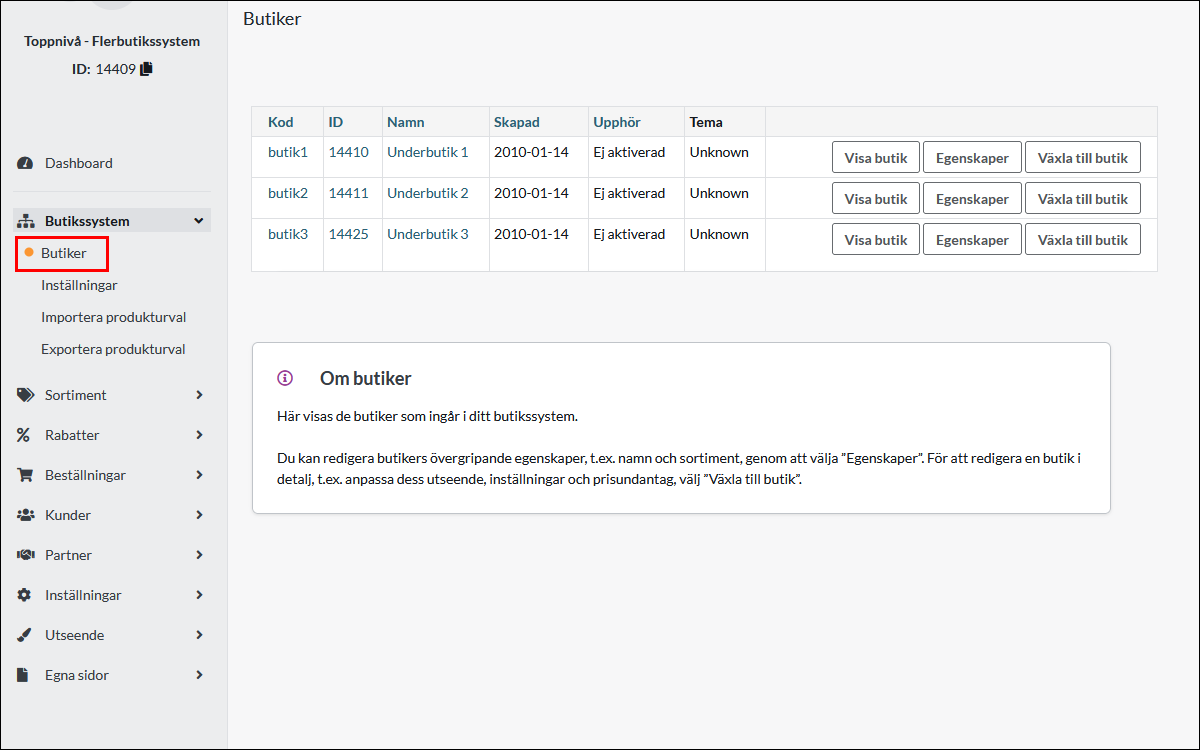
Product selection in sub-stores
All products are created at "top level" under Assortment -> Products. You can then make a selection in each sub-store and choose to show all products or only some. Go to Store system -> Stores. Then click on the "properties" button for each sub-store. 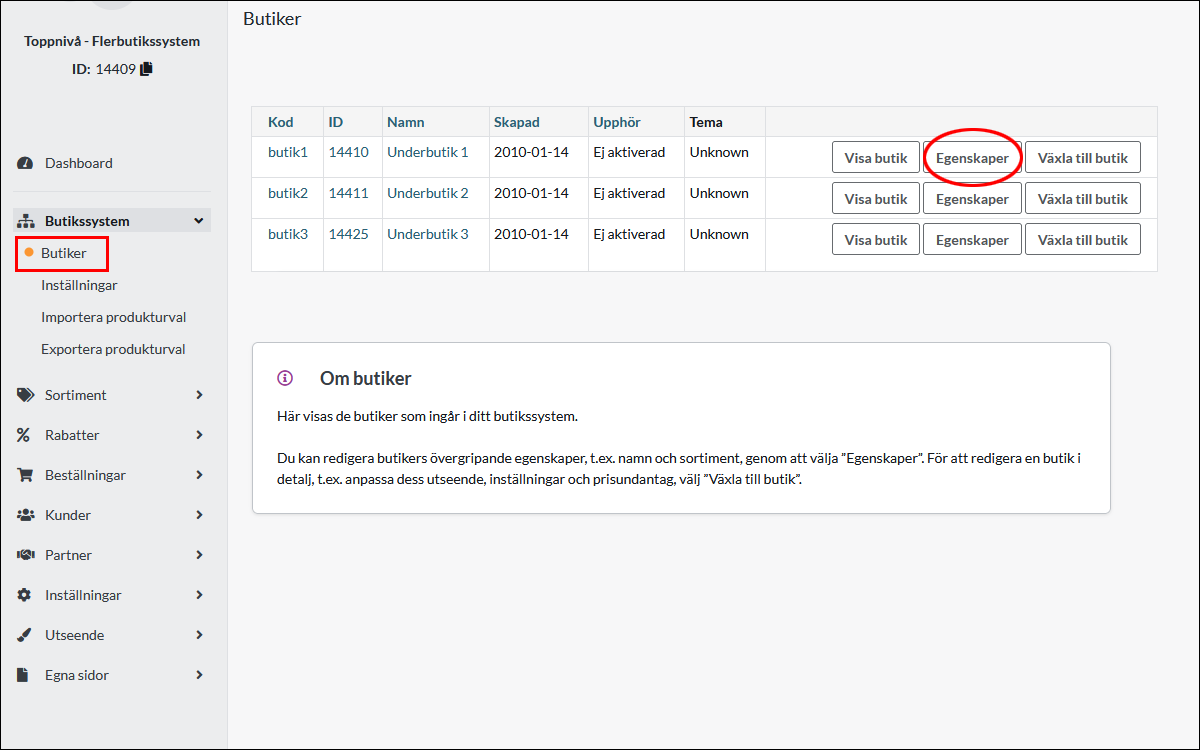
Then click on the "Product selection" tab. Then select the product groups to be included in the sub-store.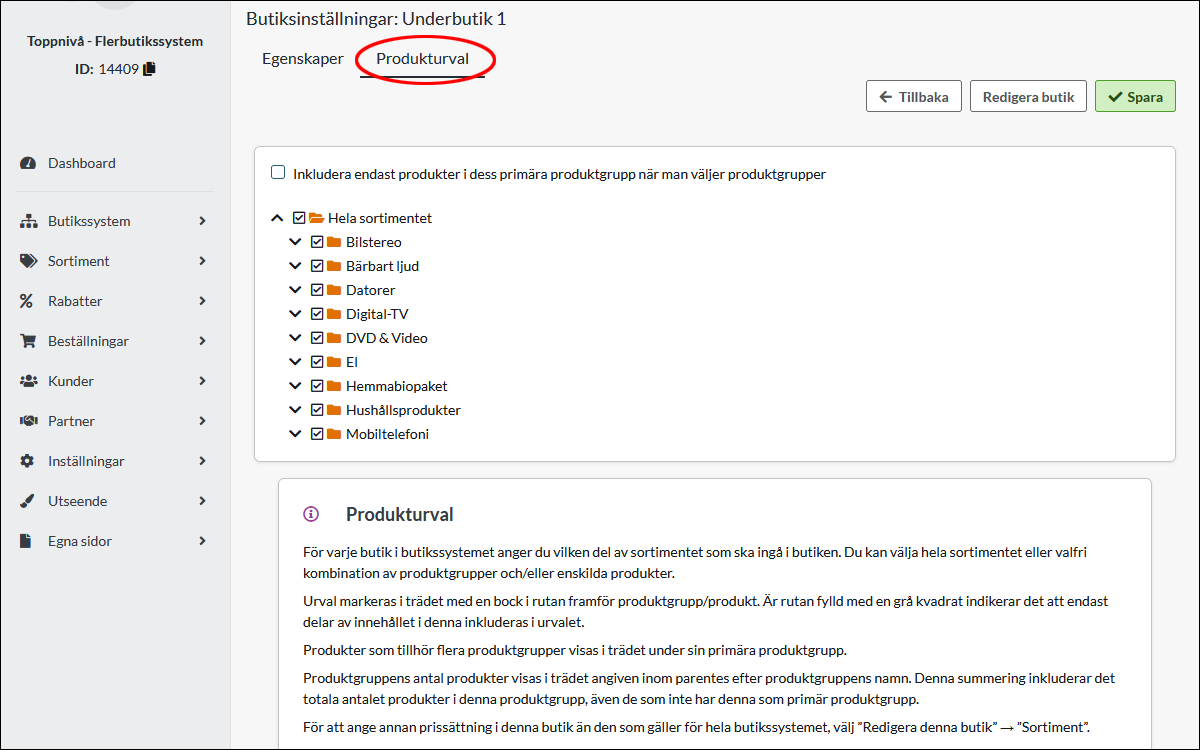
Display of payment methods in sub-stores
By default, all payment methods are displayed in all sub-stores. If you want to limit the display of payment methods in a sub-store, you can do so. Go to Store system -> Settings. 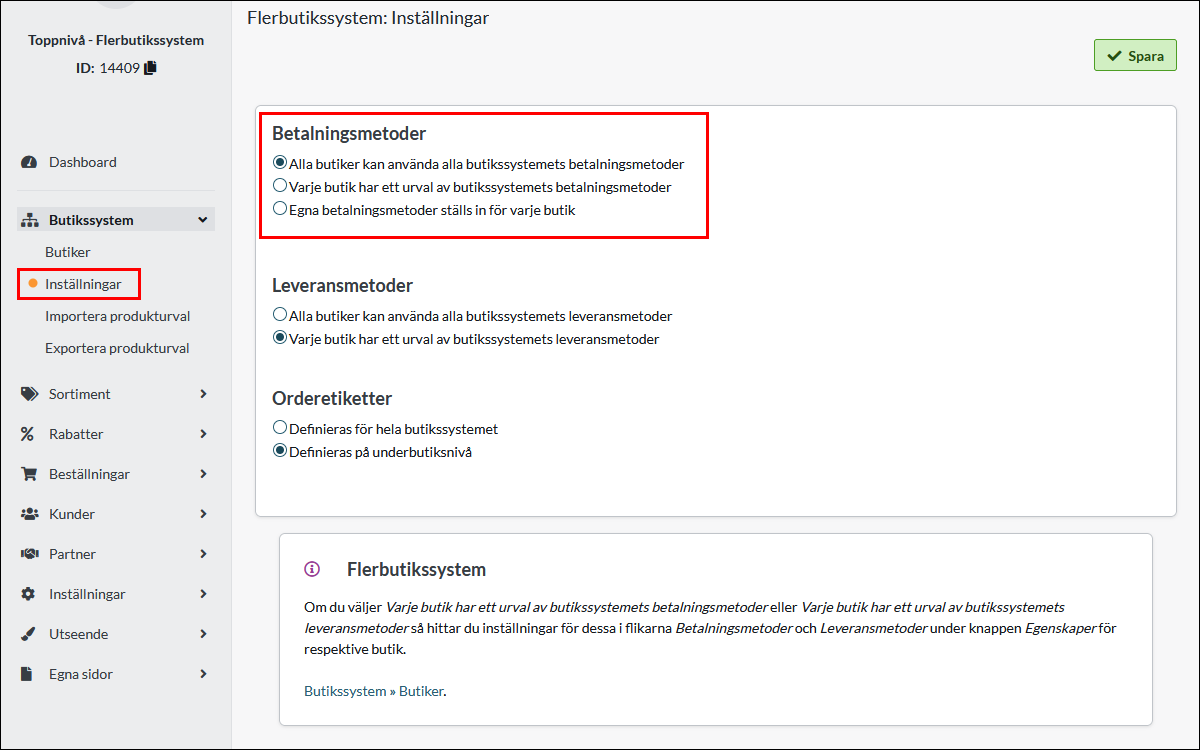
There are three different choices. You can have all payment methods at the top level used in all sub-stores. This is the default setting.
You can also choose to show some of the payment methods at the top level or you can choose to put the payment methods in each sub-store. In this case, none of the payment methods are used at the top level.
If you want to use "Each store has a selection of the store system's payment methods", you make this selection under Store system -> Stores -> "Properties" button.
Then click on the "Payment methods" tab and choose which ones to use. 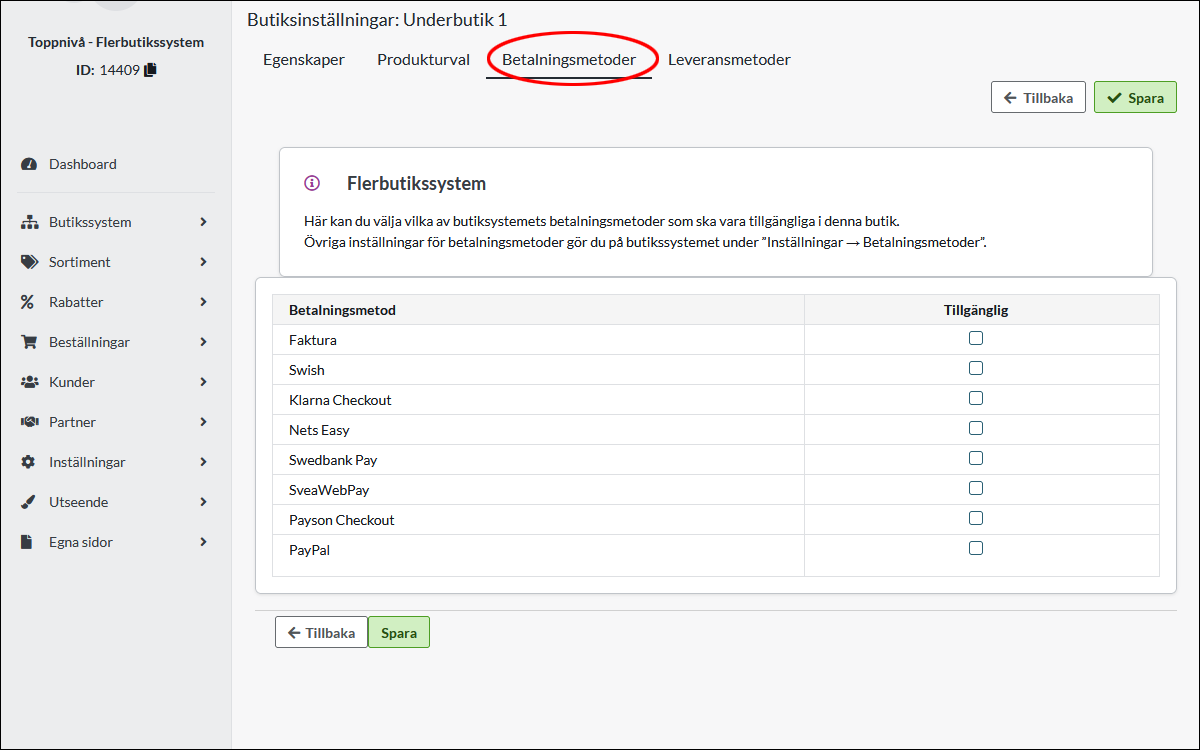
If you choose the third option, "Custom payment methods are set for each store", you create the payment methods in each sub-store. Go to Store system -> Stores and then click on the button "Switch to store". 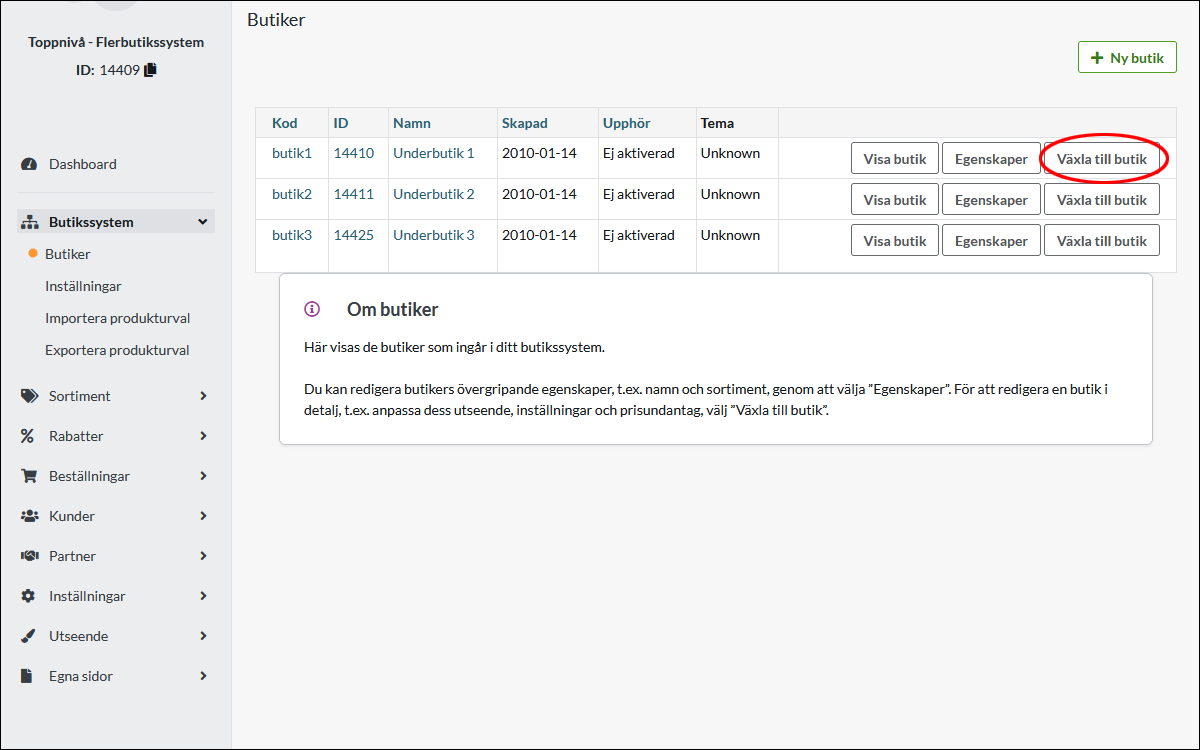
Then you create the payment methods under Settings -> Payment methods in that sub-store.
Viewing delivery methods in sub-stores
All shipping methods are created at the top level under Settings -> Shipping as usual. By default, all delivery methods are displayed in all sub-stores. If you want to limit this, you can do so. Go to Store system -> Settings. 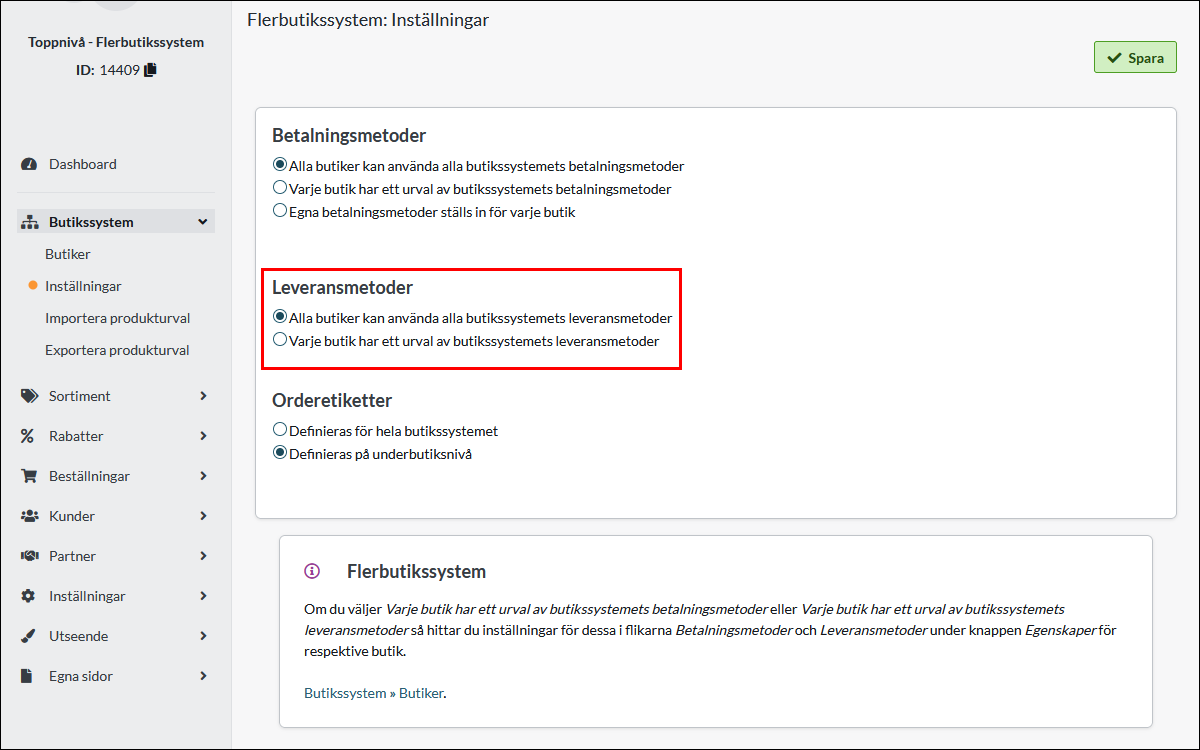
Select "Each store has a selection of store system delivery methods" and save. Then go to Store System -> Stores -> "Properties" button.
Then click on the "Delivery Methods" tab and then select which delivery methods should be available in the selected sub-store.