Product import - Textalk Abicart

Video guide:
What file formats are supported?
In order for the file to be imported, it must be a text file of type .CSV, .TXT or .SKV.
A text file can also contain different character encoding and our import supports two different ones, "Windows UTF-8 (universal)" and "Windows ISO-8859-1 (Latin 1, Western European)".
If you receive a file with items from a supplier, you should be able to get them in one of these formats.
If you create the products in a spreadsheet program, such as Excel, you can choose the file format by selecting "Save as" and then selecting "File type" from the list.
What is needed to create a completely new product via import?
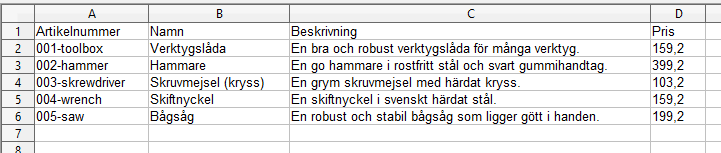
To create a brand new product, at least the following fields are required:
-
Item number
-
Product name (in the basic language of the shop)
-
Product description (in the basic language of the shop)
-
Price (in the store's base currency)
An example of what this looks like in an import file:
What is needed to update an existing product via import?
It is quite common to need to update a property of the products, such as stock balance or perhaps setting a new price in case of a sale.
To update a product that already exists in the store, only two columns are needed in the import file: the item number and the property to be updated, such as price.
An example of what this looks like in the import file:
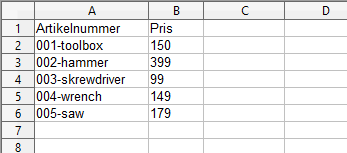
The system then uses the item number to identify the product and then updates the prices of all item numbers included in the file. Nothing is changed on the product other than the property or properties on file.
I have an Excel file, how do I import it?
Many suppliers use Excel (xls, xlsx) as a file format and this cannot be imported directly into our system. You must first resave the file to a text file before it can be imported. Below are guides on how to resave an Excel file to a text file in Excel and "Libre Office (Open Office)".
Excel (Microsoft Office):
Open the file and then go to File - "Save As". (If you are using Excel 2007, click the Microsoft Office button and then click Save As.)
The "Save As" dialog box opens.
Select the text file format for the spreadsheet in the "File Format" box. Click CSV (comma delimited).
Drag to the location where you want to save the new text file, then click Save.
A dialog box will appear. It says that only the current spreadsheet will be saved in the new file. If you are sure that the current spreadsheet is the one you want to save as a text file, click OK. You can save other spreadsheets as separate text files by repeating the procedure for each spreadsheet.
A second dialog box appears, stating that the spreadsheet may contain features that are not supported by the text file format. Click Yes if you only want to save the spreadsheet data in the new text file. The file is now ready to be used for import.
Open Office / LibreOffice:
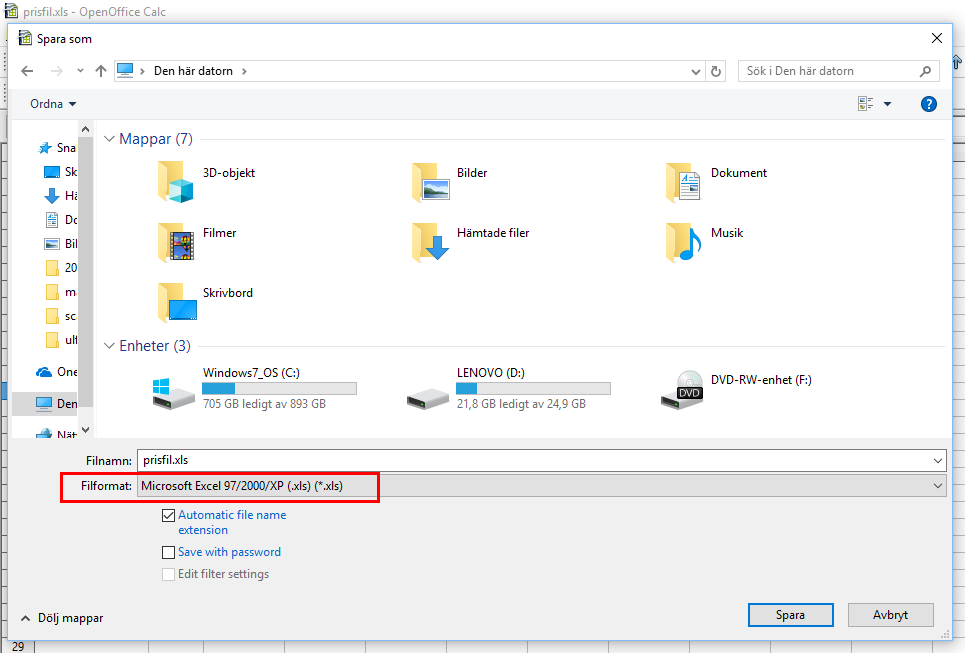
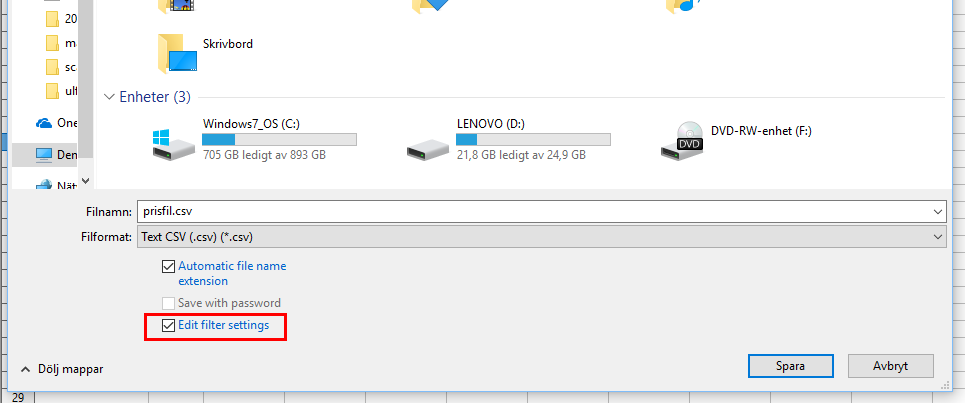
Open the file and then go to File -> Save As
Click on the list next to "File Format" to expand it.
Select "Text CSV"
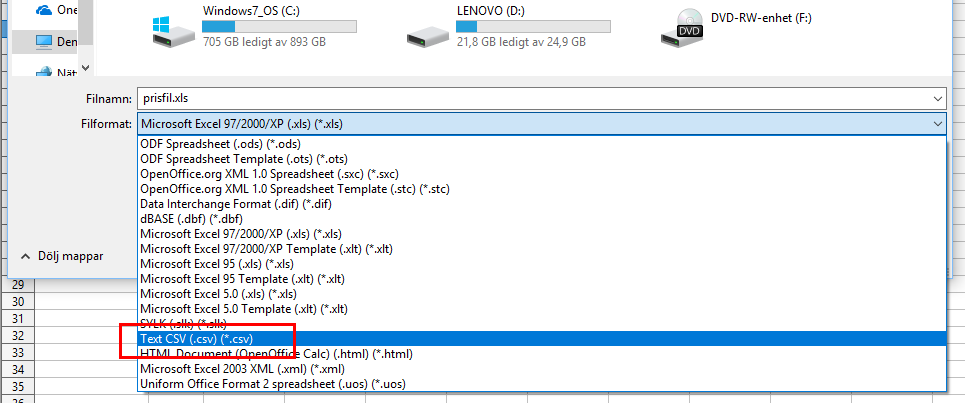
Also check "Edit filter settings" and then click the save button.
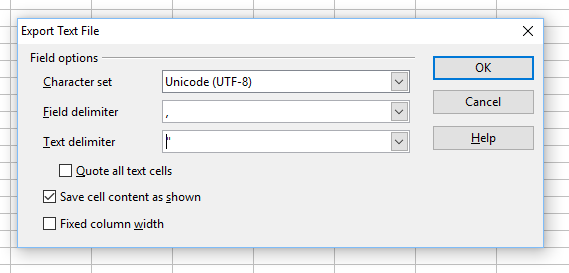
For "Character set", select "Unicode (UTF-8)".
For "Field delimiter", select "comma".
For "Text delimiter", select "quote".
Import a file of products into the store
We now have a text file in the correct format (see above) that contains products and is ready to be imported.
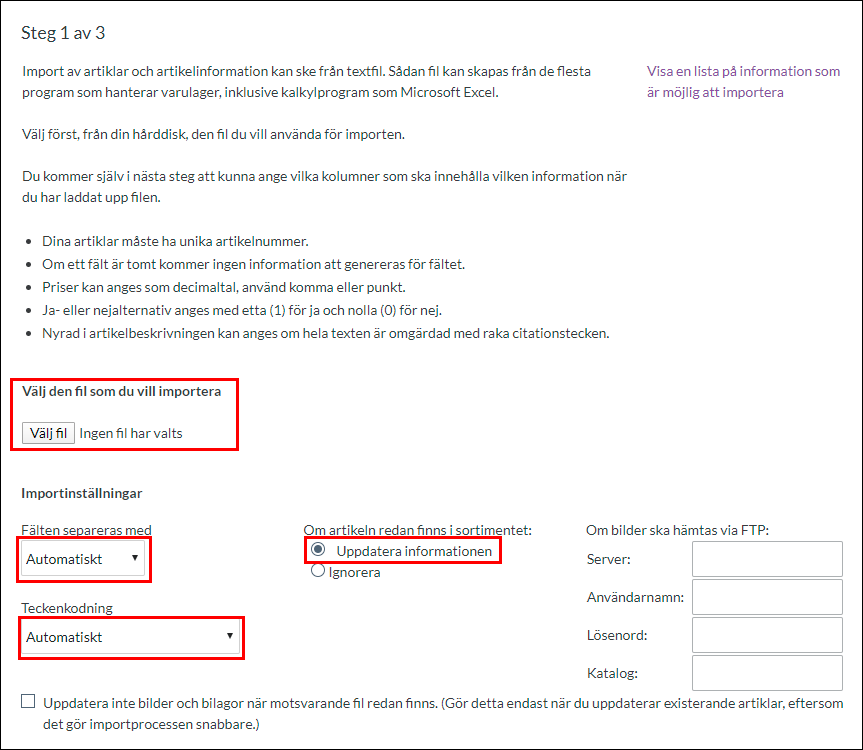
Go to Assortment -> Import.
In "Select file" select the file you want to import.
Double-check that "Automatic" is selected for both "Separate fields with" and "Character encoding" and that "Update information" is selected for "If item already exists in assortment". See picture.
Then click the continue button in the bottom right corner.
This will take us to the following page.
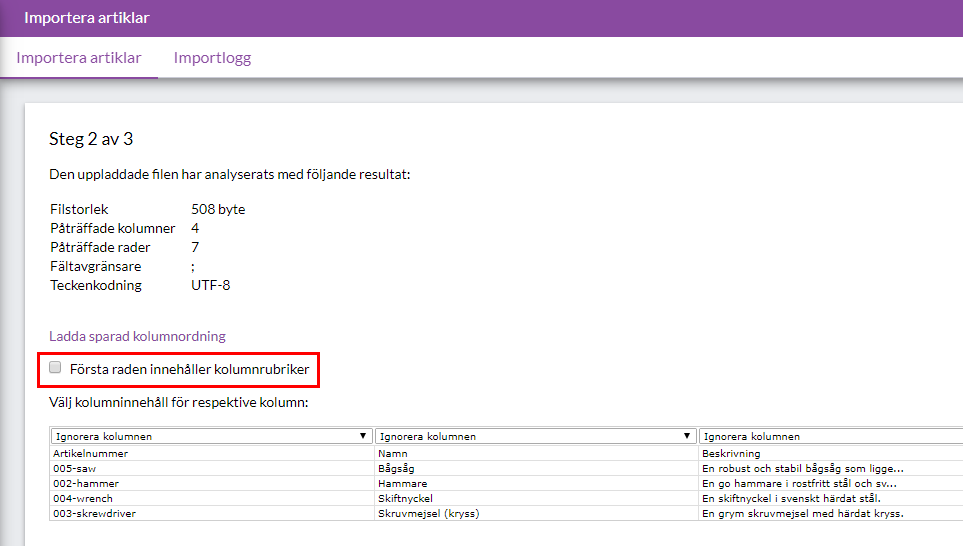
In this example, there are headers in the first row of each column in the import file. We do not want to import these, but check "First row contains column headings".
In order for the system to know which column contains each property, we need to select this. Since we have clear column headings, it is easy to select. Part number in the first column and product name in the second, etc. Select the column for all properties to be imported.
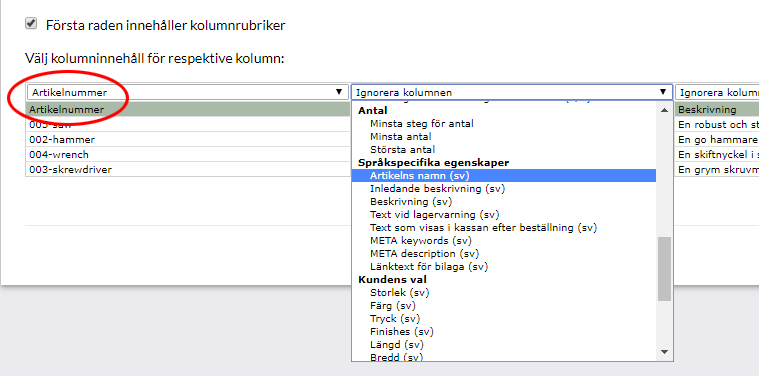
If you have many properties, you may need to scroll sideways to see all the columns. If there is a property you don't want to update, select "Ignore Column" and it will be skipped.
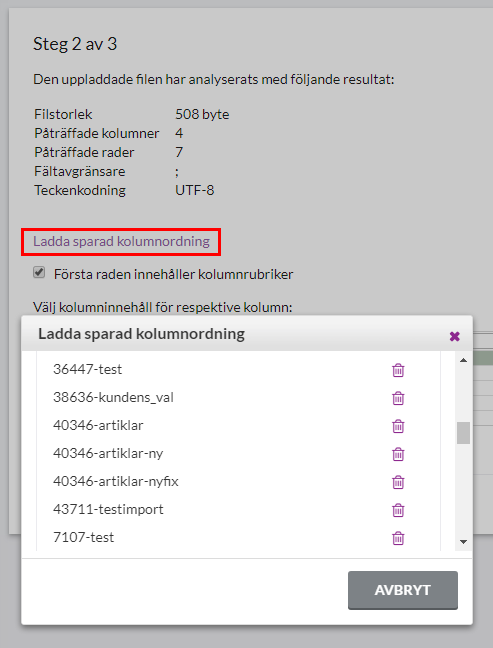
Before we start the import, there is a checkbox called "Save column order for future imports". If you have a lot of properties that you want to update, and you know that you will be doing this kind of import several times, you can save a template for the column order.

If you tick it, next time you can click on the "Load saved column order" link instead of selecting each column one by one. Note that it must be exactly the same column order in the file for it to be correct.
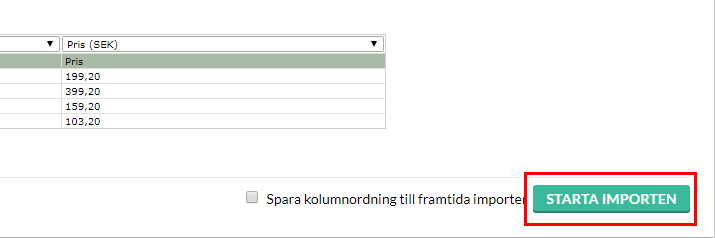
If you know that this import will only be done once, leave the checkbox next to "Save column order for future imports" empty, and then click "Start import".
Depending on how many lines (articles) there are in the file, this will take different amounts of time. If there are only a few lines, it can be done in a few seconds, but if there are many, thousands of lines, it can take half an hour, an hour or even several hours. Wait until everything is ready. Hopefully it will look something like this picture.
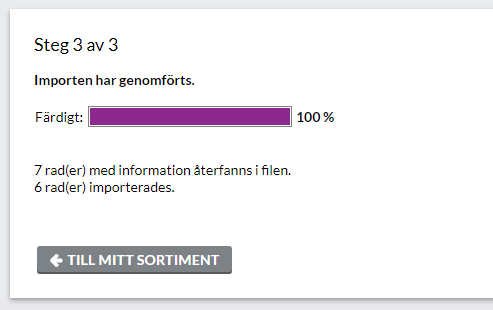
In this case, there were seven lines in the file. We checked that the first line contained headers, so it was ignored. The remaining six lines were imported.
Importing multiple product categories on one product
In Abicart Plus and Pro, a product can belong to several product categories, and this can also be solved via import.
You then add a new line to the file and enter the product number again and then type the name of the second product group in the product group column.

In this example, the beach ball will end up in three product groups: "Beach", "Toys" (subgroup of "Beach") and in "Offers".
Importing multiple images of a product
To import multiple images on a product, add a new line to the file and enter the item number again, then enter the image filename/url of the second image in the image column.
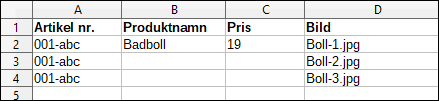
In this example, the Badball product will have three images imported.
If you have a file where the images are in different columns, you will have to solve the import by importing each image column separately. You do a full import first with all properties and select "Image" for the first image column in the file. Once that import is complete, you do a new import with just the product number and image column 2. If there are more columns with images, you repeat the import with the product number and image column 3, image column 4, etc.
Example, what should the import file look like?
Updating prices
For updating prices of existing products only, the file can look like this:

The only thing needed is the item number of the products to be updated and the new prices. Article number in column A and the new prices in column B.
Update stock balance
To update stock balances on existing products only, the file can look like this:

In this example, three columns are needed. Item number, inventory management (1 = yes, 0 = no) and inventory balance. We therefore import a one in column B to enable inventory management on the item and then the inventory balance itself in column C.
F.A.Q.
Question: I did an import but all the lines were ignored, why?
Answer: Most likely there is a setting in step 1 of the import that is wrong. Under Assortment -> Import at "Import settings" -> "If the item is already in the assortment:" then "Ignore" is selected.

Change the setting to "Update information" and rerun the import.
Question: many of my products are marked as "New". How do I unmark them all as new in the easiest way?
Answer: The quickest way is to do an export of all products (Assortment -> Export). Export the properties "item number" as well as "novelty".
Open the file in a spreadsheet program and enter a zero on all lines in the column "Novelty". Save the file and then do an import. Then all items will be unmarked as new.