Two-Factor Authentication (2FA) - Textalk Abicart
Abicart Admin · Account Security
Set up two-factor authentication (2FA)
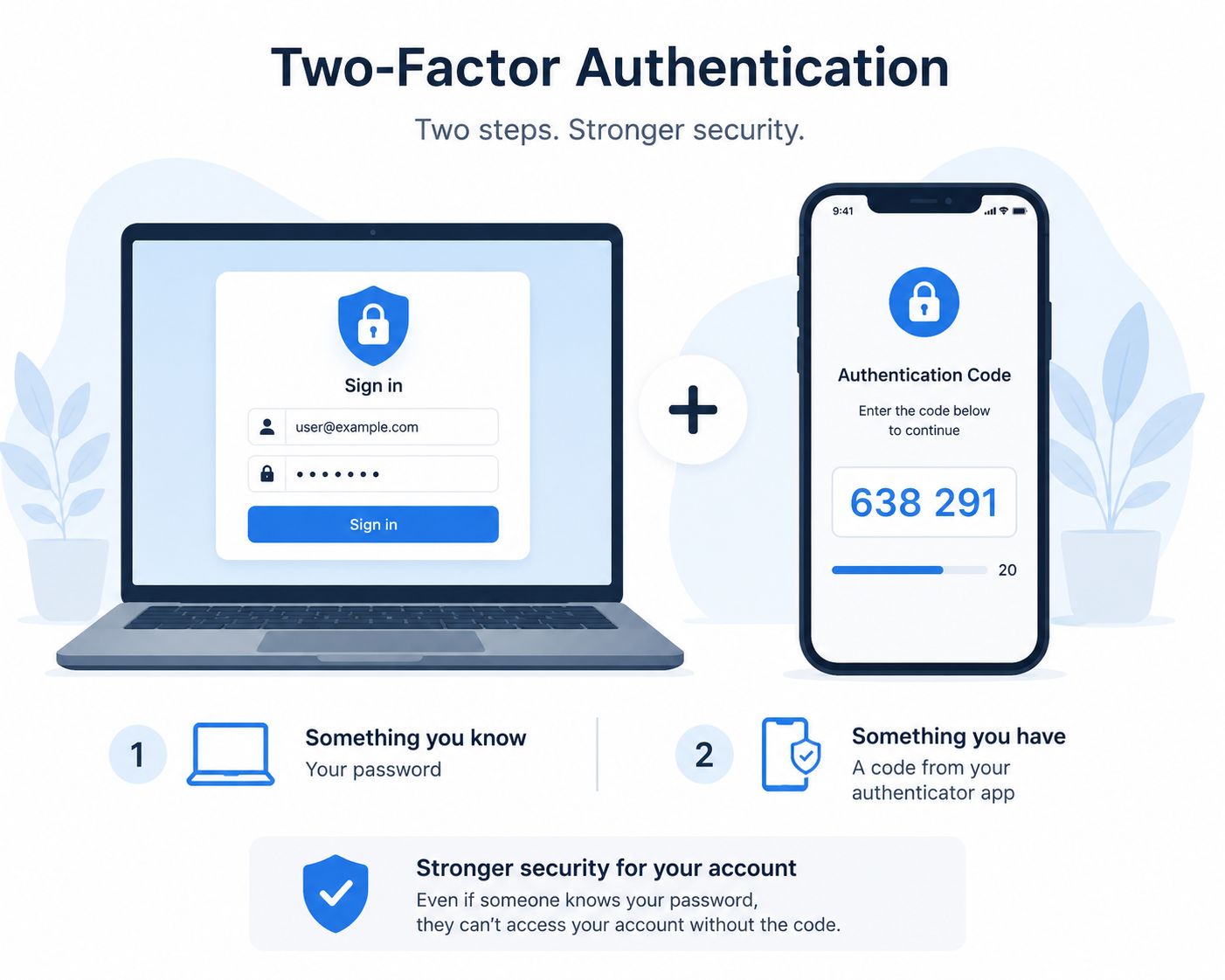
Two-factor authentication (2FA) adds an extra layer of security to your Abicart admin login. Normally, you sign in with your username and password. With 2FA turned on, you'll also enter a one-time 6-digit code from an authenticator app on your phone. This means that even if someone gets hold of your password, they still can't sign in without the code from your authenticator app.
Why turn this on
Passwords leak. They get reused across sites, guessed, phished, or picked up in a breach that has nothing to do with Abicart. Two-factor authentication means a leaked or guessed password isn't enough on its own: the person signing in also has to produce a six-digit code that refreshes every 30 seconds on your phone. If you manage payments, customer data, or store settings from your admin account, 2FA adds important protection if your password is ever compromised.
Before you start
You'll need:
- A phone with an authenticator app installed, such as Google Authenticator, Microsoft Authenticator, Authy, 1Password, or Bitwarden. Any standard authenticator app works
Setting it up
Go to My Profile in your admin menu, then find the field Security.
- 1
Click Enable 2FA
A setup window opens with a QR code generated just for you.
- 2
Scan the QR code
Open your authenticator app and add a new account by scanning the code on screen. Can't scan it, for example because you're on the same device as the camera you'd need? Click Show text key to reveal a text code you can type into the app by hand instead.
- 3
Enter the 6-digit code from your app
Your app will now be showing a rotating 6-digit number. Type the current one into the setup window and click Verify & Activate. This confirms your authenticator app is set up correctly.
- 4
Save your recovery codes
Once activated, Abicart shows you eight recovery codes. Copy them somewhere safe. A password manager or a printed note in a locked drawer both work well. These are your only way in if you ever lose your phone.
- 5
Tick I have saved these codes and close
The close button stays disabled until you confirm you've stored the codes. Once you close this window, the codes won't appear automatically again, but you can still view your remaining codes later from the same Security card.
Signing in afterwards
Regardless of which sign-in method you choose, you won't be fully signed in until your password or email sign-in link has been verified. You'll land on a page asking for Authentication Code. Enter the current number from your app and click Verify.
You have 15 minutes. If you don't finish entering your code within 15 minutes of your password check, the verification page expires and you're sent back to start the login again.
Recovery codes
Recovery codes are your backup plan for a lost, stolen, or wiped phone. You get eight when you first activate 2FA, and each one works exactly once.
Using one to sign in
On the verification screen, click I lost my device / Use recovery code. The code field switches to accept a recovery code instead of an app code. Enter one of your saved codes and it's consumed. That same code won't work a second time.
Viewing your remaining codes
Go back to My Profile → Security at any time and click View Recovery Codes to see the codes you have left. Because you can view your recovery codes here, make sure you keep your Abicart login secure.
Running low? There's no button to top up your remaining codes on their own. If you're down to one or two, turn 2FA off and back on to generate a fresh set of eight.
Turning it off
From My Profile → Security, click Disable 2FA. You'll be asked to confirm your current password before it switches off. This stops someone who's merely sitting at your already-open session from quietly disabling your protection.
Benefits & limitations
An honest look at what this feature gives you, and where it still has room to grow.
Benefits
- ✓Blocks logins from a leaked, reused, or guessed password: the attacker still needs your phone.
- ✓Works with authenticator apps you may already have installed; no new app to buy or learn.
- ✓No SMS involved, so there's nothing to intercept and no text message costs.
- ✓Covers both ways of logging in: password, and the passwordless "Quick login" email link.
- ✓Recovery codes mean a lost phone doesn't mean a lost account.
- ✓Free, and takes about two minutes to turn on.
- ✓Your 2FA details are encrypted before they're stored, not kept as plain text.
Limitations to know about
- –No "remember this device" option yet: you'll enter a code every time you log in, even on your own computer.
- –If you lose your phone and your recovery codes, there's no in-product recovery path. You'll need to contact Abicart support to have 2FA reset on your account.
- –Each admin turns 2FA on for their own login individually; there's no shop-wide setting yet for an owner to require it for staff accounts.
- –Codes depend on your phone's clock being accurate. If your phone's date and time have drifted, valid codes may be rejected.
- –Doesn't apply to your shop's storefront, only to the admin login your staff use to manage the store.
Questions
Which authenticator apps can I use?
Any app that supports TOTP (the standard behind most authenticator apps) works: Google Authenticator, Microsoft Authenticator, Authy, 1Password, Bitwarden, and most password managers with a built-in authenticator.
Can I add the same account to more than one device?
Yes. During setup, you can scan the same QR code (or type the same text key) into an app on a second phone or tablet, so you have a backup code generator. Abicart doesn't need to know about this; it's a property of how the underlying code standard works.
My code keeps getting rejected. What's wrong?
The most common cause is your phone's clock being out of sync, since codes are time-based and only valid for about 30 seconds. Check that your phone's date and time are set automatically, then try the next code that appears.
I lost my phone and can't find my recovery codes. What now?
Contact Abicart support through your usual channel. They'll verify your identity and reset 2FA on your account so you can log back in and, if you'd like, set it up again on a new device.
Does this affect my shop's customers at checkout?
No. This protects the admin login your staff and owners use to manage the store. It has no effect on how shoppers create accounts or check out on your storefront.
Can I make 2FA mandatory for my staff?
Not yet. Each person with an admin login enables 2FA for their own account from their own My Profile page. There's currently no owner-level setting that enforces it across every staff login.