


7 min read
Digital withdrawal function
Created
Frequently Asked Questions About the Digital Withdrawal Function
-
-
The new amendments enter into force on June 19, 2026.
-
-
The main requirement is a digital withdrawal function, commonly known as a cancel button, allowing customers to cancel an online purchase as easily as it was to complete it without having to call or send a manual email.
-
-
It may be considered a violation of the Marketing Act, which could result in penalties and a significant extension of the customer’s cancellation period.
-
-
No, the 14-day cancellation period for goods and services covered by the law remains unchanged.
-
-
The customer goes to the dedicated return page, enters their order number and associated email address, writes a message on the next page to submit their request, and then confirms the request via an email that is sent to them.
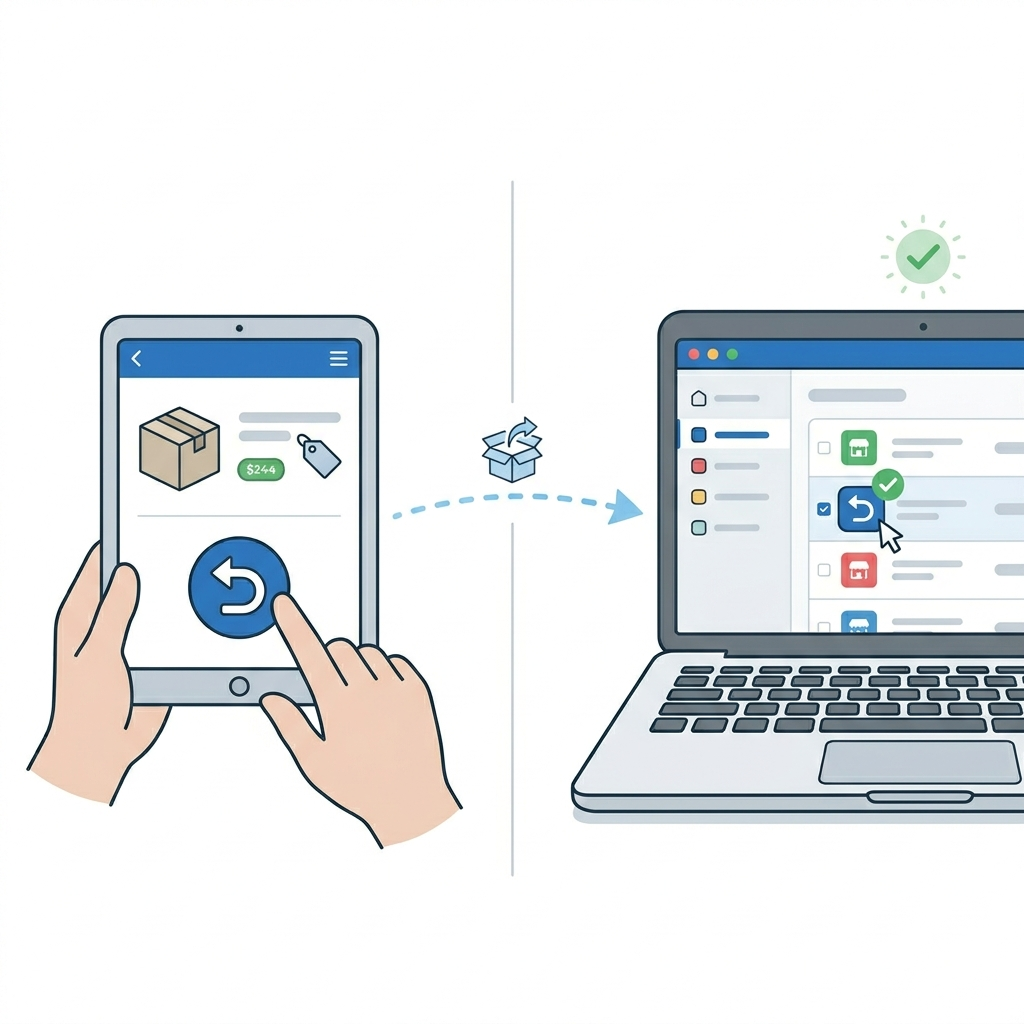
On June 19, 2026, new amendments to the Distance Contracts Act (DAL) will enter into force. The biggest change is the requirement for a digital withdrawal function - popularly known as the 'undo button'.
The aim of the law is to strengthen online consumer protection and counteract so-called 'dark patterns' (designs that make it difficult for the customer to cancel or change something). In short: it should now be as easy for a customer to cancel a purchase online as it was to complete it.
New Legal Requirement: The "Cancel Button" in E-commerce
On June 19, 2026, new amendments to the Distance Contracts Act (DAL) will take effect. The most significant change is the requirement for a digital cancellation feature —commonly known as the “cancel button.”
The purpose of the law is to strengthen consumer protection online and combat so-called “dark patterns” (designs that make it difficult for customers to cancel or change a purchase). In short: it should now be just as easy for a customer to cancel an online purchase as it was to make it.
A new legal requirement means that online stores must provide customers with a simple, digital way to exercise their right of withdrawal—without having to call or send a manual email.
Important: Deadline June 19,
If your online store lacks this feature after June 19, it may be considered a violation of the Marketing Act, which could result in penalties and a significant extension of the customer’s cancellation period.
What does this mean for you as an e-retailer?
- Clear and easily accessible feature: You must provide a clearly placed feature (e.g., on “My Account” or via a direct link in the order confirmation) where the customer can indicate that they wish to exercise their right of withdrawal. The customer should not have to call or send a manual email.
- Immediate confirmation: When a customer clicks to cancel their purchase, the system must automatically send a confirmation (a receipt) to the customer immediately.
- Unchanged cancellation period: The right of cancellation itself remains unchanged—the 14-day cancellation period still applies to goods and services covered by the law. It is only the way customers can notify the store of their decision that is being simplified.
- The Importance of Complying with the Law: If your online store lacks this feature after June 19, it may be considered a violation of the Marketing Act, which could result in penalties and a significant extension of the customer’s cancellation period.
Step 1 - Enable the cancellation form in your store
The first step is to make the cancellation form visible and accessible to your customers. You can do this via the built-in footer link or by creating your own links in the menu or on other pages.
Option A: Enable a link in the footer
Supported theme versions
This setting is only available in Fabrikk 1.6, as well as in Nordic, Hadje, Bountiful, Emporium, Trailblazer, and Brew 1.1, and Azalea 1.2.
Recommendation: If your store is using a theme version older than Fabrikk 1.6, Nordic/Hadje/Bountiful/Emporium/Trailblazer/Brew 1.1, or Azalea 1.2, we strongly recommend that you upgrade. The latest theme versions are optimized for modern web technology, which gives your store significantly better performance, faster load times, and stronger SEO (search engine optimization).
- Go to Appearance → Themes → Edit the active theme → Content → Footer.
- Scroll down to the “Link to Right of Withdrawal Form” setting.
- Select the “On” option. If you want to change the default text for the link, you can do so in the field directly below.
- Click Save.
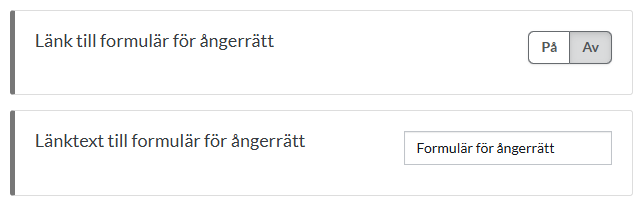
Once the link is enabled, it will appear at the bottom left of the store, below the store’s address information.
If you don’t have an address field in your footer, that’s okay—you can still add the link as custom HTML text in your footer.
If you’re using custom HTML in all four columns of the footer, you can create a manual link to the cancellation page by following these steps:The link will then appear in the footer. You can follow the same steps in your other stores as well.
- Go to Appearance → Themes → Edit → Content → Footer.
- Add the link text for the cancellation link to any HTML block.
- Then follow Option B.
Option B: Create Your Own Link on a Page
If you want to link to the form from other places in the store—for example, from the “Terms & Info” page—you can easily create a regular text link.
- Go to Pages → System Pages → Cancel Purchase. Copy the address listed in the URL field.
Note that in a multi-store system, the system page is located in the sub-store.
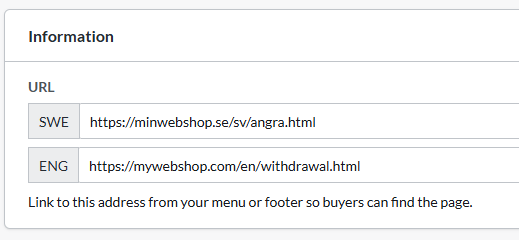
- Navigate to the page where you want to place the link, for example, Pages → System Pages → Terms & Info.
- Type the text that the customer should click on, such as "To the cancellation request form. " Select the text with your mouse and click the link icon in the toolbar to paste your URL.
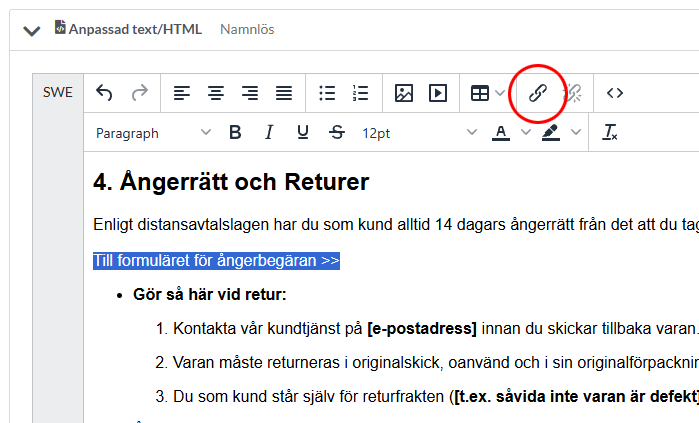
- Paste the link to the cancellation form into the “URL” field and save.
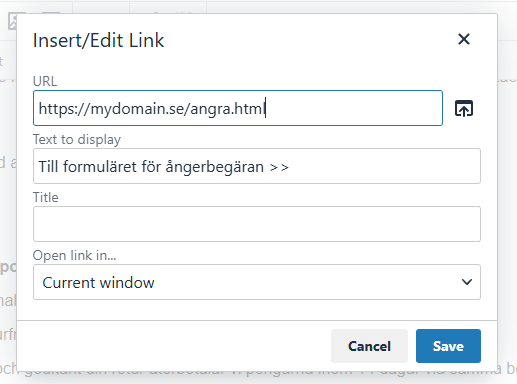
- Then click Save again so that the page saves the changes.
Option C: Add a link to the menu
- Go to Pages → System Pages → Cancellation Request. Copy the address listed in the URL field at the top of the page.
- Then navigate to the theme menu: Appearance → Themes → Edit Active Theme → Content → Menu.
In some themes, such as Fabrikk, the menu is located under Content → Header.
- Scroll to the bottom of the page to “Menu Items.”
- Click “Add, ” select “Custom Link,” and paste the link to the cancellation form into the field below.
- In the “Link Title” field, enter the name you want the link to have in the menu.
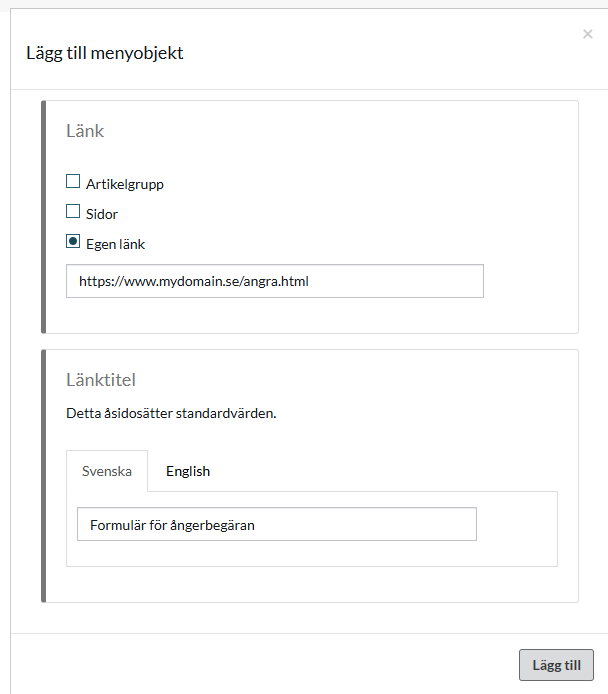
- Click “Add” and then the Save button in the theme.
Step 2 - Here’s what it looks like to the customer
Once the form is active, this is the process your customers go through when they want to cancel a purchase.
1. The customer navigates to the return form.
To return an item, the customer goes to a dedicated page for the right of return. There, they enter the order number and associated email address.
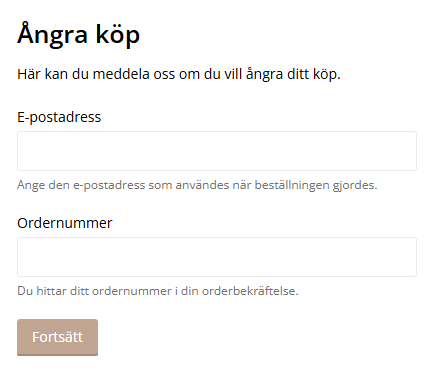
2
. The customer submits their request.
Once the system has verified that the order is in the store, a new page appears where the customer can write a message and submit their request.
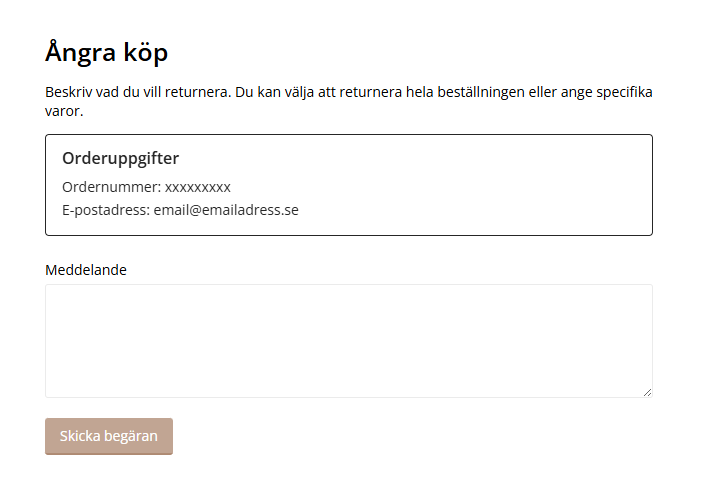
3
. The customer confirms via email.
Once the customer has clicked “Submit Request,” an email is sent asking them to confirm their request. As soon as this is done, the case is forwarded to the store.
Step 3 - Manage Incoming Return Requests
When cases start coming in, you can manage them all in one place in the admin panel.
Under “Orders” and the “Return Requests” tab, all incoming requests from your customers are collected. New, unprocessed requests are automatically assigned the “New” status. To easily sort the list, you can filter your requests by status: “All,” “New,” “Approved,” or “Denied.”
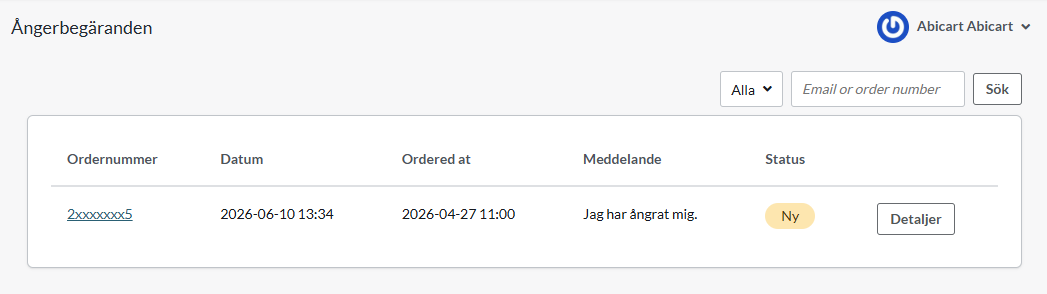
Click “Details” to view a detailed overview of each return request.
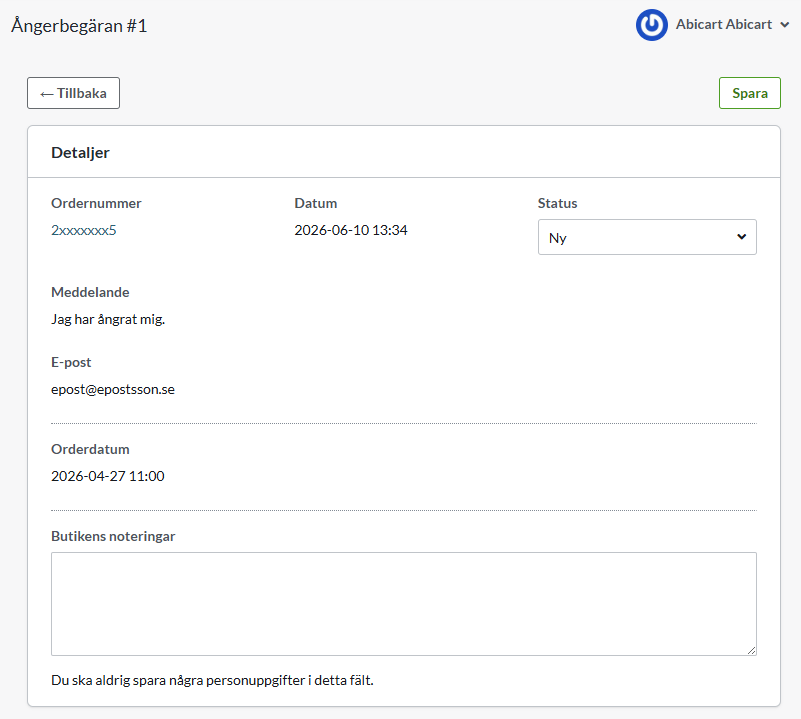
Note that the order cannot be modified directly in this view. The page only displays the customer’s return request—here, you manage the case status and can add your own notes. If the order needs to be adjusted or canceled, this is done on the order page. Click the order number to go there.
Once processing is complete, mark the request as 'Accepted' or 'Denied.' The customer is not automatically notified when the status changes. You must therefore always contact the customer and inform them of the decision manually via your email client.
An email regarding the created case is sent to the customer from the email address specified in the "Order Confirmation Sender" field (Settings >> Email)
The email notification to your store is sent to the email address specified in the "Order Confirmation Copies" field (Settings >> Email)