


5 min read
Facebook CAPI

Meta Conversions API (CAPI) allows your webshop to send customer activity and conversion events directly from Abicart's servers to Meta.
CAPI works alongside the Meta Pixel, which tracks events through the visitor's browser. By using both methods, you can improve the reliability of conversion tracking and provide Meta with more complete information for advertising measurement.
Read more in Meta's official Conversions API documentation .
How is CAPI different from the Meta Pixel?
Both solutions track customer activity, but they send information to Meta differently.
| Meta Pixel | Meta Conversions API |
|---|---|
| Sends events directly from the visitor's browser. | Sends events from Abicart's servers to Meta. |
| Can be affected by browser restrictions, ad blockers and tracking prevention. | Is less dependent on browser restrictions and browser-based tracking. |
Important: CAPI does not replace the Meta Pixel. The two methods complement each other.
When the same event is sent through both methods, Meta can identify matching events using event names and identifiers. This process is called event deduplication and helps prevent the same conversion from being counted twice.
Set up Conversions API
To activate Conversions API in Abicart, you need:
- A Meta Business Portfolio with access to your website's data source.
- Your Meta Pixel/Dataset ID.
- A Conversions API access token.
Step 1: Find your Meta Pixel ID
- Open Meta Events Manager .
- Select the Business Portfolio associated with your webshop, if prompted.
- Under Data Sets, select your existing Pixel/Dataset.
- On the Overview tab, find your Pixel ID on the right-hand side of the page (as shown in the image below).
- Copy the Pixel ID.

Don't have a Meta Pixel yet? In Events Manager, choose the option to connect a new data source, select Web, and follow Meta's setup instructions.
Need help? Read Meta's Pixel setup guide .
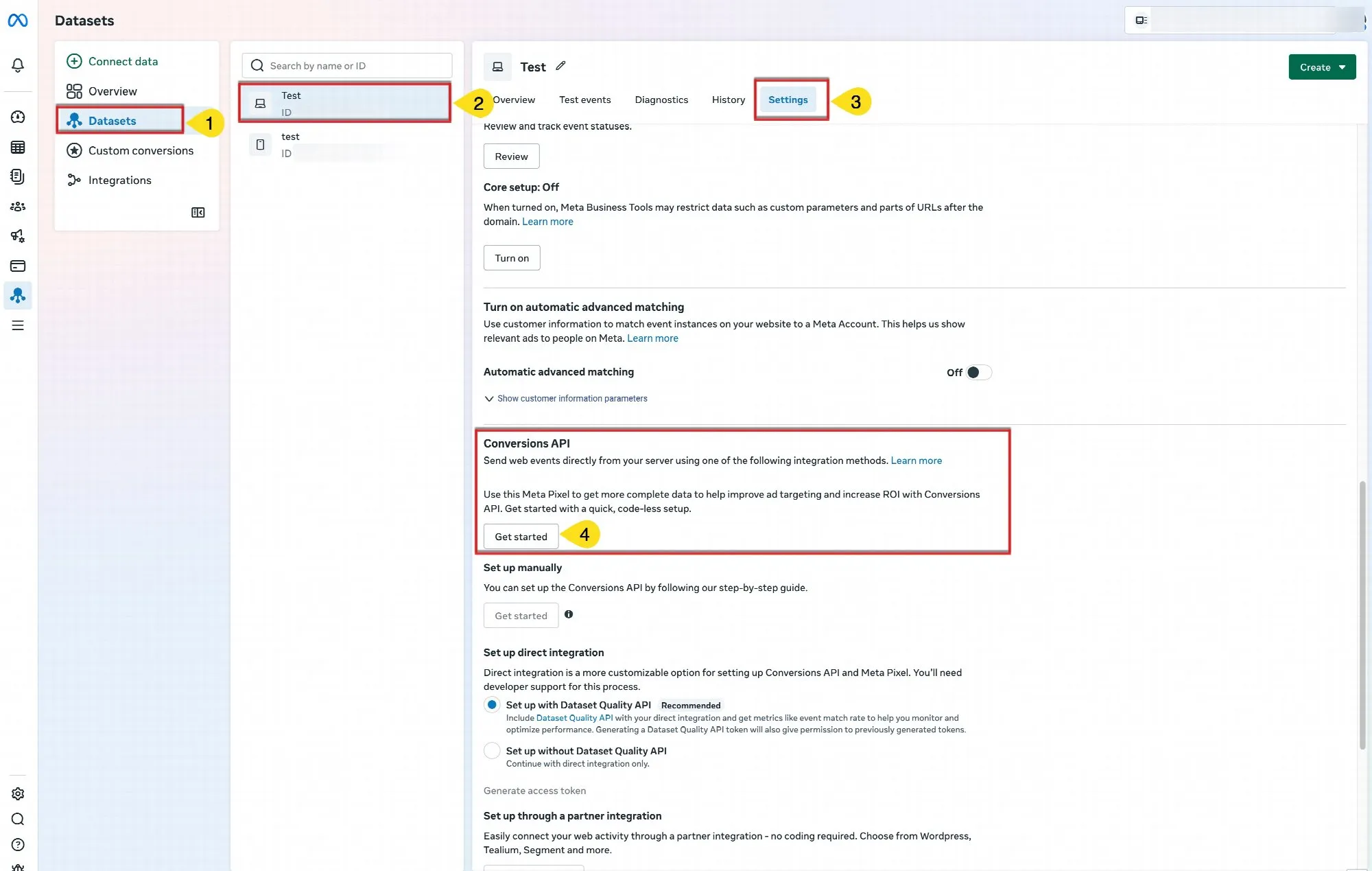
Step 2: Generate your Conversions API access token
- In Meta Events Manager , select the same Pixel/Dataset.
- Open Settings.
- Scroll down to the Conversions API section.
- Find the manual setup option and select Generate access token.
- Copy the generated token.
Note: The exact menu names may vary as Meta updates Events Manager.
Important: Keep your access token secure. Do not share it publicly or include it in frontend code.
Step 3: Activate Conversions API in Abicart
Once you have your Pixel ID and access token, follow these steps:
- Go to Appearance → Themes → Edit theme.
- Select Additions → Facebook.
- Enter your Meta Pixel ID.
- Enter your Conversions API access token.
- Click Save.
Tip: Use the same Pixel ID for both the Meta Pixel and Conversions API so that browser and server events can be matched correctly.
Which events are tracked?
The integration can send the following customer activity events to Meta:
| Event | When it is triggered |
|---|---|
| PageView | When a visitor opens a page in your webshop. |
| ViewContent | When a visitor views a product. |
| AddToCart | When a visitor adds a product to the shopping cart. |
| InitiateCheckout | When a visitor enters the checkout with an active order. Reloading the checkout does not trigger the event again. |
| Purchase | When the order confirmation page is displayed after a completed purchase. |
You can view the events received by Meta in Events Manager.
How to check that CAPI is working
After completing the setup, you can verify whether Meta receives events from your webshop.
- Open Meta Events Manager .
- Select your Pixel/Dataset and open Test Events.
- Follow Meta's instructions to begin testing.
- Open your webshop in another browser tab.
- Visit a product page and add a product to the shopping cart.
- Return to Events Manager and check which events have been received.
Meta may show events received through:
- Browser: Events sent through the Meta Pixel.
- Server: Events sent through Conversions API.
When browser and server events represent the same action and use matching identifiers, Meta can deduplicate them.
Note: Server events may require additional test configuration to appear in the Test Events view. You can also review regular event activity in the Events Manager overview.
Troubleshooting
Events are not appearing in Events Manager
Check that the correct Pixel ID and access token have been entered in Abicart. Also make sure you have selected the correct data source in Meta.
Browser events appear, but server events are missing
Check that your Conversions API access token is valid and that the configuration has been saved correctly in Abicart.
Events appear to be counted twice
Meta uses matching event names and identifiers to deduplicate browser and server events. Check the diagnostics in Events Manager for possible deduplication issues.
For more technical information, see Meta's Conversions API documentation .
Privacy and consent
Conversions API sends data through the server, but this does not remove the need to comply with applicable privacy and data-protection regulations.
Tracking must still respect visitors' consent choices and the applicable privacy configuration of your webshop.
Need help?
If you're having trouble setting up Meta Conversions API in Abicart, contact our support team and we'll help you review the configuration.