


Other articles by Henrik
-
Stock Export - Google & Facebook Product Feed
1 Jun 2026
The stock export feature allows you to include your product inventory levels in your Google and Facebook product feeds. This gives you greater control over how your stock data is used for campaign segmentation and targeting in Google Merchant Center and Meta. This is an optional feature used exclusively for Google and Facebook product feed integration. Setting up stock information mapping Go to Settings → External Connections → Product Feed → Google & Facebook stock information mapping. Google Enable the stock export option and choose which product feed field your stock quantity should be linked to: quantity — sends stock levels directly as the product quantity field in the feed. custom_label_0 through custom_label_4 — maps stock to one of the five available custom label fields, allowing you to use it for product segmentation in Google Merchant Center. Select your preferred field and save. About custom labels Custom labels (custom_label_0 to custom_label_4) are optional fields in the Google product feed used to segment products in Shopping campaigns. By mapping your stock to a custom label, you can create campaign rules that behave differently depending on whether a product is well-stocked or running low. Note: Custom label values are not shown to customers. They are only visible within Google Merchant Center. If you are already using custom labels for other segmentation purposes (e.g. sale status, margin tier), make sure to map stock to a label that is not already in use. Facebook Enable the stock export option to include your stock quantity in the Facebook product feed. No additional field mapping is required. If you have any questions, please contact customer support and we will be happy to help.
-
Anonymizing orders
27 Feb 2026
Clearing and anonymizing old customer data is not only good housekeeping - it's also a way to protect both your customers and your business.Why should you anonymize old orders? Clearing and anonymizing old customer data is not only good housekeeping - it's also a way to protect both your customers and your business. Here are three reasons why you should review your settings: Comply with the GDPR: Under the General Data Protection Regulation, you must not keep personal data for longer than necessary. Once a purchase has been completed and the warranty has expired, there is rarely a reason to keep the customer's name and address in the system. Increased security: If your store were to suffer a data breach, the damage is significantly less if you don't have years of old customer data stored. Better performance: a cleaner database will make your system work more efficiently. How long does the data need to be kept? This is where it becomes a bit of a balancing act. While the GDPR wants you to delete data, the Swedish Bookkeeping Act requires you to save records of your sales. According to the Swedish Tax Agency's rules, accounting information (which includes order confirmations and invoices) must be saved for 7 years after the calendar year in which the financial year ended. Here's how the setting works in Abicart: In your store, you can choose to automatically anonymize order information after a certain number of years. Our advice: Set anonymization to 7 years. Then you keep the financial statistics and records required by the Swedish Tax Agency, but you remove the customer's personal data (name, address, email) so that you comply with the GDPR at the same time. Default choice "Never": If you keep this setting, all personal data will be stored forever, which may violate GDPR privacy rules. What happens when anonymizing? When an order is anonymized, the link to the specific person disappears. You can still see what was sold and at what price (which is needed for your accounting and statistics), but you can no longer see who bought the item. Activate anonymization Go to Orders -> Settings. By default, "Never" is selected. Choose between 1-10 years, we recommend 7 years according to the Swedish Tax Agency's rules and save. The system automatically anonymizes old orders every night based on your settings.
-
July 2024 - Software updates
17 Feb 2026
We've fixed a number of things, added new features and improved performance to make your experience even better. Here are some of the highlights: Global attributes: Updated schema for the Music category Sitemap: Support for multiple languages Postnord: Age verification data for tobacco shipments nShift Online: Age verification data for tobacco shipments
-
January 2026 - Software updates
17 Feb 2026
We've fixed a number of things, added new features and improved performance to make your experience even better. Here are some of the highlights: New payment method: Qliro Checkout. Read more here >> Picking lists now support custom HTML code. The integration app to Visma Administration/SPCS updated to v2.2.73. If you use the integration to Visma/SPCS, update the app under Settings -> Apps -> Visma.
-
Subscription, call-back request, In-App messages
17 Feb 2026
- More fixed around subscription-Support call-back request: showing a message if a clear topic is missing-File name not updated when translations imported-Fix cc delete alert-Do not log empty prices-Fix scheduling article.news date on import- No new Ecster Payoptions- In-App messages
-
Mails, article with choices, custom css, order pickuplocation
17 Feb 2026
- Fix mail test- Bugfix: Package having same article with choices- Overwrite custom css with default css in email- Order: clear pickuplocation when SM does not allow it
-

E-commerce with shampoo: from idea to online store
18 Dec 2025
Do you want to sell shampoo online in your own webshop? Abicart is a complete and professional e-commerce solution with hundreds of features that are perfectly suited for you to succeed in selling shampoo. It's completely free to try - and best of all - it's extremely affordable if you choose to subscribe to any of our versions.Start a webshop and sell shampoo with us. Free demo for 30 days!Click here and start your webshop - Free demo! You'll be up and running in minutes!Free access to Abicart's customer service.No card requiredSelling shampoo in your own webshop is a smart business idea for several reasons. Firstly, an own webshop can offer a direct sales channel to customers, which can provide higher revenues and profitability compared to selling through intermediaries or shops.Another advantage is the possibility to offer a wider variety of products than a physical shop can offer. This makes it possible to offer customers more choice, which can increase customer loyalty and boost sales.An in-house webshop also provides the opportunity to collect valuable data about customers, including their buying behaviour and preferences. This information can then be used to create more targeted marketing campaigns and improve the customer experience.Furthermore, an in-house webshop also provides an opportunity to build a strong brand by creating your own unique style and offering. This can increase customer loyalty and differentiate from competitors.Another advantage of selling shampoo in your own webshop is the possibility to offer special offers and promotions, such as free samples, discounts or bundling of products. These can attract new customers and increase sales.Finally, an in-house webshop can provide an advantageous platform for offering good customer service, which is crucial for building loyalty and strengthening customer relationships. Customer service features such as live chat, email and telephone help can provide a better buying experience for customers and increase the likelihood that they will return.In conclusion, selling shampoo in your own webshop can offer many benefits to your business, including increased sales, increased customer loyalty and a stronger brand identity. By offering more products, creating special offers and providing superior customer service, companies can build a profitable business and a loyal customer base.
-
E-commerce with microphones: from idea to online store
18 Dec 2025
Do you want to sell microphones online in your own webshop? Abicart is a complete and professional e-commerce solution with hundreds of features that are perfectly suited for you to succeed in selling microphones. It's completely free to try - and best of all - it's extremely affordable if you choose to subscribe to any of our versions.Start a webshop with us. Free demo for 30 days!Click here and start your webshop - Free demo! You'll be up and running in minutes!Free access to Abicart's customer service.No card required
-

Sell telescopes online – how to get started
18 Dec 2025
Want to sell telescopes online? With our e-commerce solution, Abicart, you can easily create your own webshop and benefit from hundreds of professional features specifically designed to sell telescopes. Try it for free today and then choose an affordable subscription to continue benefiting from our services. We offer advanced search engine optimization and marketing, helping you to appear in the search results for relevant search phrases like "buy telescope online". In addition, our solution is user-friendly and easy to use, so you can focus on selling your products. So if you want to maximise your online telescope sales, try our e-commerce solution today and take your business to the next level.Start a webshop with us. Free demo for 30 days!Click here and start your webshop - Free demo! You'll be up and running in minutes!Free access to Abicart's customer service.No card requiredDid you know that telescopes have been around since the 17th century? These optical instruments have revolutionised our understanding of the Universe and given us a closer look at the celestial bodies. A telescope consists of a set of lenses or mirrors used to collect and focus light from distant objects.There are different types of telescopes used for different purposes. Refractor telescopes, which are common for beginners, use lenses to collect light. Reflector telescopes, on the other hand, use mirrors to collect light. These telescopes are usually larger and more powerful than refractor telescopes.Telescopes are used not only for astronomical research but also for ground-based observations, weather monitoring, military purposes and more. With advanced technological innovations, telescopes can now also be used to examine the internal structure of cells and molecules, giving us a better understanding of biological processes.Although telescopes are best known for their use in scientific contexts, they have also become popular for hobbyists who want to explore the starry skies. There are many organisations and clubs around the world that promote amateur astronomy and help people get started with their telescopic hobby.In conclusion, telescopes have had a huge impact on our knowledge of the universe and continue to be an important part of scientific research and discovery.
-
How to start a webshop selling pillows
18 Dec 2025
Do you want to sell pillows online in your own webshop? Abicart is a complete and professional e-commerce solution with hundreds of features that are perfectly suited for you to succeed in selling pillows. It's completely free to try - and best of all - it's extremely affordable if you choose to subscribe to any of our versions.Start a webshop with us. Free demo for 30 days!Click here and start your webshop - Free demo! You'll be up and running in minutes!Free access to Abicart's customer service.No card required
-
Guide: how to sell yarn online
18 Dec 2025
Do you want to sell yarn online in your own webshop? Abicart is a complete and professional e-commerce solution with hundreds of features that are perfectly suited for you to succeed in selling yarn. It's completely free to try - and best of all - it's extremely affordable if you choose to subscribe to any of our versions.Start a webshop with us. Free demo for 30 days!Click here and start your webshop - Free demo! You'll be up and running in minutes!Free access to Abicart's customer service.No card required
-
Sell donuts online – how to get started
18 Dec 2025
Do you want to sell donuts online in your own webshop? Abicart is a complete and professional e-commerce solution with hundreds of features that are perfectly suited for you to succeed in selling donuts. It's completely free to try - and best of all - it's extremely affordable if you choose to subscribe to any of our versions.Start a webshop with us. Free demo for 30 days!Click here and start your webshop - Free demo! You'll be up and running in minutes!Free access to Abicart's customer service.No card required
-
Online store for lamps – tips to get started
18 Dec 2025
Do you want to sell lamps online in your own webshop? Abicart is a complete and professional e-commerce solution with hundreds of features that are perfectly suited for you to succeed in selling lamps. It's completely free to try - and best of all - it's extremely affordable if you choose to subscribe to any of our versions.Start a webshop with us. Free demo for 30 days!Click here and start your webshop - Free demo! You'll be up and running in minutes!Free access to Abicart's customer service.No card required
-
Online store for drinks – tips to get started
18 Dec 2025
Do you want to sell drinks online in your own webshop? Abicart is a complete and professional e-commerce solution with hundreds of features that are perfectly suited for you to succeed in selling drinks. It's completely free to try - and best of all - it's extremely affordable if you choose to subscribe to any of our versions.Start a webshop with us. Free demo for 30 days!Click here and start your webshop - Free demo! You'll be up and running in minutes!Free access to Abicart's customer service.No card required
-

E-commerce with grandfather clocks: from idea to online store
18 Dec 2025
Do you want to sell grandfather clocks online in your own webshop? Abicart is a complete and professional e-commerce solution with hundreds of features that are perfectly suited for you to succeed in selling grandfather clocks. It's completely free to try - and best of all - it's extremely affordable if you choose to subscribe to any of our versions.Start a webshop with us. Free demo for 30 days!Click here and start your webshop - Free demo! You'll be up and running in minutes!Free access to Abicart's customer service.No card required
-
Online store for postcards – tips to get started
18 Dec 2025
Do you want to sell postcards online in your own webshop? Abicart is a complete and professional e-commerce solution with hundreds of features that are perfectly suited for you to succeed in selling postcards. It's completely free to try - and best of all - it's extremely affordable if you choose to subscribe to any of our versions.Start a webshop with us. Free demo for 30 days!Click here and start your webshop - Free demo! You'll be up and running in minutes!Free access to Abicart's customer service.No card required
-
Online store for recipes – tips to get started
18 Dec 2025
Do you want to sell recipes online in your own webshop? Abicart is a complete and professional e-commerce solution with hundreds of features that are perfectly suited for you to succeed in selling recipes. It's completely free to try - and best of all - it's extremely affordable if you choose to subscribe to any of our versions.Start a webshop with us. Free demo for 30 days!Click here and start your webshop - Free demo! You'll be up and running in minutes!Free access to Abicart's customer service.No card required
-
How to start a webshop selling chargers
18 Dec 2025
Do you want to sell chargers online in your own webshop? Abicart is a complete and professional e-commerce solution with hundreds of features that are perfectly suited for you to succeed in selling chargers. It's completely free to try - and best of all - it's extremely affordable if you choose to subscribe to any of our versions.Start a webshop with us. Free demo for 30 days!Click here and start your webshop - Free demo! You'll be up and running in minutes!Free access to Abicart's customer service.No card required
-
Start an online store for earrings
18 Dec 2025
Do you want to sell earrings online in your own webshop? Abicart is a complete and professional e-commerce solution with hundreds of features that are perfectly suited for you to succeed in selling earrings. It's completely free to try - and best of all - it's extremely affordable if you choose to subscribe to any of our versions.Start a webshop with us. Free demo for 30 days!Click here and start your webshop - Free demo! You'll be up and running in minutes!Free access to Abicart's customer service.No card required
-
E-commerce with tea: from idea to online store
18 Dec 2025
Do you want to sell tea online in your own webshop? Abicart is a complete and professional e-commerce solution with hundreds of features that are perfectly suited for you to succeed in selling tea. It's completely free to try - and best of all - it's extremely affordable if you choose to subscribe to any of our versions.Start a webshop with us. Free demo for 30 days!Click here and start your webshop - Free demo! You'll be up and running in minutes!Free access to Abicart's customer service.No card required
-
E-commerce with plates: from idea to online store
18 Dec 2025
Do you want to sell plates online in your own webshop? Abicart is a complete and professional e-commerce solution with hundreds of features that are perfectly suited for you to succeed in selling plates. It's completely free to try - and best of all - it's extremely affordable if you choose to subscribe to any of our versions.Start a webshop with us. Free demo for 30 days!Click here and start your webshop - Free demo! You'll be up and running in minutes!Free access to Abicart's customer service.No card required
-
Guide: how to sell popcorn online
18 Dec 2025
Do you want to sell popcorn online in your own webshop? Abicart is a complete and professional e-commerce solution with hundreds of features that are perfectly suited for you to succeed in selling popcorn. It's completely free to try - and best of all - it's extremely affordable if you choose to subscribe to any of our versions.Start a webshop with us. Free demo for 30 days!Click here and start your webshop - Free demo! You'll be up and running in minutes!Free access to Abicart's customer service.No card required
-
How to start a webshop selling Christmas trees
18 Dec 2025
Do you want to sell christmas trees online in your own webshop? Abicart is a complete and professional e-commerce solution with hundreds of features that are perfectly suited for you to succeed in selling christmas trees. It's completely free to try - and best of all - it's extremely affordable if you choose to subscribe to any of our versions.Start a webshop with us. Free demo for 30 days!Click here and start your webshop - Free demo! You'll be up and running in minutes!Free access to Abicart's customer service.No card required
-
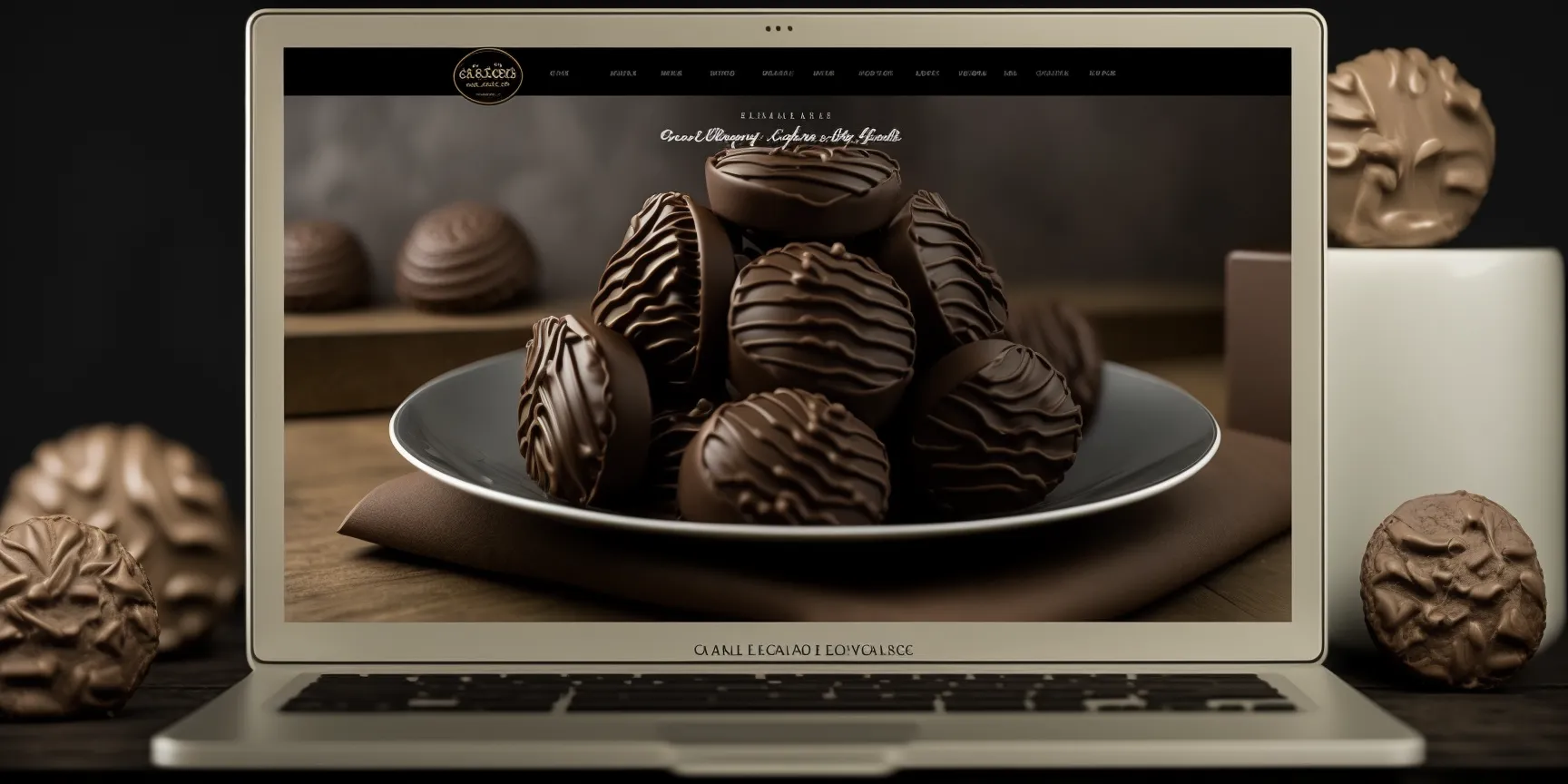
Guide: how to sell chocolates online
18 Dec 2025
Want to sell chocolate online in your own webshop? Abicart is a complete professional e-commerce solution with hundreds of features that are perfect for you to succeed in selling chocolate. It is completely free to try - and best of all - it is extremely affordable if you choose to subscribe to one of our versions.Start a webshop with us. Free demo for 30 days!Click here and start your webshop - Free demo! You'll be up and running in minutes!Free access to Abicart's customer service.No card required
-
How to start a webshop selling wigs
18 Dec 2025
Do you want to sell wigs online in your own webshop? Abicart is a complete and professional e-commerce solution with hundreds of features that are perfectly suited for you to succeed in selling wigs. It's completely free to try - and best of all - it's extremely affordable if you choose to subscribe to any of our versions.Start a webshop with us. Free demo for 30 days!Click here and start your webshop - Free demo! You'll be up and running in minutes!Free access to Abicart's customer service.No card required
-
Guide: how to sell software online
18 Dec 2025
Do you want to sell software online in your own webshop? Abicart is a complete and professional e-commerce solution with hundreds of features that are perfectly suited for you to succeed in selling software. It's completely free to try - and best of all - it's extremely affordable if you choose to subscribe to any of our versions.Start a webshop with us. Free demo for 30 days!Click here and start your webshop - Free demo! You'll be up and running in minutes!Free access to Abicart's customer service.No card required
-
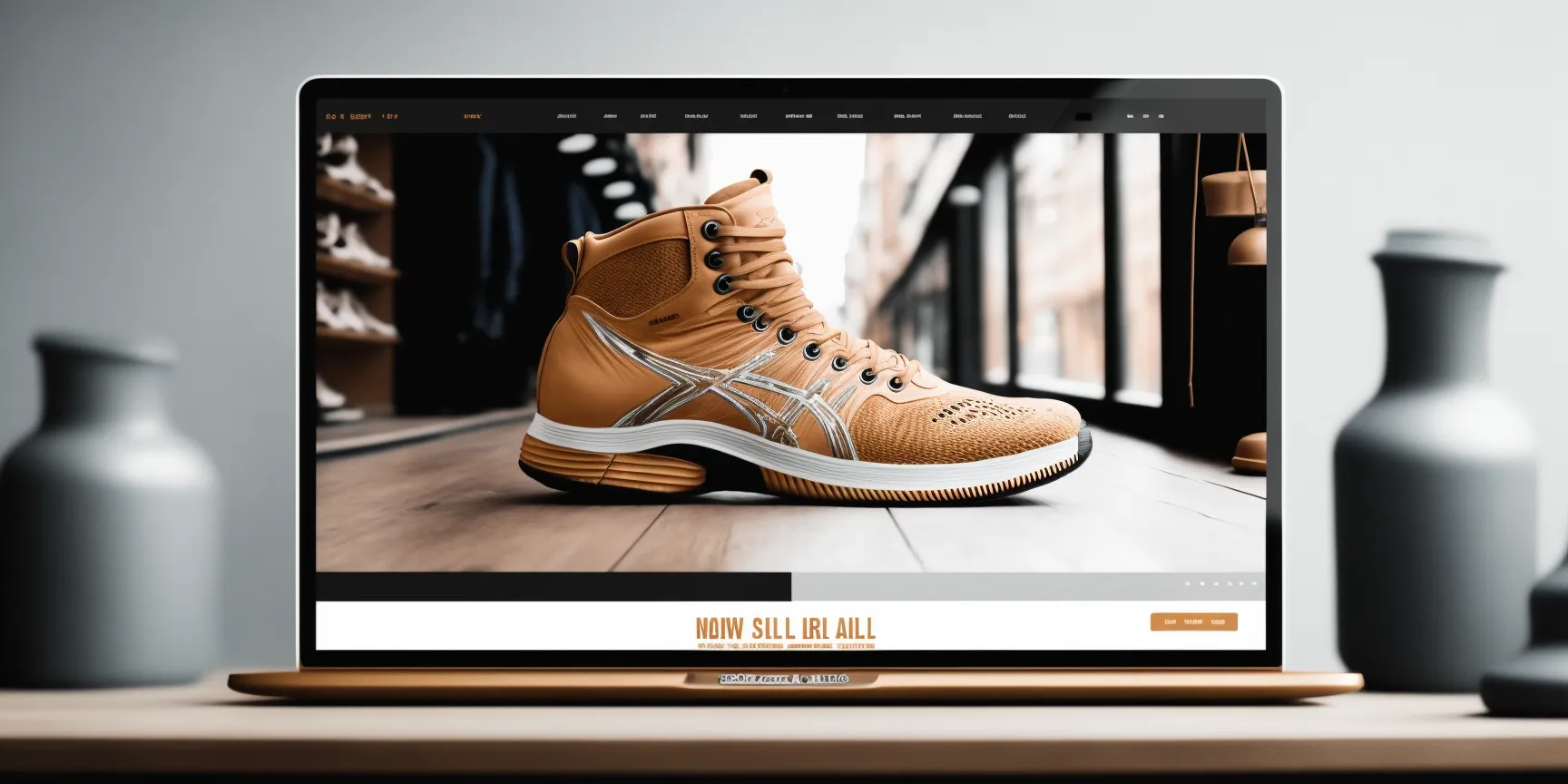
Build a webshop for shoes
18 Dec 2025
Do you want to sell shoes online in your own webshop? Abicart is a complete and professional e-commerce solution with hundreds of features that are perfectly suited for you to succeed in selling shoes. It's completely free to try - and best of all - it's extremely affordable if you choose to subscribe to any of our versions.Start a webshop with us. Free demo for 30 days!Click here and start your webshop - Free demo! You'll be up and running in minutes!Free access to Abicart's customer service.No card required
-
Get started selling cell phone accessories online
18 Dec 2025
Do you want to sell cell phone accessories online in your own webshop? Abicart is a complete and professional e-commerce solution with hundreds of features that are perfectly suited for you to succeed in selling cell phone accessories. It's completely free to try - and best of all - it's extremely affordable if you choose to subscribe to any of our versions.Start a webshop with us. Free demo for 30 days!Click here and start your webshop - Free demo! You'll be up and running in minutes!Free access to Abicart's customer service.No card required
-
How to start a webshop selling t-shirts
18 Dec 2025
Do you want to sell t-shirts online in your own webshop? Abicart is a complete and professional e-commerce solution with hundreds of features that are perfectly suited for you to succeed in selling t-shirts. It's completely free to try - and best of all - it's extremely affordable if you choose to subscribe to any of our versions.Start a webshop with us. Free demo for 30 days!Click here and start your webshop - Free demo! You'll be up and running in minutes!Free access to Abicart's customer service.No card required
-

Build a webshop for jewelry
18 Dec 2025
Do you want to sell jewelry online in your own webshop? Abicart is a complete and professional e-commerce solution with hundreds of features that are perfectly suited for you to succeed in selling jewelry. It's completely free to try - and best of all - it's extremely affordable if you choose to subscribe to any of our versions.Start a webshop with us. Free demo for 30 days!Click here and start your webshop - Free demo! You'll be up and running in minutes!Free access to Abicart's customer service.No card required
-
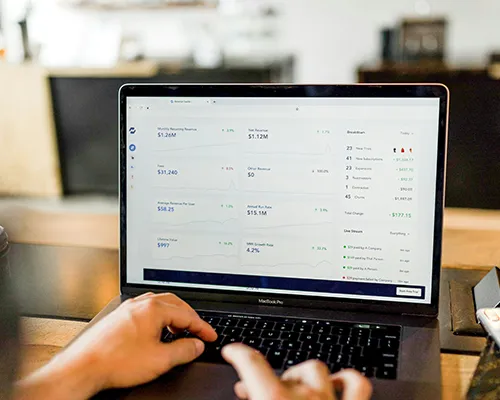
A Comprehensive Guide to E-commerce Analytics: Leveraging Data for Business Growth in 2024
18 Dec 2025
Unlock the power of e-commerce analytics to drive growth. Learn how to track performance, understand customer behaviour, and make data-driven decisions with Abicart's platform and integrations with top analytics tools.Introduction: The importance of e-commerce analyticsIn the rapidly changing world of e-commerce, data is one of the most valuable assets a business can have. Understanding how your customers interact with your online store, which products they prefer, and how they move through the buying journey is crucial to making informed decisions that drive growth. This is where e-commerce analytics comes in.Ecommerce analytics gives businesses the insights they need to track performance, understand customer behavior and optimize their business. By leveraging data, you can make smarter, data-driven decisions that not only improve your profitability but also elevate the overall customer experience.In this comprehensive guide, we will explore how businesses can effectively use e-commerce analytics, focusing on the tools and integrations offered by Abicart to help you get the most out of your data.Understanding the Basics of Ecommerce AnalyticsBefore we dive into the tools and strategies, it's important to understand what ecommerce analytics entails. Basically, ecommerce analytics is about collecting, analyzing, and interpreting data related to your online store's performance. This includes metrics like:Traffic data: the number of visitors to your website, where they come from and which pages they visit.Conversion data: The percentage of visitors who complete a desired action, such as making a purchase, signing up for a newsletter, or adding items to their shopping cart.Customer behavior data: Insights into how customers navigate your website, what products they look at, how long they stay on a page, and where they abandon their purchase.Sales data: Information about your sales performance, including total sales, average order value and product-specific sales data.Marketing data: Data related to your marketing efforts, such as the performance of your ad campaigns, email marketing and social media engagement.By analyzing these metrics, you can identify patterns, spot areas for improvement, and make data-driven decisions that will help you grow your business.Leverage Ecommerce Analytics for GrowthTrack Website PerformanceOne of the most fundamental aspects of ecommerce analytics is tracking your website's performance. This means monitoring traffic, bounce rates, session length, and page views to understand how users interact with your site. Tools like Google Analytics provide detailed insights into these metrics, allowing you to see which pages are performing well and which may need optimization.Understanding customer behaviorCustomer behavior analytics helps you understand how customers move through your website, from landing pages to checkout. By analyzing this data, you can identify friction points in the customer journey, such as pages with high bounce rates or steps in the checkout process where customers abandon their carts. This information is invaluable for optimizing the user experience and increasing conversion rates.Optimize Marketing CampaignsEcommerce analytics also play a crucial role in measuring the effectiveness of your marketing campaigns. By tracking metrics like click-through rates, conversion rates, and return on ad spend (ROAS), you can determine which campaigns are providing the most value and adjust your strategy accordingly. Integrations with platforms like Google Ads, Meta Ads, and Google Merchant Center make it easier to track and optimize your marketing efforts.Improve product performanceUnderstanding which products perform well and which don't is key to managing your inventory and maximizing sales. E-commerce analytics can help you identify best-selling products, slow-moving items and seasonal trends. With this information, you can make data-driven decisions about product promotions, replenishment and discontinuation of underperforming items.Personalize the Customer ExperienceData-driven personalization is a powerful way to improve the customer experience. By analyzing customer data, such as past purchases and browsing history, you can create personalized product recommendations, targeted marketing messages and tailored shopping experiences. This not only increases customer satisfaction but also drives higher conversion rates.Use A/B testing for OptimizationA/B testing is an essential tool for optimizing your e-commerce store. By testing different versions of your website, product pages or marketing campaigns, you can determine which variations perform best. Ecommerce analytics provides the data you need to evaluate these tests and make informed decisions about which changes to implement.How Abicart Supports Your Ecommerce Analytics NeedsAt Abicart, we understand the importance of ecommerce analytics to drive growth, and we offer a range of tools and integrations to help you get the most out of your data:Google Analytics integration: Our platform integrates seamlessly with Google Analytics, giving you detailed insights into your site's performance, customer behavior, and more. With Google Analytics, you can track key metrics and make data-driven decisions to optimize your store.Data Layer for Tag Manager: Abicart supports sending information in the Data Layer for Google Tag Manager, enabling advanced tracking and customized measurement of events. This makes it possible to collect more detailed data and customize your analysis according to your specific needs.Integration with Google Ads and Meta Ads: Our platform integrates with the major ad platforms, including Google Ads and Meta Ads (formerly Facebook Ads), enabling you to track the performance of your ad campaigns and optimize your marketing budget.Support for Google Merchant Center and Search Console: Abicart's integration with Google Merchant Center and Google Search Console helps you manage your product listings and improve your visibility in search results. This is crucial for driving traffic and increasing sales.API integrations for Advanced Users: For businesses on our higher plans (Plus and Pro), we offer API integrations that allow you to connect your store to advanced analytics tools and custom solutions. This flexibility ensures you can access the data you need, when you need it.30 Day Free Trial: We offer a 30-day free trial of our platform, including our Pro plan, so you can explore all features and integrations with no obligation. This gives you the opportunity to see first-hand how Abicart can help you leverage ecommerce analytics to grow your business.Conclusion: Unlock Growth Through Ecommerce AnalyticsEcommerce analytics isn't just about collecting data-it's about turning that data into actionable insights that drive growth. By understanding your website performance, customer behavior, and the effectiveness of your marketing campaigns, you can make informed decisions that improve your profitability and elevate the customer experience.With Abicart's powerful analytics integrations and tools, you have everything you need to leverage data for growth. Whether you're just starting out or looking to take your e-commerce business to the next level, our platform offers the support and flexibility you need to succeed in 2024 and beyond.
-

Top E-commerce Trends to Watch in 2024: What Swedish and Scandinavian Businesses Need to Know
18 Dec 2025
Discover the key e-commerce trends for 2024 and how your business in Sweden and Scandinavia can stay competitive. Explore the opportunities with Abicart's Pro Plan, including a 30-day free trial.Introduction: A Changing Landscape for E-commerceE-commerce continues to evolve rapidly, and 2024 looks set to be a year filled with new opportunities and challenges for businesses in Sweden and Scandinavia. With more than three decades of business experience in Sweden, we at Abicart understand the importance of staying up-to-date with the latest trends to remain competitive.In this blog, we will go through the most prominent e-commerce trends for 2024 and how businesses in Sweden and Scandinavia can leverage these trends to strengthen their positions in the market. Whether you run a small business or a large online store, these insights will be crucial to maximizing your success in the digital world.1. Continued Growth of Mobile Commerce (M-commerce)Mobile commerce has been on a strong rise in recent years, and 2024 will be no exception. With the high smartphone penetration in Scandinavia and an increasing share of consumers preferring to shop via mobile devices, optimizing your e-commerce platform for mobile users is crucial. A mobile-friendly design, fast loading time and a smooth checkout process are fundamental to capturing this growing market.2. focus on sustainability and eco-friendly optionsSustainability continues to be a strong driver of consumer decisions, especially in Scandinavia, where environmental awareness is high. 2024 will see an increased demand for eco-friendly products and sustainable business practices. For businesses, this presents an opportunity to differentiate themselves by offering organic products, minimizing waste and using sustainable packaging options. Communicating your commitment to the environment can also improve your brand credibility and attract more customers.3. personalization and AI-driven experiencesPersonalization is key to creating meaningful customer relationships and increasing conversion rates. In 2024, we will see an increased use of artificial intelligence (AI) to deliver tailored shopping experiences. AI can help analyse customer behaviour, predict preferences and provide personalized product recommendations in real time. Leveraging these technologies can help businesses increase customer satisfaction and drive additional sales.4. Expanded Use of Social CommerceSocial media has become an integral part of the consumer buying journey, and social commerce - selling directly through social media platforms - is growing in importance. By 2024, more businesses in Sweden and Scandinavia are expected to leverage platforms like Instagram, Facebook, and Pinterest to reach their customers directly where they spend the most time online. By integrating social commerce into your e-commerce strategy, you can improve customer engagement and increase your sales.5. improved omnichannel strategyA consistent and seamless shopping experience across all channels, from physical stores to online platforms and mobile devices, is increasingly important. An effective omnichannel strategy allows customers to move smoothly between different platforms, enhancing their overall experience. In 2024, companies in Scandinavia should focus on integrating their channels to offer a unified customer experience.6. Importance of Fast Delivery and Flexible Delivery OptionsConsumer expectations for delivery speed continue to rise. In 2024, fast delivery and flexible delivery options will be key competitive factors in e-commerce. Companies that can offer same-day delivery, or within a few hours, will have an advantage over competitors that cannot meet these expectations. At the same time, it is becoming increasingly important to offer delivery options that fit the customer's lifestyle, such as pick-up points or delivery to the workplace.How Abicart can help you capitalize on these trendsAt Abicart, we are committed to helping Swedish and Scandinavian businesses succeed in the competitive world of e-commerce. With our Pro Plan, which offers a 30-day free trial, you can take full advantage of our advanced features and tools to help you adapt your business to these trends:Mobile Optimization: Our platform offers responsive design templates and tools that ensure your website works smoothly on all devices.Sustainability support: With Abicart, you can easily communicate your sustainability initiatives and use eco-friendly integrations.AI and Personalization: Leverage AI-powered tools to deliver personalized shopping experiences that increase customer satisfaction.Social Commerce Integration: Abicart seamlessly integrates with major social media platforms, making it easy to leverage social commerce.Omnichannel Support: Our platform helps you offer a seamless customer experience across multiple channels.Delivery management: Optimize your delivery process and offer flexible delivery options that meet customer expectations.Conclusion: Prepare for 2024 with the right strategy2024 will be a year filled with opportunities for Swedish and Scandinavian e-commerce companies. By keeping an eye on these trends and adapting your strategy accordingly, you can ensure that your business not only survives but thrives in the increasingly competitive digital world.With Abicart's platform, you have access to all the tools you need to stay competitive. Take advantage of our 30-day free trial and discover how we can help you grow your business in the coming year.
-

Sustainability in E-commerce: How Scandinavian Businesses Can Set the Standard in 2024
18 Dec 2025
Explore the growing importance of sustainability in e-commerce and how Scandinavian companies can lead the way. Discover practical strategies for green business practices and how Abicart supports green e-commerce initiatives.Introduction: The Growing Demand for Sustainability in E-commerceSustainability has gone from being a buzzword to becoming a key issue for both businesses and consumers. As environmental awareness grows, so does the demand for sustainable practices in all industries, including e-commerce. For Scandinavian businesses, known for their progressive approach to environmental issues, leading the way in sustainable e-commerce is not just an opportunity - it's a necessity.The Scandinavian region is globally recognized for its commitment to sustainability. Countries like Sweden, Denmark and Norway are at the forefront of implementing green policies, and consumers in these markets expect businesses to prioritize eco-friendly practices. In this blog, we discuss why sustainability is crucial in e-commerce, how Scandinavian companies can lead by example, and how Abicart supports green business practices.Why Sustainability is Important in E-commerceE-commerce has a significant environmental impact, from the energy consumed by data centers to the packaging and transportation of goods. As the industry continues to grow, so does its impact on the planet. Consumers are increasingly aware of this and make their purchasing decisions based on a brand's environmental performance. A study by Nielsen found that 73% of global consumers would definitely or probably change their consumption habits to reduce their environmental impact.For e-commerce businesses, this shift in consumer behavior presents both a challenge and an opportunity. Those that embrace sustainability can build stronger brand loyalty, attract environmentally conscious customers and even reduce costs through more efficient operations. On the other hand, companies that do not address environmental issues may lose market share to more environmentally friendly competitors.How Scandinavian companies can lead the wayScandinavian companies are uniquely positioned to lead the way in sustainable e-commerce thanks to the region's strong environmental values and advanced infrastructure. Here are some key strategies for implementing sustainability in e-commerce:Sustainable Purchasing and ProductionPrioritize suppliers that use sustainable materials and processes. Consider partnering with local manufacturers to reduce the carbon footprint associated with transportation. Transparency in the supply chain is also important; consumers want to know that the products they buy are ethically and sustainably produced.Environmentally friendly packagingReduce the environmental impact of packaging by using recycled, biodegradable or compostable materials. Encourage customers to recycle packaging by providing clear instructions. Scandinavian companies can also explore innovative packaging solutions that minimize waste, such as reusable packaging.Carbon-neutral deliveryOffer carbon-neutral delivery to offset the emissions associated with delivering goods. This can be achieved by partnering with logistics companies that prioritize sustainable practices or by investing in carbon offset programs.Energy-efficient operationsReduce energy consumption by optimizing your e-commerce platform for energy efficiency. This includes using data centers powered by renewable energy and implementing energy-efficient practices in warehouses and offices.Promote Sustainable ProductsHighlight and promote products that are environmentally friendly, whether they are made from sustainable materials, have a long life cycle or are produced in an environmentally responsible way. Scandinavian consumers are particularly receptive to companies that offer sustainable alternatives.Educate and Engage CustomersUse your platform to educate customers about sustainability and how they can make more environmentally friendly choices. Engage them with content that highlights your commitment to sustainability and the steps you are taking to reduce your environmental impact.How Abicart Supports Green Business PracticesAt Abicart, we are committed to supporting businesses that want to embrace sustainability. Our platform is designed with features that help reduce environmental impact and promote eco-friendly practices. Here's how Abicart can help:Sustainable Hosting: Our platform is hosted on servers powered by renewable energy, ensuring that your ecommerce store operates in an environmentally responsible manner.Eco-friendly Templates: We offer templates that are optimized for energy efficiency, reducing the overall energy consumption of your website.Sustainable Shipping Support: Abicart integrates with shipping providers that offer carbon-neutral shipping, making it easier for you to offer eco-friendly shipping options to your customers.Waste Reduction Tools: Our platform includes tools that help minimize waste in your e-commerce business, such as inventory management features that reduce overproduction and excess inventory.Conclusion: Leading the Way in Sustainable E-commerceSustainability is no longer optional - it's necessary. For Scandinavian businesses, there is an opportunity to set the standard in sustainable e-commerce by adopting eco-friendly practices that resonate with your customers' values. By prioritizing sustainability, you're not only contributing to a healthier planet, but also building a brand that is respected and trusted by consumers.Abicart is here to support your journey towards sustainability with tools and features designed to reduce your environmental impact. Together we can create a greener future for e-commerce.
-

Webshops of the Future: How We Meet the Accessibility Directive 2025 with TPL Edit
18 Dec 2025
Today, the web is a natural part of society. Wether we surf the web from the couch or on the bus, it is everyone should be able to participate. Accessibility is not only important for a few; it is part of the whole customer experience that affects us all. Maybe you are the bus passenger with the sun is shining on your phone screen, or the stressed-out parent trying to shop while the kids are running around you. Or maybe you've sprained your hand? In all these situations, accessibility features aren't just nice to have - they're straight out necessary. And when we design with accessibility in mind, we elevate the usability of the entire site, making the experience better for everyone.Webshops of the Future: How We Meet the Accessibility Directive 2025 with TPL EditToday, the web is a natural part of society. Wether we're surfing the web from the couch or the bus, everyone should be able to participate. Accessibility is not only important for a few; it is part of the whole customer experience that affects us all. Maybe you're sitting on the bus and the sun is shining on your phone screen, or you're the stressed-out parent trying to shop while the kids run around you. Or maybe you've sprained your hand? In all these situations, accessibility features are not just nice to have - they're necessary. And when we design with accessibility in mind, we elevate the usability of the entire site, making the experience better for everyone.The EU Accessibility Directive 2025In June 2025, the EU's new, stricter Accessibility Directive will come into force. This applies to companies with more than 10 employees and an annual turnover of over €2 million. But this is not just a legal obligation to us. We see it as a great opportunity to welcome more customers and improve our service. And we believe that accessibility should benefit everyone, not just larger companies. Why invest in accessibility?Adapting for accessibility is a broad and important area involving vision, cognition and motor skills. These abilities can vary greatly - some of us may have permanent barriers while others encounter temporary difficulties. Sooner or later, all of us encounter a situation where we need extra help to navigate and use the web with ease. So at Abicart, we don't just see this as expensive bureaucracy. We see it as an investment that creates a better product for all.TPL Edit - Our Solution for the Web Store of the FutureAt Abicart we are already hard at work developing our new theme engine, TPL Edit. An explicit goal with our themes for TPL Edit is simply really good accessibility. Designing for accessibility is nothing new. There are many areas that overlap with accessibility, such as usability, design or search engine optimization, SEO. In the past, these areas have often driven accessibility. The difference now is a shift in perspective. We want to be clear that accessibility has an intrinsic value, while at the same time contributing to usability, good design and SEO. What does TPL Edit mean for your existing theme?Here at Abicart we are very excited to launch TPL Edit, along with our next generation of themes. Accessibility is one of our keywords. This includes everything from links and buttons being clearly labeled for screen readers, text having good contrast to the background, being able to easily interact with the page, and so on. If you already run an Abicart store, you might be wondering what this means for your current theme. Don't worry, we will update it with a new TPL version. It will look similar visually, but with new code under the hood. Have you customized your shop with your own CSS, design or script? Then you need to transfer this manually. When the update becomes available, you decide when it suits you to make the switch (not unlike previous theme updates). That way you have full control over when and how you upgrade to the new TPL version, and can take it one step at a time. Summary and outlookWe believe in accessibility both for a better product and a better society. Therefore, accessibility is one of our goals as we write a new theme engine, TPL Edit. The EU's stricter directives on accessibility adaptation put accessibility on the agenda, making it even more relevant to talk about. There will be TPL versions of our current themes to facilitate a transition to TPL Edit. Exactly what you need to do to update to TPL Edit in your store will vary. Of course, TPL Edit is about so much more than just this topic - it's also about boosting performance, making it easier to work with the shop and making it easier than ever to make customizations. Stay tuned, we will tell you more soon!
-
Everything you need to sell products online
18 Dec 2025
Starting a webshop can be a challenging task, but with the right tools and partners it can be easier and smoother than you think. With Abicart as your ecommerce partner, you can create an online shop in an easy and fast way while offering your customers a comfortable shopping experience. In this article, we will explore how Abicart can help you get started selling your products online and grow your business.
-

Creating a successful webshop and e-commerce with Abicart
18 Dec 2025
Discover how you can start your own webshop and e-commerce using Abicart, a user-friendly and affordable e-commerce platform. Follow our guide to maximize your success and reach new customers worldwide.Starting a webshop and e-commerce can be both profitable and rewarding, especially with a reliable and user-friendly e-commerce platform like Abicart. Follow our step-by-step guide to creating a successful online shop with Abicart:Step 1: Identify your niche and target audienceThink about the type of products you want to sell and your target audience. Having a clear niche and target audience makes it easier to market your online shop and attract the right customers.Step 2: Choose Abicart as your e-commerce platformAbicart is a Swedish e-commerce platform that offers a variety of user-friendly features, customizable design options, integrations with payment solutions and shipping options, and SEO and marketing tools.Step 3: Create your webshop with AbicartSign up for an Abicart account and choose a design template that fits your brand. Customize the design, add product categories and products, set up payment and shipping options, and optimize your online shop for search engines (SEO) by including keywords like "online shop" and "e-commerce" in titles, meta descriptions, and content.Step 4: Promote your online shopUse digital marketing such as search engine optimization (SEO), paid search advertising (PPC), social media, email marketing and content marketing to reach your target audience and increase traffic to your online shop.Step 5: Provide excellent customer serviceMake sure you offer fast and efficient customer service by responding quickly to questions and dealing with any problems. Satisfied customers are more likely to return and recommend your online shop to others.Step 6: Analyze and improveUse analytics tools, such as Google Analytics, to monitor your online shop's performance, traffic sources and user behavior. Adapt and improve your strategy based on collected data to increase your online shop's success and visibility in search engines.By following these steps, you can create a successful webshop and e-commerce with Abicart. Good luck on your journey to online success! Click here and start your webshop - Free demo!
-

Free ways to market your online store
18 Dec 2025
Do you have an online store but feel that marketing costs too much? Don't worry, there are many ways to promote your business without spending too much. Here are some free tips to help you promote your e-commerce business.Google My Business. Sign up to Google My Business and be visible on Google. You can also rank higher in search results, making it easier for customers to find you.Google Analytics. Use Google Analytics to access detailed information about your visitors. With this information, you can better tailor your business to your customers' needs.Be active on social media. Focus on which social media platforms your target audience uses and share content there. There are endless opportunities to be seen and find potential customers.Customer reviews. Satisfied customers are your best marketing! Ask your customers to write reviews about your products and services. Positive reviews help build brand loyalty and increase sales.Listen to your customers. Monitor comments on social media and make it easy for customers to contact you. Ask your customers to help you along the way.Start a company blog and start blogging. Show that you are an expert in your field and build trust in your brand. Then share the content on your social media channels.Make a video. Create videos promoting your products and services and upload them to YouTube and other video platforms. You can even include video content in your webshop to increase engagement. Remember, a video doesn't have to be studio-quality to be successful; genuine and authentic content builds trust with users.Guides and advice. Create guides and advice that are relevant to your products and services. These can help your customers understand how the products work and how to use them in the best way. This can help increase customer satisfaction and loyalty.Free samples. Offer free samples of your products to customers. This can help build brand loyalty and increase the chances of customers buying the products again.Partner with other companies. Partner with other businesses that target the same audience as your e-commerce business. This can help increase your visibility and boost sales. Take advantage of each other's networks through exposure on each other's channels.With these tips, you can promote your e-commerce business in a free and effective way. Don't be afraid to get started and show the world what you have to offer!
-

Translate your product texts automatically with Abicart!
18 Dec 2025
Speed up your webshop with Abicart's automatic translations! Abicart's admin gives you the ability to translate article texts automatically and quickly.Automated translation services such as Deepl and Google Translate have revolutionised the ability to communicate with people who speak different languages. Here are some of the benefits of using these services:Speed: Translations are done in real time, making it possible to get translated documents, web pages and chat messages quickly.Availability: automated translation services are available 24/7 and can be used from any location with an internet connection.Enhanced communication: the ability to translate text between languages makes it easier to communicate with non-native speakers.Cost-effectiveness: automated translation services are often free to use, making it a cost-effective way to translate text compared to hiring a professional translator.Increased access to information: machine translation services make it possible to read and understand information in other languages, increasing access to information from all over the world.Thus, automated translation services such as Deepl and Google Translate can help increase communication, reduce costs, increase access to information and enable documents and web pages to be translated quickly.'
-
Are you starting a webshop? 5 things you should consider to succeed!
18 Dec 2025
Here are 5 important tips to consider before starting your own webshop:1. Create a clear business plan. Before you start your webshop, it is important that you have a clear picture of what you want to achieve, what products or services you will offer, who your target customers are and how you will market and sell your products or services.2. Choose an appropriate e-commerce platform. There are many different e-commerce platforms to choose from, so it's important that you choose one that suits your needs and circumstances. Consider things like price, features, ease of use and integration with other systems and tools.If you're starting a webshop and looking for a good e-commerce platform, I highly recommend trying Abicart. It's a complete e-commerce solution with many great features, and best of all, it's completely free to try.With Abicart, you get a user-friendly platform that makes it easy to create a professional webshop. You can easily add products, manage orders and invoicing, and integrate with payment solutions such as Klarna. You also get access to a host of marketing and search engine optimisation tools, so your webshop is visible and found by customers.Another great advantage of Abicart is that you have free support throughout the demo period. This means that you can get help with all your questions and concerns, so you can get started quickly and easily with your webshop.So if you want to try out a complete and user-friendly e-commerce platform, you should really give Abicart a try. You have nothing to lose, as it's free to try and you get free support throughout the demo period. Check out Abicart and see if it's the right platform for you and your webshop!3. Develop a professional and user-friendly web design. Your webshop is the face of your business to the world, so it's important that you have a professional and user-friendly design that attracts customers to shop with you. Think about things like clear navigation, easy ordering process and responsive design for mobile use.4. Make sure you have the right payment and delivery options. In order to sell your products or services, you need to offer appropriate payment and delivery options for your customers. Think about things like different payment methods, shipping costs and delivery times.5. Market your webshop properly. In order to sell your products or services, you need to make your customers aware that your webshop exists. You can do this by using different marketing tools such as search engine optimisation, social media, email marketing and advertising.By following these tips, you can start a successful webshop that attracts customers and gives you the opportunity to grow and develop your business.Try starting your own webshop with Abicart - for free
-

The moped renovator shares his best e-commerce tips!
18 Dec 2025
Mopedrenovering.se has been a customer of Abicart since: 2013. What started as a hobby grew quickly and today they are one of the largest moped shops in Europe. Janne is one of the co-owners and with a background in IT he shares his best tips!We drive by the mantra "We suck less"For us, there has never been just one thing, but we do many things and we do those things well. We don't have to be the best but we should never be the worst. We follow the mantra "We suck less". Which means that when we think we suck at something, we're often still better than our competitors. We're still usually the best even if we're not always happy with what we do.We've always had lots of ideas and we're not afraid to try new things, so my advice is to think outside the box and dare to try things out. Just be sure to analyse and change again if you find it's not working out for the best. When you run a webshop it is important that you have a high level of knowledge about your products and that you know how to treat a customer. A dissatisfied customer can always be a very good ambassador, your job is to make sure to turn the mindset of the customer to the positive. Sometimes it costs a little but it's always worth it because in the end you will benefit from it.To streamline your work even more, my tip is to learn how to work in Excel, especially if you have a large amount of products. I like to process 10,000 products at the same time, to work more efficiently.For example, if you realise that you have named the same items with different names such as rear light, rear lamp, rear lamp and rear lantern. Instead of going in and changing each item one by one in the database, you can instead pick out the whole database and put it into an Excel file and you can filter and change them all to the same name there. Then you just pick it back into the database, that way you will save a lot of time. As soon as you can process many things at once in Excel, it's a tremendous time saver, it's worth its weight in gold to be able to process many items at the same time.My last tip is to make it easier for you to start a webshop. Make sure you have everything totally integrated and automated as much as possible. We have removed all manual work by linking the functions and integrations together and it makes our daily work a lot easier. We have had your PRO subscription since the beginning. The reason for this is that we have always wanted to fully automate everything as much as possible and we want to avoid manual methods. In order to make these connections we have needed the PRO subscription. Considering everything you offer and deliver for what we pay, we think it is extremely good. You are also good at picking integrations in many payment methods and the like.Read the full interview with Janne here!Check out Mopedrenovings webshop
-

Welcome to Abicart
18 Dec 2025
Great that you are up and running with your new webshop! Here we show you how to get started with our admin tool. Do you have questions?
-
Tips for all e-merchants before, during and after Black Friday
18 Dec 2025
The highlight of the year is almost here and, as usual, Black Friday is set to break new records. This year, Black Friday falls on 26 November and shortly after that, the Christmas shopping season gets underway. We at Abicart have gathered some points that might be worth considering before, but also during and after Black Friday.Thinking ahead to Black FridayUse and analyse data from last yearAnalyse and evaluate previous years' data and look for trends. With simple analytics tools such as Google Trends you can gain a lot of knowledge and see which keywords/terms were popular during previous years' Black Friday. Keep these questions in mind:How did it go last year?What were your best products?Which day did you sell the most? The whole weekend or a specific day?Where did your visitors come from? Mobile or desktop?What percentage of sales came from new customers?How did your marketing perform for Black Friday - which strategies worked best?Promote and inform your customers about offersFor Black Friday, it is important that your customers are informed about the offers that you have developed for that particular day. Make sure your webshop is updated with the right information so that customers can easily get ready to buy when the time comes. Many chains and e-tailers have hefty discounts during Black Friday, but here you can of course calculate your own pricing model based on your company's circumstances. Let your customers know about your upcoming offers and give them an opportunity to get involved by sending out a newsletter, for example. That way, you'll make sure to get your customers' attention when the time comes.Mobile, mobile and mobile (yes, it's still relevant)It may be getting old, but mobile optimization is key. Mobile has been the focus for e-tailers for some time as customers continually become more tech-savvy and look for seamless experiences across multiple channels. So make sure your customers can easily navigate and make purchases via mobile without any hassle. Bonus points!Consider your marketing and where to spend it. Remember to reach your customers where they are.Customize the look in your e-commerce so visitors can easily find your Black Friday deals. This could be through a banner on the homepage or highlighted product groups in the menu. Can you add product descriptions anything else? Can you add more or new images? The more you work on your product descriptions, the more you can reduce returns.Test the customer journey several times. Is it easy to find the products you want and get to the checkout?Start your webshopThings to consider during Black FridayBe extra accessible to your customersIt should be easy for your customers (and potential customers) to get in touch with you during Black Friday. The last thing you want is to lose a customer because they don't get a quick enough response. So make sure it's easy for customers to get in touch with you throughout Black Friday. Perhaps you need to extend your support hours for a certain period? Keep in touch with the customer all the wayDon't lose contact with the customer after a purchase has been completed. Keep in touch with the customer all the way through and let them know what's happening with the order. Have you packed and shipped the order? When can the customer expect their package? Keeping in touch with the customer avoids unnecessary questions and the customer knows what to expect.Save useful information for the next sales periodTo avoid losing customers after the sale, it can be a good idea to collect the data you get during Black Friday in a regular way. For example, you can use this information to send out newsletters in the run-up to the Christmas sales. Then you have a chance to attract back customers who have already shopped with you and been satisfied with their purchases. Thinking after Black FridayHow did it really go?With Black Friday over, you've also made an important rehearsal for the Christmas shopping season. That's why it's a good idea to gather the lessons you've learned and take them with you into the next sales period. Find out all the numbers and compare the results with previous years.Here are five questions to help you evaluate Black Friday. Go through the questions to see what went well and what can be done better for the next sales period. Based on the answers, it might be a good idea to develop an action plan so you can start making changes now. This will give you plenty of time to adjust and fine-tune your procedures and thus create a good basis for achieving even better results next time.Five questions to help you evaluate Black FridayWhat went well and what could have gone better?Did you achieve your set goals?Are you satisfied with the sales performance?Are you happy with the results? Did you have enough products in stock? Were you able to meet your promised delivery times?During sales days like Black Friday, a lot of time is spent capturing customers' interest through offers in newsletters, ads and social media. The expectation of making a good purchase is the customer's top priority. But how can you maintain customer interest after Black Friday and into the holiday shopping season? A recurring trend in e-commerce each Christmas is the advent calendar. Thousands of emails are sent out every day in December with unique offers where you have to be first in line to secure the deal. This is an effective way to capture and retain customer interest throughout the Christmas shopping season. In addition to your daily offers generating additional sales, you can strengthen your web shop's brand, establish long-term loyalty with your customers and highlight the best of your range.We at Abicart hope you've got some really good ideas for making this year's Black Friday and Christmas sales a success. But above all, your main focus should be on what's best for you and your business. Best of luck with the sales!Start your webshopIt should be really easy to sell online and quickly access a global market. Abicart is the perfect e-commerce platform for those who want to sell on the web. Our mission is to empower everyone to start and run a great webshop. Abicart started as Textalk Webshop back in 1998, and today we have a solid experience in e-commerce - with thousands of satisfied customers. Get started right away and sell for free for 30 days.
-

How SEO works - A guide for online shop owners! - Textalk Abicart
18 Dec 2025
Search engine optimize your webshopThere are two main ways to get high search results on Google. One costs money and the other does not. The question is really what is the difference, what can you do on your own and what should you invest most in?Market yourself through Google AdsLet's first go through the method that costs money. Google has a range of advertising tools suitable for different platforms, channels and messages - all of which belong to Google Ads". You've probably seen when you've googled something that it says "Ads" on the results at the top of the page. In short, these are paid ads placed by businesses via Google Ads. As an advertiser, you can control how much money you want to spend on your advertising, which keywords will attract which ads, which potential customers will see your ads, and so on. You can do just about anything to get as much and as high-quality traffic as possible from Google to your online store. However, let's focus on the one method that doesn't actually cost you any advertising money at all - namely search engine optimisation, also known as SEO." SEO - search engine optimization! To briefly clarify the concept of SEO, it is simply an abbreviation for Search Engine Optimization - or search engine optimization in English. But what is it?Exactly as the name suggests, it's about optimising your website for search engines to get the best possible results when people search for something that you might be selling through your online shop. We're playing with the idea that your business sells fitness clothing and accessories. If someone searches for 'gym bag' (which is something you sell!), you obviously want your online store to appear as high up in the search results as possible, while looking as relevant as possible so that they visit your site. It's more important than ever to keep up with Google In Sweden, the Google search engine is used exclusively by the most people. All 97% of internet users search for information on Google - in other words, it's safe to say that it's important that you have a website that's liked by Google! Moreover, according to the Swedish Internet Foundation's annual "Swedes and the Internet" survey one in four Swedish internet users shopped online more during the pandemic than they usually did in the past, one in five also think they will shop online more after the pandemic. What can we conclude from this? Well, firstly that it's a very exciting time to be an e-tailer of course, and secondly that it's incredibly important to be at the top of Google results if you want to take advantage of the rise of e-commerce. Time to search engine optimise! A few basic tips that will take you far Of course, it's possible to get completely bogged down in the promised land of search engine optimisation and there's also an incredible amount you can do to customise your website down to the last detail. However, here are some simple tips to get you started: Create good, relevant content. Try to put yourself in the mindset of both Google and the person searching on Google. The searcher obviously wants to find what they're looking for, and Google in turn wants to make the best and most relevant suggestions possible. To make both Google and the person happy, it is important that the content of your web page is as good as possible with clear headings and relevant content with the right keywords and so on. Simply tailor the content to what people are searching for and make sure they are not disappointed when they visit your site. Use the right keywords. Keywords are words that people usually google to find web pages like yours. So try to use the right keywords in both the headings and text of your page. If you're selling a gym bag called "Athletic trunk X5", it might be wise to at least include the words "sports bag" or "gym bag" in conjunction with the product. Keywords can sometimes be difficult to figure out on your own, so you can use various analytics tools - Google's own version is called Google Analytics. You can see what people have searched for to get to your site. Don't be too spread out. Try to keep your topics to a minimum per web page, but write well and fill in with good and relevant information about the specific topic. Don't mix a lot of different topics, but rather split it up into several pages. This is because Google prefers it when it is clear what a specific page is about, as it can then feel more confident that the result presented to the person googling is relevant. Again, it's about the content itself, which should be as good and relevant as possible based on what the visitor googled in the first place. Write meta descriptions for your pages. There are features for filling in so-called meta descriptions of the pages on your website, which is basically a short description of what is on each page. This is also the description that appears on Google when people search and get your page as a suggestion. Let's say you have a page where people can find all your gym bags - here it would be good to have a meta description of the page that briefly describes that you sell lots of good gym bags at really good prices. The meta description will not appear on the page itself, but only in the search results on Google. Keep the description short and concise and - if possible - make sure you have meta descriptions on every page of your website! Put alt text on your images. Just like you can make meta descriptions of your web pages, you can put so-called alternate text, "alt text", on the images on your website. The alt text briefly describes what the image represents or what the purpose of the image is, mainly to help people who for various reasons cannot see the image without some kind of aid, such as a reading tool. Google also likes it when images have alt text, as it makes your site look more user-friendly - which can give you a boost in search results. Analyze, test and redo. Do a market analysis to find out who your competitors are, how they work and what words visitors search for. How can you differentiate yourself and what keywords do you need to compete for? What can you do better? Then just test, even if you only make small changes to your website it can make a big difference in the long run. Try, change, redo and be patient! Are you stuck? We can help! Can't find the right settings to search engine optimise your e-commerce? Don't understand Google Analytics? Or maybe you just need some help? We're here for you! Our customer service team will be more than happy to guide you through the features of the platform so you can get the settings just the way you want them. If you want additional help with SEO, keyword analysis or getting started with Google Analytics, we have partners who can help with that too. Get in touch and we'll help you out!
-

Childstore - "I combine my great interest with my profession"
8 Dec 2025
Childstore has been around since 1996 and the store was started up in Stockholm, but when Johan, who runs Childstore today, took over, he moved the business to Gothenburg. At that time Johan was 19 years old and he loved hanging out in the skateparks with his friends, because just like the previous owner he had a big interest in BMX. The reason he took over the shop was because he wanted to combine his great interest in life with his profession. Hence, the shop's main focus in the beginning was BMX bikes with accessories but over the years as Johan's lifestyle and interests have changed, the shop has also broadened and changed its range. To expand his business to a larger market Johan also started up a webshop in addition to the physical store in 2001 and over the years he has expanded his business further.In 2019 he teamed up with his friend and together they started up a skateshop in the same building as Childstore is located and of course they also set up a webshop in addition to that store as well, stigbergetsskateshop.se. This means that Johan now runs two physical shops as well as two online shops at Abicart and is a multi-shop customer with us. Read about how he managed to combine his interest with his profession:The web shop as a complement to a physical store reaches a larger market.Childstore opened its doors in 1996 on Brunnsgatan in Stockholm. The owner of the store was Mark and the reason he started up the store was to combine his great interest in life with his profession. His great interest and lifestyle was riding BMX and by opening the shop he could also work with his interest. For this reason, the main focus of the shop was BMX and accessories. In 2000, Mark got the urge to try something else and then Mark's friend Johan took over the business and moved it to Berzeliigatan in Gothenburg. At this time Johan was 19 years old and just like Mark he had a great interest in BMX. So he continued with the same brand and focus but to expand the business to a larger market, Johan started up a webshop in addition to the physical store in 2001. Around 2019 Johan's friend Egorn needed a new office, he is a former professional skateboarder and won the Swedish Championships in 1989. He is a true skateboarding legend and currently works as a designer. Together they made space in the shop to start up another business, a skateboard shop. So Johan has two accounts on the Abicart platform where he runs his stores Childstore.se and Stigbergetskateshop.se.What do you sell in your shop Childstore.se?Initially we were very niche and sold mostly BMX but the range has changed over the years, as my interests and lifestyle have changed. Now we sell more commuter bikes and accessories to high quality and lifestyle bikes but of course we still sell BMX bikes. Cycling is one of my biggest interests in life, although it has changed over the years. Initially it was BMX in the skate parks, then it became single handlebar fixed gear, but now I mostly ride caterpillar gear bikes.Why did you start a webshop in addition to your physical shop?I started the webshop in addition to the physical store to reach a larger market and for my customers to be able to go in and read about the products before they come to the physical store.My first website my friend helped me build, then I was given a code that was burned on a CD disc that I had to upload and customers had to pay by cash on delivery. This wasn't very smooth so I was very happy when companies started offering e-commerce platforms.Why did you choose Abicart as your e-commerce platform?Our previous platform grew so big and everything started costing a lot of money which became unsustainable for me as a small business owner. If you have a small turnover, Abicart is as good as it gets, I don't know any better platform. I still looked around a lot and made webshops on many other platforms but Abicart was the best.The best thing about Abicart is that it's easy to change the look and it's quick to make changes. It doesn't take weeks to redesign a website, but last time it took me one working day to redesign the whole website. As far as I know there is not a faster platform to work in. There are of course similar e-commerce platforms but at Abicart you get a lot for your money and if you know a bit of programming you can also make your own subpages without any problems.What is the best thing about running your own business and webshop?I started my business when I was 19 so this shop has really become my identity, I don't know anything else and I find it hard to see myself doing anything else now. When you are self-employed you get a certain sense of freedom. Obviously you need to put a lot of time into your work but it's nice that you can control the range as you want and you get to be involved in the whole process. Because it's my interest and an area I'm passionate about, the days and time I spend at work are a lot of fun.Our products lend themselves very well to having a combined physical store and webshop. That way, customers can search and read online and then come to the store to test and feel and to get help with the settings. Of course, we have customers who only order online or come to the store as well. As we are quite niche, it is good that we are visible online so that visitors find us even if they do not live in the immediate area of Gothenburg.Do you have any tips for others who want to start a webshop? I think it's important to have a good structure from the start so that the stock balance is always correct, it's important to have a chat function on the website and to clearly display your email and phone number so that visitors can easily get help. Make sure you respond quickly to emails and on your social media channels. In a web shop you don't have the physical contact with your customers but that doesn't mean you don't have to take care of your customers, on the contrary, customer contact becomes extra important but in a different way. Usually it doesn't take much to get a satisfied customer and a satisfied customer is your best ambassador and "free" marketing for your business.Create a novelty value for your visitors every now and then. Even if you don't get new items in all the time, you can still create a new feel by moving items around. A quick fix you can do is to change images and products, it's quick to do and it creates a curiosity in the visitor to look further into your site. When starting up or changing the design of your webshop, I can recommend making a test shop and then trying to build it up in different themes with some products to get a feel for which theme suits your business best.Another tip is that it is good to get to know other self-employed people, that way you can help each other in different situations.Which of our subscriptions do you use and why?I use the Plus subscription and it suits me well. It includes the integrations I need to run my two shops and it's a very affordable option compared to the competition.Check out Childstore!Fancy skateboarding?
-
Lekute - "Vi vill driva en webshop som vi själva uppskattar"
8 Dec 2025
Lek Ute i Norden AB is a family business owned and operated by Mikael and Sofie Sjöstrand. In 2018 Mikael and Sofie took over the business Lekute.se. Mikael has previous experience of working as a store manager and Sofie has worked with finance and together they were curious to run and manage something of their own. They bought a concept that already existed but over the years they have evolved from bringing in goods from 2 suppliers to 10. Lekute offers most things in outdoor toys for children but their biggest category is trampolines, pools and football goals. Mikael and Sofie have also expanded the business over the years and bought two more webshops, so today they run lekute.se, kickbike.se and alhobby.se. Mikael tells us more about the history of the family business:"We want to run an online store that we ourselves appreciate"What do you sell in your shop Lekute?Our goal is to provide our customers with high quality outdoor toys at a good price. We want to run a webshop that we ourselves would appreciate shopping at. Therefore, our focus is on sourcing high quality products that will last. To extend the life of our products we also sell spare parts for them. For us it is important to offer durable products and provide personal assistance to our customers, both before, during and after the purchase. I have always had a lot of energy and drive and I enjoy selling. I have many years of experience in retail and I felt it was time to develop in a new way. Running my own store had been on my mind for many years and in 2018 we felt ready to take that step. You only sell your products on the web, have you thought about setting up a physical shop in addition?Yes, we have, but we have decided that the best thing for us and our products is to stick to having only an online store. However, in our warehouse we have a display hall where customers can come and check out our trampolines that are set up there. We do this so that our customers have the opportunity to test and feel our products. We do not have fixed times, but customers can contact us and decide what time they want/can come and we will arrange it. What I like about running a webshop compared to a physical shop, which I have worked with for many years before, is that it is a faster pace and you need to keep more balls in the air at the same time. You still have the fun part of selling and taking care of customers, but at the same time I enjoy finding new solutions to constantly improve the business. It can be anything from customer service to margin strategy. Why did you choose Abicart as your e-commerce platform?When we took over the business, the previous owners were using Abicart and we saw no reason to change. We saw the potential in Abicart to grow our business and one of the key pieces for us was that it provides smart solutions that streamline our work. Shortly after we took over the online store, we connected Abicart to our Specter business system and to our Nshift supplier system. Abicart, Specter and Nshift interact very well, so a lot of work is automated and it streamlines our work enormously.As a self-employed person, you have a lot to do and it is important to prioritise your work and for us it was important that we got this automation. I'm not good at IT and I don't want to spend a lot of time on that part, it just has to work. Abicart allows us to let go of that part and I appreciate that very much. It allows me to focus on our customers and our business. Our other two businesses were using other e-commerce platforms but we have chosen to move them over to Abicart. The reason for this is that we are very happy with the connections that make the online shopping automated and efficient and the communication with Abicart has worked very well over the years. We are very happy with Abicart and it feels great to expand with another store soon on.We absolutely recommend Abicart. If you're like me and want to let go of the IT bit and focus on your business and selling instead, Abicart is a simple, cheap and effective solution.What is the best thing about running your own business and online store?I think the best thing about running your own business is doing business. That you get to be independent, you get to make your own decisions when it comes to doing business and you get a receipt for whether you're doing a good job or not. Hopefully you also make money from it in the end. You get to decide for yourself what is important to spend time on and you get to think outside the box. We like and believe in what we do and we work on something that is fun. Sure you spend a lot of time on your business but it's usually a lot of fun along the way, the fun bits definitely outweigh the boring bits.Do you have any tips for others who want to start an online store?You have limited time as a self-employed person so I think the most important thing when running a webshop is to focus on what you are good at. Pick a few things to focus on to become the best at, because no one has time for everything. You have to prioritise and limit yourself so you do some things really well. Also remember to focus on the things that will actually generate money. Do fewer things but make sure you do them really well. This will generate more money and you will feel better in the evening.The challenge that exists if you want to grow your webshop is to find the right price that covers all costs. Make sure you get a margin on what you sell that covers all costs. The step from running your own business to growing is a difficult one, if you want to grow you have to remember that the margins have to cover the expenses even when you have grown and need rent, extra staff etc. Include this in your plan from the start when setting your prices so that your margins can cover those costs as you grow. Make sure you find something that differentiates you from others, you certainly shouldn't offer the same as your competitors. Then it will be difficult to reach out, but find your own and be unique and it will be easier to cut through the noise. Make use of Trustpilot, it's a great way for new customers to get an idea of what your company is like while you get feedback on what you need to improve. We display all our reviews. Sometimes show customers aren't happy and we'll reply and if we've done something wrong we'll fix that problem. Which of our subscriptions do you use and why?I think we have had the PRO subscription from the start. The reason for that is that we wanted to make use of the connection with Specter and Nshift and we wanted to have more stores.We chose the Bountiful theme because we found it the most practical, it has a clear and simple structure. We hear from our customers that they find it simple and easy to find on our website and that is exactly what we are looking for. We want our website to be easy to find and inspiring.Welcome to Lekute!Check out KickbikeAllvar and Lek Distribution
-
Strömsbergsgård
8 Dec 2025
Strömsbergsgård is owned by Susanne & Ola Jacobson. Horseware®Products manufactures the well-known horse blankets Rambo, Amigo and Rhino, all of which are of very high quality and fit, regardless of the type of horse. In our online store and in our physical store in Täby we stock a large range of horse blankets, dog blankets, riding clothes, riding shoes and boots, bridles, bits, grips, saddle accessories, leg protectors and much more. The staff at Strömsbergsgård are very knowledgeable, experienced and service-oriented. As a customer, you will always get the help you need as we have high ambitions to find the right blanket or product for you and your horse. In our shop you are welcome to look and feel the products in peace and quiet. If you prefer to buy from our online shop, our ambition is to ship your goods the day after you have placed your order. Depending on the shipping option, it will take 1-3 days before you receive your goods. You can also meet us at many horse events as we often visit large fairs & competitions. Among others Sweden International Horseshow in Stockholm, Gothenburg Horseshow, Falsterbo Horseshow, Strömsholmsdagarna, Jönköping Elmia and Global Championship Tour Sthlm. In some contexts we also visit show jumping & dressage competitions. Our brands include Horseware, Mountain Horse, Kep, Uvex, Pikuer, Eskadron, Catago, Uhip, Hansbo, Back on Track, Equestrian Stockholm, Swedish Collection, Hkm. Welcome to Strömsbergsgård
-
ShipNordic
8 Dec 2025
ShipNordic simplifies the everyday life of e-retailers with smart and automated solutions for shipping and order management. Focusing on small to medium-sized businesses, they offer an efficient alternative that saves time, reduces costs and frees up resources for increased sales - all hosted on servers within the EU for the highest data protection.We simplify the customer journey from purchase to delivery, and on through any returns or complaints, by offering flexible delivery options and smooth returns processes. Customers are given the option to choose their preferred delivery point and, if necessary, can easily generate a QR code for returns. This simplifies the process of returning to the chosen agent. With ShipNordic, you as a business owner get easy access to a clear overview of all returns and shipments directly in the admin panel.Our solution is designed to make logistics management as simple and efficient as possible for both you and your customers. Optimize your e-commerce logistics with ShipNordic, where innovative technology meets user-friendliness.Get started quickly and easily! Instructions on how to connect your Abicart store to ShipNordic can be found here.If you have any questions or concerns, you can reach us at support@shipnordic.se.
-

Prisjakt
8 Dec 2025
PriceSpy (Prisjakt) is one of Sweden's largest independent information and comparison services. Every week, Prisjakt helps nearly one million unique visitors (according to the KIA index) find the right product from the right store at the right price. Prisjakt's network also includes its forum, Minhembio.com, one of Sweden's largest meeting places for home cinema and hi-fi enthusiasts, and the technology news site Prisjakt Pryl. Listing on Prisjakt is free Prisjakt's ambition is to list all Swedish online stores with a range of products that fall within their product categories. Effective profiling For stores that want to use Prisjakt further, they offer profiling as an additional sales and marketing channel. Conscious consumers A majority of Prisjakt's visitors are conscious consumers who are often consulted by friends and family before making a purchase. Get started with PriceSpy
-

Google Shopping
8 Dec 2025
Merchant Center. The Google Merchant Center helps you upload your store and product data to Google and make it available to customers on Google. This means that all the information about your stores and products is available to customers when they search for a Google service. If you choose to display product information on Google platforms, in Shopping ads, local store ads or other available applications, customers can see products from your store on various Google platforms, in sponsored and unsponsored results on Google Search and Google Images. Get started with Google ShoppingGoogle Shopping is a Google search engine specifically designed to help consumers find and compare products online. Google Shopping allows users to search for specific products and compare prices from different online retailers, all in one place.When a user searches for a product on Google Shopping, they are presented with a list of relevant products from different online retailers. The list shows the product title, image, price and other product information that may be relevant to the consumer. Users can then click on a product to see more detailed information, such as description, reviews and links to online stores that sell the product.For e-retailers, Google Shopping is a powerful tool to promote their products online. By optimizing their product information, e-retailers can increase their visibility on Google Shopping and thus take advantage of Google's large user base to reach new customers. E-retailers can also use Google Shopping advertising to promote their productsmore prominently on the search results page.For consumers, Google Shopping is a convenient way to find and compare products online. By using Google Shopping, users can find the best prices for products from different e-retailers, thereby saving time and money.In conclusion, Google Shopping is a valuable resource for both merchants and consumers. It is a powerful tool to promote products online and to help consumers find and compare products in an easy and convenient way.Read more about Google's tools in Abicart
-

Swish
8 Dec 2025
7 million users. Add Swish as a payment solution to your webshop or app and make the customer journey a pleasure. A quick one. Refunds on the second Make sure the customer gets their money back instantly Safe for the customer Purchases are always signed with BankID Easy customer journey Converts best according to Kantar Sifo. Get started with SwishSwish is a mobile money transfer application that enables fast payments between private individuals' bank accounts by entering the recipient's mobile phone number instead of the account number. To use Swish as a payment method in a webshop with Abicart, you must have an agreement for "Swish Handel" with your bank.To activate Swish as a payment method in your Abicart webshop, follow these steps:Add Swish as a payment method: Go to Settings -> Payment methods -> Add new payment method -> Select "Swish" in the list and click "+Add". Then click directly on "+ Add" again to save the payment method.Generate CSR: Click on the "How to" link after clicking on Swish under Settings>Payment methods. Then click on "Generate CSR". Copy the CSR certificate that is created.Create certificates in Swish Certificate Management: Log in to Swish Certificate Manager with your BankID, organization number, personal number and your Swish number for Swish Handel. Click on "New certificate" and paste the previously copied CSR certificate. Select the .PEM format and click on "Generate".Add the certificate and Swish number to the payment method: Copy the generated TLS certificate and paste it under the "TLS certificate" field in the payment method under Settings>Payment methods>Swish. Also enter your Swish number.Mark the payment method as "Active" and save. Now you can pay with Swish in your webshop!Note that Swish only works in Sweden with the currency SEK.For further settings and customization of the payment method, see the instructions in the manual.
-

Header banners for promotions and discounts
28 Nov 2025
Make sure your customers immediately see your most important messages, such as temporary offers, discounts, or free shipping, by using the Header Banner feature in your Abicart theme.A header banner is a dedicated field you can activate at the very top of your shop's pages. It serves as an excellent way to communicate current promotions that drive sales and improve the user experience by immediately informing visitors of advantageous terms. The banner can display a customizable main text and optionally include a button. This button can be directly linked to a specific page, product, or product group, guiding customers straight to the relevant offer details or discounted collection. A smart feature of the text banner is its dismissibility: a visitor can close the banner by clicking a checkbox. This choice is saved in their browser, ensuring the banner does not reappear during their subsequent visits unless they clear their cookies. This balances effective promotion with a respectful user experience. You can manage and activate the banner within your theme settings under the "Add-ons" tab, giving you control over the main text, button text, link destination, and even the background and button colors.
-
Related products and “Customers also bought”
28 Nov 2025
Abicart's features for related products and "Customers also bought" are powerful tools designed to boost sales and enhance the customer experience in your webshop.Available in Abicart Plus and Pro subscriptions, this functionality lets you intelligently suggest additional items to your customers on product pages, encouraging larger orders and higher average transaction values. Smart Product Recommendations Manually Curated Lists: Easily create specific lists, such as "Accessories" or "You Might Also Like," to display at the bottom of a product page. These lists can be entirely managed by you to ensure the most relevant cross-sells are presented. Automatic Suggestions: Alternatively, let the system intelligently take the lead. By selecting "Automatic" in the settings, Abicart will display products that other customers frequently purchased at the same time as the currently viewed item, or products whose pages they visited beforehand. Flexible Display: You have control over where these product relationship lists are displayed: on the product page, in the shopping cart, or both. You can also customize the presentation style to appear as a list or a table. Streamlined Management with Product Templates For shops with a large inventory, the feature is made even more efficient: Create and save product relationship lists on a Product Template. This allows you to easily apply the same list of accessories or suggested items to many different products simultaneously, saving significant time on manual setup. By leveraging the power of related products, you guide your customers seamlessly through your catalog, transforming browsing into buying and maximizing the potential of every single visit to your store.
-

Customer reviews for your store with Trustpilot and Lipscore
28 Nov 2025
Authentic customer feedback is critical for building trust and driving sales in e-commerce. Abicart provides built-in support for seamlessly integrating with two of the leading review platforms: Trustpilot, Yotpo, Lipscore.Collect Reviews Automatically By connecting your Abicart shop, you enable the Automatic Feedback Service (AFS) offered by these platforms. Your order data is securely exported to Trustpilot or Yotpo, which then takes over the process of sending automated review requests to your customers after a purchase. This ensures timely collection of fresh feedback without manual effort on your part. **Trustpilot** requires a standard package plus their product review add-on, and mandates that products have an SKU or product number for functionality. **Yotpo** can be used with their free version and also requires all products to have a valid product number (using only letters, digits, hyphens, and underscores, avoiding special characters or spaces). Showcase Trust and Increase Conversion Once reviews are collected, displaying them prominently helps convert visitors into buyers. Abicart allows you to integrate a **Product Reviews Widget** into the bottom of your product pages. By leveraging these platforms, you can: **Display Social Proof:** Showcase star ratings and detailed customer experiences directly below your product descriptions. **Enhance SEO:** Reviews provide fresh, relevant, user-generated content for your pages, helping search engines understand and rank your products more effectively. **Build Confidence:** Genuine reviews act as a powerful form of social validation, making potential customers feel more secure in their purchasing decision. To activate product reviews, simply navigate to your theme's settings in the Abicart admin and select the desired platform (Trustpilot or Yotpo) for the Product Reviews Widget. You will then enter the specific ID or Key provided by the review service to complete the setup.
-

Handling returns, complaints and refunds in admin
28 Nov 2025
Efficiently managing returns, complaints, and refunds is key to maintaining customer satisfaction and operational stability for your online shop. Abicart provides the tools within the admin interface to manage these processes smoothly, particularly when integrating with third-party payment solutions.Order Editing and Refunds The ability to handle returns and subsequent refunds is primarily facilitated through the order editing function, which is included in Abicart Plus and Pro subscriptions. If a customer returns a product or has a complaint leading to a refund, you can update the order directly in your Abicart admin. Partial Return/Refund: You can remove specific products from an order, and the stock balance will be adjusted automatically in Abicart. The order total is reduced, but generally, major changes (like increasing the total amount) are restricted, especially with third-party payment services. Full Cancellation/Return: To cancel an entire order and process a full refund, click the "Cancel" button on the order page. If the payment method supports it, a signal is sent to the payment service to cancel the order and trigger the refund. The stock balance is restored automatically. Manual Refunds for Third-Party Payments: For orders paid via a third-party service (like Klarna, Svea, Nets, etc.), if the cancellation signal fails, you might need to log in to the payment company's separate admin portal (e.g., Klarna Online) to manually process the credit/refund. You may also need to log in manually to refund the difference if you edit an order after it has been fully activated/charged, as increasing the order value is typically not permitted through the Abicart integration. By using the built-in order editing and cancellation features, you can ensure that product inventory is corrected and that the correct instructions are communicated to the relevant payment provider to handle the customer refund. Monitoring Stock and Communication When processing returns, your product stock levels are automatically reconciled when an item is removed from a placed order. This integration with stock management ensures product availability is kept accurate. For clear communication, always resend the order confirmation after editing an order to notify the customer of the changes and the updated order summary. It is important to check with your payment provider regarding their specific rules and procedures for handling refunds and cancellations, as Abicart's administration primarily transmits the instruction to the third-party service, which then executes the financial transaction.
-

Order management in admin: list, history, creation and editing
28 Nov 2025
Efficient order management is central to a successful e-commerce operation. The Abicart administration interface provides a comprehensive and user-friendly system for handling all orders, offering you full control from placement to delivery.Order List and Filtering The "Orders" section in the admin panel lists all transactions from your webshop. This clear overview allows you to: Customize the View: Select which columns of information you want to display for a quick, tailored summary of your order pipeline. Search and Filter: Easily search for specific orders by order number, date, or other criteria. You can filter the list to find orders placed with a particular payment method or destined for a specific country. Export Orders: Export a selection or all orders into a text file (CSV or SKV format) for use in external systems or for further analysis. Detailed Order View and History By clicking on any order number, you access the detailed order page. This single-page view aggregates all relevant information: purchased products, customer details, chosen payment and delivery methods, and, where applicable, the export status to integrated logistics or finance systems. For logged-in customers, this information is also accessible on "My Pages" as part of their order history, enabling them to track shipments and review past purchases. Order Creation and Quotes For business-to-business (B2B) sales or direct customer inquiries, Abicart supports the creation of manual orders and quotes directly within the admin panel (available in PLUS and PRO subscriptions). Create New Orders: Easily create an order by selecting currency, language, payment/delivery methods, and manually adding customer details and products from your existing assortment. Quoting System: Utilize the "Quotes" feature to create an order confirmation for a customer to approve. You can edit the quote, including adding or removing items and changing prices, before it is finalized and marked as paid. Activation and Debiting for Seamless Payment Flow For most external payment methods (such as Klarna, Swedbank Pay, and others), the payment is initially reserved when the customer checks out. To complete the transaction and receive your funds, you need to "activate" or "debit" the order when it is ready to ship. This is quickly done: One-Click Activation: Activate an order directly from the main order list using a lightning bolt icon, which typically marks the order as paid and shipped simultaneously. Action Control: On the detailed order page, use the "Perform Action" box to select whether to mark the order as paid, create a shipment, or both, giving you precise control over the fulfillment process. Flexible Editing and Partial Delivery The order editing functionality (available in PLUS and PRO subscriptions) provides the flexibility needed for real-world scenarios like returns or changes. Edit Details: Modify items, shipping fees, VAT settings, and delivery methods. While third-party payment rules may restrict increasing the order value, you can easily reduce it. Partial Delivery: If an order contains products with varying stock statuses, you can split it into multiple shipments. The system manages the creation of separate shipments, facilitating the export of tracking details for each package. With Abicart's centralized and feature-rich order management system, you maintain full operational control, minimize manual errors, and ensure a professional experience for all your customers.
-
Showing or hiding prices and buy buttons by customer group
28 Nov 2025
Abicart provides extensive flexibility for managing your product visibility and pricing based on different customer segments. This capability is essential for businesses operating in both B2C (Business-to-Consumer) and B2B (Business-to-Business) sectors, or for running exclusive customer clubs.By utilizing the Customer Groups feature, you gain granular control over what information customers see when they visit your shop. You can configure your store so that certain groups—such as non-logged-in visitors or wholesale accounts—experience a tailored display of products and prices. Key possibilities with Customer Groups: Restrict Product Visibility: You can choose to display all or only a selected part of your product assortment to a specific customer group. This allows you to create private catalogs exclusively for B2B partners or loyalty members. Implement Custom Pricing: Each customer group can be linked to its own unique price list. This means wholesale customers can see their negotiated prices, while general consumers see the standard retail price. The modern price list feature simplifies scheduling and bulk updates of custom prices. Hide Pricing and Purchase Options: For non-logged-in customers, particularly in a B2B model, you can enforce a login requirement to view prices and place orders. Furthermore, by leaving the price field empty in a price list linked to a specific group, the product becomes non-purchasable for that segment, effectively hiding the price and the buy button, and encouraging a "Request a Quote" interaction instead. This level of customization ensures that you can meet the unique needs of all your customer segments, offering an optimized and professional shopping experience for each one.
-
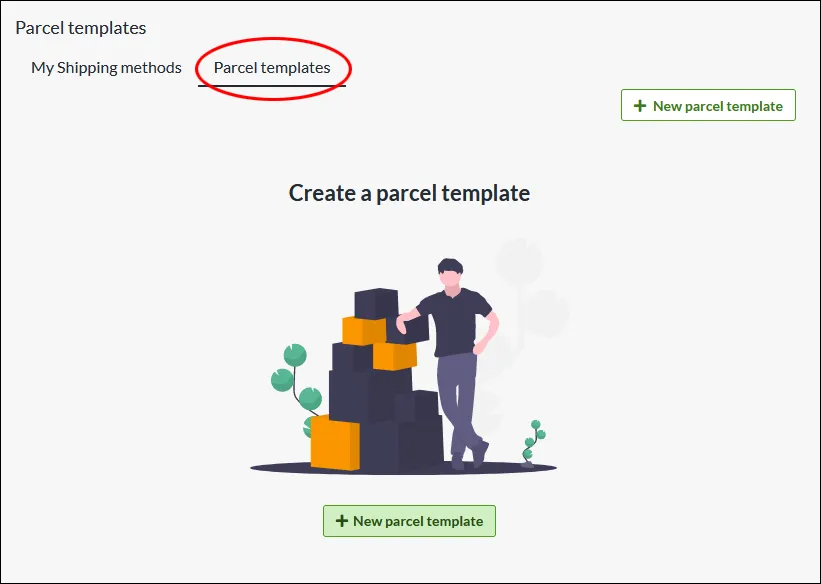
Shipping package templates
28 Nov 2025
Create templates for the packaging with which you send your orders. Enter the weight and dimensions on the package template, which is then calculated into the total weight of the order.What is a parcel template? If you have different sizes of packaging that you send your orders in, you can create different templates for this which are then included in the total weight. Do I have to create parcel templates? Some integrations, like Shipmondo, require that you have a parcel template for the delivery methods. Otherwise, this is an optional feature to use. Create a parcel template Under Settings -> Shipping there is a tab at the top called "Parcel templates". Click on "New parcel template" NameChoose a descriptive name, this is only shown to administrators. WeightThe weight of the package, combined with the products, will be the total weight of the shipment. Type of packageSelect the type of package... DimensionsChose unit. Millimeter is default. In this example, we add "Standard carton" as name, the weight to 100 grams, type "Package", width 400mm, height 50mm and length 300 mm. Linking a parcel template to a delivery method On each shipping method there is a setting to select the parcel template. Go to Settings -> Shipping -> select a shipping method and click on the name to edit. In the right block “Settings”, at the bottom there is the setting for “Package template”. Select one of the templates you have created >> Save Then check the box “Include package weight for shipping fee calculation” >> SaveThe weight from the parcel template will now be added to the weight from the shopping basket and give the customer the shipping fee according to the weight-based shipping tariff.
-

Rule Integration
28 Nov 2025
Synchronize order data from your e-commerce store and deliver accurate marketing. Description Article no.: 1239 The integration to Rule is included in the PRO subscription How does the integration with Rule work? It is an integration that exports customer data from orders and the customer register to Rule. What is needed to use Rule? The PRO subscription + that you get a subscription with Rule. You do this on their website www.rule.se. Create and retrieve API data on Rule.se Log in to rule.se. Click on your username in the upper right (1) and then on "Settings" (2). Click on the "Developer" tab (1) and then on the "New API key" button (2). The API key is a password of about 30 characters and contains mixed numbers and letters. Click on the copy button to the right of the API key. Log in to the store and go to Settings -> External connections -> Rule. (Contact customer service to have Rule added under External connections). Check the Active box, then paste the API key you created in Rule admin in the "API Key" field and save. Order exportCheck this box for the product prices to be displayed incl. VAT in the mailings from Rule to the end customer. Connection - If the key entered is correct, a link will appear that says "Log out of Rule". This means that the store has connected to Rule. Initial Exports - A setting to enable an export of all customers in the customer register. It also requires that "Export Customer List" under "Event Settings" is enabled. Export order - Enable the export of new orders by selecting "Order has changed" under "Activation" and "Update directly" under "Run. Export customer list - Enable the export of new customers by selecting "Customer has changed" at "Activation" and "Update directly" at "Run. Export Abandoned Carts - Enabling the export of abandoned carts gives you the possibility to remind your visitors who have added items to their carts but not completed the purchase. Show more
-

Customer login
28 Nov 2025
This is an article about the customer login feature available in Abicart Plus and Pro. If you have an account in Abicart and want to log in, do it here If you do not yet have an account in Abicart and want to try to start your own webshop, completely free, click here. Customer login in your webshop Your customers can create accounts for your webshop, get customized prices and discounts, create shopping lists, favorite products and keep track of their previous orders.Customer registers and customer login can be used both for private individuals who want an account in the online shop and if you sell B2B (business customers) and want to have a separate selection of the range or your own price lists for these customers.
-
Third-party logistics-friendly (3PL)
28 Nov 2025
Focus more on sales and let your 3PL handle your warehousing, pick & pack and distribution
-

Abandoned Cart Reminders for Your E-Commerce Store
28 Nov 2025
Remind your customers if they left a shopping cart in the store.Read more about Abandoned cart in the manual.
-
Your own domain
28 Nov 2025
Use your own domain for your Abicart store.
-
Universal FTP - Customized FTP connections
27 Nov 2025
Universal FTP is a powerful and flexible tool designed to connect your Abicart store to external systems by transferring data files. Its "universal" nature comes from the use of the Twig template engine, which makes it possible to define the exact format of the exported files. This means that you can create customized CSV, XML or other text-based file formats required by your partners or systems. This integration supports sending files via FTP, SFTP and HTTPS POST, providing a secure and reliable way to automate your data exchange processes. Universal-FTP is an additional service that can be purchased in Abicart PRO under "My subscription".
-
Google Merchant Center
27 Nov 2025
What is Google Merchant Center? Google Merchant Center is a free, web-based tool from Google where you upload and manage all the information about the products you sell—things like titles, descriptions, prices, images and availability.Why use it?Get your products on Google: Once your product data is in the Merchant Center, Google can show your items on Google Shopping, in free listings, and in paid Shopping ads.Keep product details up to date: Merchant Center lets you schedule regular updates (via a feed) so that Google always has your latest prices, stock levels and new products.Reach more customers: By making your products visible where people search, you increase the chance shoppers will discover your store and buy from you.Monitor performance and fix issues: You can see which products are approved, which have errors, and how they’re performing—so you can quickly correct any problems.In short: Google Merchant Center is like a bridge that connects your online store’s product information with Google’s shopping platforms, helping shoppers find, compare and buy your products.How to Set Up a Google Merchant Center AccountPrerequisitesBefore you begin, make sure you have:A Google Account (Gmail or Google Workspace).An active website or online store URL you own (with HTTPS).(Optional) A Google Ads account if you plan to run Shopping campaigns.Step 1: Sign In or Create a Google Account1. Go to the Google Accounts pageVisit https://accounts.google.com/signupIf you already have a Google Account, click Sign in instead.2. Fill in your detailsEnter your name, email address, and a secure password.Agree to Google’s Terms of Service and Privacy Policy.Step 2: Access Google Merchant Center1. Navigate to Merchant CenterOpen your browser and go to https://merchants.google.com2. Sign in with your Google AccountClick Sign in in the top right, then choose your account.Step 3: Enter Business Information1. Provide your business detailsBusiness name: Your store’s official name (will display in Shopping ads).Country of sale: The market where you’ll sell your products.Time zone: Ensures accurate reporting and scheduling.2. Agree to program policiesRead and accept the Google Merchant Center Terms of Service.Step 4: Verify and Claim Your Website URL1. Enter your website URLIn the Merchant Center, go to Tools & settings → Business information → Website.Type your full domain (e.g., https://www.example.com).2. Choose a verification methodHTML file upload: Download Google’s file and upload to your site’s root directory.HTML tag: Add the <meta> tag to your <head> of the website.Google Analytics or Tag Manager: Use an existing GA4 or GTM setup.3. Confirm verification and claimAfter implementation, click Verify URL.Once verified, click the Claim URL to reserve it for your Merchant Center account.Step 5: Set Up Shipping1. Configure shipping settingsGo to Tools & settings (wrench icon) → Shipping and returns.Click + Add shipping service: define transit times and cost rules.Final Review and Next StepsReview your business details, website claim, and shipping/tax setup.Upload your first product feed.Resources & LinksSign up for Google Merchant Center: https://merchants.google.comVerify & Claim Website: https://support.google.com/merchants/answer/176793Shipping Settings Guide: https://support.google.com/merchants/answer/12577710Link Google Ads: https://support.google.com/merchants/answer/12499498
-

Global Product Settings
27 Nov 2025
Under Assortment -> Settings there are some global product settings that apply to all products.Product informationProduct numberSet whether you want to generate product numbers (item numbers) automatically or if you prefer not to enter product numbers automatically.Note that this setting only works when creating products manually. Not via import. HTML in product descriptionsSelect "Allow full HTML" to access the HTML editor.If you need to add scripts, embed video clips, etc. you must enable "Allow full HTML" for it to work. Products without priceChoose how to handle products without price.Products entered without a price are available in the store for viewing and orderingProducts must have a price to be entered and displayed in the store Product monitoringCheck the box to activate the setting:Allow your visitors to watch products that are not in stock.Note that you also need to activate a setting in the theme for the feature to work. Appearance -> Themes -> Edit active theme -> Content -> Product page -> Product watch Units for productsThe setting allows you to specify a unit for each product. Stock alertsTurn off all texts informing about stock alerts in the store. Stock reservationA feature to activate the reservation of the stock balance. This is to prevent multiple customers from buying the last product when, for example, a new collection is launched or there is a sale when many people shop at the same time.When "Reserve item inventory" is active, a reservation of the product takes place when the customer clicks on finalize purchase at checkout. This prevents customers from being able to complete an order after stock has run out. The product will be reserved for 10 minutes.The setting is enabled for all products that have "Enable inventory management" ON.The setting"Allow orders even if out of stock and show stock message" must be OFF for stock reservation to work.Please note that the reservation takes place when the customer clicks on Finalize purchase, and not when the product is added to the shopping cart. There is still a risk that the end customer can put the product in the shopping cart and it will be reserved before they have had time to click on Buy. In this case, the customer will be notified that the product is no longer available.So what is required is:Activate the setting and saveActivate "Enable stock management"Make sure the product has a stock balanceMake sure that this setting is inactive "Allow orders even if out of stock and show stock messageThis setting is available for all subscriptions (GO, PLUS, PRO). Activate this setting to use this feature. New for a set number of daysCreated products will be marked as news for a fixed number of days. The end date can always be changed afterwards on the created product. If you leave the field blank, new products will not be marked as news.Number of days until publicationNewly created products will have a publication date set a few days later and will be marked as hidden. Once the product has been created, the publication date can be changed by editing the product. Leave the field blank to publish the products immediately. Settings for item groupPresentationShow items from subgroups in item group lists Discount settingsChoose whether to apply the discount only to the products that have the selected product groups as their primary product group or to apply it independently to all product groups.Primary product group only (default)Only the products that have the selected product group as their primary product group will be subject to the discount.All product groupsActivate this setting if you want the primary product group to be ignored. All products included in the product group selected in the discount product selection will be subject to the discount.
-

QuickBit Pay Checkout
27 Nov 2025
Quickbit Pay is a crypto payment gateway that enables e-merchants to accept cryptocurrencies as a means of payment.How do I get started with QuickBit Pay?Apply for QuickBit Pay on the Dashboard in admin, on the right under "Promotions from our partners". You will need to fill in contact details and then you can submit an application.Add QuickBit Pay to your storeOnce the application has been processed by QuickBit Pay, the payment method will be added under Settings -> Payment Methods -> Quickbit Pay. Click on the name to access the settings.This will take you to the settings page.StatusActiveCheck the box to activate and make the payment method visible in the store.DefaultA setting to make the payment method default in the checkout.Make available only to those customers or customer groups where I specify it.If you do not want all customers to be able to use this payment method, you can disable it for non-logged-in customers through this setting. You then go to the respective customer group to activate the payment method there. Available for customer typeYou can set the payment method to be available only for one customer type or all. Require buyer to enter personal/organization numberCheck to make the personal/organization number mandatory at checkout.Send payment status confirmation to the store ownerA setting to enable a separate payment status email for this payment method to be sent to the shop owner.Turn off the purchase of gift card products with this payment methodEnable a setting to prevent the gift card product type from being purchased with this payment method.AccountMerchant IDYour account ID with QuickBit Pay and this is filled in automatically when your application has been approved. Name and DescriptionNameEach payment method has a name that will be displayed in the checkout but if you want to modify this, you can enter a new name in this field. An optional field that can be left blank.Detailed descriptionA field to enter a text that informs the buyer about how the payment method works. Can be left empty.CurrenciesIf you have several active currencies in your shop, you can limit these for each payment method. The default setting is "All active currencies in the shop", but if you check "Specific currencies", all active currencies are displayed and you can choose to disable those that should not apply to this payment method.CountriesThe default setting of the payment method is that it applies to all countries to which the shop offers delivery (Settings -> Shipping). If you want to limit a payment method to only certain countries, you can check "Specific countries" and then specify the countries that can use this payment method. Order statusIf you want orders placed via this payment method to have a specific order status, you can enter it here. Select the status from the list. Restriction on the order totalA setting to limit the amount that a payment method can handle. If you choose to limit the amount between two intervals, it is always the total order value including shipping and other fees. Fee added at checkout when placing an orderA function to add an additional fee to the purchase, such as a handling fee.
-
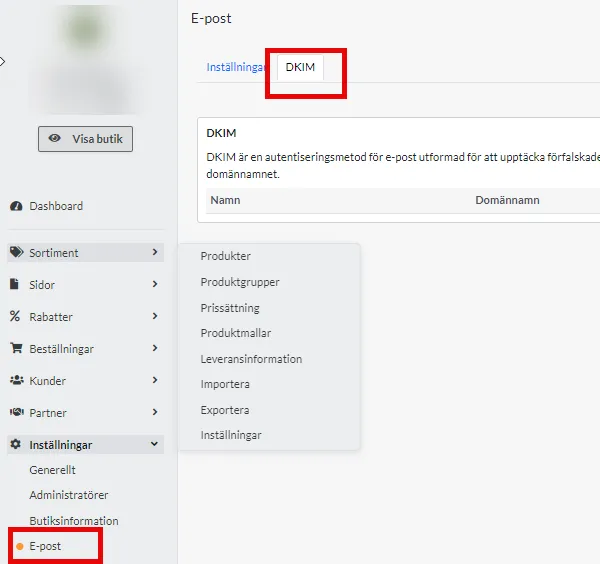
Setting up DKIM & DMARC
27 Nov 2025
DKIM (DomainKeys Identified Mail) is an email authentication method that protects against email forgery by allowing the sender to add a digital signature to the header of emails. This signature is verified with a public key published in the sender's DNS. Using DKIM improves email deliverability and protects brand reputation by reducing the risk of spam and phishing, making it an essential part of a secure email configuration.To add DKIM, you need to add a setting at your domain name provider. If you do not know how to do this yourself, contact their support.This guide applies if you use Abicart's mail server. If you are using your own email server such as Google, they may already have DKIM and DMARC enabled, check with your provider's support to find out what applies.Add DKIM for the domain you use for emailingStart by creating your DKIM key in Abicart under Settings > Email > DKIM tabClick on Add and select the domain name you use for emailing, and a key is automatically generated in a unique format for your store, e.g. abicart20240131XXXXX._domainkey.Close the pop-up windowClick on the key to open a window with the settings you need to proceed. Copy the name and value.Log in to your domain name provider and add this information to your DNS as a TXT record.More information on how to do this is usually available on your provider's help pages. It is often also possible to contact your DNS provider and let them know the contents of the name and value fields and they will help you with the implementation.5. When DKIM is correctly set up at your DNS provider, it will say Registred = Yes in Abciart in the same place where you retrieved the data.Keep in mind that these types of settings can take up to 24 hours to take full effect.6. When registred has the value YES , click on your domain key and activate the setting so that the value in Active also changes from No to Yes.7. done!Setting up DMARCDMARC stands for "Domain-based Message Authentication, Reporting, and Conformance". It is an email validation method that helps protect your email domain from unauthorized use, such as phishing and spam. It helps reduce the risk of your emails being mislabeled as spam or someone else using your domain to send malicious emails.A DMARC policy determines what happens to an email after it has been checked against SPF and DKIM records.The DMARC policy determines whether a DKIM or SPF error results in the email being marked as spam, blocked, or delivered to the intended recipient.Mail servers can still mark emails as spam if there is no DMARC record, but DMARC provides clearer instructions on when to do so.You create a DMARC policy by adding a TXT record to your DNS with the name _dmarc.Example: _dmarc TXT "v=DMARC1;p=reject" or _dmarc TXT "v=DMARC1;p=quarantine"p = reject means that mail is not received at all, p=quarantine means that mail is received but will probably end up in the spam folder.If you want to receive reports from mail providers about mail that does not meet the DMARC policy, you can add this to your DMARC policy as follows:v=DMARC1; p=none; rua=mailto:email@example.com;There are several DMARC generators you can use if you wish, such as these: https://dmarcian.com/dmarc-record-wizard/ Try our Quick Record Wizard.See also Add SPF record
-
Checklist - 9 simple steps to get your shop up and running!
27 Nov 2025
You can find this checklist on the dashboard in the shop:Get started faster with our quick start guide:9 easy steps to get your store up and running!Once you have completed all the steps, you are ready to start selling!Add product groupsAdd productsAdd and edit your themeAdd a payment methodAdd delivery methodsTerms and conditionsRead more here:Add conditions and info Sign the data processor agreementRead more here: Sign GDPR agreement Add a domain nameGo live with your webshop (click out of Hide shop)Read more here: Go live with your shop
-
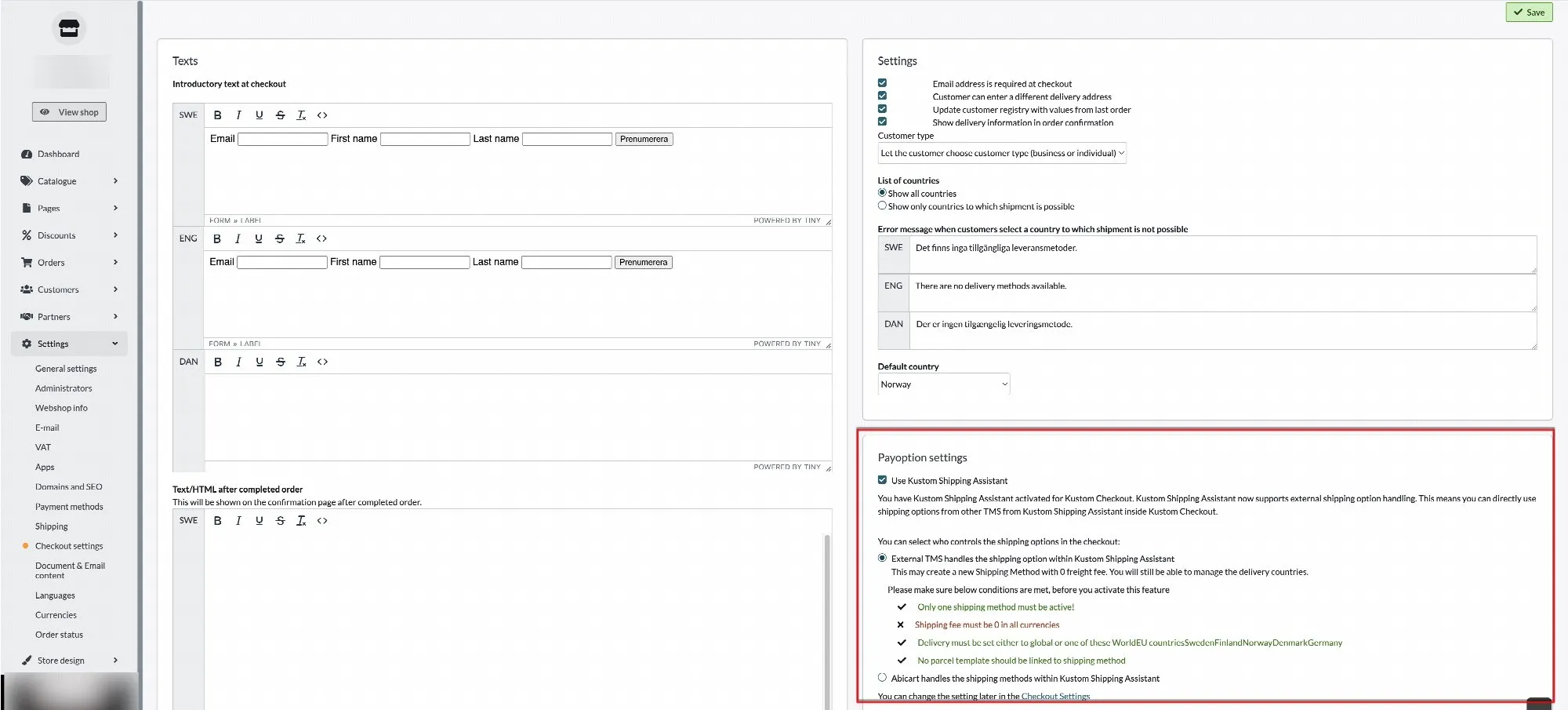
Kustom Shipping Assistant (KSA) - Shipping Methods in Abicart
27 Nov 2025
This article shows you how to set up Kustom Shipping Assistant according to option 1. Click here to read more about KSA and option 2 (external TMS). 1. KSA with your own shipping methods in Abicart With this set of KSAs, the delivery methods you created in Abicart are still used, but instead of the delivery methods being shown under the shopping cart in the checkout, they are listed in the Kustom payment window. Showing your delivery methods together with customer details etc. in the Kustom window provides a customized checkout experience where the customer makes all choices directly in the Kustom checkout. This is how you do it: Settings in Abicart 1) Go to Settings >> Checkout 2) Check the box "Use Kustom Shipping Assistant" >> Save 3) Go to Settings >> Shipping 4) Edit your shipping methods by clicking on the Edit icon. 5) On each delivery method you want to show in the checkout, you can set three functions: Shipping Type: This sets the method of shipping. "Delivery to Adress/Door" - Home delivery "Pick parcel from Store" - Pick up in store "Delivery to unspecified Pickup point" - Delivery to unspecified pickup point "Delivery using Postal Network" - Delivery to Postal Agent "Carrier decides Shipping Method" - Carrier decides shipping method "Digital delivery for downloadable products" - Digital delivery for downloadable products Carrier: Select which carrier you want to use for this shipping method. See options in the list. Estimated delivery time (in working days): Enter the estimated number of working days for delivery 6) Click on Save You are now ready to activate Klarna Shipping Assistant in your store. To activate KSA, do the following: 7) Go to Settings >> Payment Methods 8) Edit your payment method Kustom Checkout 9) Check "Use Kustom Shipping Assistant" 10) Save When you click "Save", your shipping methods will appear in the Klarna payment window at checkout:
-
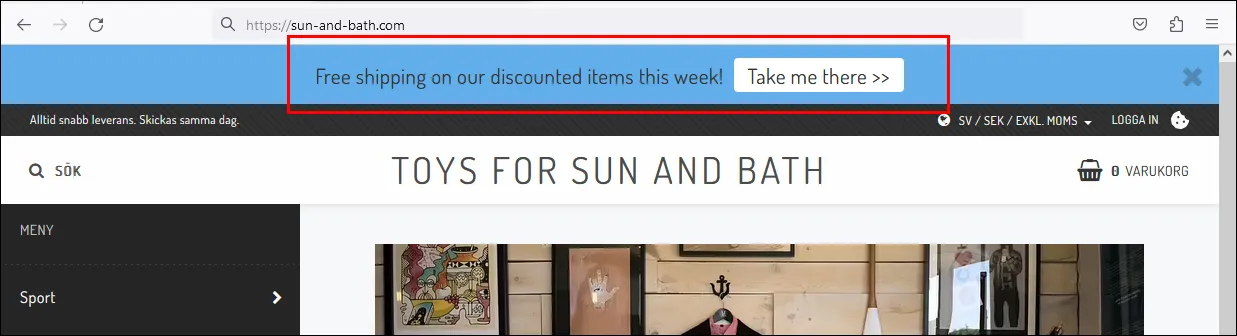
Text banner
27 Nov 2025
Activate a text banner in the theme that appears at the top of all pages.What is a text banner?A text banner is a field you can activate at the top of the page where you can enter a text to inform about something, such as a temporary offer, free shipping or something else. You can also add a button and link it to a page, product or product group.How does the text banner work?A visitor can choose to remove the text banner by clicking on the checkbox at the far right. This choice is saved in the visitor's browser and the banner will not be shown again. To see the banner again, you need to clear your browser's cookies.Activate the text bannerYou activate the text banner in the theme under Settings -> Themes -> edit the active theme and then go to the tab "Add-ons" -> Text banner. Click "On".Main textA field to enter optional text.In this example we have free shipping on all products that have a special price and enter a text informing about this.Button textYou can choose to have a button that links to a page, product or product group. Enter a text to be displayed on the button.LinkChoose where the button should link to, a page, product or product group. In this example, we want to link to our own page that shows all products with special prices. Check "Pages" and then select the "Discounts" page.Background color for text bannerSelect the background color by clicking on the color box on the right.Color of the button in the text bannerSelect the color of the button by clicking on the color box on the right.Don't forget to save when everything is done. Then just preview and display the banner at the top of the shop.
-
Add product
27 Nov 2025
Go to "Products" in the Abicart administration.Click on "+ New product..." in the top right corner.Select "New product" and fill in the product information as follows:a. Product name: Enter a search engine friendly name, include manufacturer or brand name.b. Introductory text: Write a short summary of the product.c. Description: Write a detailed description of the product.d. Pricing: Indicate the regular price, additional price (if applicable) and VAT rate.e. Inventory management: Enable inventory management, enter the inventory balance and inventory messages for the customer.f. Properties: Enter the weight of the product and select a product template (if applicable).g. Quantity: Enter the minimum and maximum quantity that can be purchased and the minimum increment for quantity.h. Item settings: Mark the product as new, upload customer specific file (if applicable) and enter other settings.i. Information: Indicate if the product should be hidden and what type of item it is (product, package, service or gift card).j. Categorization: Select the product group(s) and any Google Taxonomy.Once you have filled in all the information, click "Save" to add the product to your Abicart store.Read more about Products
-
Product feeds
27 Nov 2025
Settings for product feeds can be found under Settings >> Apps >> Product feedsOn this page in admin you will find settings for product feeds for Google Merchant Center and Facebook Catalog:SettingsWhich field should be used for product descriptions?Choose between description, introductory text or both introductory text + descriptionShould product type either be current product group (deep) or top product group (shallow)?Select the depth of the product group you want to include in the flow. See example below:A product belongs to product group 3. If you want product group 3 to be sent in the product flow, select the setting "Deep".If you want product group 1 to be included in the flow, select "Shallow" instead.Google Merchant CenterHere you can read more about Product Feeds: Google shopping.Facebook CatalogHere you can read more about Product Flow: Facebook Catalog
-

Add logo for payment and delivery methods
27 Nov 2025
Did you know that you can add logos for your payment and delivery methods at checkout?How to do this:1) Click Appearance >> Themes >> Edit active theme2) Content3) Payment and delivery method logos4) Click on the three vertical dots5) Choose between the default logo and uploading your own imageYou can download the payment/delivery method logo on their website search name + logo in your browser. Remember to choose an image of good quality.6) Save at the top of the page with the green buttonRepeat for all payment methods and delivery methods you want to have a logo
-

Using pop-ups on your website
27 Nov 2025
In your theme, you will find the "pop-up dialog" setting (also called pop-up window). It can be used for e.g. newsletter pop-up and king login or freely customized with the "custom" option (HTML block).This is how you do it:1) Enter your theme by clicking Appearance >> Themes >> Edit (active) theme2) Click on Extensions3) Click on Pop-up dialog >> Select options & edit4) SaveDone!Good to know about using PopupsGoogle treats popups on web pages with great care, especially when it comes to user experience and mobile-friendliness. Here is a summary of how Google views popups:Google handles popups on web pages with great care, especially in terms of user experience and mobile-friendliness. Here is a summary of how Google views popups:Negative aspects - can negatively impact SEO:1. Intrusive interstitials on mobile devices:- Since January 2017, Google has a policy where *intrusive* popups on mobile pages can lead to lower rankings in search results.- Examples of bad popups:- Popup that covers the main content immediately when the page loads.- Popup that must be closed before accessing the content.- "Intermediate pages" that appear before accessing the actual content.2Impaired user experience:- If popups are difficult to close, interfere with reading, or load slowly → negative for user experience, which can also affect rankings.Approved uses of popups according to Google:Google makes exceptions for certain types of popups that are considered reasonable:- Legal notices: For example, information about cookies or age verification.- Login boxes: For pages that are not public (e.g. behind a paywall).- Small banners That cover a small part of the screen and are easy to close (e.g. at the top or bottom).Tips for handling popups correctly:1. Avoid showing popups immediately when the page loads.2. Show the popup only after the user has scrolled or after a certain time.3. Make sure the popup is easy to close.4. Use "exit intent" on desktop if you want to catch users who are about to leave.5. Feel free to use banners instead of full-screen popups on mobile.
-

Start a business
27 Nov 2025
Have you finally decided to start an e-commerce business? Congratulations! Here I'm reviewing some great websites with valuable info and unbeatable services.Verksamt.seVerksamt is an unbeatable meeting place for companies that want to use services from, for example, the Swedish Companies Registration Office, the Swedish Tax Agency and the Swedish Agency for Economic Growth. This is a really good place to start when starting a business.To Verksamt.seStart, run - skatteverket.seAre you already up and running and have questions about, for example, VAT, tax returns, bookkeeping or employment? Read more on the Tax Agency's website.Read more hereAbout running an e-commerce business from FöretagarnaHere you will find lots of tips and interesting articles about running an e-commerce business. Read more hereAlmiWant to make your idea a reality? Are you going to build a business that is profitable, growing and sustainable? If so, you should check out Almi. It offers advice, financing and training. Read more hereVisma SPCSStarting your own business - step by step. Guide with 22 simple tips!Read more hereSEBWhether you're aiming for something big or just small. Want to go far or even further. Here's the complete guide for you to start your own business.Read more herePostnordHere Postnord has put together a number of steps that are important when starting your own business with a focus on e-commerce and online sales. Read more hereHere is another article worth reading with tips on the road to your successful webshop.
-

Video guide: translations - How to import translations into your Abicart Webshop
27 Nov 2025
-

Video guide: importing images - How to import images into your Abicart Webshop
27 Nov 2025
-

GDPR - The new General Data Protection Regulation
27 Nov 2025
What do I need to do in my shop to comply with GDPR? What is GDPR? Data Protection Agreement Webinar - What is GDPR? What do I need to do in my shop to comply with GDPR? What does Abicart do to make it easy for me to clear old customer data? Email addresses for newsletter mailings Mandatory approvalsYou can read the full Data Processing Agreement here.Annex 1 to the Data Processing Agreement - Instructions and information.What is the GDPR?GDPR (General Data Protection Regulation) is the new data protection regulation that replaces the Personal Data Act (PuL) and applies as law in all EU member states from May 25, 2018. The law is designed to strengthen the rights of the individual in terms of personal privacy.The law applies to all processing of personal data. Any information by which a natural person can be directly or indirectly identified, such as- e-mail address- Purchase history linked to an individual- Address information- Picture of person- Descriptions about customer in customer servicePersonal data processing agreementAbicart handles personal data on behalf of our customers. All customers (shop owners) in Abicart will therefore need to sign a personal data assistant agreement with Abicart. You can find this under your profile.You can read the full data processing agreement here.What do I need to do myself in the shop to comply with the GDPR?Publish information in your webshop about which customer data is saved (preferably under Terms & Info): "We save the following personal data about our customers:Customers: First Name, Last Name, Company/Organization, Email, Person/Organization number, VAT number, Address, Postcode, City, Country, Phone number.Orders: IP address, E-mail, , Person/organization, VAT number, Address, Company, First name, Last name, Address, Postal code, City, Phone number.As a customer, you can request the extraction, modification or deletion of this data at any time."Do you collect email addresses to send out newsletters? If so, you should have a clear heading for this in the checkout, for example, "Yes please. I want a newsletter" so that the customer understands what they are signing up for.If you have a customer club, membership or similar via customer groups, other rules apply. If the customer has approved and registered in the store to be able to log in and receive special offers, access a different range than end customers and / or is a retailer, you indicate in your terms and conditions why you need to save this data longer than the normal time which is one year.More information can be found in Appendix 1 to the data processing agreement: "Information and instructions for webshop owners in Abicart" here.What does Abicart do so that I can easily clear old customer data?We have built a number of features to facilitate the management of old customer data in the store.According to Swedish law, you must save order data for seven years. The store owner needs to make a choice in admin (Orders -> Settings) how long the customer data should be saved on the orders and then the personal data will be deleted after this time automatically.If you have a Swedish company, you choose "After 7 years" in the list. E-mail addresses for newsletters.Many people think that you have to send out an email to all customers so that they sign up again in order to send newsletters. This is not really true because if you have had a clear and clear text on your page when the customer signed up for the newsletter, the customer has already given consent.If you still want to send out an email to all customers to sign up for newsletters again, we can recommend Mailchimp, which is a tool for sending out newsletters and they have a ready-made function for this.However, there are new rules on how long you can save an e-mail address in the customer register. Depending on the industry you belong to, different rules apply, but for a store that sells consumables, it is about one year you can save the data. If you sell motor vehicles, for example, it is 4-5 years.To easily remove old customers, we have built a function under Customers -> Customer register -> the field "Last active before".Here you can select a date, for example a year back in time and then click on the search button. Then all customers who have not shopped after this date will be displayed. Select all customers by checking the box to the left of "Customer number", then select "Remove selected customers" in the list above.NOTE! Please note that by default 50 customers are displayed at a time. If there are more customers than 50 to be deleted, you can choose to show more customers on each page in the "Show number" list. Mandatory approvalsThere is a checkbox by default in the checkout where all buyers must agree to the store's terms and conditions before completing the purchase so you do not need to add this yourself.Note that this feature only works in the latest version of our responsive themes Not classic themes. If you have a Checkout solution, such as Klarna Checkout, no checkbox is displayed as Klarna has chosen not to implement this . If you have created separate pages for, for example, the store's privacy policy and want customers to approve this as well, you can now create several checkboxes that must be approved at checkout.First, you create your own page under "My pages" -> New page and enter all the information there. In our example, we create a new page called "Privacy Policy".To add a checkbox to the checkout, go to the theme (Appearance -> Themes -> select theme, edit) and then Content -> Checkout -> Mandatory approvals.Click on the "+Add checkbox" button and the following fields will appear:- Checkbox title, for example "I accept the store's"- Link text, for example "privacy policy"On the right, under Link URL -> Pages, there is a list of all the store's own pages. Remember to create your own page first. Otherwise you cannot choose to link to the page.Do not forget to click on the save button.
-

Enter percentage extra price on several products at the same time
27 Nov 2025
A quick way to enter percentage surcharges on multiple products simultaneously without having to use imports.Instructions for price lists Go to Assortment -> Pricing -> select a price list and click on it. First you search for the products you want to set a surcharge on. To search for all products in a certain product group, add a search parameter called "Product group (primary)".Then click the list on the right.Select which group(s) will receive new extraprices.Then click on the SEARCH button so that the products are displayed below.Then click on the Tools button in the top right corner and check "Add percentage change to prices". Enter percentage and any rounding.Tick the "Only apply to prices in current filter selection" checkbox. Then only the selected product groups will be affected.Then click on "Apply change" and don't forget to save.If you want to make a price increase, do the same thing but put a plus sign before the percentage you want to increase the prices by. For example, +10. Remember to make the price increase in a copy of your active regular price list - e.g. Global (regular price).
-

How does the percentage discount work?
27 Nov 2025
You can create a percentage discount to be deducted from the items at checkout. The discount works by deducting a value from one or more products in the checkout. The discount is applied first at checkout for the buyer. If you want to display a discount directly on the product page and in the product categories, enter the extra price of the product instead. If you want to discount the total at checkout, use gift cards instead. If there are several active discounts, the system will select the best discount for each product. You can only get one discount per product. Discount features are included at no extra cost in Abicart Plus and Pro subscriptions.Discounts are deducted at checkout while special prices are displayed directly on product page & product group page as -X SEK or -X%. Click this link to read more about special prices.Create a percentage discountClick Discounts -> New Discount -> Percentage Discount.NameName the discount. This name will appear in the admin as well as in the checkout and on the order confirmation. In our example we enter "Maximum discount 20%"Rebate percentageEnter the value of the discount percentage. In our example we enter 20 for 20%.Extra pricesIf there are extra prices on one or more products included in the discount, you can choose how to handle this. The first choice, "The discount is based on any extra price, otherwise the normal price" makes the discount deducted from any extra price.The second choice, "The discount is based on the normal price. If there is an extra price for the product, the lowest price is always used." deducts the discount from the regular price. If the extra price is better than the discount, the extra price is used. Otherwise, the discount is applied to the regular price.Minimum cart amountSpecify a value when the discount should take effect. The specified value is compared to the cart value. The order value is calculated based on the total cost of included products, but does not include fees or discounts. Amounts are given MOMS excluding VAT.SchedulingIf you want the discount to be valid only for a certain time, you can specify a start and end date. Keep in mind that the day starts at 00.00 and ends at 23.59.If you want a discount that is valid for example for one day, enter 2019-01-01 at 00.00 as the start time and then 2019-01-01 at 23.59 as the end time.CodesIf you want the customers to enter a discount code to activate the discount, tick the box "Use codes". At the bottom of the box, existing codes on the discount are displayed.To create a new code, click on "Add code". In the "code" field you can enter your own discount code or click on the "Generate" button and a code will be created automatically.Number of times the code can be usedIf you want to limit the code to only a certain number of purchases, enter a number in the field. Otherwise, the code is unlimited.Product selectionHere you set which product(s) will be affected by the discount. If you want the discount to apply to all products, tick the box to the right of "All products". You can also search for a specific product by entering the name or item number. It is also possible to select entire product groups. One discount per productIf the product is part of more than one active discount, the system will choose to give the customer the most advantageous discount. Multiple discounts cannot be combined on the same product. Customer selectionHere you can control which customers will have access to the discount. You can choose between "All customers", "All customers who are not logged in", "All logged in customers" or a specific customer group.
-

Integration with Business Check
27 Nov 2025
Link credit information to your payment methodsWhat is Business Check?With our connection to Business Check, you can run credit checks and prevent unnecessary credit losses in your store. Business Check is suitable for those who have their own payment methods in the shop, such as their own invoice that you create and send out to buyers yourself.Business Check is an additional service that costs SEK 100 per month and is ordered under "My subscription" in the shop. More information is available here on the Business Check site. Go >>If you use invoicing services via, for example, Klarna, Svea, Dibs or any other company, the credit check is already included and you do not need to use this additional service. This is only for your own payment methods that you manage yourself.
-

Product feed: Facebook catalogue
27 Nov 2025
Feed for Facebook Directory. This can be found under Settings>External Connections>Product Feeds.In order to add your products to Facebook business manager, these attributes are required: Price name Description Item number GTIN number, MPN number or Brand (brand name) Image Enabled inventory management If you upload a product feed in Facebook manager, you get access to Facebook's various sales channels, including Facebook Shopping and Instagram shopping. Go to Settings -> External connections -> Product feeds -> Facebook catalog. Select the language, currency and country that the advertising should target. Then copy the link that appears at "Generated URL". In Facebook Business Manager, navigate to → Resources → Catalogs. Select "Ecommerce" and "Upload product info" (data feed). Then add products using the Data Feed option. Select "Set a schedule" and configure it to upload products daily. Make sure you choose the default currency correctly.
-

Edit orders
27 Nov 2025
This feature allows you to edit customer information and/or products on an order.Order editing is included in the Abicart Plus and Pro subscriptions.What is order editing?This is a function used to change an order placed if, for example, you receive a return or if a customer wants to remove or add a product.What can I edit?You can add and remove products, edit customer information, adjust VAT settings, change the shipping fee and change the delivery method. Partners and commission settings cannot be changed.If you use Klarna Checkout Global (also called Klarna Checkout v3), you can only change customer information in Klarna Online. The customer information field is therefore locked on all these orders.Things to keep in mindIf an order is paid with your own payment methods such as "own invoice", prepayment, cash on delivery or similar, you can add and remove products on the order without any problems. If an order is paid via a third party, such as Klarna, Svea, Payson, Nets or similar, you can only edit the order so that the order value is reduced compared to the original purchase amount. The reason for this is that in most cases a credit check is made on the buyer and then only applies to the original purchase amount.In some cases, you can add products to the order so that the order value increases, but only in the payment company's administration. We are not allowed to make these changes from our platform. Email address and shipping address cannot be changed if the customer used Klarna Checkout. This is because Klarna retrieves the delivery address from the population register.How do I edit an order?Go to Orders -> Click on the order number.In each box, "Information about ordered products", "Order", "Customer details", "Store notes" and "Delivery" there is an icon, a pencil in the right corner. Click on it to edit the content of each box.How do I cancel an order?Click on the "Cancel" button in the top right corner. If the payment method allows it, a signal will be sent to the payment method to cancel the order. In some cases, the signal is not allowed and then you need to log in to the payment method's admin >> search for the order >> cancel manually. A prompt for this will come up in admin if the signal does not go over, feel free to check the order in both systems regardless of the first few times so that you feel comfortable with the flow.Below are some editing examplesChange the shipping feeFirst, click on the edit icon in the top right corner of the "Information about ordered products" box.Then two new icons will appear to the right of the shipping fee. Click on the pencil to edit the fee and on the trash can to remove the fee completely.Change the stock countIf you change the "Quantity" or "Price/item" the amount is automatically recalculated. The original amount will always be displayed below:You can also add products, shipping fee and payment fee via the sub-products buttons on the order.Send a new order confirmationAfter editing the order, you can resend the order confirmation to the customer. Click on the "Resend order confirmation by email" link at the bottom of the order:Order editing and KlarnaOrder editing is included in the Abicart Plus and Pro subscriptionsIf you edit the order before you have activated the order (marked it as paid), you can send the changes to Klarna via the "Send changes to Klarna" button. If you edit the order after the order has been activated, or if the "Send changes to Klarna" button is not available, you cannot send the changes to Klarna. You will need to log in to the Kustom portal and edit the order there manually. If the order was activated with the original amount, you need to make a manual refund of the difference. You do this in Kustom's merchant portal.NOTE! In some cases, we (Abicart) are not allowed to change the order in Klarna via our integration. If the button "Send the changes to Klarna" is not available, it means that we are not allowed to change the order via the integration. This means that you have to change the order in Klarna Online, as if the order was activated.Reduce order total:If the order is not yet 14 days old, you can edit the order and reduce the order total in Abicart before marking the order as paid. When you mark the order, the new order total is sent to Klarna.If the order is older than 14 days, you need to edit the order manually in both Klarna and Abicart. After that, you can contact customer service to get help marking the order as paid in Abicart.Increase order total:The order must be edited both in Abicart and in Klarna manually, regardless of whether 14 days have passed or not. Increased order total will not be sent via the integration according to Klarna's rules.When both systems have the correct order total, you can mark the order as paid in Abicart.Order editing and SpecterStock balance is automatically changed in Abicart when you edit an order. If you use an ERP system such as Specter, the stock balance will not be synced over there. You need to change this manually in Specter.ReturnsIf the entire order is to be returned, cancel the order. The stock balance will be settled automatically. Check with your payment method if the order amount is refunded automatically or if you need to refund manually.Partial returnEdit the order according to the previous instructions. When you remove a product from the order, its stock balance is automatically adjusted. Resend the order confirmation and review the partial refund with your payment method.How do I delete an order?An order delivered to the end customer should never be deleted. If you try to delete an order, it will be canceled, restoring the stock balance and sending an email to the customer.Instead, go to Orders >> Settings and set "Anonymize orders" >> Save
-

Creating a partial delivery
27 Nov 2025
Information on how to send orders What is partial delivery? If an order contains several products and not all of them are in stock, you can choose to split an order. In this case, you send a few products at a time in different shipments, instead of sending the whole order in one shipment.If an order contains several products and not all of them are in stock, you can split an order and send a few products at a time in different shipments.If you use the integration to nShift (Unifaun) or Postnord (Pacsoft), you have to change a setting on the delivery methods so that the shipments are exported correctly. Read more about this under "Event settings" on the respective integration's manual page.How do I make a partial shipment?Go to "Orders" and click on an order that contains several different products. On the right is the "Delivery" box and there you will also see "Create partial delivery". Click on the button and a popup box will open listing all the products on the order. In this example, the third product is not in stock at the moment so we can only deliver the top two products. We click on "Add all" or we enter a one in the quantity field.Then click on "Create". A shipment has now been created for the first two products and clicking on the arrow to the right of "Created" will drop down more information. We can then add a tracking code, mark the order as shipped or edit the shipment. The shipment can be edited until it is marked as shipped. After that it cannot be changed. Mark the shipment as shipped when it is processed. Since there is still a product that is not handled, the text "Order has unhandled products." below. When the product is back in stock, it is handled by creating the second shipment. Since there is only one product left, we click on "Create shipment".When it is created, we can also mark the shipment as shipped and it will look like this:If you want to create a pick list and/or packing slip, you can do this per shipment by clicking on the arrow to the right of the shipment so that more information falls out. Then click on the "Print..." button. and make your choice. Tip: Create an order status for orders with pending partial deliveries to make it clear which orders are still pending. You can read more about order status here.
-

Wasa Kredit
27 Nov 2025
Integration with payment service via Wasa KreditWhat is Wasa Kredit?With Wasa Kredit in your B2B checkout, you can easily increase your sales with leasing or rental. Your customer easily signs their purchase with BankID.In which countries does Wasa Kredit work?Wasa Kredit works for companies in Sweden and the supported currency is SEK.Order Wasa KreditWant to know more? Fill in your details here.Then contact our customer service support via My customer service in your user menu at the top right of the admin. Read more about our customer service here https://www.abicart.se/manual/sa-kontaktar-du-abicarts-kundtjanst-och-supportAdd Wasa Kredit in the storeGo to Settings -> Payment methods -> Add new payment method.Select "Wasa Kredit" in the list and then click "Add". (If Swedbank Pay is not available in the list, contact support and we will activate it for you. )You will then be taken to the settings page.StatusActiveCheck the box to activate and make the payment method visible in the shop.DefaultA setting to make the payment method default at checkout.Make available only to those customers or customer groups where I specify it.If you do not want all customers to be able to use this payment method, you can disable it for non-logged-in customers through this setting. You then go to the respective customer group to activate the payment method there. Available for customer typeWasa Kredit is locked to business customers.Require buyer to enter personal/organization numberCheck to make the personal/organization number mandatory at checkout.Send payment status confirmation to store ownerA setting to enable a separate payment status email for this payment method to be sent to the store owner.Turn off the purchase of gift card products with this payment methodEnable a setting to make the gift card product type not available for purchase with this payment method.AccountIn the Account box, enter the information provided to you by Wasa Kredit.Partner ID - Enter your ID provided by Wasa Kredit.Secret - Enter your secret (password) given to you by Wasa Kredit.Test mode - If you want to test the integration, you can get a test account from Wasa Kredit. You will then receive test information that you enter in "Partner-id" and "Secret" and then check this box.Activate widget for monthly paymentsWasa has developed a widget that you can activate in the theme to display information about monthly payments. This is then displayed on the item page under the price.Go to Appearance -> Themes -> select theme, edit -> Content -> Product page.At "Wasa Kredit installment widget", enter your partner ID provided by Wasa and select "On". Don't forget to save.Name and DescriptionNameEach payment method has a name that will be displayed in the checkout but if you want to modify this, you can enter a new name in this field. An optional field that can be left blank.Detailed descriptionA field to enter a text that informs the buyer about how the payment method works. Can be left empty.CurrenciesIf you have several active currencies in your shop, you can limit these for each payment method. The default setting is "All active currencies in the shop", but if you check "Specific currencies", all active currencies are displayed and you can choose to disable those that should not apply to this payment method.CountriesThe default setting of the payment method is that it applies to all countries to which the shop offers delivery (Settings -> Shipping). If you want to limit a payment method to only certain countries, you can check "Specific countries" and then specify the countries that can use this payment method. Order statusIf you want orders placed via this payment method to have a specific order status, you can enter it here. Select the status from the list. Restriction on the order totalA setting to limit the amount that a payment method can handle. If you choose to limit the amount between two intervals, it is always the total order value including shipping and other fees. Fee added at checkout when placing an orderA function to add an additional fee to the purchase, such as a handling fee.
-

Swish Commerce
27 Nov 2025
Pay via Swish in the shop. What is Swish? Swish is a mobile money transfer application, launched by Getswish AB, owned by Sweden's six largest banks: Danske Bank in Sweden, Handelsbanken, Länsförsäkringar Bank, Nordea, SEB and Swedbank and Sparbankernas Riksförbund. The application enables fast payments between individuals' bank accounts by entering the recipient's mobile phone number instead of the account number.What is required to activate Swish?This integration supports "Swish Commerce"If you want to pay with Swish, you need to get "Swish Handel" via your bank. Get an agreement hereOnce the agreement is complete, you will receive a login to"Swish Certificate Management" where you create and manage your certificates.Note that Swish only works in Sweden with the currency SEK.Every 5 years you need to renew your TLS certificate. You do this by generating a new certificate and adding it to Abicart. See guide below.Activate Swish in the storeStep 1: Add Swish as a payment methodGo to Settings -> Payment methods -> Add new payment method -> Select "Swish" in the list and then click "+Add". Then click directly on "+ Add" again so that the payment method is saved.Step 2: Generate the CSRClick on the "How to" link after you have clicked on Swish under Settings>Payment methods.Step 3: Generate the CSRThen click on "Generate CSR"Now a code (a piece of text and numbers) is generated in a box below the button, it should look like the image below.Step 4: Copy the CSRCopy the CSR certificate that you just created. Click in the box with the certificate, all text will then be highlighted. Right-click and select "copy" (or CTRL + C).Step 5: Log in to the Swish portalOnce you have copied the CSR certificate, go to the Swish Certificate Manager:Click on the link marked in the image below or via this link: Swish Certificate Manager.Log in using BankID (Fill in your organization number, social security number and your Swish number to Swish Handel)Step 6: Create certificate in Swish certificate management6 a) Revoke old active certificates before new certificates can be created:6 b) Click "New certificate" 6 c) Click "Skip" in the view below:Note! Do not follow the steps "Create a CSR file". Just click "Skip" and continue to step 6 d)Now you are under the "Generate" step6 d) Paste the CSR certificate you created + copied in Abicart admin in the box below:6 e) Then click "Generate certificate"(If you are going to choose which format of the certificate you want to use, choose the .PEM format. Then click "Generate", you have then generated a TLS certificate that will appear directly on the screen).(Paste the CSR certificate you copied from Abicart. Do not upload a CSR file).6 f) Then click on"Done"Step 7: Download the TLS certificate you just created7 a ) Now you have a valid certificate (see the list of Certificates). Click on the eye (View) to bring up the TLS certificate:7 b) Now a box with text appears. This text is your TLS certificate. Carefully select all the text in the box and copy (CTRL + C). (It is important that everything is included. The certificate is your key for Swish to work)(You can also download the certificate and copy it from the file)Step 8: Add the certificate and Swish number to the payment method.8 a) Go back to Abicart's admin - Settings >> Payment methods >> Swish >> TLS certificate8 b) Paste what you copied in the TLS certificate field (see image below)8 c) Enter Swish number >> SaveStep 9: Testthe payment method in your checkout9 a) Mark the payment method as "Active" and go to checkout9 b) Click View Store and go to your store to make a test purchase:9 c) Test purchase: add a product to the cart >> go to checkout >> select Swish as payment method >> fill in your details >> accept the store's terms of purchase >> fill in your mobile number linked to Swish9 d) When Swish loads as shown below, you have ensured that you have entered everything correctly. You now have a working Swish! (If you want to test the entire order flow, you can of course complete the test order and cancel it when the test is complete)Settings and settingsActive - Check the box to activate the payment method at checkout.When you add the payment method for the first time, check NOT in "Active" directly, but save the payment method first. Then make all the other settings below. When everything is ready, check "Active" and save again.Default payment method for customer - Check if the payment method should be default for all customers in the checkout. Only one payment method can be preselected.Make available only for the customers or customer groups where I specify it- [Webshop Plus only] If you want to limit the payment method for one or more customer groups, check the box. You then select which payment methods can be used for each customer group.Require the buyer to enter the personal/organization number - Check the box if the personal/organization number should be mandatory at checkout.Available for customer type - If you want to limit the payment method to a specific customer type (private individual or company), you can select it here. If "All" is selected, both customer types can use the payment method.Do not allow other delivery address for this payment method - Turn off the possibility for the buyer to choose another delivery address. You can then only have the order sent to the registered address.Send payment status confirmation to the store owner - A setting that allows the store owner to receive an email when orders via this payment method are marked as paid.Turnoff the purchase of gift card items with this payment method - If you do not want to be able to purchase gift card items with this payment method, you can turn off the possibility via this setting.Your accountIn the Account box, enter the details you create in"Swish Certificate Management". You will receive the login from your bank.If the text "You must save the payment method before you can do anything here." appears, you must go back to the previous page and click on the green "+ Add" button at the top right first.Swish number - Enter the mobile phone number to which you have connected "Swish Handel".TLS certificate - Enter the TLS certificate you have generated.TLS certificate password - If your certificate is protected with a password, enter it here, otherwise leave the field blank.Name and descriptionName - There is already a default name for the payment method displayed at checkout, but if you want to enter a different name, you can do so here.Detailed description - Optional to enter a text that provides more information about the payment method.CurrenciesSet the currencies that will apply to the payment method. For Swish only SEK works as currency.Limitation with regard to order total[Abicart Plus only]This feature allows you to choose to display different payment methods at checkout depending on the total value in the cart.There are four different settings to control how the payment methods are displayed:No restriction. This shows the payment method regardless of how much the customer is shopping for.Hide if the order total is zero. Here the payment method disappears if the total amount in the cart is 0.Hide if the order total is greater than zero. The payment method is visible here if the total in the shopping cart is greater than 0.Hide if the order total is outside the specified range:With the last option, you can choose to hide the payment method if, for example, the order total is lower than 500 kr:ShreddingWhen you cancel an order paid with Swish, the full amount will be refunded to the buyer. Unfortunately, it is not possible to partially credit, only the full amount can be credited.
-

Kustom Checkout
27 Nov 2025
Get paid with Kustom Checkout in your webshop. Here you will find information on how to apply and get started with the payment method.What is Kustom Checkout? Kustom Checkout is a so-called Checkout solution that includes several payment methods: invoice, partial payment, card payment and direct payment. Your customer can easily choose between different payment methods at checkout. You don't have to send out invoices and keep track of payments. In addition, Klarna takes the entire credit and fraud risk. That means you always get paid - no matter what. How to apply for Kustom Checkout? Own domain firstIn order to apply for Kustom Checkout, it is a requirement from our side that the store has its own domain, so you should not apply with the auto-generated domain you get when creating a demo store with us. Apply via the dashboard in Abicart Admin Step 1: Apply Step 2: Apply After you have completed step 1, a KYC form (Know Your Customer) will appear in the same box in admin where you started the application, where you need to provide additional information to complete the agreement. If there is any information missing from the initial form, these will also need to be filled in. You will also need to provide bank details needed for payments, this is also done in our admin under Dashboard in connection with the AML form. Step 3 When Kustom has reviewed the application and this is approved (should take about 24 hours), the payment method will be automatically added to the store, you will find settings for Kustom Checkout under Settings>Payment method. What you need to do to proceed is to place an order with Kustom Checkout as the payment method and set this order as paid in the order list in the webshop. After placing the test order, you should deactivate Kustom Checkout and reactivate the payment method after step 4 is completed. The payment method needs to be activated in order for it to be visible in the store. This is done under Settings -> Payment methods -> Kustom Checkout. #### Step 4 About 24 hours after the test order has been set as paid, Kustom will have accepted the application, this will also appear a note about this in admin. Your store can now take payment with Kustom Checkout as payment method! What does it cost to use Kustom Checkout? There are no fixed monthly costs or start-up fees with Kustom Checkout, but there is only a transaction fee per order completed with the payment method. This transaction fee is determined by the subscription you have with us. Managing orders with Kustom Checkout Every time you receive an order via Kustom Checkout, you need to activate the order when you send it to the customer. Go into the order, in the "Perform actions" box, make sure the "Charge (Kustom Checkout)" checkbox is selected and then click the "Perform selected actions" button. When this is done, the order is activated at Kustom and the customer is charged, or the invoice is sent to the customer. You can also activate the order in the order list. Then click on the icon with a lightning bolt at the far right. Cancel a Kustom Checkout order If a customer has changed their mind and you want to cancel the entire purchase, you can cancel the order. Go to "Orders", click on the order in question and then click on the cancel button in the top right corner. Then the order will be shredded in the store and a signal will also be sent to Kustom, which will shred the order there as well. It is not possible to partially cancel an order from the webshop, but this must be done in Kustom's portal. If you have a Plus or Pro subscription, it is possible to edit the order total in the webshop's order list. Kustom Checkout and multi-store system If you want to use Kustom Checkout in one or more stores in a multi-store system, the application needs to be made at the sub-store, not at the top level of the store system. To be able to do this, the setting "Own payment methods are set for each store" needs to be activated. The setting can be found under Store system -> Settings. When you apply for Kustom Checkout, it works for customer type "Private person". Contact Kustom's support to activate it also for customer type "Company". You can apply for Kustom Checkout with a individual company or limited company.
-

Domain: Add a domain name to your webshop
27 Nov 2025
How do I reassign my domain to the store? Buying a new domain Buy a domain from a hosting/domain provider, for example: Webb.se Loopia.se One.com (Abicart or Textalk do not currently sell domains.) If you buy a new domain just for your shop and your email, you won't need any web space. Your webshop is located on Abicart/Textalk's servers and it is included in the shop's subscription. So you only need to buy a domain name. In order to activate your own domain, your Abicart subscription needs to be active and your store needs to be visible. Read more about it here Replace and add a domain to the store Settings with the domain provider/web hosting company where you purchased your domain If you have any questions regarding any of these settings, please contact the support where you purchased your domain. Unfortunately, we are unable to provide support in other systems. Log in to your domain provider/web host.Go to the DNS management page. The location and name of this page varies depending on your provider, but is usually found under "Domain Management" or "Advanced Settings". You can point the domain in two ways: CNAME- or A-record (A-pager). CNAMEFor "CNAME-host or alias" enter your domain. At "CNAME destination" enter the following address: shop.abicart.se A-recordFor A-record (or A-pekers) enter the IP address: 192.121.104.141Save the changes. It may take a few hours for the changes to take effect. 192.121.104.141 Please remember to remark the domain both with and without www. For example www.abicart.se and abicart.se (without www). If an AAAA (IPv6) pointer exists for the domain names, these should be removed as services like Let's Encrypt will not work with this active.There must only be one pointer to our server. All other pointers must be removed. Settings in Abicart admin Go to Settings -> Domains and SEO -> tab "Domains". Enter the domain and then click "Add".If you have redesignated the domain both with and without www, you will also enter the second domain below the first. For example, www.abicart.se and abicart.se. URL settings Domain nameSelect the domain from the list.Language prefix (only if you have multiple languages in the store)Example /en/ for English, /dk/ for Danish, etc. SuffixIf you want a file extension on the addresses in the store, you can enter it here, for example html, php etc. This is only aesthetic and has no technical meaning. The most common is to leave this field blank. Folder structure You can control how the addresses (URLs) of the pages look like. If you check "Include the article groups in the URLs of the articles", the categories will appear in the links of the pages. For example: /clothes/women/pants/. This is good from an SEO point of view so you should have this box ticked. Article folderOptional field if you want an extra word in the address of article pages. If you want to have as short links as possible, you should leave this field empty. Folder for own pagesOptional field if you want an extra word in the address of your own pages. If you want the shortest possible links, leave this field empty. Home pageOptional field if you want an extra word in the address of the home page. If you want the shortest possible links, leave this field blank. Click the save button It will now take a few minutes for the domain to start working. It will then take a few hours before all filenames are generated correctly. All pages will work immediately but incorrect filenames may appear for the first 24 hours. Just wait and everything will eventually be correct. Indexing (may take a while)It will now take a few minutes for the domain to start working. It will then take a few hours before all filenames are generated correctly. All pages will work immediately but incorrect filenames may appear for the first 24 hours. Just sit tight and everything will eventually be right. If you get the following error message when trying to add the domain:The domain name [domain] is not correctly re-designated. It should be a CNAME pointer to shop.abicart.se (or an A pointer to 192.121.104.141 for the domain without www). Contact your domain provider for help.In this case, the repointing has not been done yet or the domain is not correctly repointed. In that case, you should wait an hour or two and try later or contact your domain provider's support and ask them to help you point the domain correctly. How do I create email addresses for my domain?Email accounts are managed by your domain provider. Contact the company where you purchased the domain and they will help you create email addresses.
-

Product filters - Attribute, customer choice and price filters
27 Nov 2025
Filters is a feature that appears at the top of category pages in the store, allowing visitors to quickly and easily search for products in stock by colour, size, material, price, etc. In this article you will learn how to use filters in your webshop.Filters are included in the Abicart Plus and Pro subscriptions.How the filter function worksThere are three types of filters: price filters, attribute filters and customer choice filters.The price filter allows the customer to filter products between different price levels.The attribute filter uses fixed attributes such as brand, manufacturer and country of origin or custom attributes created on a product template.The customer choice filter uses the options available on the products, such as sizes and colors.Enable filtering in the themeGo to Appearance -> Themes -> select theme, edit.Then go to Content -> Filters. Price filterTo add a price filter, click on the "New price filter" button.The filter will appear as a block under "Active filters".There are no other settings for the price filter, just save it.The result in the store is displayed at the top of all product group pages like this.The visitor can adjust the filter by dragging any of the rings and then all products in the category that have a price within the selected price range will be displayed. Attribute filterThere are two types of attributes, global attributes and custom attributes created on a product template. Global attributes Under Soritment -> Settings -> Product attributes, there are a number of fixed attributes that can be activated. These are primarily used in product flows to, for example, Google Shopping and Facebook Catalog. But you can also choose to display these on the product page of the products and then it is also possible to filter on these.Attributes on the product templateIf you have other attributes that are not included in the global attributes, you can create these on a product template and then it is also possible to add these to the filter so that visitors can filter on these. Here in our manual there is more information on how to create product templates. Add attribute filtersClick on "New attribute filter"All active and available filters from global attributes and attributes from product templates will be displayed in a drop-down menu.Select the attribute you want visitors to sort on, for example "Brand". The filter will then appear on all product group pages where there are products that have a brand specified as an attribute.Customer selection filterIf you have products that have sizes, colors, or other choices that are created via customer choice, you can let customers filter on this. Here in our manual you can find all the information on how to create customer selections.Add "New customer choice filter".Then choose which customer choice the customers should be able to filter on.In this example, we select "Size" and then the following filter will appear on the category pages that contain products with size as a customer choice.
-

Embed a video or youtube clip
27 Nov 2025
Post a video clip on a product page, product group page or custom page.I have a video clip, can I upload it to the file archive? Yes, you can upload the video clip to the file archive, but you should always use a streaming service such as YouTube, Vimeo or similar for your videos. If you have filmed something, for example, with your mobile phone and upload the video file directly to the site, visitors must download the entire video file before they can watch the clip. This can make the whole store very sluggish and slow to load. Therefore, you should always upload the video to YouTube, for example, and then "embed" the clip from there on your site. Important to keep in mind Abicart's themes are responsive, which means that the design adapts to visitors' screen sizes. Usually when you copy an embed code from a streaming service, there is a fixed width and height in the code which means that the video clip is not responsive. We'll go through how to make the clip responsive further down this page. Embedding a link from YouTube Once you have uploaded a video to YouTube, click "Share" below the video Then click on "Embed" and copy the code You paste the link in the article description of the article where the video should appear. Go to Products -> select product, edit paste the code in "Description". Save. Making a video responsive and full-width A video embedded in the theme will not automatically adjust to the visitor's screen size. Solution: Go to https://embedresponsively.com/ and paste the link from YouTube or Vimeo and click "Embed". NOTE! Keep in mind that it should be the URL that you copy from the address bar and not the sharing link. The code that appears consists of a CSS part and an HTML part that you need to paste in two different places. The code that is between the "style tags" you put into your stylesheet in the theme and the HTML code that comes after the style tags (highlighted in the image) you paste into the source code in a separate HTML module. You can also put the video on a product page:Products -> select product, edit -> paste the code "Description". Example: Embed a link from YouTube shorts When the video you want to embed is a "shorts" video, you need to edit the URL you get from YouTube. The link you get looks like this: https://youtube.com/shorts/exempelvideoIt needs to be edited to look like this: https://youtube.com/embed/exempelvideo Copy + paste the code below into your editor and then replace these fields:- Video URL- The optimal size for a Shorts video is 315px x 560px, but you can change the image size as needed. Make sure that the aspect ratio is maintained.- Frame border in pixels (px) <iframe width="315" height="560" src="https://www.youtube.com/embed/exempelURL" title="YouTube video player" frameborder="0" allow="accelerometer; autoplay; clipboard-write; encrypted-media; gyroscope; picture-in-picture; web-share" allowfullscreen></iframe> Follow these steps: 1. open the video on Youtube2. copy the video link found in the address bar of your browser.(or) Click on Share > Copy. 4. Paste the copied video link into the iFrame code mentioned above.5. Replace /shorts/ with /embed/ in the video URL:Before: https://youtube.com/shorts/exempelvideoAfter: https://youtube.com/embed/exempelvideo 6) Change the width/height if it needs to be customized. For example, the code should now look like this: <iframe width="315" height="560" src="https://youtube.com/embed/uE9S4UiINEc?si=0Sbx8nxSh7hAOcVc" title="YouTube video player" frameborder="0" allow="accelerometer; autoplay; clipboard-write; encrypted-media; gyroscope; picture-in-picture; web-share" allowfullscreen></iframe> 5) Insert the code in the source code (<>) of any HTML block. For example, it can be a product description, a separate page, product group or the star page. When you put the code in the store, the video will appear like this:
-

Postcode controlled tariffs
27 Nov 2025
Restrict your delivery to certain postcodesWhat are postcode-controlled tariffs?If you don't want to deliver within an entire country, you can restrict the delivery method so that it only works for one or more different postcodes. For example, if you have a bakery and only want to deliver within Mölndal. Then you can specify to deliver only to postcodes starting with 431.How to do this?Go to Settings -> Shipping and choose a delivery method. Click on the delivery method and then on the tab "Link tariff to the delivery country". In this example, we want to add specific postcodes within Sweden, so we click on the block "Countries within the EU". In front of Sweden, a link, "Add", appears.A new window will open.In the box, you can enter text strings to control which postal codes the delivery method can deliver to.1234? - will match all that start with 1234 and have exactly one optional character after it.123* - will match all that start with 123 and have one or more optional characters after it1234[456] - will match all that start with 1234 and end with 4, 5 or 6In our example, we only want to deliver to Mölndal and enter 431*Then click "Done".The add link has then changed to "Edit".Then click the save button in the top right corner. Done.
-

Show reviews on the product page
27 Nov 2025
Add a widget that can display product reviews from Trustpilot and YotpoWhat are product reviews?It is a feature where customers can review the products they have purchased. The reviews are presented on the product page below the description.What does it look like?TrustpilotYotpoWhat is needed to make it work?TrustpilotTrustpilot requires the standard Trustpilot package and then you add the product review service. You get this on the Trustpilot site: https://www.trustpilot.com/Trustpilot also requires that you have the SKU or product number indicated on the products.YotpoFor Yotpo, their free version is sufficient and you register here on their site: https://www.yotpo.com/.Yotpo requires all products to have a product number listed for it to work and they also do not allow special characters (å,ä,ö) periods or commas in the item number. Only numbers, letters, hyphens and underscores.How do I activate product reviews?Go to Design -> Themes -> select theme, edit -> Content -> Product Pages -> scroll down to "Bottom of product page" -> Add block -> select "Product Reviews Widget" and click the select button. Then choose the service you want to use, Trustpilot or Yotpo:TrustpilotTo activate Trustpilot you need to enter your "Business Unit ID" which you will receive from Trustpilot. You can have different IDs for different languages.You then need to choose an appearance template and there are several to choose from.Then choose a color theme, light or darkYotpoTo activate Yotpo, you need to enter your "App Key" which you will receive from Yotpo. You can have different keys for different languages.To change the appearance of the widget presenting the reviews, you need to log in to your Yotpo account by clicking on the "Change widget appearance" button.⚠️ Yotpo Widget Loading IssueCertain product configurations will prevent the Yotpo (and Trustpilot) review widgets from initializing on your product pages.Unsupported Configurations:• Empty product numbers (and empty SKUs for Trustpilot)• Invalid characters: Product numbers must consist only of letters (A–Z, a–z), digits (0–9), hyphens (-) and underscores (_). Any other character (spaces, punctuation, symbols) will cause the widget to fail.Problematic Examples:• PRODUCT 001 (contains a space)• ITEM#100! (contains punctuation/symbols)• (blank)Valid Example:• ITEM-001_ABC– Uses only letters, digits, hyphens and underscores — the widget will load correctly.Recommendation:Review your products to ensure all product numbers follow the allowed character set and are never left blank. Then if it is still the same, reach out to customer support.
-

Kustom Shipping Assistant (KSA)
27 Nov 2025
Get started with Kustom Shipping Assistant (KSA) in your storeKustom Shipping Assistant (KSA) is available with the latest version of Kustom Checkout - Link to the manual: Kustom Checkout V3 KSA can be set up in two ways: With your own shipping methods in Abicart (Your shipping methods are displayed in Kustom's checkout window). With external delivery methods from the TMS via Kustom (The delivery options available at the embedded TMS are shown in the Kustom checkout window). With external TMS , the customer can select the delivery point at checkout. *TMS= Transport Management System 1. KSA with your own delivery methods in Abicart Click here to access the manual: Kustom Shipping Assistant (KSA) - Shipping methods in Abicart. 2. KSA with shipping methods from external TMS via Kustom Click here to access the manual: Kustom Shipping Assistant (KSA) - Shipping methods via external TMS
-

Facebook CAPI
27 Nov 2025
The Facebook Conversion API (CAPI) integration allows events to be sent to Facebook via our server instead of through the browserIt sounds similar to the Facebook pixel feature that exists today, but it works a little differently:You add the pixel/token in Abicart admin that enables this pixel/token on your site.Facebook uses this pixel/token to track events and conversion information for Facebook Ads ManagerHow is CAPI different from a Facebook pixel?Facebook CAPI is a complement to Facebook pixel and is primarily targeted at visitors who own an iOS device with a version 14 or higher.With Facebook pixel, all data collection is done through the visitor's browser, while in combination with CAPI it is sent through our servers.Facebook pixel: Facebook checks for events and retrieves data directly from the site based on the visitor's activity. It is a fairly reliable way, but with recent Apple privacy changes, the pixel could not always accurately track usage of your site.Some browsers may also choose to disable tracking via the pixel.Facebook CAPI can track this data even if the browser blocks pixel tracking so with CAPI you get more accurate data. Note that Facebook CAPI does not replace the Facebook Pixel but is a complement to it. Our integration ensures that no event or information is tracked twice if you have both the pixel and Facebook CAPI. If the information comes in via Facebook Pixel, we ensure that it is not duplicated when we send the information via CAPI, this is to ensure that the measurements are accurate.Step-by-step:Click Appearance -> Themes -> Edit Theme.Click Additions -> Facebook.Add a correct Pixel IDAdd a correct Access tokenSaveTo make sure it works, do this: Preview the themeNow you land in your store and that means we sent a "PageView" event both through the pixel and our serverClick on any product and a "ViewContent" event is trackedAdd a product to the cart and the "AddToCart" event is trackedHere is how you see the information: Go to Facebook Business AccountIn Business Account, select "Events Manager"Select "Your Pixel Integration"Events registered via both browser and server are listed hereRequirements from FacebookBusiness Manager - You will need a Business Manager account to use this API.Pixel ID: You need a pixel ID to use their Conversion API. If you already have a Facebook pixel for the site, we recommend using the same pixel ID for both browser and server events.Access token - To use this conversion API, you will need to generate an access token that is used as a parameter in each API request.There are two ways to obtain an access token:Through Events Manager (recommended), follow these steps:Select the pixel you want to implement in Events ManagerClick on the settings tabUnder the "Conversion API" section, click on Generate access token link under "Set up manually" and follow the instructions.Once you have your Access Token, click on "Manage integrations" in the "Overview" tab.Click on "Manage" next to Conversions APIThis will create a Conversion API app and users for you.No auditing or permission requests need to be made.By your own app:If you already have your own app in Facebook, you can generate access tokens in Business Manager.Go to Business settingsAssign a pixel to your system user. It is also possible to create a new system user in this mode.Select the assigned system user and click generate.No auditing or permissions requests need to be made.
-

Document and email content
27 Nov 2025
Below we go step by step through how to make various settings related to documents and email.Under Settings -> Document and Email Content there are two tabs, Email Content and Document Content.Email contentHere are settings to customize the content of order confirmations, receipts and delivery confirmations.Order confirmationsChoose which properties to display on the customer's order confirmation. It is also possible to add a custom text to be displayed on the order confirmation.ReceiptsSelect the properties to be displayed on the customer's receipt. It is also possible to add your own text to be displayed on the receipt.Delivery confirmationsActivate delivery confirmation when the order is marked as sent. Document contentHere are settings to customize the content of pick lists, delivery notes and print settings for the order documents.Pick listSelect the properties to be displayed in the printout of the picking list. Delivery noteSelect the properties to be displayed in the printout of the delivery note. Order documentHere are the language settings for the printouts, "Same as administrator" (the language selected in admin under "My profile") or "Customer's language". That is, the language chosen by the customer when the order was placed.
-

9 easy steps to get started with your webshop!
27 Nov 2025
In this manual we will take you through the 9 most important steps to get your sales started! The following points are the subject we are going through in this manual. There will be links to more in-depth pages on each step. Content Add Product categories Add Products Add and edit your Theme Add Payment Methods Add Shipping methods Terms and conditions Sign the GDPR agreement Add a Domain name Go Live!Add Product categories We recommend that you start by adding product groups, since they make up the menu. Follow these step to add product groups: Head over to Catalogue, on the left side. Click on Product category Click on Add your first product group Go thorough the steps, and fill in the fields***** You can present every product category with images and an informative text***** Finish of with Add We take you through these steps more in-depth in the manual linked below. Click the link below to get more details on each step. User manual - Product Groups Add Products You can choose to add products manually or via an import file. Head over to Catalogue, on the left side. Click on Products Choose Import to use a file or press Add your first product to add manually. Click the link below to get more details on each step. User manual - ProductsUser manual - Product import with file Add and edit Theme Today there are 8 different themes to choose from, they each have a different design.Choose the one that suit your vision the best. Head over to Store design, on the left side. Click on Themes Click on the Theme templates tab **Add: **Choose the theme you want for your store.**Demo: **Get a peak on how the theme looks in live.**Read more: **Click here to get more information about that theme. In the tab My themes you find your added themes, this is also where you edit them. Click the Pen to edit.. Preview a theme by click on the Eye. Tip! Copy your existing theme on the three small dots, and make change to your copies for seasonal campaigns. This way you never have to make campaign changes to your original theme instead you can create one theme for Black Friday, Christmas, Easter etc. Click the link below to get more details on how to edit your theme. Manual - Edit your theme Add payment methods We are partnered with a range of different payment methods, all over them world.Here you'll find all of our payment methods **Reminder!Always start by signing an agreement with the payment company, some agreements can be signed via the **Dashboard **page. Head over to Settings in the left side menu. Click on Payment methods. In the list "Add a new payment method" select the payment method you wish to add. Finish off by clicking Ad. **For more information regarding activation and other settings, please visit the link below and look for the payment method of your choice. Click the link below to get more details on how to add payment methods.Manuals - Payment methods Add shipping This is where you add information about the different shipping you offer your customers. Reminder! In Abicart you add the information about what shipping you are offering, it's not an integration towards the company it self. The agreement is signed separately and directly with the shipping company. Head over to Settings in the left side menu. Click on Shipping In the top right side corner you click **+New shipping method. ** This is where you name the shipping methods for example UPS. Remember to check the "Active" box for the method to be visible to customers. Finish of by clicking on Add For information regarding shipping rates, fees, connect rate for addresses/countries/groups visit the link below. Manual - Shipping methods Add terms and conditions It is important to let your customers know about what terms and conditions there are in your store. This could be what your return and shipping policies are. In Abicart we have a template ready to use (only in Swedish as of now). Head over to **Custom pages **in the left side menu. Click on Terms & condition Template for Terms and conditions (In Swedish as of now): The template is created based on what webshops generally use as their terms and conditions.The yellow fields shows text that you can replace with your own, for example your email. In the template there are ready to use headlines. Go through and edit the text under each headline to make sure the text works for you companies terms and conditions. Reminder! You need to manually make your Terms and conditions page visible.In the manual below we will show you how to do that. Manual - Link custom pages Sign GDPR agreement 1. Head over to **Dashboard **at the top of the left side menu. 2. Click on "Sign GDPR agreement" in the checklist. 3. Choose to **Sign on another device **or Sign on this device. In the manual below you will find more information about GDPR for store owners.Manual - GDPR Add domain The domain name is the adress to your store i.e. www.abicart.com. You will seem more credible to your customers if you have your own domain. Remember!Start of with buying your domain name. You can do that via a lot of different companies, *Loopia *and One.com are two of them. Head over to **Settings **in the left side menu. Click on Domains and SEO Click the **Domains **tab Write your domain name and end with Add domain name. Head over to the URL settings tab In the list, next to "https://", choose the domain you just added. Finish of by clicking on Save In the link below you can find more detailed information on how to re-direct your current domain name.Manual - Add a domain to your store Go live with your shop Now it's time to go live with your webshop, to make it visible to people searching for it. Head over to **Settings **in the left side menu. Click on General settings Untick the "Hide shop" Finish of by clicking on Save Search Engine Optimazating