


Product Settings
-

Store - Attributes
31 Jul 2026
Store The Store attributes let you tie a product to a specific physical store location. This is useful for retailers with multiple locations who want to indicate where an item is available. All fields are optional and can be shown to customers on the product page. Available attributes: Store Address: the physical address of the store location Store Code: a unique code identifying the store location About Store Code Use Store Code to tag a product with a short identifier for the physical store it belongs to. Keep the code consistent across your products, since this is what ties a product to a specific location. Using Google local inventory ads or vehicle ads? Google Merchant Center has its own store code requirement, and your code here needs to match the one registered in your Google Business Profile. Read Google's Store code guidelines for the full format requirements. Setting up Store attributes 1. Enable the attributes Go to Assortment → Products → Product Settings. In the panel on the right, locate the Product Attributes section. Scroll down until you find the Store heading. For each attribute you wish to use, click the edit icon and select your preferred visibility option, then click Save. 2. Add store details to a product Go to Assortment → Products and open the product you wish to edit. Scroll to the bottom-right of the product page. You will find the Store fields, where you can enter the store address and store code. If you have any questions, please contact customer support.
-
Books - Attribute
21 May 2026
Books The Books attributes allow you to add additional information to book products. All fields are optional and can be shown to customers on the product page. Available attributes: Author: the name of the book's author(s) Copyright: the copyright year or statement e-Book: indicates whether the product is available as an e-book Edition: the edition of the book (e.g. 2nd Edition) eISBN: the ISBN for the digital/e-book version Format: the format of the book (e.g. Hardcover, Paperback) Imprint: the imprint or sub-label of the publisher ISBN: the International Standard Book Number Language: the language the book is written in No of pages: the total number of pages Publication date: the date the book was published Publisher: the name of the publishing house Source: the source or origin reference of the book Setting up Book attributes 1. Enable the attributes Go to Assortment → Products → Product Settings. In the panel on the right, locate the Product Attributes section. Scroll down until you find the Books heading. For each attribute you wish to use, click the edit icon and select your preferred visibility option, then click Save. 2. Add book details to a product Go to Assortment → Products and open the book product you wish to edit. Scroll to the bottom-right of the product page. You will find the Books fields, where you can fill in the relevant details for each attribute. If you have any questions, please contact customer support.
-
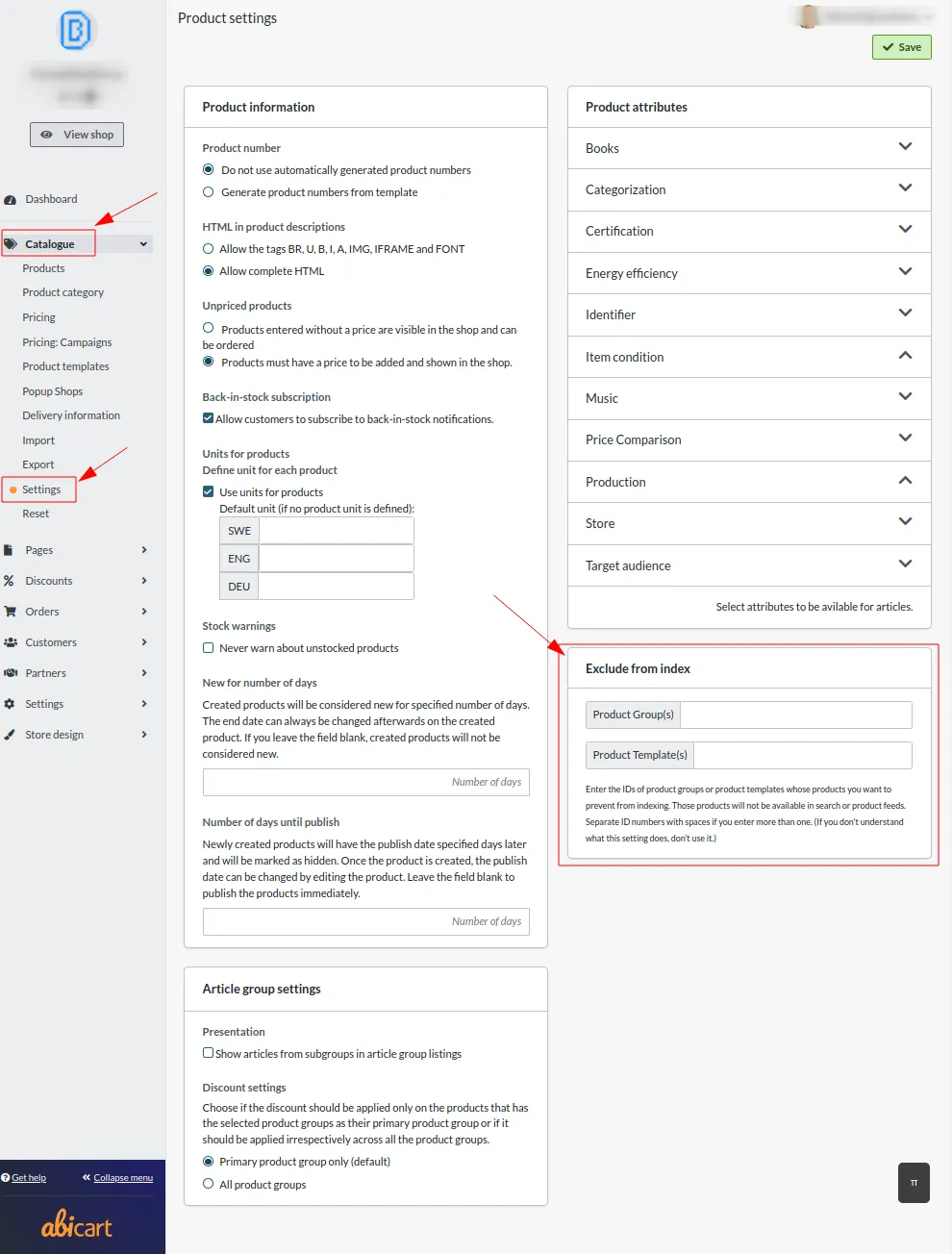
Exclude from Index
27 Nov 2025
The "Exclude from index" feature allows you to specify certain product groups or product templates that you do not want to appear in indexing. This means that products associated with these groups or templates will not be included in search results or product feeds.Instructions:Product Group(s):Enter the ID numbers of the product groups you wish to exclude from indexing.Separate multiple IDs with spaces.Product Template(s):Enter the ID numbers of the product templates you want to prevent from being indexed.Separate multiple IDs with spaces.Note:Use this setting only if you understand its purpose. Incorrect usage may lead to products not appearing in search results or product feeds, potentially impacting their visibility in your store.This setting is useful if you have specific products that you don't want customers to find through searches or external product feeds, such as products under development or seasonal items that are not currently available.
-

Work with custom HTML and CSS in Abicart (HTML on product pages)
27 Nov 2025
In Abicart, you have great opportunities to influence the appearance and content.To work with custom HTML on product pages, go to Assortment -> Settings and select Allow full HTML in product descriptions. To work with custom HTML in Abicart's text editing tool, go to Settings -> General and select HTML in "Text editing tool"Work with custom CSS in a theme:Go to Appearance, Themes and select edit on current theme. Then select the Style tab and then Custom CSS.