


5 min read
Register business customers and control their access

Choose how business customers apply for an account and control which product range and prices they actually see.
This guide is for store administrators in Plus and Pro with customer login and customer groups. It describes manual application and self-registration. Basic customer permissions are not controlled by the theme; however, menu links and registration blocks may be located differently in different active themes.
1. Choose how the business customer will get an account
The standard registration primarily asks for an email and username. This is not always sufficient to assess company name, organization number, and the right to a specific product range or price list.
| Need | Suitable path |
|---|---|
| You want to review each application before creating an account | Disable self-registration, use a contact form, and create the account after review. |
| The customer should be able to register immediately but have limited access | Configure a truly limited default group and check all group memberships and price/purchase right rules. |
2. Manual application via contact form
If no one should be able to shop before a manual business review: disable self-registration and choose that login is required to view prices and order. Just disabling self-registration does not stop guest purchases. Also, check the access for existing accounts.
- Open Customers → Settings and select New customer accounts can only be created by an administrator.
- Open the contact form's system page under Pages. The basic fields are name, email, subject, and message. The phone field can be optional, mandatory, or hidden depending on the form settings; this flow does not offer free-form company fields.
- Add an instruction above the form about which company details the customer should enter in the message, for example, company name, organization number, and desired account.
- Check the recipient Contact email under Settings → Email.
- After review: open Customers → Customers/customer register → New customer, enter the correct details and assign the intended groups, purchase rights, and store access.
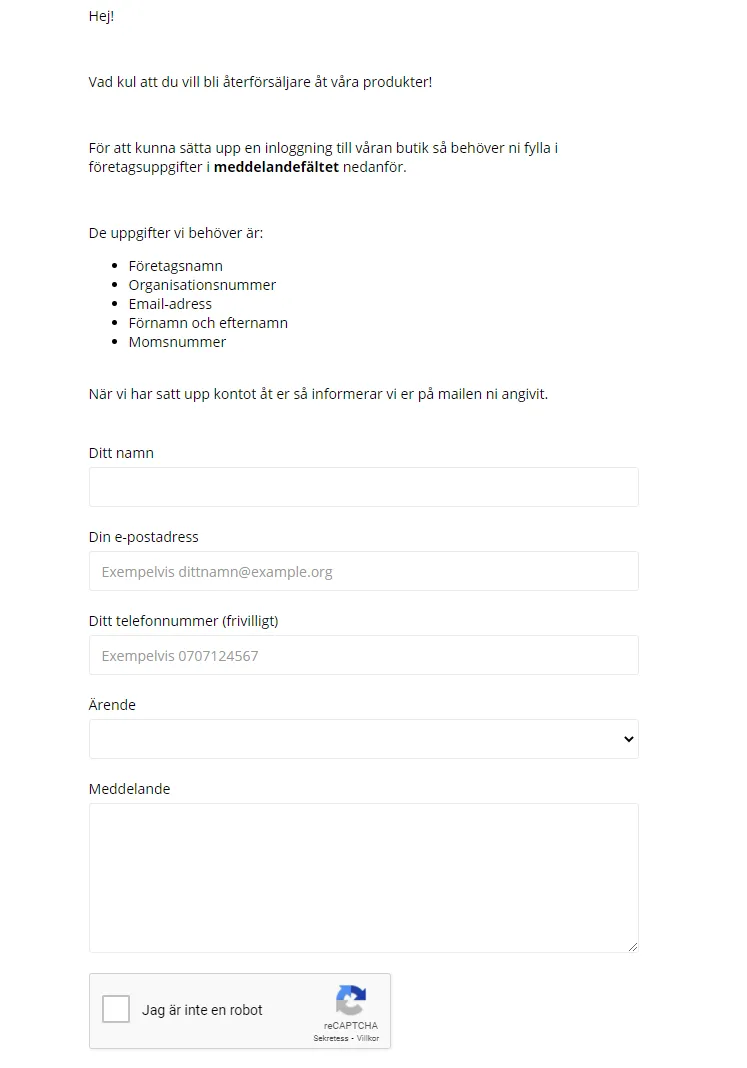
Link the contact form in the active theme's menu so the application can be found. Follow the customer register guide for account/login management and do not share a common password with multiple customers.
The contact form sends an application to the store's contact recipient. It does not create an account or approve any customer. Check that the application has arrived and create the correct account only after the review.
3. Self-registration with limited initial access
Email confirmation is not a manual business review. Self-registration with email confirmation creates an automatically approved account. Only use this path when the customer can get the configured access without waiting for a manual account review. A group simply named ”Not approved” or ”Pending” does not create a technical block by its name.
- Configure the default group's actual product selection and prices according to the customer group guide.
- Check all the customer's groups. The product range is a union of the groups' selections; a single unrestricted group can grant the entire product range.
- Assess purchasing rights separately. Hiding prices for guests is not a protected waiting state for a registered customer: logging in can make prices visible.
- If the customer's access changes later, assign the correct groups and check that old memberships do not grant broader access than intended. A limited self-registration is not a separate technical waiting state for manual account approval.
Example: a waiting group with a limited selection plus another group with an unrestricted selection can give the customer the entire product range. If there are multiple valid customer group prices, the lowest one is chosen after VAT handling, not the price from the last group added.
An account without a restricting group should not be treated as blocked. Also check the customer without a group, not just customers with multiple groups. Ensure that the correct limited product range actually applies and that no other group makes more products available. If a customer is waiting for manual review, it is safer not to create a usable account until the review is complete than to rely on a group name.
4. Notification and result verification
Under the customer settings, you will find Send email to the store when a new customer registers. Check that it is enabled if you want registration notifications and that the store's contact recipient is correct. This is separate from the email from the contact form and from a manual approval.
- As a logged-out visitor, check which product range and prices are visible.
- Check a self-registered customer's actual access and purchasing rights as well as an account without a restricting group. Do not use self-registration as a manual approval queue.
- Check the same things for a reviewed customer with the intended groups.
- Check the correct sub-store and that the application/registration link works in the active theme.
A missing registration email does not automatically mean that no account was created. Check the customer registry, the notification option, the recipient, and then the email server/SPF before asking the customer to register again.
Quick start
- Choose manual application or truly limited self-registration.
- Set up account access, contact recipients, and intended groups.
- Check the group union, prices, and purchasing rights with the correct customer status.
- Link the correct form and check notifications separately.
Subscription and access
Customer login and this B2B group management require Plus or Pro in the current plan. A payment provider's approval for business purchases is a different matter than the customer account in Abicart. A group name or hidden guest price does not replace actual permission rules.