


Other articles by Geetha
-
Specification - Attribute
31 Jul 2026
Specification The Specification attributes let you record technical or regulatory details about a product, such as strength, type, and volume. These fields are optional and are private by default, meaning they are visible only to store administrators unless you choose to change this. Available attributes: Strength: the strength or potency of the product (e.g. alcohol percentage, dosage) Type: the type or variant classification of the product Volume (ml): the volume of the product in milliliters Note: These attributes default to Private. If you want customers to see this information on the product page, you need to change the visibility setting. Setting up Specification attributes 1. Review the attributes Go to Assortment → Products → Product Settings. In the panel on the right, locate the Product Attributes section. Scroll down until you find the Specification heading. For each attribute, click the edit icon and select your preferred visibility option, then click Save. 2. Add specification details to a product Go to Assortment → Products and open the product you wish to edit. Scroll to the bottom-right of the product page. You will find the Specification fields, where you can fill in the relevant details for each attribute. If you have any questions, please contact customer support.
-
Bulk Price Adjustments
2 Mar 2026
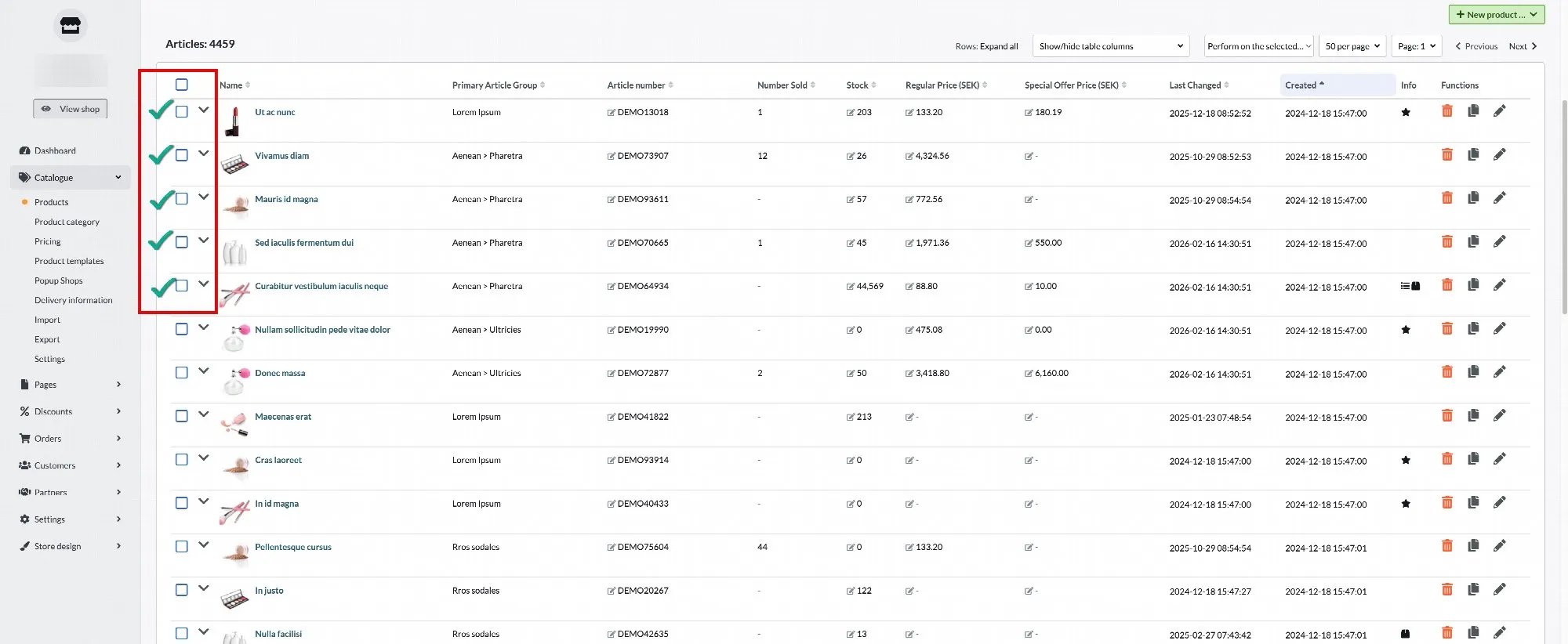
There are two ways to change product prices in bulk.Bulk Price Editing Two ways to update prices across many products at once, plus how to stay safe while doing it. Option 1: Bulk Discount via Assortment → Products Use this option when you want to apply a discount to specific products. Steps Go to Assortment → Products. Select the products you want to discount. Click Perform action on the selected. Select Additional Operations. Enter the percentage you want to reduce the price by (for example, 20). Click OK. The selected products will now be discounted by the specified percentage. Pros You can select specific products individually. Works across different product groups. Simple and quick when adjusting only a few products. Ideal for campaigns or targeted promotions. Cons Can only reduce prices (not increase). Not practical when updating large product groups. Requires manual product selection. Possible Error While performing this action, you may encounter the following error message: What does this mean? This error occurs when no special price list is connected to your store under Assortment → Pricing → Usage. How to Resolve It Go to Assortment → Pricing → Usage. Check whether a special price list is assigned to your store. If no price list is connected, select the appropriate price list. Save your changes. Once a price list is connected, you should be able to complete the bulk price update without issues. Option 2: Bulk Price Change via Assortment → Pricing Use this option when you want to increase or decrease prices for an entire product group or all products. Steps Go to Assortment → Pricing. Select either a specific product group or All products. Click Tools (top-right corner). Select Apply Percentage Changes. Enter the percentage: Use a negative value (e.g., -20) to reduce prices. Use a positive value (e.g., 10) to increase prices. If you selected a specific product group, ensure the option is checked so changes apply only to that group. Confirm the changes. The selected products will now be updated. Pros Can both increase and decrease prices. Efficient for updating entire product groups or all products. Ensures consistent pricing adjustments across categories. Saves time when making large-scale changes. Cons You cannot select individual products. Limited to product groups or all products. Higher risk of affecting unintended products if not reviewed carefully. Recommendation: Work on a Copy of the Price List Before making bulk price changes, we strongly recommend creating a copy of your price list. Why? Bulk changes affect many products at once. Working on a copy ensures: You have a backup. You can review changes safely. You can revert if something goes wrong. How to Create a Copy of a Price List Go to Assortment → Pricing. Open the price list you want to modify. Click Copy (or the corresponding duplicate option). Enter a new name for the copied price list (for example: Price List, Updated). Save the copy. Make your price changes in the copied version. Review all changes carefully. When everything is correct, activate the new price list. This way, your original price list remains unchanged and can be used as a backup if needed.
-

Create an Easter egg hunt/treasure hunt in Abicart - step by step
26 Feb 2026
This manual describes how to create an egg hunt or other scavenger hunt in Abicart. The guide goes through how to set up campaign pages, place clickable campaign icons in the store and link them to discounts, products or landing pages. The approach is built to be easily reused for future campaigns.Preparations Create campaign page Go to:Pages → My Pages → Create new page Create a page describing your campaign, e.g. "Egg hunt - search and find unique discounts".You can link to this page from the homepage. The page can contain: Short campaign text. What to look for. Terms and conditions Validity period Save & publish. Create discount code (requires at least the PLUS plan) Go to:Discounts → Discounts → New discount See manual how to create discounts here Create: Discount code of ex 10% (e.g. EGG15) Free shipping discount code. Save. Create landing pages to link to from the eggs Go to:Pages → My Pages → Create new page Create one or more pages describing the offer you can "find" in an Easter egg: This page can contain: Here is your discount code for this product (e.g. EGG15) With this discount code you get free shipping. With this discount code you get 100 kr discount if you shop for 500 kr. Don't forget to mention the conditions and validity period of your offer on each page. Save & Publish. Alternative: Create campaign category Go to:Assortment → Product groups Create e.g: "Egg Hunt Deals" "Treasure Hunt" Add promotional products to the category. Now you can link to these product groups from your campaign pages. Upload egg images (or promotional icons) Go to:Appearance → File archive Upload your images. Name them clearly so you can find them when you insert them into the pages: egg-01.png egg-gold.png easter-hunt-01.png Tip: Don't make them too big, about 150-250 px wide Keep the size down for fast loading Place the egg images on selected pages You can place them on: Home page Category pages Product pages Your own pages Enter link to promotional page with offer. Advanced: To position an egg image, you may need to use custom CSS.Save & Publish Track which eggs are found To see how many times an egg has been clicked, add UTM parameters to the links. Read more on the Google website about UTM parameters Then in GA4 you can see: Which eggs are found Which ones convert best Good luck and feel free to feedback to us at Abicart if you have tried an Easter egg hunt and if it was successful.If you think the guide can be supplemented with some smart ideas, you are also welcome to tip us at hello@abicart.se. Good luck to you!
-
September 2024 - Software updates
17 Feb 2026
We've fixed a number of things, added new features and improved performance to make your experience even better. Here are some of the highlights: Worldline/Bambora: Support for invoice and partial payment via Walley
-
May 2024 - Software updates
17 Feb 2026
We've fixed a number of things, added new features and improved performance to make your experience even better. Here are some of the highlights: Related articles: New editor Global Attributes: Updated Schema for MeasureUnit
-
June 2025 - Software updates
17 Feb 2026
We've fixed a number of things, added new features and improved performance to make your experience even better. Here are some of the highlights: Added support for svg image format in TinyMCE. Added support for Lottie player in TinyMCE. Added support for font awesome in custom pages.
-
Fix Lets encrypt, ordergc, BL integration
17 Feb 2026
- Lets encrypt log error- Fix ordergc- Fix error in BL integration
-
Auto translate, OpenAI, Specter & Visma
17 Feb 2026
Automatic translation classClient for Open AISpecter: close article batchVisma: Fix regardning discounts
-
Fortnox Releases, New Features for PE Accounting and Prisjakt Integration
17 Feb 2026
Fortnox - Not allowed to set VAT number Type:FeatureInvoices in PE Accounting, integrationNew format Prisjakt feedFeature: Prisjakt Feed generatorFix for new articles in customer group assortment
-
GA4 scheme
17 Feb 2026
new GA4 Schema to be enabled manually
-
Postnord, Certitrade
17 Feb 2026
- Postnord: Use only name parameter- Upgrade textalk/certitrade-integration-php to latest version
-

Qliro Checkout
23 Jan 2026
What is Qliro?In today's e-commerce, payment is a crucial part of the customer experience - and a key driver of growth. Qliro is one of the leading companies for modern commerce and helps e-retailers increase sales, loyalty and profitability through a checkout built for results. With modular technology, data-driven insights and a focus on conversion, Qliro creates a smooth and secure payment experience for the end customer.How do I get started with Qliro Checkout? Contact Qliro on their website and get a demo. Add Qliro Checkout to your store Go to Settings -> Payment methods -> Add new payment method. Select "Qliro Checkout" in the list and then click "Add". You will then be taken to the settings page. Status ActiveCheck to activate and make the payment method visible in the store.DefaultA setting to make the payment method default at checkout.Make available only to those customers or customer groups where I specify it.If you do not want all customers to be able to use this payment method, you can deactivate it for non-logged-in customers through this setting. You then go to the respective customer group to activate the payment method there. Available for customer typeYou can set the payment method to be available only for one customer type or all. Require buyer to enter personal/organization numberCheck to make the personal/organization number mandatory at checkout.Send confirmation of payment status to the store ownerA setting to enable a separate payment status email for this payment method to be sent to the store owner.Turn off the purchase of gift card products with this payment methodEnable a setting to disable the gift card product type from being purchased with this payment method. Qliro settings The next block contains fields for Qliro data provided by Qliro Merchant API Key - Data you receive from Qliro Merchant API Secret - Data you receive from Qliro. Activate test mode - Activate for test mode Privacy Policy Page - Select the page that contains your privacy policy. This is a requirement from Qliro. Name and Description Name of payment methodEach payment method has a name that will be displayed in the checkout, but if you want to modify this, you can enter a new name in this field. An optional field that can be left blank. Detailed descriptionA field to enter a text that informs the buyer about how the payment method works. Can be left blank. Currencies If you have several active currencies in the store, you can limit these for each payment method. The default setting is "All the store's activated currencies", but if you check "Specific currencies", all active currencies are displayed and you can choose to disable those that should not apply to this payment method. Countries The default setting of the payment method is that it applies to all countries to which the store offers delivery (Settings -> Shipping). If you want to restrict a payment method to only certain countries, you can check "Specific countries" and then specify the countries that can use this payment method. Order status If you want orders placed via this payment method to have a specific order status, you can set it here. Select the status from the list. Limitation with regard to order total A setting to limit the amount that a payment method can process. If you choose to limit the amount between two intervals, it is always the total order value including shipping and other fees. Fee to be added at checkout when ordering A function to add an extra fee to the purchase, such as a handling fee.
-
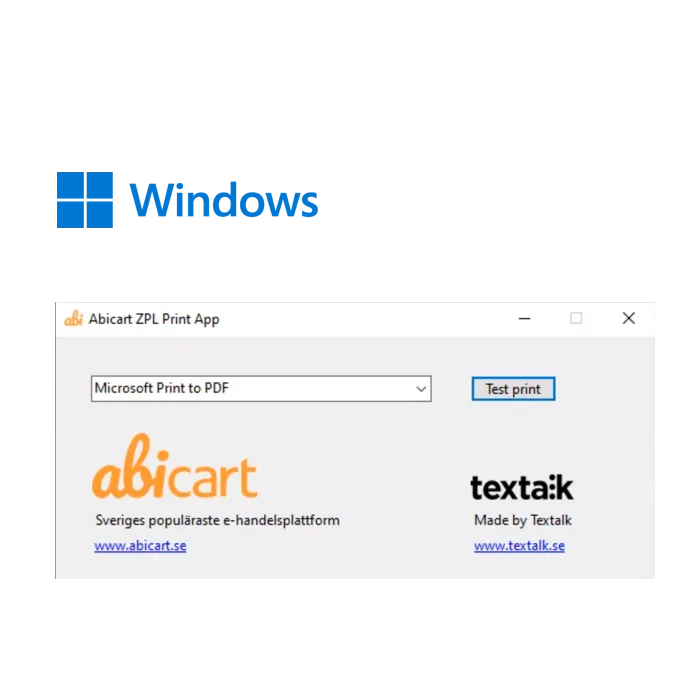
Abicart ZPL PrintApp for Windows. Print zebra labels
21 Dec 2025
Download Abicart ZPL Printer.msi Size : 53.94 MB OS : Windows 32 or 64-bit Program to print (zebra) .zpl labels from a Windows computer. Can be used together with Abicart integration to Postnord TA included in Abicart PRO at no extra cost. Read more about Postnord TA
-
Build a webshop for ink, ink cartridges and toner
18 Dec 2025
Do you want to sell ink online in your own webshop? Abicart is a complete and professional e-commerce solution with hundreds of features that are perfectly suited for you to succeed in selling ink. It's completely free to try - and best of all - it's extremely affordable if you choose to subscribe to any of our versions.Start a webshop with us. Free demo for 30 days!Click here and start your webshop - Free demo! You'll be up and running in minutes!Free access to Abicart's customer service.No card requiredSuccess story: Peter built a successful webshop for ink and ink cartridges using AbicartJoin us on a fictional journey where Peter builds his own webshop for ink and ink cartridges using the user-friendly e-commerce platform Abicart. Read more about how Peter's hard work and dedication led to increased sales and a loyal customer base.Peter had always been interested in e-commerce, and after researching different possibilities, he decided to start his own webshop for ink and ink cartridges. After researching and comparing different e-commerce platforms, he decided to use Abicart to build his webshop.Using Abicart's intuitive interface and simple tools, Peter was able to quickly and easily build a webshop that was not only user-friendly, but also visually appealing and professional. He uploaded a variety of ink and toner cartridges from different manufacturers and was able to offer a wide range at competitive prices.By promoting his webshop on social media and through Google advertising, Peter was able to quickly reach a wide audience. He also used SEO (search engine optimization) to increase the visibility of his shop in search engine results.The results of Peter's hard work quickly became apparent. He started getting more and more customers, and his sales of ink and toner cartridges grew steadily. Soon he had built up a loyal customer base and even started receiving recommendations from previous customers.Thanks to Abicart and his own hard work and dedication, Peter managed to build a successful webshop for ink cartridges. He was pleased to offer high quality products at competitive prices and to help his customers get the most out of their printers.
-

Get started selling backpacks online
18 Dec 2025
Do you want to sell backpacks online in your own webshop? Abicart is a complete and professional e-commerce solution with hundreds of features that are perfectly suited for you to succeed in selling backpacks. It's completely free to try - and best of all - it's extremely affordable if you choose to subscribe to any of our versions.Start a webshop with us. Free demo for 30 days!Click here and start your webshop - Free demo! You'll be up and running in minutes!Free access to Abicart's customer service.No card required
-
E-commerce with dog food: from idea to online store
18 Dec 2025
Do you want to sell dog food online in your own webshop? Abicart is a complete and professional e-commerce solution with hundreds of features that are perfectly suited for you to succeed in selling dog food. It's completely free to try - and best of all - it's extremely affordable if you choose to subscribe to any of our versions.Start a webshop with us. Free demo for 30 days!Click here and start your webshop - Free demo! You'll be up and running in minutes!Free access to Abicart's customer service.No card required
-
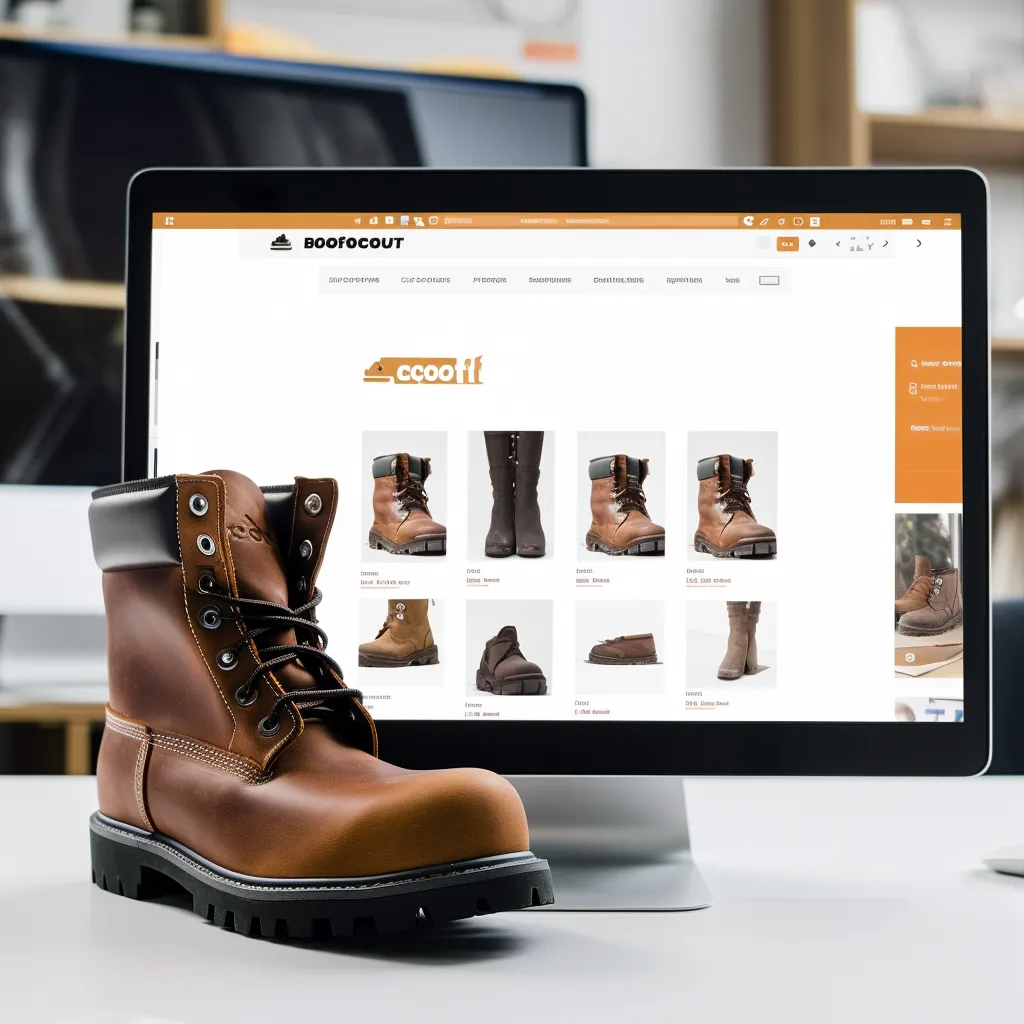
Start an online store for boots
18 Dec 2025
Do you want to sell boots online in your own webshop? Abicart is a complete and professional e-commerce solution with hundreds of features that are perfectly suited for you to succeed in selling boots. It's completely free to try - and best of all - it's extremely affordable if you choose to subscribe to any of our versions.Start a webshop with us. Free demo for 30 days!Click here and start your webshop - Free demo! You'll be up and running in minutes!Free access to Abicart's customer service.No card required
-
Get started selling roller skates online
18 Dec 2025
Do you want to sell roller skates online in your own webshop? Abicart is a complete and professional e-commerce solution with hundreds of features that are perfectly suited for you to succeed in selling roller skates. It's completely free to try - and best of all - it's extremely affordable if you choose to subscribe to any of our versions.Start a webshop with us. Free demo for 30 days!Click here and start your webshop - Free demo! You'll be up and running in minutes!Free access to Abicart's customer service.No card required
-
Start an online store for cookbooks
18 Dec 2025
Do you want to sell cookbooks online in your own webshop? Abicart is a complete and professional e-commerce solution with hundreds of features that are perfectly suited for you to succeed in selling cookbooks. It's completely free to try - and best of all - it's extremely affordable if you choose to subscribe to any of our versions.Start a webshop with us. Free demo for 30 days!Click here and start your webshop - Free demo! You'll be up and running in minutes!Free access to Abicart's customer service.No card required
-
Get started selling phone cases online
18 Dec 2025
Do you want to sell phone cases online in your own webshop? Abicart is a complete and professional e-commerce solution with hundreds of features that are perfectly suited for you to succeed in selling phone cases. It's completely free to try - and best of all - it's extremely affordable if you choose to subscribe to any of our versions.Start a webshop with us. Free demo for 30 days!Click here and start your webshop - Free demo! You'll be up and running in minutes!Free access to Abicart's customer service.No card required
-
Guide: how to sell puzzles online
18 Dec 2025
Do you want to sell puzzles online in your own webshop? Abicart is a complete and professional e-commerce solution with hundreds of features that are perfectly suited for you to succeed in selling puzzles. It's completely free to try - and best of all - it's extremely affordable if you choose to subscribe to any of our versions.Start a webshop with us. Free demo for 30 days!Click here and start your webshop - Free demo! You'll be up and running in minutes!Free access to Abicart's customer service.No card required
-
E-commerce with calendars: from idea to online store
18 Dec 2025
Do you want to sell calendars online in your own webshop? Abicart is a complete and professional e-commerce solution with hundreds of features that are perfectly suited for you to succeed in selling calendars. It's completely free to try - and best of all - it's extremely affordable if you choose to subscribe to any of our versions.Start a webshop with us. Free demo for 30 days!Click here and start your webshop - Free demo! You'll be up and running in minutes!Free access to Abicart's customer service.No card required
-
Guide: how to sell hard drives online
18 Dec 2025
Do you want to sell hard drives online in your own webshop? Abicart is a complete and professional e-commerce solution with hundreds of features that are perfectly suited for you to succeed in selling hard drives. It's completely free to try - and best of all - it's extremely affordable if you choose to subscribe to any of our versions.Start a webshop with us. Free demo for 30 days!Click here and start your webshop - Free demo! You'll be up and running in minutes!Free access to Abicart's customer service.No card required
-
Online store for dog treats – tips to get started
18 Dec 2025
Do you want to sell dog treats online in your own webshop? Abicart is a complete and professional e-commerce solution with hundreds of features that are perfectly suited for you to succeed in selling dog treats. It's completely free to try - and best of all - it's extremely affordable if you choose to subscribe to any of our versions.Start a webshop with us. Free demo for 30 days!Click here and start your webshop - Free demo! You'll be up and running in minutes!Free access to Abicart's customer service.No card required
-
Get started selling leggings online
18 Dec 2025
Do you want to sell leggings online in your own webshop? Abicart is a complete and professional e-commerce solution with hundreds of features that are perfectly suited for you to succeed in selling leggings. It's completely free to try - and best of all - it's extremely affordable if you choose to subscribe to any of our versions.Start a webshop with us. Free demo for 30 days!Click here and start your webshop - Free demo! You'll be up and running in minutes!Free access to Abicart's customer service.No card required
-
E-commerce with weights: from idea to online store
18 Dec 2025
Do you want to sell weights online in your own webshop? Abicart is a complete and professional e-commerce solution with hundreds of features that are perfectly suited for you to succeed in selling weights. It's completely free to try - and best of all - it's extremely affordable if you choose to subscribe to any of our versions.Start a webshop with us. Free demo for 30 days!Click here and start your webshop - Free demo! You'll be up and running in minutes!Free access to Abicart's customer service.No card required
-

Build a webshop for bracelets
18 Dec 2025
Do you want to sell bracelets online in your own webshop? Abicart is a complete and professional e-commerce solution with hundreds of features that are perfectly suited for you to succeed in selling bracelets. It's completely free to try - and best of all - it's extremely affordable if you choose to subscribe to any of our versions.Start a webshop with us. Free demo for 30 days!Click here and start your webshop - Free demo! You'll be up and running in minutes!Free access to Abicart's customer service.No card requiredVeronica's success story: a fictional story about selling handmade bracelets in her own webshop.As an e-commerce platform, Abicart helps many customers to start and run their own webshop. This fictional story of Veronica, who succeeded in selling handmade bracelets in her own webshop, can be inspiring for many of Abicart's customers. Learn from her successes and discover how you can create a unique and personal customer experience in your own online shop.Veronica was a passionate jewellery designer who loved to create handmade jewellery. After creating jewellery for friends and family for many years, she decided to take the plunge and start her own online store to sell her jewellery to a wider audience.She knew the competition in the market was fierce, but Veronica was determined to make her webshop a success. She created a simple and easy-to-use webshop and started promoting her jewellery on social media. She collaborated with bloggers and fashion influencers, inviting them to try her jewellery and leave their reviews.After just a few weeks, Veronica's sales of her bracelets started to take off. She realised that her customers appreciated the personal touch of handmade jewellery and that they also valued the competitive prices on her webshop. Veronica expanded her range and started including necklaces, earrings and other jewellery in her shop.Veronica focused on creating a unique and personal customer experience on her own webshop. She was careful to have control over her sales and customer experience, and chose to sell on her own webshop instead of selling on other marketplaces like Etsy and Amazon. She continued to use influencer marketing and social media to promote her webshop and build a following of loyal customers.After a year, Veronica's webshop had become a huge success. She had built a team of talented employees to help her with the production and delivery of jewelry, and her customers continued to spread the word about her shop. With a strong online presence and a passion for creativity and style, Veronica had created a successful business that she was proud to call her own.
-
Build a webshop for children's books
18 Dec 2025
Want to sell children's books online in your own webshop? Abicart is a complete professional e-commerce solution with hundreds of features that are perfect for you to succeed in selling children's books. It is completely free to try - and best of all - it is extremely affordable if you choose to subscribe to one of our versions.Start a webshop with us. Free demo for 30 days!Click here and start your webshop - Free demo! You'll be up and running in minutes!Free access to Abicart's customer service.No card requiredSelling children's books in your own webshop can be a profitable business if you are interested in children's literature and want to start an online shop. By using Abicart as your e-commerce platform, you can create a professional and user-friendly webshop to sell your products.To use Abicart to sell children's books, you first need to create an account on the platform and choose the package that suits your needs. Then you can easily create your own webshop by selecting one of the ready-made templates or customizing your own template using the tools that Abicart offers.Once your webshop is ready, you can start uploading images and descriptions of your children's books. It is important to have a well-described product description and clear images that show the books in the best possible way. Abicart also offers tools to manage your inventory and create campaigns and offers.To promote your webshop, you can use social media and other online channels. Abicart also has a built-in feature to optimize your online shop for search engines, which can help you reach a wider audience and increase your sales.Once you've received an order from your online store, you can easily manage payments and shipping via Abicart's integrated payment and shipping options. Abicart also offers support for multiple payment methods and shipping options, making it easy for your customers to buy children's books from your webshop.To increase your sales, you can offer different types of promotions and offers, such as free shipping and discount codes. It is also important to have an efficient customer service and fast delivery time to increase customer trust and loyalty to your webshop.In summary, with Abicart as your e-commerce platform, you can create a professional and user-friendly webshop for selling children's books online. With clear product descriptions, effective marketing and a smooth handling of payments and shipping, you can build a profitable business to sell your children's books.An inspiring story about selling children's books online with AbicartThis fictional story is about Elin, a passionate mother who chose Abicart as her e-commerce platform to sell children's books online. Although the story is fictional, it can inspire all Abicart customers who want to create a successful online store and offer a smooth shopping experience for their customers.Elin had always had a passion for children's books and when she had children of her own, she realized how important it was to have access to a wide variety of books to promote children's literacy and creativity. She decided to start her own webshop where she could sell children's books and reach a wider audience. Elin chose the e-commerce platform Abicart to create a professional and user-friendly webshop.Elin started by choosing one of the ready-made templates on Abicart and adapting it to her taste. She uploaded images and descriptions of the children's books she wanted to sell, and also created an age group category to make it easy for customers to find the right books. Abicart's inventory and campaign management tools made it easy for Elin to manage her assortment and run different campaigns to attract new customers.Elin started promoting her webshop on social media and other online platforms. She also used Abicart's built-in search engine optimization features to reach a wider audience. Soon, customers started pouring in from all over the country, and she realized she needed to expand her product range to meet the demand.Elin expanded her range with new children's books and educational materials and offered promotions and discounts on various products to boost sales. She also used Abicart's integrated payment and shipping options to make it easy for customers to buy books from her webshop. Elin also had an efficient customer service and fast delivery time, which made customers feel confident to buy from her webshop.Elin quickly became a successful online retailer selling children's books throughout Sweden. Using Abicart as her e-commerce platform, she could easily create and administer her webshop, manage her inventory and offer her customers a smooth shopping experience. Elin was proud of her achievement and that she could make a positive difference to children's literacy and creativity by selling children's books online.
-
Guide: how to sell beds online
18 Dec 2025
Do you want to sell beds online in your own webshop? Abicart is a complete and professional e-commerce solution with hundreds of features that are perfectly suited for you to succeed in selling beds. It's completely free to try - and best of all - it's extremely affordable if you choose to subscribe to any of our versions.Start a webshop with us. Free demo for 30 days!Click here and start your webshop - Free demo! You'll be up and running in minutes!Free access to Abicart's customer service.No card required
-
Get started selling seafood online
18 Dec 2025
Do you want to sell seafood online in your own webshop? Abicart is a complete and professional e-commerce solution with hundreds of features that are perfectly suited for you to succeed in selling seafood. It's completely free to try - and best of all - it's extremely affordable if you choose to subscribe to any of our versions.Start a webshop with us. Free demo for 30 days!Click here and start your webshop - Free demo! You'll be up and running in minutes!Free access to Abicart's customer service.No card required
-
Start an online store for meat
18 Dec 2025
Do you want to sell meat online in your own webshop? Abicart is a complete and professional e-commerce solution with hundreds of features that are perfectly suited for you to succeed in selling meat. It's completely free to try - and best of all - it's extremely affordable if you choose to subscribe to any of our versions.Start a webshop with us. Free demo for 30 days!Click here and start your webshop - Free demo! You'll be up and running in minutes!Free access to Abicart's customer service.No card required
-
Get started selling fabric online
18 Dec 2025
Do you want to sell fabric online in your own webshop? Abicart is a complete and professional e-commerce solution with hundreds of features that are perfectly suited for you to succeed in selling fabric. It's completely free to try - and best of all - it's extremely affordable if you choose to subscribe to any of our versions.Start a webshop with us. Free demo for 30 days!Click here and start your webshop - Free demo! You'll be up and running in minutes!Free access to Abicart's customer service.No card required
-
Online store for gemstones – tips to get started
18 Dec 2025
Do you want to sell gemstones online in your own webshop? Abicart is a complete and professional e-commerce solution with hundreds of features that are perfectly suited for you to succeed in selling gemstones. It's completely free to try - and best of all - it's extremely affordable if you choose to subscribe to any of our versions.Start a webshop with us. Free demo for 30 days!Click here and start your webshop - Free demo! You'll be up and running in minutes!Free access to Abicart's customer service.No card required
-

Guide: how to sell bags online
18 Dec 2025
Do you want to sell bags online in your own webshop? Abicart is a complete and professional e-commerce solution with hundreds of features that are perfectly suited for you to succeed in selling bags. It's completely free to try - and best of all - it's extremely affordable if you choose to subscribe to any of our versions.Start a webshop with us. Free demo for 30 days!Click here and start your webshop - Free demo! You'll be up and running in minutes!Free access to Abicart's customer service.No card required
-
Get started selling cabinets online
18 Dec 2025
Do you want to sell cabinets online in your own webshop? Abicart is a complete and professional e-commerce solution with hundreds of features that are perfectly suited for you to succeed in selling cabinets. It's completely free to try - and best of all - it's extremely affordable if you choose to subscribe to any of our versions.Start a webshop with us. Free demo for 30 days!Click here and start your webshop - Free demo! You'll be up and running in minutes!Free access to Abicart's customer service.No card required
-
E-commerce with candles: from idea to online store
18 Dec 2025
Do you want to sell candles online in your own webshop? Abicart is a complete and professional e-commerce solution with hundreds of features that are perfectly suited for you to succeed in selling candles. It's completely free to try - and best of all - it's extremely affordable if you choose to subscribe to any of our versions.Start a webshop with us. Free demo for 30 days!Click here and start your webshop - Free demo! You'll be up and running in minutes!Free access to Abicart's customer service.No card required
-
How to start a webshop selling plants
18 Dec 2025
Do you want to sell plants online in your own webshop? Abicart is a complete and professional e-commerce solution with hundreds of features that are perfectly suited for you to succeed in selling plants. It's completely free to try - and best of all - it's extremely affordable if you choose to subscribe to any of our versions.Start a webshop with us. Free demo for 30 days!Click here and start your webshop - Free demo! You'll be up and running in minutes!Free access to Abicart's customer service.No card required
-
Start an online store for furniture
18 Dec 2025
Do you want to sell furniture online in your own webshop? Abicart is a complete and professional e-commerce solution with hundreds of features that are perfectly suited for you to succeed in selling furniture. It's completely free to try - and best of all - it's extremely affordable if you choose to subscribe to any of our versions.Start a webshop with us. Free demo for 30 days!Click here and start your webshop - Free demo! You'll be up and running in minutes!Free access to Abicart's customer service.No card required
-

General Product Safety Regulation (GPSR)
18 Dec 2025
The General Product Safety Regulation (GPSR) is a European legislation that regulates general product safety in the European Union. In Swedish, it is usually translated as the "General Product Safety Regulation". The aim of the regulation is to ensure that products sold on the market are safe for consumers.New law on general product safety: what it means for shop ownersA new law, the General Product Safety Regulation (GPSR), has recently entered into force in the European Union (EU). The law, known as the General Product Safety Regulation (GPSR), aims to ensure that all products sold on the market are safe for consumers. It replaces the previous General Product Safety Directive and adapts the legislation to the current market situation, including the rapid growth of e-commerce and new technologies.The new General Product Safety Regulation (GPSR) applies to all consumer products sold or made available for sale in the EU. It covers both physical products sold in shops and products sold online. Some examples of products covered by the GPSR are:Electronics: For example, mobile phones, household appliances, and other consumer electronics.Children's products and toys: Toys, strollers, high chairs and other products intended for children.Clothing and footwear: All types of clothing, footwear and accessories.Cosmetics and personal care products: Perfume, skincare products, make-up and other beauty products.Sports and leisure equipment: Bicycles, skateboards, camping equipment, and exercise equipment.Furniture and home furnishings: Tables, chairs, lamps, and other furniture or home accessories.Tools and garden equipment: Hand tools, lawnmowers, and other home and garden equipment.The Regulation also covers products incorporating new technologies, such as smart products connected to the Internet of Things (IoT).However, it excludes certain products that are already regulated by specific EU legislation, such as pharmaceuticals, food, vehicles, and medical devices. These follow different regulatory frameworks that have their own safety requirements.For shop owners, this means new requirements and guidelines to follow to ensure that the products they sell are safe and comply with the law. Here we go through what the new law means and what you as an online seller need to do.What does the new law mean?The new GPSR law tightens product safety requirements across the EU. The law applies to all products placed on the market and is aimed at manufacturers, importers and distributors - which includes you as an online trader. The basic principle is that all products should be safe to use and not pose a risk to consumers.The new rules also increase the requirements for traceability and documentation of products. This means that manufacturers and sellers must be able to trace the product throughout the supply chain and, if necessary, quickly withdraw dangerous products from the market.Actions that shop owners need to takeTo comply with the new law, retailers selling goods to consumers need to take a number of steps:1. carry out risk assessmentsMake sure that the products sold are risk assessed and meet all safety requirements. If there is a risk associated with the product, this information should be clearly indicated to consumers.2. improve traceability There should be clear information on the manufacturer, importer and supplier of the product, so that the product can be traced throughout the supply chain. Make sure you have accurate and up-to-date contact details for the supplier.3. safety information for consumersProvide clear information on how to use the product safely. Warnings and safety instructions should be clear, visible and easy to understand.4. Respond quickly to dangerous productsHave procedures in place to quickly recall products from the market if they are found to be dangerous. It is also important to report dangerous products to the authorities in time.5. documentation and record keeping Keep all relevant documentation showing that products meet safety requirements. This may include test results, certificates or other technical documentation.How do I label my productsTo comply with the new General Product Safety Regulation (GPSR), you need to label your products in a way that ensures they are traceable and meet safety requirements.Here are some key points on how products should be labeled:1. product identificationEach product should be clearly marked with a unique identifier, such as an article number, serial number or product model. This makes it possible to trace specific products in case of problems.2. name and contact details of the manufacturer and importerThe label should contain information about the manufacturer, including name and address. If you are an importer selling products from outside the EU, your company's name and contact details should also appear on the product.This information should be clear and easy for consumers to understand, so that they can contact the company if necessary.3. Warnings and safety instructionsIf the product has any specific risks, this should be clearly stated on the label. Provide information on how to use the product safely, as well as any age limits if the product is not suitable for children.Warnings and safety information should be in the languages used in the countries where the product is sold.4. CE marking (if applicable)If your product is covered by specific directives that require CE marking (e.g. toys, electrical equipment, or personal protective equipment), the product should bear the CE symbol. The CE marking indicates that the product complies with all applicable safety and health regulations in the EU.5. instructions for use and documentationProvide instructions for use or a manual describing how to use the product correctly and safely. For complex products, the documentation should be more comprehensive and include maintenance and installation instructions.6. packaging labelingIn addition to labeling on the product itself, the packaging should also contain relevant information, such as the product's identification, warning messages and the manufacturer's contact information. This is particularly important if the product has multiple parts or if there is a risk of suffocation (e.g. small parts that may pose a danger to children).Timeline for when the measures should be implementedTo be ready for the full application of the new law, there are specific timelines to follow:- January 1, 2025:Most provisions of the GPSR come into force. By this date, shop owners should have implemented the new procedures for risk assessment, traceability, and safety information.- June 30, 2025:Companies should have complete procedures in place for product recalls and reporting to authorities on dangerous products. Ensure that all processes are tested and documented.- January 1, 2026:Full compliance with all GPSR requirements. Non-compliant companies may face fines or other penalties.The new regulation is an important step to protect consumers and improve the safety of products in the EU. By following the above measures, you as a shop owner can ensure that your products are safe and meet the new requirements.If you have more questions or want to know more about the law, read more hereThe text is compiled by Chat GPTHow can I enter the information in Abicart?- Add information to the product description- Create an attribute in the product template (only available for Plus and Pro)
-

How to Choose the Right Ecommerce Platform: What Abicart, Shopify, WooCommerce and Others Can Offer
18 Dec 2025
Explore what the leading e-commerce platforms like Abicart, Shopify and WooCommerce can offer. Learn how to choose the best platform for your business in Sweden and Scandinavia.Introduction: Choosing an Ecommerce Platform - An Important DecisionChoosing the right e-commerce platform is one of the most important decisions you can make as a business owner. The platform you choose will affect everything from how easy it is to build and maintain your store, to how effectively you can manage sales, marketing and customer service. In this blog, we'll provide an overview of what some of the most popular ecommerce platforms-including Abicart, Shopify, WooCommerce, and others-can offer, especially for businesses operating in Sweden and Scandinavia.1. Abicart: A Reliable Choice for Swedish and Scandinavian BusinessesAbicart has been a reliable partner for Swedish companies for over 30 years. What makes Abicart unique is its strong focus on the local market and its deep understanding of the needs of Swedish and Scandinavian businesses. Abicart offers not only a platform that is easy to use, but also one that is affordable and packed with features that provide more value for money.Some of the areas where Abicart excels include:Benefits:Local Expertise: With over 30 years of experience, Abicart understands the Swedish and Scandinavian markets deeply and offers customized solutions that global platforms may not see.Exceptional Customer Support: Abicart's support is locally focused and provides fast, relevant help in Swedish, unlike global platforms with more generalized support.Value for Money: Abicart offers competitive pricing with features often included, while other platforms charge extra.Ease of Use: Abicart is designed for non-technical users, making it easy to get started without deep technical knowledge.Free Trial: A risk-free 30-day trial with the Pro plan provides full access to all features, allowing you to explore the platform's potential before committing.Disadvantages:Global Reach: While Abicart is great for local markets, its reach may be limited outside of Europe.Third-party integrations: Abicart has fewer integrations compared to platforms like WooCommerce, but offers all the essential tools most local businesses need.With our 30-day free trial for the Pro plan, you can explore all our features and see how we can help you build and grow your ecommerce business.2. Shopify: A Global Giant with Simplicity in FocusShopify is one of the most popular ecommerce platforms globally, and it's not hard to see why. With an intuitive interface and a wealth of apps and integrations, Shopify is great for businesses that want a solution that's easy to use and can grow with their business. Shopify also offers a strong global reach, allowing businesses to reach customers all over the world.Pros:Extensive App Ecosystem: Shopify's large app store allows for extensive customizations.Global Reach: Shopify is ideal for companies aiming for international markets across different continents, even if the company is based in Canada.Strong Community: Large, active user community with many resources.Disadvantages:Higher Costs: Shopify's transaction fees can get costly, making it more expensive.Limited Local Focus: Shopify's global focus means it may not cater to specific needs in the Swedish or Scandinavian markets as effectively as Abicart.3. WooCommerce: Flexibility and Customization for WordPress UsersWooCommerce is a strong option for those who already use WordPress as their website platform. This plugin offers great flexibility and the ability to create a fully customized store. For businesses that have specific needs and want full control over their stores, WooCommerce can be a great choice.Advantages:High Customizability: Offers great flexibility for those who want full control.Open Source: No ongoing subscription fees.Disadvantages:Complex Installation: Requires technical knowledge to fully customize and maintain.Maintenance-intensive: Regular updates and maintenance can be time-consuming.4. BigCommerce: Features and Scalability for Growing BusinessesBigCommerce is known for its robust built-in functionality, making it a good choice for businesses that need advanced features without having to add many extra apps. The platform is also scalable, meaning it can grow with your business and handle large amounts of traffic and sales.Pros:Robust Features: Comprehensive built-in tools for large-scale operations.Scalable: Can handle large amounts of traffic and sales volumes.Disadvantages:Expensive: Higher costs that may not be justified for smaller businesses.Less Customizable: Fewer themes and customization options compared to competitors.How to Choose the Right Platform for Your BusinessWhen choosing an e-commerce platform, it's crucial to consider your specific needs and goals. If you're looking for a platform that offers a global reach and a wide range of apps, Shopify might seem like a good choice. And if you want full control and flexibility by customizing your store in depth, WooCommerce could be an option. But why compromise?With Abicart, you get a platform that not only offers everything these global players do, but is also specifically adapted for the Swedish and Scandinavian markets. We offer a strong local presence, support for local payment methods like Swish and Klarna, and a platform that is easy to use and affordable for businesses of all sizes. Plus, you get access to our industry-leading customer support and a host of integrated features that deliver more value for money.If you want a reliable, affordable and local partner that understands your specific market needs, Abicart is the strongest choice.Conclusion: A Platform for Every NeedWhatever platform you choose, the most important thing is that it fits your unique business needs. All the platforms we've discussed offer something special, and the choice is about finding the one that best fits your vision for your business. With Abicart, you get a partner who understands the local market and is ready to support you every step of the way towards success.
-

Top E-commerce Business Ideas for 2024: What Aspiring and Local Business Owners Should Know
18 Dec 2025
Discover the top e-commerce business ideas for 2024. Whether you’re an existing business owner or aspiring entrepreneur, learn which industries offer the best opportunities for success in the online marketplace.Introduction: The Growing Importance of E-commerceAs we enter 2024, e-commerce continues to expand at a rapid pace. For local business owners who have yet to take the plunge into online selling, or for aspiring entrepreneurs ready to begin their journey, there's never been a better time to explore the world of e-commerce. The threshold for starting an e-commerce business is lower than ever, and with the right business idea, you can either reach a global market or better serve your local community.In this article, we'll explore some of the most promising ecommerce ideas for 2024, focusing on those that offer strong growth potential and are in line with current consumer trends. Whether you're looking to expand your existing business into the online world or start something completely new, these ideas can help you start off on the right foot.1. Niche Subscription Boxes: Personalized and Curated ExperiencesSubscription boxes have been a popular ecommerce trend for years, and it doesn't look like they're going to slow down in 2024. What makes them so attractive is the ability to offer customers a personalized and curated experience. Subscription boxes can be customized for specific niches, such as gourmet food, beauty products, fitness equipment or hobby materials.For local business owners, this is a great opportunity to leverage your existing expertise. For example, if you run a local gourmet shop, consider creating a monthly subscription with your best-selling products. By offering a subscription service, you can build a loyal customer base and create stable revenue.2. Eco-friendly Products: Meet the Demand for SustainabilitySustainability isn't just a trend-it's becoming a core value for consumers around the world. In 2024, companies that focus on eco-friendly products are likely to see significant growth. Whether it's selling reusable household items, waste-free beauty products or sustainable fashion, there's a growing market for environmentally conscious goods.For existing local businesses, consider expanding your range to include eco-friendly options or even launching a dedicated online store focused on sustainability. Starting from scratch allows you to position your brand as an eco-friendly option from the outset, which can help you attract an engaged customer base.3. Health products: Catering to a health-oriented marketThe health and wellness industry continues to flourish, and e-commerce offers the perfect platform to reach health-conscious consumers. In 2024, products such as organic supplements, fitness equipment and natural skincare products will remain in demand.For local gyms, health stores or beauty salons, expanding into e-commerce by offering your products online can help you reach a wider audience. Even if you're starting a new business, health products are a strong choice given the industry's resilience and ongoing growth.4. Local Artisan Products: Taking Local Products to a Global MarketThere's a growing appreciation for locally made, artisan products, and e-commerce is the perfect way to bring these products to a wider audience. Whether it's handmade jewelry, custom-made furniture, or locally sourced food, consumers are increasingly looking for unique, high-quality products with a story behind them.If you're a local artisan or run a small shop selling craft products, consider setting up an online store to reach customers beyond your immediate area. This not only increases your market reach, but also allows you to showcase the uniqueness of your products to a global audience.5. Online Courses and Digital Products: Share Your ExpertiseOne of the most scalable ecommerce models is selling digital products or online courses. If you have expertise in a particular field-whether it's cooking, graphic design, business management or training-you can create an online course or digital downloads that customers can buy.For existing businesses, this can be an opportunity to capitalize on your knowledge and offer something valuable to your customers. For example, a local cooking school could offer online cooking classes, or a business consultancy could sell downloadable templates and guides.6. Pet products: tapping into a passionate marketPet ownership is on the rise, and with it the demand for pet-related products. From gourmet pet food to customized accessories, pet owners are willing to spend on high-quality, unique products for their four-legged friends. In 2024, the pet market will continue to be a lucrative area for ecommerce entrepreneurs.If you own a pet store or have a passion for animals, consider expanding your offering online. Even new businesses can find success by focusing on a specific niche within the pet industry, such as eco-friendly pet products or luxury pet accessories.7. Personalized Products: Offer Customization and UniquenessPersonalization has become a key trend in e-commerce, with consumers increasingly looking for products that feel unique to them. This can include anything from customized clothing and accessories to personalized gifts and home décor.For local businesses that already offer some form of customization, moving online can open up new revenue streams. For example, a local print shop could offer custom t-shirts and mugs through an online store, or a jeweler could create a line of personalized jewelry.8. Used and Vintage Products: Capitalizing on the Circular EconomyThe circular economy is gaining ground, and consumers are increasingly interested in buying second-hand and vintage products. Whether it's clothing, furniture or electronics, there is a growing market for previously loved goods.For local second-hand or vintage shops, moving to an online platform can significantly increase your customer base. If you're starting a new business, you can attract eco-conscious consumers and those looking for unique finds by focusing on high-quality second-hand products.How to get started with your e-commerce businessOnce you've identified the type of e-commerce business you want to start, the next step is to choose the right platform to build your online store. Here, Abicart can be of help:Local Focus: Abicart is specifically designed to cater to the Swedish and Scandinavian markets, with support for local payment methods and a platform that understands the unique needs of businesses in the region.Ease of Use: Whether you're new to e-commerce or transitioning from a physical store, Abicart's user-friendly interface makes it easy to set up and manage your online business.Comprehensive Support: With over 30 years of experience, Abicart offers unrivaled customer support to help you every step of the way. We listen to our customers and continuously improve our platform based on their feedback.Value for Money: Our subscription plans are competitively priced and full of features that give you more value for your investment. Plus, you can start with a 30-day free trial of our Pro Plan to explore all the features we offer.Conclusion: 2024 is the Year to Go Online2024 offers a wealth of opportunities for those looking to start an e-commerce business or expand their existing local business into the online world. By choosing the right business idea and leveraging a platform like Abicart, you can set yourself up for success in the rapidly growing e-commerce landscape.Whether you're selling craft products, eco-friendly goods or launching an online course, the key is to align your business with current trends and consumer demand. With the right strategy and the support of a robust e-commerce platform, you can turn your entrepreneurial dreams into reality in 2024.
-

SEO Strategies for E-commerce Success in 2024: A Comprehensive Guide for Scandinavian Businesses
18 Dec 2025
Unlock the secrets to e-commerce success with our comprehensive SEO guide tailored for Scandinavian businesses. Learn actionable tips on keyword research, on-page optimization, and content marketing strategies to boost your online store's visibility and sales.Introduction: The Importance of SEO in EcommerceIn the fast-moving world of e-commerce, visibility is everything. With more businesses entering the online marketplace, it's never been more challenging-or more important-to stand out. For Scandinavian businesses, operating in a region known for its high internet penetration and tech-savvy consumers, mastering SEO (Search Engine Optimization) is key to success.SEO is the process of optimizing your online store so that it ranks higher in search engine results, making it easier for potential customers to find you. Effective SEO can drive organic traffic, increase sales and build long-term brand loyalty. In this guide, we will provide you with solid SEO strategies tailored specifically for e-commerce stores in the Scandinavian market.1. Keyword Research: The Foundation of Ecommerce SEOKeyword research is the first step in a successful SEO strategy. It involves identifying the terms and phrases that potential customers use when searching for products like yours. Here's how you can approach keyword research for your ecommerce store:Use Tools to Identify Relevant Keywords: Tools like Google Keyword Planner, Ahrefs, and SEMrush can help you discover keywords that are relevant to your products and have a high search volume. Focus on long-tail keywords (e.g. "organic cotton baby clothes Sweden") as they often have less competition and are more likely to convert.Understand Local Search Trends: Since you're targeting the Scandinavian market, it's important to take local search trends into account. Use tools like Google Trends to see how certain keywords perform in specific countries or regions within Scandinavia.Analyze Competitors: Look at what keywords your competitors are targeting. This can provide insights into what works in your niche and help you identify gaps in your own keyword strategy.Incorporate Keywords Naturally: Once you've identified your target keywords, incorporate them naturally into your product titles, descriptions, meta tags, and URLs.. Avoid keyword stuffing, as this can negatively impact your rankings.2. On-Page Optimization: Improve Your Ecommerce PagesOn-page optimization is about adjusting various elements of your website to improve its visibility in search engine results. Here are some key aspects of on-page SEO for ecommerce:Optimize Product Pages: Each product page should be optimized for a specific keyword. Make sure the keyword is included in the product title, description, meta description and URL. Use high-quality images with descriptive alt-texts and include customer reviews to increase credibility.Create Unique, High-Quality Content: Avoid using manufacturers' descriptions that are duplicated across other websites. Instead, create unique, detailed descriptions that highlight the benefits and features of your products. This not only improves SEO but also provides a better user experience.Use Structured Data: Implement structured data (schema markup) on your product pages. This helps search engines better understand your content and can lead to rich snippets in search results, such as product reviews, prices and availability.Optimize for Mobile: With mobile commerce on the rise, it's crucial that your ecommerce site is fully optimized for mobile users. Make sure your site loads quickly, is easy to navigate on smaller screens and offers a seamless checkout process.Internal Linking: Use internal links to guide users to other relevant pages on your site. This not only improves the user experience, but also helps search engines crawl and index your site more effectively.3. Content Marketing: Drive Traffic and Build AuthorityContent marketing is a powerful way to attract and engage customers while improving your SEO. By creating valuable content, you can build authority within your niche and drive more organic traffic to your website. Here's how to implement content marketing for your ecommerce store:Start a Blog: A blog is a great platform for publishing content that resonates with your target audience. Write about topics related to your products, industry trends, or how-to guides. For example, if you sell eco-friendly products, you could write about the benefits of sustainable living or tips for reducing your carbon footprint.Incorporate Keywords Strategically: When creating content, make sure to incorporate your target keywords naturally. Use variations of your primary keywords and include them in headings, subheadings and in the body of the text.Create Shareable Content: Produce content that is engaging and shareable, such as infographics, videos and lists. Share this content across your social channels to increase visibility and drive traffic back to your website.Leverage User-Generated Content: Encourage your customers to create content related to your products, such as reviews, testimonials, and photos. This not only provides social proof but also generates fresh content for your website, which is beneficial for SEO.Update and Reuse Content: SEO is an ongoing process. Regularly update your existing content to keep it relevant and optimized. You can also repurpose content in different formats, such as turning a blog post into a video or infographic.4. Technical SEO: The backbone of your e-commerce siteTechnical SEO refers to the underlying elements of your website that affect its performance and visibility. Here are some technical SEO tips for ecommerce:Improve Web Page Speed: Web page speed is a crucial factor for both user experience and SEO. Optimize your images, use a content delivery network (CDN) and minimize HTTP requests to improve loading times.Make sure your website is secure: Security is a priority for both users and search engines. Make sure your website uses HTTPS and has a secure payment gateway.Optimize Your Web Structure: A clear and logical web structure makes it easier for search engines to crawl and index your site. Use a simple URL structure, create a sitemap and make sure all your pages are easy to navigate.Fix Broken Links: Broken links can damage your SEO and provide a poor user experience. Check and fix broken links on your website regularly.Use 301 redirects: When you delete or move a page, use 301 redirects to guide users to the new URL. This helps preserve the SEO value of the original page.5. Local SEO: Target Scandinavian CustomersSince your target market is in Scandinavia, it's important to optimize your e-commerce store for local SEO. Here are some tips:Create Localized Content: Tailor your content to the specific needs and interests of Scandinavian customers. This can include writing in local languages, addressing regional issues, or highlighting products that are popular in specific areas.Optimize for Local Search Terms: Include local keywords in your content, such as "organic skincare products in Sweden" or "sustainable furniture in Norway."Register with Google My Business: If you have a physical location, make sure to register your business with Google My Business. This can help your store appear in local search results and Google Maps.Get Listed in Local Directories: Make sure your business is listed in local online directories and review sites relevant to Scandinavia.Conclusion: Achieve e-commerce success with SEOSEO is an essential part of a successful e-commerce strategy, especially in the competitive Scandinavian market. By following the tips outlined in this guide, you can improve your online visibility, attract more customers and ultimately drive more sales.At Abicart, we understand the unique challenges facing Scandinavian businesses, and our platform is designed to help you succeed in the competitive world of e-commerce. Whether you're just starting out or looking to optimize your existing store, we're here to support you every step of the way.
-

Increase your sales with Multishop
18 Dec 2025
Abicart's multi-store system, also known as Multishop, is an additional service in the PRO subscription that makes it possible to create and manage multiple stores in the same system. This is cost-effective for companies that want to run multiple stores and sell to different countries, target groups or markets.Advantages of MultishopCost-effective: the Multishop system makes it possible to run several shops within the same system. The first sub-store is included in the PRO subscription, and each additional subshop costs the same as the Plus plan.Easy administration: All sub-stores can be managed from one place, making administration and updates of assortment, prices and promotions easier.Flexibility: Each sub-store can have a unique look, theme and domain name, allowing you to customize each store according to your target audience and market.Customized assortment: Products are created at the top level and then each sub-store can display all or part of the assortment. This allows products to be customized for different customers or markets.Customized payment and delivery methods: Payment and delivery methods can be set for each sub-store, allowing the right options to be offered to different customer groups.International sales: the Multishop system allows you to create sub-stores for different countries, making it easier to adapt the range, language and currency to local needs.B2B and B2C: Create separate shops for private individuals and retailers, making it easy to offer different products, prices and conditions for different customer groups.Consolidated accounting: All orders can be recorded in the same place, regardless of which shop they come from, simplifying administration and accounting.One company per system: the Multishop system is designed to support a company with several different shops. It is not intended to manage several companies with different shops.Once the Multishop system is activated, it is not possible to undo and return to a regular shop. It is also not possible to merge existing shops into a multi-shop system.Activation: To activate the Multishop system, contact Abicart support.How Multishop can be used to target different markets and audiencesSegment your customers: Create sub-stores targeting specific markets or customer groups. Customize assortments, prices and promotions according to their needs and preferences to increase the chances of them shopping.Customize language and currency: The Multishop system allows you to create stores in different languages and currencies, facilitating international expansion and making it easier for customers from different countries to shop with you.Promote your stores: Use search engine optimization (SEO) and social media to promote your stores to different markets. By focusing on relevant keywords and running targeted ads, you can drive traffic to each store and increase sales.Run campaigns: The Multishop system allows you to run different campaigns in each store, tailored to different markets and customer groups. This is ideal for attracting customers with seasonal offers, new product launches or sales.Test different approaches: experiment with different ranges, themes and designs in your stores. See what works best for each market and target audience and adapt as needed to maximize conversion rates.In summary, Abicart's Multishop system allows you to create a dynamic, flexible and successful e-commerce business. Use the system's benefits to increase sales, reach new markets and audiences, and maximize the potential of your business.
-

Anna Göran Design - e-commerce and design that flourishes
18 Dec 2025
With an impressive background as an illustrator and designer, Anna has not only created great design, but also a thriving e-commerce business. Anna shares her e-commerce journey with us at Abicart and how she has combined her passion with our platform to succeed online.What do you sell in your shop?In my shop, I offer a variety of products that I design myself. It ranges from wedding invitations to festive details such as mugs and trays for the home. Why did you decide to start an online shop?I wanted to reach more people and make my designs available all over Sweden. Having a webshop allowed me to reach a wider audience than just my city. When did you open the webshop?My shop opened in 2013, which means I have been running it for 10 years now. How has your online shop evolved since its inception?I have worked on improving the product images and SEO to increase visibility. The latest features from Abicart have really helped me to design and customize the store more easily. In which countries do you sell your products?I mainly focus on Sweden, but my products also reach customers in Norway and Finland. What made you choose Abicart as your e-commerce platform?I chose Abicart, formerly Textalk webshop, partly because of the free period offered when I started. What are the biggest challenges you have faced in running an e-commerce business and how have you solved them?Standing out and reaching the right audience has been a challenge. I have invested in SEO optimization and make sure my images and texts are consistent for a better customer experience. How do you market your webshop?I use social media like Pinterest and Instagram to share my products. SEO is important to be visible on Google. How have you dealt with competition in the market, and standing out from similar online retailers?I focus on creating unique products and being active on social media to build a loyal customer base. What are the main benefits of running a webshop?One of the best things is that my webshop is open 24/7 so I can sell even when I'm sleeping. What are your future plans for your webshop?I plan to continue developing my range and work more on search optimization. I also want to improve the design and customer experience. What tips would you give to others who are thinking of starting a webshop?My advice is to dare to try and experiment. Think about SEO from the start and make sure your images and text work together to create a clear picture for visitors.Click here to start your webshop - Free demo!
-

Create a positive customer experience
18 Dec 2025
Creating a positive customer experience is crucial to building loyal customers and increasing sales. But what makes customers choose to buy from your e-commerce business? Here are some tips to consider to create a great customer experience.Have a user-friendly websiteMake sure your website is easy to navigate and that it's easy for customers to find what they're looking for. An unclear website can cause customers to give up and go to another platform instead.Fast deliveryCustomers expect to receive their products quickly. Make sure your logistics and supply chain are optimised to minimise delivery time.Clear communicationBe clear with information about products, prices, delivery options and returns. Customers want to feel confident about their buying experience.Easy payment optionsMake sure customers have multiple options to pay for their products. The easier it is to pay, the more likely customers are to complete their purchase.Good customer serviceBe responsive to customers' needs and make sure they get quick help if they have any questions or problems.Don't forget that the customer experience is an ongoing process and it's important that you regularly evaluate and improve your e-commerce business to keep customers happy.
-
Abicart and Nets present the webinar: The latest consumer trends in e-commerce
18 Dec 2025
Abicart, in collaboration with Nets, invites you to an exclusive webinar on Thursday, May 11, 9-10 am, where the latest consumer trends in e-commerce will be presented and discussed. Patrik Müller, e-commerce expert at Nets, will lead the webinar and share highlights from the Swedish E-Commerce report and analyze how consumer behavior has changed as a result of the pandemic.The webinar is aimed at e-commerce professionals who want to get an insight into what is important to consumers right now. The webinar will cover the following topics:Which industries are winning online and which are struggling?Common mistakes in e-commerceWhat is most important to consumers when shopping online and what makes them abandon their shopping basketsHow Swedes prefer to pay and whyParticipants:Patrik Müller is a frequent lecturer, advisor and futurist in Nordic e-commerce. He works as an e-commerce expert at Nets and also comments on e-commerce issues in the press and on TV. Patrik has closely followed the development of e-commerce since 2000.Rikard Sigvardsson, Marketing Manager at Textalk / Web developer, working with e-commerce and web development at Textalk since the 1990s and one of the founders of Abicart, Textalk's e-commerce solution. Register for the webinar today and get the latest insights and trends in e-commerce. Don't miss this opportunity to learn more about how you can improve your e-commerce strategy and meet consumer expectations and demands in a changing market. Click here to register for the webinar today.
-

Increase your revenue through up-selling and cross-selling
18 Dec 2025
As an e-commerce owner, you're always looking for ways to increase sales, improve customer loyalty, and boost your revenue. One proven way to do this is through the use of upselling and cross-selling techniques.What is up-selling and cross-selling?Cross-selling means offering a product of higher quality than the one in which a customer has expressed interest, with the aim of increasing the value of the sale. Cross-selling is offering customers complementary products that can increase the value of their purchase and result in additional sales.For example, if you are selling a camera, you can make additional sales by offering a higher quality camera that produces better quality images, whereas cross-selling would involve offering additional camera accessories such as a tripod, lens filter or a case.Benefits of up-selling and cross-sellingUp-selling and cross-selling techniques have a number of advantages for your webshop. Here are some examples:Increased revenueOver-selling and cross-selling can increase the value of each transaction, leading to increased revenue.Improved customer loyaltyWhen you offer relevant recommendations for up-selling and cross-selling, customers are more likely to trust your store and keep coming back.Higher average order valueBy offering complementary products, you can increase the average order value of each transaction.No additional marketing budgetInstead of trying to attract new customers, you can maximise the value of every customer you already have.Tips for effective up-selling and cross-sellingTo ensure your up-sell and cross-sell techniques are effective, here are some tips to consider:Understand your customersAnalyse your customers' purchase history and their behaviour on your website to identify opportunities for up-selling and cross-selling.Offer relevant productsOffer products that complement or can enhance the original purchase. For example, if the customer buys a winter jacket, you can sell gloves and hats that match the style of the jacket.Customize recommendationsUse data to customise upsell and cross-sell recommendations based on the customer's purchase history and preferences.Add valueMake sure the customer sees the added value in the products you recommend. For example, if you upsell a more expensive product, highlight its features and benefits over the cheaper product.Use social proofDisplay customer reviews and testimonials for the products you recommend to increase the credibility of your recommendations.TimingThe timing of upsell and cross-sell recommendations can make a big difference. Try to offer products when the customer is most engaged in your store, such as after adding an item to the cart or during the checkout process.Up-selling and cross-selling are valuable techniques that can help you increase sales and build customer loyalty. By offering relevant products that enhance the customer's initial purchase, you can add value to the customer's shopping experience while increasing your revenue. Remember to personalize recommendations, offer value and use social proof to make your recommendations more compelling. By mastering these techniques, you can take your e-commerce to new heights!
-

Abicart ❤ Redcarpet
18 Dec 2025
Do you have your webshop connected to us at Abicart and want help advertising on Facebook and Instagram? Together with our friends at the digital marketing agency Redcarpet, there is now a great offer to get started with Meta Ads or develop them further if you are already up and running. Graphics, account management and ad optimisation included. Of course, as an Abicart customer, you get an exclusive discounted price. Read more and take advantage of the offer here
-

Sustainable Christmas Gifts At Jenny's
18 Dec 2025
Christmas is fast approaching and our webshops are filled with Christmas presents! At Jenny Lindkvist, the Christmas spirit is high and in her webshop called "Hos Jenny" you will find unique and durable pats.
-
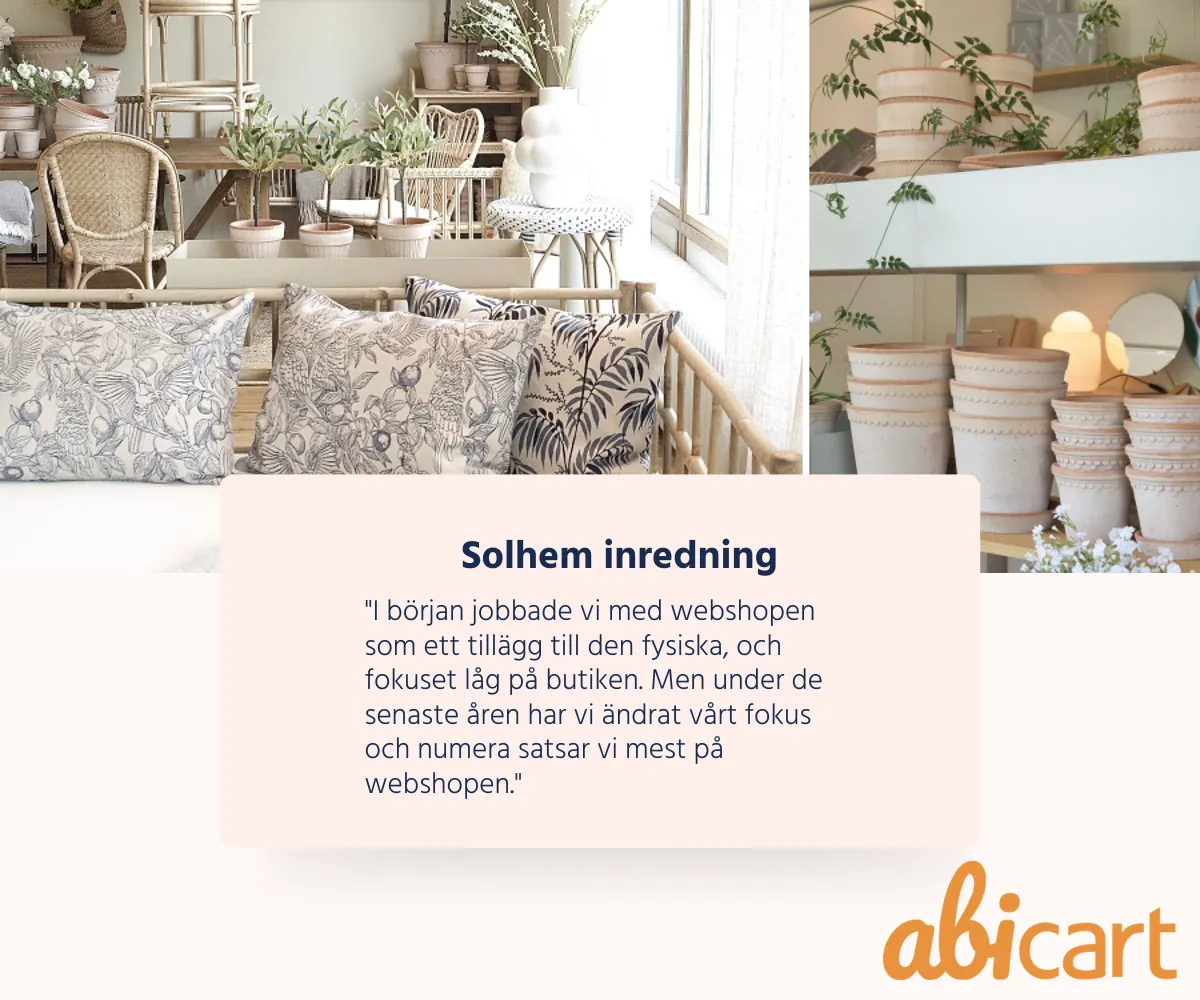
Solhem Inredning combines physical store and webshop
18 Dec 2025
In 2011, Erika and her brother Anders took over the business as their father started in 1982. They still have the same premises, warehouse and shop space as they had when they started, but over the years they have developed and changed the range of products in the business. When the company started up, they sold textiles and corporate gifts for companies and at that time the premises were mainly an office area with a small exhibition area but over the years it has evolved into a retail space with an adjoining warehouse. Erika and Anders have a great interest in interior design and when they took the business, they changed the range to be more and design. With this change they also started selling to private individuals instead of customers and then they also started up an online shop in addition to make it more accessible to their customers. Now the small family-run business has gone from a small showroom to a physical shop and webshop with a wide range of designer furniture and interior design. Wad säljer ni i er butik? We sell designer furniture and interior design in Danish design with simple and beautiful styling. The furniture is in a consistently Nordic and Scandinavian style and the vision is to cover all rooms in the home and to offer high quality design.Why did you start a webshop in addition to your physical store?Our physical store is a bit off and hidden and to get more visibility we started up a webshop in addition to the physical store. In the beginning we worked with the webshop as an addition to the physical one and the focus was on the store but in the last few years we have changed our focus and nowadays we focus mostly on the webshop. We have adapted our business to the way our customers shop. In the past, people wanted to come to the store to see and feel the products, but now they prefer to check and read about the products on the website and then order the goods to test the furniture on site. If the goods don't fit, you send them back or return them to our store.Why did you choose Abicart as your e-commerce platform?When we were going to start up the webshop in 2011, I read that Abicart was a simple and cheap option and since you could try it for free, I did and then I was hooked on the platform. For our needs it is more than enough and I appreciate that it is so easy to use. I am really happy with the platform and it suits our business very well. We definitely recommend Abicart, it's a simple and nice platform to work in.Visit Solhem's lovely webshop!
-
Integration with PostNord Send Direct at no extra cost in Abicart PRO
18 Dec 2025
Integration with PostNord Send Direct at no extra cost in Abicart PRO. Finally! We are pleased to announce our newly built integration with PostNord Send Direct. Best of all, the integration is included at no extra cost in our affordable PRO subscription! Pacsoft Online, previously a popular system for shipping bookings, is now being discontinued. A bit of a shame, we think, as Pacsoft has been a popular alternative for many of our customers. Are you looking for a solution to replace Pacsoft? Or do you want to save time buying shipping? Then we are happy to offer a direct link from Abicart to PostNord Send Direct. With the new integration, you don't have to fill in shipping details manually and save valuable time that is needed for other things.Abicart PRO is a powerful and affordable option for those who want to automate the daily life of their web shop. You will also find lots of other exciting solutions in PRO that will make your everyday life easier. In addition, we will continue to add even more features!We have invested significant resources in building this long-awaited integration, and will continue to listen to our customers and your feedback. Do you have an idea that would make everyday life in your webshop easier? Wonderful! Let us know, we want to hear everything!Link to manual: PostNord Send Direct
-

Toys Forever - "The best thing is that you can spend your time as you wish"
8 Dec 2025
Toysforever is a family business run by Karolina and Jens. Karolina has extensive work experience in retail and especially e-commerce. After a few years in the industry, a dream grew to run her own online store where she wanted to sell organic and sustainable products for children. In 2017, she took the plunge and bought a small shop of 100 m2 in her hometown Kalmar, which had an associated webshop. From the start, the focus has been on developing the e-commerce, but the physical store was a bit of a bonus for her, which has proven to be a winning concept. As she developed her webshop, the shop space became too small and when the opportunity to buy the shop space across the street came up, she didn't hesitate for a second to buy it in order to get a wider range of products and more space for the e-commerce to grow. The first store focuses on organic and sustainable products for babies and the new 450m2 store is an existing chain with a wider range of products for older ages, which also includes larger products such as pools, airtracks and trampolines. For those products they have also opened up a showroom so customers can come and check them out. Over the years, Karolina and her husband Jens have developed the small shop of 100 m2 and the almost non-existent online store into a successful online store with over 12,000 items and 3 shops/showrooms totalling over 1000 m2. Read their inspiring story:Karolina realised her dream of selling organic products for childrenWhat do you sell in your shops? In our small shop Toysforever we sell carefully selected quality toys and organic products for children. You will find educational toys for children from 0 to 5 years old. Many of our products are made of wood or fabric and have bright colours and fun shapes that appeal to children. Our goal is to focus on bringing in a large organic range. In addition, we are constantly trying to find new product categories mainly for the little baby such as baby bottles and blankets. We are also working on bringing in more decorative products for the baby's room and some comfortable products for everyone. We have three children ourselves, so we care about children and work to ensure that they are surrounded by the highest quality, sustainable items and that they are non-toxic. The store also cares that the products have been produced and shipped under fair conditions. In our second store Lekextra we have a wide range of toys from well-known brands. We have a carefully selected range of safe, fun and educational toys as well as outdoor toys such as pools, trampolines and airtracks. Lekextra always chooses suppliers who stand for quality and who help to protect our environment and surroundings. It is a chain that offers its customers a carefully selected range of toys.You run one online store and two physical stores, how come you have chosen to work with both? Our focus from the start has been to develop the webshop, but when we bought the business, we got a physical store as a bonus. The size of business we run is good to have combined webshop and physical store given that we can be in the same premises. If you grow and become too big it is no longer possible, then you have to separate the business which is a more expensive cost. Although the focus has always been on our webshop first and foremost, we find it very enjoyable to sell and have customer contact in the physical store. But the main reason we have expanded the shop space is because e-commerce has grown in recent years and we needed a larger warehouse space and we wanted to develop the business with a wider range of products. Our biggest turnover is clearly from our webshop because that's where we reach the masses and it's online that most people shop today. Why did you choose Abicart as your e-commerce platform? The previous owners had Abicart and we found it to be a fully functional platform. It's easy to work with and interfaces well with other systems. There are many good integrations included and in this platform even I can feel a bit technical and add integrations. It's nice to be able to do a lot myself without having to spend a lot of time understanding how things work. Overall we are happy with Abicart and would recommend the platform to others. Mainly because it is user friendly and easy to manage and you offer customers many integration options at a good price. To broaden our market, we are also participating in some marketplaces. Through them we sell to Sweden, Denmark, Finland and soon we will also open up to Norway. What is the best thing about running your own business and online store? The best thing about running your own business is that you can spend your time as you wish. If I want to go and pick up the kids early one day, I can do it with a little planning and forethought. Then there's the fact that you get to work on what you're passionate about and bring in the products you like. We also let the children help us choose products that they think will sell well, which has proved to be a success, the things they like to play with have really sold well. Getting that professional help has been very good and fun both for us and for the children.Do you have any tips for others who want to start an online store? If you are going to start an e-commerce business, you should bear in mind that you have to invest a lot of time and money to succeed. When you have both e-commerce and a physical shop, it is cost-effective to have them in the same premises as long as you stay at a reasonable level; if you grow and become too big, it becomes difficult and then the businesses have to be separated. Then it's important to see if you benefit from expanding or if it's better to stay at the level you're at. Because if you separate the activities, you also increase the costs, you have to pay more in premises and staff costs and then the activities can become less profitable. Which of our subscriptions do you use and why?We've tried different themes over the years to try out some different designs and layouts but now we have Hajde. We think that theme looks nice, it suits our products and our customers can easily find what they are looking for given that we have many categories and divisions. We have the PRO subscription on Abicart. We acquired it quite recently to be able to use more integrations. The PRO subscription was also required for us to be able to use marketplaces. Visit adorable Toys Forever!
-
Almedahls Alingsås
8 Dec 2025
Almedahls Alingsås AB sells workwear and textiles to county councils, municipalities and laundries on the Swedish market. We offer attractive and competitive products that together with services and support create a solution for the customer with good and right quality. The company is characterised by high textile competence, which contributes to more sustainable solutions for the future. Almedahls Alingsås AB is certified according to ISO 9001 & ISO 14001 Welcome to Almedahls Alingsås
-

Eliasson Web Studio
8 Dec 2025
Professional and modern web design for websites and e-commerce Give your Abicart store a professional look and create trust among your visitors. With extensive experience in web design and Abicart, I will help you make a strong impression and increase your online presence. Whether you want major design changes like a whole new look, or you just want to make adjustments, I will help you quickly and easily. I have previously worked at Abicart and during my 5 years I have helped over 100 clients with design! I have over the years worked with customers such as Team Sportia, Lantmännen, Jacobssons, Hydrogarden, Mistore and many others. I also offer help with graphic design such as campaign images for your webshop or social media. Nicely designed images not only create an aesthetically pleasing impression, but they also communicate your brand and the value of your products. Creating good graphic material can be tricky if you don't have the know-how. It can also be time consuming. Therefore, I offer this service so that you can focus on what you want to do instead. Contact me to hear more about what I can help you with! Jonna Eliasson, Eliasson Web Studio jonna@eliassonwebstudio.se www.eliassonwebstudio.se
-

LipScore
8 Dec 2025
The world's most efficient platform for collecting and using ratings & reviews. Abicart customers get a fixed low price for integration and subscription with Lipscore, one of our premium partners. Lipscore is the market leader in ratings and reviews with its efficiency. They collect reviews from end customers with a response rate of 23%. Lipscore has both general reviews and product reviews. With a strong focus on custom design, tailored email blasts and a focus on collecting lots of reviews, your website wants to transform quickly. Read more about LipScore Get started with LipScoreIncrease your conversion:With Lipscore, it's extremely easy to leave a product review after you've made a purchase. Only emails are sent out to actual customers who have completed a purchase, so all reviews collected by Lipscore are guaranteed to be 100% genuine. This in turn leads to you getting very credible reviews on your products. This in turn increases trust, reduces returns and increases sales.Get more traffic from Google:SEO is something that gets stronger with Lipscore, because Lipscore collects so many customer reviews, your site will be considered more relevant for Google organic search. The more often your page is updated, the higher it will rank on Google.Faster entry into new markets with review translation:With Lipscore, you can easily transfer the success of one country to more. With Lipscore, you can translate all reviews into different languages so you can quickly build trust in new markets.Gather valuable information:Lipscore's analytics tool gathers valuable information that helps with purchasing goods, product descriptions and pricing of products.
-

Pricerunner
8 Dec 2025
Sweden's largest comparison service with 2.3 million products. Since 1999, PriceRunner has helped millions of visitors find the best products at the best prices. PriceRunner is completely independent and free to use. Our vision is to be the service you can always trust when comparing products and prices. Abicart automatically sends a file with your prices and products to PriceRunner, which updates your product listings at least daily. Get started with Pricerunner
-

Specter
8 Dec 2025
Business systems for smarter e-commerce. Take your e-commerce to new heights by connecting your webshop to a web-based business system with advanced functionality for inventory, purchasing, accounting and international sales. Optimize your business By linking your Abicart webshop to our web-based business system, you can streamline your entire business. Work smarter with sales, deliveries, inventory, purchasing, customer service, accounting and buying behaviour analysis. With Specter, you, your staff and customers always have up-to-date stock balances in real time, in all sales channels. Ready-to-use integrations are available with the market's most popular e-commerce platforms, payment solutions, shipping systems and 3PL solutions. Get started with Specterhttps://cdn.abicart.com/shop/ws3/156403/art93/223241393-05f0ae
-

Northmill Flo
8 Dec 2025
A flexible POS system for your needs. A Northmill Flo POS system is the perfect choice for you to connect your webshop with your physical store. It is equally suitable whether you run a small shop or a larger business. For those who want to get started quickly, there is a ready integration with Abicart. A complete package with software in the form of Northmill Flo POS system, as well as hardware that you choose yourself according to your needs. Get started with Northmill FloFacilitate your salesDifferent businesses have different needs, which is why there are a number of add-on services that allow you to get exactly the features you need. As your business grows, you can easily update the POS system with more add-ons so it's always the right solution for you.Customise to your needsWith Northmill Flo, you build your solution around your needs. The basis of Northmill Flo is the flexible POS system where you have all the usual POS functions. You choose whether you want to use an iPad, a Windows tablet or a powerful POS computer.1+1=1 - Integration with AbicartTwo systems, one solution. The integration between Northmill Flo and Abicart handles the syncing of items, variants, stock balance, prices, customers and orders. Both from the webshop to the POS system, and vice versa. The link is included at no extra cost in the Pro subscription.
-

Paypal
8 Dec 2025
PayPal Commerce Platform. The PayPal Commerce Platform makes it easy for your global customers to use a variety of payment methods, including those that are popular locally. You can offer the Pay Now option as well as subscription or global and local payment options. This is the kind of flexibility that customers demand - it makes them loyal and helps you grow. Get started with PaypalOnline paymentsPayPal works more seamlessly with a single global payment partner that lets your customers pay how they want, without leaving your site.PayPal CheckoutWith a single integration, you can now get paid with PayPal, credit and debit cards, and other locally preferred payment methods (such as Trustly and Sofort). Offer a fast checkout experience across devices - on your website, on mobile, or in your app. PayPal's presence on your product pages can help increase conversions.
-

nShift
8 Dec 2025
Efficient transport management. Abicart has been working with the leading provider of Delivery Management systems in the Nordic countries, nShift Delivery, for many years. As one of the few e-commerce platforms in the Nordic region, Abicart has integration modules for all of nShift's various Delivery Management systems. nShift Delivery offers a complete, secure, web-based transport management system that manages all your shipments and carriers in one place. Get started with nShift
-
Kustom Checkout is included!
8 Dec 2025
Kustom is the Nordic region’s most popular point-of-sale solution and is used by over 24,000 merchants—from fast-growing brands to global players. With Kustom, you can create a seamless shopping experience across more than 170 markets and keep customers coming back time and time again. The experience is fast and seamless, with pre-filled information and an express checkout that makes shopping extra easy, especially on mobile. Give your customers access to all the popular payment methods and delivery options they actually want. For you as a merchant, Kustom is just as easy to manage. A single integration gives you everything you need to run your checkout smoothly, with minimal maintenance. You get built-in shipping management, real-time performance data, and the ability to customize the design and experience so that everything aligns with your brand. Whether you sell in one or multiple markets, Kustom adapts to your needs and grows with your business, supporting over 46 markets and offering a customer experience tailored to each country. Kustom, formerly known as Klarna Checkout, became an independent company in 2024 and is fully focused on creating the best checkout solution for merchants. As a standalone platform, Kustom can now evolve more quickly in line with businesses’ needs and provide you with more control, flexibility, and business value than ever before. Get startedBuilt to boost your business A secure and seamless experience Completing a purchase should feel easy. With a mobile-friendly design, pre-filled address information, and an express checkout button, customers can quickly move through checkout—which reduces the number of abandoned carts and encourages them to return. Let customers choose how they want to pay Give your customers the option to pay now or later, using their preferred payment method. No matter where you sell, Kustom supports all popular payment options, such as credit cards, Klarna, bank transfer, Swish, Apple Pay, and MobilePay. This helps you drive conversions in every market. The shipping solution is already in place Flexible delivery options increase the chances that your visitors will become customers. With built-in integration with 11 leading shipping services and a wide range of local and international shipping carriers, you can simplify logistics and keep customers happy. Integrate quickly and hassle-free Get started quickly with a single integration that covers everything: payment methods, shipping, markets, and currencies. Kustom helps you launch quickly and grow seamlessly, without the technical complexity. Take control of your checkout Make the checkout your own by choosing the components you need and customizing the look to match your brand. In the Kustom portal, you’ll have access to real-time insights on conversion and behavior, so you can keep improving what really makes a difference. Built to grow with you Whether you’re expanding into new regions or moving from one market to several, Kustom is ready to support you every step of the way. With support for 135 local currencies and languages, you can deliver a localized customer experience across 46 markets, no matter how fast you grow. A checkout you can trust From fast-growing brands to global players—over 24,000 merchants have already chosen Kustom’s checkout. 85% of all customers prefer Kustom’s checkout solution over others. The experience is simply better. Features Design Let your checkout reflect your brand. Customize the colors of headings, checkboxes, buttons, and links, as well as button text and corner shapes, so everything aligns with your visual style and works equally well on all devices. Payment Methods Offer the payment methods your customers actually want, whether they prefer to pay now or later. With popular options and smart defaults based on local preferences, the widget creates a secure experience that customers recognize. Shipping Get started right away with support for 12 leading shipping carriers and clear rates, presets, and express options that boost conversion. Pre-filled Information With Kustom, 84% of customers don’t have to fill out anything at all. Personal information and addresses are automatically filled in for returning customers. Everything is designed to make the experience smoother and faster, and reduce the number of abandoned carts. Addresses Collect accurate customer data without the hassle. Kustom’s address forms follow local formats, validate information in real time, and catch typos—so it’s right from the start. Express Button Boost conversions with the Express Checkout button that customers love. It speeds up the checkout process and can be placed anywhere on your site—from the product page to the shopping cart—making it easy to complete a purchase in just a few clicks. B2B Business customers have different buying behaviors, and your checkout solution needs to keep up. Kustom tailors the experience for B2B, with automatic recognition of business type and support for VAT handling, invoice payment, credit limits, and credit checks. Age Verification It’s easy to verify a customer’s identity and age using BankID in Sweden and Norway. Whether it’s for age-restricted products, prescription items, or compliance purposes, verification happens seamlessly without disrupting the shopping experience. Here’s how to get started To get started, go to Kustom’s onboarding page in the admin panel, fill out the form, and submit it. Once that’s done, securely share your information with Abicart. Abicart will confirm that Kustom Checkout is available to you and will contact you if any issues arise. Information about Kustom Checkout Let’s take a closer look at the details. Everything you need to know about Kustom Checkout is here. Available Markets SE, FI, NO, DK, AT, BE, CH, DE, ES, IT, NL, UK, US Customer Identification Included Payment Methods Credit/debit cards, bank transfer, Klarna, Swish, Apple Pay, MobilePay + 100 more Resources for Developers Find them here FAQ (General) What is Kustom? Kustom, formerly Klarna Checkout, is one of Europe’s leading checkout solutions. We help merchants increase conversion rates with intuitive and fully customizable solutions. The platform provides access to a wide range of features, including many popular payment methods and seamless integrations with leading e-commerce platforms. What can I expect if I’m already a customer? As an existing customer, you can rest assured that the checkout solution works just as smoothly as before and continues to deliver the best conversion rates on the market. We’re rolling out ongoing improvements to make the experience even better, such as new payment methods, more customization options, and easier access to our support team. We’re fully focused on offering you a high-performance, flexible solution that evolves alongside your business. What new features can I expect in the future? You can expect more payment methods, expanded support for local markets, and improved multi-currency capabilities. We’re also launching new integrations for shipping, discount codes, and much more—all packaged into a sleek and seamless experience for your customers. We continue to focus on reducing the technical workload for you as a merchant and ensure that all checkout features work seamlessly together, regardless of which systems you use. Through new partnerships and continuous development, we’re expanding our offering so you have access to even more powerful tools. Are Klarna’s payment methods still available in Kustom Checkout? Absolutely! Klarna remains an important part of our offering, alongside a growing selection of other payment methods. Get started
-

Svea Checkout
8 Dec 2025
Payment solutions that make it easy to shop and pay. Benefits for you as a customer Supports sales to both B2B and B2C Self-learning - figures out how your customers want to pay One payment method that includes all payment methods and redemption agreements Easy integration via IFra solution Get started with SveaPayment solution for e-commerce?Your customers want to shop safely and easily and you want to increase conversion at your checkout. The equation becomes reality with Svea's payment solutions. They have a complete checkout solution containing all payment methods your customers request for both individuals and companies. As an e-retailer, you do not have to lock yourself into any ready-made package, but a solution can be tailored for you. Safe and smooth for both you and your customers.Here are some of the benefits you get when you use Svea Checkout,- Included payment methods - Invoice, Partial payment, Account, Direct bank, Card and Swish- Support for both B2C and B2B for maximum conversion- Different invoice and delivery addresses are verified with Mobile Bank ID- Payment is made the day after deliveryAbicart does not charge any cost for activating or using Svea as a payment method. However, costs for the payment solution itself may be added. These prices and conditions are set directly between you and Svea, and may vary depending on the solution you agree on.For guidance and more information on prices and agreements, contact Svea directly.
-

Visma
8 Dec 2025
Bookkeeping & invoicing for the small business owner. Abicart has integration to Visma eEkonomi - the complete online accounting software that is simple and user-friendly. The intuitive interface allows you to quickly find what you are looking for and collaboration with your accounting firm runs more smoothly. Features such as reminders of important dates and automated reconciliations with the online bank will also make your working days more efficient. Get started with VismaInvoice smarterVisma eEconomy detects how your customers want their invoices and sends them automatically via letter, pdf or e-invoice. You don't need to frank and post invoices - the software does that for you. In other words, invoice less and get paid more.Digital and automaticInvoice digitally and connect eEkonomi Smart to your bank and much of the bookkeeping is done automatically. Then you just approve with a click.No manual handlingSupplier invoices are interpreted by Visma eEkonomi, and you just need to approve them. It doesn't get any more efficient than that.Abicart has ready-made integrations to Visma SPCS 1000, Visma SPCS 2000 and Visma eEkonomi.
-
Marketplace integrations: Sello, Fyndiq, CDON and more
28 Nov 2025
Expanding your sales channels to include popular marketplaces is a proven strategy for reaching new customer segments and boosting revenue. Abicart offers robust connections to e-commerce platforms like Sello, which acts as a centralized hub to manage your presence on major marketplaces such as Fyndiq, CDON, Amazon, Tradera, and eBay.Centralized Marketplace Management with Sello Sello is an e-commerce automation platform designed to simplify multi-channel selling by bringing all your sales channels together in one place. By integrating your Abicart shop with Sello, you can: Streamline Product Flow: Use your product information from Abicart to manage and enrich your marketplace listings, ensuring consistency across all channels. Automate Order Processing: Orders placed on connected marketplaces flow seamlessly into your primary e-commerce system (Abicart), simplifying order management. Manage Multiple Marketplaces: Sello provides the link to major Nordic and international marketplaces, including Fyndiq, CDON (a leading Nordic marketplace), Amazon, Tradera, eBay, and Miinto, all managed from a unified dashboard. This integration eliminates the need for manual data entry and separate management tools for each marketplace, allowing you to focus on growth and sales rather than administrative overhead. Whether you choose to use Sello to complement your Abicart store or as a central platform for all your product and order data, it provides a scalable, cloud-based solution for multi-channel success. Connecting Your Abicart Shop The technical connection is straightforward. From your Abicart admin panel, you can retrieve your unique Store ID and generate an API Key under Settings > External Connections. These credentials are then used within the partner platform, such as Sello, to establish the automated link. Once connected, your Abicart product data can be used to populate your marketplace listings, and order flows are managed effectively. Abicart’s compatibility with powerful external integration platforms like Sello gives you the flexibility to grow your business internationally and diversify your sales channels with minimal complexity, regardless of your current experience level.
-

Intrastat reports, customs invoices and TARIC codes
28 Nov 2025
Expanding your online shop to international markets requires handling customs and reporting requirements. Abicart's platform provides integrated features to help streamline these complex processes, making global sales easier for your business.Key functionalities supporting international trade include: Customs Documentation and Reporting HS Number (Harmonized System): You can activate and input the international standardized HS number for each product. This six- to ten-digit code is crucial for classifying goods traded worldwide, helping to determine correct tariffs and facilitating smooth customs clearance in importing and exporting countries. Customs Declarations: The integration with partners like nShift (formerly Unifaun) supports the export of shipments with customs declarations, such as CN22 and CN23 forms, which is essential for sending parcels outside the European Union (EU). Country of Origin: Maintain accurate records of where your products were manufactured by utilizing the specific attribute for country of origin. Intrastat Reports: While not explicitly mentioned in the general manual, a robust ERP integration is typically essential for generating complex reports like Intrastat, which track the movement of goods between EU member states. Abicart offers integrations with leading ERP systems like Fortnox, Visma, and Specter to manage such financial and reporting needs. TARIC Codes: Although not a direct feature, the necessity of TARIC codes (which define specific tariff and non-tariff measures for trade within the EU) is addressed through the ability to enter and manage product attributes like the HS number, ensuring you have the data structure to comply with specialized customs requirements when needed. Efficiency in ERP Integration By connecting your Abicart shop with an Enterprise Resource Planning (ERP) system, you can centralize your business operations. This ensures that when an order is exported, all the necessary product, customer, and order details—including customs-related information like the HS number—are transferred to your ERP for correct accounting and legal reporting. Abicart allows you to focus on selling, while providing the technical foundation needed to comply with international regulations and customs procedures seamlessly through efficient system integrations.
-

Using nShift and Shipmondo as transport administration systems
28 Nov 2025
Streamline your logistics and minimize manual errors by integrating your Abicart shop with external Transport Management Systems (TMS) like nShift Delivery (formerly Unifaun Online) or Shipmondo.These powerful integrations simplify the entire shipping process, allowing you to manage carriers, print labels, generate shipping documents, and handle customs declarations directly from a centralized platform. Seamless Integration for Efficiency The core benefit of integrating with a TMS is the automatic transfer of critical order information. Instead of manually re-entering data, the relevant shipping details are automatically transferred from your Abicart order to the TMS, which handles the booking process with your chosen carriers. Minimize Errors: Automated data transfer drastically reduces the risk of human error associated with manual data entry. Carrier Management: Both nShift and Shipmondo aggregate multiple carriers, allowing you to manage all your transport options in one unified system. Automated Documents: The systems automatically generate labels, shipping documents, and necessary customs documents, such as the HS number and Country of Origin for exports. Tracking Information: Tracking numbers generated by the TMS are automatically sent back to Abicart and can be forwarded to your customers via delivery confirmation emails, enhancing customer experience. Flexible Export and Booking Options You maintain control over when and how order data is sent to the TMS: Order Export: You can choose to automatically export the full order upon registration or when it is marked as paid. Direct Booking: For efficiency, you can set the system to book the shipment immediately upon export. Partial Deliveries: The functionality supports creating and exporting separate shipments for partial deliveries, giving you the flexibility to ship products as they become available in stock. By leveraging the integration with a sophisticated TMS, your Abicart webshop can transform logistics from a challenge into a highly efficient and automated part of your business operation.
-
Connecting your online store with your physical store
28 Nov 2025
For businesses operating with both an online shop and a physical storefront, seamless integration between the two is the key to effortless management and maximum efficiency. Abicart provides direct, ready-made connections to leading Point of Sale (POS) and Enterprise Resource Planning (ERP) systems, allowing you to synchronize your entire business operation.This powerful connectivity eliminates the burden of manual double-entry and ensures your data is always consistent across all sales channels. Achieve True Omnichannel Synchronization Integrating your webshop with a business system means your e-commerce platform and physical store systems communicate with each other automatically. This collaboration delivers significant advantages: Real-Time Stock Control: Instantly synchronize inventory levels between your online and physical stores. A product sold in your brick-and-mortar shop is immediately reflected as a stock deduction online, preventing frustrating over-sells and ensuring accurate availability for your customers. Centralized Product and Pricing: Manage product information, including articles and price changes, in one primary system—either your Abicart admin or your ERP/POS system. Updates are automatically pushed across all channels, ensuring consistent naming, specifications, and prices for your products whether a customer shops online or in-store. Streamlined Order and Customer Management: When an order is placed online, it is automatically transferred to your business system. This immediate transfer reduces the risk of administrative errors, simplifies invoicing and accounting, and provides a centralized place for monitoring all sales and revenue. Customer records can also be synchronized, ensuring loyalty programs and purchase histories are consistent. Enhanced Customer Experience: By integrating systems, you create a more transparent and reliable shopping experience. Customers benefit from accurate stock availability and faster, more efficient order processing. Integrated Partners Abicart offers pre-built, seamless integrations with several major business systems, including: POS/Cash Register Systems: Partners like Northmill Flo offer ready integration specifically designed to connect your Abicart webshop with your physical store's cash register, synchronizing products, stock balance, prices, customers, and orders in both directions. ERP/Accounting Systems: Integrations with systems like Specter, Fortnox, Visma Administration, Visma eEkonomi, and BL Administration automate key back-office workflows such as handling orders, managing inventory, and accounting. By leveraging one of these integrations, you minimize manual data handling, save time, and dramatically reduce the risk of costly mistakes, freeing you to focus on growing your business.
-
Product templates: reusing settings for similar items
28 Nov 2025
Product templates are a powerful feature in Abicart, designed to significantly streamline the creation and management of similar products in your shop. Instead of manually configuring the same options and properties for every single item, you can define a standard set of configurations once and apply it across numerous products.This feature is included in the Plus and Pro subscriptions.Key Possibilities with Product TemplatesProduct templates allow you to predefine the structure for three main types of settings:Customer Choice (Sizes/Colors): You can easily create various choices such as sizes, colors, materials, or other options that customers must select before adding the product to the shopping cart. This is ideal for product lines where variants like sizes and colors are consistent.Properties (Attributes): Templates can be used to set up custom attributes (e.g., genre, director, actor for movies) that present information in a neat table format on the product page. Once the template is linked to a product, you simply select the specific values for that item.Related Products: You can manually create and link a relationship list, such as for "Accessories," directly on the template. Applying this template instantly applies the list to multiple products, allowing you to easily promote complementary items.By leveraging product templates, you save time, reduce the risk of manual input errors, and ensure a consistent customer experience across your product range.
-
Using AI to generate product descriptions and translations
28 Nov 2025
Abicart integrates AI capabilities to help streamline content management in your webshop, making it faster to launch new products and expand into international markets.Automatic Product DescriptionsCreating engaging and accurate product descriptions can be time-consuming. Abicart's AI can automatically generate product descriptions , helping you enrich your catalog content quickly and efficiently.Automated TranslationsExpanding your business internationally requires translating large volumes of text. Abicart facilitates this process by offering automatic translation of product texts, utilizing services like DeepL and Google Translate.This feature is included at no extra cost in all versions of Abicart, making it easier than ever to reach new markets.With the current service, you manage the translations within the admin by clicking the translation button on each product separately.By leveraging these AI tools, you can increase your efficiency and market presence without incurring the typical costs and time associated with manual content creation and translation.
-
Export / import of languages
28 Nov 2025
Will you be selling in several countries and to different markets? In Abicart you have great opportunities to build a multilingual webshop. Read more about languages here Export language files If you need to translate large amounts of content, you can choose to export all content to a csv file. This allows you to work with texts in multiple languages in a very efficient way. With language files you can work with localization services like te.x POEditor. Read more about this here: How to translate .csv filesRead more about Exporting/importing texts in multiple languages in the manual
-

Single sign-on (SSO) capability for customers. SAML or Oath2. (Additional service)
28 Nov 2025
Let your customers log in to your store with single sign-on (SSO) via SAML or Oath2.Additional service in Abicart Pro, 799 SEK/monthEasy and secure logins with Single Sign-On in Abicart Abicart strives to improve the customer experience for both businesses and consumers by offering innovative solutions and services. One of these services is the ability to offer Single Sign-On (SSO) via SAML or Oath2. This is an additional service for Abicart Pro customers, which aims to simplify and secure the login for customers. Read on to understand how SSO can improve your e-commerce platform.What is Single Sign-On (SSO)?Single Sign-On (SSO ) is an authentication process that allows users to log in to multiple related but independent software applications with a single login. This means that customers do not have to remember multiple usernames and passwords for different platforms, providing a smoother and more user-friendly experience.SSO via SAML or Oath2:Abicart offers SSO integration via two popular and secure standards: SAML (Security Assertion Markup Language) and OAuth2 (Open Authorization 2.0). Both standards enable secure and reliable authentication between your e-commerce platform and third-party services. Benefits of SSO for your e-commerce platform: Improved user experience: by offering SSO, your customers can easily and quickly log in to your platform without having to remember additional usernames and passwords. Increased security: SSO reduces the risk of security issues such as password theft and phishing attacks. Reduced administrative burden: With SSO, you don't need to manage and store multiple login credentials for your customers, reducing your administrative burden and improving data security. Cost and how to activate the service:The SSO service is available as an add-on service for Abicart Pro customers for 799 SEK/month. If you are interested in knowing more or activating the SSO service for your e-commerce platform, please contact us.By offering Single Sign-On (SSO) via SAML or Oath2, you can improve the customer experience, increase security and reduce administrative burdens for your e-commerce platform. If you are an Abicart Pro customer and want to take advantage of these benefits, do not hesitate to contact Abicart customer service to activate the service.
-
Discount system
28 Nov 2025
Discounts based on customer group, time periods or discount codes.
-
Shipping management
28 Nov 2025
Smart shipping management that adjusts shipping costs depending on product and/or destination.
-
Google Shopping: increasing your e-commerce visibility and sales
28 Nov 2025
Google Shopping is a popular and effective service from Google that helps e-commerce businesses promote their products and reach potential customers. It is a product advertising platform where businesses can display their products directly in Google search results, making it easier for customers to find and compare products from different online stores. In this article, we'll cover what Google Shopping is, how it works, and how it can help you increase your online visibility and sales.
-

SSL (Secure Sockets Layer) makes your webshop secure
28 Nov 2025
Use ssl (https) on your domain. Safe for you and your customers. It also increases your chances of ranking higher on Google. In all versions of Abicart we support encrypted and secure web pages with SSL (https://) Read more about domains in the manualSSL certificateIt is important that your customers are safe and secure when shopping in your webshop. That's why all versions of Abicart have built-in support for SSL (Secure Sockets Layer). The latest version of SSL is called TLS (Transport Layer Security).This is a security standard that is used on websites all over the world. When you run an e-commerce and webshop, you are handling some sensitive data that is important to protect. By using SSL (or TLS), all information sent between the server and the user is encrypted, which means that it cannot be intercepted or changed by anyone else.HTTP and HTTPS?All Abicart web shops use HTTPS. HTTP (Hypertext Transfer Protocol) is a protocol (a kind of language between computers) used to transfer data between the user and the web server. With the addition of SSL over HTTP, the security protocol HTTPS (Hypertext Transfer Protocol Secure) is used, which is now standard in the vast majority of web shops and websites.
-

Unlimited number of orders
28 Nov 2025
What are orders? The "Orders" section contains all orders placed in the shop. You can sort, manage, shred and export ... When you use Abicart as an e-commerce platform for your webshop, there is no limit to the number of orders you can receive. With us, you are also exempt from transaction fees, which is quite common in other platforms. Your customers' orders are listed in the admin as well as emailed to the email of your choice. Read more about orders in the manualWhat does unlimited orders mean?With Abicart as your e-commerce platform for your webshop, you will be able to handle an unlimited number of orders. This means that you can receive and manage any number of orders without any limitations. Plus, you don't have to pay transaction fees that are often charged by other e-commerce platforms.Your customers' orders are listed in the admin panel and also sent to an optional email address for easy and smooth management.User-friendly management of orders in your webshop with AbicartAbicart offers a clear and user-friendly overview of all orders placed in your webshop. You can easily sort, manage, cancel and export orders, giving you full control over your e-commerce.Read more about orders in the manualFor more information and details on managing orders in your Abicart webshop, visit our manual where you will find everything you need to manage your orders efficiently.Read more about orders in the manualhttps://www.abicart.com/explore-abicart/manual/orders/orders
-
Personalized gift card
27 Nov 2025
You now have the possibility to create your own gift card! Go to Assortment -> Settings Scroll down the page until you see, Gift Card Settings Click on: Custom PDF Select your pre-designed gift card template from the file archiveIf you haven't uploaded the file yet, you do that now:Create a folder >> name it (e.g. Custom gift certificate) >> Upload the pdf-file >> double click it to select Choose light or dark text Save! Your gift card template must have the following settings: File information File width 1134px Height 506px DPI 144 File format pdf The positions of the text fields are locked to the same positions as on our Dark and Light gift cards. See example here Do you want personalized help? If you prefer not to do this yourself, our customer service team can design a personalized gift card for you. Please contact us for a price quote and we will make it happen.
-
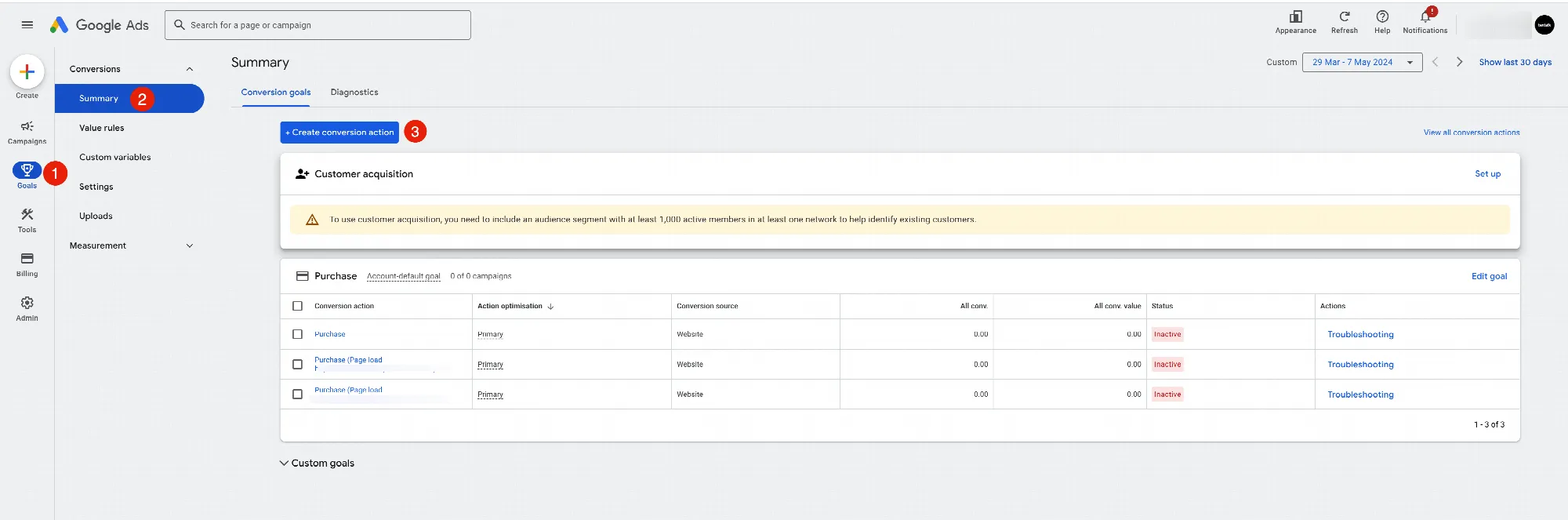
Google Ads Conversion Tracking - Themes
27 Nov 2025
What is Google Ads? Google Ads is an advertising platform that allows you to create, optimize, and track your ads and their performance. It not only helps you to place ads; but it helps you manage every step of the process, including: Campaign Creation & Management: Build and manage your advertising campaigns to reach your target audience. Goal Setting & Tracking: Define your desired outcomes (conversions) and track their progress. Budget & Bidding: Set your spending limit and determine how much you're willing to pay for ad clicks. Keyword Planning: Research and identify relevant keywords that potential customers are searching for. Why Link Google Ads Conversion Tracking? To understand how well your Google Ads campaigns perform, you need to link them to your website. Conversion tracking allows you to keep track of the buyer and what actions they take on your website after clicking your ad. Without linking conversion tracking, you wouldn't be able to differentiate between website traffic coming organically (through search engines) and traffic by your paid ads. This makes it crucial to link your Google Ads conversion tracking to your website for accurate measurement of your ad performance. Please follow the below steps to find your Google Ads Tracking ID in your account: Add it here in themes:
-
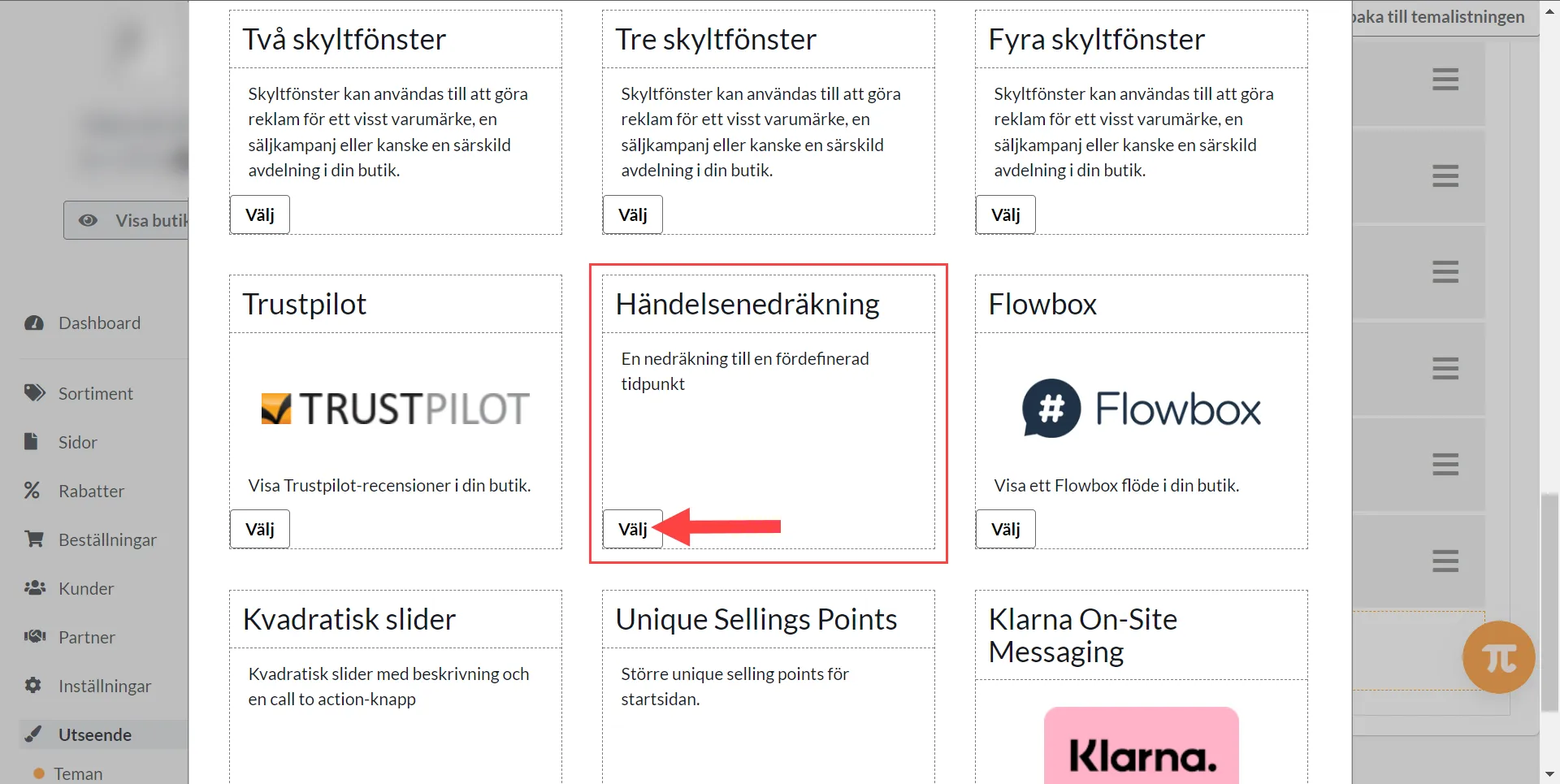
Event counting
27 Nov 2025
Here's how to do it: 1) Appearance >> Themes >> Edit Theme2) Home page >> Add Block >> Event counting3) Set the block >> Finished >> SaveTry our text banner in combination with the countdown. The text banner is visible on every page while the countdown is only visible on the home page.
-

Model Selector
27 Nov 2025
The Model selector, also called Parts Finder and Model selector, is a new functionality in Abicart for you with Abicart PRO subscription, which allows the customer to search for specific parts/spare parts based on brand, model and year. The model selector retrieves all parts from the product list and filters them to show only those that match the customer's search criteria. The model selector mainly consists of two parts: - Search box: Allows the buyer to enter the make, model and year of the item. - Results page: Displays a list of the parts matching the search criteria, including sub-categories and filters.The model selector has several user-friendly features:- The customer's search criteria/selections are saved for future reference in the browser's cookies and will therefore be available if the user leaves and returns to the website.- The customer can save an unlimited number of models and view their parts at any time.Available for Abicart PRO subscription and theme templates Fabrikk & Bountiful How to Set Up the Model Selector: Catalogue: To get started, go to Catalogue > Product groups and create a new product group for the Model Selector. (We recommend naming the product group “Model selector” or “Parts finder” as the name will be visible in the URL in shop front) Once you have created the product group, you can add subcategories based on your choice. For example, you could organize your subcategories into a tree model like this: Model Selector (top-level product group) > Brand (level 1 sub-group) > Model(level 2 sub-group) > Model Year (level 3 sub-group). This will help keep your product groups neatly organized and easy to map. Next, go to Catalogue > Products and start adding each product to its respective product group. This can be a lot of manual work, but don’t worry - you can also do it via import if you prefer. Themes: Available for theme templates Fabrikk and Bountiful Once you have set up the product groups and added the products, you can add the Model Selector to your website under Appearance. You can choose to display the Model Selector in your webshop header and, or your product group pages. Go to Appearance > Themes > Edit > Site Header and turn on the Model Selector option. Add a title for your Model Selector - this will be displayed on your website. Also add Product category, Global Product category, Model selector is visible for the following product groups, Title of the list and Modal default message - visible when nothing has been added yet. Save Under Appearance >> Themes >> Edit >> Product Category pages, select the top-level product category for your Model Selector. For example, if you named your top-level product group “Model Selector” in the previous step, you would select “Model Selector” here. General Settings: Shared settings for site header & product group pages. Under Global Product Category, select the main product category from which the Model Selector should get its products. For example, you could put your complete assortment into one product category and then choose it to make sure that none of the products are missed. The Model Selector is visible for the following product groups option allows you to narrow down your Model Selector to specific product categories. The next three options - First Product Category, Second Product Category, and Third Product Category - are very important. These should always be selected in the order of your product category tree as discussed above in the Assortment section. The Title of the List option allows you to add a title for the saved list of parts. The Model Default Message if Nothing Has Been Selected Yet option allows you to display a message under “My Model” if no selection has been made. Finally, under “Icon”, you can choose to add your own icon to represent the Model Selector or use our default icon. Please reach out to customer support if you have any specific questions related to model selector.
-

New subscription renewal system
27 Nov 2025
What is new? The new subscription page allows you to automatically renew your subscription based on your preferred frequency (quarterly or annual) and mode of payment. The two available modes of payment are debit card and invoice where invoice is available only for the yearly subscription renewal.How does it work?1. When you start the subscription, an auto debit request will be saved when you pay for the first time.2. Next time, we will send you an email notification a week prior to the renewal date letting you know about the upcoming payment and its information.3. On the date of renewal, the payment will be auto debited or an invoice will be generated and sent to your registered email address.4. The subscription will be renewed and the information will be updated in Abicart.5. If you do not wish to continue or change the subscription plan, you can submit a request to downgrade or cancel your subscription.6. An automatic email will be triggered to customer support and we will then get in touch with you. Subscription Overview page:As the name implies, the overview page gives you complete information about your current subscription. The overview page is divided into four blocks. The number of blocks might vary depending on if you are using a multi store system or a single shop.Block 1: My subscriptionThis block gives you information on your current subscription plan, validity and what will be the cost of the next subscription and date of renewal based on your current subscription.The “read more” button will take you to the pricing page where you can have a complete overview of the different functionalities available in the different plans.If you would like to renew your subscription manually, ahead of auto-renewal, then you can click on the “Update my subscription” button to go to the subscription checkout page.Block 2: Substore selectionThis block is only available for multi shop systems.You can choose which sub shop you want to include in your subscription.Based on your selection made here, the payment information will be adjusted in the “My Subscription” block.If you have made the wrong selection or if you would like to remove any subscription from the current selection, then you can simply uncheck the substore in the “My subscription” block.Block 3: Available addonsYou can choose the integration of your choice to be included in your subscription. Please note that it is also available only for PRO customers and it cannot be combined with PLUS or GO.However, integrations like Creditsafe, Business check are available in all plans. Abicart PRO customers will get one integration at no additional cost. The cost of the free integration will be included in the “My Subscription” block but will be removed on the next page (subscription checkout page).Block 4: Upgrade to PROThis block will be displayed if you currently have a GO or PLUS subscription. It informs you about the benefits of PRO.Block 5: In need of Expert Consultation?This block will be displayed only to PRO customers. You can use this block to contact our “Abicart Experts” and avail a 20% discount on your first service with us.Subscription Checkout Page:Block 1: My subscription >> Choose subscription >> Click on Update my subscription.This page summarizes the final cost to be paid inclusive of VAT and an option to make the payment via card. The Auto Debit will be set when you enter the information and proceed with the payment.The invoice payment is only available for one year renewal. The rest of the subscription can only be paid via card. We cannot make an exception or send a manual invoice if the term is less than one year.Once you make the payment, the receipt will be generated and it will be available for you anytime under Invoices and receipts.Also, you can easily submit your request to downgrade and cancel your subscription via the page Change my subscription (available from Subscription overview page).Change my subscription:This page allows you to submit a downgrade request to change or cancel your subscription.If you cancel your subscription midway, you will not receive a refund. The cancellation request must be submitted before the end of your subscription.Receipt and Invoice:Here you can view the list of invoices and the receipt of your payment. You can download or print your receipt from this page.Checklist:1) Make sure all the “customer information” is filled in under “My Profile”.2) If you are a business customer, it is mandatory to fill in the VAT number.3) Make sure to fill in the “business information” under “Settings >> Shop Information”.These three pages are mandatory to fill in. If you still get an error with the payment or renewal, please reach out to support under “My Customer Service”.
-
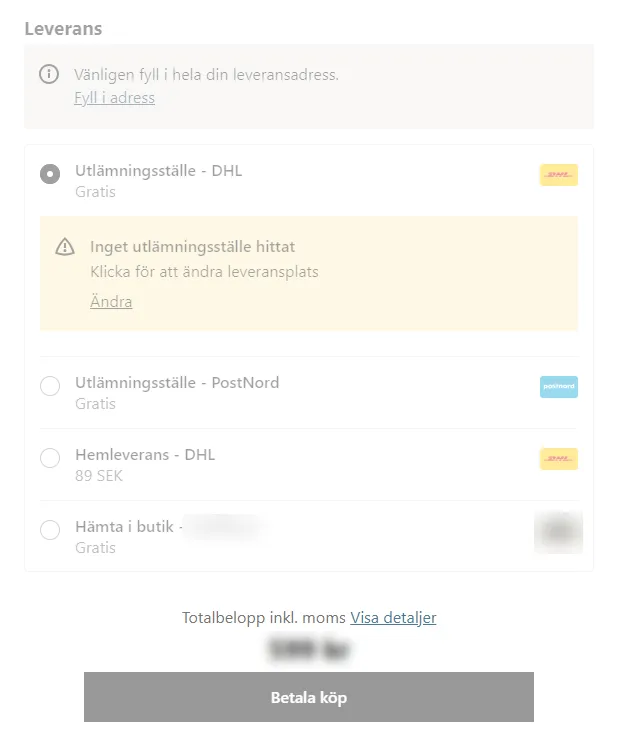
Kustom Shipping Assistant (KSA) with External TMS nShift
27 Nov 2025
Here you can read about how to set up KSA with external TMS nShift. Click on this link to read more about KSA. To use KSA with external TMS nShift, you need to activate both the KSA connection and our own integration to nShift. The integration is called Unifaun Online and can be found under Settings >> External connections. What does KSA + external TMS nShift mean? It means that you can display delivery methods via nShift through KSA in your POS. You set up which delivery methods are displayed in your nShift portal. Example: Flowchart KSA shows nShift's delivery options (e.g. choice of delivery points) in the webshop checkout >> Customer places an order >> Order is created in Abicart and exported to KSA >> KSA exports about 90% of the order data to nShift as "Create prepared shipment". For the delivery to be booked, "Create shipment and generate label" is needed. This is where the Abicart >> nShift integration comes into play. The order in Abicart is managed under Orders in admin and exported Abicart >> nShift. Then the order and shipping label are available for printing in nShift. Tip! Right-click on the images and select "Open in new window" to see the image in more detail. Set up the nShift integration (Unifaun Online) First you set up the KSA and external TMS nShift with the delivery methods you want to offer. Only one delivery method should be active in Abicart and linked to the KSA. Then you activate the nShift integration in Abicart: 1) Go to Settings >> External Connections >> Unifaun Online. 2) Set up the nShift integration. Follow the manual for detailed info about the integration - Integration with nShift Delivery (formerly Unifaun Online). 3) Check the box for the setting "use_tms_ref_as_prepared_id" (see picture). 4) Sent: Choose whether the order should be marked as sent after export Abicart >> nShift Never = The order is not marked as sent during export Abicart >> nShift After export = The order is marked as sent after export Abicart >> nShift. When the order is marked as sent, the delivery confirmation is sent out (if this setting is activated under Settings >> Document and e-mail content). If you have "Stored" on the setting in step (5), you probably want "Never". This gives you full control over when the order should be marked as sent. 5) Select Booking >> Stored or Direct. Stored = the order is exported as stored. The order can be edited in nshift and you finish booking the delivery manually in nShift. The waybill is created automatically when you finalize the order. Edit the order in nShift to create the return waybill. Waybill is printed in nShift. Direct = the order is exported and booked directly. The waybill is set as already printed but can still be printed. As the order is already booked, you cannot edit the order. Nor can you create a return consignment note (this must be done before the order is booked). The waybill is printed in nShift. 6) Click on the shipping method that is enabled for KSA (at the bottom left of the integration page). In this example it is called Shipping. 7) At the bottom of the page go to Event Settings >> Export Order. 8) Set when you want the order to be exported (see image) - Reserved: Export automatically when the order is registered in Abicart - Paid: Export when the order is marked as paid. - Manual: Export the order manually via Orders >> Orders >> Select order/enter order >> Export to nShift. 9) Select a Transportation Service - Here you select an option from the list. Which you choose has no impact on KSA & external TMS but the field must not be left blank. The pictures show examples of the settings you can have if you want to export orders automatically when an order is placed. With the setting "Stored" the order is exported without being booked. Therefore, you can edit the order before booking it. The waybill is printed in nShift. The order is exported as a shipment and to get a return slip for the order, you go in and mark it as return before finalizing it. You can also set up that, for example, all orders with delivery method Postnord should receive SMS notification. Contact nShift if you need help finding these settings.
-

Manual management of tracking numbers (Logged in customer >> My pages >> Order history)
27 Nov 2025
In this article you can read more about how the "Track shipment" feature for logged-in customers works.Logged-in customers can track their packages, provided the order has a carrier and tracking number on the order page in admin. You can enter this manually or have it entered automatically if you have automatic shipping booking. In this article we go through how to add the tracking number if you book the transportation for your packages manually.When an order is exported to e.g. Postnord or nShift for automatic freight booking, the tracking number is sent back into Abicart. When the order is then marked as sent, the tracking number will be sent to the customer via the delivery confirmation (if you have delivery confirmation enabled - Settings >> Document and email content)."Track shipment" allows you to share the tracking number with your customers even if you book transportation manually with an external system (Platform we don't have integration with).This is how it works:A customer who wants to shop creates an account in the store / logs in to an existing account. Customer places an order. You handle the order:In admin1) Edit delivery method or 2) Verify that the order has the correct delivery method.3) Create shipmentYou then manually enter the order into your carrier's system. Once the shipment is booked, copy its tracking number and bring it back to Abicart.(If you have the nShift integration with the "stored" setting, the tracking number does not go back to Abicart, so you can retrieve and enter it in the same way as if you book via an external system).4) Click on the pencil to edit the shipment:5) Enter the transportation provider6) Enter the tracking number7) SaveNow you can mark the order as sent. The customer will receive a delivery confirmation (see tips below).Tip.Settings >> Document and email content Here you can activate "Send delivery confirmation [...] and write a guiding text prompting customer to log in with their customer login >> go to order history to find their tracking number.Customer logs in:8) Now that the tracking number is entered, customer can log in to "My Pages" again:Log in >> Click on the username to go to "My pages" >> Go to order history >> Scroll down to Delivery method and click on"Track shipment". The customer is then linked to the carrier you specified on the order and the carrier automatically searches for the specified tracking number.
-

Shipmondo
27 Nov 2025
Shipmondo is an e-commerce logistics service that offers companies the opportunity to manage their shipping and delivery processes efficiently.Integration with Shipmondo TA is included at no extra cost in Abicart Pro.Things to consider before activating the integration:Weight must be entered on all products. We cannot export orders to Shipmondo without weight.in addition to the usual details, the following fields are mandatory if you want to create customs documents for exports:HS NumberCountry of OriginSKU NumberYou must select a package template on the delivery method. Here's more information >>Your Shipmondo account needs to have funds at all time. If the balance of the account is emtpy, orders won't be able to export. Get a subscriptionGet a subscription on the Shipmondo website: shipmondo.comActivate the integrationSettings that need to be made at ShipmondoLog in to your Shipmondo account and go to Settings -> API-Access. If there are no API details already entered, click on the button "Generate API keys". You will then see a username (API User) and a password (API Key). There is more information on how to do this in the Shipmondo manual.Settings that need to be made in AbicartThe data created in the step above needs to be entered in the store under Settings -> External connections -> Shipmondo TA. If "Shipmondo TA" is not available under External connections in your store, contact Abicart's customer service and we will activate it for you. Account settingsAPI users - Enter data from the "API User" field in Shipmondo.API Keys - Enter information from the field "API Keys" in Shipmondo.Labels - Choose whether the label type should be printed as PDF or ZPL. Settings on the delivery methodsYou also need to activate the integration on the delivery methods you want to use Shipmondo. There is a block at the bottom of each delivery method for this. Go to Settings -> Shipping -> select delivery method and click on it to edit.Scroll down to Shipmondo TA - Event settings. Here there are three different headings:- Export order- Export shipment- SettingsHere you can choose to export the entire order (Export order) or divide each order into different shipments (Export shipment). If you do not use partial delivery or do not know which one to use, we recommend choosing "Export order". You should not have both active at the same time. Export orderActivation - Recommended setting "The order is registered".Execution - select "Update directly" when everything is ready.We recommend that you make the following settings the first time and then click the save button. This means that the integration is not activated on the delivery method, but it is possible to select the carrier and set up everything before activating the function.Then you will see new options for selecting the Carrier. Select the carrier you want to use and then click the save button again.Then a new setting for Transport service will appear.Select the transportation service and click the save button again.A new setting for Package type will appear. The box under package type is a setting for using your own agreement with the carrier when booking a delivery. If you do not check the box, the Shipmondo agreement is the default.When all the settings above are done, do not forget to activate the export of the orders by selecting "Update directly" at "Run" and save. Export shipmentActivation - Recommended setting "Shipment is sent".Execution - select "Update immediately" when everything is ready.We recommend that you make the following settings the first time and then click the save button. This means that the integration is not activated on the delivery method, but it is possible to select the carrier and set up everything before activating the function.Then you will see new options for selecting the Carrier. Select the carrier you want to use and then click the save button again.Then a new setting for Transport service will appear.Select the transportation service and click the save button again.A new setting for Package type will appear. The box under package type is a setting for using your own agreement with the carrier when booking a delivery. If you do not check the box, the Shipmondo agreement is the default.When all the settings above are done, do not forget to activate the export of the orders by selecting "Update directly" at "Run" and save.Settings blockIn this block, the settings may look slightly different depending on the transport service you have chosen. Each transport service offers different settings for delivery points and services. We list the ones available in your Shipmondo account and/or the selected transport service.ServicesTo send the tracking number from Shipmondo to the recipient, tick "Personalised e-mail" and "Personalised SMS". Then follow Shipmondo's instructions: Link to manual.Shipping Templates: Abicart & Shipmondo IntegrationShipmondo allows only one shipping country per shipping method. If you need multiple countries or configurations, use Shipping Templates. This two-step process lets you define as many templates as you need in Shipmondo, then import and assign them in Abicart.Step 1: Create Shipping Templates in ShipmondoLog in to your Shipmondo account.Navigate to Shipments → Templates.Click + New template and configure:Sender countryDelivery countryWeight rangesPackage dimensions / typesCarrier settingsSave each template.Read more about shipment templates:https://help.shipmondo.com/en/articles/1834976-shipment-templatesStep 2: Activate & Assign in Abicart2.1 Enable Shipping TemplatesIn Abicart, go to Settings → External Connection → Shipmondo TA.Toggle Activate Shipping Templates.Click Save.All your Shipmondo templates will now be imported.2.2 Assign Templates to Shipping MethodsGo to Settings → Shipping → Edit shipping methods.Choose the method you want to link (e.g. “Standard Shipping”).Under Shipmondo TA → Action Settings, select one or more of the imported templates.Click Save.How It WorksWhen an order is placed, Abicart cross-references:Order weightShipping countryDelivery countryPackage type / dimensions…with your selected Shipping Template. The matched template’s settings are then exported to Shipmondo for label creation and rate calculation.Restrictions & Best PracticesOne carrier per shipping methodTemplates only apply to the carrier chosen in the method’s settings—no mixing between carriers.Best-fit template by weightIf multiple templates exist for the same country, Abicart picks the one whose weight-range best matches the order.Package typesOnly consider the package types you’ve added (up to 2 types per method).SummaryCreate all required templates in Shipmondo (Shipments → Templates).Activate Shipping Templates in Abicart (Settings → External Connection → Shipmondo TA).Assign each template to your Abicart shipping methods (Settings → Shipping → Edit shipping methods → Shipmondo TA).Your store can now support multiple countries, weight-based rates and custom packaging rules—automatically handled via your Shipmondo templates.
-
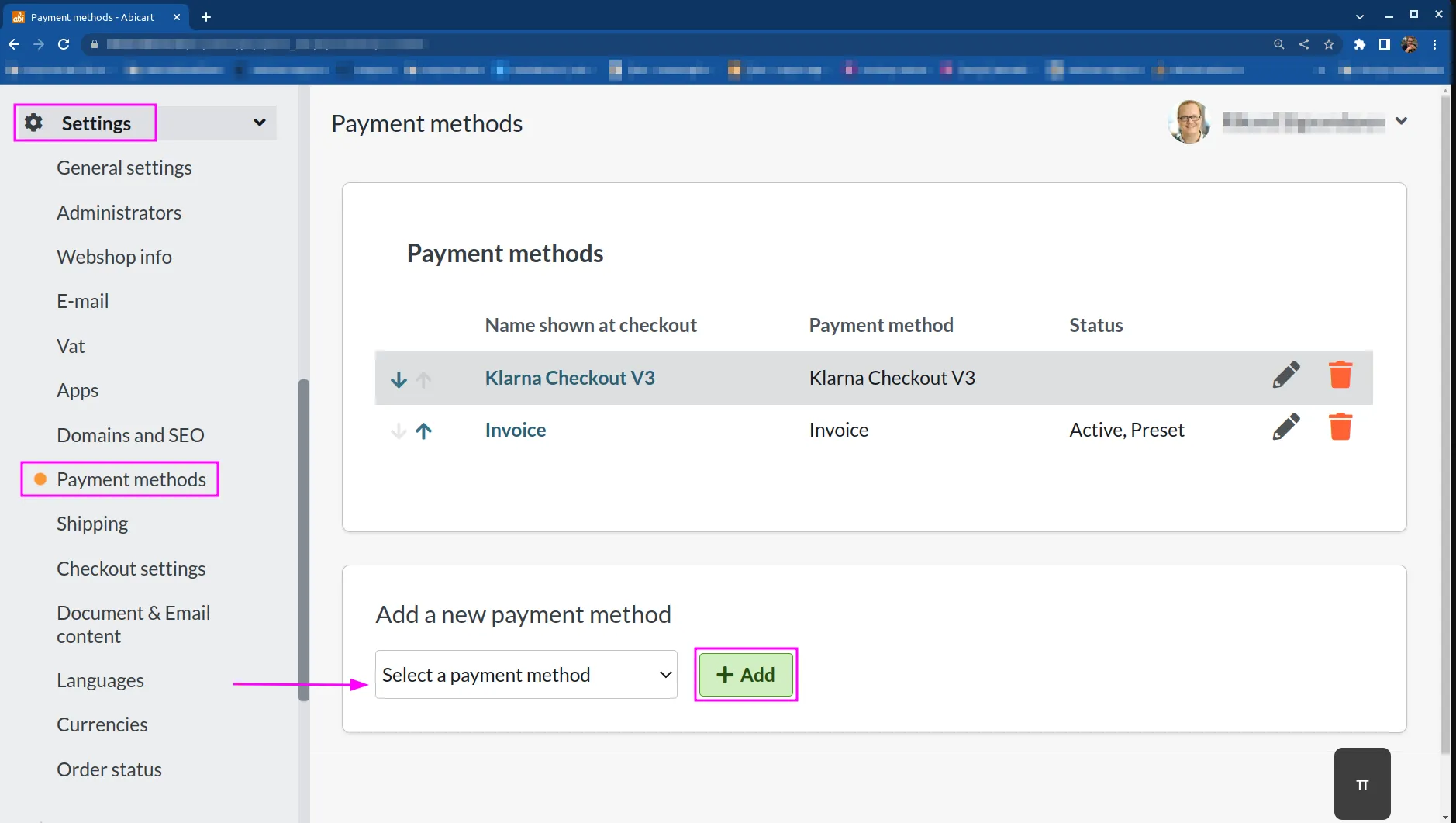
Payment methods
27 Nov 2025
Abicart supports most of the established payment solutions on the market.How to add a payment method:Here are articles on how to add and set up the payment solutions available in Abicart.Read more
-
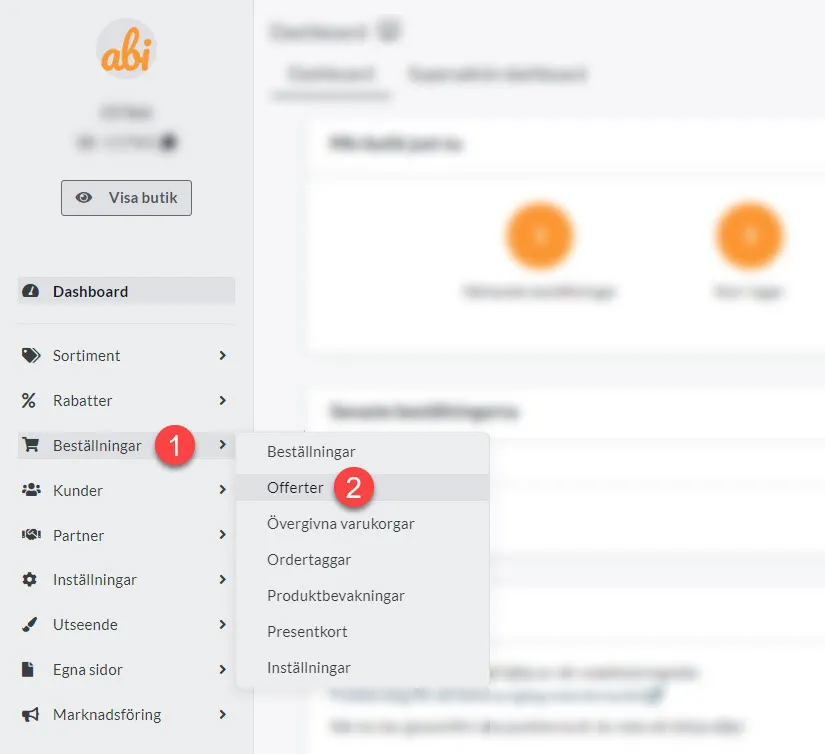
Orders >> Offers
27 Nov 2025
Create an order from admin with the function Orders >> Quotes.This feature is included free of charge in the PLUS and PRO subscriptions.How the Orders >> Quotes function worksOffering your customers a simple and smooth shopping experience is an important part of running a successful online store. With Abicart's "Quotes" feature, you can easily create an order for your customer and send order confirmation to the customer to approve. It makes the ordering process easier if you and the customer already have contact about what they want to order. In this manual article, we go through how to create a quote in Abicart, step by step.Step 1: Log in to Abicart adminLog in to your Abicart admin account.Step 2: Navigate to "Orders >> Quotes"In the menu on the left, click on "Orders" and then on "Quotations". Here you will see an overview of all quotes that have been created.Step 3: Create a new quoteClick on the "Create order/quote" button to create a new order. This will take you to a page where you select the order:- Currency- Language- Payment method- Delivery methodStep 4: Click on "Add"Now you will be taken to the order page and can fill in what remains.Step 5: Fill in customer detailsFill in the customer's details, such as name, address and contact information. Ask the customer for the correct details if you have not already received them.Step 6: Add products to the quoteClick on "Add item" to add the products the customer wishes to order. Then search for the item name or item number >> Click on the correct item from your search results >> Then click on "Add to cart".Now you can enter the quantity and edit the other available fields. You can add shipping fee and payment fee and edit the price of the product.Step 7: Edit the delivery methodIf you want to change the delivery method, you can do so now. In that case, click on the pencil in the "Delivery" box.Step 8: Finalize the order and send order confirmation to the customerOnce you have added all the necessary details, click on "Finalize purchase". An order confirmation will be sent to the customer. Contact the customer via email in the way you have been in contact and ask them to review the order. If the customer wants to change something, you can continue editing the order as long as the order is not marked as paid. You can add, remove and e.g. edit the price as long as the order is not marked as paid.Step 9: Invoice the customer manuallyAfter the customer has approved the order confirmation, you can invoice the customer manually. Invoice via your ERP system or another external invoice support service, or process the payment via another manual payment method (e.g. via bank transfer). Once you have invoiced/confirmed that you have received the payment (e.g. via bank transfer), mark the order as paid. You can download the receipt for the order under "Print" on the order page.Step 10: Pack & send the orderWhen you have packed, booked and sent the order, mark the order as sent on the order page.Done!Try this feature today and discover how it can help you build long-lasting relationships with your customers and increase sales in your webshop. By offering this convenient and time-saving feature, you will improve the customer experience and thus strengthen your business reputation and success.
-
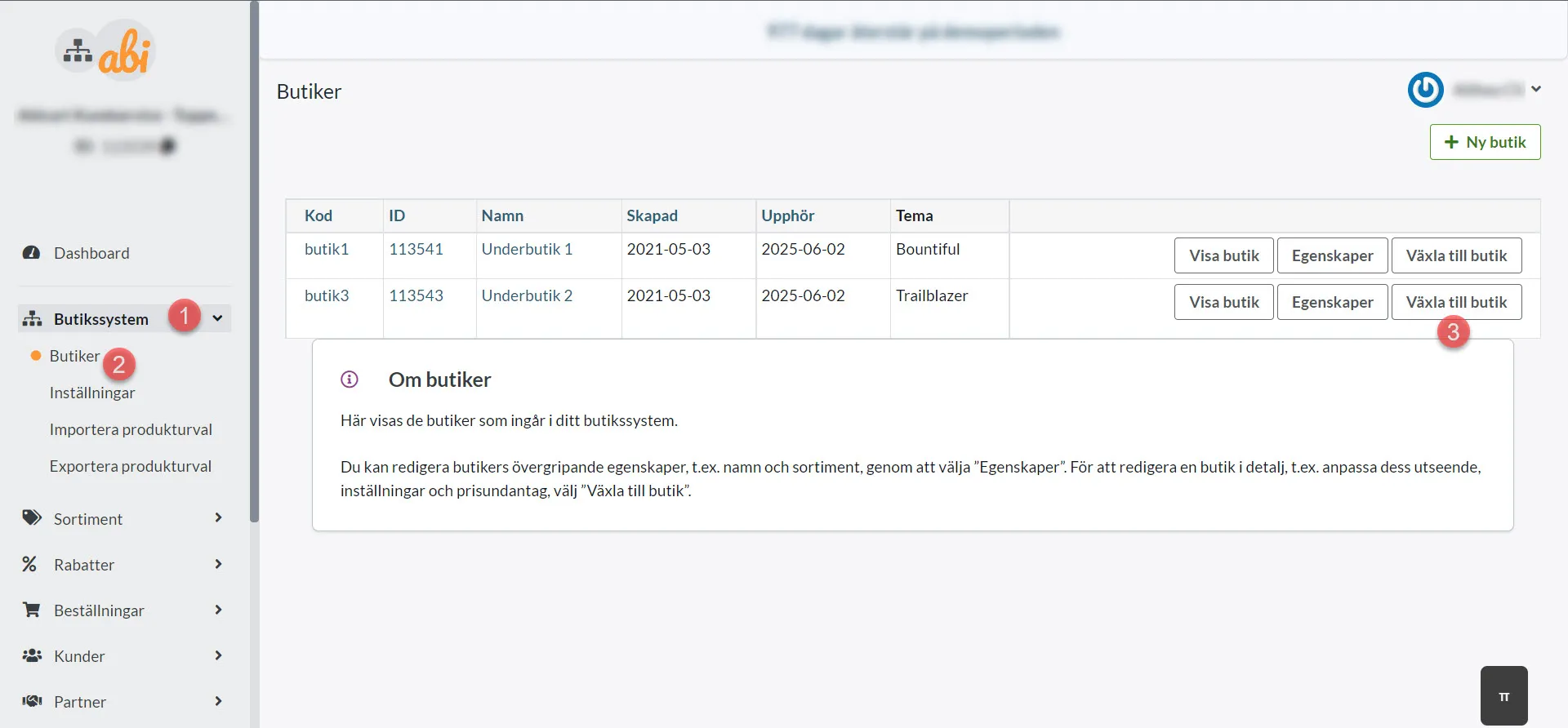
Editing the theme in multi-store systems
27 Nov 2025
In a multi-store system, each store's theme is set per sub-store.To add/edit a theme in a sub-store, navigate to the sub-store as follows:Shop system >> Shops >> Switch to shopOnce in the sub-store, go to Appearance >> Themes:Klicka här för att läsa mer om flerbutikssystem.
-
Short movie: hide an element on an Abicart page with custom css
27 Nov 2025
-

Search engine optimization of images
27 Nov 2025
Images help you get visitors' attention, increase user experience, help SEO and keep your visitors engaged. But with a slow image load time, we understand that the sales experience is negatively impacted. The Google Core Web Vitals list specific factors that they consider important to a website's overall user experience. How the site handles images is one of their parameters.How does it work?This update doesn't change how you add the images, but how we deliver them to the different browsers. You can upload the images in GIF, PNG and JPEG as usual.The new update will force the website to select these images and automatically detect the format supported by your browser. Based on that, it will request the best possible image format for the specific browser.For example, if the image is in JPEG format and the visitor is using Chrome (browser). Then the theme will search for the best format that suits the Chrome browser (WebP or AVIF). We will then convert JPEG to WebP or AVIF automatically for best results.Not all browsers support WebP and AVIF, so we have not added an option to upload them in admin. If the browser does not support them, it will fall back to its normal format.How does it affect Core Web Vitals?The next generation image format improves the loading speed of the images. So that's the first and foremost change you'll notice when you test your site.We've changed how we load slideshows and other blocks. So that helps with the efficient loading of images.
-

Own partners (suppliers, affiliates, delivery point)
27 Nov 2025
Allow a partner/supplier to log in and manage orders. Ability to create affiliate links.What are partners? Under "Partners" you can create affiliate, supplier partners or pickup locations. Note: The partner function is included at no extra cost in Abicart Plus and Pro. Partner types Affiliate partner The partner links to your store via a link and thus generates traffic to your store. If the customer has come to the store via the partner's link, the partner receives a percentage of the order value of the items (not of the shipping fee). Distribution is set for the entire range or for each product or product group separately. All affiliate partners receive the same commission. So you can not give different commissions to different affiliate partners. Seller partner Your store is the retailer of the partner's items and you receive compensation on sales. Which partner delivers a product is set for the entire range or for each product or product group separately. You can set different commissions for each supplier partner. Pick-up location The partner delivers the ordered goods to the customer and a separate order notification is sent to the partner. The customer in the shop can choose the pick-up location when placing the order. Create all pick-up locations as different partners, e.g. Gothenburg, Stockholm and Copenhagen. Create new partner Start by creating a new partner. Go to Partner -> Partner -> click on "New Partner". Fields to fill in Company/Organization: Enter a name for the partner. Partner type: Select the type of partner to be created (supplier, affiliate partner or pickup location). Contact person: Enter the contact details of the partner. Login (suppliers): Enable login if you want the partner to be able to log in and see the orders they deliver or have received commission/royalty for. Suppliers can also edit the delivery status of their sub-orders/packages. Authority (suppliers): Check if you want the partner to see full order information (item price, shipping, etc.). Email address for orders (suppliers): Here, order confirmations are sent to the partner. Payment: A text field for the store's own notes. Caution: This must be a valid email address as any login details will be sent there. Specify supplier generally Under Partner -> Suppliers, you can specify that a partner of type supplier should be the supplier for all items in the store. This partner will then receive an order confirmation with information about the articles on every order. You set the partner to be a supplier when you create the partner. Summary Under "Summary" you can summarise your partners distribution/provision over a certain time: Distribution VAT: shows how much of the distribution is VAT. Distribution incl. VAT: shows the total amount to the partner including VAT. Give commission generally Under "Partner -> Commission/royalty" you can specify that a partner should receive a percentage distribution for all items in the store: Selecting "Affiliate partner" will give all partners who are affiliates the distribution. You can also add a supplier and give this partner a different distribution. Warning: Note that allocation does not take into account discounted items. It is always based on the price of the product without discount. Specify partner at product level Specify supplier on a specific product group or product On each product group or product, you can specify that a partner of type supplier should be the supplier for all items in the product group or only the specific product. How to do it: Go to Products -> Click on the product -> Click on the Suppliers tab. Check "Supplier selected according to form" and select supplier from the drop-down menu on the right. This partner will then receive an order confirmation with information about the products for which they are a supplier when ordering. Specify commission on a specific product group or product For a product group or product, you can specify that a partner should have a percentage distribution for all products in the product group or just the specific product. How to do it: Go to Products -> click on the product name -> click on the Commission/royalty tab. Under the "Commission/royalty" tab, tick "Distribution according to form" and then select your partner under "Add partner to share with..." either a specific supplier partner or affiliate partners in general. View partner distribution If a partner is listed either generally, on a product group or individual products and an order is placed on these items, then the distribution for the partner is compiled under the "Distribution" tab.
-

Creating and linking a Tag Manager account
27 Nov 2025
Get Started with Google Tag Manager A quick guide to what Tag Manager is, how it works, and how to connect it to your store. Google Tag Manager (GTM) lets you add marketing scripts, tracking pixels, and code snippets to your website without editing your theme's code every time. Everything is managed from one dashboard instead. All of our latest themes support Google Consent Mode, so Tag Manager automatically respects the privacy choices your visitors make about their data. GTM is built around four building blocks: Containers Tags Triggers Variables The Building Blocks Containers The master file you create when you first log in to Tag Manager. It holds all of your tags, triggers, and variables. Every container gets a unique Container ID, which you'll add to your store theme (steps below). Tags The actual snippet of code that runs on a page. For example, if you want to install a Meta (Facebook) pixel or Google Analytics, you'd add it as a tag. Triggers Tells Tag Manager when and where a tag should fire, for example "fire on all pages" or "only fire on the checkout page." A tag won't run without at least one trigger attached. Variables Optional placeholders for values that tags and triggers can reference, such as a customer's order value or a product ID during checkout. Create and Link Your Tag Manager Account Step 1: Log in Go to tagmanager.google.com and log in using your Google account. Step 2: Create an account and container You'll first create a top-level account (usually your company name), then a container for your specific website. Click Create Account. Under Container setup, enter your store's domain name (e.g. yourstore.com) in the Container name field. Under Target platform, select Web. Click Create and accept the Terms of Service. Step 3: Copy your Container ID A pop-up with installation code will appear. You don't need any of the full code blocks, just the short ID that starts with GTM-, highlighted in red below. Click OK to close the box. Step 4: Add the GTM ID to your store theme Log in to your store admin panel and navigate to: Appearance → Themes → Select your theme → Edit → Extensions → Google → Google Tag Manager Paste your GTM ID into the field, then save. Your store is now connected to Google Tag Manager.
-
What is an SSL certificate?
27 Nov 2025
What do I need to do to get HTTPS and for the page to be marked as secure in the browser?What is SSL encryption?SSL is included in our platform and is activated in the store as soon as you start a subscription.SSL stands for Secure Sockets Layer and is a security service for your shop that ensures that all the information your customers fill in themselves (for example, in various forms at login and checkout) is passed on as encrypted information to databases and payment systems.It is an important addition to have so that your visitors and customers feel safe. Many modern browsers automatically block pages that don't have SSL, which makes it extra important.How can you tell if a page has SSL?You can see whether a page is encrypted or not in front of the address in your browser's address window. If you see a padlock, there is an SSL certificate. The addresses of pages with SSL certificates always start with "https://".This domain does not have an SSL certificate:This domain has an SSL certificate (https):Important information about SSLSSL only works if you have your own domain associated with the store. SSL cannot be activated if you only have a domain through us e.g. "w65116.shop.abicart.se".SSL only works with our responsive themes. Not with the classic theme. Are you getting a warning on your site even though you have purchased SSL? Scroll to the bottom of this page to read about what could be causing it.Don't forget to change to HTTPS in Google Analytics after activationIf you're using Google Analytics, you'll need to make a change in Analytics once SSL has been activated. There you change from HTTP to HTTPS so that the statistics continue to work correctly.Log in to your Analytics account, and click on the gear in the bottom left corner. Then go to the middle column, "Property" and there click on "Property settings". In front of "Default URL" there is a selector for "http" and "https", select "https". Then scroll down and save. Done.Why do I get warnings that the site is not secure even though I have activated a subscription?In some cases, you may get warnings that the page is not secure even though SSL is enabled in the store, and this is usually because you have linked in an external script or image from another website that does not have SSL. In this case, you will need to find the script/image and upload the file to the store's file repository under Appearance -> File repository instead. Then you can link the script/image from there. Then the warning will disappear.
-

Automatic product import via FTP
27 Nov 2025
It is quite common for external suppliers to update products and stock balances continuously via a text file and/or feed, in which case you can set it to be automatically imported into the store. You will then need a login to the server where the file resides, or make sure the supplier uploads the file to their own server.**Please note that an FTP server is not included in the Abicart subscription. This needs to be purchased separately, for example via a hosting provider.** The import only supports FTP, not SFTP Which file formats are supported? For the file to be imported, it must be a text file. The following file types are supported: CSV, TXT, TAB, and SKV. A text file can contain different character encodings and the import supports two, "Windows UTF-8 (universal)" and "Windows ISO-8859-1 (Latin 1, Western European)". If you receive a file with articles from a supplier, you should be able to get them in one of these formats. If you create the products yourself in a spreadsheet program, such as Excel or LibreOffice Calc, you can choose the file format when you save the file. Create a template with column orderFirst, you have to do a manual product import the first time. The reason is that the system needs to know the order of the properties in the import file. You can read more about how to do a product import here in our manual: https://www.abicart.se/om-abicart/manual/import-export/produktimport There is a good video tutorial of a few minutes that we recommend you watch. Follow the instructions on the manual page "Product Import" and then under the heading "Importing a file of products into the store" and especially the section on "Saving column order for future imports".  Note that if the order of columns in the file is changed, you must redo the above step and save a new template with the new order. ### Gör inställningarna för FTP-anslutningen Gå till Inställningar -> Externa kopplingar -> FTP-artikelimport FTP server - Enter the server's domain or IP address FTP username - The username of the FTP server FTP password - The password to the FTP server FTP path - If the file to be imported is located in a directory on the server, enter the path to the file, for example,/webshop/products/ File Name Pattern - The name of the file to be imported. If you want to import multiple files, we recommend that you place all files in one directory. Then enter * as the file name. Then all files in the selected directory will be imported. Keep in mind that all files must have exactly the same column order to be imported. Remember that you have to enter the exact file name with possible lower and upper case letters for existing products to be updated. If the item number is not found, a new product will be created. If you want to import new product images, you can place them on the same FTP server as the import file, or you can download them from another server. In that case, just tick the box "Get images from separate server" and enter the data there. File format - If there are column headings in the file on the top line, such as "item number", "product name", etc., check this box. If there is an item on the first line of the file, leave it unchecked. Column order template - When you did the first manual import above, you should have saved a template with the column order in the file. Enter the name of that template. The name must be exactly the same as the name you gave the template, with lower and upper case letters. Field delimiter - If you know what field delimiter the file contains, select it here, otherwise select automatic and the system will try to detect it. Character encoding - If you know what character encoding the file contains, choose this, otherwise, choose automatic and the system will try to detect it. Updates You need to set how the item will be handled if it is already in the range. Update information - If the item already exists, all data should be imported anyway. This is the most common setting, especially if you are doing daily stock balance updates. Ignore - If the item already exists, the new content of the file should not be imported.This setting is quite unusual, but it may be that you do not manage stock balances and only want to import new items once the supplier has received them into the import file. Force update of images and attachments - If the article already contains images, you can force these to be updated anyway, for example, if you have updated the images on the image server and they have the same file name as before. Then the images will always be uploaded even if they already exist. This setting makes the import take much longer.
-

BL Administration: integration with Björn Lundén's Administration
27 Nov 2025
Björn Lundén is a knowledge and software company that has been simplifying the daily life of small and medium-sized companies for more than 30 years. Primarily by offering modern software solutions, comprehensible information and practical tools for managing the company's tax and declaration, accounting, payroll and personnel issues. Abicart has a function that exports orders and products to the BL Administration accounting software.Things to consider before activating the integrationAll items must have a unique item number and a name. Also each selection must have a name and item number if you are using customer selections (e.g. sizes and colors). Prices need to be added excluding VAT in BL.Remember to enable the store's active currencies in BL. If a currency is not enabled in BL, we cannot export an order placed in that currency. If you have variants (customer's choices), these must be created in the store the first time and then exported to BL for the sync to work. So you cannot export variants from BL to the store the first time.Enable integration with Abicart Webshop in BLStart BL Administration and open your company which must be stored in the cloud and select BL integration under the File menu.Locate the Abicart integration in the list of available integrations and press Activate.Confirm by pressing "Yes, start integration".Connect the shop to your business in BLSelect BL integration under the File menu in BL Administration. At the top and far right you will see a small gear, click on it.Select your public key as shown above and then right-click and select copy. You need to paste this key into the BL settings page in Abicart as shown below.Log in to your store and go to Settings -> External Connections -> BL Administration.At "Connection", paste your company's public key and then press Save.Shipping and other products for feesThe next step is to make sure that there are 5 items in BL for Shipping, Postal Advance, Transaction Fee, Discount and Other Payment. You will need to add these items manually in BL.Enter the item number for each item in BL under the Item Number section as shown below.Exactly how these items look in BL depends, among other things, on how you want to record them in BL. For example, the item for shipping could look like this in BL administration:As a result, the freight is recorded in account 3520 - Freight invoicedEvent settingsThis means:Export order: here you specify what should happen when an order is registered in Abicart. In our example, we specify that as soon as the order is registered in Abicart, it should be transferred to BL (it may take a few minutes even if it says Update immediately).Export article when adding/changing: Here you specify what should happen if an article is updated in Abicart. You can choose to transfer the article to BL, but you should not activate both export and article import at the same time, but choose one of them.Article import: Here you can specify that Abicart should periodically retrieve article information from BL. You should not activate both export and article import at the same time but choose one of them. In our example, we have specified that we want to retrieve article information from BL at 10:10 every day.Export customer list: Here you can specify that Abicart should periodically transfer customer information from Abicart and transfer these to BL. You should not activate both Export customer list and Import customer at the same time but choose one of these.Import customer: Here you can specify that Abicart should periodically retrieve information about new and updated customers from BL and add them to Abicart. You should not activate both Export customer list and Import customer at the same time but choose one of them.
-
Integration with Pacsoft Online (Outgoing service)
27 Nov 2025
Note: Outgoing service Use Postnord Send Direct instead What is Pacsoft Online?The Pacsoft online service will be phased out in 2021 and replaced by either nShift(formerly Unifaun) or Postnord.If you already have Pacsoft Online and want to switch to nShift Online, click here (Migrating from Pacsoft Online to nShift Delivery).IMPORTANT! Don't forget to enter "Abicart" in the partner field when filling out the form.
-

Fix your article numbers - Northmill integration
27 Nov 2025
This manual is aimed at those who have duplicate article/item numbers or products without article/item numbers in their range. Deepening of point no. 8 in the manual: Connect your webshop with Northmill Flo (formerly MoreFlo).Fixing the art.nr before activating the Northmill integrationBefore activating the Northmill integration, we recommend that you fix any warning message on the integration page (Settings >> External links >> Moreflo) so that there are no duplicates in your assortment. It is also good if products without an art.nr get a unique art.nr .Products with no art.nr/product numberProducts without an article number will not be exported Abi >> NMF until they get an article number.*Abi = Abicart*NMF = Northmill FloDuplicate / X products or variants use the same product number.In Abicart there is no limit to the number of times an art.nr can be repeated, unlike in ERP systems where an art.nr can only exist once. If you activate the integration with duplicate article numbers, the products with the same art.nr will remain in Abicart as usual, but overwrite the art.nr in Northmill every time the art.nr is exported.Example:Item no. ABC - Bathing ballItem no. ABC - Striped swimsuitItem no. ABC - Swimming gogglesThe integration is active with Inventory Management Abicart, Product Export and Import Cash Receipt. Art.nr ABC exists three times in Abicart. If you edit the product Badboll , it is exported to Northmill. Badboll now exists in Northmill. If you then edit Striped swimsuit in Abiart and save, the product is exported to Northmill. Art.nr ABC is now changed from the product information for Swim Ball, to Striped Swimsuit. If you then update Swimwear , the same thing happens again: the information for Striped Sw imsuit changes to Swimwear.Before you get started- Read the Northmill Flo manual and follow the points up to point no. 8"Review the message at the top of the integration page".- Go to Settings >> External connections >> MorefloThe warning message on the integration can warn about missing product numbers/article numbers, duplicates & customer numbers (See image).In this manual we show export of products, not customers. This fixes missing article numbers and duplicate article numbers, not customer numbers. If the warning message remains even though you have just corrected all article numbers, it may be in the form of junk data. Then you can ignore the warning and proceed to step 9 of the Northmill Flo manual. How to do this1) Go to Assortment >> Export2) Take out two exports by checking the options below >> ExportExport 1: - Product number- Product nameExport 2:- Product number- Product name- Include customer choices with their own properties as separate rowsHere you can read more about product export: Link to the product export manual.Image example Export 1:Fixing products without article number1) Open export file no. 1 on your computer.In column A you will find the art.nr and in column B the product name.2) Fixing products without art.nrIf there is a product name in column B but the row field in column A is empty:Copy the product name >> Go to admin >> Assortment >> Products >> Search for the product name >> Click on the product to edit >> Enter a unique art.nr >> Save.Repeat for all products in the file that have a product name but no art.nr.3) Repeat with export file no. 2.In this file, it is the customer's choice variants' article numbers that are interesting. The art.nr for the customer's choice is in column C.--> Fix variants that do not have an art.nr by Copying the product name >> Assortment >> Products >> Search for the product name in admin >> Edit the product >> Enter the customer's choice >> Enter the art.nr for all variants >> Save. Remember the rules for article numbersOnly use only letters (a-z), numbers (0-9), hyphens (-) and underscores ( _ ) in your part numbers. Many external systems (transport systems, financial and cash register systems, etc.) do not allow certain special characters in the art.nr. E.g. space, & sign, hash tag, dot, comma, etc. Therefore, avoid using these special characters. Fixing duplicates / products using the same art.nr1) Open export file no. 1 >> Select the entire column A where the art.nr is located >> Search for duplicates.You can search for duplicates e.g. in Excel or via various pages on the internet. See example "Find duplicates" below.2) Fix the duplicatesExample: Item no. 123 exists twice. One is a sweater in size Small and the other in Medium. The art.nr gets a unique ending:Art. no. 123-SArt.no. 123-MNow the products each have a unique article number and will be exported to Northmill Flo correctly.3) Repeat with export file no. 2. In this file, it is the article numbers for the customer's choice of variants that are of interest. They are in column C. Therefore, copy column C and repeat the steps to find duplicates.Example: Finding duplicatesOpen your browser and search for "duplicate count tool". For example this tool >> Select column A >> Copy >> Go to the page you are using >> Paste what you copied in the Paste Text Below box >> Click on the Display/Update counts button >> Review the count:On the left (count) you have the number of duplicates and on the right (line) you have your art.nr.3) Repeat the same thing for export file no. 2. In this file it is column C you copy. There is the art.nr forContact customer service if you have any questions
-

Link to custom pages
27 Nov 2025
In this article, you will learn how to link to your own pages.What are custom pages?Own pages are a feature for creating standalone pages that can contain your own free text, images and even products.More info is available here.When you create your own pages, links to these pages are not created automatically. You must create these links yourself.How to create a link to a custom pageThere is a function to create links to your own pages in the menu. Where these settings are located differs depending on the theme being used.FabricGo to Appearance -> Themes -> select theme, edit -> Content -> Header. Scroll down to "Own links".Click on "+ Add". Click on "Pages". A list of all custom pages created in the store will be displayed.Select the page you want to link to.If you want the page to have a different title than what it is called under custom pages, you can specify this in the "Link title" field. Otherwise, leave the field blank.Then click on "Add". Save. Done.AzaleaGo to Appearance -> Themes -> select theme, edit -> Content -> Header. Scroll down to "Menu items".Click on "+ Add". Click on "Pages". A list of all custom pages that have been created in the store will drop down. Select the page you want to link to.If you want the page to have a different title than what it is called under custom pages, you can specify this in the "Link title" field. Otherwise, leave the field blank.Then click on "Add". Save. Done.Remaining themes (Bountiful, Nordic, Brew, Shark, Emporium and Trailblaizer)Go to Appearance -> Themes -> select theme, edit -> Content -> Menu. Scroll down to "Menu items".Click on "+ Add". Click on "Pages". A list of all custom pages that have been created in the store will drop down. Select the page you want to link to.If you want the page to have a different title than what it is called under custom pages, you can specify this in the "Link title" field. Otherwise, leave the field blank.Then click on "Add". Save. Done.
-

Product import with customer choice
27 Nov 2025
You can sell products where the buyer can choose different variants, such as size, colour, model, material or similar. This is called "customer choice" in Abicart. To avoid having to enter this manually on each product, you can do this via an import.What should the file look like to import the customer's choices?In a normal import, only the item number is needed to identify the product, but to import the customer's choice, an additional item number is needed for the choice (variant) itself. So, to create a brand new product with the customer's choice via import, at least the following properties need to be included in the file:article number (for the main product)product name (in the store's base language)item number for customer selectionName of customer's choice, e.g. "Colour"price (in the store's base currency)Example of what the import file might look like when importing a product with three sizes and two colours.In the example above, the sizes small and medium cost the same, 100 SEK, while large costs 125 SEK. You can also import other product properties such as description, weight, etc. in the import, but above are the columns that are mandatory to create a new product in an import.It does not matter in which order the properties are located in the file. When you do the actual import, you select the property for each column. More on this below.Create import templatesIn order to import the customer's choices, you first need to create so-called import templates for the choices. For example, if you want to import sizes and/or colors, you need to create a template for each customer choice. In this example, one for "Size" and one for "Color".Go to Assortment -> Import.In the top block "About Import", there is a heading a bit down called "Importing the customer's selection". Then click on the link "Customer Choice Import Templates"Click on "Add new".Here are a number of options:Name - Please enter a name for the template, for example "Size".This option may have a price impact - If certain options are to cost extra, you need to enable this setting.A possible price impact is applied before the price is multiplied by the numeric text fields that affect the quantity - If you use two text fields where the buyer has to enter different values, for example if you sell a product where the buyer has to enter his own measurements for height and width. Then you can check this setting and these values will be multiplied before the price is added. This will give you, for example, a price per square metre of the product.This selection may affect weight - If some selections weigh more than the original product, you need to activate this setting.Single properties (stock balance, item number, picture) - If you want to be able to specify a stock balance or link a picture to each selection, this setting should be enabled. You should always check this box.Click the save button when the template is finished.The most common settings are "This selection may have price impact" and "Custom properties".If you have products with several different properties, such as color, size, model, material, etc., you need to create a template for each property.Import customer's choice in AbicartGo to Assortment -> Import.In "Select file", select the file you want to import.Double check that "Automatic" is selected in both "Fields are separated by" and "Character coding" and that "Update information" is selected in "If product already exists in the assortment". See picture.Then click the continue button in the bottom right corner.This will take us to the following page.In this example, there are headings in the first row of each column in the import file. We don't want to import these, so we check "First row contains column headings".In order for the system to know which column contains each property, we need to select this. Since we have clear column headings, it is easy to select. Part number in the first column and product name in the second, etc. Select the column for all properties to be imported.If you have many properties, you may need to scroll sideways to see all the columns. If there is a property you don't want to update, select "Ignore Column" and it will be skipped.Before we start the import, there is a checkbox called "Save column order for future imports". If you have a lot of properties that you want to update, and you know that you will be doing this kind of import several times, you can save a template for the column order.If you tick it, next time you can click on the "Load saved column order" link instead of selecting each column one by one. Note that it must be exactly the same column order in the file for it to be correct.If you know that this import will only be done once, leave the checkbox next to "Save column order for future imports" blank, and then click "Start import".Depending on how many lines (articles) there are in the file, this will take different amounts of time. If there are only a few lines, it can be done in a few seconds, but if there are many, thousands of lines, it can take half an hour, an hour or even several hours. Wait until everything is ready. Hopefully it will look something like this picture.In this case, there were seven lines in the file. We checked that the first line contained headers, so it was ignored. The remaining six lines were imported.Things to consider:Products with customer selections must have a master item number and a unique item number on each selection.Variants of the same product must be directly below each other in the file. They are imported in the order they are listed in the file.
-

Product import
27 Nov 2025
If you have a lot of products to add to the store or to update, there is an import function. This means you don't have to do it manually for each product. It is important to remember that all products must have a unique item number for the import to work. Calculator You first prepare the import in a spreadsheet program, such as Google Sheets (free), LibreOffice (free), OpenOffice (free) or Excel (Windows), Numbers (Mac) . You enter a property in each column where the item number is the "key" the product is identified with. For example, if you want to update the price and stock balance of several products, it is sufficient to have three columns in the file. Column A for the article number, column B for the price and column C for the stock balance.Video guide: What file formats are supported? In order for the file to be imported, it must be a text file of type .CSV, .TXT or .SKV.A text file can also contain different character encoding and our import supports two different ones, "Windows UTF-8 (universal)" and "Windows ISO-8859-1 (Latin 1, Western European)". If you receive a file with items from a supplier, you should be able to get them in one of these formats.If you create the products in a spreadsheet program, such as Excel, you can choose the file format by selecting "Save as" and then selecting "File type" from the list. What is needed to create a completely new product via import? To create a brand new product, at least the following fields are required: Item number Product name (in the basic language of the shop) Product description (in the basic language of the shop) Price (in the store's base currency) An example of what this looks like in an import file: What is needed to update an existing product via import? It is quite common to need to update a property of the products, such as stock balance or perhaps setting a new price in case of a sale. To update a product that already exists in the store, only two columns are needed in the import file: the item number and the property to be updated, such as price. An example of what this looks like in the import file: The system then uses the item number to identify the product and then updates the prices of all item numbers included in the file. Nothing is changed on the product other than the property or properties on file. I have an Excel file, how do I import it? Many suppliers use Excel (xls, xlsx) as a file format and this cannot be imported directly into our system. You must first resave the file to a text file before it can be imported. Below are guides on how to resave an Excel file to a text file in Excel and "Libre Office (Open Office)". Excel (Microsoft Office): Open the file and then go to File - "Save As". (If you are using Excel 2007, click the Microsoft Office button and then click Save As.) The "Save As" dialog box opens. Select the text file format for the spreadsheet in the "File Format" box. Click CSV (comma delimited). Drag to the location where you want to save the new text file, then click Save. A dialog box will appear. It says that only the current spreadsheet will be saved in the new file. If you are sure that the current spreadsheet is the one you want to save as a text file, click OK. You can save other spreadsheets as separate text files by repeating the procedure for each spreadsheet. A second dialog box appears, stating that the spreadsheet may contain features that are not supported by the text file format. Click Yes if you only want to save the spreadsheet data in the new text file. The file is now ready to be used for import. Open Office / LibreOffice: Open the file and then go to File -> Save As Click on the list next to "File Format" to expand it. Select "Text CSV" Also check "Edit filter settings" and then click the save button. For "Character set", select "Unicode (UTF-8)".For "Field delimiter", select "comma".For "Text delimiter", select "quote". Import a file of products into the store We now have a text file in the correct format (see above) that contains products and is ready to be imported.Go to Assortment -> Import.In "Select file" select the file you want to import.Double-check that "Automatic" is selected for both "Separate fields with" and "Character encoding" and that "Update information" is selected for "If item already exists in assortment". See picture. Then click the continue button in the bottom right corner. This will take us to the following page. In this example, there are headers in the first row of each column in the import file. We do not want to import these, but check "First row contains column headings". In order for the system to know which column contains each property, we need to select this. Since we have clear column headings, it is easy to select. Part number in the first column and product name in the second, etc. Select the column for all properties to be imported. If you have many properties, you may need to scroll sideways to see all the columns. If there is a property you don't want to update, select "Ignore Column" and it will be skipped. Before we start the import, there is a checkbox called "Save column order for future imports". If you have a lot of properties that you want to update, and you know that you will be doing this kind of import several times, you can save a template for the column order. If you tick it, next time you can click on the "Load saved column order" link instead of selecting each column one by one. Note that it must be exactly the same column order in the file for it to be correct. If you know that this import will only be done once, leave the checkbox next to "Save column order for future imports" empty, and then click "Start import". Depending on how many lines (articles) there are in the file, this will take different amounts of time. If there are only a few lines, it can be done in a few seconds, but if there are many, thousands of lines, it can take half an hour, an hour or even several hours. Wait until everything is ready. Hopefully it will look something like this picture. In this case, there were seven lines in the file. We checked that the first line contained headers, so it was ignored. The remaining six lines were imported. Importing multiple product categories on one product In Abicart Plus and Pro, a product can belong to several product categories, and this can also be solved via import. You then add a new line to the file and enter the product number again and then type the name of the second product group in the product group column. In this example, the beach ball will end up in three product groups: "Beach", "Toys" (subgroup of "Beach") and in "Offers". You can only put the product in one product group via import. If you want to remove the link between a product and a product group, you need to do it manually in admin. Importing multiple images of a product To import multiple images on a product, add a new line to the file and enter the item number again, then enter the image filename/url of the second image in the image column. In this example, the Badball product will have three images imported. If you have a file where the images are in different columns, you will have to solve the import by importing each image column separately. You do a full import first with all properties and select "Image" for the first image column in the file. Once that import is complete, you do a new import with just the product number and image column 2. If there are more columns with images, you repeat the import with the product number and image column 3, image column 4, etc. Example, what should the import file look like? Updating prices For updating prices of existing products only, the file can look like this: The only thing needed is the item number of the products to be updated and the new prices. Article number in column A and the new prices in column B. Update stock balance To update stock balances on existing products only, the file can look like this: In this example, three columns are needed. Item number, inventory management (1 = yes, 0 = no) and inventory balance. We therefore import a one in column B to enable inventory management on the item and then the inventory balance itself in column C. F.A.Q. Question: I did an import but all the lines were ignored, why? Answer: Most likely there is a setting in step 1 of the import that is wrong. Under Assortment -> Import at "Import settings" -> "If the item is already in the assortment:" then "Ignore" is selected. Change the setting to "Update information" and rerun the import. Question: many of my products are marked as "New". How do I unmark them all as new in the easiest way? Answer: The quickest way is to do an export of all products (Assortment -> Export). Export the properties "item number" as well as "novelty". Open the file in a spreadsheet program and enter a zero on all lines in the column "Novelty". Save the file and then do an import. Then all items will be unmarked as new.
-

Importing customer prices (old way of pricing)
27 Nov 2025
Instead of manually entering alternative prices for all products on each customer group, you can do a text file import that quickly updates all prices in the file. Custom price imports are included in Abicart Plus and Pro at no extra cost.Note: This import only applies to the "old" way of pricing, where you enter customer-specific prices under the "Product selection and prices" tab directly on the customer group.If you use price lists, customer-specific prices are imported in a separate price list under Products -> Pricing.What should the import file look like?The appearance of the file can vary depending on the different currencies active in the store. To see exactly what the file should look like for you, go to Customers -> Import Customer Prices. Under the heading "Import customer prices and product selection", you will see a bulleted list of the columns that need to be in the file for the import to work. In this example, we only have SEK as the active currency in our shop and the file should look like this: Customer group nameName of the customer group. The name has to match exactly with lower and upper case letters. If the customer group does not already exist, it will be created.Product numberPlease enter the product number. If the product number does not exist in the store, the import will receive an error message and be aborted completely. It is not possible to specify a different price for the customer's choice. Only the price of the main product can be entered.Price (SEK)Enter a new price for the product. If you want the product to have the same price as the regular price, the product number must be included and you then leave the price field empty. Extra price (SEK)Enter a new extra price for the product. Example fileThe following is an example of what an import file might look like. Things to considerThe file to be imported must be a text file with a semicolon as delimiter. Both prices and extra prices can be left blank. If only product numbers are present, it means that the product is included in the customer group selection with normal price. In case of an import, the previous settings of the customer group will be reset. Then the product numbers and prices contained in the file will be imported. So you cannot update only one product price via an import, but all products and all prices must be included in the import file.When the file is ready to be imported, column headings on line 1 must be deleted (as this example shows). The first line must be a product.
-

Registration for B2B and business customers
27 Nov 2025
Here we go through how business customers can register in your webshop to get access to a specific selection in the range, or different price lists than those visible to non-logged-in customers.In our registration form, customers only fill in Email and Username. With this information alone, it can be difficult as a store owner to determine if this is a customer who should have access to the range, more information is probably needed such as company number, company name etc.What you can do is to use our contact form.Contact formUnder the tab Other pages in the administration you will find the settings for the contact form. It is not possible to edit the fields in the form, but it is possible to add your own text where you can convey the information you need from customers to set up a customer account for them.First you need to turn off the ability for customers to create a login themselves, this is done by going to Customers>Customer Settings. There, check "New customer accounts can only be created by an administrator".The information that the customer fills in will be sent to the email address that you entered under "Email contact" in Settings>Email. The customers are then added by going to Customers>Customer Register. Click on "new customer" in the upper right corner and enter the information provided by the customer.You can then add a link to the contact form in the webshop menu bar so that it is easy for customers to find the formHere you will find information on how to add your own page to the menu
-
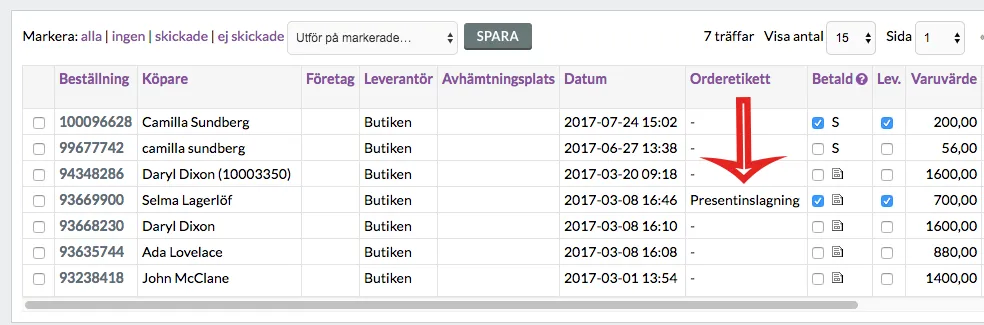
Order labels
27 Nov 2025
You can tag your orders with different labels, which can be used to filter searches.What is an order label?Order labels make it easier to sort your orders.You might want to see which orders include gift wrapping. Then you can create an order label called "gift wrapping". Then you can select certain orders to have that label.You could say that you tag your orders using order labels to get a better overview in the admin:Order labels are included in the Abicart Plus and Pro subscriptions.Create an order labelGo to Orders -> Order labelsAt the top you will see "Create new order label" and a field for "Name". Enter the name of the order label you want to create and click the save button. All the order labels you have created are displayed in a list.Tagging orders with labelsOnce you have created a label, it will appear in a new column in the order list.Click on an order. At the bottom right, you will see a block called "Order label". Here you select the order label that you want to tag this particular order with:Save at the top right.Filter orders by labelGo to Orders. In the "Add search parameter" list, select "Order label". A filter will now appear with a list containing all the order labels that have been created.Select a label and then click on the search button.This will display all orders that have the selected label.
-
Postnord Skicka Direkt - Postnord TA
27 Nov 2025
Postnord Send Direct is available as an integration under Settings >> External connections >> Postnord TA.Integration to Postnord TA is included in Abicart Pro at no extra cost.Checklist before starting the integration:You need to enter the weight of all products in Abicart. We cannot export products without weight.Store information:Enter the address and company information under Settings >> Store information.Reason: We cannot download Postnord's templates, instead we have to create our own templates using the information on this page. The reason is that it is not possible to download Postnord's templates via their API as they belong to the Send Direct portal and cannot be accessed externally.Information required to set up the integration:Account number:Create an account at https://www.postnord.se/ and copy your account number (customer number).API keys:With the customer number, create an account at https://developer.postnord.com/. Once you are logged into the Postnord developer account, go to My Profile >> Apps and copy the API keys.API keyEORI numberThis is mandatory if you plan to use customs declaration declarations.Add this information to the Postnord Integration settings page.Combination to use for different conditions:Once you have entered all the information, you can control the shipping settings under Settings >> Shipping >> select delivery method >> Edit >> Export complete order: (Placed / Paid / Manual)Export shipments individually: (manual, this does not include marking the order as "shipped")Export shipments/orders after the order is marked as "shipped".Mark the exported order as shipped:Manual activation during the order page: (Note: this only works before the shipment is marked as "shipped")Print Zebra labels from your browserProgram to print (zebra) .zpl labels from your browser on a Windows computer. Can be used with Abicart integration to Postnord TA included in Abicart PRO at no extra cost.Abicart ZPL PrintApp for WindowsBenefits:Postnord supports export of multiple shipments. You can set up the integration to export multiple shipments from the same order to Postnord automatically or manually.If the "Customs declaration" section of our Postnord settings is set to CN22 or CN23, we will export customs data to Postnord. We will export the information Postnord needs to process the customs declaration. Regardless of location.In multi-store systems, the specific information from each sub-store is used as labels on the orders in Postnord.Things to remember:You cannot use the integration against nShift or Postnord at the same time. If you want to use both, you can enable manual activation under Settings >> Shipping >> Edit shipping methods >> Postnord settings.We do not interact with shipping fees at all. Postnord's estimate is not something we can influence.If you have marked the order as "shipped", the only way to export the order is to use combination 3.Once an order has been exported, it cannot be removed from Postnord, nor can it be edited.Do not use both "Export shipment" and "Export order" unless you use "Manual activation". .
-

PayEx card payment
27 Nov 2025
Card payment service via PayEx.How do I get PayEx card payment?Contact PayEx and get an agreement with them on their site, http://www.payex.seActivate PayEx card payment in storeOnce you have an agreement with PayEx, you can add the payment method and activate it in the store. Go to Settings -> Payment methods -> in the "Add new payment method" list, select "PayEx card payment" -> click on the "Add" button. StatusHere you can see the basic settings of the payment method. Active - Check the box to activate the payment method at checkout.Default payment method for customer - Check if the payment method should be defaulted for all customers in the checkout. Only one payment method can be preset.Make available only for those customers or customer groups where I specify it - If you want to restrict the payment method for one or more customer groups, tick the box. You then select the payment methods that can be used for each customer group.Available for customer type - If you want to restrict the payment method to a specific type of customer (private or business), you can select it here. If "All" is selected, both customer types can use the payment method.Require buyer to enter personal/organisation number - A setting that forces the buyer to enter a personal number when making a purchase. This setting should only be activated on payment methods such as own invoice (not third party invoice services) and prepayment. We do not recommend forcing purchasers to enter a personal identity number for card payments.Do not allow alternative delivery address for this payment method - Turn off the possibility for the buyer to choose an alternative delivery address. The order can then only be sent to the address where the customer is registered.AccountMerchant account number - Enter your PayEx account number. This information is provided by PayEx.Encryption key - Enter your encryption key. This information is provided by PayEx.Debit method - This is a setting when the money will be deducted from the buyer's card. If you choose "Direct debit", the money will be deducted immediately when the buyer clicks on "Complete purchase". If you choose "Debit when order has been shipped", the money will first be reserved on the buyer's card. Then, when the order is marked as "shipped", the money will be deducted from the card. PayEx transaction callback - In order for the service to work correctly, you must log into PayEx admin and go to "Transaction callback". There you enter the following address: https://shop.textalk.se/backend/payex_ipn.phpNote that you will also need to enter the store's IP address in PayEx admin.The IP address is: 192.121.104.141
-
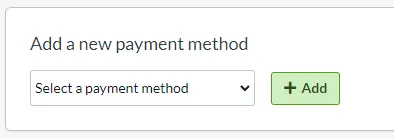
Verifone (card payment)
27 Nov 2025
A payment method for card payments via Verifone.What is Verifone?Verifone is a payment solution for managing card transactions.Verifone supports several different payment methods but currently Abicart only supports their card payment service.How do I get Verifone?First, you need to sign a contract with Verifone. Contact Verifone via their website here >>.Add Verifone to your shopGo to Settings -> Payment methods -> Add new payment method.Select "Verifone" in the list and then click on "Add". (If Verifone is not available in the list, contact support and we will activate it for you. )This will take you to the settings page.StatusActiveCheck the box to activate and make the payment method visible in the store.DefaultA setting to make the payment method default in the checkout.Make available only to those customers or customer groups where I specify it.If you do not want all customers to be able to use this payment method, you can disable it for non-logged-in customers through this setting. You then go to the respective customer group to activate the payment method there. Available for customer typeYou can set the payment method to be available only for one customer type or all. Require buyer to enter personal/organization numberCheck to make the personal/organization number mandatory at checkout.Send payment status confirmation to the shop ownerA setting to enable a separate payment status email for this payment method to be sent to the shop owner.Turn off the purchase of gift card products with this payment methodEnable a setting to prevent the gift card product type from being purchased with this payment method.AccountCustomer number - You will receive your customer number from Verifone and enter it here. The code starts with SE and is then followed by your accounting number.Public key - This key is created automatically when you add the payment method. You need to enter it at Verifone. The key consists of both numbers and letters. Contact Verifone for more information.Private key - This key is created automatically when adding the payment method. You need to enter it at Verifone. The key consists of both numbers and letters. Contact Verifone for more information.Important settings to be made at VerifoneOnce you have filled in the details above, you need to send your public key and merchant agreement code to avtalsgruppen@verifone.se.Log in to the Verifone administration and go to Ecommerce -> Merchant settings -> TCS Client -> "Delayed Access URL". Enter the following address in the field:https://admin.abicart.se/backend/point_ipn.phpName and DescriptionNameEach payment method has a name that will be displayed in the checkout but if you want to modify this, you can enter a new name in this field. An optional field that can be left blank.Detailed descriptionA field to enter a text that informs the buyer about how the payment method works. Can be left empty.CurrenciesIf you have several active currencies in your shop, you can limit these for each payment method. The default setting is "All active currencies in the shop", but if you check "Specific currencies", all active currencies are displayed and you can choose to disable those that should not apply to this payment method.CountriesThe default setting of the payment method is that it applies to all countries to which the shop offers delivery (Settings -> Shipping). If you want to limit a payment method to only certain countries, you can check "Specific countries" and then specify the countries that can use this payment method. Order statusIf you want orders placed via this payment method to have a specific order status, you can enter it here. Select the status from the list. Restriction on the order totalA setting to limit the amount that a payment method can handle. If you choose to limit the amount between two intervals, it is always the total order value including shipping and other fees. Fee added at checkout when placing an orderA function to add an additional fee to the purchase, such as a handling fee.Things to considerWhen an order is placed and paid with Verifone, the amount will first be reserved on the buyer's card. When the order is then sent to the customer, the purchase must be debited so that the money is paid out.Go to the order (Orders -> click on the order number), in the box "Perform actions", make sure the checkbox "Debit (Verifone)" is checked and then click on the button "Perform selected actions". The transaction will then be activated by Verifone and the money will be debited from the buyer's card.You can also activate the order in the order list.Click on the icon with a lightning bolt on the far right.
-

Email settings
27 Nov 2025
The store's miscellaneous email settings. What are e-mail settings? Here you can find settings to specify the different shop email addresses to be used for communication to and from your customers. Enter your email addresses in all fields.You cannot create email addresses for your domain here in the shop, but you can do this with your domain provider/web host where you bought your domain. Contact their support for help setting up email accounts and managing your email addresses. E-mail ordersThe address where your copy of the order confirmation will be sent. Max one email address in each field. Click the "Add another email address" button if you want to add more. Customers will receive the email address you enter in this field as the return address on their order confirmations. Note that the store owner will receive a different return address, shop-orders@abicart.se instead. The reason is to minimize the risk of the order confirmation getting stuck in spam.E-mail order senderSending address for order confirmations. You can only have one email address as sender. NOTE!!! If you enter multiple email addresses in this field, no order confirmations can be sent out, neither to customers nor to the store.E-mail contactEnter an e-mail address to be used when customers contact the store via the contact form (Own pages -> Contact form).E-mail newsletterSending address for newsletters. You can only have one e-mail address as sender. E-mail address for alertsE-mail address used as sender address when sending out article alerts.Custom SMTP settingsIf you want to have full control of all the mailings that are sent out and also monitor statistics, you can use your own SMTP server. Enable the feature and choose a predefined provider or set your own details for your mail server. This is an advanced feature and if you choose to use it, we at Abicart cannot provide support in case it does not work. Instead, you should contact your web host or the company responsible for the SMTP server for troubleshooting.If you have not entered your own SMTP details, all sends are made from Abicart's mail servers and masked so that to the recipient it looks like it has been sent from your email address. A disadvantage of not using your own SMTP server is that the emails sent out can sometimes be interpreted as attempts to netfishing where the real sender is hiding behind another email address.