


6 min read
Connect Specter and control what is synchronized

Connect Abicart to Specter and decide which system is responsible for products, prices, inventory, and orders.
Before you begin
The connection requires Abicart Pro with an activated Specter integration and a valid Specter account/agreement. This guide applies to the integrated Specter connection under Settings → External connections → Specter, not a separate custom-built integration.
Products and stocked variants need unique, matching product numbers in both systems. Do not use spaces, commas, or special characters such as å, ä, ö, &, %, ¤, #, or €; use hyphens or underscores if needed. The store's base currency must be SEK. Product bundles are not supported by this product export.
1. Determine the responsible system before activation
Activation can start an initial export from Abicart to Specter. Missing products can be created, and existing products with the same number can be updated with Abicart's data, including names and selected prices. Do not activate the connection as a harmless connection test.
Make backups/exports and decide what should apply to:
- Product data: export from Abicart and any separately activated import from Specter.
- Prices: which regular/sale price source and purchase price source to use, or if price transfer should be ignored.
- Inventory: Specter's inventory updates to Abicart and which variant numbers they apply to.
- Orders: export time, confirmation emails, and which status updates to receive.
Two active transfer directions do not automatically make the content conflict-free. Coordinate with the person responsible for Specter before the first run.
2. Enter the correct account details
Retrieve sbmID and the authentication credentials Specter issues for this connection. Newer authentication uses apiUserID and apiUserKey. Older connections may show two md5 keys. Do not mix the fields between the models and do not change the authentication model without confirming the correct details.
In case of an error: check the account, selected model, and the error message. Do not publish or send secret keys in a public support thread.
3. Choose how customers are matched
Ignore email address check means that email will not be used for matching. Ignore personal/organization number means that number will not be used.
If a check is left on, the corresponding information can be used to find an existing customer. If you ignore both checks, the risk of new customer records being created increases, even when the person or company already exists. Check a representative result before using the setting broadly.
4. Set up order export and notifications
Choose when orders should be exported: inactive, automatically when the order is registered, or manually from the order. Also, check that the event's execution is active, not just that a triggering event is selected.
If the customer's order confirmation is to be sent from Specter, Abicart's corresponding confirmation is disabled for the connection. A corresponding choice is available for the copy to the administrator. Therefore, check which system should actually send each email; a transfer is not proof that the email has been delivered.
Other order options include zero-value lines for shipping, payment fees, and cash on delivery, custom customer fields, discount presentation per order line, and company name in address line 1. Select only the information the receiving Specter setup needs. Custom customer fields and comments may contain personal data.
Product numbers for special order lines
Enter and check the corresponding numbers in Specter as well:
- gift cards
- discounts
- payment fee – the fee added for the payment method
- delivery/shipping
- cash on delivery
The numbers must be intended for the correct line type. The payment fee is not another gift card number. Discounts can be transferred as negative lines and gift cards as a separate line; check the total amount and the VAT outcome.
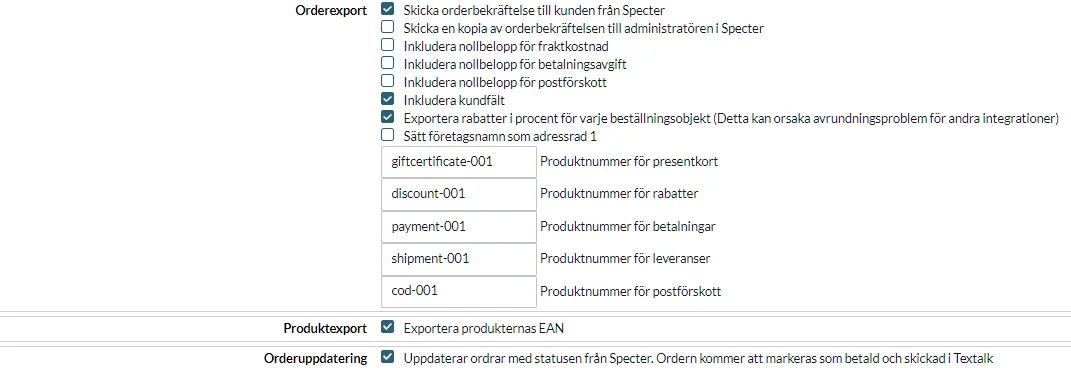
The image shows an example, not numbers to be copied to all stores.
5. Select product, price, and stock transfer
Activated product export can update Specter when a product is changed or created. If the same number exists, existing values can be updated; otherwise, a new product can be created. A missing or invalid number can cause the product to be skipped. A missing price in the selected price source can also stop the export.
Check the selections for EAN, supplier's article number, supplier number, and any Specter product group. Select the correct price source. The setting to not export or import prices stops the price transfer and should not be confused with stopping all product content.
Deletions can be passed on to Specter when product events are exported. Do not delete products in Abicart as a way to temporarily hide them or troubleshoot the connection.
Stock from Specter is separate from product import
Check that inventory management is enabled for the products/variants that will receive stock levels and that the correct article number is matched. A main product with variants does not replace the variant's own unique article number.
The option to ignore stock updates from Specter stops that path. It is a different setting than a full product import. A full product import can create products and overwrite, for example, name, description, price, and VAT in Abicart and needs to be activated with the help of support when the setup requires it.
Order status from Specter
If status update is enabled, status from Specter can mark orders as paid/shipped in Abicart according to the connection. Activate this only after the meaning of Specter's statuses has been checked. A changed custom label is not automatically a payment confirmation.
6. Connect shipping methods
Open Settings → Shipping and delivery and edit the relevant shipping method. Identify the shipping method's ID in the page address; use only the numeric method ID, not the store's ID or the entire URL.
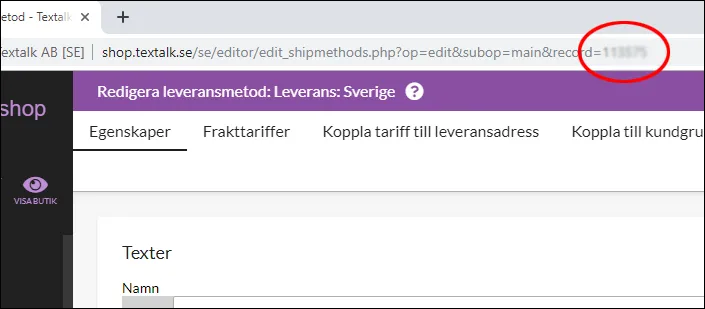
Enter it as External key for the corresponding shipping method in Specter.
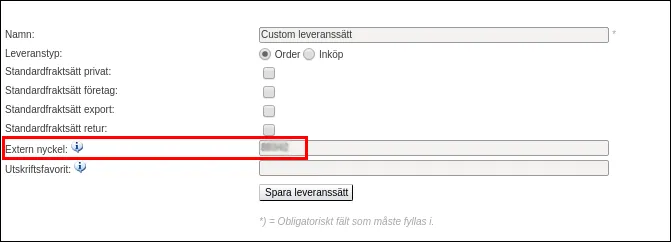
Check the connection for each shipping method used and verify the result on a limited order.
Check results and troubleshoot without duplicate transfers
Start with a small, planned selection and check the product number, name, price, VAT, balance, order total, Specter order number, and intended emails. An activated toggle is not proof of a completed synchronization.
In case of an error: read the queue/log status and what has already been created in Specter before sending again. Provide the time, order/item number, and error message to support without any secret keys. Do not force a new full export to resolve a single error; it can update many existing products.
If you add or remove products by editing an already exported order, you must reconcile both the order and inventory in Specter. Abicart's local inventory adjustment is not a promise that the same order change and balance will be automatically transferred. Coordinate any manual correction so that it is not later duplicated by another transfer.
Quick start
- Confirm Pro, agreement, matching product numbers, and the responsible system for each data type.
- Check authentication and all directions before activating.
- Reconcile a limited result, including order, price, inventory, and emails.
- Follow the queue/log and existing received records before retrying.
Subscription: The Specter connection requires Abicart Pro with the integration activated and a separate Specter agreement. Extra support or special import settings must be confirmed for your connection.