


6 min read
Create a custom page and make it available in the store

Build an information page with the right content, language, and visibility, and link it where the customer can find it.
This guide applies to store administrators in Go, Plus, and Pro. Custom pages are included in all three packages, but the page editor varies. Select the current store/sub-store and check if you see the older My Pages editor or the newer block editor before following the steps. A theme name is not enough to determine the editor version.
Video overview of the older page editor:
Before you save: In the older page editor, Save can change an already visible page directly. Do not expect a separate publishing step. Prepare major changes on a separate working copy and check the page's visibility before saving. The page's visibility setting is shared across its language versions, so check all affected languages when you change it. A page without a menu link is not private. Do not put sensitive information or private files on the page; hiding it from the menu is not a substitute for access control.
1. Choose page type and the right editor
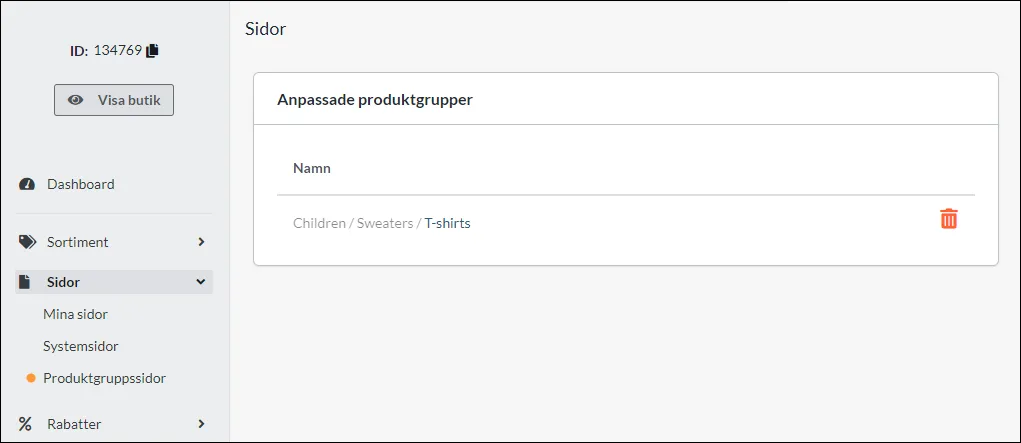
Under Pages you will find custom information pages, system pages, and custom product group pages. Use a custom page for things like 'About Us' or 'Find Us'; modify the intended system page for things like the contact form or terms and conditions.
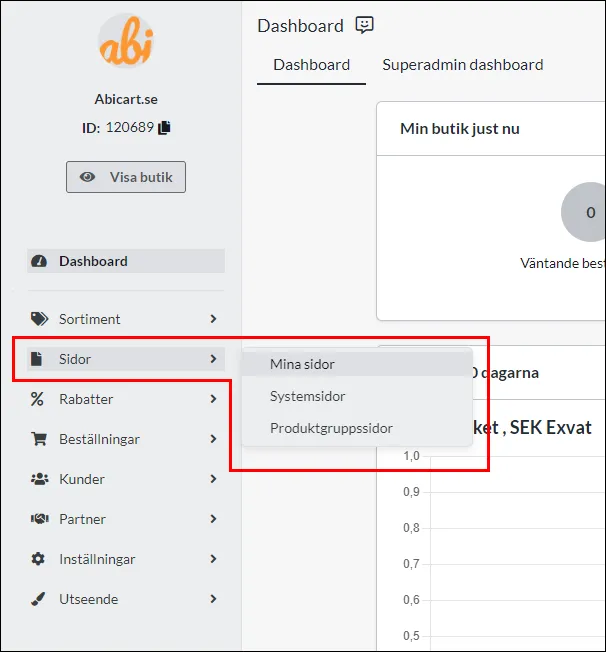
Older My Pages
- Open Pages → My Pages and select New Page.
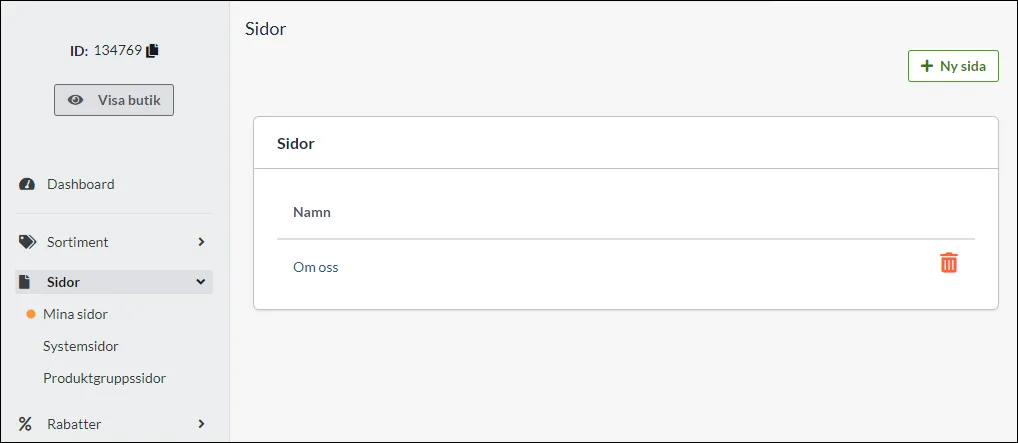
Fill in the page's basic information:
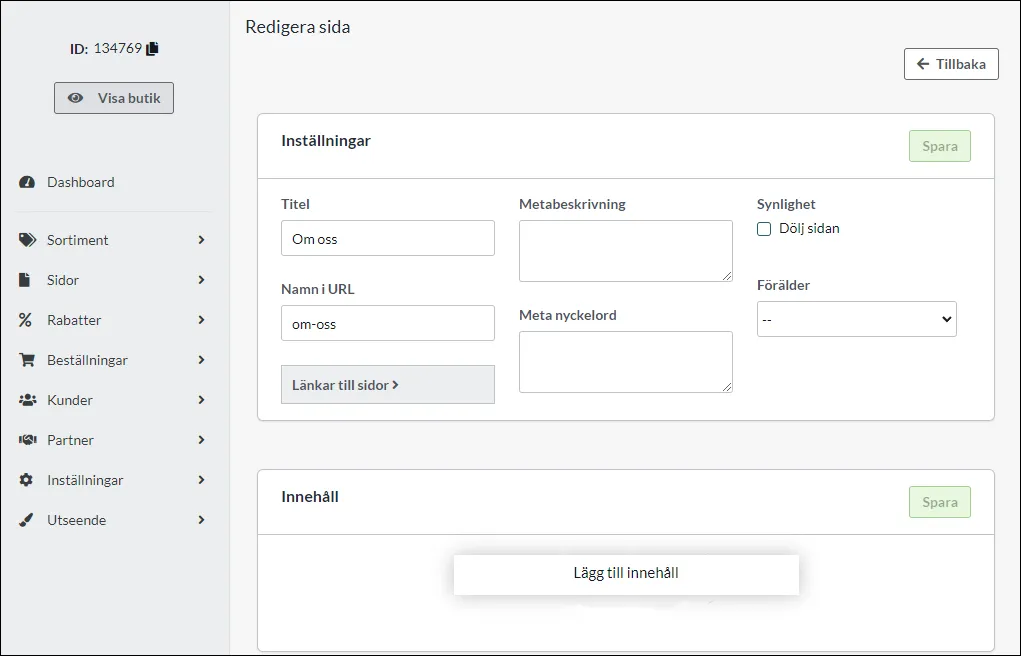
- Title: a clear name for the page's purpose.
- Meta description: describe the content. An empty value may be inherited from Settings → Domains and SEO.
- Visibility: choose if the page should be hidden or available. This is separate from a menu link.
- Name in URL: is created from the title. Check the existing address and links before changing a name/URL; do not change established addresses without handling affected links and any necessary redirection.
- Meta keywords: an older field. Google does not use meta keywords for ranking; prioritize content, title, and usability.
Newer block editor
If you see the block editor instead, create the page there and select the blocks that are actually available in your version. The model's blocks include products, product groups, HTML, showcases, slideshows, FAQ, text/image, tabs, forms, map, video, and button. Do not use old My Pages button names as if they apply there. Check the page's language, store, and availability in the selected editor.
2. Add content in the older My Pages
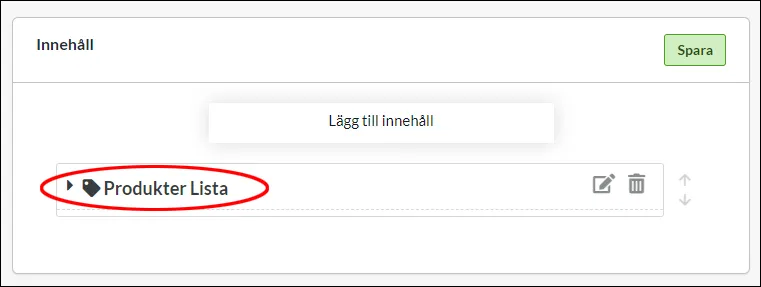
Select Add content and use Products, Product groups, or Custom text/HTML depending on the task.
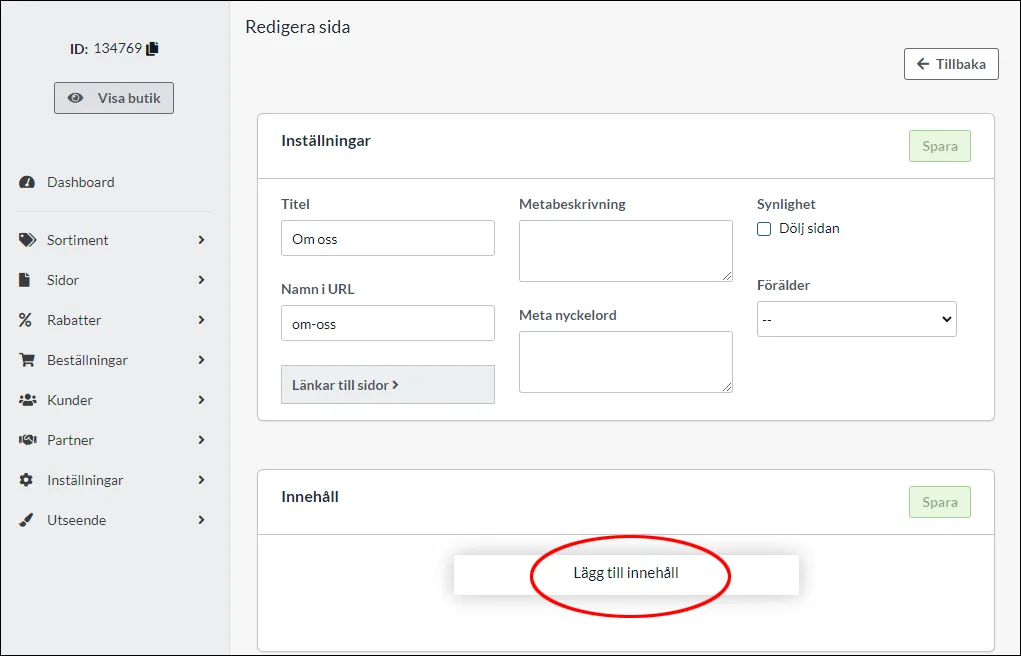
Products
Selecting Products creates a product list block. Open the block's heading for settings.
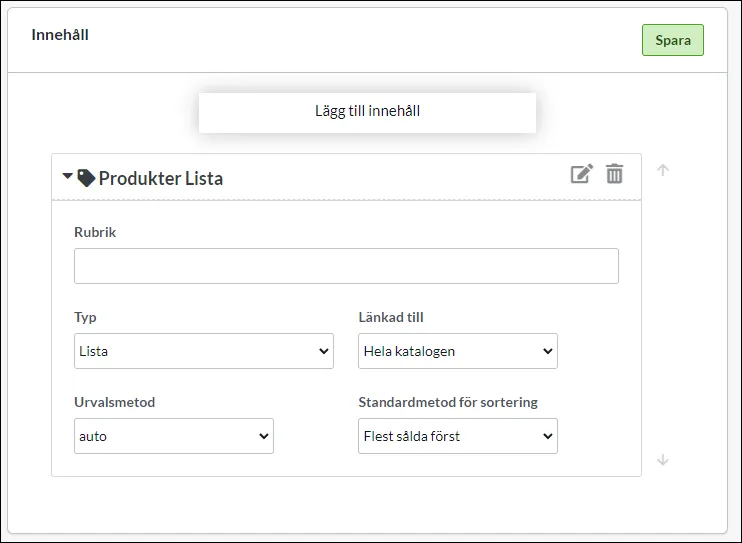
- Heading: text above the products.
- Type: list or grid.
- Selection method: automatic or manual selection.
- Linked to: for automatic selection, you choose the entire assortment, product group, special offer, or new arrivals according to the fields in your version.
Product groups
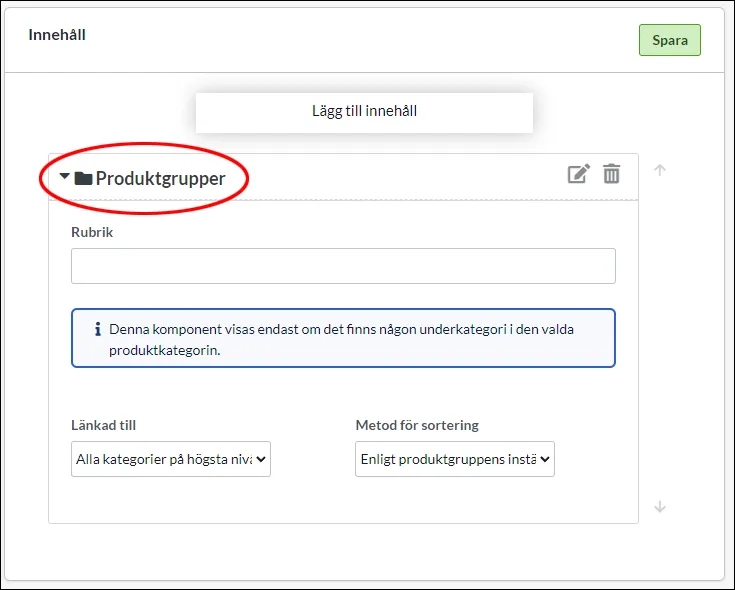
Choose which group to display and the sorting order: alphabetical or the order set under Assortment → Product groups.
Custom text/HTML
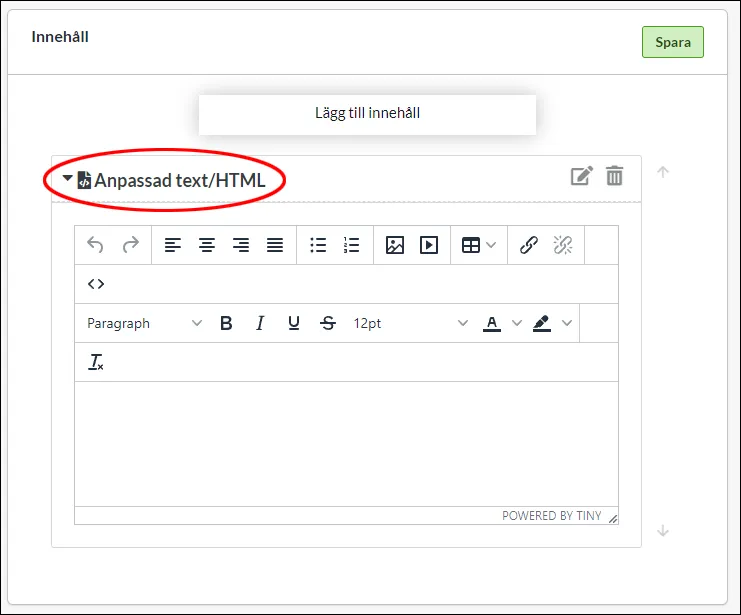
Use for text and images or supported embeds, such as YouTube. Do not insert arbitrary code from unknown sources. Older versions might instead show Product group table, Product list, Product table, Full-width product, and Optional text/image; select the corresponding content in the editor you actually see.
3. Choose the right system or product group page
System pages are created for the store's functions. The exact list may evolve; use the one displayed in your store. Common examples are 404 page, special offers, new products, search page, Terms & info, contact form, and return request. The terms and conditions page may need to be available for certain payment methods.
The contact form's fixed fields are name, email, optional phone number, subject, and message. For a custom product group page, you can open the group in this view or under Assortment → Product groups → the group → Appearance.
4. Check mobile layout and semantics
Check the page's visibility before saving and then preview it on narrow and wide screens. Fixed widths in images, tables, or third-party embeds can cause horizontal scrolling. Only change a component's code when you understand its function.
Images
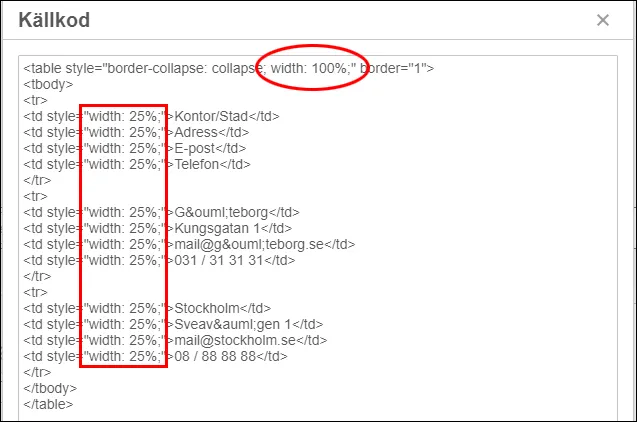
In the older text editor, the icon <> shows HTML. These images show an older example with fixed dimensions and a corrected version:
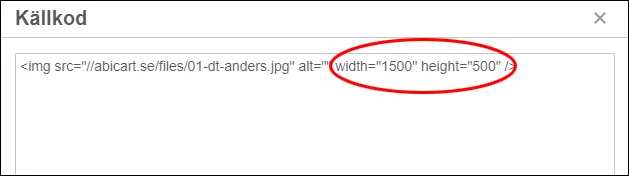
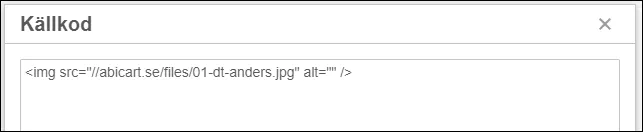
Do not routinely remove all image dimensions. A common responsive setup is max-width:100%; height:auto with correct dimensions/aspect ratio preserved. Check how your theme and the selected component actually render the image.
Tables and embeds
Here is a table and its older code example:
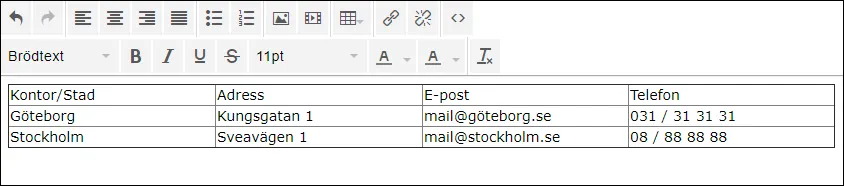
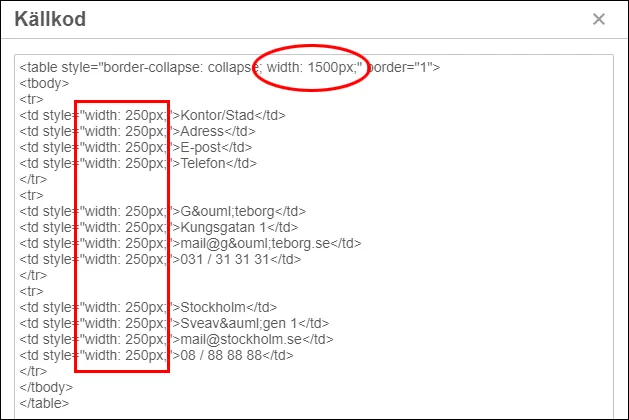
Changing a table from a fixed width to 100 percent and four columns to 25 percent might help that specific example, but long words and fixed cell dimensions can still make the table too wide. Use the component's responsive table support or a functional scroll container and check on mobile. A third-party embed may need its own responsive container, not just a changed percentage.
Title and headings
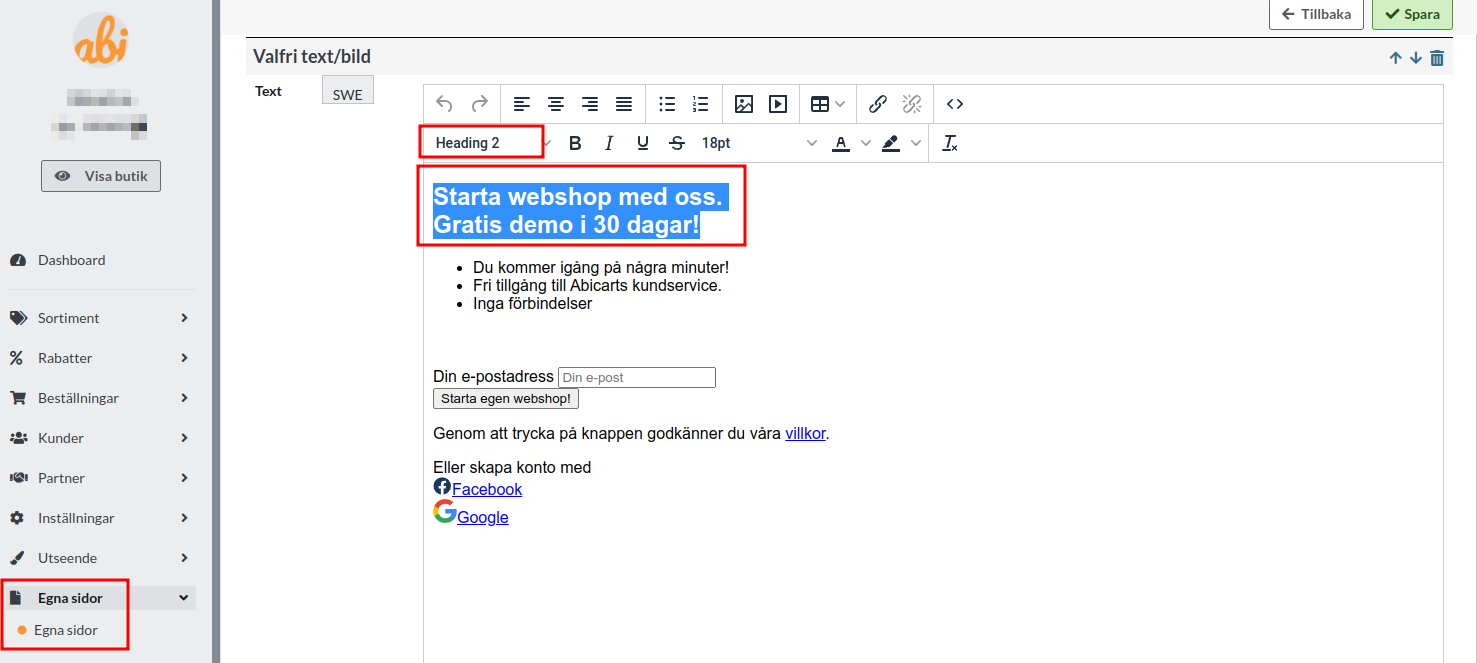
Give the page a unique, descriptive title. The title in search results and the visible main heading are different elements:
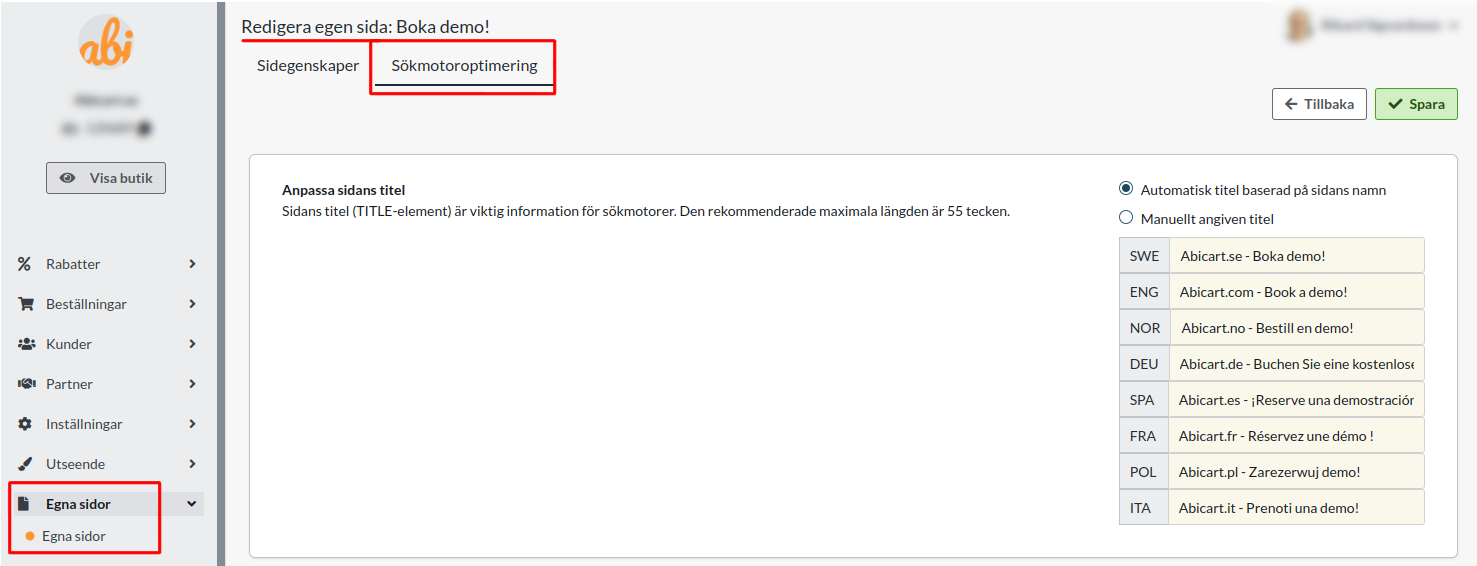
Choose a clear main heading and avoid creating extra main headings just for larger text.
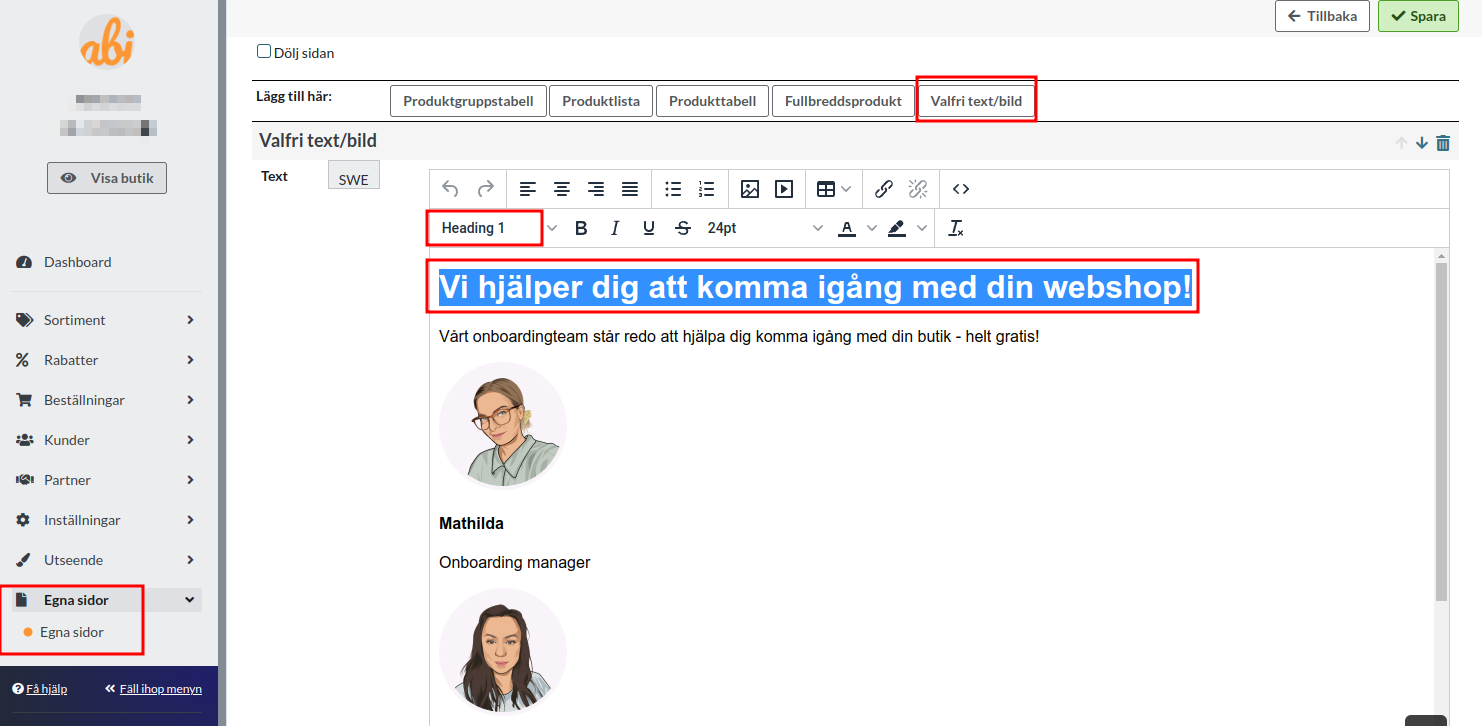
Use H2 for main steps and H3 for subsections, and use paragraphs and proper lists for the content.
5. Save, choose language, and link the page
- Check the correct store/sub-store and language version before saving. Changes to a visible page may appear immediately; the page's visibility setting is shared across language versions. Make sure the intended language is also public.
- Check the page's availability/visibility and open its actual URL.
- Then, add a link in the active theme's menu or on a relevant page.
- Check both the direct link and the navigation as a visitor.
A page without a menu link is not automatically hidden or access-protected. A menu link does not make a hidden or unpublished page available. The main store's content also does not mean that every sub-store has the same language version and publication status.
Quick start
- Choose the right store, page type, and editor.
- Create content with a clear title, headings, and the correct language.
- Check visibility, URL, and mobile layout.
- Check the shared visibility and affected languages, save, and add a working link in the correct active theme.
Subscription and access
Custom pages are available in Go, Plus, and Pro. The block selection and editing steps depend on the page editor/version; the menu link's location depends on the active theme. Check the sub-store and public language separately.