


10 min read
Connect nShift Delivery and control booking and tracking

Connect order data to nShift Delivery and control the entire process from export to booking, label, and tracking.
This guide applies to administrators with the standalone nShift Delivery/Unifaun Online integration enabled for the correct store. Abicart's integration, nShift/APIConnect, and carrier agreements are separate requirements. The Pro package's option for extended shipping administration refers to PostNord/Shipmondo alternatives and does not automatically imply an nShift agreement. Check your actual feature availability and the provider's agreement.
1. Prepare connection and data
- Confirm the correct nShift product, account, and carrier service.
- Register the sender and the carrier's customer number. The sender's quick search value must correspond to the store's intended value.
- Create the correct API connection and handle the key as a secret.
- Enter product weights in grams; the integration converts them to kilograms. Check separate customs information where needed.
- Choose full order export or partial delivery on the shipping method, not both at the same time.
2. Detailed configuration
Automatic export of orders to manage and book shipments in nShift Delivery.What is nShift Delivery?
nShift Delivery is a complete, secure, internet-based shipping administration system that manages all your shipments and carriers in one place.
- You get your labels, shipping documents, customs documents, shipping lists, reports, etc. printed.
- EDI is sent automatically to your carriers.
For more information about nShift Delivery, visit their website here >>
Note that all items must have a weight for orders to be exported to nShift Delivery. You can either enter the weight manually for each item or via import. If you need help, contact our support.
Which shipping services are supported?
- DB Schenker
- DHL Express
- DHL Freight
- PostNord Sverige AB
- PostNord Brev
Available shipping services depend on Abicart's integration and your carrier/nShift agreement. This list is an example of connections, not a promise of all current transport products or future support.
How do I connect to nShift Delivery?
Order the correct nShift Delivery/APIConnect service through nShift or your contract partner. Confirm carrier agreements and services for your store before activation.
Activating the service
Once you are connected to the service, you will receive login credentials for nShift Delivery from nShift.
Set sender
Log in to Unifaun Online here: https://www.unifaunonline.com/
Go to Maintenance -> Senders
In the "Quick search value" field, enter your store's ID number in Abicart. You can find this in the upper left corner when you are logged into the store admin.
Fill in the rest of the fields.
Further down the page, you must select which carrier(s) you will use.
In the "Customer number" enter your customer number with the selected carrier.
If you are unsure what to enter in any of the fields, please contact nShift customer service for more information
Create API keys
Go to Maintenance -> API keys in the left menu. Click the "New API key" button.
Fields for API keys
Status - Select "Active" to activate the API key.
Type: select Web Service call (REST). Note: for example, Abicart Integration. Valid IP addresses: nShift has optional IP restrictions; if you use them, the correct actual outgoing addresses must be allowed. The field is not generally required to be empty. Email: correct account/contact address. Developer ID: should refer to the integration developer making the API calls, not automatically your regular username. Follow nShift's current API key guide.
Then click the "Finish" button.
The following page is now displayed, and the "Combined ID" field is what should be used in the store's settings.
Settings in the store
Log in to your store and go to Settings -> External connections -> Unifaun Online.
Under the "Account settings" heading, enter the "Combined ID" (which we created above) and also your store ID (in the "Sender's quick search value" field). Don't forget to check the "Active" box at the top.
Print target - Make the print settings you want.
Booking - Choose whether the booking should be stored or booked directly in Unifaun Online.
Shipped - You can also choose whether the order should be marked as shipped or not in the store.
Hide content - You can choose to hide the content on the package label.
Activate nShift Delivery on the shipping methods
Go to Settings -> Shipping and delivery -> select a shipping method, edit. Then scroll down the page a bit to "Unifaun Online Event Settings".
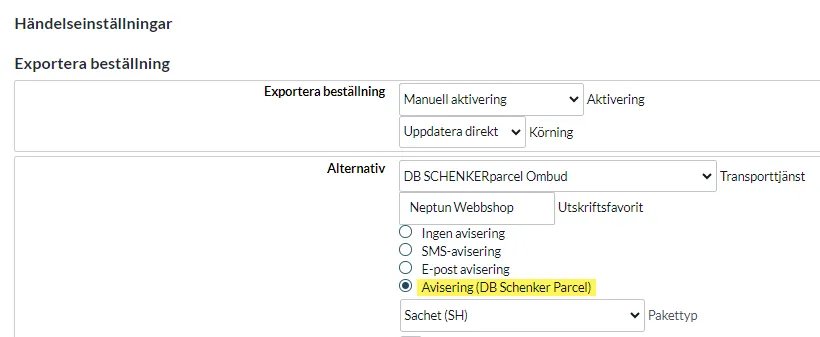
Export order - Choose when the order should be exported to Unifaun Online. When the order is placed, when it is marked as paid, or manually (export button on the order). If "inactive" is selected, the Unifaun integration is not active for this shipping method.
The "Execution" field should always be set to "Update immediately".
Note that if you want to use "partial delivery", you must select "Inactive" for "Export order". You then use the "Export shipment" setting instead.
Options - In this field, you select which carrier and shipping template you want to use for the selected shipping method. In our example in the image above, we have selected "PostNord Parcel SE".
Export shipment - If you intend to use the "partial delivery" feature, select "Shipment is sent" under "Activation". The "Execution" field should be set to "Update immediately".
If you do not want to use partial delivery, select "Inactive" for both activation and execution as shown in the image above.
Options - In this field, you select which carrier and shipping template you want to use for the selected shipping method. In our example in the image above, we have selected "PostNord Parcel SE".
Print favorites
Unifaun Online has something called Print favorites, which can be used to configure shipping settings that are not made in Abicart Webshop. The settings can control how end customers are notified (SMS, email, letter notification), as well as other add-on services that can be used by the respective carrier. It also provides the ability to control which add-on services should be used (e.g., Climate compensation, Extended ID check, etc.).
What you need to do is log in to the Unifaun admin and go to Maintenance -> Print favorites.
Create a new print favorite and name it, for example, "favorite1".
Then scroll down to the "Service and Add-on Services/Options" section. There are several different options for SMS, for example, "SMS notification", "SMS notification (Return option)", "Reminder via SMS", etc. Choose what you want and also check with Unifaun support about the cost and how to activate it with them.
When everything is done there, go to the shipping method in your store and scroll down to "Unifaun Online Event Settings" and enter the name you gave the print favorite in Unifaun. In our example, "favorite1". You must enter the exact name with lowercase, uppercase letters, etc. Then that favorite will be used on the next order that is placed.
F.A.Q. - Frequently Asked Questions
How do I set it up so the buyer automatically receives the tracking number on the shipping confirmation?
A: You need to make the following settings:
Customs declarations
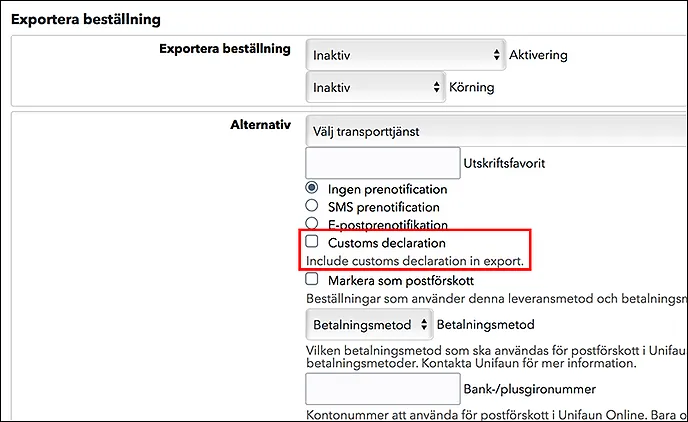
The setting is activated per shipping method by checking the “customs declaration” checkbox. To make the customs declaration fully compatible, your webshop must add an HS number for each product. HS stands for Harmonized System and is an international standard for classifying products. They are used, among other things, to calculate the duties and taxes paid to customs authorities when a shipment crosses a customs border.
Products -> Products -> select product, edit -> scroll down to the "Properties" block in the left column. A field for the HS number is now displayed there.
Settings -> Shipping -> select shipping method, edit -> scroll down to "Unifaun Online Event Settings" and under "Export order" check the box for "Customs declaration".
3. Verify export, booking, and tracking separately
| Result | What it proves |
|---|---|
| Order exported | Order data has been transferred; this does not always mean that the shipment is booked. |
| Shipment stored | A shipment reference exists, but completion/booking may still be required. |
| Booked | The carrier has accepted the booking according to the service's rules. |
| Label | A shipping document exists; an old or missing label does not by itself mean that no export occurred. |
| Tracking returned | The correct reference/carrier is on the order. Not all services provide tracking. |
| Shipped in Abicart | Internal delivery status, which can trigger delivery emails. First, check that the correct data is present. |
In case of a timeout or uncertain outcome, check the already stored shipment and reference in both systems before a new export/booking attempt. The integration's stored reference can be used for continued processing, but it is not a general guarantee against duplicates after all types of interruptions.
Profile keys have limitations for reading alerts and shipments, among other things. A denied read call does not necessarily mean that a booking is missing. Check the correct key type and the carrier's portal.
4. Distinguish standalone nShift from the checkout's service point selection
The standalone nShift module does not automatically offer service locations in the checkout. Service point selection via PostNord/Shipmondo or KSA are separate flows. Keep an already saved service point ID, transport product, and delivery address when you follow up on an order.
Check the HS/TARIC code and country of origin as separate customs details, along with the selected service's other requirements. A checked customs declaration box does not automatically fill in missing information.
Quick start
- Confirm the agreement, functionality, and correct sender.
- Fill in the API connection, weight, and shipping template.
- Select an export path for the entire order or shipment.
- Check the booking, label, and correct tracking data before the shipped status and delivery email.
Subscription and access
An activated nShift integration and the correct nShift/APIConnect/carrier agreement are required separately. The Pro plan's included extended TA options is not a generally included nShift account. The checkout's service point selection and the booking have different prerequisites.