


Other articles by Sabina
-

Phishing emails that claim to be from Abicart
27 Aug 2026
There have been instances of fraudulent emails in which the sender claims to represent Abicart. Therefore, please be on the lookout for unexpected emails that claim to be from us, especially if the sender is using a Gmail address or another email address that does not belong to Abicart.If you receive an email purporting to be from Abicart and are unsure whether it is genuine, you should always check the sender’s email address before taking any action based on the content. Our primary email address is hello@abicart.se. In rare cases, emails may come from other addresses, but the domain is always abicart.se. Be especially cautious if the email: comes from a Gmail address or another unexpected email address contains offers or services you haven’t requested urges you to click on unknown links or open attachments asks you to provide a password, payment information, or other sensitive information claims to be from Abicart but the sender’s address doesn’t appear to be associated with us (i.e., doesn’t come from abicart.se) Do not reply to a suspicious email, and do not click on any links or open any attachments. Never disclose your password or other sensitive information. Please mark the message as spam or phishing in your email program. Not sure? If you’re unsure whether an email is really from Abicart, contact Abicart Support through our official support channels instead of replying to the suspicious email. We’d be happy to help you verify whether the message is from us.
-

April 2024 - Software updates
17 Feb 2026
We've fixed a number of things, added new features and improved performance to make your experience even better. Here are some of the highlights: Specter: Add Paytypeidentifier for Stripe Delivery notes: Make barcode an option for article numbers Global Attributes: Unit pricing measure
-
Upgrade php dependency
17 Feb 2026
Upgrade dependency php-amqplib/php-amqplib to latest version
-
Admin, Subscription, customer group assortment
17 Feb 2026
Admin releasenotes fixesSubscription Renewal: Fixes-1Fix customer group assortment
-
OpenAI, Product Inheritance, Add country parameter
17 Feb 2026
- OpenAI updates- Product Inheritance: Show weight and price influence for normal articles- Add country parameter if country is set when fetching file
-

How to start a webshop selling ties
18 Dec 2025
Do you want to sell ties online in your own webshop? Abicart is a complete and professional e-commerce solution with hundreds of features that are perfectly suited for you to succeed in selling ties. It's completely free to try - and best of all - it's extremely affordable if you choose to subscribe to any of our versions.Start a webshop with us. Free demo for 30 days!Click here and start your webshop - Free demo! You'll be up and running in minutes!Free access to Abicart's customer service.No card requiredSelling ties in your own webshop can be a challenge, but with a powerful and user-friendly e-commerce platform like Abicart, you can easily take your business to the next level.With Abicart, you can easily create a custom online store that matches your brand identity and visual style. You can choose from a variety of templates and customize your online store with your own colors, fonts and graphics. You can also use Abicart's features to add products, images and descriptions, and manage your inventory and pricing.One of the biggest benefits of using Abicart is its seamless integration with multiple payment options, giving your customers a simple and smooth payment process. In addition, Abicart also offers tools to create promotions and marketing campaigns to attract more customers to your online store.Once you've created your online store and started selling ties, it's important to continue promoting your brand and attracting new customers. You can use social media and other digital marketing channels to reach out to your target audience and increase your visibility.So why wait? Create your own online tie shop with Abicart today and start selling your quality products to customers all over the world!
-

Online store for stationery – tips to get started
18 Dec 2025
Do you want to sell stationery online in your own webshop? Abicart is a complete and professional e-commerce solution with hundreds of features that are perfectly suited for you to succeed in selling stationery. It's completely free to try - and best of all - it's extremely affordable if you choose to subscribe to any of our versions.Start a webshop with us. Free demo for 30 days!Click here and start your webshop - Free demo! You'll be up and running in minutes!Free access to Abicart's customer service.No card required
-

Start an online store for building materials
18 Dec 2025
Do you want to sell building materials online in your own webshop? Abicart is a complete and professional e-commerce solution with hundreds of features that are perfectly suited for you to succeed in selling building materials. It's completely free to try - and best of all - it's extremely affordable if you choose to subscribe to any of our versions.Start a webshop with us. Free demo for 30 days!Click here and start your webshop - Free demo! You'll be up and running in minutes!Free access to Abicart's customer service.No card required
-
E-commerce with ceramics: from idea to online store
18 Dec 2025
Do you want to sell ceramics online in your own webshop? Abicart is a complete and professional e-commerce solution with hundreds of features that are perfectly suited for you to succeed in selling ceramics. It's completely free to try - and best of all - it's extremely affordable if you choose to subscribe to any of our versions.Start a webshop with us. Free demo for 30 days!Click here and start your webshop - Free demo! You'll be up and running in minutes!Free access to Abicart's customer service.No card required
-
Get started selling desks online
18 Dec 2025
Do you want to sell desks online in your own webshop? Abicart is a complete and professional e-commerce solution with hundreds of features that are perfectly suited for you to succeed in selling desks. It's completely free to try - and best of all - it's extremely affordable if you choose to subscribe to any of our versions.Start a webshop with us. Free demo for 30 days!Click here and start your webshop - Free demo! You'll be up and running in minutes!Free access to Abicart's customer service.No card required
-
Guide: how to sell sculptures online
18 Dec 2025
Do you want to sell sculptures online in your own webshop? Abicart is a complete and professional e-commerce solution with hundreds of features that are perfectly suited for you to succeed in selling sculptures. It's completely free to try - and best of all - it's extremely affordable if you choose to subscribe to any of our versions.Start a webshop with us. Free demo for 30 days!Click here and start your webshop - Free demo! You'll be up and running in minutes!Free access to Abicart's customer service.No card required
-
Online store for skateboards – tips to get started
18 Dec 2025
Do you want to sell skateboards online in your own webshop? Abicart is a complete and professional e-commerce solution with hundreds of features that are perfectly suited for you to succeed in selling skateboards. It's completely free to try - and best of all - it's extremely affordable if you choose to subscribe to any of our versions.Start a webshop with us. Free demo for 30 days!Click here and start your webshop - Free demo! You'll be up and running in minutes!Free access to Abicart's customer service.No card required
-
Sell cupcakes online – how to get started
18 Dec 2025
Do you want to sell cupcakes online in your own webshop? Abicart is a complete and professional e-commerce solution with hundreds of features that are perfectly suited for you to succeed in selling cupcakes. It's completely free to try - and best of all - it's extremely affordable if you choose to subscribe to any of our versions.Start a webshop with us. Free demo for 30 days!Click here and start your webshop - Free demo! You'll be up and running in minutes!Free access to Abicart's customer service.No card required
-

Get started selling tables online
18 Dec 2025
Do you want to sell tables online in your own webshop? Abicart is a complete and professional e-commerce solution with hundreds of features that are perfectly suited for you to succeed in selling tables. It's completely free to try - and best of all - it's extremely affordable if you choose to subscribe to any of our versions.Start a webshop with us. Free demo for 30 days!Click here and start your webshop - Free demo! You'll be up and running in minutes!Free access to Abicart's customer service.No card required
-
How to start a webshop selling hoodies
18 Dec 2025
Do you want to sell hoodies online in your own webshop? Abicart is a complete and professional e-commerce solution with hundreds of features that are perfectly suited for you to succeed in selling hoodies. It's completely free to try - and best of all - it's extremely affordable if you choose to subscribe to any of our versions.Start a webshop with us. Free demo for 30 days!Click here and start your webshop - Free demo! You'll be up and running in minutes!Free access to Abicart's customer service.No card required
-
E-commerce with buttons: from idea to online store
18 Dec 2025
Do you want to sell buttons online in your own webshop? Abicart is a complete and professional e-commerce solution with hundreds of features that are perfectly suited for you to succeed in selling buttons. It's completely free to try - and best of all - it's extremely affordable if you choose to subscribe to any of our versions.Start a webshop with us. Free demo for 30 days!Click here and start your webshop - Free demo! You'll be up and running in minutes!Free access to Abicart's customer service.No card required
-
Start an online store for nuts
18 Dec 2025
Do you want to sell nuts online in your own webshop? Abicart is a complete and professional e-commerce solution with hundreds of features that are perfectly suited for you to succeed in selling nuts. It's completely free to try - and best of all - it's extremely affordable if you choose to subscribe to any of our versions.Start a webshop with us. Free demo for 30 days!Click here and start your webshop - Free demo! You'll be up and running in minutes!Free access to Abicart's customer service.No card required
-
Get started selling chairs online
18 Dec 2025
Do you want to sell chairs online in your own webshop? Abicart is a complete and professional e-commerce solution with hundreds of features that are perfectly suited for you to succeed in selling chairs. It's completely free to try - and best of all - it's extremely affordable if you choose to subscribe to any of our versions.Start a webshop with us. Free demo for 30 days!Click here and start your webshop - Free demo! You'll be up and running in minutes!Free access to Abicart's customer service.No card required
-

E-commerce with audiobooks: from idea to online store
18 Dec 2025
Do you want to sell audiobooks online in your own webshop? Abicart is a complete and professional e-commerce solution with hundreds of features that are perfectly suited for you to succeed in selling audiobooks. It's completely free to try - and best of all - it's extremely affordable if you choose to subscribe to any of our versions.Start a webshop with us. Free demo for 30 days!Click here and start your webshop - Free demo! You'll be up and running in minutes!Free access to Abicart's customer service.No card required
-
Guide: how to sell coffee online
18 Dec 2025
Do you want to sell coffee online in your own webshop? Abicart is a complete and professional e-commerce solution with hundreds of features that are perfectly suited for you to succeed in selling coffee. It's completely free to try - and best of all - it's extremely affordable if you choose to subscribe to any of our versions.Start a webshop with us. Free demo for 30 days!Click here and start your webshop - Free demo! You'll be up and running in minutes!Free access to Abicart's customer service.No card required
-
Start an online store for jeans
18 Dec 2025
Do you want to sell jeans online in your own webshop? Abicart is a complete and professional e-commerce solution with hundreds of features that are perfectly suited for you to succeed in selling jeans. It's completely free to try - and best of all - it's extremely affordable if you choose to subscribe to any of our versions.Start a webshop with us. Free demo for 30 days!Click here and start your webshop - Free demo! You'll be up and running in minutes!Free access to Abicart's customer service.No card required
-

Get started selling action figures online
18 Dec 2025
Do you want to sell action figures online in your own webshop? Abicart is a complete and professional e-commerce solution with hundreds of features that are perfectly suited for you to succeed in selling action figures. It's completely free to try - and best of all - it's extremely affordable if you choose to subscribe to any of our versions.Start a webshop with us. Free demo for 30 days!Click here and start your webshop - Free demo! You'll be up and running in minutes!Free access to Abicart's customer service.No card requiredLooking for the perfect platform to sell action figures online? Starting your own webshop can give you the opportunity to reach a wider audience and increase your sales. But to succeed, you need to optimise your webshop to appear high up in the search results when potential customers search for "sell action figures".First and foremost, it is important to have a search engine optimised webshop that is well structured and easy to navigate. This can include using relevant keywords in your product descriptions, meta tags and titles, to increase your visibility in the search results.Another important factor is to offer a variety of action figures to suit different tastes and interests. This can include action figures from different series, themes and characters.To enhance your customer's experience, make sure you have a seamless checkout process with easy payment and fast shipping options. Also, offer clear descriptions and high-quality images of your products to help your customers understand what they are buying.Marketing is also an important part of selling action figures online. Use social media, search ads and other marketing channels to reach a wider audience and attract new customers.In conclusion, by optimising your own webshop to sell action figures, you can increase your sales and meet your customers' needs and demands. With a search engine optimised webshop, a varied product line and a seamless checkout process, you can create a successful online business focused on selling action figures.
-
Get started selling vegetables online
18 Dec 2025
Do you want to sell vegetables online in your own webshop? Abicart is a complete and professional e-commerce solution with hundreds of features that are perfectly suited for you to succeed in selling vegetables. It's completely free to try - and best of all - it's extremely affordable if you choose to subscribe to any of our versions.Start a webshop with us. Free demo for 30 days!Click here and start your webshop - Free demo! You'll be up and running in minutes!Free access to Abicart's customer service.No card required
-
Sell crochet online – how to get started
18 Dec 2025
Do you want to sell crochet online in your own webshop? Abicart is a complete and professional e-commerce solution with hundreds of features that are perfectly suited for you to succeed in selling crochet. It's completely free to try - and best of all - it's extremely affordable if you choose to subscribe to any of our versions.Start a webshop with us. Free demo for 30 days!Click here and start your webshop - Free demo! You'll be up and running in minutes!Free access to Abicart's customer service.No card required
-
Get started selling scooters online
18 Dec 2025
Do you want to sell scooters online in your own webshop? Abicart is a complete and professional e-commerce solution with hundreds of features that are perfectly suited for you to succeed in selling scooters. It's completely free to try - and best of all - it's extremely affordable if you choose to subscribe to any of our versions.Start a webshop with us. Free demo for 30 days!Click here and start your webshop - Free demo! You'll be up and running in minutes!Free access to Abicart's customer service.No card required
-

Sell bread online – how to get started
18 Dec 2025
Do you want to sell bread online in your own webshop? Abicart is a complete and professional e-commerce solution with hundreds of features that are perfectly suited for you to succeed in selling bread. It's completely free to try - and best of all - it's extremely affordable if you choose to subscribe to any of our versions.Start a webshop with us. Free demo for 30 days!Click here and start your webshop - Free demo! You'll be up and running in minutes!Free access to Abicart's customer service.No card required
-
Start an online store for silverware
18 Dec 2025
Do you want to sell silverware online in your own webshop? Abicart is a complete and professional e-commerce solution with hundreds of features that are perfectly suited for you to succeed in selling silverware. It's completely free to try - and best of all - it's extremely affordable if you choose to subscribe to any of our versions.Start a webshop with us. Free demo for 30 days!Click here and start your webshop - Free demo! You'll be up and running in minutes!Free access to Abicart's customer service.No card required
-
Sell toys online – how to get started
18 Dec 2025
Do you want to sell toys online in your own webshop? Abicart is a complete and professional e-commerce solution with hundreds of features that are perfectly suited for you to succeed in selling toys. It's completely free to try - and best of all - it's extremely affordable if you choose to subscribe to any of our versions.Start a webshop with us. Free demo for 30 days!Click here and start your webshop - Free demo! You'll be up and running in minutes!Free access to Abicart's customer service.No card required
-
Get started selling roofing online
18 Dec 2025
Do you want to sell roofing online in your own webshop? Abicart is a complete and professional e-commerce solution with hundreds of features that are perfectly suited for you to succeed in selling roofing. It's completely free to try - and best of all - it's extremely affordable if you choose to subscribe to any of our versions.Start a webshop with us. Free demo for 30 days!Click here and start your webshop - Free demo! You'll be up and running in minutes!Free access to Abicart's customer service.No card required
-
Online store for tools – tips to get started
18 Dec 2025
Do you want to sell tools online in your own webshop? Abicart is a complete and professional e-commerce solution with hundreds of features that are perfectly suited for you to succeed in selling tools. It's completely free to try - and best of all - it's extremely affordable if you choose to subscribe to any of our versions.Start a webshop with us. Free demo for 30 days!Click here and start your webshop - Free demo! You'll be up and running in minutes!Free access to Abicart's customer service.No card required
-

Guide: how to sell baby clothes online
18 Dec 2025
Do you want to sell baby clothes online in your own webshop? Abicart is a complete and professional e-commerce solution with hundreds of features that are perfectly suited for you to succeed in selling baby clothes. It's completely free to try - and best of all - it's extremely affordable if you choose to subscribe to any of our versions.Start a webshop with us. Free demo for 30 days!Click here and start your webshop - Free demo! You'll be up and running in minutes!Free access to Abicart's customer service.No card requiredSelling baby clothes in your own webshop can be a profitable business for those who have an interest in children's clothes and want to start an online shop. By using Abicart as your e-commerce platform, you can create a professional and user-friendly webshop to sell your products.To use Abicart to sell baby clothes, you first need to create an account on the platform and choose the package that suits your needs. Then you can easily create your own webshop by choosing one of the ready-made templates or customize your own template using the tools offered by Abicart.Once your webshop is ready, you can start uploading pictures and descriptions of your baby clothes. It is important to have a well-described product description and clear pictures that show the clothes in the best possible way. Abicart also offers tools to manage your inventory and create promotions and offers.To promote your webshop, you can use social media and other online channels. Abicart also has a built-in feature to optimize your webshop for search engines, which can help you reach a larger audience and increase your sales.Once you have received an order from your webshop, you can easily manage payments and shipping via Abicart's integrated payment and shipping options. Abicart also offers support for multiple payment methods and shipping options, making it easy for your customers to buy baby clothes from your webshop.To increase your sales, you can also offer different types of promotions and offers, such as discount codes and free shipping. It is also important to have an efficient customer service and fast delivery time to increase customer trust and loyalty to your webshop.In conclusion, with Abicart as your e-commerce platform, you can create a professional and user-friendly webshop to sell baby clothes online. With clear product descriptions, effective marketing and a smooth handling of payments and shipping, you can build a profitable business selling baby clothes.
-

E-commerce with antiques: from idea to online store
18 Dec 2025
Do you want to sell antiques online in your own webshop? Abicart is a complete and professional e-commerce solution with hundreds of features that are perfectly suited for you to succeed in selling antiques. It's completely free to try - and best of all - it's extremely affordable if you choose to subscribe to any of our versions.Start a webshop with us. Free demo for 30 days!Click here and start your webshop - Free demo! You'll be up and running in minutes!Free access to Abicart's customer service.No card requiredHere's a success story about selling antiques in your own webshop.Let's say that a person called Anna has a passion for antiques and has collected many beautiful items over the years. She has also noticed that there is a huge demand for antiques online, but that there are not many online shops that offer high quality and authentic antiques at reasonable prices.So Anna decides to start her own webshop to sell antiques. She starts by building up an inventory of items she wants to sell, and then takes pictures and describes each item in detail on her online shop. She makes sure to provide as much information as possible about the items, including age, origin and any damage.Anna also decides to focus on customer service and fast delivery. She responds promptly to all questions from potential customers and ships the items as soon as possible after receiving payment.After just a few months, Anna notices that her webshop is taking off. She has received several positive reviews from satisfied customers and has also had repeat buyers. Her sales are steadily increasing and she is also starting to post ads on social media and other platforms to reach a wider audience.After one year, Anna's webshop has become a huge success. She has customers from all over the world and has built a reputation as a reliable seller of high-quality antiques. She continues to update her inventory and focus on customer service and fast delivery to continue to grow and develop.So that's an example of how you can have success selling antiques in your own webshop by focusing on high quality, detailed information and excellent customer service.
-

What do I need to do about GA4 & UA before 1st of July 2023?
18 Dec 2025
"Do I need to switch from Universal Analytics to Google Analytics 4?" "How do I do it?" "When do I need to switch?"Moving from Universal Analytics to Google Analytics 4 raises many questions. Here is a short summary of how to proceed:"As of July 1, 2023, Universal Analytics properties will stop processing new hits. If you are still using Universal Analytics, we recommend that you get ready to start using Google Analytics 4."- Link to the Google articleIf you currently have UA-ID (Universal analytics) in your theme in Abicart, you have two choices on how to switch to GA4 (Google analytics 4). You need to decide if you want to run GA4 in parallel with UA until July 1st 2023 or if you want to switch to (an empty) GA4 now already. Choose what suits you best.Note! When you switch to GA4 it will initially be empty of data. Therefore, it is good to start GA4 alongside with UA so that GA4 has time to get some data before the transition.Option 1)Run UA & GA4 in parallel: Keep the measurement ID for UA via your theme in Abicart. Add GA4 via Google Tag Manager (GTM). When you have added GA4 via tag manager, you also need to set up Enhanced e-commerce to get sales statistics in GA4. You can do this yourself using the manual below. If you would rather get help with the setup, you can contact Abicart customer service and pay a one-time fee to get help setting it up.Link to manual: GA4: Triggers and variables in Google Tag Manager.Link to manual: Google Universal Analytics: Triggers and variables in Google Tag Manager.Option 2)Switch to GA4 directly: Enter the measurement ID for GA4 in the theme >> Save.Note that this means that you remove the connection between UA & the webshop. No more data will be sent to UA.Important: The reports you get in the respective UA & GA4 will not look the same. This is partly because UA collects data in "sessions" while GA4 collects data via "events". We recommend that you read up on the difference between UA and GA4. Use Google articles and other comparisons and summaries that can be found online.
-

Write product descriptions that impress Google
18 Dec 2025
Have you ever searched for a product on Google and just clicked on the links on the first page? That's right, most of us have. That's why it's so important that your ecommerce business ranks high in search results. One of the best ways to achieve this is by writing search engine optimized product descriptions. But how do you write a product description that is both informative and search engine optimized? Here are some steps you can take to ensure that your product descriptions appear on the first page of Google search results.Step 1: Identify the right keywordsFirst of all, you need to identify the keywords that are relevant to your product. By using tools like the Keyword Planner or SEMrush, you can find keywords with high search volume and low competition.Step 2: Use the keywords in your product descriptionOnce you've identified your keywords, it's important to use them in your product description. Make sure your keywords are relevant and naturally integrated into the text.Step 3: Write an informative product descriptionYour product description should not only be search engine optimized, but also informative and interesting for your potential customer. Write a unique and detailed product description with bullet points to make the text clear and easy to read.Step 4: Use metadataMetadata, such as titles and descriptions, are important for optimizing your product pages for search engines. Make sure your metadata is relevant and contains your most important keywords.Step 5: Use high-quality images and videosUse high-quality images and videos that show the product from different angles. Make sure your images have relevant file names and alt texts so that search engines can understand what they show.By following these steps, you can create search engine optimized product descriptions that will help you appear higher in search results and attract more customers to your store. So go ahead and write a product description that is not only optimized for search engines, but also engaging for your customers!Click here to start your online shop - Free demo!
-

Startracks celebrates 20 years of music, passion and success at Abicart!
18 Dec 2025
A 20-year journey with Textalk and AbicartWe at Abicart have had the honor of following our dear customer Fredrik on his 20-year journey in the music industry. Through his record label Startracks, Fredrik has spread joy and inspiration by selling CDs and vinyl LPs all over the world. Startracks has been a customer of Textalk and Abicart for 20 years!The choice of Abicart as e-commerce platformWhen we ask Fredrik why he chose Abicart (formerly Textalk webshop) as his e-commerce platform 20 years ago, he enthusiastically tells us how a friend recommended Textalk and how the user-friendliness was a real "game changer" at a time when online stores could be technically complicated.Challenges and successes in the music industryDuring our conversation with Fredrik, we dive deeper into his exciting journey. He shares how he survived the challenges of the 'pirate years' and how he is happy to see a fantastic boom for vinyl again. With pride, he tells us how his web shop is spreading Swedish music to distant places like China and the USA.Experience and advice for running a successful webshopFredrik emphasizes the importance of being in full control of your online shop and describes the benefits of being able to move quickly and adapt to market trends and customer needs. He shares his own experience of running a successful webshop and highlights the importance of testing different strategies, such as discounts, bundle deals and price changes.Inspiration and tips for other entrepreneursFredrik also wants to inspire other entrepreneurs by sharing his advice and encouraging them not to be afraid to try things out. He recommends connecting to payment solutions like Klarna to make payments easier for customers and increase the chances of success.Abicart Plus - the right choice for StartracksWhen we ask him which Abicart subscription he uses and why, he answers:"Startracks uses Abicart Plus. It works great and I don't have to pay for more than I need."A future togetherWe at Abicart are proud to have been entrusted to be part of Fredrik's and Startracks' journey of success over the past 20 years. We look forward to continuing to help him and other entrepreneurs grow and reach a wider audience, while following their inspiring journeys.Check out Startracks here:Startracks webshopstartracks.seStartracks on SoundcloudStartracks on SpotifyStartracks on YoutubeStartracks on FacebookStartracks on Instagram
-

Guide to creating compelling buy buttons that boost your sales
18 Dec 2025
CTA stands for Call-to-Action, which is an important part of marketing and sales. A Call-to-Action is a request to a potential customer or visitor to a website to perform a specific action, such as clicking a button, downloading an e-book, signing up for a service, or purchasing a product. CTA buttons are typically designed to attract attention and persuade visitors to perform the desired action. CTA buttons are usually designed with a clear and concise message that explains what will happen when the visitor clicks the button, such as "Download Now", "Sign Up", or "Buy Now". An effective CTA can increase the conversion rate of a website or marketing campaign, so it is important to carefully design and position CTA buttons to achieve the desired result.There is no specific colour that is the "best" for a CTA button as it depends on factors such as your website design, brand colours and the specific action that the CTA button aims to perform. In general, the CTA button should stand out on the page and contrast with other elements on the page to attract attention and increase click-through rates.However, it is important to consider the psychology behind colours and how they can influence the visitor's decision to click on a CTA button. For example, green is often considered to be associated with growth, health and environmental awareness, which may be appropriate for a CTA button that aims to increase new registrations on a health and fitness website. On the other hand, red can be a powerful colour associated with urgency and urgent action, which may be appropriate for a CTA button aimed at selling a product.It is also important to consider the contrast between the CTA button and the background. A colour that does not fit well with the website design can make the CTA button invisible or unclear, reducing its effectiveness. In general, it's best to test different colours and see which works best for your site and your goals.Colour psychology is the study of how colours affect human behaviour and emotions. It is an important factor to consider when designing websites, marketing materials, logos and other visual elements.Colours have a powerful impact on our mood and behaviour. For example, warm colours like red and orange can give a sense of energy, passion and power, while cool colours like blue and green can give a sense of calm, confidence and stability. This is why colour choice can be crucial in evoking the desired emotions and behaviours from customers and visitors to your website or marketing materials.Here are some examples of how colours can affect us:Red: Red is a powerful and energetic colour that can symbolise love, passion, danger and urgency. Red can also be a signal of attention and activity, which is why it is often used to attract the visitor's attention to CTA buttons or other important content on a web page.Blue: Blue is a cool and calming colour that is often associated with trust, stability and professionalism. It is often used in corporate logos or other visual elements to signal reliability and credibility.Green: Green is a colour often associated with growth, health and environmental awareness. It is often used in the health and lifestyle industry or to signal sustainability and environmental awareness.Yellow: Yellow is a cheerful and bright colour that can symbolise joy, optimism and kindness. It can also be used to draw visitors' attention to important information, but overuse can make visitors feel stressed or irritated.Purple: Purple is a mysterious and spiritual colour often used in the beauty and luxury industries. It can symbolise creativity and imagination, but using too much purple can also make people feel tired.These are just a few examples of how colours can affect us. It is important to note that the effects of colours can vary according to culture, age, gender and personal preferences. It is also important to use colours in a balanced and thoughtful way in the design of your website or marketing materials. Too much or too little use of a particular colour can have a negative effect and reduce the effectiveness of your visual elements.
-

Content marketing for online stores
18 Dec 2025
Content marketing is one of the most effective ways to reach your target audience and increase sales. By creating high-quality content that your customers enjoy, you build relationships with them and increase loyalty. Here are some tips on how to think about content marketing!Know your audience - Before you start creating content, it's important to know who your customers are and what they're interested in. Do a basic audience analysis and create a persona to understand their needs and interests.Create relevant content - Your content should be relevant to your target audience and provide real value to the reader. Focus on making the content valuable and interesting to engage your customers. This is also good for SEO.Be creative - Create unique content that stands out from your competitors. Make use of images, videos and infographics to make your content more understandable and appealing.Collaborate with influencers - Let influencers promote your products and reach new customers through their following. Letting someone else demonstrate the value of your product can be a smart way to gain new customers' trust.Use social media - Social media is nothing new, but it's still a powerful tool for spreading your content to a large, engaged audience. Post regularly on your social channels and focus on creating content that is relevant and valuable to your followers.Analyze your results - By regularly analyzing your results, you can see which content is performing best and improve them. Look at things like visitor duration, engagement and conversions to get a better understanding of what's working and what's not.
-

Tips for e-tailers before Christmas
18 Dec 2025
Fabian at the digital marketing agency Red Carpet shares its top 3 tips:
-

Sell on marketplaces with Sello
18 Dec 2025
Increases your sales through marketplaces and automates your flow. Used by over 2000 companies worldwide, Sello helps you connect your e-commerce, increase your sales through marketplaces, and automate your workflow. We can help you start selling on some of the world's biggest marketplaces such as Zalando, Amazon, CDON, Fruugo, +50 more.How does it work?The entire Sello is built with ease of use and efficiency in mind. You also get your own dedicated account and onboarding managers to help you along the way.You save timeBy having all your integrations in one place, you'll save a lot of time. Thanks to our modern mapping features, we will also be able to automate the flow between your integrations so that you don't have to do any manual work.Risk-free No-sale-no-cost. Sello's pricing model is based entirely on your sales. Should you not sell anything in a given month, you will not be charged for that month either. Commitment/cancellation period? No, we don't believe in that. Our customers stay with us because they are happy, not because they are tied up. Flexible Do you currently use any systems or marketplaces? Get in touch with us! Our developers are always hungry to build new integrations.Connect 53 marketplaces to Abicart!
-

Get started with Kustom Shipping Assistant
18 Dec 2025
Now your checkout will be easier than ever!Did you know that a long and complex online checkout process is one of the main reasons why customers abandon their shopping carts?KSA reduces the steps at checkout, especially when you specify a prepaid shipping option, minimizing data entry. This can be a dealbreaker for your customers as they save time and energy. With Kustom Shipping Assistant, your checkout will be easier than ever.Every step added to the checkout reduces the chances of a completed purchase and can even make the customer change their mind about ordering. We know you like to add more fields to your checkout just to "know more about your customers". But even if knowledge is power, the cost of adding another field to your store can be very high.The solution for a smooth checkout process is Kustom Shipping Assistant (KSA)! How does KSA work? As a customer of Abicart, you must first configure some settings in admin under "Shipping". There you will see which delivery options are available. You can also set a default option. Then activate the add-on for different delivery methods and once you've made these basic settings you're good to go! What do you get? Many e-commerce experts still consider the shipping experience a challenge that has not yet been solved. KSA allows your customers to automatically choose their preferred delivery method without any hassle. By giving your customers a better shopping experience, you will significantly increase your conversion and reduce the number of abandoned shopping baskets in your webshop. Abicart helps you to set it up easily without any hassle so that you can get the most out of this feature. If you're happy, we're happy and hopefully so are your customers. Good luck! P.S. The add-on is also free if you're already using Kustom Checkout in your webshop today. Good huh?! D.S:
-

Propé and Danex - "In a family business, everyone gets to help"
8 Dec 2025
When Margaret's first-born started at a Montessori preschool, she discovered that there were no suppliers in the Nordic countries who delivered Montessori materials to schools in Sweden. Believing strongly in the independent pedagogy of Montessori schools, she wanted to simplify the work for the schools. She also saw a great need in the market with around 300 Montessori schools in Sweden. In order to fill the gap that she had discovered in the market and to make it easier for the Montessori schools, she took the problem on herself and took the step of becoming an entrepreneur. Margareta's son Anders Hultin talks about the entrepreneurial family:Margareta became a supplier of toys when she discovered a shortage in the marketIn 1988, Margareta set up her company Propé to supply Montessori materials to schools in Sweden and the Nordic countries. In the beginning, it was just a sideline that she did alongside her full-time job at the telecommunications company. Hence, all purchases, deliveries and packing to customers were done from her garage in Kungälv. As a self-employed person, everyone in the family had to help out as best they could. So both her children and husband have helped out over the years. They have helped with everything from modelling product images to unpacking, bundling paper, stamping mailings and packaging out to customers. Although the family sometimes worked together in their spare time, there are only positive memories of the children. They always had fun during the time so it has brought many fun times together and a close-knit family. At the same time it has started an early interest in entrepreneurship in the children. Although the business was run at home in their garage, Margareta often received visits from her customers who were curious about her business. Given that she was the only supplier in the Nordic region, the business grew quite rapidly and it was no longer sustainable to run e-commerce as a sideline. Without much hesitation, she resigned from her job at Televerket and then ran her e-commerce business full-time. In order to keep up with and make room for the business, she also left the garage in Kungälv and instead rented premises in Borås, where the business is still located today.Margareta herself went around and found subcontractors for her company and the focus of the products has always been to fit into the Montessori way of thinking and to find high quality products. Propé has several subcontractors but 2010 was a valuable year when Nienhuis Montessori, the world leading manufacturer of Montessori materials, chose Propé as their agency in Sweden and they remain the only agency in the Swedish market. Her son Anders, who has been involved in the company from an early age, showed great interest in the business as a teenager. When Anders wanted to start working in the family business, the owners of a subcontractor to Propé wanted to sell. Danex, as the company was called, sold flags and pins in various formats. As Propé needed their range and it was a smaller business than Propé, Margareta thought it was a good idea to buy the company. In this way, Propé had access to the materials she had previously ordered from them and she thought it was a good idea for Anders to learn how to run an e-commerce business on a smaller scale."In a family business, everyone gets to help, and as a kid, I helped out with all sorts of things. Packing, bundling papers, stamping mailings and I can guess that the sweaters we sold for a while were popular considering the models... Today I get help from my daughters in the office and I would have loved to have both them and Mom here at the same time... But that never happened, unfortunately." Of course, they have encountered setbacks over the years, but most of them have been small, such as some mis-purchase or mis-delivery, but they have not affected the business very much. However, the biggest setback for the family and the company was in 2014 when Margareta sadly passed away after a period of illness. It has of course affected the whole family and the company a lot but her son Anders is driving her work forward. This year Propé, which Margareta started, has been around for 34 years and it`s still going strong. Anders has also further developed the business in recent years by also offering his products to private individuals where the flag shop has had a boost in the last year.Visit Propé that Margareta startedAnders flag shop Danex
-

The Museum of World Culture (Världskulturmuseet)
8 Dec 2025
The World Cultural Museums' shops offer a carefully selected and hand-picked range from all over the world. Craftsmanship and sustainability are the focus and we are happy to work with close relationships with manufacturers around the world. That is why you will find genuine products with us. You are most welcome, come and browse our wares or sit down and browse our books, we would love to be your extended living room! To the shops of the Museums of World CultureThe Museum of World Culture in Gothenburg is a unique destination for anyone interested in culture and social issues. The museum has collected a wealth of exhibits and objects from around the world, including ancient art and cultural heritage from Africa, Asia, the Americas and Oceania.The Museum of World Culture in Gothenburg is known for its exceptional collection of exhibitions that address important social issues, including human rights, the environment and cultural expression. The museum also strives to be a place for discussion and collaboration, and often organises seminars and workshops where visitors can participate in discussions and learn more about important issues.Visitors can experience a variety of interactive exhibitions and events, including film screenings, music performances and theatre plays. The Museum of World Culture in Gothenburg is also home to a lively cafeteria, where you can enjoy a meal while viewing the exhibitions.The Museum of World Culture in Gothenburg is centrally located in the city, with easy access to public transport and parking. It is also a great destination for families, with a variety of activities and programmes for children and young people.Visit the Museum of World Culture in Gothenburg today and discover a world of culture, social issues and experiences. Take in a unique collection of objects and exhibits from around the world, and learn more about important social issues. The Museum of World Culture in Gothenburg is a place not to be missed!The Museum of World Culture's shop is also worth a visit. The shop offers a unique collection of souvenirs and products from around the world, including artworks, textiles, jewellery and books. All products have a link to the museum's exhibitions and are a great way to take a piece of your experience home with you. You'll also find a variety of unique gifts for family and friends, as well as a wide collection of books and publications related to culture and social issues. So whether you're looking for a memorable souvenir or just want to have a look around, the museum shop is a nice touch you won't want to miss during your visit to the Museum of World Culture in Gothenburg.
-

Rule
8 Dec 2025
One of the Nordic region's leading platforms for smart digital communication. The Nordic region's leading MarTech company since 2007, with Rule's platform for email marketing, advanced Marketing Automation and personalized text messages, you can revolutionize your digital marketing. Rule's platform is used by a global customer base, with companies of different sizes, industries and digital maturity levels. Through Rule's smart tools and features, you can maximize the power of customer data, personalize the customer experience, and tailor communication at every touchpoint.Get started with RuleRead more here: Integration vs. Rule
-

Bonusway
8 Dec 2025
Results-based marketing, more purchases and new customers. Bonusway is Northern and Eastern Europe's largest cashback site, offering results-based marketing and generating new customers and more purchases for online stores. Get started with BonuswayWhy?More purchases, more visibility and effective marketing to high-spending consumers.Price?The results-based model is suitable for all stores and allows the store to choose where they want to position themselves among their competitors.How does it work?The integration with Abicart makes it easy and fast to start a partnership
-

Mailchimp
8 Dec 2025
Powerful email marketing and effective customer communication with Mailchimp. Mailchimp allows you to automate communication with your customers. With Abicart's webshop, you can easily integrate Mailchimp's tools for cost-effective email marketing.Getting Started with Mailchimp Add Mailchimp to your store
-

Sendify
8 Dec 2025
We put your business in motion. Founded to help small business owners save time and money on shipping, Sendify is now a web-based logistics service that helps business owners optimise their logistics. With Sendify's digital platform, business owners of all sizes can take advantage of pre-negotiated shipping contracts from the world's leading shipping companies, while saving approximately 20% on each shipment. Parcel or pallet, around the world or around the corner - Sendify helps you ship it smarter. Since Sendify's launch in 2016, we've helped over 15,000 small business owners around the world spend less time and money on shipping and more time building businesses. This makes us the number one logistics service for growing businesses in the country. Get started with SendifyWe have no integration with Sendify, but you use the service independently from Abicart.
-

Wasa Kredit
8 Dec 2025
Offer your customers flexible financing for items that otherwise tie up a lot of capital. Wasa Kredit's payment solution gives you the ability to add leasing, rental and invoicing as part of your checkout. A given win-win, where you get more - and happier - customers. Wasa Kredit Checkout Wasa Kredit Checkout is an integrated payment method in Abicart's checkout and includes the payment methods leasing, rental and invoice purchase. Benefits for you as a merchant o You get the money directly with Wasa Kredit as your creditor o Do more and bigger business o You avoid unnecessary administration o Secure signing with mobile BankID Benefits for your customers o Your customer can develop without tying up capital o Financial planning with fixed monthly payment o No cash deposit o No depreciation on equipment Wasa Kredit payment solution is easy to add Wasa Kredit helps you add leasing and rental as part of your e-commerce business. The whole process is automated and works just as well for you as an established e-tailer, as it does for those just starting up your online store. Clear monthly cost on product pages Your customers can easily see the monthly cost via a pop-up on your product pages where they can also read more about leasing, renting or invoicing. Read more about Wasa Kredit's payment solution: https://www.wasakredit.se/foretag/saljfinansiering/e-handel-b2b/Get started with Wasa Kredit's checkout solution
-

Ecster
8 Dec 2025
Buying experience that delivers results. We know that satisfied customers are good for your profitability. And that a really good buying experience is what keeps customers coming back. Our Ecster Pay checkout solution is built for today's consumer who wanders between channels and wants a consistent offer and a top-notch buying experience. Ecster Pay is the e-commerce checkout that aims higher than the individual purchase. It's built to deliver more satisfied repeat customers and higher average purchases. Freedom of choice and full control throughout the purchase is part of the secret. Get started with EcsterPayment via SwishPlease fill in your details via BankIDThe checkout blends into your webshopPayment in all world currencies
-

Nets
8 Dec 2025
Secure and user-friendly payment solution. Netaxept payment solutions are optimized for all platforms - desktop, mobile and tablet - and can handle all currencies; thus offering a good service to customers from all over the world. All Netaxept solutions are user-friendly, scalable and PCI-certified. Get started with NetsSecure and reliableWe meet all industry security requirements.Data securityWe comply with the card industry's common security standard (PCI DSS), developed by VISA & MasterCard.Fraud and risk managementWe deliver best-in-class fraud prevention products.Our online payment solution includes everything you need to succeed in Sweden or in the rest of Europe.
-

Local domains and language-based URLs
28 Nov 2025
Expand your business into new international markets with confidence. Abicart's platform makes it straightforward to manage multiple domains and tailor your website's URL structure to suit different languages and target regions.Global Presence, Local Feel Selling to a new country often requires localizing your online shop, and a key part of that is using a domain appropriate for that market (e.g., a .fi domain for Finland). Abicart allows you to connect multiple domains to your single store, offering your customers a professional and localized feel that builds trust. Smart Domain and Language Linking Once you've purchased your domain, you can easily connect it within the Abicart admin under Settings >> Domains and SEO. For shops supporting multiple languages, the platform offers flexible URL settings: Single Domain, Multiple Languages: If you use the same domain for several languages, you must use a language prefix (e.g., /en/ or /dk/) in the URL settings for the non-base languages. Domain per Language: You can link different domains to different languages, ensuring a fully localized experience. Search Engine Optimization (SEO) Advantage Abicart allows you to control the folder structure of your URLs. By including the product groups in the articles' URLs (e.g., /clothes/ladies/pants/), you create a clear hierarchical structure that is beneficial for search engine optimization (SEO). This structural clarity helps search engines better understand and index your content, improving your store's visibility in search results. Furthermore, the system creates a redirect for old page addresses that change due to new settings, ensuring visitors are automatically sent to the new, correct page for a three-month period.
-

Scheduled campaigns and time-limited offers
28 Nov 2025
Maximize your sales and create excitement with precise control over pricing changes and promotions. Abicart provides advanced scheduling functionality that allows you to prepare price reductions, special offers, and limited-time campaigns days or weeks in advance, ensuring they go live and expire exactly when intended.Price List Scheduling for Sales The pricing system in Abicart utilizes multiple price lists, offering flexibility for managing your regular and extra prices. For time-limited sales events, such as a major holiday or a flash sale, you can leverage the scheduling tool: Prepare in Advance: Create a dedicated "Extra Price List" containing all the discounted prices for your upcoming campaign. Set the Activation Time: Under the Discounts > Scheduling section, you can select this new price list and set an exact start date and time for it to become active in your storefront. Automatic Reversion: For temporary sales, set a deactivation date and time. The system will automatically revert to your regular, previously active price list when the campaign ends, eliminating the need for manual late-night updates. Time-Limited Discounts Beyond price list changes, all discount types in Abicart—including fixed discounts, percentage discounts, "Buy X, Pay for Y" offers, and "Cheapest Product Free" campaigns—can be scheduled for specific periods. Start and End Dates: When creating a new discount, use the Scheduling settings to define a clear start date and an end date. The system activates the discount at the beginning of the start day (00:00) and ends it at the close of the end day (23:59). Event Countdown: For major promotions, the Event countdown block can be placed on your homepage to visually build anticipation by displaying a timer counting down to the campaign's start or end time. Text Banner: Use the customizable Text banner feature, which can be active on all pages, to highlight the time-sensitive offer, perhaps linking directly to the discounted product group. This comprehensive control over scheduling ensures your promotions are always executed flawlessly, providing a professional and consistent experience for your customers while freeing up your time during critical sales periods.
-

Advanced pricing: customer-specific, contract and tiered prices
28 Nov 2025
Abicart offers flexible and advanced pricing features that go beyond standard retail rates, allowing you to tailor your pricing strategy for maximum business control and customer conversion.Price Lists for Flexibility and Control The system utilizes price lists, giving you the power to prepare and manage various price changes in advance. Instead of manually updating individual product prices, you can manage an entire list and easily schedule its activation. You can link different price lists to various components of your shop: Base Pricing: Use lists for your regular prices, extra prices (special offers shown as discounts on the product page), and internal purchase prices. Customer-Specific Pricing: Assign unique price lists to individual customer groups, enabling you to offer customized prices to retailers, loyalty members, or B2B partners. This ensures that when a qualified customer logs in, they automatically see their correct, contracted prices. The ability to create and manage unlimited price lists (available in Plus and Pro subscriptions) allows you to confidently manage complex pricing scenarios, such as seasonal sales (like Black Friday) or specific wholesale agreements, without risking mistakes on your main product data. Price lists can be updated quickly and efficiently via manual entry, bulk actions on the product listing, or a streamlined text file import. Tiered Prices: Incentivize Volume To encourage customers to purchase larger quantities of a single product, you can implement tiered pricing. This feature allows you to set increasingly favorable unit prices as the ordered quantity increases. For example, a single item might cost $220, but buying three or more items reduces the unit price to $120. Once set, this price step functionality can be displayed on the product page to clearly communicate the savings to your customer, maximizing the incentive for a higher average order value. Through these advanced pricing options, Abicart provides the tools necessary to manage a versatile e-commerce business, whether you cater to B2C, B2B, or a mix of both, ensuring that your pricing always aligns with your business goals and customer segments.
-

Customer registry and customer profiles
28 Nov 2025
The Customer Registry feature in Abicart Plus and Pro subscriptions is an invaluable tool for managing your customer relationships and enhancing the shopping experience.The Customer Registry: Your Central Hub While all customer details are saved on individual orders, the Customer Registry acts as a central hub for managing logged-in customers. It provides a straightforward overview, allowing you to: View Past Orders: Easily access a customer's complete purchase history. Manage Tracking Information: Logged-in customers can track their orders directly on "My Pages" if the order has a carrier and tracking number. Export Data: Export the entire customer list to a file for use in other systems or for analysis. Manage Consents: Keep track of which customers have consented to receive your newsletter. Customer Login and Personalization Enabling customer login, which is available in Abicart Plus and Pro, offers a more personalized experience: My Pages: Logged-in customers gain access to their own "My Pages," where they can review past orders and track shipments. Voluntary or Mandatory Login: You can choose to make login optional for most customers or mandatory for full store access. For business-to-business (B2B) shops that need to restrict the product range and pricing, mandatory login is a key benefit. Customer Segmentation: Link customers to specific Customer Groups to give them access to customized product ranges, tailored price lists, and unique payment methods. This is perfect for managing B2B clients, VIP programs, or different market segments. Managing New Customers The platform offers flexibility in how new customer accounts are created: Self-Registration: Customers can register their own accounts through an open process. Administrator Creation: For B2B sales or controlled access, you can close self-registration and instead create accounts manually for customers after they've submitted necessary details via a contact form. The Customer Registry simplifies your administrative tasks while giving you the tools to create highly segmented and personalized shopping experiences, ultimately helping to build long-lasting customer relationships.
-

Free shipping thresholds and product-specific shipping fees
28 Nov 2025
Abicart provides comprehensive flexibility in setting up your shipping costs, allowing you to create enticing offers for your customers while maintaining control over your logistics expenses. You can configure your delivery methods to seamlessly handle complex pricing scenarios, ultimately supporting increased conversion rates.Incentivize Purchases with Free Shipping Easily encourage larger orders by setting a free shipping threshold for a specific delivery method. You can define a minimum purchase amount—which includes shipping and other fees—above which the shipping cost is automatically waived for the customer. Customize Shipping for Individual Products For inventory that requires special handling, you can apply rules directly to individual products: Free Shipping per Product: You have the option to set specific products to always have free shipping. If a customer orders multiple items, some with and some without this setting, the regular shipping fee will still apply to the overall order. Handling Bulky Items: Products tagged as "bulky" can be managed separately from your standard offerings. By disabling standard delivery methods for bulky items, you can ensure that customers with large products in their cart are only presented with appropriate shipping options, such as "Pick up in store". Detailed Shipping Rate Configuration Beyond simple flat rates, you can implement dynamic shipping costs using flexible rate tables that integrate directly with geographical and weight data: Weight Ranges and Tariffs: Create customized shipping rates based on the total weight of the order in grams, allowing you to define different fees for specific weight intervals (e.g., 1-1000g, 1001-2000g, etc.). Country and Postcode Control: Apply these tariffs selectively by linking them to specific countries. For even greater control, you can restrict delivery methods to only apply to certain postal code areas, making local delivery services straightforward to set up.
-

Guest checkout without account creation
28 Nov 2025
The option for a customer to complete a purchase without creating a registered account—known as guest checkout—is a critical feature for e-commerce stores targeting the consumer market (B2C). Abicart's platform is designed to provide this flexibility, catering to shoppers who prioritize speed and convenience over creating a persistent profile.The Value of Guest Checkout By default, Abicart is configured to allow customers to shop as a "guest" without requiring a mandatory login. This voluntary login approach delivers multiple sales-driving benefits: Higher Conversion Rates: Removing the forced requirement for registration eliminates a significant hurdle in the checkout funnel, thereby helping to boost conversion rates and lower cart abandonment, which is estimated to be over 35% when registration is mandatory. Speed and Convenience: Guest checkout requires only the basic information—such as contact, billing, and shipping details—making the transaction notably faster, especially for users on mobile devices or those with a slow internet connection. Appeals to New Buyers: Shoppers making their first purchase or those with low trust in a brand are often reluctant to share extensive personal data. Guest checkout provides a safe, low-commitment avenue to complete their transaction. Encourages Impulse Purchases: The simplified and rapid nature of the process facilitates impulse buying by quickly converting the decision to purchase into a completed sale. When to Consider Customer Login While guest checkout is ideal for maximizing B2C conversions, Abicart offers customer login for instances when a registered account provides necessary functionality or long-term value. This feature is particularly beneficial for: Business-to-Business (B2B) Sales: B2B models often necessitate accounts to manage customized product ranges, individual price lists, or special terms for retailers. Personalized Shopping Experience: Registered customers gain access to "My Pages," where they can track orders, save favorite products, create shopping lists, and receive a more tailored experience. Configuring Your Checkout The choice between enforcing or simply offering login is managed through your system settings: Voluntary Login (Guest Checkout Enabled): The recommended default setting is "No login required for full access to the store." Customers may register if they choose, but they are equally free to "shop as a guest". Mandatory Login (Guest Checkout Disabled): Choosing "Login required to view prices and place orders" locks the entire store behind a login form, meaning a customer must create an account or log in to view prices or purchase anything. This is usually only advisable for exclusive B2B environments. You have the flexibility to offer both, providing new customers with the convenient speed of a guest checkout and offering registration after purchase to convert them into repeat customers with saved details.
-

Product limits and catalog size per plan
28 Nov 2025
Abicart is designed to support your growth and ensure that your online shop can expand its product offering and scale its operations. While all plans come with a generous starting capacity, you can easily extend your catalog size and handling capacity to fit your specific needs.Standard Capacity and Unlimited Orders Regardless of the subscription tier you choose (Go, Plus, or Pro), your store benefits from the following fundamental features: Standard Product Quantity: All Abicart stores are set up with a standard capacity of 5,000 articles. Unlimited Orders: Your shop is built to handle any volume of sales. You can receive and manage an unlimited number of orders without fear of limitations or caps, even during peak seasons. No Transaction Fees: Abicart does not charge you a percentage fee on your sales. You pay only for your monthly subscription, keeping your revenue streams predictable and profitable (though standard costs for third-party payment solutions may apply). Extended Catalog Packages for Growth For stores whose assortment grows beyond the standard capacity, you can purchase extended article packages. These add-ons are available in the Plus and Pro subscriptions. Add-on Package Available in Plans Description Extended number of articles: 15,000 Plus, Pro Increases your store's capacity to manage up to 15,000 articles. Extended number of articles: 100,000 Plus, Pro Expands your store's capacity for large assortments up to 100,000 articles. Extended article quantity: Unlimited Plus, Pro Removes all article quantity limitations, giving you an unlimited catalog size. Capacity by Subscription Tier While the core capacity can be expanded, the advanced tools for catalog management and sales functionality are determined by your chosen subscription plan. Feature Go Plus Pro Advantage Standard Article Quantity 5,000 5,000 5,000 A solid foundation for most small to medium-sized businesses. Extended Article Packages No Yes Yes Ability to scale up to 15,000, 100,000, or an unlimited number of articles. Product Group Linking Only one primary group Unlimited groups Unlimited groups Showcase products in multiple relevant categories to boost discoverability. Product Templates No Yes Yes Easily apply complex attributes and customer choices (sizes/colors) to entire product lines. Product Filtering No Yes Yes Allows customers to quickly sort and find products by price, attribute, color, or size. Price Lists (beyond standard) No Yes Yes Create seasonal campaigns, volume pricing, and custom prices for specific customer groups. For businesses with small or medium assortments, the standard capacity is often more than sufficient. When you need to manage a very large number of articles, or when your products have complex variants and customized pricing, the Plus and Pro plans unlock scalable catalog solutions and advanced management capabilities.
-

B2C and B2B sales flows in Abicart
28 Nov 2025
Abicart is engineered to empower your business whether you are selling directly to consumers (B2C) or exclusively to other businesses (B2B), or both simultaneously. Our platform is flexible, providing the right tools to create a tailored and efficient shopping experience for every customer segment.Customizing the Shopping Experience For successful e-commerce, it's essential to present the right information to the right audience. Abicart makes this seamless through powerful features like: Customer Groups: Easily segment your market by creating customer groups. This feature is invaluable for B2B sales, allowing you to: Set custom price lists for retailers or VIP members, providing tailored pricing. Control the product selection and range visibility, so certain products or groups are only displayed to specific logged-in customer groups. Manage payment and delivery methods available at checkout for each group. Customer Login: While B2C often benefits from a fast, "guest" checkout, B2B sales often require a verified login for accessing custom prices and restricted products. Abicart offers optional or mandatory login functionality to support different business models. Logged-in customers can also track orders and view their purchase history on "My Pages". Scaling with the Multi-Store System For businesses looking to fully separate their B2C and B2B operations while maintaining centralized control, the Multi-Store System (available in Abicart PRO) is the ultimate solution. Separate Storefronts: You can create entirely separate sub-stores—one dedicated to B2C and another for B2B—each with its own unique design, theme, and domain name. Centralized Management: Despite having separate storefronts, all products, customer data, and order management are handled from one central administration panel (the top level), greatly simplifying administration and updates. Flexible Assortment and Features: Each sub-store can select whether to use all or only a portion of the total product range, and choose which payment and delivery methods apply to its specific target group. By utilizing Abicart's flexible B2B and B2C tools, you can optimize your sales strategy, enhance customer retention through personalized shopping experiences, and ensure efficient, consolidated order management.
-
Price comparison with Pricerunner and Prisjakt
28 Nov 2025
In today's competitive e-commerce landscape, making sure your products are easily found by price-conscious consumers is essential. Abicart provides a streamlined way to integrate your product catalog with leading price comparison services such as Pricerunner and Prisjakt.Expand Your Reach Instantly Price comparison sites act as powerful marketing channels, bringing shoppers actively looking for products directly to your store. By listing your items on these platforms, you leverage their high traffic and reputation as independent comparison services. Abicart simplifies this process by allowing you to generate a product feed, which is a special data file (typically a CSV or XML file) that contains all the necessary information about your products, such as: Product Name and Description Price Item Number Images Shipping Information Instead of manually updating your product listings across multiple sites, Abicart generates a unique URL for this product feed. You simply take this URL and enter it into the administration area of the price comparison service. Automated and Accurate Data Once configured, Abicart ensures that the feed is regularly updated. This means customers viewing your products on Pricerunner or Prisjakt will always see your current prices and inventory information (provided the necessary product details are entered in your shop). To ensure your products are accurately listed and categorized on these external platforms, the system allows you to easily include essential data like the item number and your chosen shipping method and fee. For a product to be included in the feed, basic information such as the item number, product name, description, group, and price must be filled in. By utilizing this feature, you can effectively market your competitive pricing and quality products to a massive audience of conscious consumers, increasing traffic and sales opportunities for your online shop.
-

Digital products
28 Nov 2025
Sell files that your customers can download after completing a purchase. Of course, you can sell digital goods and products in your Abicart webshop. For example, services or downloadable files. An example of a customer of ours who sells digital products is eClassical who sells classical music in 24-bit studio quality. Other digital products can be art, videos or high-resolution images. A digital downloadable product is available to the customer immediately after purchase.10 digital products you can start selling todayFor more tips on digital products, read this article from Jennie at digitalentreprenher.se (who also sells digital products through her webshop in Abicart)Here you can read more about Jennie's course Starting your e-commerce
-

Automatic stock balance
28 Nov 2025
Abicart keeps track of your stock balance. If you choose to work with active and automatic stock balance, Abicart will automatically count down the stock balance every time someone places an order in your webshop. Abicart also supports separate stock balances for items with variants, such as clothes with different sizes or colours. You can also set that a product without a stock balance is automatically removed from the webshop. This way you don't risk selling products that you don't have in stock. If you prefer to manage your stock balance manually, this is also possible. Read more about product management in the manual
-

Product range
28 Nov 2025
Physical and digital products, services, packages or gift cards.In Abicart you can have up to 5000 products in your subscription. Do you have more products? No problem, you can buy more. Up to 15,000 items: 200 SEK/mUp to 100,000 items: 300 SEK/mUnlimited items: 500 SEK/mThere are also solutions for those who sell services or digital products for download.Read more about product handling in Abicart here Read more about products in the Abicart manual
-

Exclude from Index
27 Nov 2025
The "Exclude from index" feature allows you to specify certain product groups or product templates that you do not want to appear in indexing. This means that products associated with these groups or templates will not be included in search results or product feeds.Instructions:Product Group(s):Enter the ID numbers of the product groups you wish to exclude from indexing.Separate multiple IDs with spaces.Product Template(s):Enter the ID numbers of the product templates you want to prevent from being indexed.Separate multiple IDs with spaces.Note:Use this setting only if you understand its purpose. Incorrect usage may lead to products not appearing in search results or product feeds, potentially impacting their visibility in your store.This setting is useful if you have specific products that you don't want customers to find through searches or external product feeds, such as products under development or seasonal items that are not currently available.
-

Northmill Flo: Show both regular and special prices on the Northmill receipt
27 Nov 2025
It is possible to show both regular and extra prices on the Northmill receipt. This can be achieved by setting up to only export regular price Abicart >> Northmill (NMF) and then create extra prices in Northmill.Because Abicart and Northmill handle prices/price lists differently, only one price is exported: the active price of the product.If the product has an additional price, it is the active price of the product. If the extra price is exported, it is this price that will appear on the receipt. So not both regular price and additional priceWhat to do:1) Set to only export regular prices to Northmill by checking the setting "Always use regular price for exporting items" >> Save.2) Create the campaign in Northmill by following Northmill's instructions:https://supportflo.northmill.com/s/article/Erbjudanden-och-kampanjer
-

Getting started with your shop - Manual
27 Nov 2025
Add product groups We recommend that you start by adding product groups, as the product groups form the menu. Follow the steps below to add product groups: Go to Assortment in the left menu Click on Product groups Click on **Add your first product group! ** Go through and fill in the fields* You can add introductory text and image to each product group* Finish with Add *We go through thesesteps in detail in the manual linked below. Click below for a more detailed description of each step. Manual - Product groups Add products You can choose to add products manually or via import. Go to Assortment in the left menu Click on Products Choose whether to Import from a file or manually Add your first product. Click below for a more detailed description of each step. Manual - Add your first productsManual - Import with file Add a theme There are currently 8 different themes to choose from, each with a different design.Add the one that suits you best. Go to Appearance in the left menu Click on Themes Select the Theme Templates tab Add: Select the theme you want to use in your store.Demo: Here you can get a glimpse of what the theme might look like.Learn more: Click here to get some extra information about the theme. Under the My themes tab you will find your added themes, this is also where you edit them. Click on the pencil to edit. Via the eye you can preview your store. Click below for a more detailed description of how to edit the theme. Manual - Editing the theme Add payment methods We support multiple payment methods both domestically or if you want to go global.Remember. Always start by getting an agreement with the supplier. Go to Settings in the left menu. Click on Payment methods In the "Add a new payment method" list, add your preferred payment option. Finish by clicking on Add For information on activation and other settings, go to the link below and find your provider. Manual - Payment methods Add delivery methods (Shipping) Here you add your different delivery methods and name which suppliers you will send your goods with. Remember! You need to create separate agreements with the suppliers you have chosen. Go to Settings inthe left menu Click onFreight In the top right corner, click on**New shipping method ** Here you name the supplier for example Postnord, DHL etc. Remember to check "Active" for the delivery method to be visible to the customer. FinishwithAdd For information about weight ranges, fees, links to countries/customer groups, free shipping etc. click on the link below.Manual - Delivery methods Add terms and info It is important to tell your customers about what applies in your store, for example, info regarding returns, delivery time, etc. In Abicart there is a ready-made template that you can use. Go to My pages in the left menu Click on Terms & info The template for Terms and info: The template is created based on what stores generally have for Terms and Info.The yellow fields below show text you need to replace with your own. In the template, there are ready-made headings that you can use. Review and edit the text under each heading to ensure it matches your terms and conditions. Follow the steps in the manual below to make your "terms and info" visible on the home page.Manual - Linking to your own pages Signing the GDPR agreement 1. click on Dashboard in the top left menu Click on the button **Sign agreement ** Choose whether you want to Sign on another device or Sign on this device. Below you will find information about GDPR for you as a store owner.Manual - GDPR Add Domain The domain name is the address of your shop, for example www.abicart.se.Having a domain name gives credibility to your customers. Remember! Start by buying a domain name. You can do this through a domain provider or through a web host. Go to Settings in the left menu Click on Domains and SEO Click on the Domains tab Type in your domain name and finish with **Add domain ** Go to the URL settings tab In the drop-down list, select the domain name you just added. Finish by clicking on Save Click below for a detailed description on how to redirect your domain name.Manual - Connect domain to the store Go live with your store Now that your store is getting ready, it's time to make it visible. Go to Settings in the left menu Click on General Uncheck Hide store Finish by clicking Save
-

Customize the 404 page and find the cause of broken links
27 Nov 2025
Give the visitor a clear path forward when an address doesn't exist and determine if the underlying link needs to be corrected.This guide is for store administrators in Go, Plus, and Pro. It distinguishes the text on the store's error page from the reason a specific address returns a 404. The correct store, language, and active theme must be checked, especially in a multi-store system. 1. Check which address is not workingA 404 means the requested content was not found. Copy the entire faulty address and check the spelling, language, domain, and whether the product or page has been moved, hidden, or deleted. Changing the error page text does not create the missing content or repair a broken link.If the page should exist: correct the content's visibility or the link. If it has been moved: check for a relevant redirect. If it has no replacement, a clear 404 page may be appropriate; do not automatically send all missing addresses to the home page. 2. Open the correct system contentOpen Pages in the admin and look for the system content The specified page could not be found or the corresponding 404 page.In interfaces that still have separate lists, it is found under Pages → System pages. The older My pages/System pages lists may be marked as deprecated; start in the new Pages section and check the page's function.Open the existing 404 page for the correct store. Select the correct language before changing the text. Do not create a regular page named “404” and assume it will automatically replace the system's error page. If the correct system page is missing or cannot be selected in the sub-store, customer service should check the actual system connection. A withdrawal/return page or other system page does not have the same function. 3. Write helpful text and saveBriefly explain that the page was not found. Feel free to include a working link to the store's home page and help the visitor use the search or the product menu. Adapt the links to the store's actual domain and language.Example: “The page you are looking for could not be found. Check the address or use our search and menu to find the right product.” Check the text and links in all languages used and save. 4. Try a truly missing addressOpen an address that does not exist in the regular store, in the correct sub-store, and in the correct language. Check that the intended text and links are displayed in the active theme. Also check the mobile view. Opening the editor's preview of the page itself does not prove that it is used for an actual 404 error.If the wrong text or language is displayed: check the system connection, language version, and active theme. If the entire store is unavailable, it is a separate domain/operational issue. Save the example address and what you saw when you contact customer service. Quick startDetermine if the content or link should be corrected.Open the existing 404 system page in the correct store and language.Write a short help text and working links.Try a missing address in the regular store. SubscriptionPage content can be managed in Go, Plus, and Pro. Presentation and system connection depend on the active theme and the store's structure; multishop has separate subscription terms.
-

Plan SEO for your store's products and customer questions
27 Nov 2025
Choose content that helps your store's customers find the right product, instead of chasing generic terms about e-commerce platforms. This guide is for store owners and content managers in Go, Plus, and Pro. It's about your product range and your target audience. SEO fields and publishing areas may vary by page type and editor; the actual analysis should be for the correct store, language, and market. 1. Choose a real customer question If you sell hiking socks, "what size hiking socks?" is more relevant than trying to rank your store for "webshop". Collect questions from customers, your own website statistics, and relevant Search Console queries. Keyword tools can provide ideas, but estimates of volume and competition are not guarantees of clicks or business. 2. Choose the right page for the search intent Customer's intentAppropriate pageComparing a product rangeA relevant product group with helpful category text.Checking and buying a specific itemProduct page with specifications, images, size, price, and delivery information.Understanding how to chooseGuide/separate page that answers the question and links to the right group and products. Example: A size guide for hiking socks explains how the customer measures their foot, interprets the actual sizes you sell, and proceeds to the correct product group. Do not invent size measurements or product features to fill out the text. 3. Write, review, and link Write a clear title and a brief benefit, followed by a complete answer with understandable sections.Use verified product information and relevant images with correct alt text.Link from a natural place, for example, from the group page to the size guide and back to suitable products.Use AI as a writing assistant when it helps, but review all measurements, conditions, comparisons, and links. AI does not automatically have access to competitors' private statistics or your current product range.Check the saved/public page in the correct language, sub-store, and active layout. 4. Check the technical aspects without making ranking promises The page's availability, intended URL, canonical, title, meta description, mobile layout, and internal links must be correct. Follow the SEO settings guide for the correct fields. Do not publish many nearly identical pages for minor word variations, and do not change the URL structure as a routine measure. If a page does not appear in Google, inspect its intended address with Search Console's URL Inspection before changing settings. Check whether the page can be indexed and which address Google selected as canonical. Do not add noindex to a page that should be searchable, and do not point canonical to another page merely to try to improve rankings. Plan any URL move separately with a working redirect. Share useful content in relevant collaborations and social channels when it suits the business. This can generate visits and natural links but is not automatic proof of ranking. Avoid purchased or manipulative link promises. 5. Measure each step separately Note when and what was changed on the current page.Track indexing and relevant queries/landing pages in your own Search Console account.Compare impressions, clicks, and CTR over relevant periods; consider seasonality and other changes.Then track usage and purchases in the analytics that the store has legally and correctly configured. Indexing is not ranking, ranking is not clicks, and clicks are not purchases. Google provides no fixed timeline or placement guarantee for a text change. Prioritize improvements that help the customer complete their task even before the search results change. Quick startChoose a product-related customer question.Choose a product, group, or guide page based on the intent.Write verified content and link to the next relevant step.Check the public page and track the right metrics over time. Subscription and accessThis method applies to Go, Plus, and Pro. Special analytics accounts, apps, and external tools have their own terms. A package or an AI text does not imply a ranking or sales guarantee.
-

Automate the translation of your product texts with Abicart's AI
27 Nov 2025
Construct product texts that reach customers all over the world with Abicart! Automate the translation of your product texts into any language. Abicart is a powerful tool that gives you the best translation of your product texts, and is an effective way to reach customers all over the world!Abicart now has the ability to automatically translate product texts. We use both Deepl and Google Translate to create translations automatically.With this service, it is easier than ever to reach new markets. It allows companies to increase their online presence and reach a wider audience without having to spend time and money on manual translations.What's even better is that this service is included at no extra cost in all versions of Abicart. This means that all our users can benefit from the automatic translation at no extra cost.So if you want to increase your company's online presence and reach a wider audience, Abicart automatic translation could be the perfect solution for you.With the current service, which is included in all versions of Abicart, you need to click on the translation button in the admin, on each product separately.
-

Get started securely with the Abicart API
27 Nov 2025
Connect an external system to Abicart with the correct protocol, store context, and permissions. This guide is for store owners who order an integration and developers who build it. API access is included in the current Go, Plus, and Pro plans; development work, supplier agreements, and other add-ons are not automatically included. An API is a way for systems to communicate, not a ready-made integration that starts syncing on its own. 1. Choose a task and check the method Common uses include product data, orders, inventory, customer/business systems, and reporting. Payment and shipping also require the right methods, supplier agreements, and transaction handling. Read the developer guide for each method's parameters and side effects before you build the flow. 2. Use the correct protocol and store The API is JSON-RPC 2.0 via HTTPS or secure WebSocket (WSS). It is not REST just because the call is made over HTTP. The HTTPS endpoint is https://admin.abicart.se/backend/jsonrpc/v1. Select the webshop and, if necessary, the language/currency according to the method's documented context. The following read-only message lists a limited selection of themes. It illustrates the JSON-RPC format and requires the correct store context in the call; it is not a complete authentication or sync program: {"jsonrpc":"2.0","id":1,"method":"Theme.list","params":[{"uid":true,"active":true},{"filters":{"/active":true},"limit":10}]} A public read method may have different access than order or customer data. The fact that a public Theme call works does not prove that the token or other permissions are set correctly. 3. Handle the AuthToken securely Create and manage the key through an authorized administrator login and give it a clear purpose. The token alone is not sufficient to manage tokens.Treat an AuthToken as a secret administrator key for the associated main store and its sub-stores, subject to each API method's permission rules. It is not a personal, automatically restricted copy of a particular employee's permissions and has no separate general read-only mode.Provide the secret only to the intended integrator through a secure channel. Do not include it in public JavaScript code, URL examples, version control, or support screenshots.Revoke a token that should no longer be used by deactivating or deleting it. A short cache can affect immediate effect; a token does not have the same general lifespan as a regular login session. 4. Handle responses, lists, and retries Match the response ID to the correct request.Check the JSON-RPC error object even if the HTTP call was successful. Read the error code and the method's conditions before retrying.Paginate lists according to the method's documentation. The normal list limit is 500 unless the method specifies otherwise; do not assume that the first page contains the entire dataset.Keep reads and writes separate. After an uncertain write, you need to check the actual outcome before retrying, especially for orders and financial actions. No common requests-per-second figure is specified here; follow the method and operational conditions in the current documentation. When troubleshooting, collect the method, anonymized error object, timestamp, and store context, but no secrets or unnecessary customer data. Quick startDefine the task and verify the correct method in the developer guide.Select the store, protocol, and necessary permissions.Start with a limited read and check the error/result.Build pagination, permission checks, and safe retries before a writing sync. Subscription and accessThe API is available in Go, Plus, and Pro. Method permissions, the correct main store/sub-store context, and supplier terms must still be met. AuthToken is an administrator key for the associated store family, not a personal permission profile. API access does not automatically include development or external services.
-
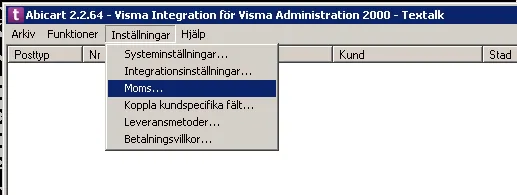
VAT settings for integration with Visma SPCS
27 Nov 2025
This manual article will guide you through setting up VAT for products with different VAT rates in our Visma SPCS integration program. Follow the steps in this article to ensure that your products with different VAT rates are registered correctly in Visma SPCS.Make the following settings in the integration program:Then make the corresponding settings for VAT in VismaSPCS. This example is from VismaSPCS 2000, but it looks similar in 1000. Do you sell to several EU countries with different VAT rates?Make these settings:Read more about US here https://www.vismaspcs.se/visma-support/visma-eaccounting/se/content/online-help/sales-oss.htm
-

Add or modify content with the css class ::before
27 Nov 2025
Add or replace a text with the pseudo-element ::beforeSometimes you may want to add a text before a price or simply replace a text. We sometimes suggest to our clients that you can use the "News" flag for something else, by slicing another text for that flag, as it can be easily switched on and off. In this example, however, we will change the text for discount to any text. This solution is applied in both the Product Listing and the Product Page.Links:https://www.w3schools.com/css/css_pseudo_elements.asphttps://www.w3schools.com/cssref/sel_lang.phpStep 1: Identify class and locationIdentify which class should have the ::before element. Ideally, it should be on the same class as the original text. Note that since our products can have several different flags, you need to be specific. Looking at the slide above, you can identify that the text is for "Special-offer", therefore it is good to include that class so you are absolutely sure that you only change the text on that specific slide.Step 2: Add a ::before elementNow that we have identified where to put our new text and know that we need to specify that it only applies to the "special-offers" flag, we add the ::before element to the last class. In order for a ::before or ::after element to exist, we need to declare a content: " "; where we write our new text. We also need to define a font-size because we will then hide the original text by setting font-size: 0;Step 3: Hiding the original textOnce we have done the previous step and have our text in place, we will see that the original text is still there. Since our new text is now in a ::before element that has its own styling, we can now adjust only the default generated text. Instead of selecting our ::before, we go back to the class we identified in Step 1 and set font-size: 0; and display:block;. Since in Step 2 we set a custom text size for our ::before element, this element does NOT take up font-size: 0 but retains its size as we set in Step 2.CSS for different languagesIf you have a page with different languages, you need to CSS in a ::before for each language. The easiest way to do this is to use :lang(en) before your classes.Example::lang(en) .tws-article-labels--special-offer .tws-article-labels--label-text::before
-

Video guide: domain names - How to set up your domain in your Abicart Webshop
27 Nov 2025
-

Good websites where you can learn html and css
27 Nov 2025
Why is it good to be able to code in html and css? Knowing the basics of HTML and CSS is a skill that is always good to have when you run a webshop. It also gives you a deeper understanding of how websites and applications work. Here you can read about how custom html/css works in AbicartSome great sites worth bookmarking for all e-tailers!w3schools HTML TutorialHTML is the standard language for web pages. With HTML you can create your own website. HTML is easy to learn - you'll have fun doing it!Read more herew3schools CSS TutorialCSS is the language we use to format an HTML document. CSS describes how HTML elements should be displayed. This tutorial will teach you CSS from basic to advanced.Read more hereCSS-Tricks guidesCSS-Tricks has a very good collection of guides that cover most of what you need to know about CSSRead more hereCodecademyHTML is the foundation of any web page. It defines the structure of a page, while CSS defines its style. HTML and CSS are the beginning of everything you need to know to make your first web page! Learn both and start creating amazing websites.Read more hereLearn CSS - web.devThis course breaks down the basics of CSS into easily digestible, easy-to-understand chunks.Learn more hereLearn to style HTML using CSS (Mozilla)Cascading Style Sheets - or CSS - is the first technique you should start learning after HTML. While HTML is used to define the structure and semantics of your content, CSS is used to design and lay it out. For example, you can use CSS to change the font, colour, size and spacing of your content, split it into multiple columns or add animations and other decorative features.Read more here
-

Enter the order status of your orders
27 Nov 2025
Mark up your orders with colour-coded order statusHow to create a new order status:1) Click on Settings in the left menu2) Click on Order Status3) Click on "Add new"4) fill in title, type (5), color (6) & text color (7).8) SaveIn the example, an order status was created to be used to tag orders with pending partial deliveries:How to mark orders with order status:1) Orders >> Orders (2) 3) Tick the box to mark the order to be given a new status4) Click on "Execute function on selected orders"5) Click on the desired status:Now the order is marked with a new order status. In the example the order got an orange status which makes it easy to keep track of orders with pending partial deliveries: When the order is completed, change the order status to "Done":
-

Set up Bonusway
27 Nov 2025
Results-based marketing via Bonusway. What is Bonusway? Bonusway is a cashback site that offers results-based marketing and generates new customers and more purchases for online stores. The Bonusway marketing channel is available for those who have a Textalk Webshop. Activate Bonusway in the shop Connect your store by adding your promotion ID (victim ID) directly to your theme. You can find your Offer ID in the Bonusway user interface. Go to Appearance -> Themes -> select your theme, edit. Then go to the Add-ons tab -> Bonusway and enter the Offer ID in the field. Note that if the shop has several active currencies, enter a "Offer ID" for each currency. Each currency has its own tab.
-

Plan and configure a multi-store system
27 Nov 2025
Plan multiple storefronts for one business with a shared core product range and controlled differences between the stores. This guide is for store owners who will use Abicart's multi-store system, also called multishop. The feature requires Abicart Pro and activation. It's a choice of store structure, not just an extra domain or a translation. 1. Decide if a multi-store system is suitableA top level collects products and shared information, among other things. One or more sub-stores display selected parts to customers. The top level does not function as a regular public sub-store.Sub-stores can have different domains, themes, and product selections.Payment and shipping methods can be shared, selected from common methods, or unique according to the system's settings.A shared structure doesn't mean all prices, texts, and settings must always be the same. Document what is shared and what applies per sub-store. The system is intended for one company. Do not use the same multi-store system for multiple separate legal entities that need their own contract and accounting flows. If the need is only for different prices or payment terms for resellers, customer groups in a regular store might be a simpler alternative. 2. Confirm scope and agreements before activationContact customer service and review which sub-stores, domains, payment agreements, integrations, and languages are needed. Confirm the current cost and renewal terms for both the top level and sub-stores in the offer or My subscription. Do not assume that every extra sub-store, integration, or service agreement is free of charge just because the top level has Pro. Activation cannot be reverted to a regular store through a standard setting. Existing standalone stores cannot simply be merged into a multi-store system. Therefore, plan the structure and any potential migration before the feature is activated. Sub-stores that should no longer be displayed can be hidden; do not assume they can be deleted or that hiding them cancels a subscription. See Abicart's current subscription information and the agreed scope for commercial terms. Older or individual agreements may differ. 3. Create and manage sub-storesWhen the feature is activated, Store system appears in the left menu. Open Store system → Stores for sub-stores and their properties.Always check which level you are working on. Common product changes should not be confused with a selection or a local setting in a sub-store. 4. Select products in each sub-storeCreate and maintain the basic product range at the top level under Catalogue → Products.Open Store system → Stores → Properties for the intended sub-store. Select Product selection and which product groups to include. Save and check the visible product range. Removing a product from a sub-store's selection is not the same as deleting the common product. Check the affected sub-stores before making common changes to product numbers, stock, or price. 5. Choose how to share payment methodsOpen Store system → Settings and check the system's mode for payment methods.Common methods: the top-level methods are used in the sub-stores.Selection of common methods: each sub-store selects which of the top-level methods to use.Separate methods per store: the methods are configured in each respective sub-store. For selection: open the sub-store's Properties.Select the Payment methods tab and select the intended methods.For separate methods: select Switch to store and configure them under Settings → Payment methods in the correct sub-store. A technically available method does not mean that the supplier agreement automatically covers all domains or sub-stores. Check the agreement connection, currency, country, and customer type before using the checkout. 6. Select delivery methodsCommon delivery methods are created at the top level under Settings → Shipping and delivery. Open Store system → Settings to choose how they are used.If each store should have a selection, select Each store has a selection of the store system's delivery methods. Then open the correct sub-store's Properties.Select the Delivery methods tab and select the methods that should be available there. 7. Check each store before openingReview the domain, active theme, language, product selection, prices, inventory, payment methods, and delivery methods for each sub-store. Check the order flow and intended integration. Shared basic information is not a guarantee that all local choices and external agreements are correct. Track sales for the correct sub-storeSelect Switch to store for the sub-store you want to track and open Orders. Define the period with the search parameters and read Summary for that selection. Check that you are not at the top level, where orders from multiple sub-stores can be included. Use the same store, period, selection, and currency basis when you compare or export results. A shared inventory balance does not show which sub-store created a sale. Quick startConfirm that a shared company and shared basic structure are suitable.Determine the top level, sub-stores, and agreements before activation.Select products, payment, and delivery methods per store.Check each domain and customer flow before the store is opened. SubscriptionThe multi-store system requires Pro and activation. The number of sub-stores, price, renewal, and integration add-ons follow the current offer and agreement. A hidden sub-store is not automatically terminated commercially.
-

Connect your webshop with Sello
27 Nov 2025
With Sello, you can sell on marketplaces such as Amazon, CDON, Tradera, Ebay, Fyndiq and Miinto. In order to create the link between Abicart and Sello, you first need an account with Sello. Once you have your account, it's time to connect your webshop to Sello. Then you will need your Store ID and an API key, both of which can be found in the Abicart admin.Here's what you do:Log in your admin.Copy your Store ID as you see on the left, at the top of the menu.The next step is to create an API key.Log in your adminGo to: "Settings" -> "External Connections".Click on: "Edit" in the box called "API Keys".Click on: "+ Add".Tick the box called: "Active".Give your key a name and a description. For example, "Sello".Click on: "+ Add".Copy your created key.Once you have both your Store ID and an API key, you can establish the connection in Sello.Here's how to do it:Log in to Sello.Go to: "Settings" -> "Web shops" and find "Abicart".Click on: "Connect Now!".Enter your ID and your API key.Now everything is ready!The link is included in the Go, Plus and Pro price plans.
-

How do I add a sitemap to Google Search Console?
27 Nov 2025
What is a sitemap? A sitemap is a web site map that contains information about everything on your site. Google and other search engines can read your page even if you don't upload a sitemap, but it doesn't hurt to give Google as much information as possible.Submitting your sitemap in Search ConsoleLog in to Google Search Console.Go to the home page and click on your website.Then go to Search Actions -> SitemapsClick the "Add/Test Sitemap" button in the top right corner.Enter sitemap.xml into the empty box and click the submit button.Ready!
-

Google: Add Analytics to your store
27 Nov 2025
Create an account with Google and add Analytics to your store theme. What is Google Analytics? Google Analytics is a free tool to see how many people visit your site, where they live, if anyone links to you and which pages in your store are most popular.Create an account in AnalyticsGo to https://analytics.google.com/ and log in (or create an account).Once you have logged in, click on "Register".Fill in all the details:Account name (e.g. company name)Property name (e.g. shop name or URL followed by GA4). Be sure to choose the right time zone and currency from the beginning. You can change the time zone at a later date but the new setting will not apply retroactively.Business detailsBusiness objectives (you can select "Get baseline reports" here if you don't know).Accept the terms and conditionsNow it's time to start collecting data. Select the Web platform and enter your store's URL and a name for your stream, leaving the default settings filled in. Click on Create stream.In this mode, do not use the script in the installation instructions. Close the box and instead copy the measurement id that was created (format e.g. G-111222AAA8).Add the ID to your themeNow we will add the measurement id you copied to the theme.Go to Appearance -> Themes -> select theme, edit -> Add-ons -> Google -> Google Analytics.Enter your ID given to you by Google in the field. Google Analytics and Save.Important information for those obtaining an SSL certificateWhen you get an SSL certificate, you need to change from http to https in Google Analytics.
-

How does a discount work where the buyer gets the cheapest product for free?
27 Nov 2025
Cheapest Product Free Discount Create a discount that makes the cheapest product in the shopping cart free once a minimum item count is reached. Discounts are included in the Abicart Plus and Pro subscriptions. Discounts work by deducting the value of one or more products at checkout, so the discount only becomes visible to the buyer at that stage. If you'd rather show a reduced price directly on the product page, use the product's extra price field instead. If you want to discount the total order value rather than specific products, a gift card is the better fit. When several discounts are active at once, the system automatically applies whichever one is best for each product. Only one discount can apply per product. Create the Discount Go to Discounts → New discount → Cheapest product free. Name Give the discount a name. It will appear in the admin panel, at checkout, and on the order confirmation. For example: "Buy 5 items and get the cheapest product free". Discount Settings Enter how many items need to be in the shopping cart for the discount to activate. In this example, that number is five. The discount activates once the item count is reached, as long as the cheapest product in the cart is part of the discount's product selection. The other items in the cart don't need to be part of that selection themselves. Scheduling If the discount should only run for a set period, add a start and end date. Each day runs from 00:00 to 23:59, so a discount valid for a single day would use 2022-01-01 00:00 as the start and 2022-01-01 23:59 as the end. Codes To require a discount code at checkout, check "Use codes". Any existing codes will be listed at the bottom of the box. Click "Add Code" to create a new one. You can type your own code into the "Code" field, or click "Generate" to have one created automatically. Usage Limit To cap how many times a code can be used, enter a number in the usage limit field. Leave it blank for unlimited use. Product Selection Choose which product or products the discount applies to. Check the box next to "All products" to apply it store-wide, or search for a specific product by name or item number. Entire product groups can be selected as well. Note: If a product belongs to multiple product groups, its primary product group must be the one checked for the product to be included in the discount selection. Customer Selection Control who has access to the discount by choosing "All customers", "All customers who are not logged in", "All logged in customers", or a specific customer group.
-

Integration with e-conomic
27 Nov 2025
E-conomic is an online accounting software that makes it possible to simplify web shop administrative tasks such as invoice management, payments, and stock status.How do I activate e-conomic in the shop?The integration with e-conomic costs SEK 400/month, and you order the connection under My subscription. You can then set up the integration under Settings -> External links -> e-conomic.Ongoing transfer between e-conomic and TextalkNew customers and orders in your webshop are transferred to e-conomic on an ongoing basis. At the same time, the online shop always has the correct price and stock status, as the information is continuously retrieved from e-conomic. You have access to your accounts and customers as long as you are connected. So you don't need to have e-conomic installed on a physical computer.
-

Connect nShift Delivery and control booking and tracking
27 Nov 2025
Connect order data to nShift Delivery and control the entire process from export to booking, label, and tracking. This guide applies to administrators with the standalone nShift Delivery/Unifaun Online integration enabled for the correct store. Abicart's integration, nShift/APIConnect, and carrier agreements are separate requirements. The Pro package's option for extended shipping administration refers to PostNord/Shipmondo alternatives and does not automatically imply an nShift agreement. Check your actual feature availability and the provider's agreement. 1. Prepare connection and dataConfirm the correct nShift product, account, and carrier service.Register the sender and the carrier's customer number. The sender's quick search value must correspond to the store's intended value.Create the correct API connection and handle the key as a secret.Enter product weights in grams; the integration converts them to kilograms. Check separate customs information where needed.Choose full order export or partial delivery on the shipping method, not both at the same time. 2. Detailed configurationAutomatic export of orders to manage and book shipments in nShift Delivery.What is nShift Delivery? nShift Delivery is a complete, secure, internet-based shipping administration system that manages all your shipments and carriers in one place. You get your labels, shipping documents, customs documents, shipping lists, reports, etc. printed. EDI is sent automatically to your carriers. For more information about nShift Delivery, visit their website here >> Note that all items must have a weight for orders to be exported to nShift Delivery. You can either enter the weight manually for each item or via import. If you need help, contact our support. Which shipping services are supported? DB Schenker DHL Express DHL Freight PostNord Sverige AB PostNord Brev Available shipping services depend on Abicart's integration and your carrier/nShift agreement. This list is an example of connections, not a promise of all current transport products or future support. How do I connect to nShift Delivery? Order the correct nShift Delivery/APIConnect service through nShift or your contract partner. Confirm carrier agreements and services for your store before activation. Activating the service Once you are connected to the service, you will receive login credentials for nShift Delivery from nShift. Set sender Log in to Unifaun Online here: https://www.unifaunonline.com/ Go to Maintenance -> Senders In the "Quick search value" field, enter your store's ID number in Abicart. You can find this in the upper left corner when you are logged into the store admin. Fill in the rest of the fields.Further down the page, you must select which carrier(s) you will use.In the "Customer number" enter your customer number with the selected carrier. If you are unsure what to enter in any of the fields, please contact nShift customer service for more information Create API keys Go to Maintenance -> API keys in the left menu. Click the "New API key" button. Fields for API keys Status - Select "Active" to activate the API key.Type: select Web Service call (REST). Note: for example, Abicart Integration. Valid IP addresses: nShift has optional IP restrictions; if you use them, the correct actual outgoing addresses must be allowed. The field is not generally required to be empty. Email: correct account/contact address. Developer ID: should refer to the integration developer making the API calls, not automatically your regular username. Follow nShift's current API key guide. Then click the "Finish" button. The following page is now displayed, and the "Combined ID" field is what should be used in the store's settings. Settings in the store Log in to your store and go to Settings -> External connections -> Unifaun Online. Under the "Account settings" heading, enter the "Combined ID" (which we created above) and also your store ID (in the "Sender's quick search value" field). Don't forget to check the "Active" box at the top. Print target - Make the print settings you want. Booking - Choose whether the booking should be stored or booked directly in Unifaun Online. Shipped - You can also choose whether the order should be marked as shipped or not in the store. Hide content - You can choose to hide the content on the package label. Activate nShift Delivery on the shipping methods Go to Settings -> Shipping and delivery -> select a shipping method, edit. Then scroll down the page a bit to "Unifaun Online Event Settings". Export order - Choose when the order should be exported to Unifaun Online. When the order is placed, when it is marked as paid, or manually (export button on the order). If "inactive" is selected, the Unifaun integration is not active for this shipping method.The "Execution" field should always be set to "Update immediately". Note that if you want to use "partial delivery", you must select "Inactive" for "Export order". You then use the "Export shipment" setting instead. Options - In this field, you select which carrier and shipping template you want to use for the selected shipping method. In our example in the image above, we have selected "PostNord Parcel SE". Export shipment - If you intend to use the "partial delivery" feature, select "Shipment is sent" under "Activation". The "Execution" field should be set to "Update immediately". If you do not want to use partial delivery, select "Inactive" for both activation and execution as shown in the image above. Options - In this field, you select which carrier and shipping template you want to use for the selected shipping method. In our example in the image above, we have selected "PostNord Parcel SE". Print favorites Unifaun Online has something called Print favorites, which can be used to configure shipping settings that are not made in Abicart Webshop. The settings can control how end customers are notified (SMS, email, letter notification), as well as other add-on services that can be used by the respective carrier. It also provides the ability to control which add-on services should be used (e.g., Climate compensation, Extended ID check, etc.). What you need to do is log in to the Unifaun admin and go to Maintenance -> Print favorites. Create a new print favorite and name it, for example, "favorite1".Then scroll down to the "Service and Add-on Services/Options" section. There are several different options for SMS, for example, "SMS notification", "SMS notification (Return option)", "Reminder via SMS", etc. Choose what you want and also check with Unifaun support about the cost and how to activate it with them. When everything is done there, go to the shipping method in your store and scroll down to "Unifaun Online Event Settings" and enter the name you gave the print favorite in Unifaun. In our example, "favorite1". You must enter the exact name with lowercase, uppercase letters, etc. Then that favorite will be used on the next order that is placed. F.A.Q. - Frequently Asked Questions How do I set it up so the buyer automatically receives the tracking number on the shipping confirmation? A: You need to make the following settings: 1 - Activate the "shipping confirmation". Under Settings -> Document and email content -> Shipping confirmation -> check the box "Send shipping confirmation by email when order is marked as shipped". 2 - Configure the export settings for Unifaun/Pacsoft. Under Settings -> External connections: "Booking" must be "Direct" 3 - Configure the shipping method Select an active trigger under "Export order" that corresponds to your workflow, or "Manual" if the export should be started from the order. "Inactive" results in no automatic order export. You must select a "Shipping service" that supports tracking numbers. Check this with Unifaun/Pacsoft if you are unsure which ones do. 4 - Set up notification for the shipping method Use the same intended export path as in step 3. For partial delivery, "Export shipment" is used instead of full order export; do not activate both paths by default. Go to the shipping method >> Scroll down to Unifaun Online Event Settings >> Options >> Select the notification Option that is specific to the shipping method you are editing. Example: How does it work in practice? When an order is placed, it is exported to Unifaun directly or manually depending on the setting you have chosen for "Export order" on the shipping method. If you have manual export, you must make sure to only export the order to Unifaun. You must not mark the order as "shipped" at this stage. When the order arrives in Unifaun, the shipment is booked and a tracking number is generated. This tracking number is then exported back to the store and added to the order. Once the order has a tracking number, you can mark the order as "shipped". The tracking number will then be sent in the email with the delivery information. Customs declarations To make logistics even smoother for you as a customer between Abicart and Unifaun, we now support the export of shipments with customs declarations. This is especially smooth and efficient for those who send packages outside the EU.The setting is activated per shipping method by checking the “customs declaration” checkbox. To make the customs declaration fully compatible, your webshop must add an HS number for each product. HS stands for Harmonized System and is an international standard for classifying products. They are used, among other things, to calculate the duties and taxes paid to customs authorities when a shipment crosses a customs border. 1) Activate HS number Products -> Settings -> In the box on the right, "Product attributes" under the "Categorization" tab, you will find "HS number". Click the pencil icon and then select "Private" (so this number is only displayed in the admin) or "Public" (if you want to show it on the product page). 2) Enter HS numbers on the products.Products -> Products -> select product, edit -> scroll down to the "Properties" block in the left column. A field for the HS number is now displayed there. 3) Activate the customs declaration on the shipping method.Settings -> Shipping -> select shipping method, edit -> scroll down to "Unifaun Online Event Settings" and under "Export order" check the box for "Customs declaration". 3. Verify export, booking, and tracking separately ResultWhat it provesOrder exportedOrder data has been transferred; this does not always mean that the shipment is booked.Shipment storedA shipment reference exists, but completion/booking may still be required.BookedThe carrier has accepted the booking according to the service's rules.LabelA shipping document exists; an old or missing label does not by itself mean that no export occurred.Tracking returnedThe correct reference/carrier is on the order. Not all services provide tracking.Shipped in AbicartInternal delivery status, which can trigger delivery emails. First, check that the correct data is present. In case of a timeout or uncertain outcome, check the already stored shipment and reference in both systems before a new export/booking attempt. The integration's stored reference can be used for continued processing, but it is not a general guarantee against duplicates after all types of interruptions. Profile keys have limitations for reading alerts and shipments, among other things. A denied read call does not necessarily mean that a booking is missing. Check the correct key type and the carrier's portal. 4. Distinguish standalone nShift from the checkout's service point selectionThe standalone nShift module does not automatically offer service locations in the checkout. Service point selection via PostNord/Shipmondo or KSA are separate flows. Keep an already saved service point ID, transport product, and delivery address when you follow up on an order. Check the HS/TARIC code and country of origin as separate customs details, along with the selected service's other requirements. A checked customs declaration box does not automatically fill in missing information. Quick startConfirm the agreement, functionality, and correct sender.Fill in the API connection, weight, and shipping template.Select an export path for the entire order or shipment.Check the booking, label, and correct tracking data before the shipped status and delivery email. Subscription and accessAn activated nShift integration and the correct nShift/APIConnect/carrier agreement are required separately. The Pro plan's included extended TA options is not a generally included nShift account. The checkout's service point selection and the booking have different prerequisites.
-

Connect Visma Administration to Abicart
27 Nov 2025
Transfer orders, customers, and product information between Abicart and Visma Administration and reduce double entry. Before you beginThis guide applies to the Windows program for Visma Administration 1000 or 2000, formerly called Visma/SPCS. It does not apply to Spiris/Visma eEkonomi; for that service, use the guide for Visma eEkonomi.The connection requires Abicart Pro with the Visma/SPCS connection enabled, Visma Administration with the correct integration license, and the Abicart Windows program. The license and compatibility for your version of Visma must be confirmed before installation or upgrade. Supplier information is available from Visma Spcs. 1. Decide what to transferOrders and their customers: Abicart to Visma. Select new orders or a limited period from a specific date.Customer registry: Visma to Abicart. The entire Abicart customer registry is not exported separately to Visma; instead, the customer is included with the transferred order.Product registry: all or selected parts can be transferred in both directions. Choose a master source for the data that otherwise risks being overwritten.Inventory balance: Visma to Abicart, manually or through the program's recurring transfer.Make backups and document the direction and selection before the first major transfer. Do not start product transfer in both directions without first deciding which registry should be the master. 2. Activate the connection and install the programCheck the add-on Visma SPCS under My subscription.Open Settings → External connections → Visma integration.Download the installation program and the corresponding installation instructions from the information box. Follow the instructions for the version you are installing.Install on the Windows computer that will run the transfers and has access to the correct Visma installation and company data. 3. Keep the store's and Visma's information separateThe information entered for the integration in Abicart must also be entered in the Windows program's connection to the store. It is not automatically the same as the username and password in Visma.If permission control is active in Visma, the program also needs to log in with an authorized Visma user for the correct company. Check the permissions there, not by changing the store's password. 4. Check paths and make a limited first transferSelect the actual path to Visma Administration and the correct company data. When changing computers or servers, paths, network access, and permissions must be checked on the new computer. Do not copy an old example address like C:\Documents and Settings\... without checking where your installation is located.Start with a limited transfer. Check the item number, VAT, price, quantity, customer, and total sum in the receiving system before expanding the selection or activating recurring inventory transfers. In case of an interruption, first check what was actually received; resending could otherwise result in duplicate orders or unwanted registry changes. Product information that can be transferredItem number is mandatory. The connection also includes name, description, EAN, item/service, VAT, price, purchase price, and primary product group. Visma has its own limitations, including for names and group levels; specifically check product names that exceed 60 characters and how your version of Visma receives them. Troubleshoot based on the error messageError code 137 – path to AdministrationCheck the actual installation/system path and that it is accessible from the computer running the integration. Also, check the correct company path. A path that worked on the old server may not work on the new one. Error code 583 – integration licenseCheck with Visma that the license for the current installation includes integration access. The fact that Visma Administration can be started is not in itself proof that the integration license is correct. Error code 676 or login error after updateCheck if permission control has been activated in Visma. Log in to the correct company with the Visma user that the integration will use and check its permissions. In older versions, users are managed under File → Users; the menu may differ between versions.The image shows an older login/permission mode. Use the corresponding setting in your installed version. Network or connection errorsCheck internet access, DNS, HTTPS on port 443, certificates, firewall, and any proxy from the computer that is actually running the integration program. The fact that the Abicart administration works in the browser is an initial test, but it does not prove that the integration program has the same access.Ask the IT manager to check the current connection's destination and error message. Do not unblock an old fixed IP address from a previous guide, and do not turn off the firewall or certificate check as a solution. When creating a support case: specify the program version, Visma version, time, transfer direction, and error code without sending any passwords. Quick startConfirm Pro, the Visma/SPCS add-on, and the correct Visma integration license.Install the Windows program according to the store's installation instructions.Check the store's connection, the Visma user, and both paths.Make a small transfer and verify the result before an automatic or larger run.Subscription: This integration requires Abicart Pro and an activated Visma/SPCS integration. Visma software and the necessary integration license are provided separately by Visma.
-

Reco - Collect and display customer reviews
27 Nov 2025
Add a script for Reco widgets in your webshop Reco.se is an independent service that collects and publishes customer reviews of online shops. A flow of credible reviews on the web shop makes potential customers feel confident about shopping and can thus increase both conversion and average orders. It also provides valuable insight into the customer experience and how it can be optimised.Abicart sends a hidden copy of the order confirmation to Reco. This activates an invitation to the customer to leave a review on their purchase experience. Based on your delivery time, Reco sets a delay so that the customer has time to pick up his products.Example of what this might look like: The widget can be published on e.g. the homepage, product pages and in the checkout.Get started with Reco.seStart by setting up an account with Reco. This is done on their website: www.recotrust.com. If you want to know more about the product, you can also ask for a demo there. The next step is to activate an extra email field in your store. Send an email to hello@abicart.se, attach your store ID and ask us to "enable the ability to send order confirmations via the BCC field".Insert Reco's email address (företagsnamn@biz.reco.se)Under Settings -> Email there is now a field for BCC. Enter the email address you have received from Reco and save. Add the Recotrust widgets and security certification scriptIt's valuable to display your reviews in different places in the webshop. Some common placements are the front page, category pages and in the checkout. Footer and/or header are great for smaller widgets or the "2019 Recommended E-Commerce Merchant" assurance certification. Iframe codes for all widgets and trust badges can be found in your admin tool at Reco.Home pageGo to Design -> Themes -> select theme, edit -> Content -> Home page -> Click on "+New block". Select the "Custom HTML" block. Click on the "source code" icon in the toolbar. Paste the iframe code you download in the admin tool on Reco into the field and click "OK". Then click "Done" and "Save". Now everything is ready. FooterGo to Appearance -> Themes -> choose theme, edit -> Content -> Footer. There are two different fields you can use to insert the script: "Own content - Footer, second place from left" or "Own content - Footer, third place from left".Click on the "source code" icon in the toolbar. Paste the script you have received from Reco into the field and click "OK". Then click "Done" and "Save". Now everything is ready. Article pageGo to Appearance -> Themes -> select theme, edit -> Content -> Article page -> scroll down to the heading "Block" -> click on "+New block". Select the "Custom HTML" block. Click on the "source code" icon in the toolbar. Paste the script you have received from Reco into the field and click "OK". Then click "Done" and "Save". Now everything is ready.
-

Integration with Redeal
27 Nov 2025
Redeal helps your customers recommend your store to their friends. Immediately after completing a purchase, a deal appears that your customers can send to their selected friends. On average, 16% of Redeal shoppers choose to recommend the store to their friends after completing their purchase.What is Redeal?Redeal, which is implemented directly on the confirmation page of the store, invites customers to recommend the store to friends and acquaintances on social networks, via SMS and email. To increase the number of recommendations, the recommendation is linked to a reward, such as a discount on the next purchase.By using Redeal, you capture your customer, and turn them into an ambassador for your store. The recommendation from your customers becomes more personal than regular advertising, which increases conversion.Integration with Redeal is included in Abicart Plus and Pro. Redeal's services must be paid for separately.How do I get started with Redeal?Create an accountGo to: https://www.redeal.io and create an account. Step 2 - turn on Redeal in the ThemeAll you need to do in the store is turn on the service in your theme. Appearance -> Themes -> choose theme, edit > Add-ons -> Redeal > On/OffCostsYou can find Redeal's costs at https://www.redeal.io/
-

Customers, customer register and customer login
27 Nov 2025
Customer registers and customer login can be used both for private individuals who want to have an account on the webshop, or if you sell B2B (Business Customers) and want to have a separate selection of the range or your own price lists for these customers.In Abicart Plus and Pro you can enable customer login. Why should I do this? Are there advantages and disadvantages? Why should I have a separate customer register when all customer details are on the order?What are the benefits of customer login?Logged-in customers can view their past orders and follow up orders via tracking numbers on "My Pages". It is also possible to link logged-in customers to different customer groups so that they have access to a different range of products, different price lists, etc.What are the disadvantages of customer login?It can be a bit cumbersome to create a new account and verify it via email. If the customer doesn't remember their login details, they have to click on "forgot password" and then create a new password via email. This can be perceived as tedious and difficult and CAN be a reason why the customer does not want to complete the purchase.When should I use customer login in the shop?If you sell to other companies (B2B), it can be good to have a login, and do not want to have the range open to everyone but want to be able to limit products and prices.If you use a checkout solution that makes it very fast for the buyer to complete the purchase, you should not use forced customer login unless it is really needed.Tips: Have a voluntary login so customers who really want to can register for an account. Customer SettingsGo to Customers -> Customer Settings Login RequirementsThis is where you set whether your customers need to log in or not. There are two different options, "No login required for full access to the store" which is selected from the start. This means that customers can log in if they want to, but it is not a requirement, it is also possible to shop as a "guest" without logging in. The second choice, "Login required to view prices and place orders" causes the entire store to be locked and the home page to display a login form. The customer must then log in to view any content at all. If you want customers to be able to log in, you also need to enable this in the theme. Go to Appearance -> Themes -> select theme, edit -> Content -> Header -> Customer Login -> select "On". Save. AffiliationThis is where you set what logged-in customers can see under "My Pages" when they are logged in. Only logged-in customersWhat should a regular visitor see when they visit the store. Should they have access to the full range or is it only logged in customers who should do so. Here are different options to restrict the range for non-logged-in customers.New customersShould new customers be able to register customer accounts themselves or do you as a store owner want to create customer accounts for your customers and email them out instead? By default, registration is closed and you can enable it here. Customer numberIf you have chosen to have an open registration, so that customers can create customer accounts themselves, you can set it up so that a customer number is generated automatically. If you do not enable this feature, no customers will receive a customer number. You can enter customer numbers manually for customers afterwards if you wish.
-

How do I activate an order?
27 Nov 2025
Debit your orders so you get your money from third parties. Under "Orders" all orders placed in the shop are listed. For most payment methods, the payment is reserved on the order first and when it is delivered to the buyer, it must be activated. For example, if an order is placed with Klarna, there is a reservation with Klarna that must be activated before the buyer's card is charged or the invoice is sent out. Only when this is done will the order be activated at Klarna and your money will be paid out. This can be done in two ways. Activate an order in the order listUnder "Orders" in the left menu in admin, all orders are listed and you can activate a reserved order in the list on the far right by clicking on the icon that is a "lightning bolt". When you click on the lightning bolt, a popup box opens with the title "Perform Action". There are normally two options, "Mark as paid (name of payment method)" and "Create new shipment and mark as sent" and a button "Perform action". Both options are ticked by default and the most common way is to just click on the "Perform wade action" button. This activates the order with the third party (in this example Klarna) and also marks it as sent. If for some reason you only want to mark the order as paid or shipped, you only tick the option you want to do and then click the "Perform wade actions" button. Activate an order inside the order pageYou can also click on the order from the order list by clicking on the order number. This will take you to the order page where you can see all the items on the order, customer information, payment and delivery information.To the right below the items is a block called "Perform Action". Here there are normally two choices, "Mark as paid (name of payment method)" and "Create new shipment and mark it as shipped" and a button "Execute all actions". Both options are ticked by default and the most common way is to just click on the "Perform wade action" button. This activates the order with the third party (in this example Klarna) and also marks it as sent. If for some reason you only want to mark the order as paid or shipped, you only tick the option you want to do and then click the "Execute wade action" button.
-

Order confirmations via Facebook Messenger
27 Nov 2025
With this feature, you can send order confirmations directly to the customer via Facebook Messenger. What are order confirmations via Facebook Messenger? This feature allows the buyer to have their order confirmation sent directly to Facebook Messenger. The normal order confirmation is sent out as usual via email. One of the advantages is that if the buyer has questions about the order, they can answer directly in the order confirmation on Messenger and then a message will be sent directly to your Facebook page. As a store owner, you can see the entire order directly with items, order number, name, etc. and then the buyer's message appears directly under the order information. This makes it easier to communicate directly with customers about specific orders.This feature is included in the Abicart Plus and Pro subscriptions at no extra cost.What is required to use Facebook Messenger?You must have a page for your store on Facebook (a regular personal account is not sufficient).The store must use one of our responsive themes. The store must have an active SSL certificate.What does the checkout look like for the buyer?In the checkout, a new block appears that looks like this:What does the order confirmation look like in Messenger for the buyer?Once the order has been placed, a message is sent with a summary of the order that looks like this:The customer can also click on the order confirmation to view a more detailed order confirmation which looks like this:Activate order confirmations for Facebook MessengerGo to Settings -> External Connections -> Facebook Messenger.Check "Active" and then click "Continue with Facebook" and log in with your usual personal account. Keep in mind that this personal account must be the administrator of your Facebook page. Once you have logged in, the list at "Page" will be updated with a list of all Facebook pages for which you are an administrator. Select your store's Facebook page and save. Now you need to "whitelist" the store's domain in Facebook so log in and go to your Facebook page. Click on "Settings" at the top of the page.Click on "Messenger Platform" on the left. Add your store's domain to the "Whitelisted Domains" boxHere's a more detailed guide in Facebook for developers.
-

How do gift cards work?
27 Nov 2025
Create a gift card product, generate a gift card code, activate gift cards. Gift cards are included in the PLUS and PRO subscriptions. How do gift cards work? You can sell gift vouchers in your shop or generate a gift voucher code that you issue yourself. When the customer uses a gift card, the amount is deducted directly from the total amount at the checkout. This means that the gift card can be used to pay for all or part of your purchase, as long as the gift card lasts. If the gift voucher does not cover the entire order total, the remainder will be paid using any available retail method at checkout. What is the difference between a discount code and a gift card?Both codes are entered in the same field. The gift card is deducted from the total amount at checkout, while a discount is deducted from the products in the shopping cart. The appearance of the gift voucher PDF sent out by email is edited in admin. If you want to give the customer a gift card with your own design, you can make a gift card in, for example, Photoshop >> paste the code >> save as PDF >> email to the buyer manually (or print and deliver physically). There are different ways to create gift cards: 1. Gift card product Create gift card products via admin and let your customers buy gift cards in your webshop. When the order with the gift card is marked as paid in admin, an automatic email is sent to the buyer or recipient. Then they receive the gift card as a PDF. *Only this option sends a gift card PDF to customers automatically. The other options below generate a code you issue yourself. 2. Create gift card yourself via admin (Gift card code) When you create a gift card via admin, you will receive a code to hand out. There is no gift card PDF sent via email, but you can of course paste the code into a self-designed gift card and give to the customer.Orders >> Gift cards >> Create gift card 3. Generate gift cards in bulk - two ways If you need to create many gift cards, you can generate gift cards. This is convenient if you, for example, sell a large number of gift cards to companies via your own invoice. You have two options, see a) and b) below.Note! No gift card PDF is sent for generated gift cards. a) Generate gift cards Contact Abicart support and ask for help to generate gift cards. Please provide the following information:- Currency- Total amount- Number of gift cards- Validity - e.g. 2026-12-31 (if no selection is made, the gift cards will be valid for 1 year) b) Generate gift cards according to file Create a file and send it to support with your request. See example file under "Attached file" at the bottom of the page. Mandatory fields in the file:- Currency- Total (amount)- Validity period (expiredate)- Sender's email (from_email) (can be store's or buyer's) *Note that the file contains information such as email address, sender, recipient, etc. This is to give you a good overview when the gift card is listed in admin. No gift card PDFs are sent to buyers/recipients. Once the codes are generated, you can clean up the file and send it to the customer. E.g. so that the file only contains currency, amount, validity time and the code itself. The customer can specify a column for recipients and fill in who gets which code if desired. Only you and your webshop administrators can see the "Original value" and "Current value" of the gift cards. See Orders >> Gift cards. *If you enter a code in column H, each code must be unique (see example file at the bottom of the page). Contact Abicart support for help generating gift cards in bulk. Activate gift cards in the store In order to use gift cards in the store, you must first add a payment method and then activate in the theme. Step 1) Add the payment method for gift cards Go to Settings -> Payment methods -> Add new payment method. In the list, select "Gift Cards" -> click on "Add" -> then click on the save button. Step 2) Activate the gift card field in the theme Go to Appearance -> Themes -> select theme, edit -> Content -> Checkout. In the "Discount Codes & Gift Cards" block, select "Enabled" and save. Now the input field will appear at checkout: Step 3) Allow gift card for active payment method in the store For most payment methods, you need to enable them to be combined with gift cards at checkout. The setting for this can be found under Settings -> Payment methods -> Click on the active payment method the store has. Check the setting for "Allow gift cards" -> Save. The payment methods that require you to make this setting are: Klarna Checkout Svea Checkout Payson Checkout Swedbank Pay Step 4) Choose the appearance of the gift card Go to Assortment -> Settings -> Gift Card Settings -> Select Gift Card Template -> Save. There are three colors to choose from: What is a gift card product? A gift card product is a product to sell gift cards. The store can create different gift card items with different amounts, e.g. $100, $500, $1000, etc. and then customers can buy the gift cards to e.g. give away to a friend or similar. A common question is whether it is possible to create a gift card product without an amount, where the idea is that the buyer sets their own amount. Unfortunately, this is not possible; gift card items can only be created with fixed amounts. Step 5) Create a gift card product Go to Assortment -> Products -> New Product -> New Gift Card You can basically do all the same settings as for a regular product, such as entering a description, linking to product groups, etc. We will only go through the most important properties here such as validity period, name and price. Validity period Enter a validity period for how long the gift card should be active. In Sweden, the most common validity period is set to 10 years, but the store owner can choose this themselves. Name of the gift card Enter a name for the gift card product, for example "Gift card 500 SEK". Pricing Enter a price for the product, for example 500 SEK. What is a gift card code? If you as a store owner want to give away a gift card, for example to a winner of a competition or perhaps as compensation, you can generate a code directly in admin that you then give to the customer. Note: No code is automatically sent to the customer when you create a gift card code in admin. You must ensure that the customer receives the code yourself, for example via email or SMS. Create a gift card code Go to Orders -> Gift card -> New gift card Gift card code The easiest way to create a code is to click on the "Generate code" button. This will create a random 13-digit number. You can also enter your own code if you wish. Note: Gift card codes must be unique. You cannot create multiple gift cards with the same code. If someone has used a gift card with the code "gift-100", for example, that code is used up. You cannot create a new gift card with the same code again. Name of the recipient Optional field where you can enter the name of the recipient of the gift card. Recipient's email address Optional field where you can enter the e-mail address of the gift card recipient. Sender's name Optional field where you can enter the name of the sender of the gift voucher. Sender's e-mail address Optional field to enter the e-mail address of the sender of the gift voucher. Original value Enter the value of the gift card, for example 500 SEK. Current value A gift voucher can be used several times until the full amount is used. This field shows how much money is left on used gift cards. In our example, we create a new gift card and then we enter the same value as we entered in "Original value", ie 500 SEK. Currency If the store has several currencies activated, a list of these currencies is displayed here. You then choose which currency the gift card should be created with. In our example, we choose SEK. Valid until ... Here you choose how long the gift card should be valid. For example, one month, one year or 10 years. In our example, we choose one year. Important info when it comes to buying gift card items If a customer has purchased a gift card product, the code will be sent out only after you have activated/debited the order. Go to Orders and click on the order. In the "Perform action" box, make sure to check the "Mark as paid" box and then click on the green "Perform selected actions" button. The order will then be marked as paid and the gift card will be activated; email with PDF will be sent to the customer. The gift card code is displayed on the gift card product at the top of the order. Example gift card PDF: https://cdn.abicart.com/shop/ws3/156403/art53/223086653-c55388-191451983-ef9438-bulk_gc_exempel.csv
-

Domains & SEO
27 Nov 2025
Connect the domain to the store and set the store URLs Under Settings -> Domains & SEO, set META titles, META descriptions and link domain and set store URLs.Title and keywordsHome page titleThe page title (TITLE tag) is important information for search engines.For example, enter the name of the shop in this field.Titles for product groupsand productsEnter here the basic design of the title for product groupsand products. The title can be customized in detail for each group or product.KeywordsMETA keywords for search engine indexing. Create a comma separated list of keywords, e.g. car, boat, airplane. Google doesn't care about keywords anymore - you may want to keep this in mind. So focus on a good description instead.DescriptionMETA description for search engine indexing. Enter a descriptive text for the store. This text is displayed in the browser when a search result is displayed for your store.DomainsTo connect one or more domains to your shop, you must first activate your shop and make it visible. You also need to make certain settings with your domain provider/web host.You can point the domain in two different ways:CNAME towards shop.abicart.seA-pointer (A-record) to IP address: 192.121.104.141.It is not possible to re-point the domain via name servers (name servers) but only via CNAME or A-pointer (A-record).Once this is done, you can add the domain to the store. Then go to Settings -> Domains & SEO and click on the "Domains" tab. Add the domains you have pointed to (with and without www).URL settingsHere you influence how the addresses of the different pages in the shop should look like. Each page's full address is created from the name of each product, product group, own page, etc. After saving the settings on this page, new addresses will be created for all pages in the shop.The old addresses will remain and redirect the visitor to the new ones for three months. If you have added your own links directly in e.g. your own page or product group, you will need to re-link according to the new settings. After you have saved the settings, the new addresses will be generated and you cannot change the settings while the generation is in progress.Domain nameSelect the domain from the list.Language prefixIf you have only one language, you should not use any language prefix at all. You leave this field empty. If you have the same domain linked to several languages, you must use language prefixes. You usually do not enter a language prefix in the base language, but in all other languages you enter a prefix. For example, /en/ for English, /dk/ for Danish, etc. SuffixIf you want a file extension for the addresses in the shop, you can enter it here, such as html, php, etc. This is purely aesthetic and has no technical significance. The most common practice is to leave this field empty. Folder structure You can control how the page addresses (URLs) look like. If you check "Include the product groupsin the URLs of the articles", the categories will appear in the links of the pages. For example: /clothes/ladies/pants/. This is good from an SEO point of view so you should have this box checked. Folder for articlesOptional field if you want an extra word in the address of product pages. If you want as short links as possible, you should leave this field empty. Folder for own pagesOptional field if you want an extra word in the address of your own pages. If you want to keep the links as short as possible, you should leave this field empty. Home pageOptional field if you want an extra word in the address of the home page. If you want the shortest possible links, you should leave this field empty.
-

Bulky products
27 Nov 2025
Tag products as bulky to direct them towards a specific delivery method. What is a bulky product? In Abicart, we have two ways of determining the shipping fee and it is either a flat fee on the whole order or a weight-based fee. However, if you are sending orders that may not weigh much but have a large volume, it can be difficult to set the correct charge via weight ranges. You can then tag a product as bulky to lock it to a specific delivery method. How does it work?Many shops that sell online and have a physical store usually create a delivery method called "Pick up in store" and set it to handle bulky products. Then customers will only be able to choose to pick up the order on site.Enable bulky on the productsGo to Products -> select a product and edit.Scroll down to the "Shipping" box in the right-hand column on the desktop. Check the box "Bulky" and don't forget to save.Enable bulky products on delivery methodsGo to Settings -> Shipping -> select delivery method, edit.In the "Settings" box on the right, there is a drop-down list at "Bulky".There are three settings:All - Both bulky and non bulky productsDisable for bulky productsEnable if cart has bulky productThe default setting is "All" and should be used if you have only one delivery method for all products.For example, if you have two delivery methods, "Standard delivery" and "Pickup at store" and want bulky products to be handled only by "Pickup at store", you should set the following:Standarddelivery: "Disable for bulky products."Pickup at store: "All - Both bulky and non-bulky products"In practice, it will work so that if you have a bulky product in the shopping cart, only "Pickup at store" will be visible in checkout. If you do not have a bulky product in the cart, both delivery methods will be visible.
-

Gift wrapping
27 Nov 2025
You can give the buyer the choice to have their order wrapped as a gift. The function appears at the checkout, where the customer can choose to have his order wrapped.How do I activate gift wrapping?Go to Appearance -> Themes -> choose your theme and edit. Then go to the Content tab -> Checkout -> Gift wrapping. Activate gift wrapping by clicking on the "On" button.Use "Generate a gift wrapping article" to create the gift wrapping article. The gift wrap works as if it is an additional product the customer orders.Once the product has been generated, click on the save button in the top right corner.The gift wrap is now displayed at the top of the product list under Products and has a base price of 10 SEK. You can change the product as usual, price, name or picture and add the customer's choice if desired. Now your customers will be able to choose gift wrapping at checkout.Some questions you as a shopkeeper should ask yourself:Do you wrap all products separately or a single package for the entire order?Should the customer be able to choose to wrap the products separately?Should the customer be able to buy the wrapping of a specific product (if there are many in the basket)?We recommend that you make this as easy as possible for the customer and therefore do not overcomplicate the purchase by letting the customer make a lot of decisions. You can use "customer choice" here. Examples of choices you can add:Number of packages1-34-6 (+20 kr)6-9 (+50 kr)10 or more (+100 kr)Describe which items you want us to wrapCover paperRestrictionsIt is not possible to automatically generate the gift wrap product in sub-stores for multi-store systems. You have to create this product manually. Please contact our customer service for more information or help with this.
-

Themes: homepage
27 Nov 2025
Here we go through all the blocks you can add to the home page in all themes Under Appearance -> Themes you will find all our themes. Under Content -> Home page you build the home page in its store. You can add and remove different blocks. Click on the button "Add blocks". Here you can see all the blocks you can add.Block: ProductsA block to display products on the home page.TitleEnter a title for the block. The title appears as a heading at the top of the block, such as "News", "Popular" or similar.ListSelect from which list the products should be retrieved. All products, product group, news, latest, special prices or select products manually.SortingIf you have selected a list above (except manual), you can choose the order in which they are displayed. The following sorts are available: price, name, product number, created, popular, unpopular and stock.Type of listChoose how the products are presented: in a grid, list or carousel.Number of productsSelect and limit the number of products to be displayed.ColumnsIf you have chosen to present the products in a grid, you can choose how many columns to display for computer, tablet and mobile phone.Block: Highlighted product groupsTitleEnter a title for the block. The title appears as a heading at the top of the block. For example, popular categories, sale items or similar.Highlighted product groupsSearch for the product groups to be displayed. Enter a keyword. Then select the product group and click on the "Add product group" button. Repeat this step to add more product groups.Block: Custom HTMLA block for adding your own content such as text, images, videos, links, scripts and HTML code.There is a toolbar at the top of the page that contains two rows of icons.The top row contains icons for choosing between header and body text, text size and adjusting the text block.The second row contains icons for bold and italic text, text color, background color, image upload, embedding videos, creating links, and an icon for editing the page in HTML mode.Block: SlideshowAutomatic image switchingIf you have multiple images in your slideshow, you can set them to switch automatically.Image switching modeIf you have activated automatic image switching, you can choose whether the images should slide in from the page or fade in.CroppingIf the images are not aligned with the set proportions, you can choose to crop the images to fit in the slideshow.ProportionsWhat proportions should the slideshow have. Choose width and height.ImagesChoose which images to display in the slideshow. The images must first be uploaded to the file archive found under Appearance -> File archive.Block: Full width productProduct blockSearch for the product to be displayed in the block.Show priceChoose whether to show the price.Show descriptionChoose whether to show the product description.Show buy buttonChoose whether to show the buy button.Show link to attachmentShow a link to the attachment if it is uploaded on the product.Block: Subscribe to newsletterIn this block there are two text forms. The top field appears above the email field where the visitor can enter their email address to subscribe to the shop's newsletter.The bottom text field can display a text after completing registration.Once a visitor has registered for the newsletter, the email address is added to the customer register.This feature is included at no extra cost in Abicart Plus and Pro.Block: Mailchimp formMailchimp is an additional service for sending out newsletters. If you use Mailchimp, you can add their forms to this block. Log in to your Mailchimp account. Go to Create -> Signup form, select "Embedded", and then select one of their forms. Then copy the code of the form and paste it into the field in this block.Block: StorefrontsA shop window can contain an image, three lines of text and a link to a product, product group, own page or an external link.There are four different shop windows: shop windows, two shop windows, three shop windows and four shop windows. For example, if you choose two shop windows, these are displayed next to each other.Block: InstagramThis is a block to display images from your Instagram account on the shop's homepage. First you need to log in to Instagram in the browser you are using. Open a new tab and log in if you are not already logged in.Then add the "Instagram" block and click on the "Get key" button.When you reach the Instagram page, click on the "Grant access" button.You will then be redirected back to the shop and click the "Done" button at the bottom right and then the save button.Block: TrustpilotThis is a block to display reviews about your store from Trustpilot. Log in to your Trustpilot account and get the embed code to show reviews. Then paste the code in the "Trustpilot code" field.Block: Event countdownA feature you can activate that shows a clock counting down to a specific date and time. For example, to the start of a sale or similar.You can read more about this function here.TimerEnter a start date and time when the countdown should start to appear and an end date and time that it should count down to.ContentThere is a field above the counter where you can add text, images, as well as scripts and HTML if you wish.DesignHere are settings for "Crop background image", "Text color" and whether the timer should be displayed or not.Block: FlowboxA block to display a Flowbox. Enter "flowbox key" in this field and save.Block: Square sliderA small square slideshow. Select image and link.Block: Unique Selling PointsA block to add unique selling points to your page to highlight aspects of your store in an effective location.
-

Product properties (attributes)
27 Nov 2025
There are two types of attributes, "global attributes" and "custom attributes". Global attributes are predefined properties while custom attributes can be named according to your needs.What are product characteristics (attributes)?Global attributes are properties used in product feeds (Google Shopping etc.), such as brand, manufacturer and country of origin. For some of the global attributes you can enter your own text while others have predefined values.Custom attributes can be for example movie categories, music genres, materials, etc. More information on this further down the page.There is no obligation to use these attributes, but it can be good from a search engine perspective to use a brand name, for example. If you choose to have the brand name public and indicate the brand on all products, this will be displayed on the product page and then also indexed by the search engines.Global attributesUnder Catalogue -> Settings -> Product attributes there are all global attributes.There are a few different settings for each attribute.VisibilityChoose how the attribute is displayed. Public, product flow only, private and inactive. All global attributes are inactive by default.Public - Displayed on the product page and in product feeds.Feed only - Displayed only in product feeds, not on the product page.Private - Only shown on the product page in admin.Inactive - Not shown anywhere.Mandatory fieldsChoose whether the field should be mandatory when creating the product.Default valueIf all products should have the same value, you can enter it here and it will be inherited by all products that do not have a specific value entered on the product page.All global attributesBrand nameWhen activating the setting, a free text field will appear on the product in the admin where you enter the name of the brand.HS numberWhen activating the setting, a free text field will appear on the product in the admin where you can enter the HS number.HS number stands for Harmonized System number, and it is an internationally standardized numerical system used to classify and code goods traded worldwide. This system was developed by the World Customs Organization (WTO) to facilitate international trade and customs clearance of goods.The HS code is made up of a six-digit code used to describe the basic classification of a good. This six-digit code can then be expanded to include additional digits to provide more detailed information about the good. The full HS code can be up to 10 digits long and is used by customs authorities around the world to determine tariffs and rules for goods being imported and exported.Suggested age groupWhen you activate the setting, a list of five predefined choices will be displayed on the product in admin where you can select one of the following age groups:Newborn (up to 3 months) - newbornInfant (between 3-12 months) - infantToddler (1-5 years) - toddlerChildren (between 5-13 years) - kidsAdult (teenager or older) - adultFor imports, use the short name after the hyphen in the list above.Suggested genderWhen activating the setting, a list of three predefined choices will be displayed on the product in admin where you can select one of the following:Female - femaleMale - maleUnisex - unisexFor imports, use the short name after the hyphen in the list above.Adult contentWhen you activate the setting, a checkbox will appear on the product in the admin to check if it is adult content.Production dateWhen you activate the setting, you will be able to select a date in a calendar on the product in the admin.ManufacturerWhen activating the setting, a free text field will appear on the product in the admin where you enter the name of the manufacturer.Country of originWhen activating the setting, you will be able to select a country in a list on the product in the admin.ConditionWhen activating the setting, a list of three predefined choices will appear on the product in the admin where you can choose one of the following:New - newUsed - usedRenovated - refurbishedFor imports, use the short name after the hyphen in the list above.Enter/select attributes on the product page in adminWhen you activate a global attribute, new settings will be shown in the "Properties" block on the product page in admin on all products.All public attributes are displayed in the shop, on the product page between the buy button and the description. Importing global attributesIt is possible to import global attributes and you need to include the item number and the global attribute. If you want to import free text fields such as brand and manufacturer, just write the name in plain text.If you want to import attributes that are predefined, such as age group, gender or condition, you must enter the English name listed behind each selection above. For example, article number in a column and the text used if you want to show that it is a used product.Example of how an import file for global attributes can look like Create your own attributesIf you have products where you want to present different attributes, you can create a template for this that you can easily select for each product. For example, if you sell DVD movies and want to list the directors and actors of the movies, product attributes are an excellent feature to use. The properties are presented in a table under the buy button on the product page. See the highlighting in the image below. This feature is included at no extra cost in Abicart Plus and Abicart Pro.Create propertiesProduct properties are created on a product template and then linked to the products.Catalogue -> Product templates -> New product template.Name of the product templateFirst we need to enter a name, for example Movies. Then click on "Add".Then click on the "properties" tab and there are two choices, "Add option" (creates a list) or "Add optional text" (creates an empty text box).Click on "Add option".Attribute name - Here you enter a name for the attribute and in our example we will sell movies and want to list the director and actor for each movie. We name the first attribute Director.Type of information - The checkbox "An object can have several of these at the same time" is a function that allows you to select several options for an attribute. But a movie usually has only one director so we do not check this box here.Search - If you want the options to be searchable, check this box. In our case, we want to be able to search for directors and actors, so we check this box.PresentationHide from customer - The option is not shown on the product page.Linked values - The option will be linked and connected to the search function. Currently only works in classic themes.Click "Add option" and then enter the names of all the directors you want to include. In this example I have created six in the image below.We now want to create actors and it may be that you want to choose several options so we make sure to check "An object can have several of these at the same time". Then we add the options we want.Then save the template and go to a product.Products -> select a product, edit.In the "Properties" block at the bottom of the left column there is a choice for "Product template". Select the template we created and then click save. This will list the different properties on the template, in this example director and actor.We set it up so that you could only select a director and then these are shown in a list. The actors are a multiple choice so you can hold down the CTRL button on your keyboard and then click and select multiple choices. We make two selections in this field and then save.If we preview the product, the properties are displayed under the buy button.Importing product propertiesIf there are many products to be updated with attributes, you can import this via a text file. You need to include the product number, product template name and the attributes to be imported.Example of what an import file can look like.Then import the file in the regular product import under Products -> Import.In step two, where you select columns, there is a block with all the product templates' properties.Then click on "Start import" and wait for it to finish. If there are many products with many properties, it can take quite a long time, so just sit back and wait.Select multiple attributes via importTo select several attributes via import, you must first create the attributes on the product template and make sure to check "An object can have several of these at the same time" under "Type of information".To then select several of these attributes via import, enter the name of the attributes in the same cell, separated by commas. The result is then the following after import.
-

VAT: How does VAT work in the shop?
27 Nov 2025
Set the right VAT settings in the shopBrief summary of how VAT works for sales in Sweden:Individuals within the EU must pay Swedish VAT.Individuals and business customers outside the EU must not pay Swedish VAT.Business customers within Sweden must pay Swedish VAT..Corporate customers within the EU who provide a VAT number shall not pay Swedish VAT.Corporate customers within the EU who do NOT provide a VAT number shallpay Swedish VAT.General VAT informationUnder Settings -> VAT you need to make some basic settings for VAT to be handled correctly. The most important is to select the store's VAT country. If you have a shop in Sweden, you simply select Sweden as the VAT country. You then set a default VAT rate for the shop's items which is usually 25% (but can also be 0%, 6% and 12% depending on the type of items you sell). You also have to enter VAT for shipping, postage, invoice and advance payment. Note that you can enter a specific VAT rate for each product as well as for the shipping rates.Price management (in administration)You can choose whether to enter the prices in the administration including VAT or excluding VAT. If you have any integration with an external system, such as a business system or cash register system, you should choose to enter prices excluding VAT, as some systems require this.Presentation of prices (in the shop)Regardless of how you have chosen to enter the prices of the articles, you can choose to present the prices in the shop in a different way. You might get the prices excl. VAT from your supplier but want to show the prices to your visitors incl. VAT and then there is no problem but you can choose how to present the prices here, incl. VAT or excl. VAT.Note that the presentation setting does not control whether a customer should pay incl. or excl. VAT at the checkout. It is the country of delivery as well as the customer type that controls whether the order is paid with or without VAT. See the first paragraph at the top of this page for more information. Activate VAT for other countries - here's what to doFrom 1 July 2021, new VAT rules will apply to you if you sell goods or services to EU countries other than Sweden. Our platform has always supported VAT by country, but to double-check that everything is in order, do this:Go to Settings > VAT > General. Here you set your prices to be entered excluding/inclusive VAT.In the section on VAT by country of delivery, activate the countries where you want to sell your goods or services, and enter the VAT rate for each country. These settings become global settings and are then automatically applied to all your products in your webshop.If you need to make specific changes, you can do so at product level afterwards.Read more about the new VAT rules at the Swedish Tax Agency. VAT by country works with both "handling of prices" incl. and excl. VAT.