


Tip: Recalculate currencies in Google Sheets with the GOOGLEFINANCE function

Convert amounts in a working copy of your import file using an exchange rate from Google Sheets. Always distinguish the rate per currency unit from the converted amount.
This guide covers work in Google Sheets before a possible product import into Abicart. It does not change the store’s currency settings, payments or prices automatically. You need a spreadsheet and a clear record of the source currency, destination currency and whether amounts include VAT. Check Google’s current terms and data licence for the intended use, particularly in professional work.
1. Keep the original file
Make a copy. Keep product numbers and original amounts in separate columns. Decide which price list and currency the file will be used for. Currency conversion is not the same as adding or removing VAT.
2. Retrieve the rate and multiply the amount
Example: A2 contains the amount in USD. Enter the following formula in B1 to retrieve SEK per USD:
=GOOGLEFINANCE("CURRENCY:USDSEK")Then enter the following in C2. The dollar signs keep the rate cell fixed when you copy the formula down:
=A2*$B$1If A2 is 100 and the retrieved rate is 10,25 (using a decimal comma), the result is 1 025 SEK. This is a calculation example, not a current or agreed exchange rate. USDSEK and SEKUSD have opposite directions. Always check the rate direction.
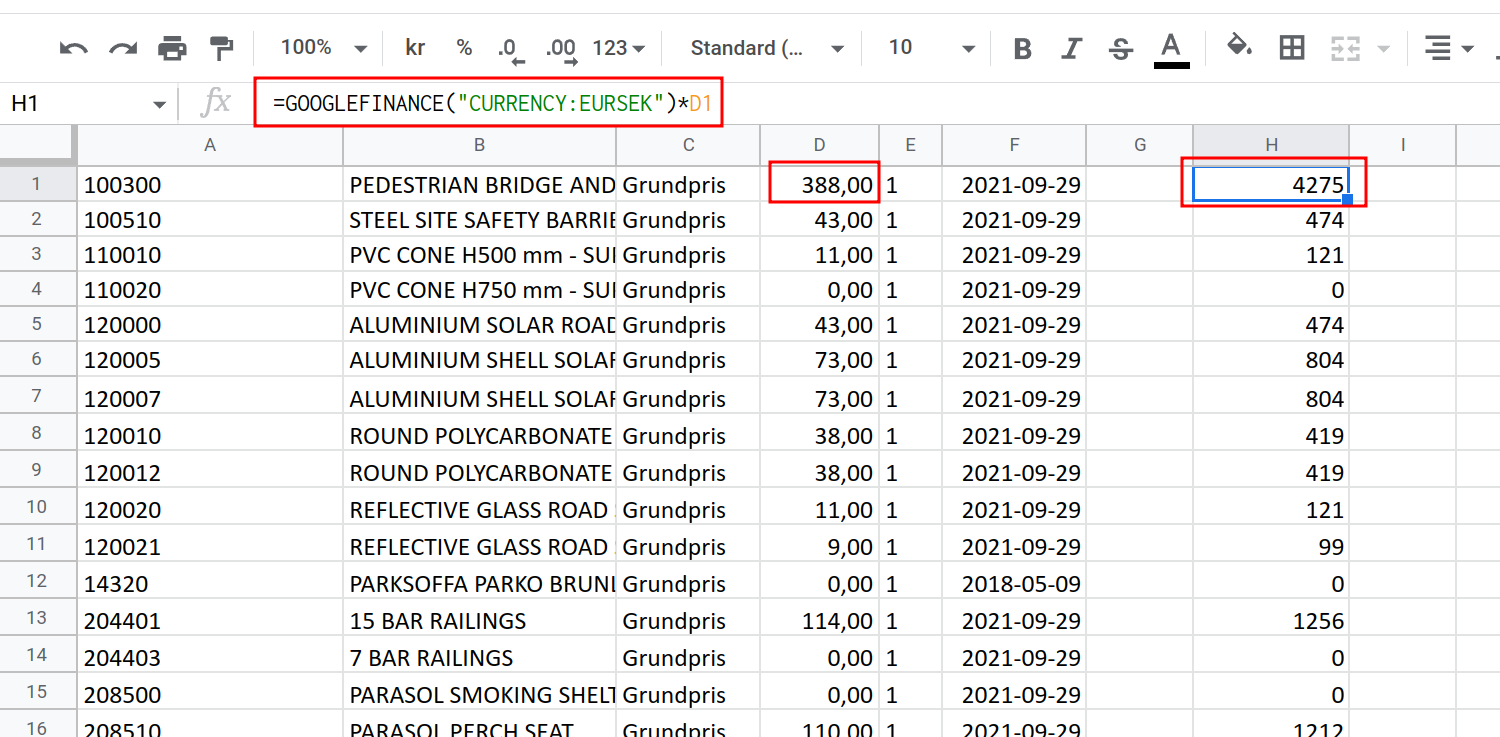
If currency codes are in separate cells, concatenate the text with &, rather than +. In a separate example, if A5 contains USD and B5 contains SEK, use:
=GOOGLEFINANCE("CURRENCY:"&A5&B5)This second example returns only the rate. The amount still needs to be multiplied by that rate in a separate cell. The function name GOOGLEFINANCE is written in English. The spreadsheet locale affects settings such as decimal separators.
3. Check and freeze the import values
Manually check a small sample and decide on rounding. Stop if the rate is unavailable or a cell shows an error; do not replace the error with zero. The data may be delayed and does not guarantee a bank’s or payment provider’s actual rate.
Copy the finished results and paste them as values into the export copy. Check currency, VAT, product numbers, decimal separators and column mapping before a small trial import. Then check the prices in Abicart before importing the entire file. Saving a CSV file does not itself update the store.
Read Google’s GOOGLEFINANCE instructions.
Quick start
- Save a working copy and decide the currency direction.
- Retrieve the rate and multiply the original amount.
- Check, round and paste the results as values.
- Verify a small import before processing the remainder.