


5 min read
Set up and check your store's cookie consent

Give visitors understandable choices and check how your store's features and tracking behave before and after their choice.
This guide applies to store administrators on Go, Plus, and Pro plans and Diversity themes with built-in cookie management. The theme version, custom scripts, and any external consent platform will affect the result. Identify the active theme before following the menu paths; older TPL and custom themes may have a different solution.
1. Distinguish necessary storage from optional tracking
Cookies and similar storage are used for things like session, shopping cart, language, and consent choice. Necessary functions must be distinguished from, for example, statistics and marketing. A visitor must be able to refuse optional use and later change their choice. Continuing to browse or closing the banner is not consent.
Denying optional cookies does not mean that all network calls, all personal data, or all storage will cease. The store's basic functions need to communicate with the services. Google Consent Mode can also send limited signals without regular statistics or advertising cookies, depending on the setup. Therefore, do not describe a refusal as a guarantee that no information is sent.
2. Set up the correct theme's consent banner
- Go to Appearance → Themes and check the active theme and version for the correct store.
- Open Edit → Add-ons → Cookie. Review the general and advanced settings, as well as any Require/Request consent setting.
- Refusing optional cookies must be as easy as accepting them: show the choices at the same time in the same view and give the buttons similar treatment. Withdrawing consent must also be as easy as giving it. Make it clear what each choice means and how it can be changed later.
- Adapt the text to the services actually used and to the store's information about cookies. Specify the purpose, storage duration, and relevant third parties. Check all active languages.
The setting to request an active choice should not be used to force approval of marketing. Do not hide the deny button or the option to withdraw consent using your own HTML or CSS.
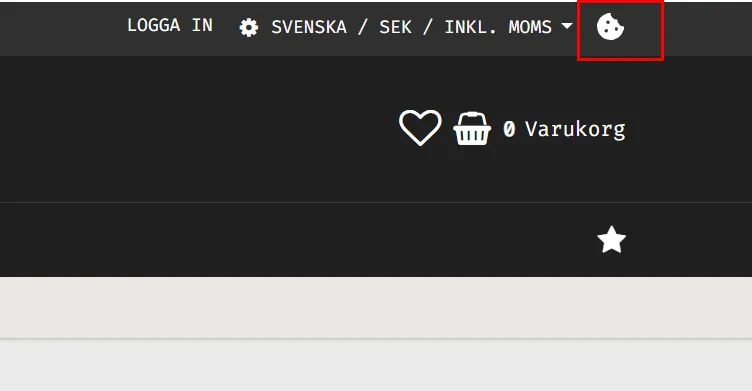
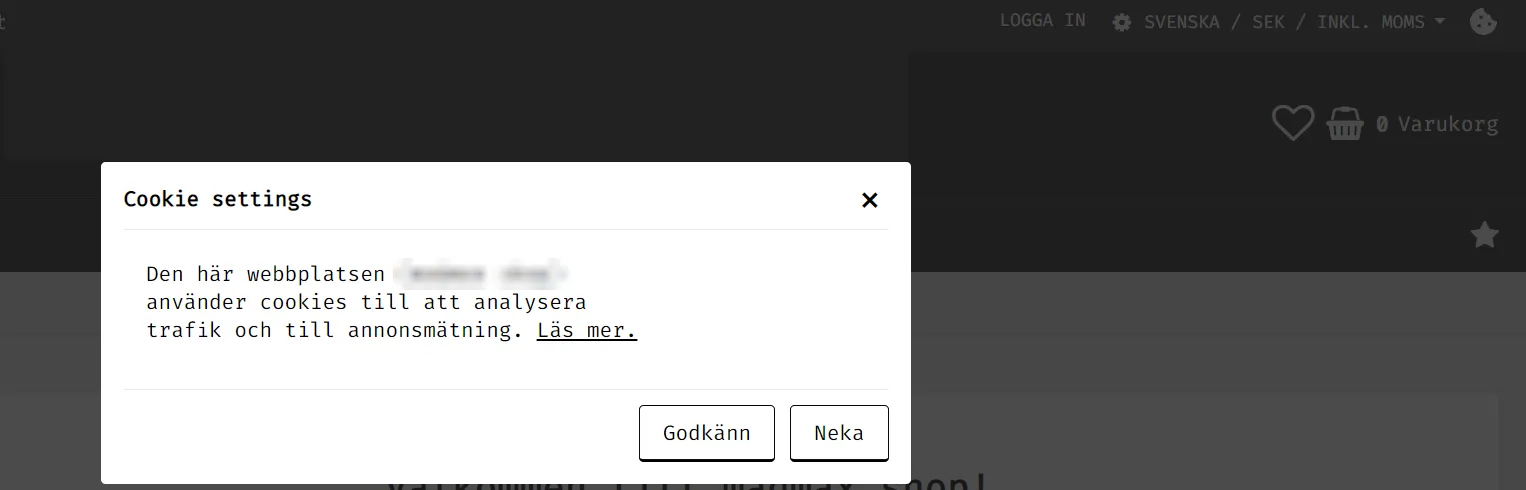
The images show the built-in solution in a specific theme version. The icon's placement and appearance may vary. Check that the visitor can reopen the settings from all relevant pages, including on mobile.
3. Check Google, Meta, and custom scripts separately
The theme's Google flow sends default consent values before the Google tags and updates them after the visitor's choice. Statistics, marketing, and user data for ads have separate consent signals. Google Consent Mode version 2 needs to be set up with the correct tags.
Consent mode is not a general guarantee that all tracking is disabled or that a setup complies with all legal requirements. Check which calls and data are actually sent, even when consent is denied. Enhanced conversions should not receive user data when the required consent is missing.
Meta Pixel and Conversions API are also separate delivery channels. Check both if they are used. Do not assume that approved cookie handling in the browser automatically controls a separate server script.
Custom HTML/JavaScript tags, chat tools, external embeds, and other add-ons must have their own correct connection to the consent. The theme's banner does not automatically stop everything added outside of its built-in features.
4. If you use an external consent platform
Choose a cohesive solution that controls the actual tags and signals. Two independent banners can result in conflicting choices. Do not turn off the built-in management just to hide an extra banner: when the theme's cookie policy is turned off, its features may treat storage as permitted. First, check that the external solution actually controls both the tags and the relevant theme features.
5. Test four visitor modes
- New visitor with no choice made: check which optional cookies, storage values, and tracking calls occur before any choice is made.
- Denied: check that denied purposes are respected and that the shopping cart, language, and checkout still work.
- Accepted: check that only the intended tracking starts, without duplicate tags or purchases.
- Changed or revoked: open the settings again and check both signals and features after the change.
Perform the checks in a clean visitor mode so that a previously saved choice does not hide the problem. Check on mobile, for multiple languages, and the correct sub-store when applicable. Favorites, comparisons, and recently viewed products may be limited if their optional storage is denied; check the behavior in the specific active theme version.
Examples of built-in storage
Not all values below are cookies: some are in localStorage or sessionStorage. Custom add-ons may introduce more values.
SERVERID: server distribution.theme_id: theme selection, including during preview.diversity_twssessid_{Webshop UID}andtwssessid_{Webshop UID}: session, shopping cart, and login.diversity_webshop_language: language selection.twsApi.Locale.currency: currency selection in localStorage.twsCore.showPricesIncludingVat: VAT display in browser storage.twsCore.pendingShipmentCountry: delivery country in sessionStorage, which can affect VAT and price display.cookie_accepted: the visitor's saved consent choice.
Quick start
- Identify the active theme and all tracking/third-party solutions.
- Configure understandable yes/no choices and the option to change them.
- Connect tags and any external platform to the same choice.
- Test with no choice, denied, accepted, and revoked on desktop and mobile.
Subscription and responsibility
Cookie settings are available in supported Diversity themes for Go, Plus, and Pro. The theme, external services, and custom scripts determine how the finished store works. The store owner is responsible for ensuring that the information and actual usage correspond; an activated banner is not in itself a verification of the entire setup.