


4 min read
Connect your own SMTP server for your store's email

Send your store's emails through your own email provider with the correct authentication, encryption, and allowed sender.
This guide is for administrators in Go, Plus, and Pro who have access to Settings → Email and an SMTP account or a provider-approved IP relay. The store's theme does not affect the connection. Abicart's built-in email server is the default; using your own SMTP is an option.
1. Check that the provider supports the connection
Abicart's connection can use a username/password (SMTP LOGIN) or the explicit choice None – the server accepts our IP. Encryption is a separate choice. This connection does not offer a built-in OAuth/XOAUTH2 login flow.
- Username/password: both need to be correct and allowed for SMTP by the provider. A preset is no guarantee of the account's policy.
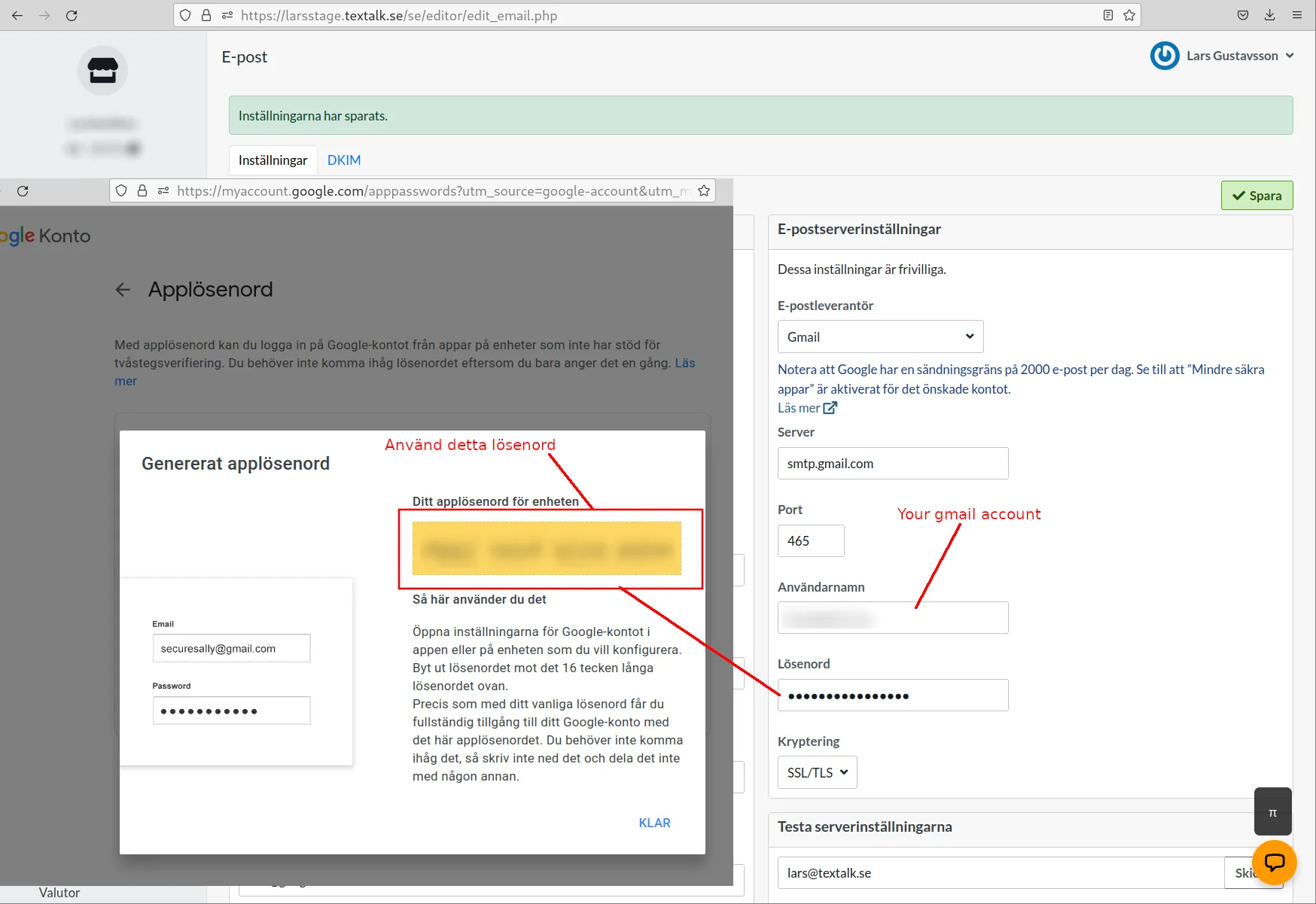
- Gmail: use an app password if the account supports it, not the regular account password. Two-step verification must be enabled and the account's policy must allow app passwords.
- Microsoft 365/Outlook: check that SMTP AUTH and password-based SMTP are actually allowed for the tenant and mailbox. An old preset or a general deprecation date does not prove access. If the provider requires OAuth, you cannot replace this with a regular password in Abicart.
- None/IP relay: only use when the provider has explicitly approved Abicart's sending servers for relaying. Do not open a public relay or turn off encryption to solve an authentication error.
2. Fill in the server settings
- Open Settings → Email.
- Under Email server settings → Email provider, select a suitable preset or Custom SMTP settings.
- Check all values against the provider's current instructions, including pre-filled values.
| Field | What to enter |
|---|---|
| Host | The provider's SMTP host, not the store's web domain unless it is also the correct mail server. |
| Port and encryption | The combination specified by the provider, for example 465 with SSL/TLS or 587 with STARTTLS. The port and encryption must match. |
| Authentication | Username/password or an explicitly approved None/IP relay. None hides the account fields but does not control encryption. |
| Username | The provider's account name, often the full email address. |
| Password | SMTP/app password according to the account's policy. Do not share it in support messages or screenshots. |
| Sender | An address that the account or relay is allowed to send as. Also check order confirmations and other specific sender fields. |
Example: Google's SMTP host is smtp.gmail.com. Select the port/encryption according to Google's current SMTP instructions and use an app password when required. Do not use a regular Gmail password as a general solution.
Create a Google app password if the account allows it
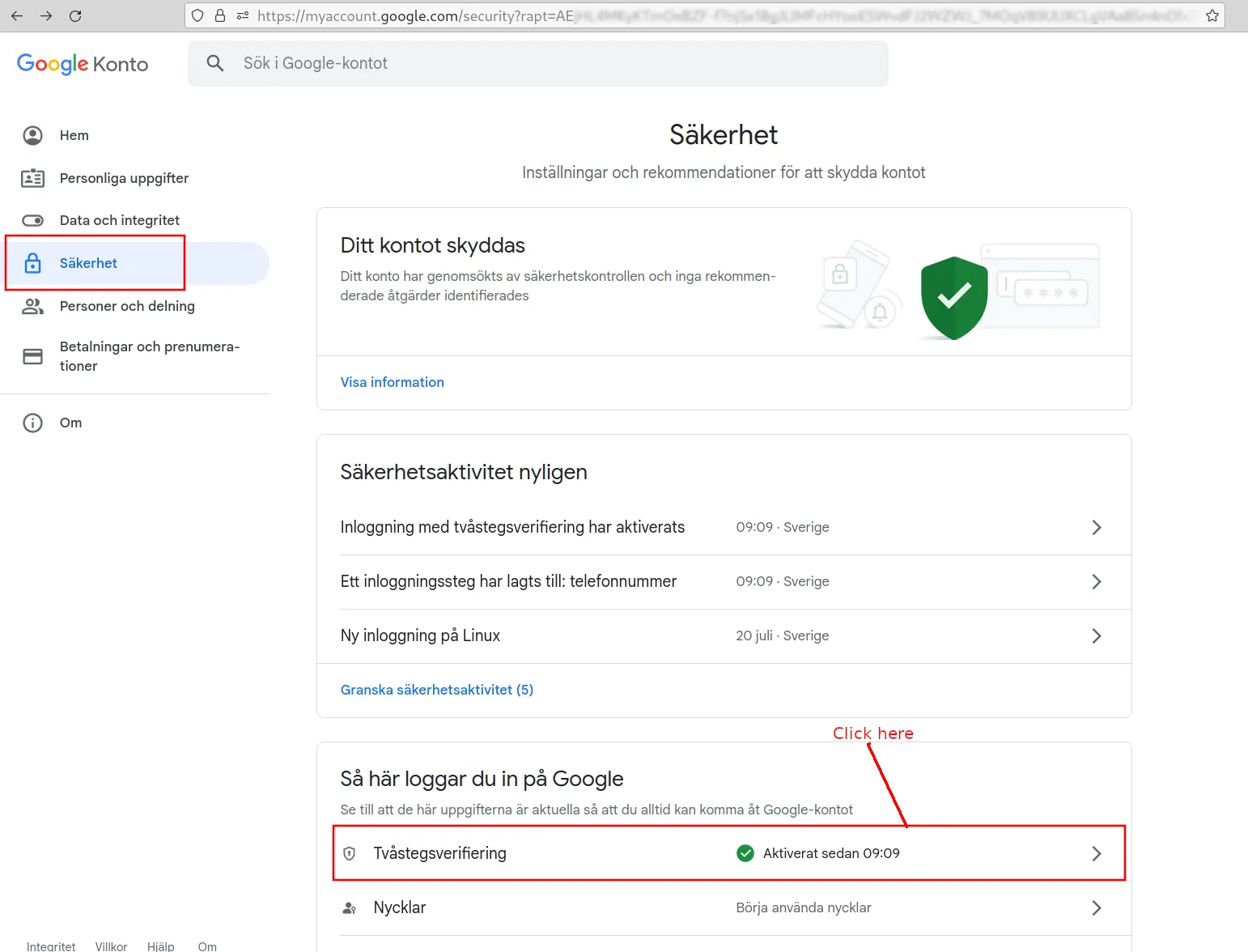
- Open your Google Account's security settings and check two-step verification.
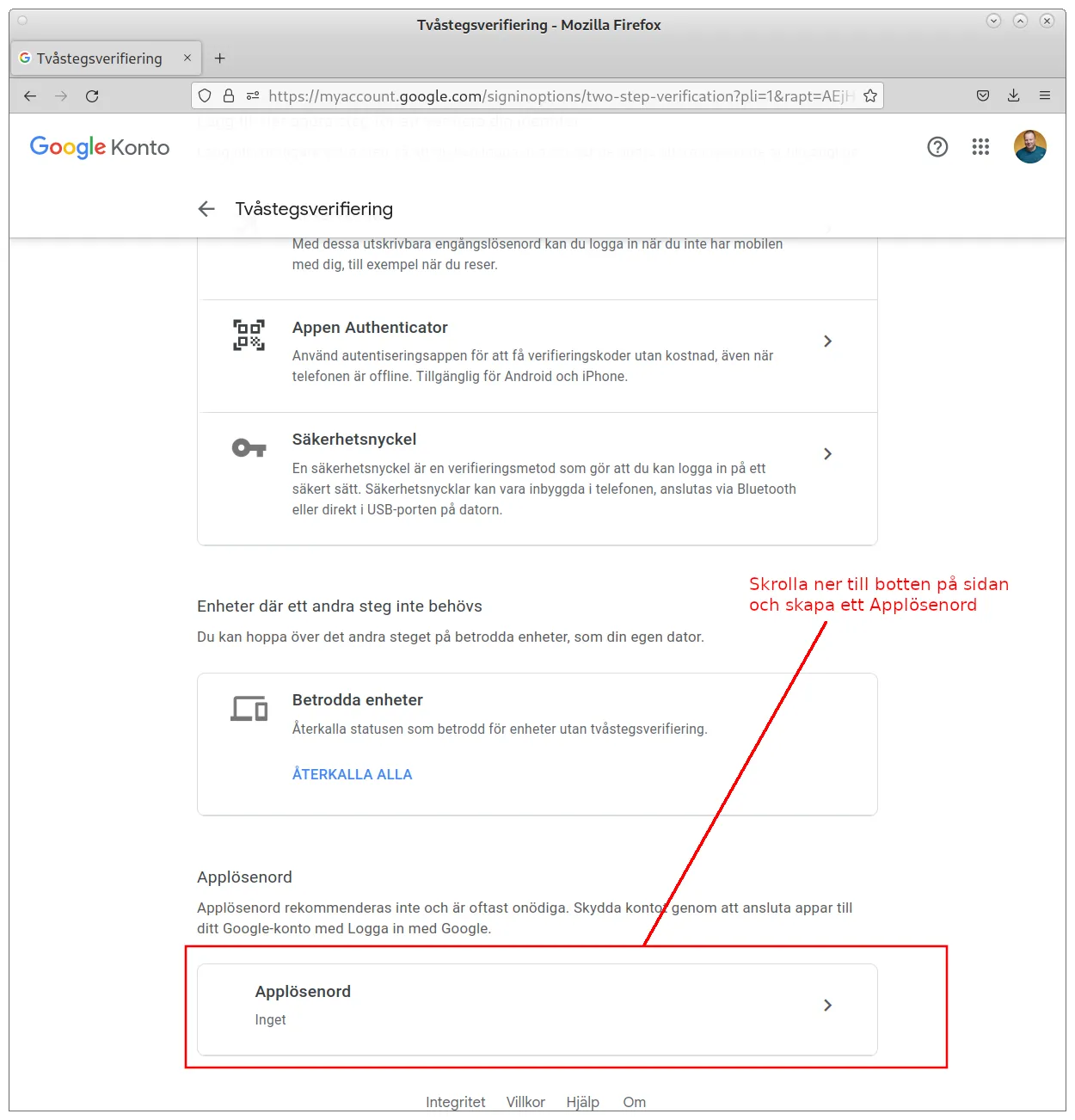
- Open Google's current instructions for app passwords. If the option is missing, the account's organization or security settings may be preventing the feature; do not lower security to make it appear.
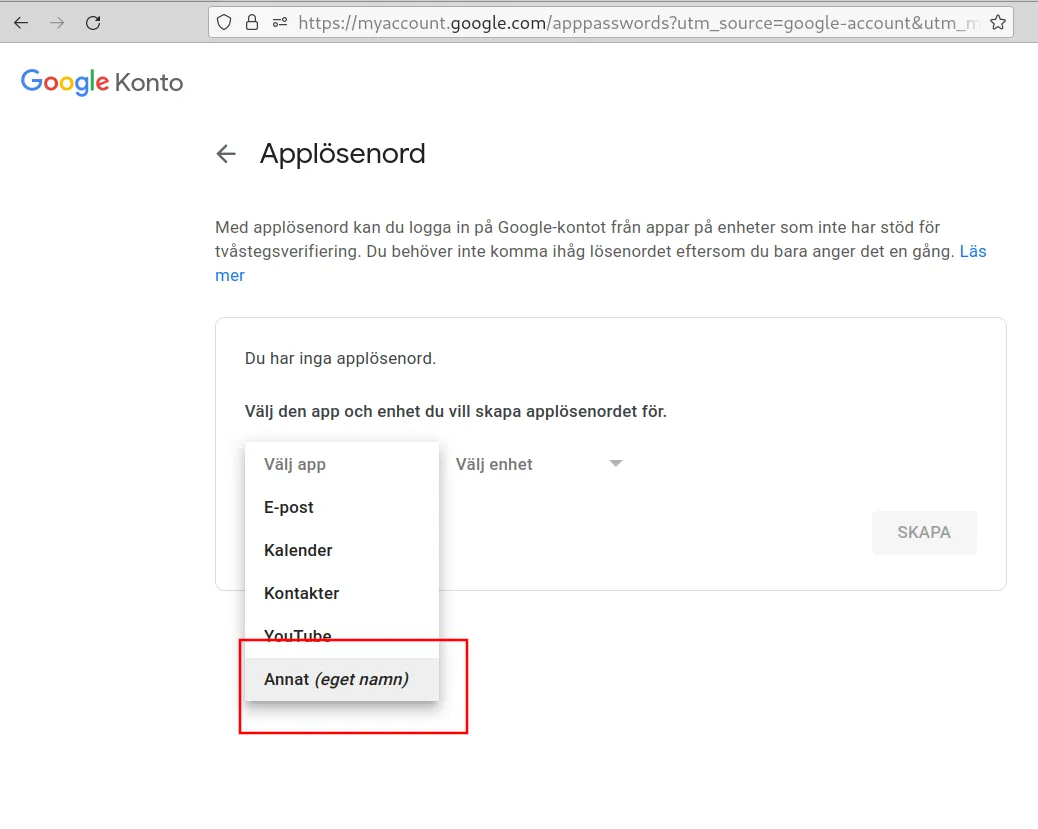
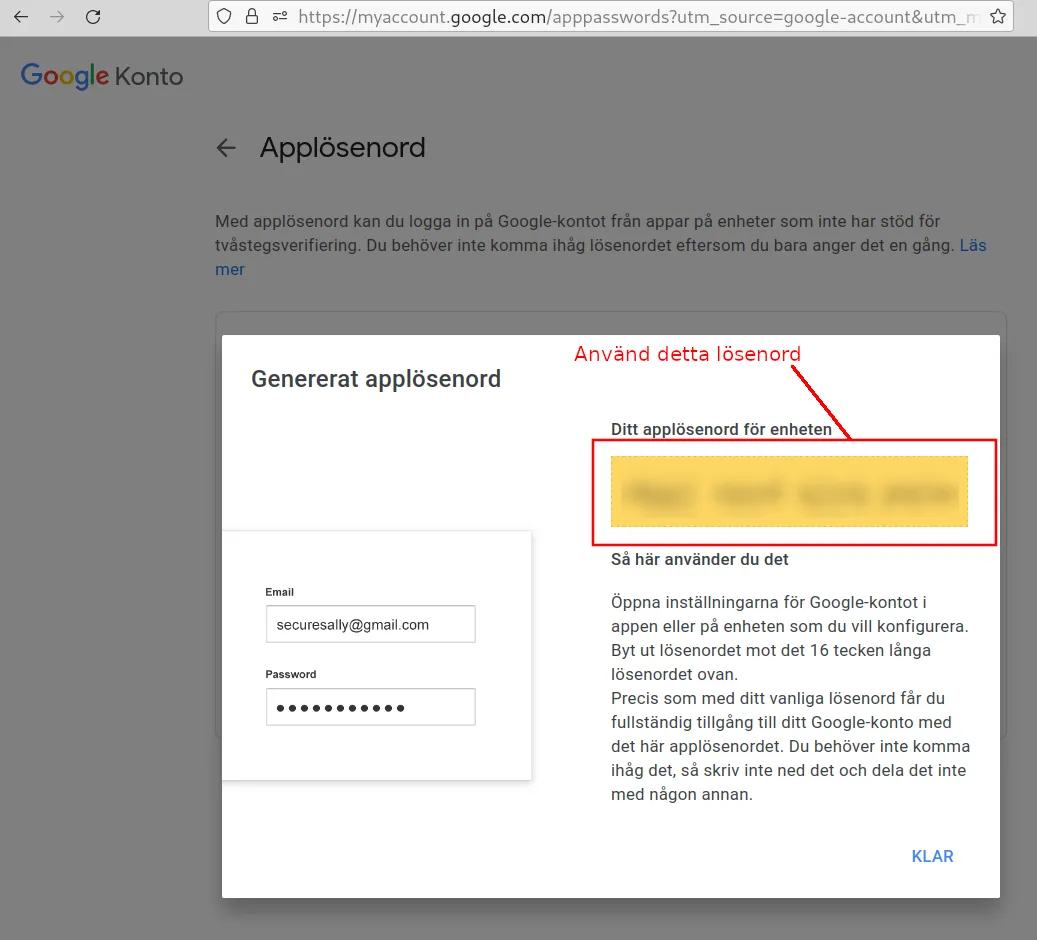
- Create an app password with a name that identifies Abicart. Google will show a 16-character password; it is not a numeric one-time code.
- Enter it in Abicart's password field and save the settings. Keep it secret and revoke it in Google when the connection is no longer needed.
The existing screenshots show examples of Google's security flow. Names and placement may change; follow the current Google instructions and your account's policy.
3. Save and check the email
- Save the changes.
- Under Test server settings, enter a recipient you are allowed to send to and select Send. This sends an actual test email.
- Check the reception, sender, and any rejection information. A successful SMTP test is not proof for every order email or all recipients' spam filters.
- If SMTP is no longer to be used, select Abicart's email server and check the sender domain's SPF/DKIM/DMARC for the new sending path.
Troubleshoot connection and delivery
- Authentication failed: check the account name, correct SMTP/app password, SMTP AUTH policy, and that the account is allowed to send as the selected address. Both username and password are required for LOGIN.
- 534-5.7.9 or app password required: follow the Google section and check that the account actually allows the feature.
- Connection error/timeout: check the host, port, TLS/STARTTLS, and the provider's availability. Do not switch to unencrypted as a default action.
- Test arrives but order emails are missing: check the correct order and recipient, the specific sender fields, spam folder, and the provider's rejections. A successful test does not resend old order emails.
- SPF/DKIM/DMARC error: follow the actual SMTP provider's instructions for the domain. Adding Abicart's SPF does not automatically resolve another provider's authentication.
Quick start
- Confirm that the provider allows Abicart's authentication method and sender.
- Select the SMTP provider and check the host, port, encryption, and account details.
- Save and send a successful test email to your own recipient.
- Check actual reception and correct any connection or domain errors.
Subscription and access
The email server settings apply to Go, Plus, and Pro. The email provider's account, agreement, and security policy determine which login methods and senders you can use. No specific theme is required.