


Other articles by Emil
-
Store - Attributes
31 Jul 2026
Store The Store attributes let you tie a product to a specific physical store location. This is useful for retailers with multiple locations who want to indicate where an item is available. All fields are optional and can be shown to customers on the product page. Available attributes: Store Address: the physical address of the store location Store Code: a unique code identifying the store location About Store Code Use Store Code to tag a product with a short identifier for the physical store it belongs to. Keep the code consistent across your products, since this is what ties a product to a specific location. Using Google local inventory ads or vehicle ads? Google Merchant Center has its own store code requirement, and your code here needs to match the one registered in your Google Business Profile. Read Google's Store code guidelines for the full format requirements. Setting up Store attributes 1. Enable the attributes Go to Assortment → Products → Product Settings. In the panel on the right, locate the Product Attributes section. Scroll down until you find the Store heading. For each attribute you wish to use, click the edit icon and select your preferred visibility option, then click Save. 2. Add store details to a product Go to Assortment → Products and open the product you wish to edit. Scroll to the bottom-right of the product page. You will find the Store fields, where you can enter the store address and store code. If you have any questions, please contact customer support.
-
Product feed: Prisjakt
28 Apr 2026
Product feed for Prisjakt. A product feed contains important data about your products. Among other things, product names, manufacturers, prices and product codes (GTIN/MPN). The product feed can be found under Settings -> External connections -> Product feeds.Note that this is our new feed for Prisjakt. You should use this instead of the previous price files found under Settings -> External links -> Price comparison system. What properties must be filled in on the product? For a product to be included in the feed, the following properties must be entered: article number product name description and/or introductory text product group price Brand name* or GTIN Google Taxanomi * activate brand name under Assortment -> Settings -> Product attributes Google Taxonomy You can choose taxonomy on the product group or on the product. If you choose on the product group, all products in the group will inherit the selected taxonomy. Enter Google Taxonomy on a product Go to Products -> select a product, edit -> in the box "Categorization" on the right there is Google Taxonomy. Enter Google Taxonomy on a product group Go to Products -> Product groups -> select a product group, edit -> under General there is Google Taxonomy.Enter for example "clothes" in the search bar and choose the category that fits best. You can also set a category on an entire product group/subgroup and choose that the products in that group will inherit the category (then you do not have to go into each individual product): You can't create your own categories, everything is retrieved from Google. You must therefore choose one of the existing ones. Generate URL to the product feed Go to Settings -> External links -> Product feeds. In the "Prisjakt Feed" box, select language, currency and country. Then copy the "Generated URL" and add it to Prisjakt's administration. The feed will then contain all products in the store that have the required properties (see above).
-
Changing the VAT rate in the shop
25 Mar 2026
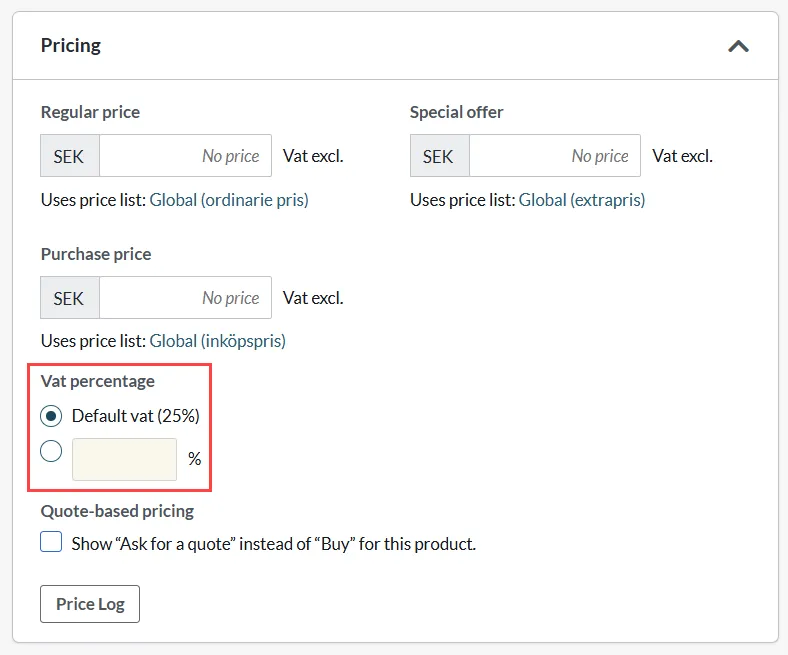
This manual describes how to change the VAT rate for your shop's products and is a general guide to VAT changes. The review of VAT rates is particularly relevant in the run-up to April 1, 2026, when VAT on food products will be reduced from 12% to 6%.Also read: How does VAT work in the shop?Under Settings -> VAT you will find the setting for thedefault VAT value for the store's products. The VAT rate specified there is used for all items with the VAT setting "Default VAT". All products have default VAT selected automatically when they are created. The setting can be found on the product page in admin under Pricing -> VAT percentage. If the product has a different VAT rate, enter the correct VAT rate per product: There are three ways to edit the VAT rate for your products: - Change the standard VAT rate- Change the VAT rate per product manually- Change VAT rate per product via import 1) Standard VAT Settings -> VAT rates -> Set the Default VAT value for the items in your store -> Save *Note that the product must have "default VAT" enabled to get the VAT rate you set as default VAT. If you previously had 12% as standard VAT and also 12% as your own VAT rate per product, you also need to change the own VAT rate when you change the standard VAT. You can do this according to point 2 or 3. 2) ChangeVAT rate per product manually To change the VAT rate per product, go to the product page in admin: Assortment -> Products -> Click on the product you want to edit -> Pricing -> VAT percentage -> Enter VAT rate -> Save *Repeat for all products concerned 3) Change VAT rate per product via import To change the VAT rate for multiple products with their own VAT rate, export the assortment -> Change to the correct VAT rate in the file -> Import - Done! Note! Note that all products need to have a unique article number to be imported. If products do not have an item number, you need to enter it first. Please contact customer service if you need help generating random item numbers. Step 1) Export the following:- Item No.- VAT percentage Read more about exporting here - Product export Step 2) Change to the desired VAT rate in the file Sort the file according to the VAT rate column and change e.g. all 12% to 6%. If you changed the default VAT rate from 12% to 6%, change the products that still have 12% in the file, to 6%. Then you have changed the products that have their own VAT rate. Step 3) Import the file Read more about importing here - Product import Note: If your prices are entered including VAT, the final price is not affected by a change in VAT rate. If, on the other hand, your prices are quoted excluding VAT, the final price will change, as VAT will be added at checkout.
-
November 2024 - Software updates
17 Feb 2026
We've fixed a number of things, added new features and improved performance to make your experience even better. Here are some of the highlights: Optimizations for nShift/Unifaun and Shipmondo. Improved views for customer groups and product lists. Upgrade of the batch function to easily enter extra prices based on the base price and remove extra prices. Read more about this here >>
-
January 2024 - Software Updates
17 Feb 2026
We've fixed a number of things, added new features and improved performance to make your experience even better. Here are some of the highlights: Sitemap: Better performance Shipmondo: Use custom weight and dimensions Customer fields: Adding support for Company name and phone for other delivery address Apple Pay: Add domain verification support Delivery emails: Option to resend email after manually changed shipping info
-
Translation tool, SwedbankPay, Indexing Improvement
17 Feb 2026
Translation tool fix for tinyMCESwedbankPay improvementImprovement of index queue for new articlesAbicart, a leading e-commerce platform, has implemented a new technology that greatly improves the speed of indexing new articles on the platform. This innovative solution allows for faster indexing of new products, which results in a more seamless and efficient shopping experience for customers.Furthermore, Abicart has also splitted indexing process for new articles and updating of existing articles. This allows the platform to efficiently handle the adding of new products while maintaining the accurate and updated information of existing ones. This ensures that the customers always have access to the most recent products and information.In addition, this new technology also allows for more accurate and relevant search results. By indexing new articles quickly, the platform is able to provide customers with more up-to-date and accurate information about products, which improves the chances of them finding the products they are looking for.Overall, Abicart's new technology for faster indexing of new articles is a major advantage for the platform, as it greatly improves the customer experience and allows for more accurate and relevant search results.
-
Postnord, articles, Optimize query, Metrics
17 Feb 2026
- Added postnord application ID on request- Fix article sold numbers- Optimize query by using where on webshop- Generate Metrics- Update amqplib
-
Integration to Lipscore
12 Feb 2026
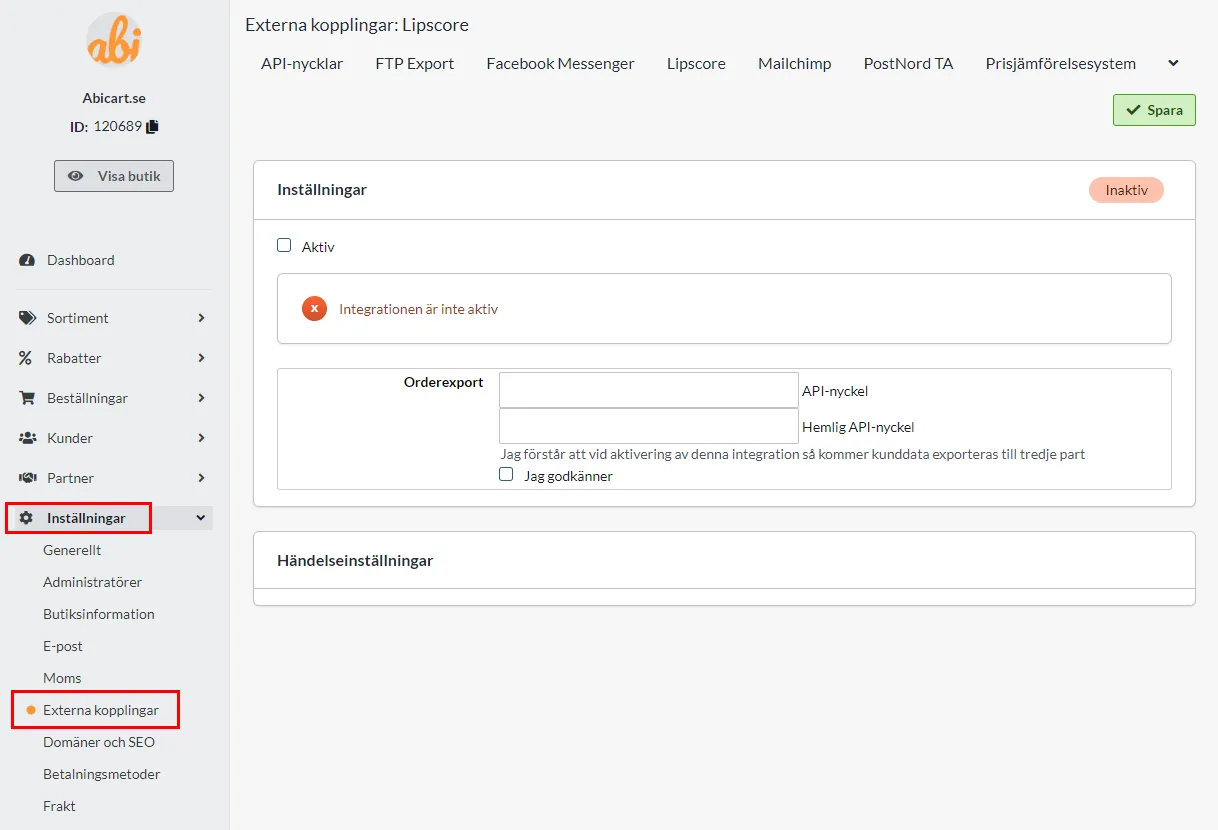
What is Lipscore? Lipscore is a platform for collecting and using ratings and reviews. How to get started Get an account with Lipscore by filling out the following form >>. Activate Lipscore in Abicart Once you have your account and login details for Lipscore, it is time to activate the integration. Go to Settings -> External connections -> Lipscore in Abicart. You need to enter an "API key" and "Secret API key". This can be found in Lipscore-admin. Log in to Lipscore and then go to Settings -> General Settings -> APIsettings. Here you will find the information for "API key" and "Secret API key" that you should copy and paste into Abicart. Enter "API key" in the "API key" field and "Secret API key" in the "Secret API key" field. Check the Active box and save. New settings will then appear under the heading "Event settings". Under "Activation" select "When the order has been sent" and under "Execution" select "Update directly". Then save. Now the integration to Lipscore is activated and all new orders will be exported to their system as soon as an order is placed. You then manage your mailings in Lipscore's admin under Settings -> Invitation setup. For questions on how to do this, we refer to Lipscore's support. Add display of reviews in the store The start page To add the Lipscore widget to the home page, go to the active theme. Appearance -> Themes -> select the theme, edit. Under Content -> Home page, click on "Add block". Locate the "Lipscore service review" box and click "Select". Then enter your API key from Lipscore in the field. You can find it in Lipscore's admin under Settings -> General Settings -> APIsettings -> API key. It is possible to enter keys for different languages by clicking on the language files. Then click on done and save. The block will end up at the bottom of the home page. If you want to move the block, you can select it, drag and then drop it in the position you want it. Product page To enable the display of Lipscore reviews on the product page, you need to enable a setting on the theme. Appearance -> Themes -> select the theme, edit. Go to Content -> Product Page and scroll down to "Lipscore Rating Widget". Click on "Enabled". Then scroll down to the "Bottom of the product page" and click on "Add block". Select "Product Reviews Widget". Select "Lipscore" Then fill in the Lipscore API key in the languages you want to use. You can find it in Lipscore's admin under Settings -> General Settings -> APIsettings -> API key. Click "Done". Then click the save button.
-

Qliro
22 Jan 2026
What is Qliro?In today's commerce, payments don't just happen - they drive profitable growth. Qliro is a strategic growth partner for modern commerce, helping merchants in Europe and beyond turn every payment occasion into an engine for sales, loyalty and long-term profitability.Through Qliro's unique Flywheel Commerce model, it creates momentum throughout the customer journey and keeps your customers coming back, time and time again. Powered by modular technology, data-driven insights and a customer-centric mindset, Qliro helps you grow.Why Qliro? A checkout built for results Growth through the entire flow Premium experiences for the consumer Modular from the ground up A true growth partnership Insights that drive results Read more at: www.qliro.com/sv/for-handlare Book a demo with Qliro here: www.qliro.com/sv/boka-demo
-
Start an online store for sandals
18 Dec 2025
Do you want to sell sandals online in your own webshop? Abicart is a complete and professional e-commerce solution with hundreds of features that are perfectly suited for you to succeed in selling sandals. It's completely free to try - and best of all - it's extremely affordable if you choose to subscribe to any of our versions.Start a webshop with us. Free demo for 30 days!Click here and start your webshop - Free demo! You'll be up and running in minutes!Free access to Abicart's customer service.No card required
-
Start an online store for portraits
18 Dec 2025
Do you want to sell portraits online in your own webshop? Abicart is a complete and professional e-commerce solution with hundreds of features that are perfectly suited for you to succeed in selling portraits. It's completely free to try - and best of all - it's extremely affordable if you choose to subscribe to any of our versions.Start a webshop with us. Free demo for 30 days!Click here and start your webshop - Free demo! You'll be up and running in minutes!Free access to Abicart's customer service.No card required
-
Start an online store for jackets
18 Dec 2025
Do you want to sell jackets online in your own webshop? Abicart is a complete and professional e-commerce solution with hundreds of features that are perfectly suited for you to succeed in selling jackets. It's completely free to try - and best of all - it's extremely affordable if you choose to subscribe to any of our versions.Start a webshop with us. Free demo for 30 days!Click here and start your webshop - Free demo! You'll be up and running in minutes!Free access to Abicart's customer service.No card required
-

How to start a webshop selling flags
18 Dec 2025
Do you want to sell flags online in your own webshop? Abicart is a complete and professional e-commerce solution with hundreds of features that are perfectly suited for you to succeed in selling flags. It's completely free to try - and best of all - it's extremely affordable if you choose to subscribe to any of our versions.Start a webshop with us. Free demo for 30 days!Click here and start your webshop - Free demo! You'll be up and running in minutes!Free access to Abicart customer service.No connectionsStart your own webshop and sell flags online - A complete guide to success in selling flagsStarting your own flag selling webshop can be an exciting and rewarding business idea. Using Abicart as your e-commerce platform, you can easily create an online shop to sell flags online. Here we will look at how you can start a webshop and sell everything from national flags, country flags and historical flags to collectible flags, pennants and flag accessories.To start an online shop with Abicart, you don't need to be an expert in e-commerce or technology. With their user-friendly interface and well-thought-out features, you can quickly create an attractive and efficient online store tailored to your flag sales. You can easily add products, manage stock and prices, and track sales through the platform's user-friendly tools.Selling flags online means you can offer your customers a wide range of flags from different countries and eras. Nation and country flags are popular for both individuals and businesses who want to show their pride and belonging. Old flags and historical flags can be attractive to collectors and those interested in history. Collectible flags can range from rare flags to special edition and limited edition flags that can attract enthusiasts and collectors.Besides flags, you can also offer pennants and flag accessories in your online shop. Pennants are a popular and decorative form of flags that are ideal for gardens, balconies and events. Flag accessories, such as flagpoles, flag ropes and flag holders, are essential for the best use and display of flags.In addition to the previously mentioned flags, you can also offer association flags, beach flags, house flags, company flags and advertising flags in your webshop. These flags can be customized for specific needs and uses, making them popular with both businesses and individuals.Association flags are a great way for sports clubs, volunteer organizations and other associations to show their unity and pride. By offering custom-made association flags, you can help these groups strengthen their identity and increase their brand recognition.Beach flags are another popular product that is ideal for events, trade shows and marketing. These flags are both eye-catching and practical, as they are easy to assemble and can withstand the elements. Beach flags can be customized with the customer's logo, colors and message, making them an effective marketing tool.House flags are decorative flags that can be used to personalize and decorate private homes. These flags can be designed with everything from family crests and monograms to personalized messages and themes. By offering house flags, you can enable your customers to express their personal style and taste.Corporate flags and promotional flags are powerful tools to increase the visibility and recognition of companies and brands. By offering customized flags with company logos and messages, you can help companies strengthen their identity and promote their products and services effectively. These flags can be used at corporate events, conferences, trade shows and other marketing contexts.By including these different types of flags in your range, you can broaden your customer base and offer products that appeal to a variety of interests and needs. Don't forget to promote these products effectively by using relevant keywords and search engine optimization of your webshop to reach more customers and increase your sales.For your webshop to be successful, it is important to focus on search engine optimization (SEO) and to use keywords such as "webshop", "start webshop" and "online store" to attract potential customers. With Abicart's built-in SEO tool, you can easily optimize your webshop's content and structure to appear high in the search results and thus increase your sales.In summary, a flag sales webshop can be a profitable and exciting business idea. By using Abicart as your e-commerce platform, you can easily start an online store and offer your customers a wide range of flags, pennants and flag accessories. Remember to search engine optimize your webshop to reach more customers and increase your sales. Good luck with your flag shop!Stefan's success story: From flag enthusiast to successful e-retailer with FlaggParadisetPlease note that the text about Stefan's success story is an advertisement and not a real story. The purpose of the text is to inspire you as a reader to consider the possibility of starting your own webshop and show how passion and commitment can lead to success in e-commerce. By using Abicart as your e-commerce platform, you can turn your passion into a profitable business, just like Stefan in our story.Stefan had always been fascinated by flags and their history. His interest started as a child when he received his first flag book from his grandfather. Over time, his collection grew and he began to dream of sharing his interest with others and making it his livelihood. That's when he decided to start a webshop to sell flags online.Using Abicart as his e-commerce platform, Stefan created his dream webshop, "FlaggParadiset". He focused on offering flags from all over the world, including nation flags, country flags, historical flags, collector flags, association flags, beach flags, house flags, company flags and advertising flags. In addition, he included a wide range of pennants and flag accessories to meet his customers' needs.Stefan understood the importance of search engine optimization (SEO) and used Abicart's built-in SEO tools to optimize the content and structure of his webshop. He used keywords like "webshop", "start webshop" and "online store" to attract potential customers to his webshop.Success was not long in coming. Stefan quickly became known for his wide range of products and his passion for flags. By offering personalized service and expert knowledge about flags, he created a loyal customer base that was constantly growing. His flag webshop became a go-to destination for flag enthusiasts, companies and associations looking for high-quality flags and accessories.To meet the demand for customized flags and fast deliveries, Stefan established partnerships with manufacturers and suppliers all over the world. He also invested in marketing, both online and offline, to further increase his sales and visibility.After a few years, Stefan's webshop, FlaggParadiset, had become a leading player in online flag sales. His shop had thousands of satisfied customers and his turnover continued to grow. Stefan had succeeded in realizing his dream and was now a successful flag seller who could make a living from his passion.Stefan's success story shows that it is possible to turn a passion into a profitable business by starting a webshop with Abicart as the e-commerce platform. With the right strategy, commitment and focus on quality and customer satisfaction, a webshop can become a successful business.
-
Online store for truffles – tips to get started
18 Dec 2025
Do you want to sell truffles online in your own webshop? Abicart is a complete and professional e-commerce solution with hundreds of features that are perfectly suited for you to succeed in selling truffles. It's completely free to try - and best of all - it's extremely affordable if you choose to subscribe to any of our versions.Start a webshop with us. Free demo for 30 days!Click here and start your webshop - Free demo! You'll be up and running in minutes!Free access to Abicart's customer service.No card required
-
Build a webshop for friendship bracelets
18 Dec 2025
Do you want to sell friendship bracelets online in your own webshop? Abicart is a complete and professional e-commerce solution with hundreds of features that are perfectly suited for you to succeed in selling friendship bracelets. It's completely free to try - and best of all - it's extremely affordable if you choose to subscribe to any of our versions.Start a webshop with us. Free demo for 30 days!Click here and start your webshop - Free demo! You'll be up and running in minutes!Free access to Abicart's customer service.No card required
-
Guide: how to sell lingerie online
18 Dec 2025
Do you want to sell lingerie online in your own webshop? Abicart is a complete and professional e-commerce solution with hundreds of features that are perfectly suited for you to succeed in selling lingerie. It's completely free to try - and best of all - it's extremely affordable if you choose to subscribe to any of our versions.Start a webshop with us. Free demo for 30 days!Click here and start your webshop - Free demo! You'll be up and running in minutes!Free access to Abicart's customer service.No connectionsThis is what a lingerie shop might look like
-
Sell cakes online – how to get started
18 Dec 2025
Do you want to sell cakes online in your own webshop? Abicart is a complete and professional e-commerce solution with hundreds of features that are perfectly suited for you to succeed in selling cakes. It's completely free to try - and best of all - it's extremely affordable if you choose to subscribe to any of our versions.Start a webshop with us. Free demo for 30 days!Click here and start your webshop - Free demo! You'll be up and running in minutes!Free access to Abicart's customer service.No card required
-

Guide: how to sell doors online
18 Dec 2025
Do you want to sell doors online in your own webshop? Abicart is a complete and professional e-commerce solution with hundreds of features that are perfectly suited for you to succeed in selling doors. It's completely free to try - and best of all - it's extremely affordable if you choose to subscribe to any of our versions.Start a webshop with us. Free demo for 30 days!Click here and start your webshop - Free demo! You'll be up and running in minutes!Free access to Abicart's customer service.No card required
-
How to start a webshop selling scrubs
18 Dec 2025
Do you want to sell scrubs online in your own webshop? Abicart is a complete and professional e-commerce solution with hundreds of features that are perfectly suited for you to succeed in selling scrubs. It's completely free to try - and best of all - it's extremely affordable if you choose to subscribe to any of our versions.Start a webshop with us. Free demo for 30 days!Click here and start your webshop - Free demo! You'll be up and running in minutes!Free access to Abicart's customer service.No card required
-
Start an online store for greeting cards
18 Dec 2025
Do you want to sell greeting cards online in your own webshop? Abicart is a complete and professional e-commerce solution with hundreds of features that are perfectly suited for you to succeed in selling greeting cards. It's completely free to try - and best of all - it's extremely affordable if you choose to subscribe to any of our versions.Start a webshop with us. Free demo for 30 days!Click here and start your webshop - Free demo! You'll be up and running in minutes!Free access to Abicart's customer service.No card required
-
How to start a webshop selling hats
18 Dec 2025
Do you want to sell hats online in your own webshop? Abicart is a complete and professional e-commerce solution with hundreds of features that are perfectly suited for you to succeed in selling hats. It's completely free to try - and best of all - it's extremely affordable if you choose to subscribe to any of our versions.Start a webshop with us. Free demo for 30 days!Click here and start your webshop - Free demo! You'll be up and running in minutes!Free access to Abicart's customer service.No card required
-
Build a webshop for magazines
18 Dec 2025
Do you want to sell magazines online in your own webshop? Abicart is a complete and professional e-commerce solution with hundreds of features that are perfectly suited for you to succeed in selling magazines. It's completely free to try - and best of all - it's extremely affordable if you choose to subscribe to any of our versions.Start a webshop with us. Free demo for 30 days!Click here and start your webshop - Free demo! You'll be up and running in minutes!Free access to Abicart's customer service.No card required
-
E-commerce with boats and boat accessories: from idea to online store
18 Dec 2025
Do you want to sell yachts online in your own webshop? Abicart is a complete and professional e-commerce solution with hundreds of features that are perfectly suited for you to succeed in selling yachts. It's completely free to try - and best of all - it's extremely affordable if you choose to subscribe to any of our versions.Start a webshop with us. Free demo for 30 days!Click here and start your webshop - Free demo! You'll be up and running in minutes!Free access to Abicart's customer service.No card required
-

Start an online store for seeds
18 Dec 2025
Do you want to sell seeds online in your own webshop? Abicart is a complete and professional e-commerce solution with hundreds of features that are perfectly suited for you to succeed in selling seeds. It's completely free to try - and best of all - it's extremely affordable if you choose to subscribe to any of our versions.Start a webshop with us. Free demo for 30 days!Click here and start your webshop - Free demo! You'll be up and running in minutes!Free access to Abicart's customer service.No card required
-
How to start a webshop selling collectibles
18 Dec 2025
Do you want to sell collectibles online in your own webshop? Abicart is a complete and professional e-commerce solution with hundreds of features that are perfectly suited for you to succeed in selling collectibles. It's completely free to try - and best of all - it's extremely affordable if you choose to subscribe to any of our versions.Start a webshop with us. Free demo for 30 days!Click here and start your webshop - Free demo! You'll be up and running in minutes!Free access to Abicart's customer service.No card required
-
Guide: how to sell tiles online
18 Dec 2025
Do you want to sell tiles online in your own webshop? Abicart is a complete and professional e-commerce solution with hundreds of features that are perfectly suited for you to succeed in selling tiles. It's completely free to try - and best of all - it's extremely affordable if you choose to subscribe to any of our versions.Start a webshop with us. Free demo for 30 days!Click here and start your webshop - Free demo! You'll be up and running in minutes!Free access to Abicart's customer service.No card required
-
Start an online store for candy
18 Dec 2025
Do you want to sell candy online in your own webshop? Abicart is a complete and professional e-commerce solution with hundreds of features that are perfectly suited for you to succeed in selling candy. It's completely free to try - and best of all - it's extremely affordable if you choose to subscribe to any of our versions.Start a webshop with us. Free demo for 30 days!Click here and start your webshop - Free demo! You'll be up and running in minutes!Free access to Abicart's customer service.No card required
-
Guide: how to sell music online
18 Dec 2025
Do you want to sell music online in your own webshop? Abicart is a complete and professional e-commerce solution with hundreds of features that are perfectly suited for you to succeed in selling music. It's completely free to try - and best of all - it's extremely affordable if you choose to subscribe to any of our versions.Start a webshop with us. Free demo for 30 days!Click here and start your webshop - Free demo! You'll be up and running in minutes!Free access to Abicart's customer service.No card required
-

E-commerce with books: from idea to online store
18 Dec 2025
Do you want to sell books online in your own webshop? Abicart is a complete and professional e-commerce solution with hundreds of features that are perfectly suited for you to succeed in selling books. It's completely free to try - and best of all - it's extremely affordable if you choose to subscribe to any of our versions.Start a webshop with us. Free demo for 30 days!Click here and start your webshop - Free demo! You'll be up and running in minutes!Free access to Abicart's customer service.No card required
-
Start an online store for electronics
18 Dec 2025
Do you want to sell electronics online in your own webshop? Abicart is a complete and professional e-commerce solution with hundreds of features that are perfectly suited for you to succeed in selling electronics. It's completely free to try - and best of all - it's extremely affordable if you choose to subscribe to any of our versions.Start a webshop with us. Free demo for 30 days!Click here and start your webshop - Free demo! You'll be up and running in minutes!Free access to Abicart's customer service.No card required
-

Sell art online – how to get started
18 Dec 2025
Do you want to sell art online in your own webshop? Abicart is a complete and professional e-commerce solution with hundreds of features that are perfectly suited for you to succeed in selling art. It's completely free to try - and best of all - it's extremely affordable if you choose to subscribe to any of our versions.Start a webshop with us. Free demo for 30 days!Click here and start your webshop - Free demo! You'll be up and running in minutes!Free access to Abicart's customer service.No card required
-
Build a webshop for handbags and purses
18 Dec 2025
Do you want to sell handbags and purses online in your own webshop? Abicart is a complete and professional e-commerce solution with hundreds of features that are perfectly suited for you to succeed in selling handbags and purses. It's completely free to try - and best of all - it's extremely affordable if you choose to subscribe to any of our versions.Start a webshop with us. Free demo for 30 days!Click here and start your webshop - Free demo! You'll be up and running in minutes!Free access to Abicart's customer service.No card required
-

The Importance of Packaging and Labeling in E-commerce: How to Make Your Products Stand Out in 2024
18 Dec 2025
Explore the critical role of packaging and labeling in e-commerce. Learn how to create impactful packaging that enhances your brand, improves customer experience, and drives sales in 2024.Introduction: The role of packaging and labeling in e-commerceIn the competitive world of e-commerce, first impressions are crucial. While much attention is often paid to product quality and marketing strategies, packaging and labeling play an equally important role in shaping customer perceptions and driving brand loyalty. For businesses looking to stand out in 2024, investing in effective packaging and labeling isn't just an aesthetic issue-it's a strategic move that can have a significant impact on your brand's success.In this blog, we'll explore the importance of packaging and labeling in ecommerce, discuss key trends for 2024, and offer practical tips on how to create packaging that not only protects your products but also improves the overall customer experience.Why Packaging and Labeling Matter in E-commerceFirst Impressions and Brand Image:In e-commerce, your packaging is often the first physical interaction a customer has with your brand. Well-designed packaging can leave a lasting impression and reinforce your brand's identity and values. Poor packaging, on the other hand, can lead to disappointment and negative perceptions, even if the product itself is of high quality.Protection and Functionality:Packaging serves the critical function of protecting your products during transportation and handling. It ensures that the product arrives in perfect condition, free from damage. Effective packaging should balance aesthetics with functionality, using materials that are durable and at the same time in line with your brand's image.Customer experience and unboxing:The unboxing experience has become an important part of the e-commerce customer journey. Thoughtfully designed packaging that creates a sense of excitement and anticipation can enhance the overall shopping experience. Customers are more likely to share their unboxing experiences on social media, providing free exposure and word-of-mouth marketing for your brand.Regulatory Compliance and Information:Labeling is important to provide customers with necessary information about the product, such as ingredients, directions for use, and safety warnings. They also ensure that your products comply with industry regulations and standards. Clear and accurate labeling helps build trust with customers by being transparent about what they are buying.Environmental impact and sustainability:As consumers become increasingly environmentally conscious, sustainable packaging has gone from being a 'nice to have' to a 'must have'. Eco-friendly packaging not only appeals to customers' values, but also reduces your brand's environmental impact. Integrating sustainable materials and practices into your packaging can differentiate your brand in a crowded market.Key Packaging and Labeling Trends for 2024Sustainable Packaging:Sustainability continues to be a high priority for both consumers and brands. In 2024, we can expect more companies to adopt biodegradable, compostable or recyclable materials for their packaging. Brands that invest in sustainable packaging solutions will not only meet consumer expectations but also contribute to the global effort to reduce waste.Minimalist and Functional Design:Minimalist design has been a growing trend in recent years, and it doesn't look to be slowing down. Simple, clean and functional packaging can convey elegance and sophistication while minimizing waste. In 2024, packaging will emphasize functionality and ease of use, with a focus on reducing unnecessary materials.Personalization and Customization:Personalized packaging is an effective way to enhance the customer experience and build brand loyalty. In 2024, more brands will use data-driven insights to create customized packaging that resonates with individual customers. This could include personalized messaging, special designs, or even packaging that reflects a customer's past purchases or preferences.Smart Packaging:Technology is increasingly being integrated into packaging, leading to a rise in smart packaging. This includes features such as QR codes, NFC tags and augmented reality (AR) experiences that provide additional information or interactive content. Smart packaging can enhance the customer experience by offering a seamless connection between the physical product and digital content.Bold and Creative Labeling:In 2024, we can expect more brands to experiment with bold and creative labeling to capture attention and differentiate their products. This could mean unique fonts, vibrant colors or interactive labels that engage customers. Creative labeling can make your product stand out on the digital shelf and encourage customers to choose your brand over the competition.Tips for effective packaging and labeling in e-commerceUnderstand your target audience:Your packaging and labeling should reflect the preferences and expectations of your target audience. Conduct market research to understand what your customers value in packaging-whether it's sustainability, luxury or simplicity-and adapt your design accordingly.Prioritize sustainability:Integrate environmentally friendly materials and practices into your packaging strategy. Use recyclable or compostable materials, reduce packaging waste, and consider the environmental impact of your packaging choices. Sustainability can be a key differentiator in a market where consumers are increasingly aware of their environmental impact.Focus on the unboxing experience:Create a memorable unboxing experience by adding special touches to your packaging. This can include branded tissue paper, thank you cards or small gifts. The goal is to make the unboxing process enjoyable and shareable, encouraging customers to promote your brand on social media.Ensure Clear and Correct Labeling:Labels should be clear, accurate and follow industry regulations. Include all necessary information, such as ingredients, instructions for use and safety warnings, in a format that is easy to read and understand. Transparency in labeling builds trust with your customers and ensures they have all the information they need to make informed decisions.Test and iterate:Before launching new packaging or labeling, conduct tests to ensure they meet your quality standards and resonate with your target audience. Gather feedback from customers and be prepared to make adjustments based on their input. Continuous improvement is key to staying competitive in the ever-changing e-commerce landscape.How Abicart Can Help You Optimize Your Packaging and Labeling StrategyWhen developing your packaging and labeling strategy for 2024, the right ecommerce platform can make all the difference. Abicart offers a range of tools and features that can help you create a seamless and impressive packaging experience:Customizable Storefronts:Abicart allows you to design a fully customized online storefront that reflects your brand's identity, including how you showcase your packaging and labeling. Use the platform's customizable templates to highlight your packaging design and communicate the value of your products.Integrated Marketing Tools:Abicart integrates with key marketing tools, allowing you to create targeted campaigns that emphasize the unique aspects of your packaging and labeling. Promote your sustainable packaging efforts, share unboxing videos, and engage with customers through social media and email marketing.Analytics and Insights:Track the performance of your packaging and labeling efforts with Abicart's built-in analytics tools. Monitor customer feedback, sales data, and engagement metrics to understand what resonates with your target audience and make data-driven decisions to optimize your packaging strategy.Support for Sustainability Initiatives:Abicart is committed to supporting companies that prioritize sustainability. The platform offers resources and guidance on how to integrate eco-friendly practices into your ecommerce operations, including packaging and labeling.Conclusion: Elevate your Brand with Thoughtful Packaging and LabelingIn 2024, packaging and labeling will continue to play a crucial role in the success of e-commerce businesses. By investing in high-quality, sustainable and creatively designed packaging, you can enhance your brand's image, improve the customer experience and drive long-term loyalty.Supported by Abicart's powerful e-commerce platform, you can take your packaging and labeling strategy to the next level, ensuring your products stand out in a crowded market. Whether you're launching a new product or repositioning an existing one, thoughtful packaging and labeling are key to making a lasting impression on your customers.
-

The Power of Localizing Your E-commerce Store for the Swedish Market: The Key to Success
18 Dec 2025
Discover how localizing your e-commerce store for the Swedish market can boost your sales and customer satisfaction. Explore the benefits of adapting language, currency, and cultural preferences for different regions in Sweden and Scandinavia.Introduction: Why Localization Matters for Ecommerce in SwedenRunning an e-commerce store means more than just having an online presence. To really succeed, especially in the Swedish market, businesses need to adapt their stores to the specific needs and preferences of local customers. This is called localization, and it means adapting your e-commerce store to reflect the cultural, linguistic and economic conditions of the region where you operate.Sweden, with its high internet penetration and tech-savvy population, is one of Europe's most mature e-commerce markets. But to really maximize your success in this market, it's important that your e-commerce store feels relevant and appealing to Swedish consumers. In this blog, we'll explore the power of localization and how it can help you increase sales and customer satisfaction in Sweden and Scandinavia.The benefits of localizing your e-commerce storeLanguage customization for a better customer experienceOne of the most obvious ways to localize your e-commerce store is to offer content in Swedish. Using the customer's native language shows respect and understanding of their needs, which can lead to increased customer loyalty. In addition, customers are less likely to buy from a website if they don't understand the language or feel comfortable with it. Offering properly translated product descriptions, guides and customer support in Swedish can significantly improve the user experience and reduce the number of abandoned purchases.Currency alignment for Simplified ShoppingOffering prices in Swedish kronor (SEK) is crucial to creating a seamless shopping experience for Swedish customers. When customers see prices in their own currency, it reduces the risk of confusion and uncertainty around the exchange rate. It also eliminates any extra steps in the buying process, such as having to recalculate prices themselves. This can lead to an increased conversion rate as customers feel more confident about their purchasing decisions.Adapting to Cultural PreferencesEvery region has its own cultural norms and preferences, and Sweden is no exception. Understanding and respecting these cultural differences can have a big impact on how your brand is perceived. For example, it could mean adapting your marketing campaigns, images and product choices to better resonate with Swedish consumers. It could also mean offering popular Swedish payment options, such as Swish or invoice payment via Klarna, to create a more convenient and trustworthy shopping experience.Local SEO for increased visibilityBy optimizing your website for local SEO, you can improve your visibility on Swedish search engines and reach more potential customers. This means using Swedish keywords, local references and region-based content strategies. Local SEO not only helps your e-commerce store rank higher on search engines like Google, but it can also boost your credibility and attract a loyal customer base.Adapting for Regional DifferencesSweden is a diverse country with regional differences in both tastes and consumption patterns. For example, there may be different preferences in metropolitan regions compared to rural areas. By adapting your offer to these regional differences, you can better meet your customers' needs and increase your market share. This could mean offering different products, promotions or even language choices for different parts of Sweden.How Abicart Can Help You Localize Your E-commerce StoreAbicart is a platform designed to help businesses succeed in the Scandinavian market. Here's how Abicart can support your localization efforts:Multiple languages and currency options: Abicart makes it easy to offer your store in multiple languages, including Swedish, and handle payments in different currencies like SEK.Customizable templates: With Abicart, you can easily customize your store templates to reflect local preferences and cultural norms.Integration with local payment options: The platform supports integration with popular Swedish payment methods like Swish and Klarna, making it easy for your customers to pay the way they prefer.Local SEO optimization: Abicart offers tools and support to optimize your store for local SEO, helping you reach more Swedish customers online.Conclusion: Localization as a Competitive AdvantageLocalizing your e-commerce store is not just a technical adaptation, but a strategic advantage that can help your business grow and prosper in the Swedish market. By understanding and addressing the specific needs of Swedish consumers, you can create a more relevant and engaging shopping experience that leads to increased customer satisfaction and loyalty.With Abicart as your partner, you have all the tools you need to succeed with your localization and take your e-commerce store to the next level in Sweden and Scandinavia.
-
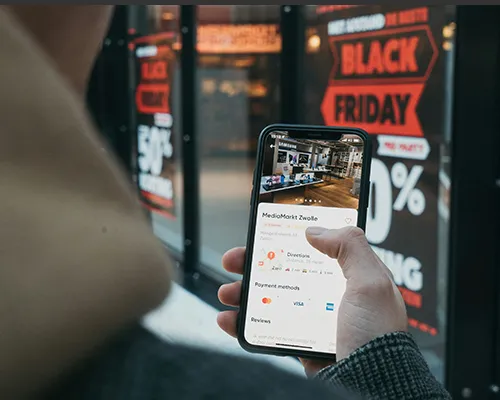
Mastering Mobile Commerce in 2024: Essential Strategies to Optimize Your E-commerce Store for Mobile Success
18 Dec 2025
Discover why mobile commerce is growing in importance in 2024 and how to optimize your e-commerce store for mobile users. Learn practical tips, best practices and how Abicart can help you create a seamless mobile shopping experience.Introduction: the mobile commerce revolutionMobile commerce, often referred to as m-commerce, has quickly become a dominant force in e-commerce. With smartphones becoming an increasingly common part of everyday life, consumers are increasingly using mobile devices to search, compare and buy products online. In fact, studies show that mobile commerce is expected to account for almost 73% of all e-commerce by 2024. This shift presents both a challenge and an opportunity for e-commerce businesses: those that optimize their stores for mobile users will gain a significant competitive advantage.In this blog, we'll explore the importance of mobile commerce, discuss best practices for optimizing your ecommerce store for mobile users, and show how Abicart can help you create a mobile-friendly store that drives conversions.The Growing Importance of Mobile CommerceThe rise of mobile commerce can be attributed to several factors, including the increasing use of smartphones, the convenience of mobile shopping, and the growing acceptance of mobile payment solutions. For Scandinavian businesses, this trend is particularly important. The region is known for its high internet penetration levels and tech-savvy consumers, making it fertile ground for mobile commerce growth.But the shift to mobile is not just about having a responsive website. It's about creating a seamless, intuitive shopping experience that meets the expectations of today's mobile users. This means faster loading times, simplified navigation, and a user interface that feels natural on smaller screens.Why Mobile Optimization is Crucial for Your Ecommerce StoreIf your e-commerce store isn't optimized for mobile, you risk losing a significant portion of potential customers. According to Google, 53% of mobile users abandon a website that takes longer than three seconds to load. What's more, a poor mobile experience can negatively impact your brand's reputation and reduce customer loyalty.Mobile optimization isn't just about improving the user experience; it's also a critical factor for search engine ranking. Google uses mobile-first indexing, which means that the mobile version of your website is considered the primary version for ranking. Therefore, a non-optimized mobile site can lead to lower search engine rankings and reduced visibility.Best Practices for Mobile OptimizationResponsive DesignMake sure your website is built with a responsive design that automatically adapts to different screen sizes. This ensures that your website looks and works well on all devices, be it a smartphone, tablet or computer.Fast loading timesOptimize your website's performance by compressing images, leveraging browser caching and minimizing code. Tools like Google PageSpeed Insights can help you identify areas for improvement.Simplified NavigationMobile users prefer simple, intuitive navigation. Use a clean layout with easy-to-press buttons and minimize the number of steps required to complete a purchase.Mobile-friendly checkout processStreamline the checkout process for mobile users by offering guest checkout, autofill forms, and supporting mobile payment options like Apple Pay and Google Pay.Optimized ContentMake sure your content is easy to read on smaller screens. Use shorter paragraphs, larger fonts and clear calls to action. Consider implementing AMP (Accelerated Mobile Pages) to improve loading times for content-rich pages.Test on Multiple DevicesRegularly test your e-commerce site on different mobile devices and browsers to ensure a consistent user experience. Consider using tools like BrowserStack to simulate different devices.How Abicart Can Help You Create a Mobile-Friendly Ecommerce StoreAt Abicart, we understand the critical importance of mobile optimization in today's ecommerce landscape. Our platform is designed to help businesses create mobile-friendly stores without the hassle. Here's how Abicart can support your mobile commerce strategy:Responsive Templates: Our platform offers a range of responsive templates that automatically adapt to different screen sizes, ensuring your store looks amazing on all devices.Mobile-optimized checkout process: Abicart's checkout process is streamlined for mobile users, with features like autofill, guest checkout, and support for mobile payment options.Performance optimization tools: We offer tools to help you optimize your site's performance, including image compression, caching options, and more.Built-in SEO features: Abicart includes built-in SEO tools that ensure your website is optimized for mobile-first indexing, helping you maintain and improve your search engine rankings.Conclusion: Embracing the Future of Mobile CommerceAs mobile commerce continues to grow, optimizing your ecommerce store for mobile users is no longer optional - it's essential. By implementing the best practices discussed in this blog and leveraging the powerful features of the Abicart platform, you can create a seamless mobile shopping experience that drives conversions and builds customer loyalty.Don't let your business fall behind in the mobile commerce revolution. Start optimizing your ecommerce store for mobile success today with Abicart!
-

Important information about using Google Analytics on your e-commerce platform from Abicart
18 Dec 2025
We are writing this post to address recent issues regarding the use of Google Analytics. In light of the recent decision of the Swedish Data Protection Authority (IMY) regarding the use of Google Analytics and data protection, we would like to assure you that we at Abicart, as our customers' data processor, always strive to ensure the integrity and security of your data in accordance with the General Data Protection Regulation (GDPR).Google Analytics is the most popular tool for analyzing website traffic among e-retailers and we have integrated support for it in our platform. We understand the importance of data integrity and take it seriously. Although it is the deprecated version of Google Analytics (Universal Analytics) that has been assessed by IMY, it is not legally determined whether the new version used in Abicart (Google Analytics 4) violates any part of the GDPR.We want to emphasize that Abicart does not transmit any personal information that can identify an individual to Google Analytics, either from our administrative system or through the Google Tag Manager used to send the information to Google Analytics. In order to comply with the GDPR's consent requirements, as well as the Electronic Communications Act (also known as the Cookie Act), we have implemented a consent management system, which ensures that data is only transferred to Google Analytics after the customer's explicit consent.Read more about the practices Abicart follows in the integration with Google: Best practices to avoid sending data that can be linked to a specific individual.Responsibilities of the shop ownerIn accordance with the GDPR, you as a shop owner are the ultimate data controller for the site's visitors. As a technical provider, Abicart acts as your data processor, handling personal data on your behalf in accordance with the data processing agreement (which is part of our general terms and conditions). We are committed to maintaining this trust and will continue to meet a high standard of data privacy and security.Those of you familiar with Google Analytics know what a powerful and useful tool it is for tracking and analyzing website traffic. We at Abicart are also aware that data privacy is a top priority, so we would like to inform you that, in light of the IMY's legal interpretation on the use of Google Analytics, we have begun a thorough and extensive investigation into alternative solutions.We are committed to finding an alternative that maintains the analytical depth that Google Analytics provides, while meeting and exceeding the data privacy requirements of the GDPR.If you have any questions or concerns about this topic, please do not hesitate to contact us. We appreciate your trust in Abicart and look forward to continuing to provide a secure and efficient e-commerce platform for your business.Best regards,Rikard SigvardssonTextalk / Abicart
-
Ekokul - from dream to successful e-commerce
18 Dec 2025
Niclas and Anna are the founders of the successful e-commerce business Ekokul. From dream to successful business, Niclas shares their exciting journey of building a successful e-commerce, the freedom of running a webshop and valuable tips for those who want to start their own webshop.What do you sell in your shop?Our original business idea was to offer organic and fair trade toys and baby products, so our customers were mainly parents with young children. We wanted to sell toys that would be the obvious choice over mass-produced plastic toys without a second thought. With increased awareness, our customers have broadened their demand for good goods in other product categories, so you could say that it is thanks to our customers that we can now offer goods in hygiene, health, cleaning, household etc. We are always grateful for our customers' feedback, who give us tips on items that are missing from the conventional trade. With the broadened range, we now have customers of all ages. Parents with older children continue to be loyal to us even when they are past the age of toys.Why did you decide to start an online shop?The idea for Ekokul was born in 2007. My wife Anna and I had always discussed different business ideas and had a dream of running our own business. When we realized that there was a gap in the market for organic and eco-friendly toys and children's products, we started working on launching a webshop. We looked at England, the USA and even Italy and found a number of products that became the first small range in the Ekokul webshop, which we launched in June 2008. How has your e-commerce developed since its inception?Turnover has remained at about the same level for all the years we have been doing e-commerce. We have chosen not to expand, but instead keep the company quite personal and small in order to maintain our own freedom, but also the feeling of a company that cares and takes care of its customers. The company has been and is a one-man business and what we cannot do ourselves we outsource. For example, another company takes care of our warehouse and packs our goods.In which countries do you sell your products?We started our sales in Sweden, but now we also have a Finnish and a Danish online store with customer service in both Finnish and Danish. Some sales also go to Norway, but this is not a market that we actively pursue.What made you choose Abicart as your e-commerce platform?When we started in 2008, there were not many Swedish e-commerce platforms to choose from. A survey of different platforms had given Textalk a good review and the price was also appealing. It was a perfect platform for a start-up company that didn't want to incur too many initial costs and where you could relatively easily create your own store by trial and error.What are the main challenges you faced in running an e-commerce business and how did you overcome them?Google is and has always been the biggest challenge. The rules of the game for SEO are constantly changing and the organic search results have been pushed further and further down by search and shopping ads. Getting conversions through organic searches has become more difficult and today we have to advertise significantly more to drive traffic to our webshop.How do you market your webshop?We have worked continuously with SEO and content marketing since the start, which has given us a healthy balance in our traffic mix. Organic traffic, bloggers and media attention have given us a lot of free traffic. We have worked with newsletters since the start and managed to build a really good customer database that still gives good dividends. We haven't engaged in analog advertising except for a few tests. When we were a start-up company, our business idea was quite unique and we got a lot of media attention which provided free marketing. Today, we market ourselves primarily through Google Shopping, but also some collaborations with bloggers and influencers. But the best marketing comes from our customers. It costs nothing and gives the best results. How have you dealt with competition in the market, and standing out from similar e-retailers?Competition has really intensified over the past 5 years and today there are several stores that have the same or similar business concept. In addition, the largest e-commerce companies have started selling several of the products that we were previously alone in marketing in our store. We have worked a lot with newsletters, social media and a fast and service-oriented customer service that really makes customers happy. Over the years, we have also built up a certain "trust" and been very concerned about customer relations and customer satisfaction. This means that customers buy from us again because they know that we do not sell just any items, but good things that we ourselves can stand for.What are the main advantages of running a webshop?Definitely the freedom to be your own boss and control your own time. It's difficult to get rich from a webshop, but the freedom that the work provides means much more than a high salary. You always have your work in your pocket on your mobile phone and can manage the webshop wherever you are in the world. There is no better job.How have you used feedback from customers and visitors to the webshop to improve the store and the customer experience?We get a lot of great and good feedback from our customers, but unfortunately we have been bad at showing this in our store. This is something we should get better at and market to new customers.Which subscription with us do you use and why?We use the PLUS subscription. We have had it almost every year. We have not benefited from PRO because we do not have connections to business systems.Which functions/integrations are important to you?The ability to use the same admin and item register for several different webshops in different languages. It would have been too difficult to administer several shops if the different languages had been in different admin systems.What future plans do you have for your webshop?In the long term, we need to do a facelift of the shop because it was a few years ago that we updated the design.What tips would you give to others who are thinking of starting a webshop?Think long-term and be persistent. Expect it to take at least 5 years to build a webshop that starts to generate profit. Do as much of the work as possible yourself in the beginning to keep costs down. Work actively with SEO, it pays off in the long run. Read up on SEO and do the work yourself, it will usually be both better and cheaper, Niclas concludes.Visit EkokulClick here and start your webshop - Free demo!
-

INWI Store: customer focus and premium products
18 Dec 2025
Starting a successful e-commerce business is a challenge. However, with the right mindset, products, tools and partners, anything can be achieved. INWI Store, a store specialized in premium quality electric scooters, is a great example of this!The benefits of e-commerce: reaching out quickly and effectivelyINWI Store, which opened its webshop in the winter of 2022, chose to establish itself online to efficiently reach its target audience, which had already entered the digital world. "It was obvious that our establishment would start with e-commerce to reach out in the fastest and most efficient way." As in our case, when you want to establish a new brand in a geographically large country, the digital reach is unbeatable. However, we see that some of our target group also wants physical contact. "We are developing this in parallel with our e-commerce," explains Martin at INWI Store. INWI Store navigates the challenges E-commerce development is a constant work in progress. Since its inception, INWI Store has evolved at a rapid pace and has been challenged to decide where to invest its marketing budget to get the maximum return. "There's a lot of thinking about priorities". How do we reach our target audience in an efficient and sustainable way? How do we create a smooth and safe buying journey for our customers that helps the target group to buy from us easily and safely. There are many pieces in the buying journey that must work if we are to achieve the sales development we are aiming for," says Martin. Marketing in the digital eraTo market their webshop, INWI Store primarily uses Google Ads and their social channels, while working intensively with SEO to rank high on Google. Their hard work and focus on these areas has been crucial in increasing visibility and driving sales online.Stands out from the crowd with customer focus and premium productsTo compete in the market, INWI Store has chosen to focus on premium products and creating the best customer and buyer journey for their target audience. They aim to build the best destination for their audience, a place that both inspires and informs. "We simply want to give our customers the best shopping experience and be the best in the market," says Martin.From feedback to improvement with the customer experience at the coreINWI Store takes customer feedback very seriously and uses it to constantly improve the store and the customer experience. "It doesn't matter if we think our store is the best in the world if our customers have a different opinion," he says. This commitment to the customer experience has helped them to constantly improve and adjust their service to optimize the overall customer experience. "Keeping an ear to the ground and listening to feedback is a must and a lot of fun," says Martin.Tips for others who want to start a webshop"Dare to start! Nothing is completely 100% in the beginning, but by constantly developing and improving the offer and experience, everything is optimized and the whole becomes better. Abicart has helped us a lot in our process and our experience is that Abicart always has a high customer focus and wants to help. We really appreciate working with a partner who is easy to reach and with whom we can exchange ideas and develop our business together, together we become even stronger. As in all sales work, it is important to work with the details and constantly develop your offer. By listening to the customers and constantly following the development of the world around us, we constantly optimize our online store and our offer to our customers," concludes Martin.Visit the INWI StoreClick here and start your webshop - Free demo!
-

Maximize your sales with Abicart's multi-store system
18 Dec 2025
In an increasingly competitive e-commerce industry, it is important to constantly look for innovative solutions to optimize your business and maximize your sales. One feature that can make a significant difference to your business is Abicart's Multi Store System, a powerful and flexible system that allows you to run multiple online stores under one roof at a very low cost.Why a multi-store system?A multi-store system allows you to adapt your e-commerce to different markets and target groups, opening up greater sales opportunities. Imagine the possibility of having your own online store for different ranges, target groups or geographical areas, all controlled from the same admin. This means not only better customization to customer needs, but also more efficient administration and cost effectiveness. It gives your business great flexibility in where and how you want to sell to reach your target audience.The road to increased salesThe multi-store system allows you to create a tailored shopping experience for each individual store. This can help increase customer satisfaction, which in turn leads to greater customer loyalty and increased sales. In addition, by adapting your assortment and pricing to specific markets and target groups, you can maximize your sales potential and reach more customers.Abicart's multi-store system also allows you to effectively target both private customers and retailers. By having separate online stores with customized prices and conditions for these two customer groups, you can optimize your business strategy and maximize your overall sales.Cost-effective and scalable for the futureYou need to have Abicart PRO to use multi-store system and pay only the PRO subscription for the top level. Each sub-store costs according to the PLUS subscription, but you can use integrations and all PRO functionalities in all sub-stores at no extra cost.This allows you to expand your business at a low cost.And best of all, Abicart's multi-store system is scalable. As your business grows and evolves, you can easily add more stores to reach new markets and customer groups. This means your business is always ready for the future, no matter how quickly the e-commerce landscape changes.Start your e-commerce journey today If you're looking for a way to increase your sales, improve your customer experience and prepare your business for the future, Abicart's multi-store system is the solution for you. Click here to start your free demo today or contact our customer service if you already run a store with us and want to activate the feature.Click here and start your webshop - Free demo!
-

Create high-quality article texts easily with AI technology
18 Dec 2025
Discover the latest AI technology and create article texts with ease! The AI technology we offer helps you create quality article texts, without having to spend a lot of time and effort. Experience the modern technology and create articles tailored to your needs!Abicart uses OpenAI to generate introductory texts and article descriptions using AI technology. This allows Abicart to automatically create unique and engaging content without having to hire an army of writers.It's then quite important what you call your product, because we also use this to generate more relevant and engaging content. The use of AI to generate text is of course optional, and there is always the option to create your own text or add to or change an AI-generated text. By using OpenAI's advanced machine learning algorithms, Abicart can also improve the relevance and quality of the generated content, based on the article name. This leads to increased traffic and conversions. The use of AI in content generation and translation are important tools to increase efficiency and competitiveness in digital marketing, but it is always up to the user to decide if they want to use them or not.Automated translationsAbicart also has tools for automatic translations of texts via services such as Deepl or Google Translate.
-

Sale tips from "Magiska Tryck"
18 Dec 2025
Black Week is in full swing and we look into the webshop www.magiskatryck.se where Emma Aspman shares her 3 best tips with us: 1. Have an offer that is profitable for you. There is no point in sales and offers if they are not profitable for you as a trader. 2. Collaborate with others and create offers together. Maybe you and someone else can have a collaboration and benefit from each other's customers. 3. Dare to show your face! Knowing who we deal with creates trust and confidence in your customers which ultimately generates purchases from you.
-

New law for rebates - what applies to your webshop?
18 Dec 2025
A new law will enter into force on 1 September 2022. The aim is to stop "fake sales", i.e. raising the price in advance of a sale, which makes the price cut seem bigger than it really is. It means that when shops advertise a price cut, the lowest price in the last 30 days must be shown for comparison.What does this mean for your shop in Abicart?In our system the field "extra price" needs to be filled in. If you have set an extra price, after September 1st we will automatically display a comparison price next to all extra prices. If the store reduces the price of products without filling in the "extra price" field, it will be displayed as a regular price change instead of a special reaprice. When a price reduction is gradual (e.g. during a promotion period), the price before the first price reduction will be used as the comparison price.The price comparison does not apply to:Personalised or customised prices Buy more - pay for less.Discount codes.Price reductions not promoted by the store.Read more about the new law:Sveriges Riksdag (Svenska) Article from Delphi (English) Svensk Handel (Svenska)
-

20% discount on packaging at Rajapack
18 Dec 2025
Collaboration with Rajapack We at Abicart have arranged a standing discount on packaging with Europe's leading supplier, RAJA. Cooperation with RAJA (No. 1 in packaging in Europe) Are you looking for smart and easy packaging solutions to send your goods away? Visit www.rajapack.se and choose from their 3000 products with delivery within 24/48 hours. Contact us and provide your store ID and to get a 20% discount with RAJA.
-
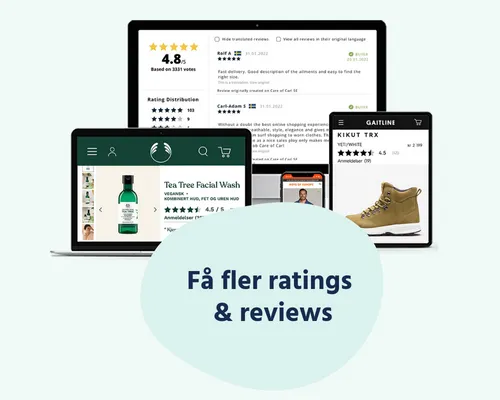
Lipscore gives you unique customer insight
18 Dec 2025
The world's most efficient platform for collecting and using ratings & reviews. As an Abicart customer, you get a fixed low price for integration and subscription to Lipscore, one of our premium partners. Lipscore is the market leader in ratings and reviews with its efficiency. They collect reviews from end customers with a response rate of 23%. Lipscore has both general reviews and product reviews. Take advantage of your offer with LipScoreIncrease your conversion:With Lipscore, leaving a product review after shopping is extremely easy. Only emails are sent out to actual customers who have made a purchase, so all reviews collected by Lipscore are guaranteed to be 100% genuine. This in turn means that you get a lot of credible reviews on your products. Someone who in turn increases trust, reduces returns and increases sales.Get more traffic from Google:SEO is something that gets stronger with Lipscore, since Lipscore collects a lot of customer reviews, your site is considered more relevant to Google's organic search. The more often your site is updated, the higher it will be on Google.Grow faster in new markets with review translation:With Lipscore, you can easily transfer your success from one country to another. Lipscore allows you to translate all reviews into different languages so you can quickly build trust in new markets.Collect valuable information:With Lipscore's analytics tool, you can collect valuable information to help with product sourcing, product descriptions and product pricing.Read more about what LipScore can do for you or book a phone meeting.
-

Succeeding with your B2B sales online
18 Dec 2025
We give you the tips!Succeeding as an e-tailer with private individuals is not always easy. Succeeding as an e-tailer with business customers can sometimes be even more difficult. But, does it have to be so complicated? B2C (business to consumer) e-commerce has exploded in recent years and we are shopping online more than ever before. On the business-to-business (B2B) side, it hasn't happened as fast - yet. But, with the habit of shopping online privately, more and more business owners expect to be able to do the same for work. This places both demands on you as a B2B trader and, of course, it also presents you with great opportunities.Move slowlyLaunching a full-scale B2B e-commerce business can of course feel a bit overwhelming, and there may not be the time or resources to do the whole job from the start. But, as online presence becomes increasingly important, it may be wise to at least start somewhere - albeit small-scale. Just because you have an e-commerce website doesn't mean you sell your goods or services through it, instead it can act as a shop window that showcases what you have to offer in a neat and tidy way. However, many web and CMS tools are not very suitable for displaying products in this way, often resulting in a jumble of images and text with no logical order. Moreover, it can look even worse if the page is visited via a mobile device. This is where it can really pay off to use a real e-commerce platform that is specialised for the purpose. With Abicart, you can get started quickly and easily, and you can choose how much you want to scale up. Of course, our platform is responsive, which means it works equally well whether you visit the site via computer, mobile or tablet.Segment your products and servicesAnother thing to keep in mind is that not everything you sell has to be in the online store. Perhaps you already have a large and loyal customer base for one type of product, but are struggling to reach out with another? Why not niche your online shop towards that particular product category and put some extra effort into reaching out to new customers? After all, one does not have to exclude the other. Or why not start with the products you actually sell the most of to try it out, learn from it and maybe scale up later?Different customers, different price lists?Maybe you have agreed prices with a customer that you don't want others to see? Or perhaps there are parts of your range that should not be visible to the general public but only to a certain type of customer? No problem! With Abicart, you can give your B2B customers access to specific parts of your range or specific price details through a customer login. By building a well-functioning e-commerce business, where your contract customers can manage their orders themselves and always get the right price, you can save time and money that you can spend on marketing, development or whatever you need. You customise what a logged-in customer can see versus what a guest sees when they visit your site. Each logged-in customer can also get their own customer number and see the history of previous orders, they can also follow up and track their pending orders.More search engine optimization!You probably already know that a big part of today's marketing is about getting as high as possible in the search results on Google. The concept of search engine optimisation, or SEO for short, is something you may already be familiar with - in short, it's about optimising your website for search engines. Play with the idea that your business sells gardening tools, including shovels of various kinds. Or play with the idea that you have a website that tells people who you are, what your opening hours are and how to find your physical shop. However, you don't have a specific e-commerce site, but at most a number of sample images showing the type of products you sell. If a person then googles the word "spade" - who do you think comes up at the top of Google? You, or your competitor who has an online shop with several products named "spade"? No matter how much effort you put into making a great web site where your company is highlighted in a nice way, the chances are that very few, if any, people who don't know you before will find you when they are looking for a spade. In short - invest in a web shop to strengthen your digital presence! Want to know more about how to search engine optimise your e-commerce? Read more here!The last tip - which you should start withBefore you start your B2B e-commerce business, you should figure out who you are. It may sound like an almost ridiculous task, but it's actually more important than you might think. It's one thing to have a strong brand for your physical store and for your existing customers, but isthat the right brand and identity for your digital presence? If it is - then make sure the brand permeates all your online communications so that customers are recognised and get the right feel. If it's not, you may need to get help to set your digital brand. Who do you want to be and how do you want to be perceived? What values do you need to push to reach new customers and gain ground online? Spend a little extra time doing the groundwork, plain and simple. Think of it as building a foundation to stand on. That way you'll avoid question marks along the way and you'll always have a clear framework to lean on in new situations. You may not know exactly what you need to do yet, but at least you know who you want to be and can adapt your work from there for the best possible results. This can be difficult to do entirely on your own so, if possible, take external help from a brand consultant or agency who can guide you in the right direction.
-
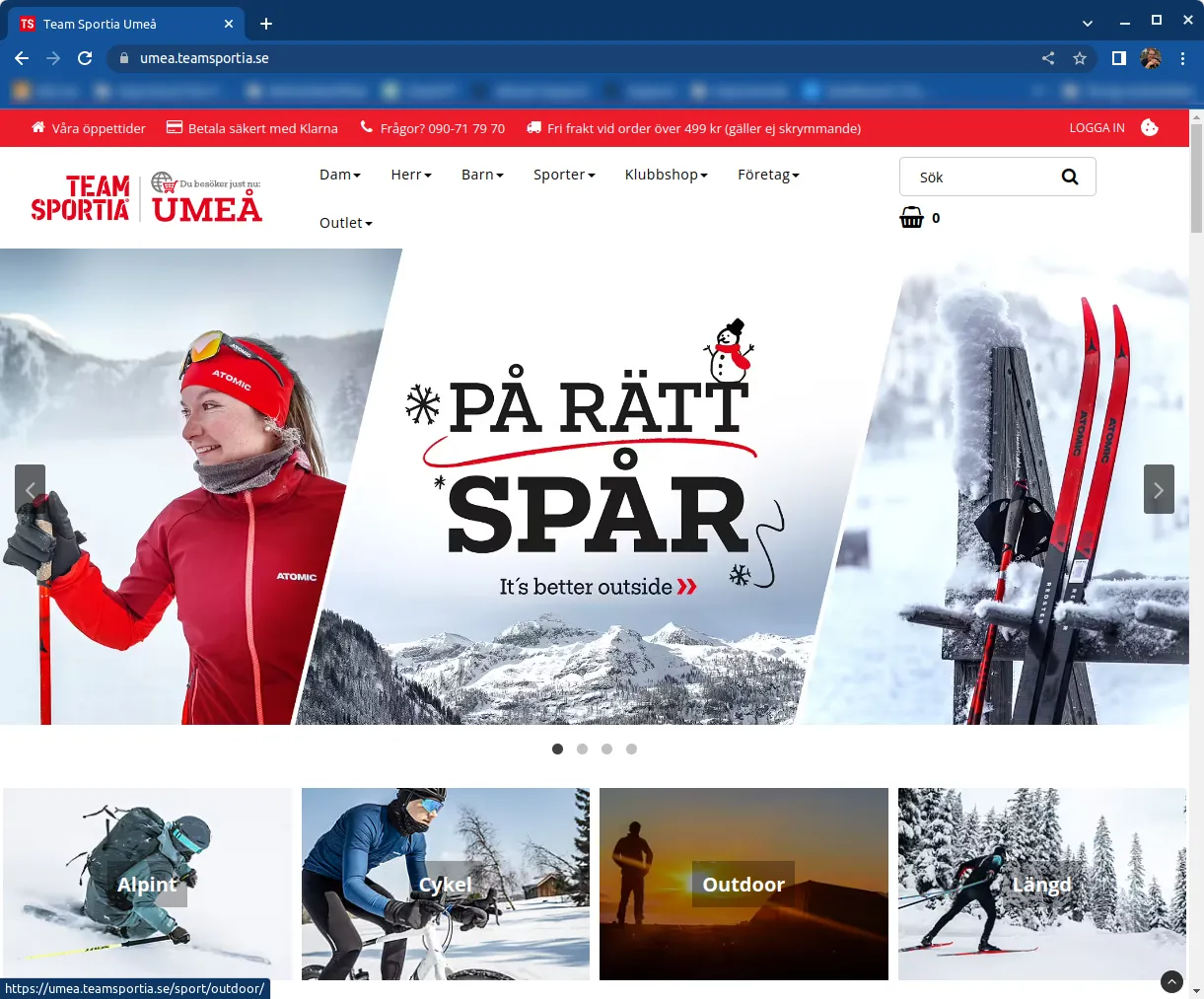
SGN Sport and Team Sportia - "The online store becomes a digital shop window"
8 Dec 2025
SGN Sport SGN Sport is a purchasing organization and specialists in the operation of sports and leisure stores. They offer all kinds of services that a sports store could possibly need and they work to free up valuable time for store owners and make sure they feel good. SGN Sport today has close to 250 affiliated stores around the country. One of the groups connected to SGN Sport is Team Sportia and today there are 55 stores in Sweden. Read more information about how SGN Sport works here. Team sportia Team Sportia was already created in 1989 when a large group met to merge the then Fri Team and Sportia. Then the future goal was to invest in team sports and the team. The slogan "Sports stores that raise the bar" echoed across Sports Sweden and today Team Sportia is one of Sweden's leading sports chains that focuses on outdoor training such as running, active leisure, and cycling. The chain is built on franchise stores, which means that the members have the opportunity to benefit from an already existing brand and a functioning business concept. Franchising is based on a collaboration between two independent parties where the members get access to a finished brand, marketing, central campaigns and economies of scale in purchasing. Maria Engman, Marketing Manager SGN Sport / Team Sportia, tells us more about their business:"The online store becomes a digital storefront that is open around the clock"What do you sell in your stores?Team Sportia is one of Sweden's leading sports chains that focuses on outdoor training such as cycling, running and training. We offer our customers everything they need to have an active leisure time.Why did you start a webshop in addition to your physical stores?We and the affiliated stores have continued to focus heavily on the physical store, but this does not mean that we ignore digital visibility. The online store will be a digital shop window that is open around the clock. And we know that many of us do our research online, before shopping in a physical store.SGN Sport has several central websites, one of them is teamsportia.se, which functions as a central marketplace. We drive traffic to this page, but once there, the customer chooses which local store he wants to shop from. If you click on a product on teamsportia.se, you get a list of which local stores sell the product online.Why did you choose Abicart as your e-commerce platform?We wanted a simple and user-friendly platform, with the possibility of external connections and a good, Swedish support function. The owners of the stores are often salespeople, economists, marketers, buyers and digital experts. Abicart suits most of our stores, as it is easy to manage their online stores.All stores in our group are independent, but we at SGN Sport have set up ready-made templates with layout, images and text to make it easier for the stores to get started. Together with SGN Sports and Abicart's onboarding team, it works really well, and you can be up and running in a couple of weeks.Do you have any tips for others who want to start an online store?Starting up the webshop is easy, the hard part is getting the routines right. Deliveries must not wait, customer matters must not be left lying around. It is important to ensure that the online store is filled and that the marketing is underway. I recommend finding a person in the store who can be responsible, and has the online store in focus. If the owner or store manager must also ensure this task, it is easy to lose momentum.Which subscription with us do you use and why?Now we have the Plus subscription, but when we are done with the implementation of our business system, we will switch to PRO.SGN SportTeam Sportia
-

AB Orax - "We want to simplify for our customers"
8 Dec 2025
Orax is a full-service supplier to cemetery administrations throughout Sweden. We manufacture and supply products to churches, crematoria, mortuaries, and hospitals, as well as refrigeration and freezer cells with associated equipment for handling coffins and stretchers. With our knowledge and experience, we help customers all the way from design to delivery and installation. We also offer training and service agreements to ensure the efficient use of the equipment. History of Orax It all started 80 years ago with Orvar Axelsson. He was a trained cabinetmaker and later also started manufacturing and selling bicycles in Vårgårda. He contacted a cemetery manager in Borås who asked if he, who made wheels, could also make a coffin trolley so that they didn't have to carry the coffins. And Orvar did. And the customer was satisfied. As a curious and enterprising entrepreneur, Orvar caught on to more needs in the churches. And more products were made at Orax in Vårgårda. Orvar's entrepreneurial spirit still characterizes the business in Vårgårda, where we continue to develop and manufacture the products. In an interview with Therese Vestberg, who works in marketing and sales at AB Orax, we learn more about their solid history:Therese arouses customers' interest with new products, instructions, and product knowledge.What do you sell in your shops?We have about 1,500 products in our webshop. Everything from our in-house made coffin handling trolleys for 200 000 SEK to cemetery signs for 10 SEK. We have a wide range that we offer our customers, with us, they get the whole package and a single contact where they can place orders for everything. Why did you set up an online store in addition to your physical stores?We have a combined website and webshop. We want to simplify and make it easier for our customers, with orders, information, and knowledge. Awaken customers' interest with new products, instructions, and product knowledge.Why did you choose Abicart as your e-commerce platform?I evaluated a number and the choice fell on Abicart. Abicart was also linked to Visma which is our business system. Local partner and great support.What is the best thing about running your own business and online store?We used to have a webshop but now have more customers in the new one. The positive thing is that more and more people are ordering online and sales have increased. We get positive feedback from customers about how it is set up and easy to use.Do you have any tips for others who want to start a online store?Work with good, clear images and information about the products.Which of our subscriptions do you use?PRO.Visit Orax
-
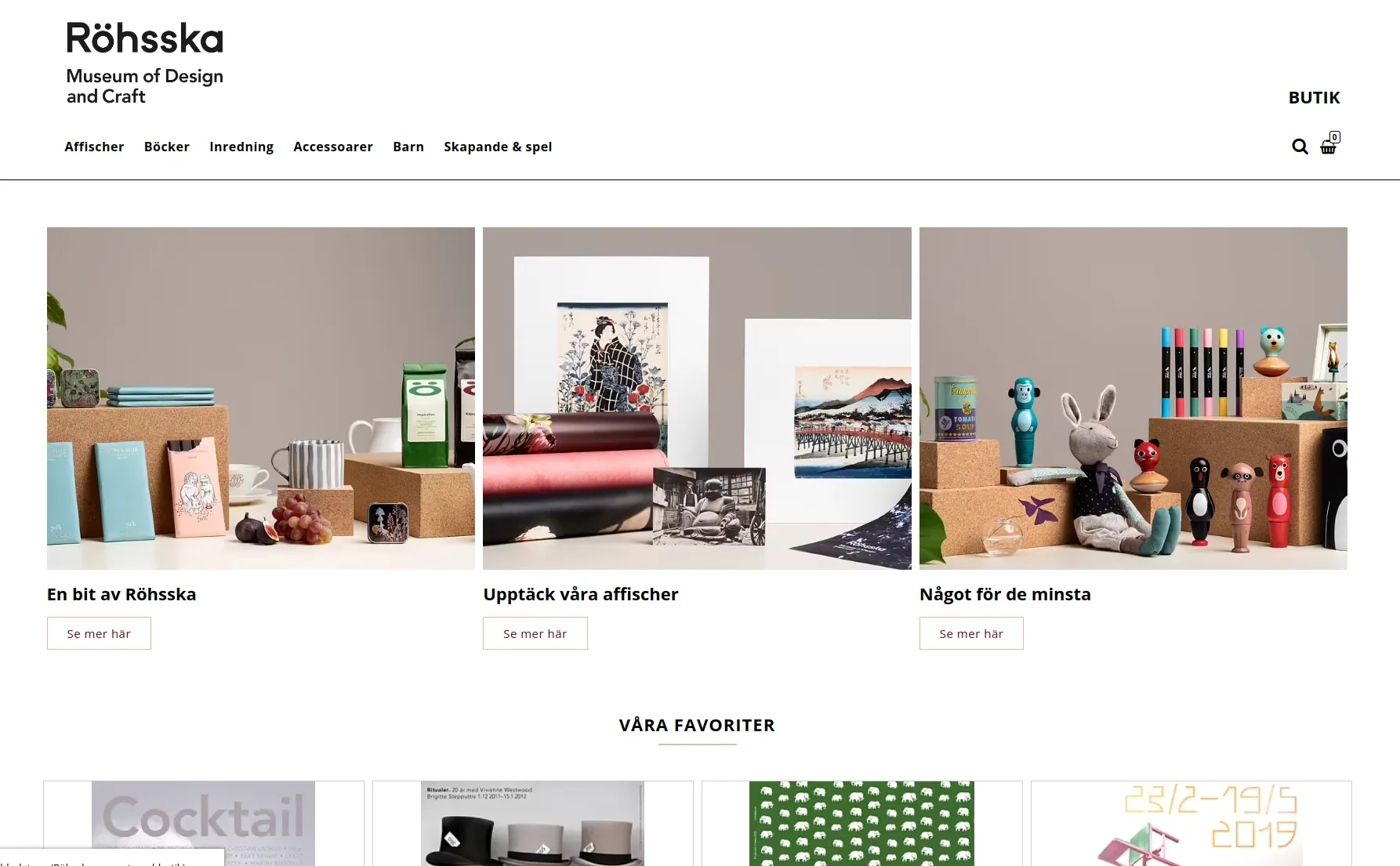
The Röhsska Museum in Gothenburg
8 Dec 2025
In the Röhsska Museum's museum shop you can browse through books on design, crafts and fashion. You'll find everything from non-fiction to storybooks. Of course, you will also find objects by both international designers and West Swedish designers. If you want to take a little piece of the Röhsska Museum home with you, don't miss the museum's own tees, posters and tote bags. To the Röhsska Museum shop
-
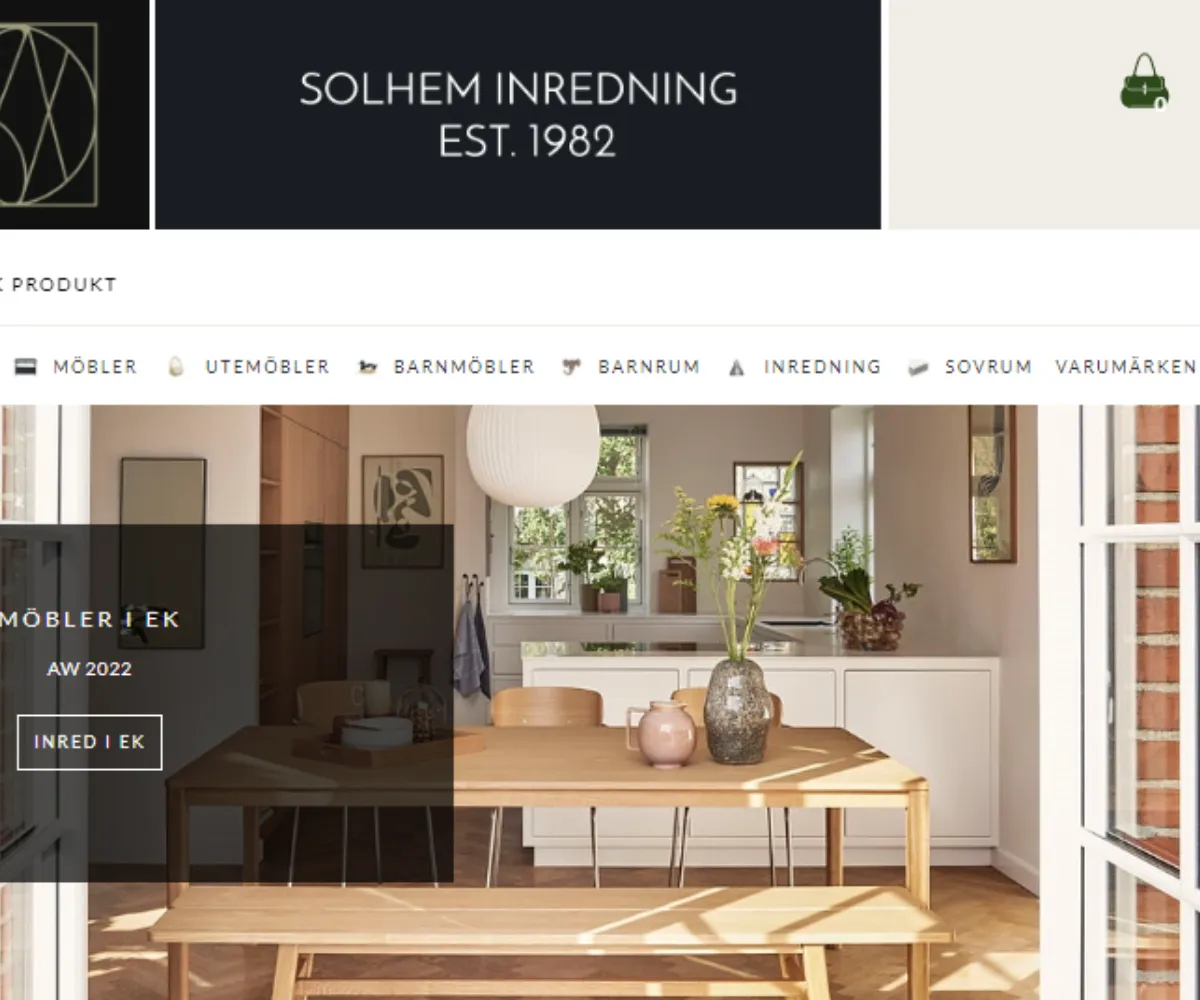
Solhem Inredning - "I want to advise others to dare to try"
8 Dec 2025
In 2011, Erika and her brother Anders took over the business that their father started in 1982. They still have the same premises, warehouse and shop space as when they started, but over the years they have developed and changed the range of the business. When the business started up they sold textiles and corporate gifts to companies and at that time the premises were mainly an office space with a small exhibition area but over the years it has evolved into a retail space with a warehouse attached. Erika and Anders have a keen interest in interior design and when they took over the business they changed the range to focus more on interior design. With that change, they also started selling to private individuals instead of corporate customers and then they also started up an online store in addition to make it more accessible to their customers. Now, the small family-owned company has gone from a small showroom to a physical shop and online store with a wide range of designer furniture and interior design. We spoke to Erika Ullvin for more details:Solhem combines physical store and online storeWhat do you sell in your shop?We sell designer furniture and interior design in Danish design with simple and beautiful styling. The furniture is in a consistently Nordic and Scandinavian style and the vision is to cover all rooms in the home and to offer high quality design. The range and style is a celebration of the simple and beautiful - in a sustainable Scandinavian style. Danish design has a strong position in the range with brands such as Oliver Furniture, Hubsch, House Doctor, Madam Stoltz, Sika-Design and Nordal.Why did you start a webshop as an addition to your physical store?Our physical store is a bit off and tucked away and to get more visibility we started up a webshop in addition to the physical store. In the beginning we worked with the webshop as an addition to the physical store and the focus was on the store, but over the past few years we have changed our focus and now we focus mostly on the webshop. We have adapted our business to the way our customers shop. In the past, people wanted to come to the store to see and feel the products, but now they prefer to check out and read about the products on the website and then order the goods to test the furniture on site. If the goods don't fit, you send them back or return them to our shop. Even though we have both an online store and a physical store, we are mainly focusing on marketing ourselves in the Stockholm area so that we can deliver the goods ourselves. So we strive above all to have a market in Stockholm and the surrounding area, but of course we have customers all over Sweden.Why did you choose Abicart as your e-commerce platform?When we were about to launch the webshop in 2011, I read that Abicart was an easy and cheap option and since you could try it for free, I did and I got hooked on the platform. For our needs it is more than enough and I appreciate that it is so easy to use. I am really happy with the platform and it suits our business very well. We definitely recommend Abicart, it's a simple and nice platform to work in.What is the best thing about running your own business and online store?The best thing about running your own business is that it's fun to work on what you enjoy. I find it very fun to work with our products. I like it when we get new collections so I get to add new pictures and write texts for everything on the website. I like that you get to choose what products to bring in and what to work on, it makes me very inspired and excited to go to work every day. Another good thing is that you can borrow the tasks that you find boring, which in my case is for example bookkeeping. You can also adjust how much you want to work at times by increasing or decreasing the amount of advertising. For example, we are closed during the summer from 28-30 and then we take a break from advertising. If we want to sell a lot of work during these periods, we advertise more and do more work.Do you have any tips for others who want to start an online store?I would like to advise others to dare to try, even if all the pieces of the puzzle are not quite ready. If you want to run a small business, you don't need to have everything ready from the start. Most things will work out along the way, everything doesn't have to be ready before you start up. Start small and grow as you go, make sure you don't bring in too many suppliers from the start and choose products that are of good quality or you'll end up with a lot of returns and complaints. It's very easy to incur a lot of costs so keep a lid on expenditure and do a lot yourself or make sure you know what the cost will be and that it's worth paying for the service.Which of our subscriptions do you use and why?We use the Plus subscription and it suits our business well, we have what we need. In addition to the subscription, we have bought design help which we were very happy with, it really looks the way we wanted it to look.Visit Solhem's lovely online store!
-
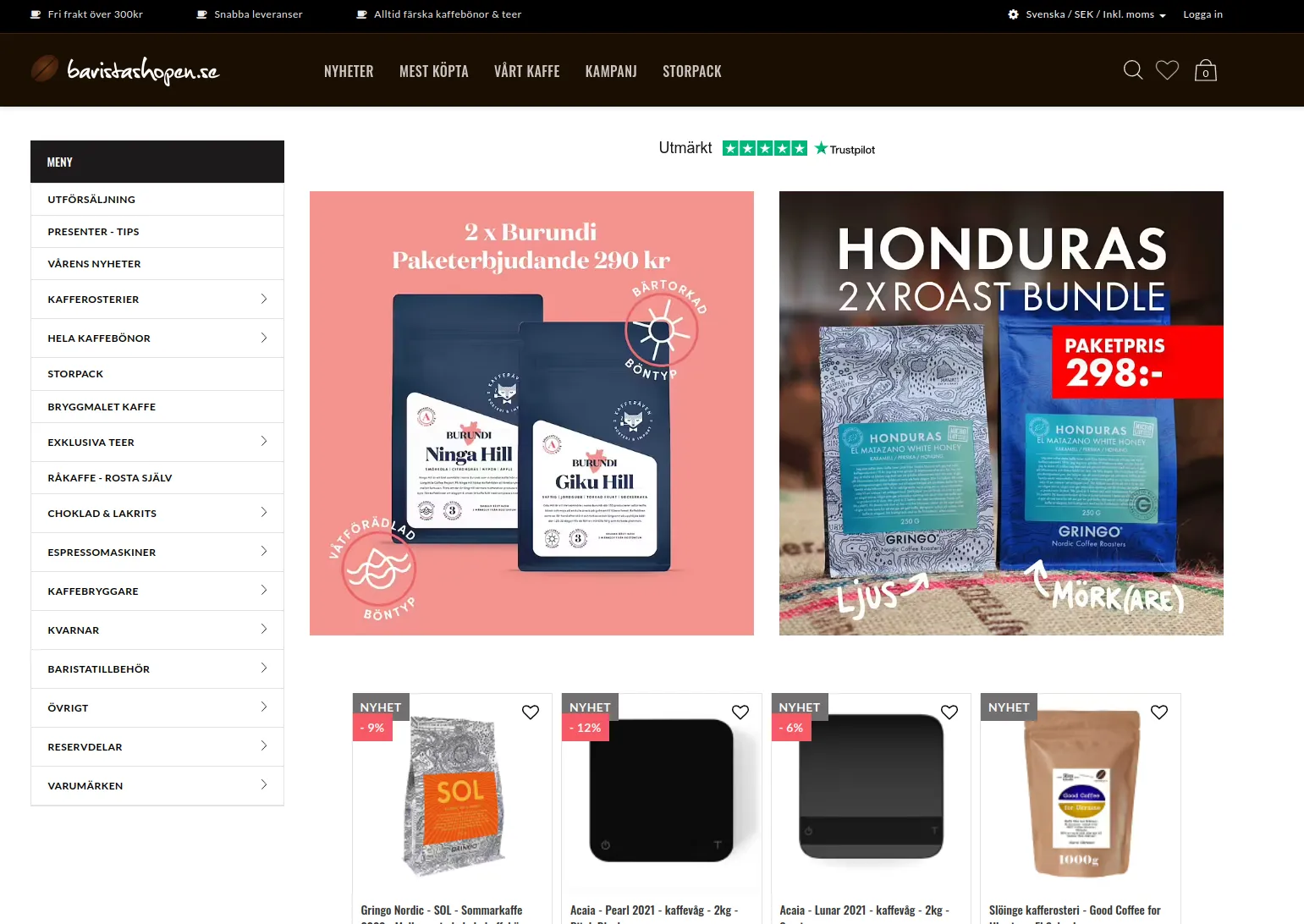
Baristashopen
8 Dec 2025
Freshly roasted coffee is so much better! Baristashopen is an independent supplier of freshly roasted date-marked coffee beans* We want to give everyone a better and fresher coffee experience, so we have chosen to specialise in supplying freshly roasted speciality coffee beans (note: never repackaged as this shortens the shelf life and freshness considerably). The shelf life of the coffee beans in unopened packaging is at least 9 months from the roasting date if you buy coffee from Johan & Nyström. Coffee from smaller roasters does not use nitrogen in its bags and that coffee is at its best if consumed within 3 months of the roasting date. Come and visit us often! We are always looking for really good organic fresh roasted coffee, tea and the best accessories. All coffee sold by Baristashopen is always fairly sourced. The majority of beans are also organically grown. *When the freshly roasted coffee is shipped from our premises, it is rare that more than 30 days have passed since the coffee beans were roasted. The shelf life of the coffee beans in unopened packaging is at least 9 months from the roasting date thanks to a unique technique of packing the beans in a protective atmosphere immediately after roasting, in an environment containing a maximum of 0.05% oxygen. This stops the ageing process to the maximum and is a huge improvement over previous packing techniques. If you order more than 300:- we will pay the shipping. Please note that Baristashopen sells whole coffee beans and you will need a grinder to grind them. The coffee and espresso machines and grinders we sell are of the highest quality and have been carefully tested by our test panel. We also offer a carefully tested selection of the best accessories on the market to help you succeed as a barista. The shop is continuously updated with new roasts and accessories. If you want to make sure you don't miss out when, for example, a "limited edition" coffee is added to the barista shop, then subscribe to our newsletter: Send an email to info(at)baristashopen.se and register your interest. Welcome to order!
-

Villervalla.se has chosen Abicart as its e-commerce platform
8 Dec 2025
Villervalla has been an Abicart customer since 2009 – a long-term partnership we are very proud of.Villervalla.se – Colorful Clothing for Children "Villervalla is a magical world. A world created from vibrant imagination and the freeing spirit of childhood. A world where play and adventure follow one another. A world where everyone belongs. Step into Villervalla’s magical world – where children are always allowed to be children."Since 2005, Villervalla has been designing and producing affordable children’s clothing for all kids, regardless of gender. We believe children look great in every color of the rainbow. Our clothes are made for both boys and girls, from newborn up to 12 years old, and can be mixed and matched across the entire collection.We create comfortable, stylish, and durable high-quality clothing, free from harmful chemicals and produced with care throughout the entire value chain. Most of our collection consists of organic and OEKO-TEX certified garments. Children’s clothing from previous seasons is available at especially low prices in our outlet.Welcome to Villervalla! Villervalla & Abicart Villervalla has been an Abicart customer since 2009 – a long-term partnership we are very proud of.Villervalla uses Abicart PRO, giving them access to our full range of features and the freedom to grow their e-commerce business without limitations.
-

Credit check with Creditsafe
8 Dec 2025
-

Vipps
8 Dec 2025
Charge on the net. Let your customers pay with Vipps online or in your app. All your customer needs to pay is their mobile number, then they pay in Vipps with one click. 1.5 million Norwegians pay 3.6 million times a month with Vipps online 3.7 million Norwegians already have Vipps, and they like to pay with Vipps even when shopping online More people make purchases when they don't need to find a pocketbook. Get a ready-made solution, or integrate yourself, in app, online, in netbutikk. Vipps also supports out-of-pocket purchases (quick checkout) and subscription solutions (fixed payments) These are the possibilities Med Vipps på nett får du Zugang til en mengde betalingsmuligheter gjennom API-et vårt. Vipps på nett has solutions for both large and small players. You can take payment through an app, a web shop or accept donations on your website. Among other things, your customers can pay with Vipps in the shopping basket, make fixed payments, donate one-off amounts or buy individual products in your digital flats. Get started with Vipps
-

Payson
8 Dec 2025
Important information. Svea has announced that the product Payson will be phased out during 2025. The discontinuation will be completed on December 31, 2025 and already now no new corporate customers will be connected to Payson. The solution offered to new customers is Svea Checkout. Start selling with Payson With Payson Checkout as a payment solution, both private individuals and corporate customers can make their purchases with just a few clicks. All payment methods are included with Payson and no other agreements are needed. Sales are handled in the same way regardless of how the customer pays, which makes administration simple and smooth. The payment is made to the account on Payson (which is included) where all transactions are reported and the balance available for transfer to the bank. It is also possible to search for orders and manage repurchases for credit or partial credit. The transaction fee is between 1.95% and 2.85% depending on turnover, and it gets cheaper as sales increase! Get started quickly, within one working day Free start-up fee and no monthly cost All payment methods are included: card, bank, Swish, invoice and installment Get started with PaysonUser friendlyThe customer chooses the payment method he prefers and can make adjustments such as paying later, receiving his invoice by letter or e-mail, or dividing the purchase into several smaller payments. For B2B there are of course company invoices and Peppol. With card and bank payment via Trustly (everything included), Payson also works internationally.PremiumGet a Premium account with Payson for even more functions, such as automated reporting to Fortnox and Visma, as well as the ability to customize payouts or create more account users with different authorizations.
-
Developer Contact and API Access | Abicart
6 Dec 2025
If you are a developer looking to integrate or build upon the Abicart platform, starting with a free demo shop is the most straightforward way to begin your journey. A demo account gives you immediate access to the platform's core functionalities.Once you have a working demo shop, we recommend exploring the tool's interface. When you are ready to connect with our development team, the easiest route is through the standard communication channels available within your admin panel. Simply log into your Abicart admin and use the regular contact function, accessible via "My Customer Service" in the top-right user menu. This ensures that your query is routed securely and efficiently within the context of your store ID, making it easier for our team to provide relevant support. For technical implementation details, comprehensive documentation for the Abicart API can be found directly on the developer portal at: https://developer.abicart.se/
-

Support Center: guides, videos and FAQ
28 Nov 2025
Launching a new webshop can feel big – but it doesn’t have to be complicated.With Abicart, you can either set up your store step by step on your own, or let our onboarding team guide you through the process and help you with the look and structure of your shop. Our goal is simple: make it easy for you to start selling online as quickly and smoothly as possible.Easy to get started on your own Abicart is built so that you can launch a professional webshop on your own by following a few clear steps. Inside the admin area you’ll find guides, manuals and video tutorials that walk you through the most important parts of getting started, such as: Create product groups (categories)Start by setting up your product groups – these become the main menu of your store and help customers find the right products. Add your productsAdd products manually or import them from a file. You choose what suits your business best. Choose and customize a themePick a theme you like and adapt it with your own colors, fonts, images and layout so the store reflects your brand. Set up payment methodsConnect the payment providers you want to use so customers can pay in a secure and convenient way. Set up shipping methodsAdd your delivery options and carriers, and decide how you handle shipping costs and destinations. Add terms and customer informationUse the built-in templates as a starting point for your store’s terms, return policies, delivery information and other important pages. Handle GDPR and agreementsSign the necessary agreements and follow the guidance to make sure your store handles customer data correctly. Connect your domainPoint your own domain to the store to build trust and make your webshop easy to find. Go live with your storeWhen everything looks good, you publish the shop with a few clicks and start selling. You can follow these steps at your own pace, and always return to the guides whenever you need more detail. Get an extra boost from our onboarding team Even though it’s easy to do it yourself, you don’t have to be alone in the process.Our onboarding team is happy to help you shape the look and structure of your store, based on your own wishes and brand. Together with you, we can for example: Define the visual style of your storeHelp you with logo placement, colors, fonts and overall layout so your webshop feels coherent and professional. Set up menus and navigationStructure product groups and menus so that your customers quickly understand where to go. Design a strong start pagePlace images, texts and content blocks in a way that highlights your offers and leads visitors towards buying. Review payment and shipping setupMake sure your chosen payment and delivery options are activated and clearly presented to customers. Make sure legal info is in placeHelp you use and adapt the built-in templates for terms, policies and other key information pages. Prepare your store for launchGo through a simple checklist so that your webshop is ready to be made public. How the onboarding usually works You tell us about your business and goalsWe talk about your products, your brand and what kind of shopping experience you want to offer. We help you shape the storeBased on your input, we support you in setting up design, structure and key settings in Abicart. You learn how to manage everythingWe show you where things are in the admin and how you can continue to update products, pages and design on your own. You launch – with confidenceWhen you’re ready, you go live knowing both your store and its basic setup are in good shape. Ready to start? Whether you prefer to follow the built-in guides step by step yourself, or you’d like a helping hand from our onboarding team, Abicart makes it easy to get your webshop up and running.
-
Market-specific payment and shipping methods
28 Nov 2025
Successfully expanding your e-commerce business into new markets requires offering local customers the payment and shipping options they know and trust. Abicart provides the flexibility to tailor your checkout experience to meet the precise needs of each country and customer segment.Customized Payment Experience With Abicart, you gain granular control over which payment methods are available based on the customer's location and preferred currency. This capability is essential for maximizing conversion rates in international sales. Per-Country Restriction: For every payment solution you implement, such as Stripe, Nets Easy, or various checkout providers like Klarna and Svea, you can specify the exact countries where it should be offered (or explicitly excluded). This ensures, for example, that country-specific payment options like Swish are only shown to customers in Sweden. Currency Control: If your shop supports multiple currencies, you can restrict a payment method to only be available when a specific currency is selected. This allows you to manage different payment provider agreements effectively. Multi-Channel Providers: Certain payment solutions (e.g., Klarna Checkout, Nets Easy, Svea Checkout) are flexible enough to be set up multiple times within your Abicart admin, using the same account keys but limiting each instance to a specific country and currency combination. This provides a clean, localized look in the checkout. By only presenting relevant payment choices, you reduce friction at checkout, increase trust, and improve the likelihood of a completed purchase. Flexible Shipping Configuration Delivery options are just as critical as payment methods. Abicart allows you to create detailed shipping methods and tariffs that adapt based on the final shipping destination. Country-Specific Tariffs: When you create a shipping method, you define tariffs (rates) that specify the cost based on weight ranges. You can then link these individual tariffs to specific countries, country blocks (like EU countries), or even specific postal codes. Integration with TMS: Integrations with Transport Management Systems (TMS) such as nShift, Postnord TA, or Shipmondo further enhance this capability by allowing for flexible rate calculation and label creation. For instance, Shipmondo supports the creation of shipping templates that factor in sender country, delivery country, weight ranges, and package dimensions. Advanced Delivery Options: For seamless local delivery point selection, services like Klarna Shipping Assistant (KSA) can display external TMS delivery options directly in the checkout window, complete with tracking and service point selection for customers in supported markets. Customizing your payment and shipping offerings is essential for international success. Abicart's platform offers the tools you need to ensure your store feels local to every customer, no matter where they are shopping from.
-

Sales and inventory statistics and reports
28 Nov 2025
Abicart provides robust features for collecting and utilizing sales and inventory data, giving you the insights needed to manage your online shop effectively. Accurate data helps you make informed decisions about your product range, marketing efforts, and overall business strategy.Order and Sales Data All orders placed in your shop are listed under the "Orders" section in the admin interface. You can customize which columns of information are displayed to tailor the view to your needs. Key features for data analysis and management include: Filtering and Searching: Easily search for orders by dates, payment methods, countries, or specific order numbers to find exactly the data you need. This allows for quick insights into sales trends or specific customer behaviors. Exporting Orders: Orders can be exported to a text file (CSV or SKV format) for use in other systems or for advanced analysis. You can export all orders or a filtered selection, such as orders within a specific date range. Abandoned Carts: The "Abandoned carts" feature lists orders that customers started but did not complete, provided they entered an email address. This information can be filtered by time period (day, week, month) and can be used for follow-up marketing initiatives. Inventory Management and Monitoring Effective inventory tracking is essential for keeping products available and ensuring a smooth customer experience. Abicart offers tools to monitor and manage your stock, helping to prevent overselling and streamline restocking efforts. Stock Balance: You can enable inventory management and set the stock balance for your products and their variants. This information can be displayed to customers on the product page. Low Stock Alerts: Set up email alerts when a product's stock falls below a specified limit, ensuring you are notified when it is time to reorder or restock. Product Monitoring: Customers can monitor out-of-stock products if the feature is enabled. When the product is restocked, an automatic email notification is sent to all interested customers, helping to capture lost sales opportunities. You can track these watches in the admin interface. Integration with External Systems To centralize business intelligence and accounting, Abicart offers integrations with various external ERP and financial systems. These integrations automatically synchronize orders, customer data, and product information (including stock and price updates) between your online shop and your business management software. Accounting/ERP Systems: Integrations are available for platforms like Visma, Fortnox, and Björn Lundén's Administration to seamlessly transfer orders and product data for streamlined accounting and reporting. POS Systems: Integration with POS systems like Northmill Flo (formerly MoreFlo) allows for seamless synchronization of stock changes from in-store sales back to your webshop inventory, ensuring consistent stock levels across all sales channels. By leveraging these built-in and integrated features, you gain a clear overview of your sales performance and operational efficiency, empowering you to scale your e-commerce business confidently.
-

Google Tag Manager (GTM) integration
28 Nov 2025
Google Tag Manager (GTM) is a powerful tool that simplifies the management and deployment of all your website tracking tags, without requiring you to manually edit your shop's code every time. This integration is designed to give you greater flexibility and control over your marketing and analytics efforts.By implementing GTM, you gain a central platform where you can easily handle tags for: Analytics: Deploy Google Analytics 4 (GA4) or other measurement codes. Advertising: Integrate conversion tracking for platforms like Google Ads and Facebook. Marketing: Add tags for remarketing, heatmaps, surveys, and other third-party tools. Whether you choose to use the simple Global Site Tag (gtag.js) for basic setup or the more advanced GTM for centralized management, Abicart supports both methods. [cite_start]GTM is often preferred for its flexibility, centralized control, version management, and ease of updating tags without modifying your source code[cite: 1803, 1805]. Abicart supports a modern data layer for enhanced e-commerce tracking, providing granular detail on customer behavior to Google Tag Manager for both Universal Analytics and GA4. [cite_start]This includes events such as viewing a product, adding an item to the cart, beginning checkout, and completing a purchase[cite: 1844, 1857, 1858, 1860, 1862]. This data layer allows you to gain comprehensive insights into your sales funnels and product performance. For Abicart Pro users, integration is streamlined, often only requiring you to paste your GTM ID into the theme settings. [cite_start]For Go and Plus users, code snippets can be added via the "Custom content in HEAD" feature[cite: 1802, 1804]. Leverage the GTM integration to maximize the data flowing from your Abicart store to your analytics and advertising platforms, ensuring that your campaigns are accurately measured and optimized.
-

Customer loyalty programme and points system
28 Nov 2025
-

Customer groups and segmentation
28 Nov 2025
Abicart's customer group feature offers a powerful way to organize your customer base and tailor the shopping experience to different segments, which is particularly valuable for businesses operating in both B2C and B2B markets.By leveraging customer groups, you can easily implement customized strategies that cater to specific needs, ensuring maximum relevance and conversion for each customer type. Key Capabilities with Customer Groups Customized Product Assortment: You can select which products are displayed to logged-in customers belonging to a specific group, allowing you to create restricted or specialized product ranges, such as a dedicated catalog for wholesale clients or B2B customers. Unique Pricing and Price Lists: The system allows you to link different price lists to specific customer groups. This is essential for maintaining distinct pricing structures for retailers, wholesalers, or preferred partners compared to standard private customers. Tailored Payment Methods: Control which payment options are available at checkout for each group. For instance, you might enable "Invoice" or other business-centric payment methods only for your approved corporate clients, while keeping standard options for the public. Targeted Discounts and Promotions: Discounts can be restricted to specific customer groups, enabling you to run exclusive promotions, loyalty programs, or trade-specific sales without exposing them to all visitors. Controlled Access: For B2B or members-only shops, you can require customers to log in to view prices or place orders, keeping your trade-exclusive information private. You can also manage new customer registration, either allowing automatic sign-up into a default group or requiring manual approval by an administrator. This flexible segmentation ensures that every customer receives an experience relevant to their status, which is a vital component for building long-term business relationships and maximizing the potential of both your B2C and B2B channels.
-

Upselling and cross-selling in the checkout
28 Nov 2025
Maximize your average order value directly at the point of purchase by strategically presenting related and suggested products in the checkout process.Abicart supports a crucial e-commerce strategy known as upselling and cross-selling through its Related Products feature, which is included in the **Plus** and **Pro** subscriptions. This feature allows you to display highly relevant product recommendations to your customers, such as "Accessories" or "Others also bought," either at the bottom of the product page or when a product is added to the cart. By defining and configuring manually selected lists of related items, you ensure that customers are exposed to complementary products that enhance their purchase, boosting both conversion and sales volume directly through your existing traffic. The flexibility to define these relationships ensures every customer is presented with timely, relevant suggestions right when they are ready to complete their purchase.
-

Custom payment methods and manual invoices
28 Nov 2025
Abicart offers flexibility in payment processing by allowing you to add your own custom payment methods, which can include managing invoices manually or integrating a pre-payment option.Invoicing on Your Own Terms For businesses that prefer to handle their own invoicing outside of a major checkout provider, Abicart offers a dedicated **"Your own invoice"** payment method. This payment option is designed for stores that generate and send invoices using their own financial or business management system, not within the shop itself. When setting up this method, you use the "Detailed description" field to clearly communicate to the buyer how to pay, including bank account or BankGiro details and applicable payment rules. It is a completely manual process on your end—Abicart does not automatically create or send the invoice. "Own Payment Method" for Full Customization Beyond a dedicated invoice option, you can add a generic **"Own payment method"**. This is ideal for any manual payment process, serving as a flexible tool for various custom arrangements. Similar to manual invoicing, you utilize the detailed description field to inform the customer of the necessary payment steps, such as bank transfer details. Key Configuration Features All custom and manual payment methods include comprehensive settings to ensure they fit seamlessly into your business operations: Visibility: You control whether the method is active and visible in the checkout. Customer Targeting: Define precisely which customer types (private or business) or specific customer groups can use the payment method. Order Restrictions: You can set limits to ensure the payment method is only offered if the order total falls within a specific monetary range. Fees and Description: Easily add a handling fee to the purchase or modify the name and provide a detailed description that explains how the method works. While managing payments yourself provides control, leveraging Abicart's integrations with full-service checkout solutions like Klarna or Svea may be a more convenient alternative, as they assume all credit and fraud risk and automate the invoicing process.
-

Express checkout: faster purchase flow
28 Nov 2025
A seamless and swift checkout is crucial for maximizing conversions and minimizing abandoned carts in e-commerce. Abicart's platform offers integrations with various express checkout solutions designed to streamline the purchasing process, transforming browsing into buying with minimal friction.Why Choose an Express Checkout? Express checkout fundamentally simplifies the customer journey by requiring fewer steps and reducing manual data entry. This approach offers significant advantages for your online shop: Increased Conversions: By removing barriers and shortening the process, customers are more likely to finalize their purchase, leading to higher conversion rates. Reduced Cart Abandonment: Lengthy, complicated forms are a primary cause of abandoned carts. Express checkout minimizes the time and effort required, encouraging customers to complete their transaction. Enhanced Customer Experience: Shoppers value speed and convenience. A smooth, hassle-free checkout experience contributes to customer satisfaction and encourages repeat business. Mobile Optimization: Express checkouts are particularly beneficial for mobile users, where entering details on a small screen can be cumbersome. They ensure a user-friendly experience across all devices. Features of Integrated Express Checkouts Abicart integrates with industry-leading payment solutions that function as modern, express checkouts, often incorporating key features to accelerate the flow: Pre-filled Information: These systems securely store customer data such as shipping addresses and payment details from previous transactions, enabling auto-fill functionality to skip data entry pages. Single- or Few-Step Process: The design condenses the checkout into one page or a minimal number of steps, eliminating the series of forms common in traditional checkouts. Multiple Payment Options: Checkout solutions typically include a comprehensive range of popular payment methods, such as invoice, partial payment, card payment, and Swish, within a single interface, catering to diverse customer preferences. Security and Trust: These checkouts integrate directly with secure payment gateways and often use established payment providers like Klarna Checkout V3, Nets Easy, Svea Checkout, and PayPal Checkout Express to ensure a secure transaction environment. By leveraging Abicart's partnerships with modern payment providers, you equip your store with a fast, secure, and user-friendly purchase flow that is optimized for today's customer expectations.
-

Product reviews with Trustpilot, Lipscore and Yotpo
28 Nov 2025
Integrating customer reviews into your webshop is vital for building trust and increasing conversion rates. Abicart supports integrations with leading product review platforms to collect, display, and manage feedback directly on your product pages.The Power of Product Reviews Reviews allow customers to share their experiences with specific products, which are then typically presented below the product description. A steady flow of credible reviews makes potential customers feel more confident about shopping, leading to increased conversion and providing valuable insight into the customer experience. Supported Integrations Abicart offers native support for popular product review services: Trustpilot: You can display Trustpilot product reviews on your pages. Trustpilot requires products to have a valid SKU or product number. You need to obtain a Trustpilot package and their product review service. Yotpo: You can display Yotpo product reviews on your pages. The free version of Yotpo is generally sufficient to get started. Yotpo requires all products to have a product number and does not allow special characters (like spaces or punctuation) in the item number.
-
White label admin interface option
28 Nov 2025
Make Abicart's admin your own admin, with your own logo and graphic profile.For slightly larger organizations where internal branding is important, it is possible to get Abicart's admin with your own design, colors and layout. You can choose to have your own logo and graphic profile when you and your colleagues work in Abicart admin. This is an additional service in Abicart Pro. Contact customer service and we will help you. The benefits of white-labeling your admin interface: Discover the possibilities with Abicart? In today's competitive e-commerce world, companies are constantly looking for new ways to differentiate themselves and build brand loyalty. An effective way to achieve this is to use a white-label solution for your e-commerce platform. In this article, we will discuss the benefits of using a white-label solution like Abicart for your admin interface and how it can help strengthen your company's brand. Benefits of using white-label solutions Customized and consistent brand experienceBy white-labeling your admin interface, you can customize it according to your own graphic profile and logo. This creates a consistent and professional brand experience for your employees and customers, which in turn contributes to increased brand loyalty and trust in your company.Effective internal brandingFor larger organizations where internal branding is important, a white-label solution can help create a strong corporate identity. By providing a tailored and consistent brand experience for your employees, it helps them connect with the company and strengthens the company culture.Higher level of customization and controlA white-label solution allows you to customize your admin interface according to your specific needs and requirements. This means you can make changes and updates at your own pace and on your own terms, allowing you to maintain full control over your admin interface and adapt it to the unique needs of your business.Time and cost savingsBuilding your own e-commerce platform from scratch can be time-consuming and costly. By using a white-label solution like Abicart, you can take advantage of our existing infrastructure and technology to launch your e-commerce quickly and easily. This saves both time and money and allows you to focus on your core business.White-labeling your admin interface using an e-commerce platform like Abicart can offer several benefits to your business. It creates a consistent and professional brand experience, promotes internal branding, provides greater customization options, and saves time and money. If you want to know more about how a white-label solution like Abicart can benefit your business, it is recommended to contact us. We can provide you with additional information on how our white-label service works and how it can be adapted to your specific needs and requirements. Investing in a white-label solution for your admin interface can be a smart step to strengthen your brand and create a more coherent and efficient working environment for your employees. Don't hesitate to contact us to explore the many benefits that a white-label solution can offer your company.
-

Automatic exchange rate updates via the European Central Bank
28 Nov 2025
When you run an e-commerce and multi-currency webshop, it's important to keep track of exchange rates. That's why we've built in an integration with the European Central Bank that keeps all the exchange rates in your webshop updated automatically. (You can of course set your own exchange rates if you want.) Read more about the ECB: Euro foreign exchange reference rates Read more about currencies in the manual
-
Order confirmation via Facebook Messenger
28 Nov 2025
Enhance the customer experience and streamline support by offering order confirmations directly through Facebook Messenger. This feature provides an instant, dedicated communication channel for order updates and customer service inquiries.This functionality is included at no extra cost in the **Abicart Plus and Pro subscriptions**. Benefits for Your Business Improved Communication: Customers can reply directly to the Messenger confirmation with questions about their order, instantly creating a communication thread that appears on your Facebook Page. Streamlined Support: As a store owner, you can view the complete order details—including the products, order number, and customer information—directly alongside the buyer’s message. This makes it simpler and faster to address specific order inquiries. Increased Visibility: Provides an alternative channel for critical notifications, reducing the chance of emails being missed or caught in spam folders. Customer Experience When a customer completes a purchase, a prompt appears in the checkout allowing them to select "Send to Messenger". Once selected: A message containing a summary of the order is sent immediately to the buyer's Facebook Messenger. The customer can click on the confirmation to view a more detailed order breakdown. Requirements to Activate To successfully implement and use this integration, your webshop must meet the following prerequisites: You must have a **dedicated Facebook Page** for your store (a personal account is insufficient). Your store must be using one of the **responsive Abicart themes**. Your store must have an **active SSL certificate** (HTTPS). Setup and Configuration The integration is activated in the Abicart admin and linked to your Facebook Page: Navigate to **Settings > External Connections > Facebook Messenger**. Check the **"Active"** box, then click **"Continue with Facebook"** and log in using a personal account that is an administrator of the target Facebook Page. Select your store’s Facebook Page from the updated list and save the settings. Finally, you must **"whitelist"** your store's domain within your Facebook Page settings under **Messenger Platform** to allow the integration to function securely.
-

Multiple languages
28 Nov 2025
With built-in support for multiple languages, you can reach an international market. All versions of Abicart support multiple languages. Right from the start (we created Sweden's first e-commerce platform Textalk Webshop back in the 1990s), we have been keen to make it easy to sell worldwide, in different markets, with different languages and multiple currencies. It's very easy to add support for multiple languages to your webshop from Abicart. Watch a short video here showing how to do it. It actually takes less than a minute! Abicart Pro also allows you to import and export languages - a feature that simplifies your translation work with localization tools such as https://poeditor.com/ Read more in the manual about multiple languages in your webshop Read more about importing and exporting languages here
-

Free customer service (secure messaging or phone)
28 Nov 2025
We are always close by and happy to help you! Customer service is built into Abicart! We speak Swedish, English and a few other languages. Our head office is in Mölndal, but we have employees in several locations in Sweden and around the world. From My customer service in Abicart admin you can reach us via messages or phone. Of course, you also always have access to our manual
-

Apple Pay
27 Nov 2025
We do not offer a separate payment method for Apple Pay, but it can be used in-store via other payment solutions. Currently we support Apple Pay through Nets Easy, Stripe, Swedbank Pay and Svea Checkout. Apple Pay and Google Pay are available in Kustom Checkout (former Klarna Checkout) automatically. For Kustom, you do not need to do the domain verification we show below.If you use one of these payment methods, you first need to activate Apple Pay with the payment service you use. Then you make the following settings in Abicart. Go to Settings -> Domains and SEO -> "Domains" tab. Under "Apple Pay Domain Verification", select the payment method you use and save. Once this is done, Apple Pay will appear as a choice in the payment window of the payment service you are using.
-

Custom SMTP
27 Nov 2025
By default, Abicart uses its own mail servers to send emails from your store. However, if you want to have more control and visibility over your email delivery and performance, you can use your own SMTP server instead. SMTP stands for Simple Mail Transfer Protocol, which is a standard for sending and receiving email messages over the internet. SMTP servers are applications that handle the delivery of emails from one server to another.You can either use an existing SMTP server with your current email provider or create a new one with a third-party service provider. Some examples of the SMTP service providers are Gmail, Mailgun, Outlook, etc.Once you have an SMTP server that you can use, you need to enable the custom SMTP settings feature in Abicart and enter the details of your SMTP server. Here are the steps to do that:Log in to your Abicart account and go to Settings > Email.On the right column you can find the Custom SMTP settings section. Choose a predefined provider from the drop-down menu or select Other if you want to enter your own details.Enter the host name, port number, username, password, and encryption type of your SMTP server in the corresponding fields. For example, if you are using Gmail as your SMTP server, you can enter smtp.gmail.com as the host name, 465 as the port number, your Gmail username and password in the username and password fields, and SSL/TLS as the encryption type.Most of the provider information is pre-filled by Abicart, so it is just the username and password that should be filled in by you.Click Save changes at the top of the page.Now you have set up your own SMTP server for Abicart. To test your server, you can send a test email from Abicart by clicking on Send test email at the bottom of the custom SMTP settings. Sometimes, you might encounter some errors when using your own SMTP server for Abicart. These errors might prevent you from sending or receiving emails from your store or cause other problems with your email delivery. Here are some common errors that you might encounter and how to fix them:Error: Authentication failedThis error occurs when your email client or our application cannot connect to your SMTP server using the username and password that you provided. This can happen for various reasons, such as:You entered the wrong username or password for your SMTP server.You are using a service that requires an application-specific password or you are using a service that has two-factor authentication enabled, such as Gmail, and you did not create or use one. (More information)Your SMTP server has some security or configuration issues that prevent it from accepting your credentials.To fix this error, you need to check and correct your SMTP settings. Here are some general steps to do that:Make sure that you entered the correct host name, port number, username, password, and encryption type for your SMTP server. If you are using a service that requires an application-specific password or that has two-factor authentication enabled, such as Gmail, such as Gmail, you need to create one and use it instead of your normal password. [This can be resolved by following the steps in the below error information].If you are still getting the error, you may need to contact your email service provider or your SMTP server administrator for further assistance.Error: 534-5.7.9 Application-specific password requiredThis error means that you cannot use your normal username and password to log in to your SMTP server because it requires an application-specific password instead. This is usually the case when you are using Gmail or another service that has two-factor authentication (2FA) enabled for your account. 2FA is a security feature that adds an extra layer of protection to your account by requiring a verification code or a device confirmation in addition to your password when you log in.To fix this error, you need to create an application-specific password for Abicart in your Gmail account or other service provider account. An application-specific password is a 16-digit code that allows an app or device to access your account without using 2FA. Here are the steps to create an application-specific password for Abicart in Gmail:Go to your Google account and sign in with your Gmail username and password.Click on Security in the left sidebar.Under Signing into Google, click on App passwords.If prompted, enter your Gmail password again and click Next.Under Select app, choose Other (custom name) from the drop-down menu.Enter Abicart as the name of the app and click Generate.You will see a 16-digit code that is your application-specific password for Abicart. Copy this code and keep it somewhere safe. You will not be able to see it again after you close the window.Go back to your Abicart account and go to Settings > Email settings.Scroll down to the Custom SMTP settings section and enter the 16-digit code that you copied as the password for your SMTP server.Click Save changes at the bottom of the page.Now you have created an application-specific password for Abicart and fixed the error. You can use this password to log in to your SMTP server and send emails from your store. You can also create more application-specific passwords for other apps or devices that you want to use with your Gmail account.
-

Worldline (formerly Bambora)
27 Nov 2025
What is Worldline?Worldline works for all kinds of e-commerce and digital payments, for all companies and industries. The checkout supports credit cards, bank transfers, payment vouchers, electronic wallets and mobile payments.Order WorldlineContact Worldline on their websiteIn which countries does Worldline work?Worldline works in most countries of the world and supports many different currencies. Worldline activates the currencies you want to manage in their portal.Add Worldline to your shopGo to Settings -> Payment methods -> Add new payment method. Select "Bambora" in the list and then click "Add". (If Bambora is not available in the list, contact support and we will activate it for you. )This will take you to the settings page.StatusActiveCheck the box to activate and make the payment method visible in the shop.DefaultA setting to make the payment method default at checkout.Make available only to those customers or customer groups where I specify it.If you do not want all customers to be able to use this payment method, you can disable it for non-logged-in customers through this setting. You then go to the respective customer group to activate the payment method there. Available for customer typeYou can set the payment method to be available only for one customer type or all. Require buyer to enter personal/organization numberCheck to make the personal/organization number mandatory at checkout.Send payment status confirmation to the shop ownerA setting to enable a separate payment status email for this payment method to be sent to the shop owner.Turn off the purchase of gift card products with this payment methodEnable a setting to make the gift card product type not available for purchase with this payment method.AccountThe next block contains fields for Worldlines data found in the Worldlines portal.Merchant number - Your ID given to you by Worldline.Access token - Data provided to you by Worldline.Secrecy - Data provided to you by Worldline. Name and DescriptionNameEach payment method has a name that will be displayed in the checkout but if you want to modify this, you can enter a new name in this field. An optional field that can be left blank.Detailed descriptionA field to enter a text that informs the buyer about how the payment method works. Can be left empty.CurrenciesIf you have several active currencies in your shop, you can limit these for each payment method. The default setting is "All active currencies in the shop", but if you check "Specific currencies", all active currencies are displayed and you can choose to disable those that should not apply to this payment method.CountriesThe default setting of the payment method is that it applies to all countries to which the shop offers delivery (Settings -> Shipping). If you want to limit a payment method to only certain countries, you can check "Specific countries" and then specify the countries that can use this payment method. Order statusIf you want orders placed via this payment method to have a specific order status, you can enter it here. Select the status from the list. Restriction on the order totalA setting to limit the amount that a payment method can handle. If you choose to limit the amount between two intervals, it is always the total order value including shipping and other fees. Fee added at checkout when placing an orderA function to add an additional fee to the purchase, such as a handling fee.
-
Abicart's logo
27 Nov 2025
https://cdn.abicart.com/shop/ws3/156403/art15/223086915-3181d1-200820169-9f417c-Abicart.png
-
Fixed discount
27 Nov 2025
Please note that this fixed discount only applies to each individual product in the shopping basket. It does not discount the total amount. If you want to give a discount on the total amount in the checkout, you should use gift cards instead.How does the fixed discount work?The discount is used when you want to give a fixed amount as a discount on one or more products. You enter the discount in a price list, for example 50 SEK. If the product is added to the shopping basket and is included in the discount selection, the specified amount will be deducted from the price of the product at checkout. The discount must be applied to all products in the price list that are to be discounted.Create a fixed discountGo to Discounts -> New discount -> New fixed discount.In the "Name" field, enter the name of the discount. This name will appear at checkout if the discount is applied to a product.Extra pricesIf there are extra prices on one or more products included in the discount, you can choose how to handle them. First choice, "The discount is based on any extra price, otherwise the normal price" will deduct the discount from any extra price.The second choice, "The discount is based on the normal price. If an extra price exists for the product, the lowest price is always used." deducts the discount from the regular price. If the extra price is better than the discount, the extra price is used. Otherwise, the discount is applied to the regular price.Price reduction listSelect which list to use. This is the list where you enter the amount of the discount. When you create a discount for the first time, a default list will be created. It can be found under Assortment -> Pricing -> Reduced price list.Click on the name to edit the list. Then all products in the shop will be displayed. Enter the discount to be deducted on each product. In this example we enter 50 kr on one product. When you put the product in the shopping cart and go to the checkout, the discount will be deducted and the name of the discount will appear in the checkout.Enter discount on multiple productsIf you need to enter a discount on many products, you can use the import function on the price list. The import file should be a CSV file containing three columns with the headings "Article", "Qty" and the currency code, in this example "SEK". Enter the discounted price of all products to be priced in column C. Qty is for quantity and is not used in reduced price lists but must be present for the import to work and it must contain the value zero on all linesImport the CSV file of the price listGo to Assortment -> Pricing and click on the name of the price list with the reduced prices to be updated. Then click on "Tools" in the top right corner and then "Import price list from file".Select the file and then click on "Import". The file will be imported and then the result will be displayed.
-

Free software to streamline your work and help you save money
27 Nov 2025
The freeware you can't live without! And best of all - they're free :-) When you work in e-commerce, it's good to know a bit of everything when it comes to creating content on the web. Text editing, image editing, video editing, audio editing, html and css are becoming commonplace for many e-commerce professionals. Here we recommend some of our own favourite freeware that will save you from spending money on unnecessarily expensive licences. Start your webshop here if you don't already have an Abicart account!Image processingGIMP https://www.gimp.org/downloads/ (Linux, Mac, Win)Krita https://krita.org/en/download/krita-desktop/ (Linux, Mac, Win)Paint.net https://www.getpaint.net/ (Win)Create vector graphics (.svg)Inkscape https://inkscape.org/ (Linux, Mac, Win)Code EditorVisual Studio Code https://code.visualstudio.com/Download (Linux, Mac, Win)Sublime https://www.sublimetext.com/download (Linux, Mac, Win)Atom https://atom.io/ (Linux, Mac, Win)Notepad++ https://notepad-plus-plus.org/ (Win)Create stylish screenshotsFlameshot https://flameshot.org/ (Linux, Mac. Win)Video editingOpenshot https://www.openshot.org/download/ (Linux, Mac, Win)YouTube https://www.youtube.com/ (Web-based)Audio editingAudacity https://www.audacityteam.org/download/ (Linux, Mac, Win)Ardour (DAW) https://ardour.org/ (Linux, Mac, Win)Office softwareLibreOffice https://www.libreoffice.org/ (Linux, Mac, Win)OpenOffice https://www.openoffice.org/download/ (Linux, Mac, Win)Google Drive https://www.google.com/intl/sv_SE/drive/ (Webbaserat)
-
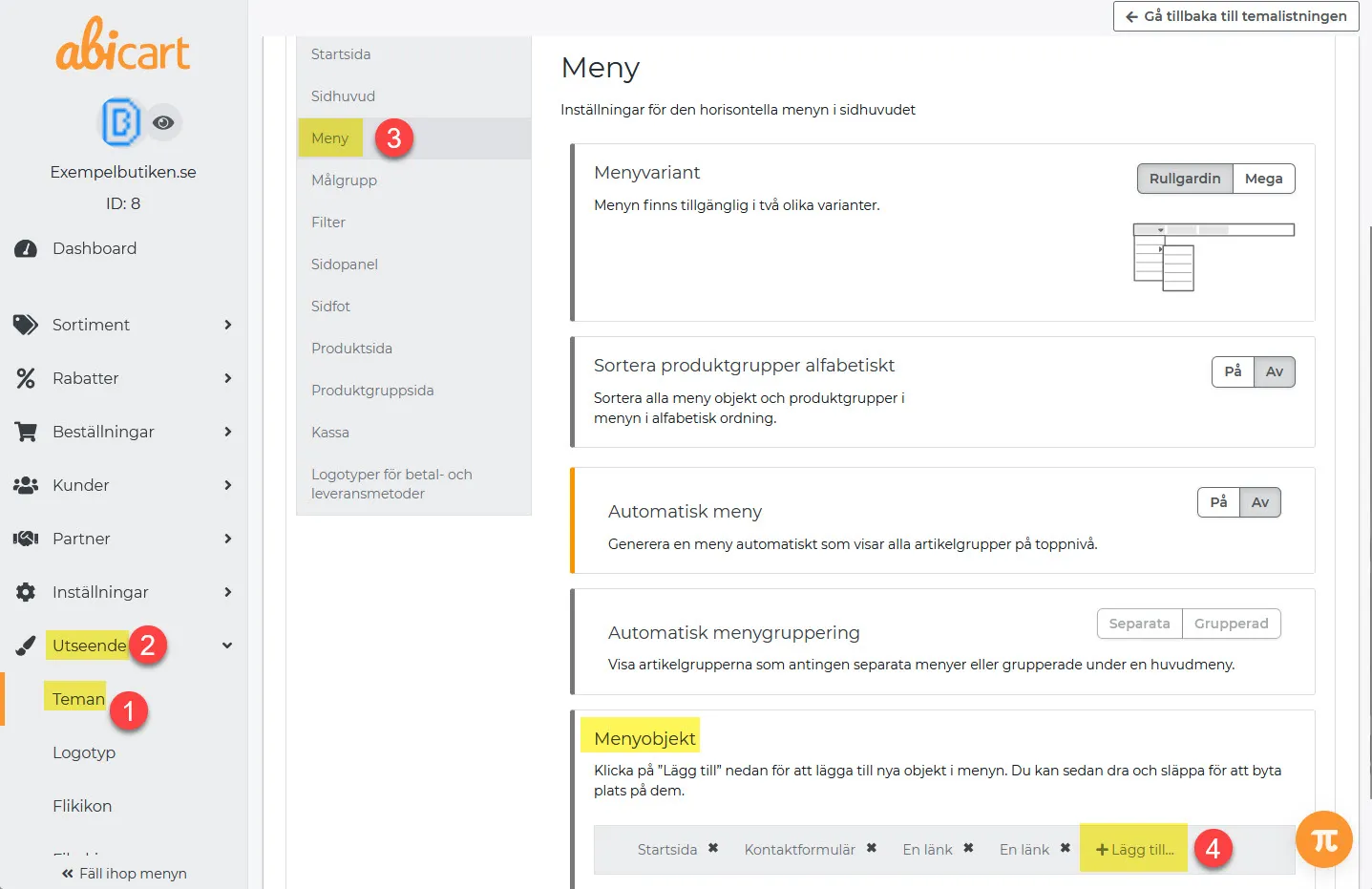
Add a menu item
27 Nov 2025
In "Automatic menu OFF", menu items are added manually under Appearance >> Themes.Here's what you do:1) Go to Design >> Themes >> Edit >> Menu2) Menu item >> Add >> Find the menu item >> AddChoose between, product group, pages or own link3) Save with the green button on the top right. 4) Done!
-
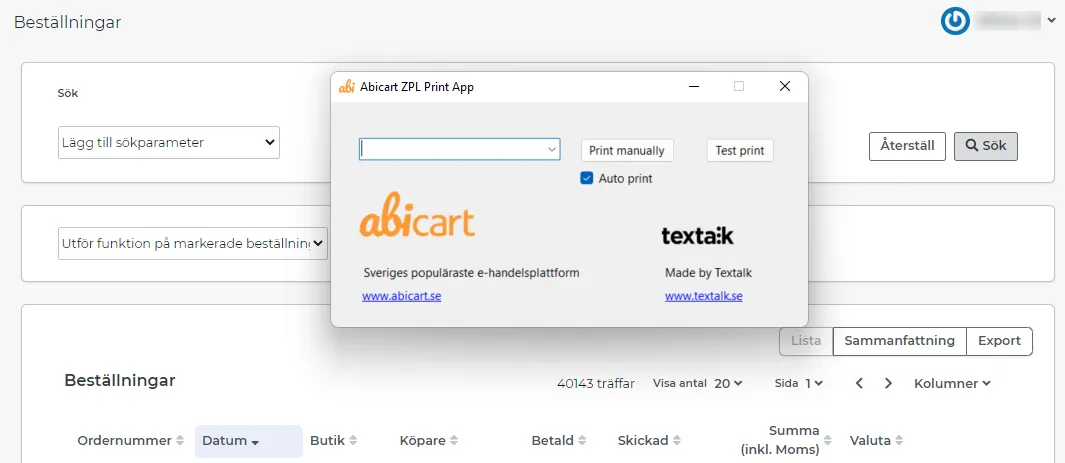
Print settings Abicart ZPL Print App - Postnord integration
27 Nov 2025
How to set up print settings for the Abicart ZPL Print App - Postnord integration. Once you have installed Abicart ZPL PrintApp for Windows, you will need to make some settings on your computer for the print window to open automatically when you select "perform function on selected orders" in Abicart admin. Tip: In some cases, printing may not start correctly if you already have a pop-up window open in your browser. Please close any pop-ups before sending your EDI shipment. We are aware of the problem and will fix it in the next version of the software.Here's what you do:0) Install Abicart ZPL PrintApp for Windows and export an order to Postnord1) Orders >> Orders >> Produce an order exported to Postnord2) Select the order >> Execute function on selected >> EDI labels. The file will be downloaded.3) Open the file explorer4) Select the file (1)5) Select Open with (2)6) Select choose another app (3)7) Select Abicart ZPL Print App + tick the box + OK8) Repeat: Select order >> Perform function on selected >> EDI labelsNow the window below will open (see picture).Click on (7) and select (8)9) Repeat for the third time: select the order >> Perform function on selected >> EDI labels 10) Then select the printer for printing and save.Link to manual: Postnord Send Direct - Postnord TA
-
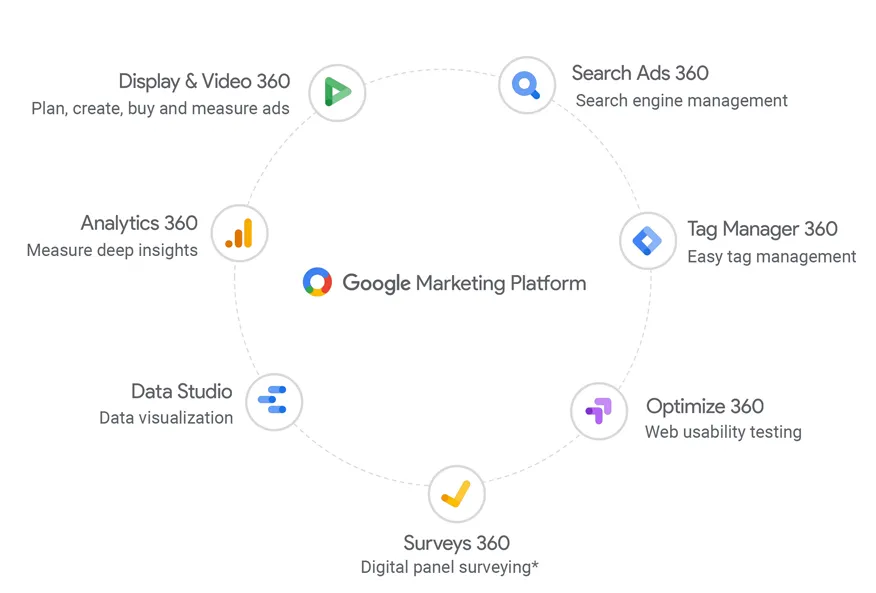
GA4: Triggers and variables in Google Tag Manager
27 Nov 2025
A list of triggers and variables for use in Google Tag Manager for Google Analytics 4 (GA4).Triggers and Variables in Google Tag Manager (GTM) for Google Analytics 4 (GA4) Triggers and variables are what is available to track in GTM (Google Tag Manager). New updated data layers and variables 1. Data Layer Event – view_item (Variable) This event is triggered when a customer has viewed an item/article/product. Datalayer Event: view_item ecommerce A list (Array) of products articleId Item ID (if available) articleNumber Item number (if available) name Item name ecommerce consists of: currency Currency code items A list (Array) of product details item_id Specific Item ID (if available) item_name Specific item name quantity Item quantity 2. Data Layer Event – add_to_cart (Variable) This event is triggered when a customer has added an item/article/product to their cart. Datalayer Event: add_to_cart ecommerce A list (Array) of products articleId Item ID (if available) articleNumber Item number (if available) name Item name articleName Item name articlePrice Item price transactionId Order number transactionTotal Total amount excluding VAT totalIncVat Total amount including VAT orderItem Includes each item in the shopping cart with the following information ecommerce consists of: currency Currency code transaction_id Order number value Shopping cart total (if available) items A list (Array) of product details item_id Specific Item ID (if available) item_name Specific item name price Item price quantity Item quantity 3. Data Layer Event – begin_checkout (Variable) This event is triggered when a customer has started the checkout process. Datalayer Event: begin_checkout ecommerce A list (Array) of products articleId Item ID (if available) articleNumber Item number (if available) name Item name articleName Item name articlePrice Item price transactionId Order number transactionTotal Total amount excluding VAT totalIncVat Total amount including VAT orderItem Includes each item in the shopping cart with the following information ecommerce consists of: currency Currency code transaction_id Order number value Shopping cart total (if available) items A list (Array) of product details item_id Specific Item ID (if available) item_name Specific item name price Item price quantity Item quantity 4. Data Layer Event – purchase_GA4 (Variable) This event is triggered when a customer has made a purchase. Datalayer Event: purchase_GA4 ecommerce consists of: currency Currency code transaction_id Order number value Shopping cart total (if available) items A list (Array) of product details item_id Specific Item ID (if available) item_name Specific item name price Item price quantity Item quantity
-
Integration with Fortnox
27 Nov 2025
Connection to the Fortnox business and financial systemWhat is Fortnox? Fortnox is a cloud-based financial management platform for small businesses, accounting firms, associations and schools. In addition to popular programs for e.g. invoicing, accounting, payroll and expense management, there are hundreds of industry-specific solutions from other providers that are integrated into our platform. Things to consider before activating the integration Integration to Fortnox is included in the Abicart Pro subscription (An integration to ERP is included) All items must have a unique item number and name. If you use the customer's choice, each choice must also have a name and item number. Note that spaces and other special characters are not allowed in the item number. Remember to activate the store's active currencies in Fortnox. If a currency is not activated in Fortnox, we cannot export an order placed in that currency. If you have variants (customer's choice), these must be created in the store for the first time, and then exported to Fortnox for the sync to work. It is therefore not possible to export variants from Fortnox to the store the first time. Activate license for integration in Fortnox In order to connect Fortnox with Abicart, the program license for Integration must be activated in Fortnox. If you do not already have the license for Integration, you need to add it. Do this as follows: Log in to your account in Fortnox. Click on "Administer users" as shown in the image below. Activate the license for Integration. Connect the store to Fortnox Under Settings -> External connections -> Fortnox you will find the settings for Fortnox.The first thing to do is to connect your store to your company in Fortnox. Click on the link shown in the picture below: Then log in to Fortnox with your Fortnox login details. When it is done, it says Connection + company name and a link to log out. Settings in Abciart Create articles in Fortnox The next step is to create three articles in Fortnox. The reason is that these should be linked to any shipping fees, discounts and other payment methods. Enter exactly the same article number on these articles in the three fields below. For example, the item numbers shown in the picture. It is also possible to enter a specific shipping item on each delivery method.Settings -> Shipping -> select shipping method, edit -> Fortnox Article export Export all items on the next eventCheck the box + save if you want to export the entire range on the next event. This setting exports the entire assortment once and overwrites the information found on the products in Fortnox (if the information differs). If you want to export products continuously when they are created/edited in Abicart, activate the event setting"Export item when adding/changing". Include customer selection in the item nameIf you have items that have the customer's choice, each variant will be exported to Fortnox as a separate item. To be able to see the difference between all variants, you should check this box that adds the name of the variant after the main article name. Uncheck webshop products for products hidden in AbicartWhen a hidden item is exported, it is deselected as "webshop item" in Fortnox. Important! Do not set up any product sales accountsA setting to not set any product sales accounts on the products in Fortnox. If this box is checked, we do not set sales accounts on items in Fortnox, but only set sales accounts on the order/invoice in Fortnox. If you use a different sales account for the products in Fortnox than what you specified in Abicart, it is important to check this box before activating the integration. Use item number as identifierBy default, the products' database ID is used as an identifier. This works as long as you have created the products in Abicart and then let the integration export the products to Fortnox. If you already have products in both Fortnox and Abicart before activating the integration, you must activate this setting so that the systems identify the products by article number instead. Article import Only webshop articlesThe import only retrieves the articles that are marked as "webshop articles" in Fortnox. Import only stock balanceThis setting ensures that only the stock balance is imported from Fortnox. Do not import product namesThis setting causes all properties to be imported on the products except the product name. Note that you also need to activate the event setting "Product import". Just checking one of these boxes is not enough to enable product import. Warehouse management In order to prevent unsynchronization between systems, you can choose which system will be the main warehouse. We recommend that you choose either Abicart or Fortnox, not both. Customer export Enter customer number in external systemThe setting means that the customer is transferred from the customer register in Abicart to Fortnox with the same customer number (own customer number) as the customer has in Abicart.If this box is not activated, Fortnox will create its own customer number. Enable custom mapping for customer fieldsSet priority for customer mapping by customer number, email or org number in the lists below. Order export Set order date to date for exportThe date of the order in Fortnox is set to the date when the order is transferred from Abicart to Fortnox. Without a cross, the date will be the same date as the order was registered with in Abicart. You can choose if an order should be transferred to Fortnox when: The order is registered in Abicart When the order is marked as paid in Abicart. When the order is marked as delivered in Abicart. Options 2 and 3 mean that the order can be transferred to Fortnox at a later date than when the order was registered in Abicart. Change delivery status to "delivered"The status of the order in Fortnox is set to delivered even if it is not flagged as delivered in Abicart. Without a cross, the delivery status in Fortnox will be the same as in Abicart. Do not refer to articles in external systemsWith a check in the box, no link is made between the products in the order and the item register in Fortnox. This means, among other things, that Fortnox does not count down the number in stock. Export content in package itemsWith a check in the box, the content of package items is "expanded", ie. the items included in the package are included in the order in Fortnox. Without a check mark, only the package item will be included in Fortnox (not the items included in the package). Type of resource in Fortnox Select the type of resource in Fortnox for each payment method. Select how the order should be created in Fortnox when it is transferred from Abciart, "Invoice", "Cash invoice", "Invoice paid by credit card", "Order" or "Offer".Depending on how the order in Abicart is paid, you can choose whether to create an Invoice or a Cash Invoice (which does not necessarily have to be paid in cash, it can be by credit card, for example).Here is an example from a store with four payment methods, card payment, Swish, Ecster installment and Invoice. Email notifications These settings above are if you want to send emails from Fortnox. Accounting accounts Under Sales and business income accounts, you will find the accounting accounts for sales depending on whether you are selling a good or a service, and the VAT rate that applies. If you use the Standard BAS plan, it could look like this: Event Settings Under the heading "Event settings" you activate what should be exported/imported. At "activation" there are three settings: xxx is registered xxx is paid xxx is sent At "execution" there are two choices: Inactive Update directly The most common is to select "registered" and "Update directly". Then orders/products/customers/price lists will be updated immediately when they are created/changed. Note that you need to select an option for both Activation and Running. If one of them is left as "Inactive", the event setting is not activated. Export order - Here you specify what should happen when an order is registered in Abicart. In our example, we specify that as soon as the order is registered in Abicart, it should be transferred to Fortnox (it may take a few minutes even if it says Update immediately). Customized logic - Advanced function. A field where you can enter code to make calls directly to Fortnox API. Export article when adding/changing - Here you specify what should happen if an article is updated in Abicart. You can choose to transfer the article to Fortnox. You should not activate both export and article import at the same time, but choose one of these. Product import - Here you can specify that Abicart should periodically retrieve trade item information from Fortnox. You should not activate both export and article import at the same time, but choose one of these. Export customer list - Here you can specify that Abicart should periodically transfer customer information from Abicart and transfer these to Fortnox. You should not activate both Export customer list and Import customer at the same time, but choose one of these. Import customer - Here you can specify that Abicart should periodically retrieve information about new and updated customers from Fortnox and add them to Abicart. You should not activate both "Export customer list" and "Import customer" at the same time, but choose one of these. Export price lists - Exports all the store's price lists to Fortnox. Import price lists - Imports all price lists in Fortnox to Abicart. New VAT rules from July 1, 2021 If you sell abroad, you need to make certain settings to be able to export correctly to Fortnox. Start by activating "VAT per country" in the store. 1) Settings -> VAT -> Price management.Previously, excl. VAT was required, but now it is just as good to have prices incl. VAT selected. If you have excl. VAT in admin, you can still show prices incl. VAT in the store. You manage this under "Presentation" just below this setting.2) When the setting above is as you want it, set "VAT per country" at the bottom of the page.Add the countries outside the EU that should pay VAT, for example Germany and Spain, and then enter the percentage for these countries. Save. When this is done, log in to Fortnox and create the VAT rates to be used in Fortnox: Next, create sales accounts for each country in Fortnox. Here are instructions for this in the Fortnox manual: https://support.fortnox.se/ordlista-bokforing/oss-one-stop-shop When this is done, you will be able to select sales accounts per country under Settings -> External connections -> Fortnox in Abicart: The products must be marked as active and "webshop item: yes" in Fortnox to work. Tip! If a business customer from a non-EU country placed an order with a non-approved VAT number, the order will not be exported to Fortnox. Solution: remove the VAT number from the order, from the customer card in Abicart and from the customer card in Fortnox. Click Export on the order page. Then the order will be exported. F.A.Q. - Frequently asked questions and answers I want to export orders as unposted invoices to Fortnox, how do I set this up? Under "Type of resource in Fortnox", select "Invoice" for the payment method(s) you want to export as "Invoice". At "Payment method in Fortnox" you then control whether the order should be posted or not. Ignore - The invoice is registered in Fortnox but not posted.Post - The invoice is registered in Fortnox and posted but not marked as paid.The other options (which ones are available here depend on which payment methods you have created in Fortnox) mean that the invoice is registered in Fortnox, posted and marked as paid with the selected payment method. How are customers managed? If you are a logged in customer in Abicart:First, we check if the customer in Abicart is already connected to the customer in Fortnox. Then that customer is used in Fortnox.Secondly, we check if there is a customer in Fortnox with the same customer number (own customer number) in Abicart. Then that Fortnox customer is used.Thirdly, we check if there is a customer with the same e-mail address. Then that Fortnox customer is used.If none of the above is met, a new customer is created in Fortnox.If you are not logged in as a customer in Abicart:We check if there is a customer with the same e-mail address in Fortnox. Then that Fortnox customer is used.If none of the above is met, a new customer is created in Fortnox. What properties are exported when exporting a product from Abicart to Fortnox? The following product properties are exported to Fortnox from Abicart. Name/Description Active/hidden Item number StockGoods - whether the item is a stock item or not StockWarning - level of stock warning Type - set to "STOCK" or "SERVICE" depending on the item type EAN - THE ARTICLE NUMBER Manufacturer's article number MPN/SKU Unit - set to the unit of the item (often pieces) WebshopArticle - set to true if the item is displayed in the store Quantity in stock is set for stock items Sales accounts are set if you have not ticked that you do not want this. Price is set Purchase price What properties are imported when importing products from Fortnox to Abicart? The following product properties are imported from Fortnox to Abicart. Article number Active/hidden Stock balance Weight of product EAN Manufacturer's article number MPN/SKU VAT rate, percent Unit of measure Name/Description Price of the item Purchase price
-

Integration with Creditsafe
27 Nov 2025
What is Creditsafe?With Creditsafe, you can run credit checks and prevent unnecessary credit losses in your shop. Creditsafe is suitable for those who have payment methods such as self-billing and want to know the creditworthiness of those you do business with.The link between Abicart and Creditsafe costs SEK 100 per month, and you also need to sign an agreement with Creditsafe for the link to work. Start by signing an agreement with Creditsafe. Then activate the additional service under My subscription. More information is available on the Creditsafe website >>If you use invoicing services via, for example, Klarna, Svea, Dibs or any other company, credit checking is already included, and you do not need to use this additional service. This is only for your own payment methods that you manage yourself.
-

Translations - Export/import texts in multiple languages
27 Nov 2025
As your store expands and gets bigger, you may want to expand your shop to include more countries, currencies, and languages. In the past, you had to translate all your administration texts manually (apart from the product range). Now you can export all the texts in the shop instead.You must first go to Settings -> Languages to activate the languages you want in your store.If you want to activate a language but do not want to display it in the shop directly, click on the language in "Hidden". Then only the language fields will be displayed in the shop administration.Do not make changes during this processNote: When exporting texts, do not make changes in the shop before importing the new language. Exported language strings are imported with the same keys, so if you make changes in the store before importing, there is a risk that text strings will be imported incorrectly.Video guideExport file for translationGo to Settings -> Language -> Export.Export translationsHere you will see several choices that need to be made.Which language do you want to translate from? - Here you will see a list of the languages entered in the store under Settings -> Languages.For example, if you want to translate from Swedish to English, select Swedish. Your exported file will then contain three columns: Id, source language (in this example in English) and an empty column where you write your translations.Which file format do you prefer? - You can choose between three different formats in which the file will be exported, CSV (semicolon-separated text file), ODS (Libre Office) or XLSX (Excel).If you are not sure which to choose, we recommend XLSX, which can be easily opened in Excel.What data do you want to include? - If you want to translate all the texts already entered in the shop, tick all the boxes for Articles, Article groups, Delivery methods, Payment methods, Delivery information, Article template, Own pages and Theme.Theme - Here a list will be displayed with all the store's themes. Select the store's active team. In the exported file, there is a ready column for the translations (translation) in the export file, where you enter your translations for the language of the respective text field.Then click on export.Where do I put the translations in the file?Once you have exported a file, open it in a spreadsheet program, such as Excel, Libre Office Calc or similar. The file should then contain three columns, key, content and translation, and look something like this.Column A: key - This column contains the property to which the text applies. For example, in the picture above, line 2 is an "article" with article ID 12565483 and the content "aftertext" which is the field for text that appears after the order. In column B of line 2 we can see the English text that applies which is "Text after order".Column B: content - In the second column, the English text is shown in this case (as we chose to export the translation from English above).Column C: translation - In the third column we translate the text in column B into the language we want to add to the shop, for example English.How do I import a file once the texts have been translated?Once you have translated a file and want to import translations, go to Settings -> Language -> Import.Import translationsSelect the language to import - A list of the store's active languages will be displayed. If you have translated a file from English and entered English texts in column C, select "English" from this list.Select the file you want to import - Select the translated file from your computer.Then click on the import button. Done!Important informationPlease note:When exporting texts, do not make changes to the store before importing the new language.The language must be added to the store.You can only import one language at a time.If you have exported the file as CSV, the file must be saved with the character encoding "UTF-8" and the delimiter set as "comma" in order to be imported.
-
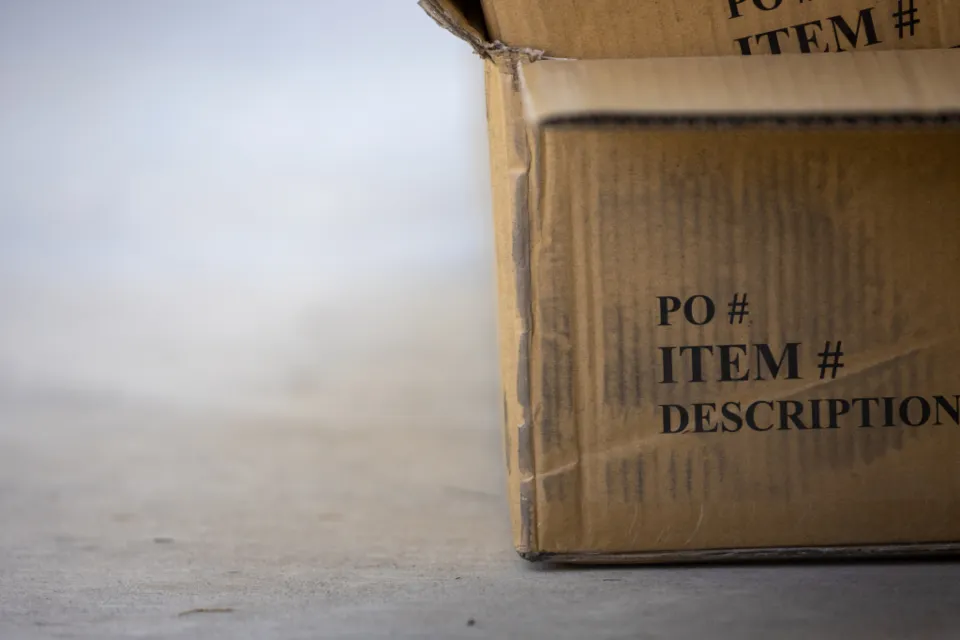
Orders
27 Nov 2025
In Orders you will find all the orders placed in the shop. You can sort, manage, shred and export the orders.Customize the order listChoose that columns to display by clicking on "Columns":Search for ordersTo search for orders between certain dates, placed with a certain payment method, or for a specific order number, use the "Add search parameter" function. The filtering is then saved so that it is available the next time you visit the order page.Search by "Country"A search by "Country" will return hits both on the orderer's selected delivery country (where delivery is to be made) and on the payer's own country (the payer's country). A search on "Norway" will therefore show both orders delivered to Norway and orders from Norway that choose to deliver to another country, such as Sweden.Exporting ordersIf you want to export all orders, there is a function that creates a CSV or SKV file that you can edit on your computer and then import back or to another system.The type of file created is determined by the store's export settings, which can be adjusted under Settings -> General -> Export settings.If you want only a selection of all orders, you can enter values in the search function on the page and then click on "Export orders", e.g. if you only want to export orders between two specific dates.The name of countries exported is always in English, e.g. "Brazil". Any states or provinces are in the main language of the country, e.g. "Espírito Santo" (here: Portuguese).If you are exporting a CSV file, the decimal separator is a dot (e.g. 13.20 kr) and if you are exporting an SKV file, the decimal separator is a comma (e.g. 13.20 kr).Use function on selected ordersIf you want to create address labels or delivery notes, you can do it here. Select the current orders by ticking the box to the left of each order and then select the function.Detailed order informationTo see all the information about an order, you can click on the order number. This will take you to the order page itself, where you can see which products have been purchased, customer information and the delivery and payment methods used, and possibly information on the export status to external systems (transport and financial systems).On some of the blocks you can view more information by clicking on the arrow in the upper right corner. For example, if you want to mark an order as paid but not shipped, click on the arrow on the "Execute Action" block. Then make sure that only the action(s) you want to perform are selected before clicking the button.Activate/debit reserved ordersWhen a purchase is completed, the order is reserved in most cases. You then need to activate/debit the order when it is shipped in order for the money to be paid out. To activate/debit an order, go to Orders -> click on the order number -> in the "Perform actions" box, make sure the "Debit ([payment method name])" checkbox is selected and then click on the "Perform selected actions" button. The transaction will then be activated by the payment service and the money will be deducted from the buyer's card and/or an invoice will be sent out depending on the payment method chosen.You can also activate the order in the order list, by clicking on the icon with a lightning bolt at the far right.
-
Abandoned carts
27 Nov 2025
Manage customers who have not completed purchases at checkout. What is an abandoned basket? An abandoned basket is an order that has been initiated by the customer adding products to the basket and then proceeding to checkout, but not completing the order. In order for an order to count as an abandoned cart, the customer must have entered their email address at checkout and the order must have been untouched for at least 15 minutes. How does it work? Under Orders -> Abandoned carts, a list of abandoned carts is displayed. Currently, you can filter in four different ways: day current week current month last month Currently, you can only see this information, and you cannot contact the buyer directly through this interface. If you want to contact the customer, you will have to copy the email address and then use your usual email client to do so. What information can you see? You can see the customer's email, the products they had in the shopping cart and the date the products were added to the shopping cart. Please note that these orders may no longer be available for purchase as shown in the list, there is no guarantee that the cart contents are still available.
-

Change of ownership
27 Nov 2025
If your shop is changing hands, follow the list below.To-do list:1) Current owner invites incoming owner to create admin account under Settings >> Administrators. Link to manual: Add a new administrator 2) The new owner fills in their contact details on their new account. 3) The current owner sends a message to Abicart customer service from their owner account, stating which admin account should become the new owner: - Administrator's email- Store ID The transfer will be completed immediately as soon as the request is processed. Send the request only when you want the change to be made. *A transfer agreement is drawn up between the old and new owner on their own. The agreement does not need to be sent to Abicart. 4) Abicart customer service updates the store so that the new administrator account (incoming) becomes the store's owner account. The old owner remains as the administrator. The new owner can now invite new administrators and remove already added administrators. Read more here:Link to manual: Add a new administratorLink to manual: How to delete an administrator 5) New owner reviews company information and makes sure store and admin are updated with correct informationSettings >> Store informationMy profileFooter in the themePages such as "Terms & info"Done!*Please note that your admin account is personal and can be linked to multiple stores. Do not hand over your admin account. A new administrator will instead be invited to their own account via "Add a new administrator".
-
Nets Easy
27 Nov 2025
Checkout cashier from NetsWhat is Nets Easy?Nets Easy is Nets Checkout solution that includes several payment methods (card payment and invoice).What is required for me to use Nets Easy?You must use one of our responsive themes and have the additional service SSL activated.Order Nets EasyYou order Nets Easy by calling and talking to a sales representative: 08-527 525 00.In which countries does nets Easy work?Nets Easy works in all European countries with the currencies SEK, NOK, DKK, EUR, USD and GBP.Note that only SEK is active with Nets by default. You need to contact Nets and ask them to activate the other currencies if you want to use them.Add Nets Easy to your storeGo to Settings -> Payment methods -> in the list at the bottom, "Add payment method".Select "Nets Easy" -> click on "Add".Active - Check the box to activate the payment method at checkout.Default payment method for customer - Check if the payment method should be default for all customers in the checkout. Only one payment method can be preselected.Make available only for the customers or customer groups where I specify it- If you want to limit the payment method for one or more customer groups, check the box. You then select which payment methods can be used for each customer group.Available for customer type - If you want to limit the payment method to a specific customer type (private person or company), you can select this here. If "All" is selected, both customer types can use the payment method.Donot allow another delivery address for this payment method - Turn off the possibility for the buyer to choose another delivery address. You can then only have the order sent to the civil registration address.In the Account box, enter the information provided by Nets.Shared secret - You get this from Nets.Checkout secret - This is provided to you by Nets.Color on text and buttons - Color settings in Nets payment window.Test mode - If you want to test the integration, you can get a test account from Nets. You will then receive test information that you enter in "Shared secret" and "Checkout secret" and then check this box. You cannot activate test mode on your "real" data, it must be Nets' test account.Allow gift certificates - Allow payment in combination with gift cards.Name and DescriptionNameEach payment method has a name that will be displayed in the checkout but if you want to modify this, you can enter a new name in this field. An optional field that can be left blank.Detailed descriptionA field to enter a text that informs the buyer about how the payment method works. Can be left empty.CurrenciesIf you have several active currencies in your shop, you can limit these for each payment method. The default setting is "All active currencies in the shop", but if you check "Specific currencies", all active currencies are displayed and you can choose to disable those that should not apply to this payment method.CountriesThe default setting of the payment method is that it applies to all countries to which the shop offers delivery (Settings -> Shipping). If you want to limit a payment method to only certain countries, you can check "Specific countries" and then specify the countries that can use this payment method. Order statusIf you want orders placed via this payment method to have a specific order status, you can enter it here. Select the status from the list. Restriction on the order totalA setting to limit the amount that a payment method can handle. If you choose to limit the amount between two intervals, it is always the total order value including shipping and other fees. Fee added at checkout when placing an orderA function to add an additional fee to the purchase, such as a handling fee.
-
Pre-payment
27 Nov 2025
Add a pre-payment method to the checkoutWhat is prepayment?It's a payment method you can add to your checkout. Customers place an order and then send the payment via bank transfer or bank account. Once you have received the money, you send the order to the buyer. You handle this payment method entirely on your own. You must check that the payment has been received before sending the order to the buyer.Add prepayment in the shopUnder Settings -> Payment methods -> Add new payment method -> select "Prepayment" and click on "Add". Tick "Akiv" on the payment method. In the "Detailed description" field, specify how customers will pay. For example, enter bankgiro, bank account or similar. Then click on "Add".
-
Tab icon / Favicon
27 Nov 2025
You can add your own image to be displayed in browser tabs or address windows.What is a favicon?A favicon is a small square image that appears on the tab or in the address window of the visitor's browser. Some browsers display the image in the tab and others in the address window.A custom favicon makes your shop look more professional and unique, so we recommend adding one if you can. The most common is to have a small version of your logo as an icon.What format should the image be?It should be a square image (1:1 ratio) and common sizes are 16 x 16 px or 32 x 32 px and it should be in the . PNG.In the past, .ICO was the most common format for this image, but some browsers no longer support this. We therefore recommend that you save the image as .PNG instead, so that it works on as many browsers as possible. Insert a tab icon in the themeGo to Appearance -> Tab icon. Upload the image and press "Save". Now you have your own tab icon in your store!Some browsers display the image in the browser tab (e.g. Google Chrome) and others display it in front of the page address in the browser address window (e.g. Safari), so it may differ depending on which browser you are using.
-
Products
27 Nov 2025
What are the different types of products? There are currently four different types of products: - product (physical or downloadable) - package (consisting of several different products) - service - gift voucherProductThe most common thing you have in your store are regular products. Here you can enter various properties such as name, description, price, stock balance, item number, weight, shipping information, etc.PackagesA product bundle must contain at least two products and you can set a new price for the bundle itself, regardless of the base price of the products in the bundle. Example: If you create a package with three products that cost 50 SEK each, you can enter your own package price of 120 SEK.ServiceWhat distinguishes a service from a regular product is that the blocks (properties) for e.g. stock balance and shipping are missing.Gift cardIf a customer wants to give away a gift card, you can use gift cards in the store. The store owner then creates gift cards with different values, e.g. 100 kr, 250 kr, 500 kr, etc. The customer can then buy one or more gift cards which they then give away. Either it is sent out by email or the buyer can print and give away a physical gift card that serves as payment in the store.Create a new productGo to Products -> Click on the "+ New Product..." button top right -> select "New Product".On this page (tab "Product Properties") there are several different boxes containing different settings.Tip! When you create a new product via copy and don't want the price from the old product to affect the comparison price: Copy the product >> Save as draft >> Enter the correct price >> Save as draft >> Save as usual.Read more about the comparison price & the new law on sale prices here (Lowest price last 30 days)TextsThis box contains settings for the product name and descriptions. If you have activated multiple languages, fields for each language will be displayed for each property.Name of the productEnter a name for the product. Keep in mind that this name is important for search engines, so instead of just entering "t-shirt", you should think about including the manufacturer or similar in the name as well. For example, "T-shirt from [brand]".Introductory textThis field appears on the product page just below the product name and is meant to be used for a short summary of the product.Description of the productThis field is intended to be used for a long detailed description of the product.PricingThis box contains settings for prices, VAT and the possibility to activate a quote function. If you have activated several currencies and set them to be manual, a field for each manual currency is displayed in each price field. However, the most common is that you have a base currency and then link other currencies to this base currency. Then the system can calculate prices in these other currencies automatically based on the current exchange rate.Regular priceA field to enter a regular price for the product.Extra priceA field to enter an additional price for the product.Note that the new pricing system with price lists can also be managed under Products -> Pricing.VAT rateIf a product should have a different VAT rate than the standard VAT rate, you can enter it here. Under Settings -> VAT -> VAT rates -> Default VAT rate for store items, enter a basic VAT rate for all products.Show "Request a quote" instead of "Buy" for this item.In some cases you may not know what the product will cost, and you need to get a quote. You can activate this setting on the product. Instead of a buy button, the customer will fill in an email address and mobile number, they also have the option to fill in their name and a message. After that, the customer will be able to click on "Send price request." The details and the item in question will be sent by email to the store owner.By default, you must enter a price for the products in order to create them. If you want to create products without a price, you can change this setting under Products -> Product settings -> Items without price.Stock managementThis box contains settings to enable inventory management, enter stock balances, and display various stock messages to the customer.Enable stock managementThis setting must be enabled for stock management to work.Stock balanceField to enter the stock balance.If you are using customer selections and have enabled inventory management, enter the stock balance of each selection in the "Customer selections" tab.View stock balanceIf you want to show the product stock balance to the customer, activate this setting. The stock balance is shown on the product page and if the balance is 0 or less, the stock message from the "Stock message for items not in stock" field is shown instead.Hide the item if out of stockIf you want the product to be hidden when it sells out, you can enable this setting.Allow orders even if out of stock and show stock messageYou can set it up so that products that have sold out can still be purchased. The field "Out of stock message" will be displayed and the product can be purchased as usual.Stock message for out of stock itemsIf you have enabled stock management and "Show stock balance", this field will appear on the item page. Here you can enter a text that informs when the product is expected to be back in stock, for example "Temporarily out of stock. Back in stock in 3-4 days".Send me an email when stock is lowA field to activate a setting for the store owner. If you want to be alerted that a product is about to run out of stock, you can activate this feature. You will then also need to enter a value in the "Stock Alert Limit" field, i.e. when the alert should be sent out. For example, if you enter "2" in the field, the system will send out an email to the store owner (the email is sent to the email address specified under Settings -> Email -> Email orders) when the stock balance becomes two or lower.Hide product if out of stockCheck the box to hide the product when stock runs out.Stock location name (for sorting in pick list)Enter the name of the storage location here.PropertiesThis field contains settings for weight and product template (included in Abicart Plus & Pro).WeightIf you use a transportation service like Unifaun and/or Pacsoft, you must enter the weight of all products. The weight should be entered in grams and it will be summed up on all items in the cart to calculate a shipping fee based on the total weight.Product templateIf you have created product templates, these will be displayed in a list here. Select the template that the product will use. Product templates are created under Products -> Product templates. QuantityIn this field you can control how many quantities of the product must be purchased. By default, you can buy anything from one to as many products as are in stock. However, some products you may want to sell in 6-packs, 10-packs, or similar, and then you can set this here.Minimum steps for quantityThe number that the customer can order must be a multiple of this number. The default is "1".The most common is that you sell products individually and then you enter "1" in this field. But if you sell, for example, a 10-pack, the "Minimum step for quantity" will be 10 pieces.Minimum quantityThe minimum number that may be purchased. Default is "1".For example, if you sell a 10-pack, enter 10 as the minimum number. Then the minimum number that can be purchased will be 10.Maximum quantityIf you want to limit the number of this product that can be purchased, enter the value in this field. Default is "0" for unlimited quantity.Hide quantity input field (item display)If you do not want the customer to be able to choose the quantity of the product, you can activate this setting. The customer can then only buy the value entered by the store owner in the "Minimum quantity", "Minimum quantity increment" and "Maximum quantity" fields above.Never show quantity input fieldsThe setting above (Hide quantity input fields) only applies on the item page and if you do not want the buyer to be able to change the quantity in the cart/checkout, you must also check this box. Item settingsThis field contains settings about whether the product should be displayed as new, for display only, etc.NoveltyIf you activate the article as news, it will appear on its own page "News". You can also add a block of products to the start page of the theme and select the "News" link. Then only the articles that are marked as news will be displayed.Customer-specific fileIf you want the buyer to upload an image/file to the product before it is added to the shopping cart, activate this setting. For example, if you sell products with your own prints. Then the buyer can easily attach an image to be printed on the product.Customer specific file is necessaryIf you have activated the setting above, "Customer-specific file", you can make this setting mandatory, so that the buyer must upload a file to be able to add the item to the shopping cart. Then you tick this setting.If only this setting is enabled, nothing happens. The "Customer specific file" setting must be enabled for "Customer specific file is required" to do anything.Exclude from related itemsAbicart Plus/Pro includes a function to show related items under an item on the item page. For example, accessories or "Others also bought". In some cases, you may not want to show certain products in a relationship list and you can disable them with this setting.For display onlyIf you only want to display a product without it being available for purchase, you can enable this setting. For example, if it is an upcoming product, you can add it earlier and then make it purchasable when it comes into stock.Text in order confirmationA field where you can enter a text for this particular product that appears in the order confirmation.Note that there is a general field for "Text in order confirmation" under Settings -> Document and email content -> Order confirmation -> Text on order confirmation.You should only use this field if there is something specific to this particular product that you want to inform about.InformationIn this field there is a setting to hide the product and to show the product type.HiddenA setting to hide the product. The product will not be displayed in the store but only in admin. In the product list, the product row is also marked as dark gray.Product typeThere are four different product types and here you can see which type it is. Product, package, service or gift card.CategorizationSettings for selecting product groups, and optionally selecting Google Taxonomy (requires the Google Shopping add-on).Product groupSelect which product group(s) the product should belong to.In Abicart Plus and Pro, a product can belong to unlimited product types. In Abicart Go, a product can only belong to one group.Google TaxonomyFor Google to accept the Google Shopping product feed, you need to select Google Taxonomy for each product. The categories are predefined by Google and you cannot change or add your own. You must select one of the ones listed if you want to use Google Shopping.IdentificationThe identification field contains properties to identify the product.Item numberAn item number can contain letters, numbers and some special characters.Some external systems (transportation systems, financial and checkout systems, etc.) may have restrictions and not allow certain special characters in the item number such as spaces, & characters, hash tags, periods, commas, etc. Therefore, these special characters should not be used as part numbers, only letters (a-z), numbers (0-9), hyphens (-) and underscores ( _ ).MPN / SKU (Manufacturer's Product Number)A field for the manufacturer's product number.GTIN (Global Trade Item Number)A field for the GTIN. If you are using Google Shopping, you must enter a GTIN number, or enter a brand name for the product.ImagesA module to upload images of the product. Supported image formats are JPG, PNG, GIF and WebP.You should use the .JPG image format and have an image size of at least 1000 x 1000 pixels. The system will rescale the image to different sizes and then display the "best" size depending on the visitor's screen size. In addition, we transcode uploaded images to AVIF. However, the format is only used if the browser supports that format. It is not possible to upload or import AVIF images.AttachmentsA module to upload an attachment to the product, such as a PDF file with technical specifications or similar.You should not use the attachment feature to sell digital files, such as PDFs or similar. The attachment will be available on the product page for all visitors and will be downloadable without having to buy the product.We have a downloadable file selling feature that you can use to sell digital files. ShippingIn this field there are different shipping settings and display of shipping notifications.Free shippingIf you want a specific product to be free shipping, you can enable it here. If there are some products that are free shipping and others that are not, the regular shipping fee will be applied to the order.If all items in the cart are free of shipping charges, no shipping fee will be added to the final total.BulkyA feature to tag a product as bulky, for example if you sell products that are physically large but may not weigh much and should not use the regular shipping fee.Usually, you create a shipping method (Settings -> Shipping and delivery) that can handle bulky products (e.g. "Pick up in store") and then disable bulky products on all other shipping methods.If the customer has at least one bulky product in the cart, only the delivery method(s) that can handle bulky products will be displayed at checkout.Delivery informationUnder Products -> Shipping information, you can create different shipping templates that display different texts depending on whether a product is in stock or sold out. You can then link the templates to your products. You can tag a shipping template as "default template" and it will be activated by default on all products. You can then manually change the shipping template or turn it off completely via the settings here.Show the store's default shipping information template ("[Template name")Show no shipping informationChoose your own item-specific shipping information templateStore owner's notesA text field for notes. Only shown in admin, not in store.
-

Product bundles
27 Nov 2025
Product bundles allow you to put several products together and sell them as a single package.This feature allows you to create a ready-made package with existing products and set a separate price for the package. When the package is purchased, the inventory balance is automatically counted down on all products included in the bundle.Product bundles are included in the Abicart Plus and Pro subscriptions.RestrictionsThis feature is still under construction and therefore there is currently a limitation in that some products cannot be included in a package.Products that cannot be included in a package at the moment: Products with different VAT rates.gift card products. products where the customer can upload a customer-specific file.Product packages cannot be copiedCreating a product bundleIn this example, we have five products, four tools and a toolbox that we want to sell together in a package. To create a product package, click on "New product" -> "New bundle".Enter a name for the bundle.Enter a description.Then you choose which products to include in the bundle. In the right column there is a field called "Products included". Click on "+ Add content" and then find the first product to be included in the bundle. You can search by product name and/or product number. In this case, we search by product number and the product name appears in the list below. Click on the product name to select it.Repeat the step and add all the products to be included in the package. When all products are selected, it will look like this:Then you have to give a price for what this bundle should cost. In this example, all products cost 1275 SEK in total and we think you should get a little discount so we set 999 SEK as the price for the bundle.In the shop, it looks like a normal product.
-

Related products
27 Nov 2025
Related products allow you to show complementary or similar products on the product page, such as Accessories, Similar products or Others also purchased. By displaying relevant products, you can increase upselling, increase order value and help customers find more products they are interested in.Different ways to create lists of related products You can create lists of related products in several ways depending on how you want to work in your store: 1. Manually on the product (product-specific list)You can create a related list directly on a product and manually select which products to display, or choose to display an automatic list based on purchases. 2. Via product templates (only for Abicart Plus and Abicart Pro subscriptions)If you use product templates, you can create relationship lists in the template. The lists will then automatically appear on all products that use that template. You can choose to hide related products from the product template on a specific product by checking the "Hide lists inherited by product template" box on the product's related products settings.Read more about product templates here 3. Via import If you have many products, you can create or update related lists via import. This allows you to manage related products on a larger scale.Read more about how to import related products here Info for you with Plus & Pro: You can choose to show related products both from item template and from product specific list (list created via import/manually per product). Add related items to a product Go to Assortment -> Products -> Select product, edit -> Go to the "Related Products" tab. Click on "Add relation list". Name of the list Enter a name for the list. The name will appear above the products in the list on the product page. Settings Set where the relationship list will be displayed in the store: Show on product page Show when product is added to cart Always show in cart Appearance A setting for how the relationship page should be presented, as a list or table. Select "Manual selection" and then click on "Add product". Locate the product by first selecting the product group and then the product. Repeat the step to add more products to the list. Enable the display of related products in the theme Go to Appearance -> Themes -> Select theme, edit -> Content -> Article pages. Scroll to the bottom of the page to "Block". Click on "Add block" and select "Related, visited or other products". Click on add. Enter a name for the block (only shown in admin) and at "List" select "Related products". Under "Automatic or manual" select "Manual" for a manually created list. If you choose "Automatic", the system will show products that other buyers have traded at the same time as the product you are looking at.
-
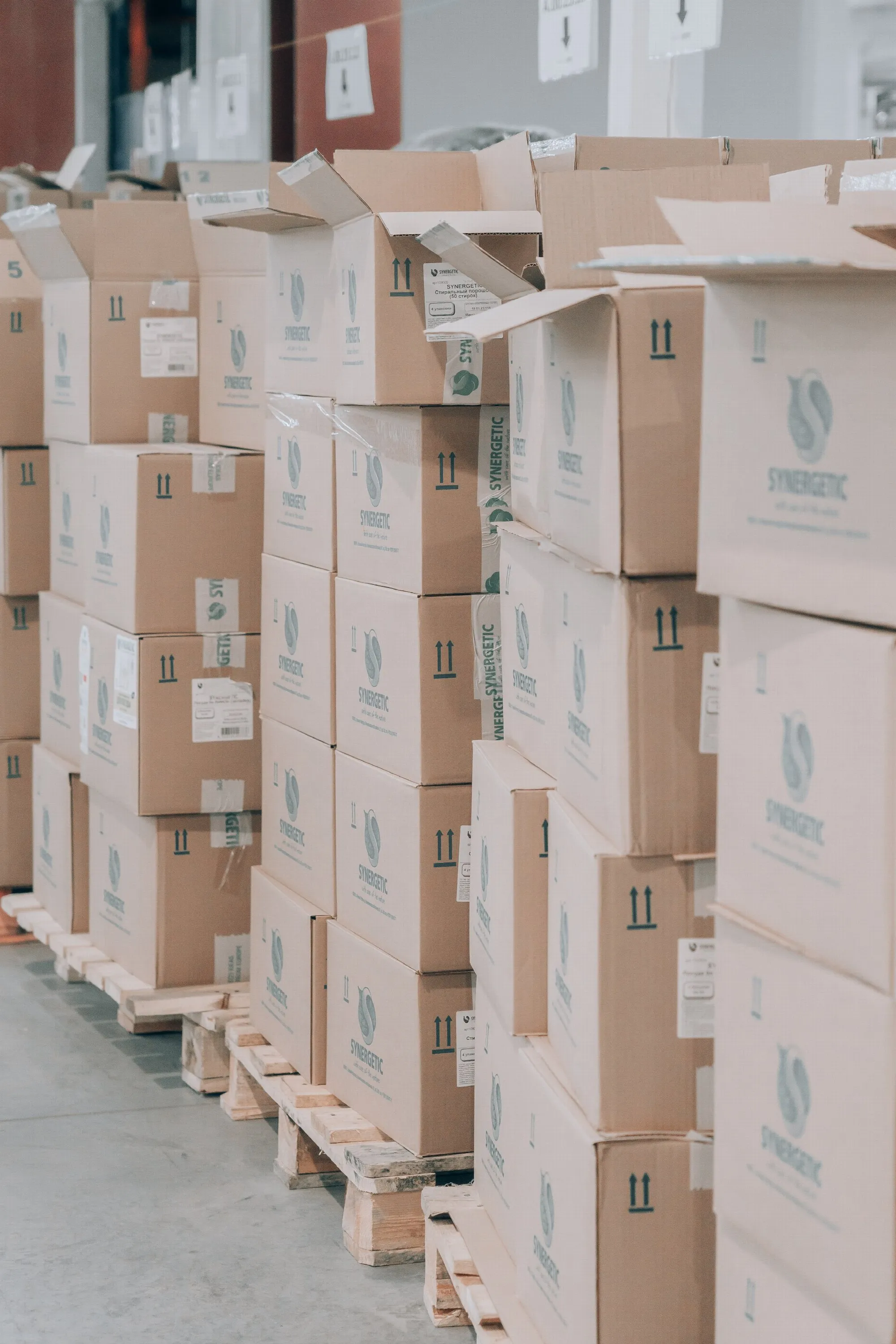
Product groups
27 Nov 2025
Product groups Product groups are used to organize your products in a convenient way for your customers. They form the basis of your product range. Defined product groups help you to create order in your shop. In admin, you can use folders to create a structure to categorize your products.The structure of the product group created here will be used as the layout for the menu on the website.So plan it very carefully.Tip. A well-designed structure makes navigation easier for your buyers. Easy navigation equals a good user experience and satisfied customers.For example, this is what it might look like when you group all brands under one product group: How do I add product groups?Go to Assortment (A) -> Product groups (B) -> Click on +New product group (C) Enter the "Name of the group" (D) (e.g. Fashion). Click the +Add button (E) to add and save the group . How do I create subgroups? Method 1:Start by creating a new product group. If you are not sure how to do this, see the previous section "How do I add product groups?".Select the main group to which the new product group will belong at "Location" (A). Enter a name for your product group (B).Click on +Add (C) to save your product group.If you click on Assortment -> Product groups (D), you will now see that your main group has a subgroup. Method 2:On the "Product Groups" page, click on the name of the product group (A). A list will appear on the right.Select +New subgroup (B) to add a new subgroup. How do I move groups?Sometimes you may need to move groups, you can do this in two different ways.Method 1:Select the group (A).In the list on the right, select Cut out (B). Click on a group where you want to move the clipboard (C). The list now contains the options Paste in, Paste before and Paste after (D). Paste means that the clipboard will be placed inside the selected group.Paste before means that the clipboard will be placed before the selected group in the tree.Paste after means that the clipboard will be placed after the selected group in the tree.Method 2:Press and drag the folder you want to move to (A). Drop it either on the group in which it will be placed (B).Or between groups to move it within the structure (C). How do I add products to my product groups?Go to Assortment -> Products (A). Create a new product (B), or edit an existing one (C). Under Categorisation (D) you can select a "Product group" for your product (or several if you have a PLUS or PRO subscription).Preview your store and you should see a menu item for each of your product groups.Things to remember: Each product must belong to a product group to appear on the website. (Don't see certain products on the website? Check if they belong to a product group.) You can add a product to multiple product groups, but only one can be treated as the primary group for that specific product. Only products from the primary product group will be included in the sub-shop (if you are using a multi-shop system). When you create a new discount, it will only be applied to products in the primary group and not to products using multiple groups. For example, the discount will only apply to this product via the "Men" category and not via "Watch". If you want to add a discount to this product, the discount must apply to "Men" and the product must have this group set as the primary product group.Other settings and what they do:HideIn the product group settings, there are two ways to hide both groups and/or products. Hide product group and its productsIf you decide to stop selling a certain type or category of product, hiding them one by one is no easy task. With this setting, you hide both the group and its products from the menu and the shop.Things to remember: If you apply the setting to a category at the top level, the subgroups are also hidden from the menu. Products, whose primary product group is "hidden", will not be listed on the website. The products from the subgroups will still be available and can lead you to the page for that group. If you want to hide all groups below the one at the top level, it must be done on each subgroup. Tip! If you have not hidden the group but it is still not visible in the menu, the next place to investigate this is at Appearance (A) -> Themes (B) -> Edit (pen icon) (C) -> Product group page (D) -> Empty groups (E). (The product group may be empty). This also applies to the option "Do not show the product group in the product menu". Do not show the product group in the product menuDo you want to hide the product group from appearing in the menu? Then this is your option.This setting hides the group from the menu, but it will still be searchable and can be accessed via the product group at the top level.Things to consider: This option is not active but still the product group is not available on the website menu? This is not included in the menu under Appearance -> Themes -> Edit -> Content -> Header / Menu (Based on the theme). Your product group is not indexed yet. Wait for 24 hours and if it is still not available please contact us and we will fix it for you. Add an image and description to the product group In this setting, you can add a picture and description for the group. It will appear at the top of the page for the product group.Tip! Choose an image that connects well with your group, this will help your customers navigate more easily.Shop designEach theme has its own design and predefined layout, but at the same time is extremely customizable according to your preferences. You can start humbly and follow the theme layout, or get creative and go for a custom look. The shop design for the shop window is controlled by the shop template: this follows the layout of the active theme selected under Appearance -> Themes.This is the default setting for the product category.Customized store design (Customised look)This is the creative part. Here you can design your own layout for your product group page. The different blocks can be added and rearranged according to your choice. Benefits of using custom look: Flexible design. Control the information displayed. SEO-enhanced custom content. Easy selection & placement of products. Remember: Any settings made here will override the settings made in the active theme under Appearance -> Themes -> Edit -> Product category page. You may encounter some issues with heading tags (H1, H2, etc) that we are currently investigating. Product group tableDisplay the product groups you select. Benefits: Helps customers easily navigate through products in different grippers. Add related grips. Flexible placement on the side (A). Flexible grid (B). Easy selection (C). Easy sorting (D). Product list & tableTo display the products in a grid, list view or both in separate blocks. Linked - Automatic selection & placement of products under selected product group. Manual - Flexible and custom selection of products and their placement in the block. To search or browse for a product to place in block (A). Add a new block to the location (B). To influence the position of the product. Click on the icon and then on the desired location (C). To remove the product from block (D). Fullwidth product It will be in list format like the "product list" block, but with more control and flexibility to choose what information to display about the product on the product group page. Here's an example of what it might look like in full view: Here is an example of what the "Product List" might look like: Optional text/imageThis option provides more extensive control for adding content compared to other blocks. Benefits:Insert links to images and text.Use HTML under source code (<>).Add videos and tables. Remember:Custom scripts may not work and may damage the page.Possible problems with header tags.
-

Pre-ordering of product packages
27 Nov 2025
You can allow ordering of product packages before all its products are in stock.First, you need to make sure that the products in the package can be ordered when they are not in stock. Then the product package will be available for ordering and the stock message will be displayed.Note. As long as the product has a delivery template, the information of the template is displayed at 0 in stock.To display the stock message you need to set "Show no delivery information". Then the stock message will be displayed:Summary & examplesWhen all the products in the package with 0 in stock have "Allow orders even if stock is out and show stock message", the products and the package will be able to be ordered. See example from magnetfiskebutiken.se below:This package uses Delivery Information >> Delivery Template "Delayed Delivery". A product in the package cannot be ordered if there is 0 in stock, therefore it is only possible to monitor the package:After the product with 0 in stock has received "Allow orders even if stock is out and show stock message", the package (and the product) can be ordered. The selected delivery template is displayed:The delivery template information is visible on the packet:Here you can read more about delivery information and stock notification.