


Other articles by Rikard
-
Importing related products (product relationship lists)
5 Mar 2026
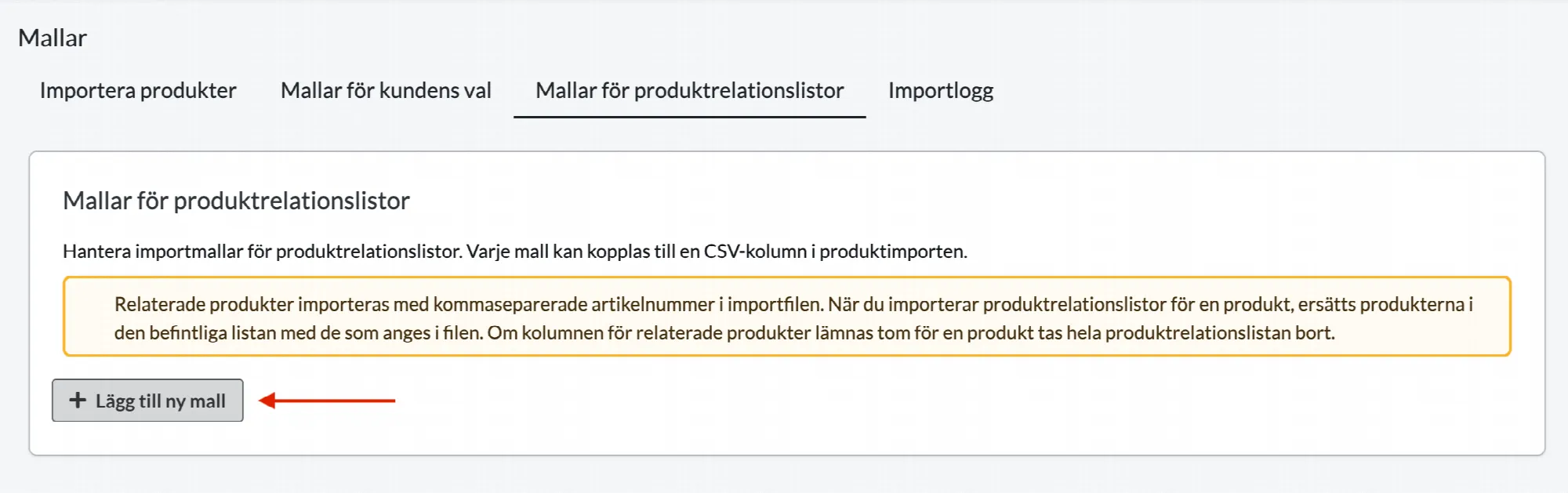
Product import allows you to add related products to your store via an import file. The feature uses so-called product relationship lists, where you specify related products on a specific product.In this guide, we'll walk you through how to create an import template for relationship lists and how to import related products to your products.Step 1 – Create a template for product relation lists Before you can import related products, you need to create a product relation list template. Go to Catalogue → Import Open the tab Templates for related products Click Add new template Enter: Name of the relation list (for example "Similar products") Visibility settings Click Create list The template is used to tell the system which relation list the import should update. Step 2 – Prepare your import file Related products are specified in the import file using product numbers separated by commas.Important to keep in mind: The product number for the main product must be on the same row The related products are specified using product numbers separated by commas Example: In this example, the products with product numbers T-SHIRT-002, T-SHIRT-003 and T-SHIRT-004 will be added as related products to T-SHIRT-001. Step 3 – Upload your import file You can now import related products. Go to Catalogue → Import Upload your import file Make sure that "Automatic" is selected for both "Fields separated by" and "Character encoding", and that "Update information" is selected under "If the product already exists in the catalog". Step 4 – Map the columns in the import For the system to know what information is contained in each column, you need to map the columns to the correct properties.Since the import file has clear column headers, this is easy to do.For example, you need to specify: the column containing the product number for the main product the column containing related products – here you select the name of the template you created earlier, for example "Similar products" In this example, the first row of each column in the import file contains headers. We do not want to import these, so we check "First row contains column headers".Here we have selected the column content for each column in our import file: Product number, Product name (sv) and Related products → Similar products. Step 5 – Start the import Once the columns are mapped, click Start import.The system will now create or update the product relation list depending on whether this list already exists on the product or not. Result after the import When the import is complete, you can check the result by: Opening a product Going to Related products Here you will see that the relation list has been created and is linked to the template used for the import.In this example, we import only one list of related products, but it is possible to import multiple product relation lists for the same product. In that case, simply add another column for related products (for example "Matching accessories") and make sure to create a corresponding import template before uploading the import file.It is only possible to import related products to relation lists that are linked to an import template. Lists that were created manually cannot be updated via import.Here we can see that the product relation list "Similar products" has been created after the import.The list can be edited manually afterwards by clicking the name or the "edit" icon on the previous page. Important to know about importing related products When importing product relation lists, the following applies: The products in the existing list will be replaced by those specified in the import file. If the column for related products is left empty for a product in the import file, the entire product relation list will be removed from the product (if there is already a relation list linked to this import template).
-
Free photos: 21 websites with free stock photos
27 Nov 2025
Free Stock Photos and AI-Generated Images: The Best Resources The world of online imagery has changed dramatically in recent years. In addition to traditional stock photo websites, generative AI now makes it possible to create unique images from written instructions. You can describe the subject, style and format you need, and the service will generate a new image. Many tools can also edit existing images, add or remove objects and create multiple variations of the same concept. Terms, pricing and usage rights vary between services, so always review the current conditions before using an AI-generated image commercially. Some of the most popular AI image-generation services include: ChatGPT Images – creates and edits images through conversational instructions. Midjourney – popular for detailed, artistic and highly stylized images. Adobe Firefly – Adobe’s platform for AI image generation and generative editing. Google Gemini – generates and edits images directly within Google’s AI assistant. Canva AI Image Generator – combines image generation with Canva’s design tools and templates. Ideogram – particularly useful for images containing text, headlines or typography. Leonardo.Ai – offers image generation, editing and tools for maintaining consistent visual styles. AI-generated images can be a useful alternative when you need a unique visual that cannot be found in a traditional image library. Stock photography remains valuable when you need authentic photographs of real people, places or situations. Photography has always been an integral part of design. Below is our updated selection of websites offering free stock photos and other visual resources. Please note that “free” does not necessarily mean free from copyright. Most websites now use their own licenses, and restrictions may apply to redistribution, trademarks, recognizable people and commercial use. Always check the license for the individual image before publishing it. 1. StockSnap.ioStockSnap offers a large collection of searchable, high-resolution stock photos. Its images are available under the Creative Commons CC0 license, and attribution is not required. 2. PexelsPexels provides free stock photos and videos contributed by photographers around the world. Content is governed by the Pexels license rather than CC0. Attribution is not required, but restrictions apply to resale, redistribution and misleading use. 3. UnsplashUnsplash offers a large searchable collection of free photographs and illustrations. Free images are provided under the Unsplash license, while some additional content is available through the paid Unsplash+ service. 4. VecteezyVecteezy provides stock photos, vectors, videos and design resources. The service includes both free and paid content. Free downloads commonly require attribution, so check the license shown on each resource. 5. PixabayPixabay provides photos, illustrations, vectors, videos, music and other media. Content can generally be used and modified without attribution under the Pixabay Content License, subject to its prohibited uses. 6. FoodiesFeedFoodiesFeed specializes in high-resolution food photography. Its images are particularly useful for food blogs, restaurants, recipes and editorial design. 7. GratisographyGratisography offers distinctive and unconventional stock photos that can be used in personal and commercial projects under the site’s own license. Redistributing the original files is not permitted. 8. Freestocks.orgFreestocks.org provides free photographs covering subjects such as people, nature, fashion, food and technology. Images are offered under the Creative Commons CC0 license. 9. PicographyPicography offers high-resolution stock photos contributed by different photographers. The site describes its free collection as CC0 content. 10. FOCA StockFOCA Stock provides free photos, videos and templates for personal and commercial projects. Its collection includes nature, technology, workspace and city imagery. 11. PicjumboPicjumbo offers free and premium stock photos in categories including business, fashion, food, nature and technology. Usage is subject to Picjumbo’s current terms and license. 12. KaboompicsKaboompics specializes in cohesive photo collections for branding, lifestyle, interiors, food and fashion. Standard-license images may be used in personal and commercial projects without attribution. Images marked “Editorial Use Only” have additional restrictions. 13. SkitterphotoSkitterphoto provides photographs created by its contributors and made available as public-domain images under CC0. 14. Life of PixLife of Pix offers high-resolution photography from a community of photographers. Check the site’s current terms before using or redistributing an image. 15. New Old StockNew Old Stock collects vintage photographs from public archives. The images are presented as being free of known copyright restrictions, but rights can vary between archives and countries. Check the original source before use. 16. ISO RepublicISO Republic offers free stock photos and videos covering business, technology, nature, travel and other subjects. Review the current license and any third-party rights associated with the image before publication. 17. StyledStockStyledStock provides free styled photography with an emphasis on fashion, business, lifestyle and traditionally feminine visual themes. Its images may be used commercially without attribution, subject to the limitations in the site’s license.
-
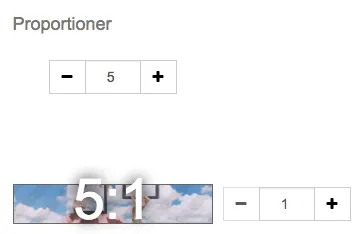
Image sizes and proportions
27 Nov 2025
Plan and choose the right size, aspect ratio, and format for the images in your online store. How do images work in the store? Images are handled in two different ways. Product images are uploaded directly to each product. All other images used on custom pages, in the theme, and elsewhere are uploaded to the file archive under Appearance → File archive. It is a good idea to plan your images before you start uploading them. Use the same dimensions and aspect ratio for all product images. This creates a consistent and professional presentation on the home page, category pages, and product pages. How do you edit images? Images cannot be edited directly in the store. Edit them in an image-editing program before uploading them. Adobe Photoshop is a popular paid option. Free or browser-based alternatives include GIMP, Paint.NET, and Pixlr. Aspect ratios How large should an image be, and what is the best size? There is no single answer because the correct dimensions depend on the aspect ratio selected in your theme. An aspect ratio describes the relationship between an image's width and height. For example, a 5:2 image can be 5000 × 2000 pixels, 2500 × 1000 pixels, or 500 × 200 pixels. All three images have the same shape, but different pixel dimensions. If you want square images, select the 1:1 aspect ratio and upload images such as 1000 × 1000 pixels. Slideshow You can find the settings for the Slideshow block on the home page under: Appearance → Themes → select a theme → Edit → Content → Home page → Slideshow Example 1:Set the slideshow aspect ratio to 5:1: Then upload images that are 1500 × 300 pixels: Example 2:Set the aspect ratio to 3:1: Then upload images that are 1500 × 500 pixels: Is the image being cropped? If you upload a 1500 × 300 pixel image but set the slideshow to a 3:1 aspect ratio, the image will be cropped. The image is not automatically reshaped to match the selected ratio. Upload an image with the same aspect ratio as the theme setting to prevent unwanted cropping. Product images Product images are displayed both in product listings and on the individual product page: Upload the image to the product under: Range → Products → select a product → Edit → Images → Upload image Then set the aspect ratio in the theme under: Appearance → Themes → select a theme → Edit → Style → Images Example 1: Square product imagesSet the aspect ratio to 1:1: Then upload images that are 1000 × 1000 pixels: Example 2: Landscape product imagesSet the aspect ratio to 3:2: Then upload images that are 1500 × 1000 pixels: Product group images A product group image is displayed on the product group itself: Upload product group images under: Range → Product groups → select a product group → Edit → Properties → Image in product group table Set the aspect ratio in the theme under: Appearance → Themes → select a theme → Edit → Style → Images Example 1: Square imagesSet the aspect ratio to 1:1: Then upload images that are 1000 × 1000 pixels: Example 2: Landscape imagesSet the aspect ratio to 3:2: Then upload images that are 1500 × 1000 pixels: Storefronts Storefront images in the theme use a 5:4 aspect ratio, regardless of how many are displayed in each row. The recommended pixel dimensions increase when fewer storefronts are shown because each image occupies more space. 4 storefronts:1000 × 800 pixels 3 storefronts:1500 × 1200 pixels 2 storefronts:2000 × 1600 pixels 1 storefront:2500 × 2000 pixels Choosing the best image size for an online store There is no single image size that works for every online store. The right dimensions depend on where the image appears and on the aspect ratio used by the store design. As a practical starting point, square product images at 1000 × 1000 pixels work well for many stores. The most important thing is to use a consistent aspect ratio, keep the images sharp, and avoid files that are larger than necessary. Recommended image sizes: quick reference Image type Recommended dimensions Aspect ratio Square product image 1000 × 1000 px 1:1 Landscape product image 1500 × 1000 px 3:2 Wide slideshow or banner 1500 × 500 px 3:1 Narrow slideshow or banner 1500 × 300 px 5:1 Storefront image At least 1000 × 800 px 5:4 These dimensions are useful starting points rather than universal requirements. A larger or smaller image can have exactly the same aspect ratio. For example, 1500 × 500 pixels and 3000 × 1000 pixels are both 3:1. Image dimensions and aspect ratio are not the same thing Image dimensions describe the number of pixels in the file, such as 1000 × 1000 pixels. The aspect ratio describes the relationship between its width and height. 1:1 is square. 3:2 is a common landscape format. 3:1 is wide and works well for banners. 5:1 is very wide and shallow. If the uploaded image does not match the aspect ratio selected in the theme, part of the image may be cropped. Use the same aspect ratio for all product images Product listings can look uneven when the images use different shapes. Choose one image template before photographing or editing the products, and use it throughout the catalog. Square images are a reliable choice for many types of products. Leave some space around the product and keep the most important part near the center. This reduces the risk of important details being removed if the image is cropped in another view or sales channel. Which image format should you use? JPEG or JPG: A good choice for photographs. It usually provides a useful balance between image quality and file size. PNG: Useful when transparency is required, but the files are often larger than JPEG files. WebP: Can provide smaller files while maintaining good visual quality. Check that the platform and upload field support it. SVG: Suitable for logos and simple illustrations, but normally not for product photographs. Only upload SVG files from a trusted source. Product images that help customers buy Good product images are not only technically correct. They should also answer the questions a customer may have before making a purchase. Depending on the product, consider showing: the product against a clean, consistent background; the product from several angles; important materials, textures, and details; the product being used in a relevant setting; and an indication of size or scale when it is difficult to judge. Keep lighting, background, framing, and distance consistent across the product range. A consistent visual style makes the catalog easier to scan and helps the store feel more professional. Use descriptive file names and alternative text Give image files meaningful names before uploading them. For example, blue-linen-shirt-men.jpg is more useful than IMG_4821.jpg. Add concise alternative text that describes what the image shows. Alternative text helps visitors who use screen readers and gives search engines useful context. Describe the image naturally and avoid repeating keywords. Decorative images that add no information should normally have empty alternative text. Create an online store where your products stand out Great product images deserve a store that presents them clearly. With Abicart, you can create a professional online store, adapt the design to your brand, and get personal support when you need it. Start your online store with Abicart