


7 min read
Image sizes and proportions
Plan and choose the right size, aspect ratio, and format for the images in your online store.
How do images work in the store?
Images are handled in two different ways. Product images are uploaded directly to each product. All other images used on custom pages, in the theme, and elsewhere are uploaded to the file archive under Appearance → File archive.
It is a good idea to plan your images before you start uploading them. Use the same dimensions and aspect ratio for all product images. This creates a consistent and professional presentation on the home page, category pages, and product pages.
How do you edit images?
Images cannot be edited directly in the store. Edit them in an image-editing program before uploading them. Adobe Photoshop is a popular paid option. Free or browser-based alternatives include GIMP, Paint.NET, and Pixlr.
Aspect ratios
How large should an image be, and what is the best size? There is no single answer because the correct dimensions depend on the aspect ratio selected in your theme.
An aspect ratio describes the relationship between an image's width and height.
For example, a 5:2 image can be 5000 × 2000 pixels, 2500 × 1000 pixels, or 500 × 200 pixels. All three images have the same shape, but different pixel dimensions.
If you want square images, select the 1:1 aspect ratio and upload images such as 1000 × 1000 pixels.
Slideshow
You can find the settings for the Slideshow block on the home page under:
Appearance → Themes → select a theme → Edit → Content → Home page → Slideshow
Example 1:
Set the slideshow aspect ratio to 5:1:
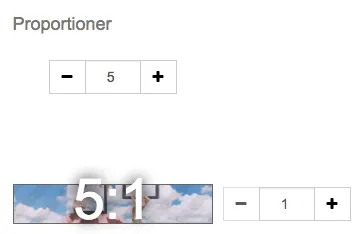
Then upload images that are 1500 × 300 pixels:

Example 2:
Set the aspect ratio to 3:1:
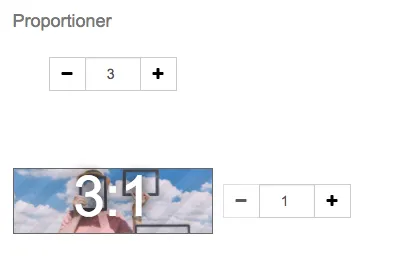
Then upload images that are 1500 × 500 pixels:

Is the image being cropped?

If you upload a 1500 × 300 pixel image but set the slideshow to a 3:1 aspect ratio, the image will be cropped. The image is not automatically reshaped to match the selected ratio. Upload an image with the same aspect ratio as the theme setting to prevent unwanted cropping.
Product images
Product images are displayed both in product listings and on the individual product page:
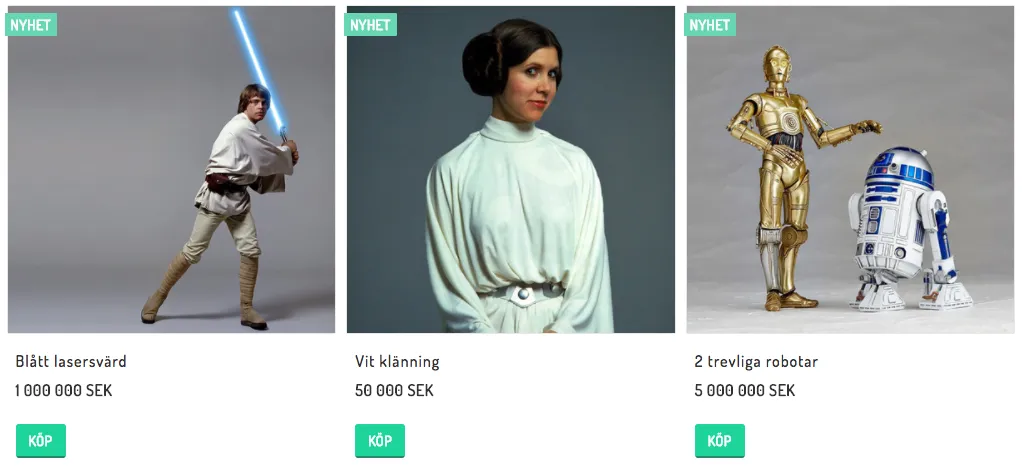
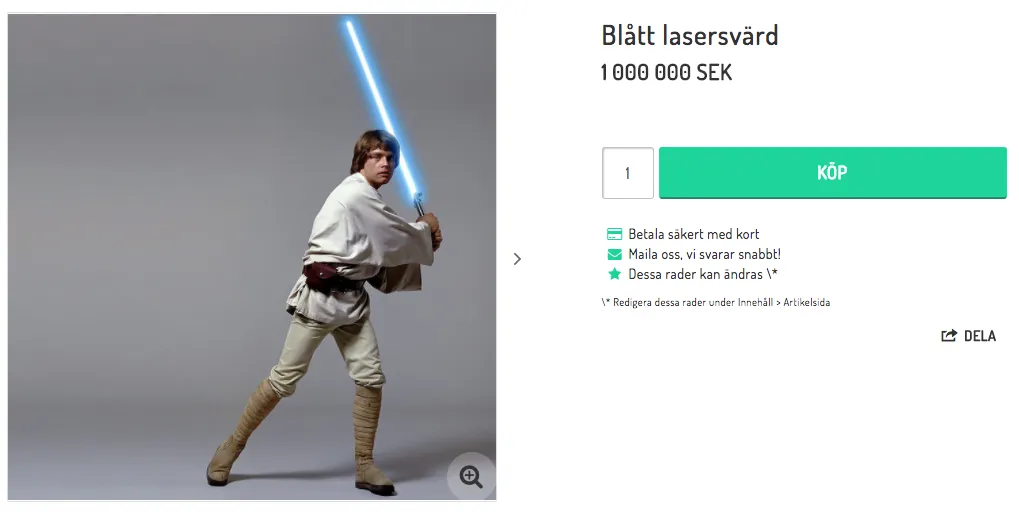
Upload the image to the product under:
Range → Products → select a product → Edit → Images → Upload image
Then set the aspect ratio in the theme under:
Appearance → Themes → select a theme → Edit → Style → Images
Example 1: Square product images
Set the aspect ratio to 1:1:
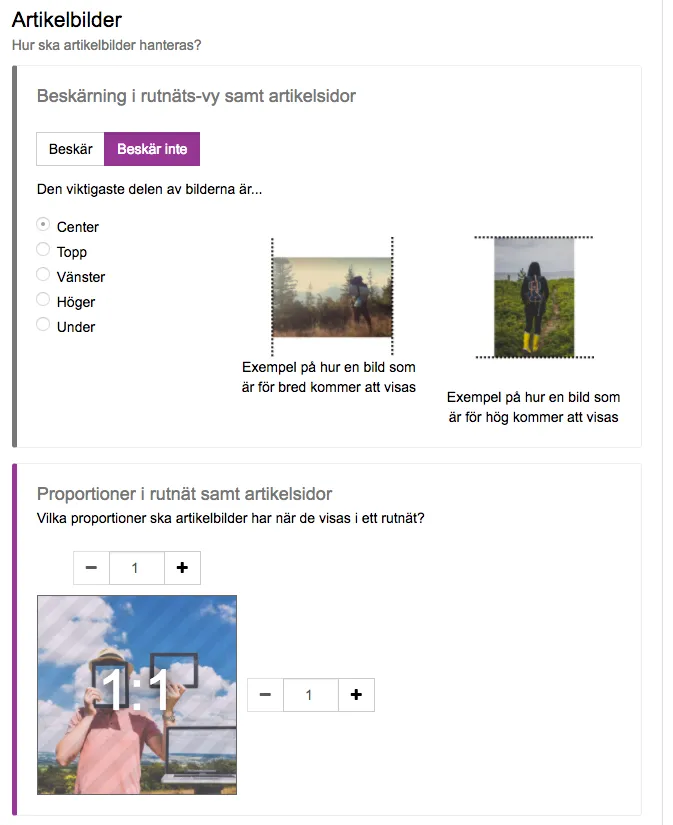
Then upload images that are 1000 × 1000 pixels:
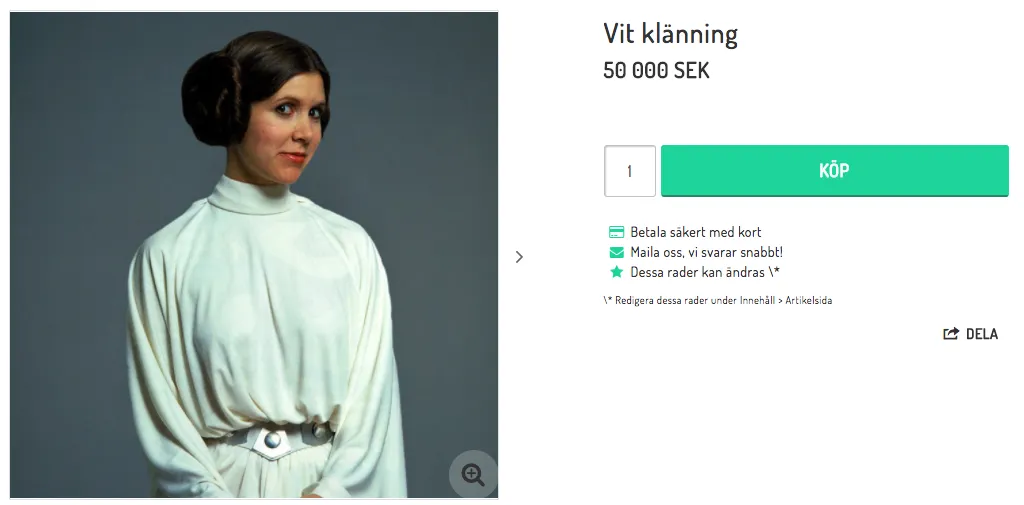
Example 2: Landscape product images
Set the aspect ratio to 3:2:
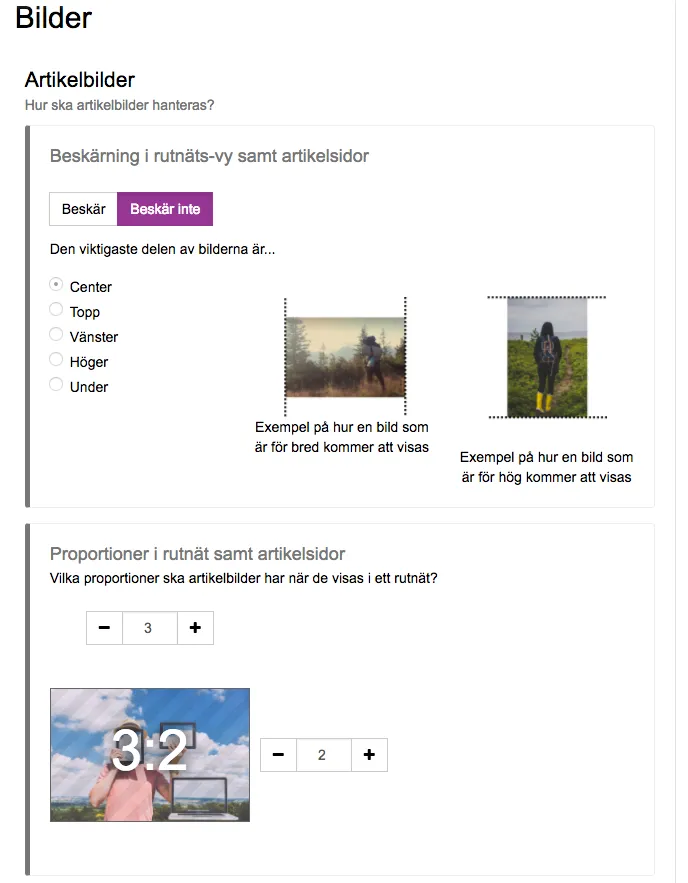
Then upload images that are 1500 × 1000 pixels:
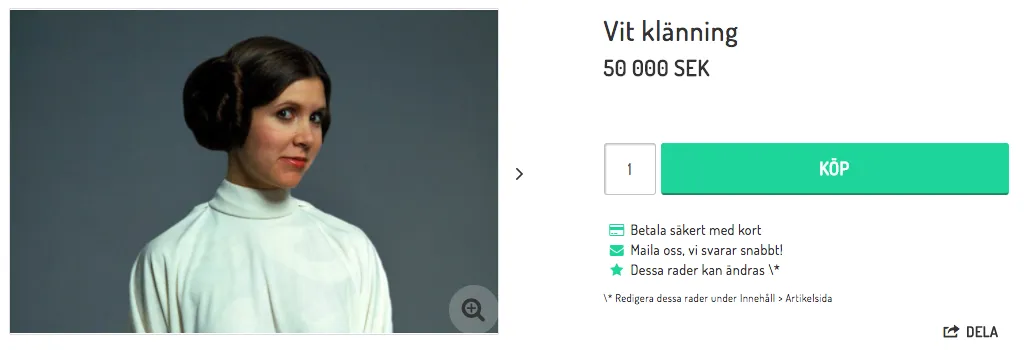
Product group images
A product group image is displayed on the product group itself:
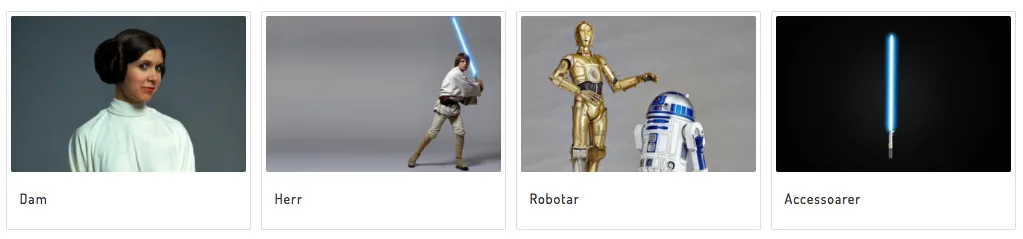
Upload product group images under:
Range → Product groups → select a product group → Edit → Properties → Image in product group table
Set the aspect ratio in the theme under:
Appearance → Themes → select a theme → Edit → Style → Images
Example 1: Square images
Set the aspect ratio to 1:1:
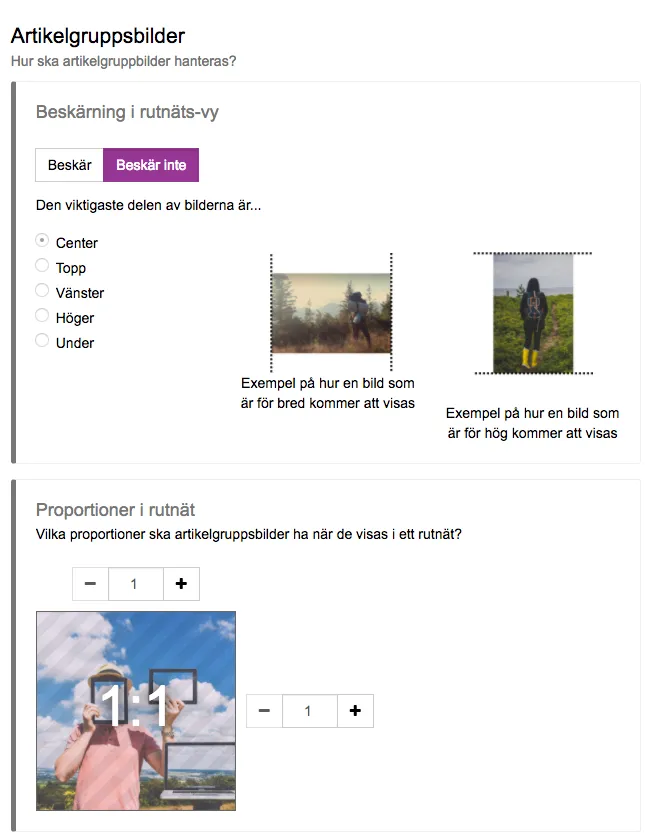
Then upload images that are 1000 × 1000 pixels:
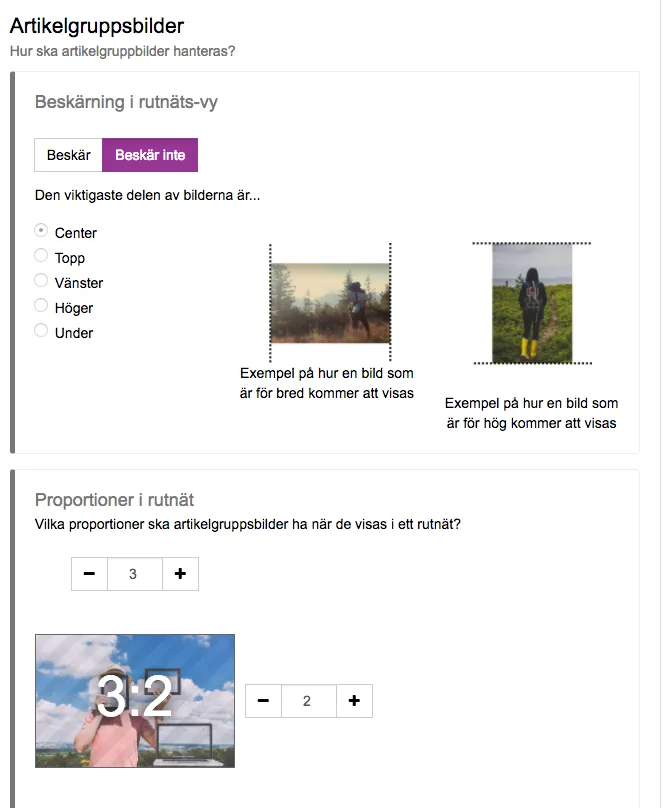
Example 2: Landscape images
Set the aspect ratio to 3:2:
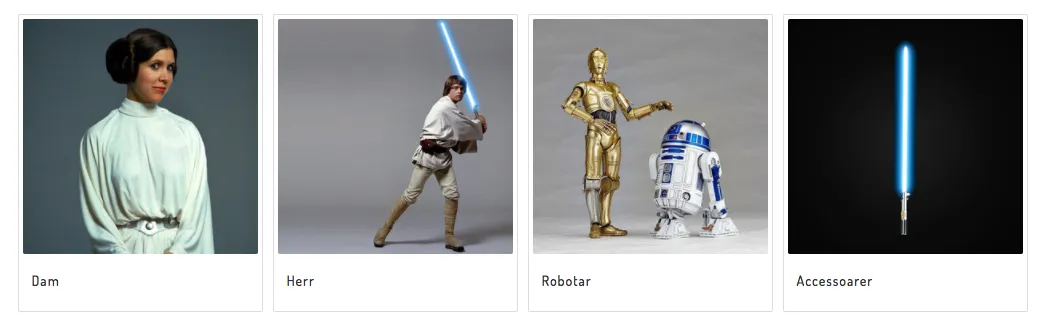
Then upload images that are 1500 × 1000 pixels:
Storefronts
Storefront images in the theme use a 5:4 aspect ratio, regardless of how many are displayed in each row. The recommended pixel dimensions increase when fewer storefronts are shown because each image occupies more space.
4 storefronts:
1000 × 800 pixels
3 storefronts:
1500 × 1200 pixels

2 storefronts:
2000 × 1600 pixels
1 storefront:
2500 × 2000 pixels

Choosing the best image size for an online store
There is no single image size that works for every online store. The right dimensions depend on where the image appears and on the aspect ratio used by the store design. As a practical starting point, square product images at 1000 × 1000 pixels work well for many stores. The most important thing is to use a consistent aspect ratio, keep the images sharp, and avoid files that are larger than necessary.
Recommended image sizes: quick reference
| Image type | Recommended dimensions | Aspect ratio |
|---|---|---|
| Square product image | 1000 × 1000 px | 1:1 |
| Landscape product image | 1500 × 1000 px | 3:2 |
| Wide slideshow or banner | 1500 × 500 px | 3:1 |
| Narrow slideshow or banner | 1500 × 300 px | 5:1 |
| Storefront image | At least 1000 × 800 px | 5:4 |
These dimensions are useful starting points rather than universal requirements. A larger or smaller image can have exactly the same aspect ratio. For example, 1500 × 500 pixels and 3000 × 1000 pixels are both 3:1.
Image dimensions and aspect ratio are not the same thing
Image dimensions describe the number of pixels in the file, such as 1000 × 1000 pixels. The aspect ratio describes the relationship between its width and height.
- 1:1 is square.
- 3:2 is a common landscape format.
- 3:1 is wide and works well for banners.
- 5:1 is very wide and shallow.
If the uploaded image does not match the aspect ratio selected in the theme, part of the image may be cropped.
Use the same aspect ratio for all product images
Product listings can look uneven when the images use different shapes. Choose one image template before photographing or editing the products, and use it throughout the catalog.
Square images are a reliable choice for many types of products. Leave some space around the product and keep the most important part near the center. This reduces the risk of important details being removed if the image is cropped in another view or sales channel.
Which image format should you use?
- JPEG or JPG: A good choice for photographs. It usually provides a useful balance between image quality and file size.
- PNG: Useful when transparency is required, but the files are often larger than JPEG files.
- WebP: Can provide smaller files while maintaining good visual quality. Check that the platform and upload field support it.
- SVG: Suitable for logos and simple illustrations, but normally not for product photographs. Only upload SVG files from a trusted source.
Product images that help customers buy
Good product images are not only technically correct. They should also answer the questions a customer may have before making a purchase. Depending on the product, consider showing:
- the product against a clean, consistent background;
- the product from several angles;
- important materials, textures, and details;
- the product being used in a relevant setting; and
- an indication of size or scale when it is difficult to judge.
Keep lighting, background, framing, and distance consistent across the product range. A consistent visual style makes the catalog easier to scan and helps the store feel more professional.
Use descriptive file names and alternative text
Give image files meaningful names before uploading them. For example, blue-linen-shirt-men.jpg is more useful than IMG_4821.jpg.
Add concise alternative text that describes what the image shows. Alternative text helps visitors who use screen readers and gives search engines useful context. Describe the image naturally and avoid repeating keywords. Decorative images that add no information should normally have empty alternative text.
Create an online store where your products stand out
Great product images deserve a store that presents them clearly. With Abicart, you can create a professional online store, adapt the design to your brand, and get personal support when you need it.