


Add a menu item
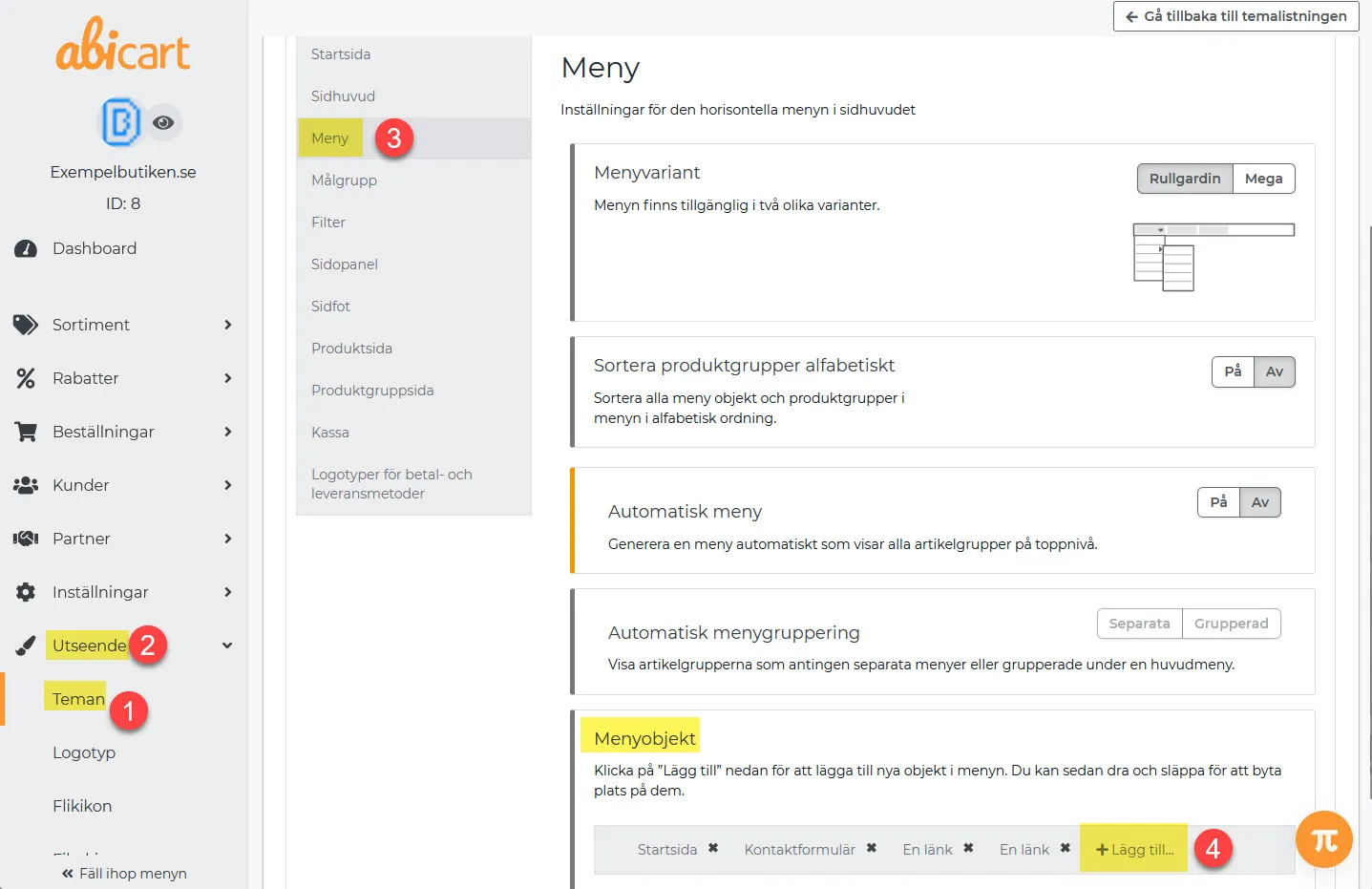
Add, reorder or remove a shop menu link without deleting the content it points to.
This guide applies to Diversity themes with a Content → Menu section, such as Nordic. Start under Appearance → Themes and identify the active theme in the correct shop. Editing an inactive theme does not change the customer-facing menu. Themes (TPL) use a different editor; these click steps do not apply there.
Choose an automatic or manual menu
An automatic menu is built from top-level product groups that the visitor may see. A manual menu uses the menu items you add. Check the existing setting before switching: turning off automatic generation can remove automatically generated menu links. It does not delete the product groups.
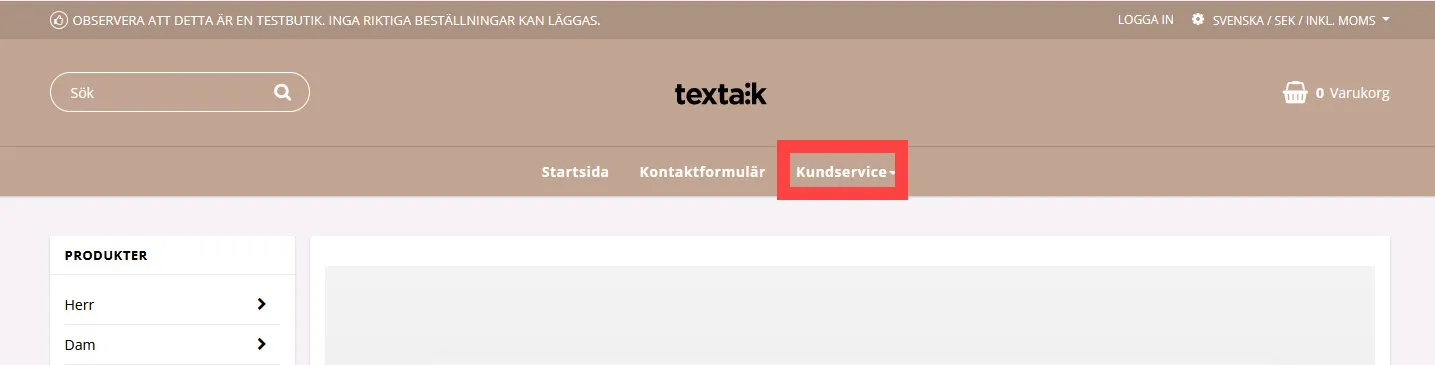
Add the menu item
- Open the active theme and choose Content → Menu. Use a manual menu when you want to choose its items yourself.
- Under Menu items, choose Add.
- Select a product group, page or custom link. Find the correct destination and add it. Check its address and label.
- Drag and drop to reorder if needed. Save the theme and check the menu in the actual shop.
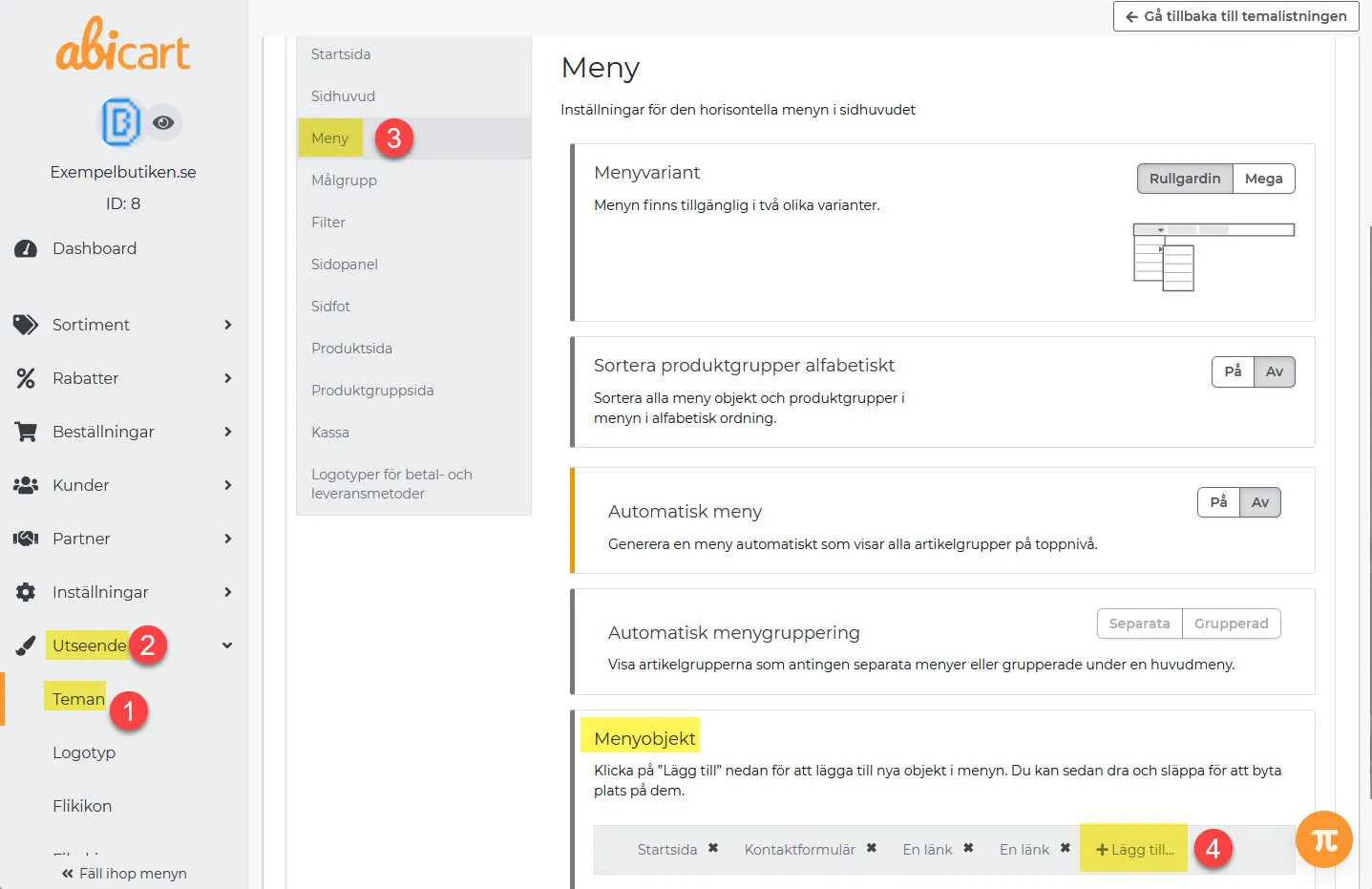
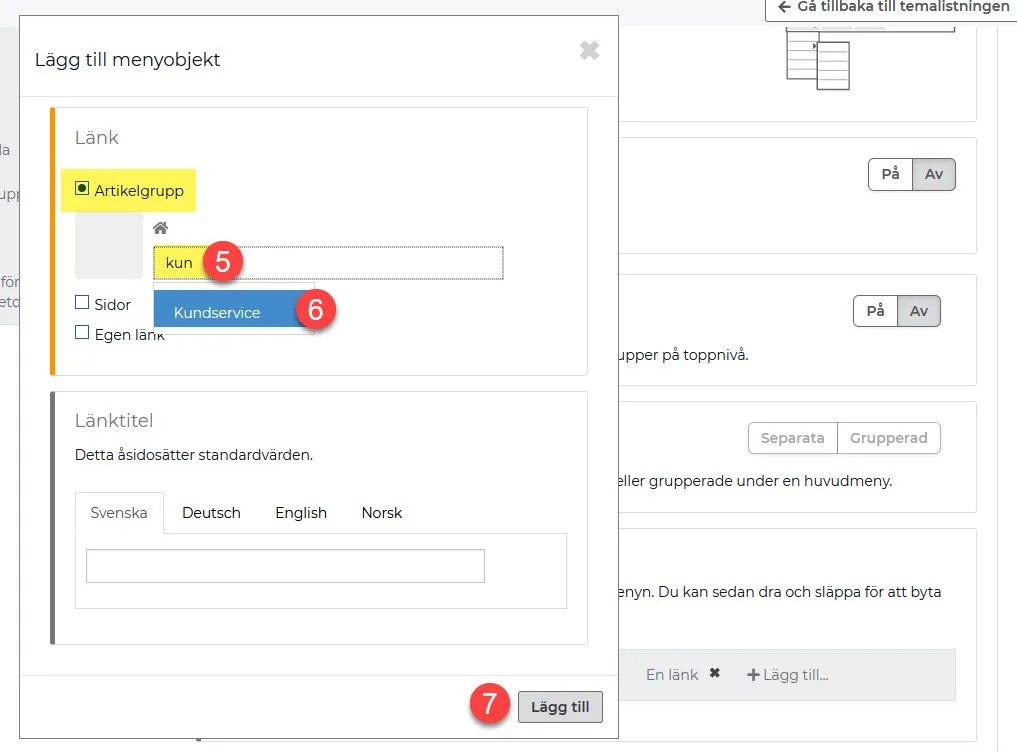
Remove a manual menu item
Open the item under Menu items and use that item’s remove control. Save the theme and check both mobile and desktop. This removes the menu reference, not the page or product group. Do not delete products, pages or groups merely to clean up navigation. For an automatically generated link, change the menu arrangement or intended product-group structure instead.
If the link is missing or incorrect
Check the active theme, shop/subshop, saved changes and visitor login state. A link does not grant access to a product group excluded by the shop or customer-group selection. A custom link must use the correct address; fix a mistyped link rather than moving or deleting the destination page. Identify the editor variant first when the theme is unknown.
Quick start
- Select the correct active theme.
- Check automatic versus manual navigation.
- Add or remove the menu item itself.
- Save and check the link on mobile and desktop.
Requires access to the affected Diversity theme. A link changes neither subscription nor product selection; keep TPL instructions separate.
