


Themes
-
Google Ads Conversion Tracking - Themes
27 Nov 2025
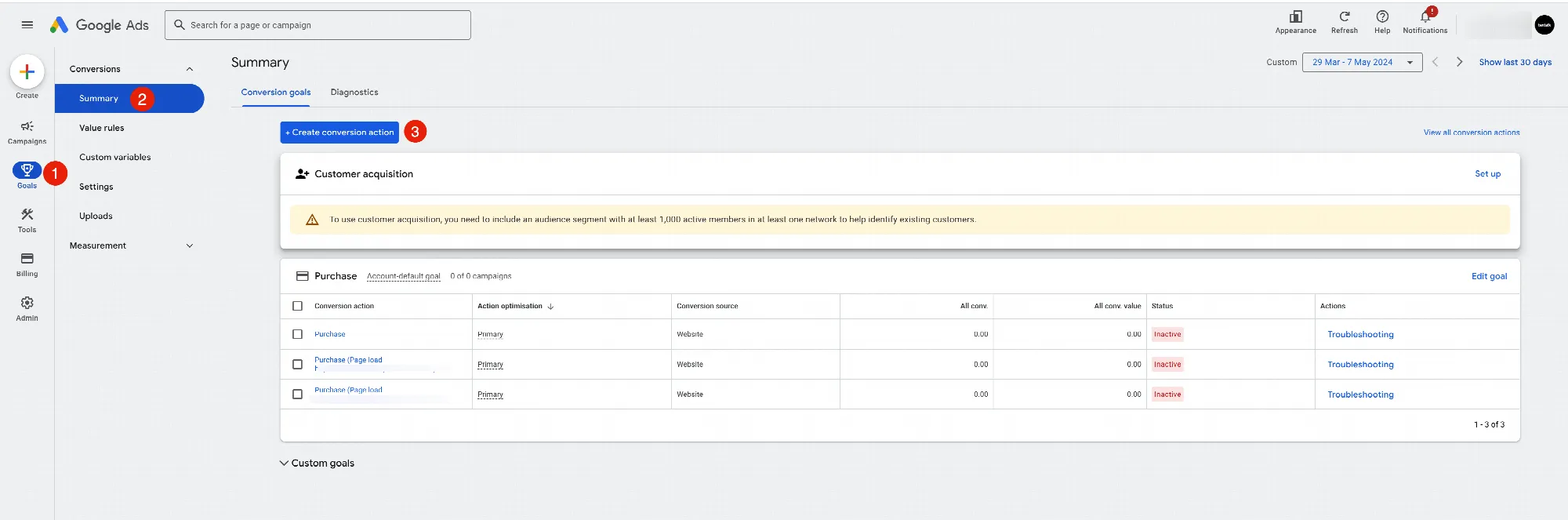
What is Google Ads? Google Ads is an advertising platform that allows you to create, optimize, and track your ads and their performance. It not only helps you to place ads; but it helps you manage every step of the process, including: Campaign Creation & Management: Build and manage your advertising campaigns to reach your target audience. Goal Setting & Tracking: Define your desired outcomes (conversions) and track their progress. Budget & Bidding: Set your spending limit and determine how much you're willing to pay for ad clicks. Keyword Planning: Research and identify relevant keywords that potential customers are searching for. Why Link Google Ads Conversion Tracking? To understand how well your Google Ads campaigns perform, you need to link them to your website. Conversion tracking allows you to keep track of the buyer and what actions they take on your website after clicking your ad. Without linking conversion tracking, you wouldn't be able to differentiate between website traffic coming organically (through search engines) and traffic by your paid ads. This makes it crucial to link your Google Ads conversion tracking to your website for accurate measurement of your ad performance. Please follow the below steps to find your Google Ads Tracking ID in your account: Add it here in themes:
-
Event counting
27 Nov 2025
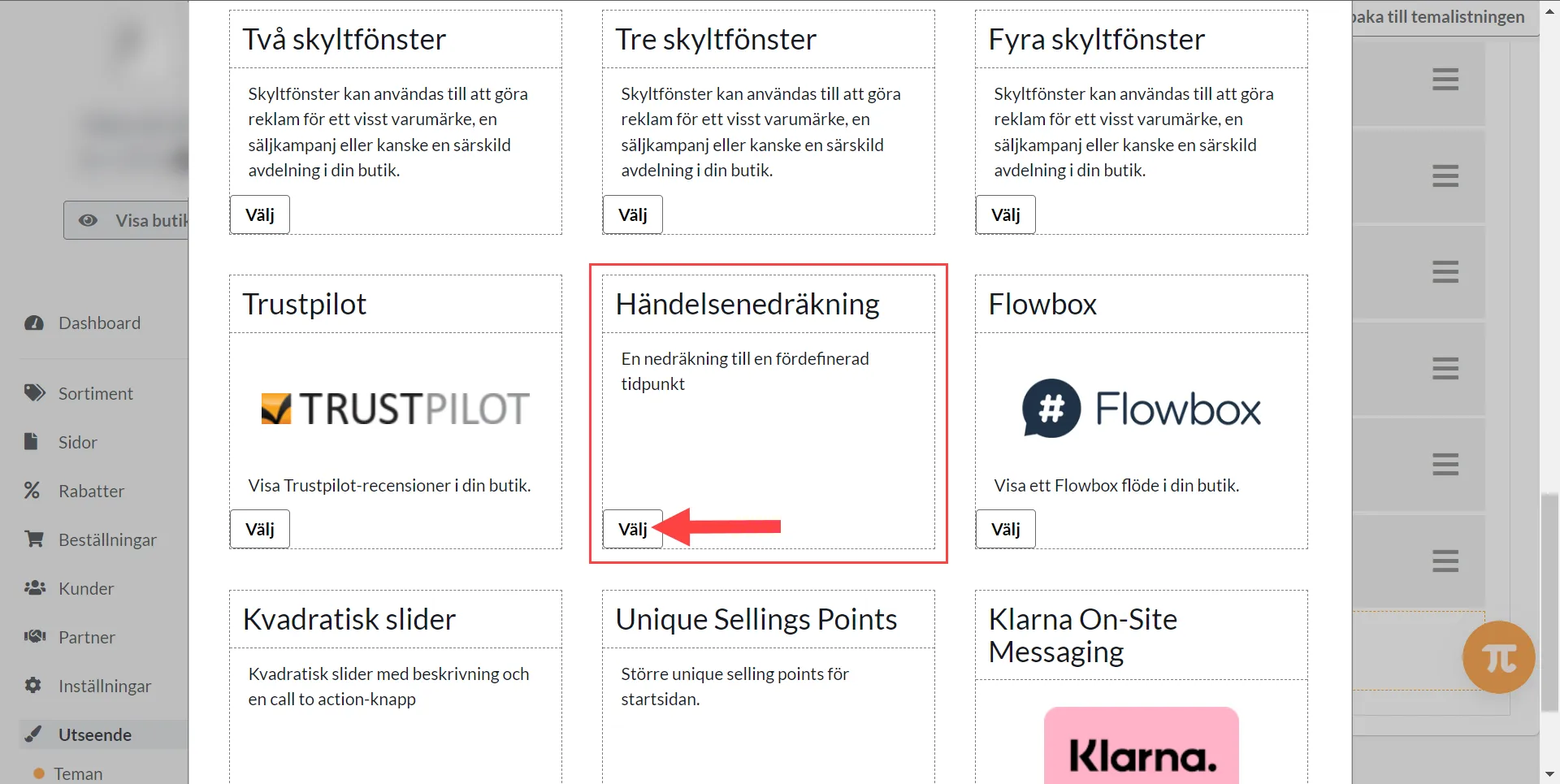
Here's how to do it: 1) Appearance >> Themes >> Edit Theme2) Home page >> Add Block >> Event counting3) Set the block >> Finished >> SaveTry our text banner in combination with the countdown. The text banner is visible on every page while the countdown is only visible on the home page.
-
Text banner
27 Nov 2025
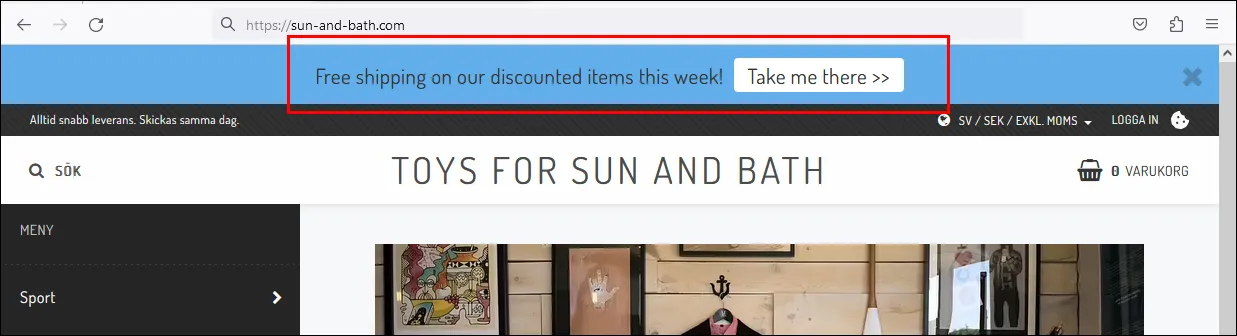
Activate a text banner in the theme that appears at the top of all pages.What is a text banner?A text banner is a field you can activate at the top of the page where you can enter a text to inform about something, such as a temporary offer, free shipping or something else. You can also add a button and link it to a page, product or product group.How does the text banner work?A visitor can choose to remove the text banner by clicking on the checkbox at the far right. This choice is saved in the visitor's browser and the banner will not be shown again. To see the banner again, you need to clear your browser's cookies.Activate the text bannerYou activate the text banner in the theme under Settings -> Themes -> edit the active theme and then go to the tab "Add-ons" -> Text banner. Click "On".Main textA field to enter optional text.In this example we have free shipping on all products that have a special price and enter a text informing about this.Button textYou can choose to have a button that links to a page, product or product group. Enter a text to be displayed on the button.LinkChoose where the button should link to, a page, product or product group. In this example, we want to link to our own page that shows all products with special prices. Check "Pages" and then select the "Discounts" page.Background color for text bannerSelect the background color by clicking on the color box on the right.Color of the button in the text bannerSelect the color of the button by clicking on the color box on the right.Don't forget to save when everything is done. Then just preview and display the banner at the top of the shop.
-

Using pop-ups on your website
27 Nov 2025
In your theme, you will find the "pop-up dialog" setting (also called pop-up window). It can be used for e.g. newsletter pop-up and king login or freely customized with the "custom" option (HTML block).This is how you do it:1) Enter your theme by clicking Appearance >> Themes >> Edit (active) theme2) Click on Extensions3) Click on Pop-up dialog >> Select options & edit4) SaveDone!Good to know about using PopupsGoogle treats popups on web pages with great care, especially when it comes to user experience and mobile-friendliness. Here is a summary of how Google views popups:Google handles popups on web pages with great care, especially in terms of user experience and mobile-friendliness. Here is a summary of how Google views popups:Negative aspects - can negatively impact SEO:1. Intrusive interstitials on mobile devices:- Since January 2017, Google has a policy where *intrusive* popups on mobile pages can lead to lower rankings in search results.- Examples of bad popups:- Popup that covers the main content immediately when the page loads.- Popup that must be closed before accessing the content.- "Intermediate pages" that appear before accessing the actual content.2Impaired user experience:- If popups are difficult to close, interfere with reading, or load slowly → negative for user experience, which can also affect rankings.Approved uses of popups according to Google:Google makes exceptions for certain types of popups that are considered reasonable:- Legal notices: For example, information about cookies or age verification.- Login boxes: For pages that are not public (e.g. behind a paywall).- Small banners That cover a small part of the screen and are easy to close (e.g. at the top or bottom).Tips for handling popups correctly:1. Avoid showing popups immediately when the page loads.2. Show the popup only after the user has scrolled or after a certain time.3. Make sure the popup is easy to close.4. Use "exit intent" on desktop if you want to catch users who are about to leave.5. Feel free to use banners instead of full-screen popups on mobile.
-
Add a menu item
27 Nov 2025
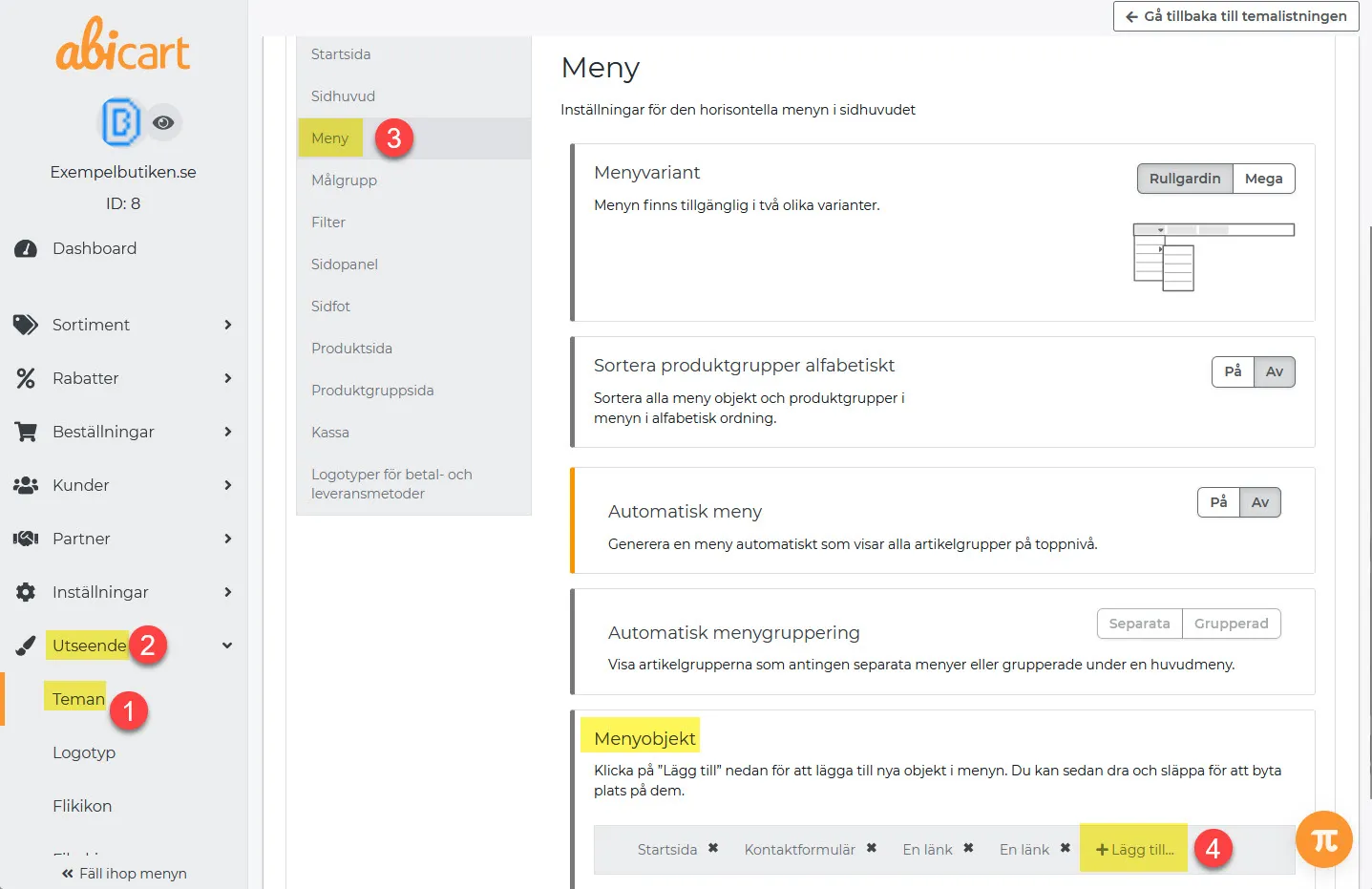
In "Automatic menu OFF", menu items are added manually under Appearance >> Themes.Here's what you do:1) Go to Design >> Themes >> Edit >> Menu2) Menu item >> Add >> Find the menu item >> AddChoose between, product group, pages or own link3) Save with the green button on the top right. 4) Done!
-

Edit theme (Home page)
27 Nov 2025
Good to know!Settings in themes may differ depending on the theme you have chosen. Add a theme There are currently 8 different themes to choose from, all with different designs.Add the one that suits you best. 1. go to Appearance in the left menu2. click on Themes3. Select the Theme Templates tab4. Add: Select the theme you want to use in your store. Demo: Here you get a glimpse of what the theme might look like.Learn more: Click here to get some extra information about the theme. Under the tab My themes you will find your added themes, this is also where you edit them. Editing a theme You can create copies of a theme. Perfect if you want to experiment, or if you want to have seasonal themes. To edit a theme, click on the pencil on the right. Content of the themes Under the tab Content you choose how each page should look and function in the store. For example, what information your Footer should display or how you want your Menu to function. You create your start page by adding different blocks.You can change the position of the blocks by dragging and moving them. Always finish by clicking on Save Remember to save! Once you have made changes to a tab, you must always save before moving on to the next one. Style Under the tab Style you choose the colors and fonts you want in the store.You also upload your logo and choose how you want the store images to be cropped.If you know CSS, you have the opportunity to add this under Custom CSS.CSS is a code language that we use in Abicart. Tip!When choosing a logo, choose one without a background.Click below for a more detailed description of the logo.Manual - Add and edit your logo Additions Under the tab Add-ons you will find some goodies.This is where you connect analytics tools to the store. You edit functions that are linked to the theme, for example Cookies or Text banner and under Own content in HEAD you can add your own code.
-
Add a logo to your webshop
27 Nov 2025
One of the easiest ways to make your shop more personal is to add your own logo that is visible in the shop. The logo is added to the theme that you use in the shop, go to: Appearance->Themes->Click on "edit" on the active theme->Click on the "Style" tab. Upload your logo here or add your shop name in text if you don't have a logo: You have the possibility to adjust the proportions based on the logo you upload, if you have a square image you choose 1:1 in proportion while for a more rectangular image you need e.g. 5:1. Click here for more information about proportions.You can set the maximum width of your logo to prevent it from being too large or too small: Under Appearance->Logo you can also add a logo. The logo you add there is only visible in documents you can extract from your orders, such as receipts and packing slips.