


3 min read
Instagram Feed

Show your instagram feed in the webshop.There are several benefits to displaying your Instagram feed on the homepage of an online store. Firstly, it can help increase engagement from visitors to the site, as it gives them an insight into what's happening behind the scenes and shows how the business or brand is using Instagram. It can also help to increase trust in the business or brand, as it shows that it is active on social media and has a strong online presence.
Another benefit is that it can help increase sales, as it gives visitors a chance to see the products in use and get inspiration for how they can use them. It can also help increase traffic to the Instagram account, as visitors to the website may want to follow the business or brand on Instagram to see more content.
Overall, displaying your Instagram feed on the homepage of an online store can help to increase engagement, trust and sales, as well as increase traffic to the Instagram account.
Another benefit is that it can help increase sales, as it gives visitors a chance to see the products in use and get inspiration for how they can use them. It can also help increase traffic to the Instagram account, as visitors to the website may want to follow the business or brand on Instagram to see more content.
Overall, displaying your Instagram feed on the homepage of an online store can help to increase engagement, trust and sales, as well as increase traffic to the Instagram account.
Linking Instagram to your online store homepage
The voucher is valid for 60 days. After that, you need to "get the key" again, see step 2 below.
You can link your Instagram account to your online shop homepage by following these steps:
-
Go to the Instagram block
Navigate to:
Appearance → Themes → Edit → Content → Add block → Instagram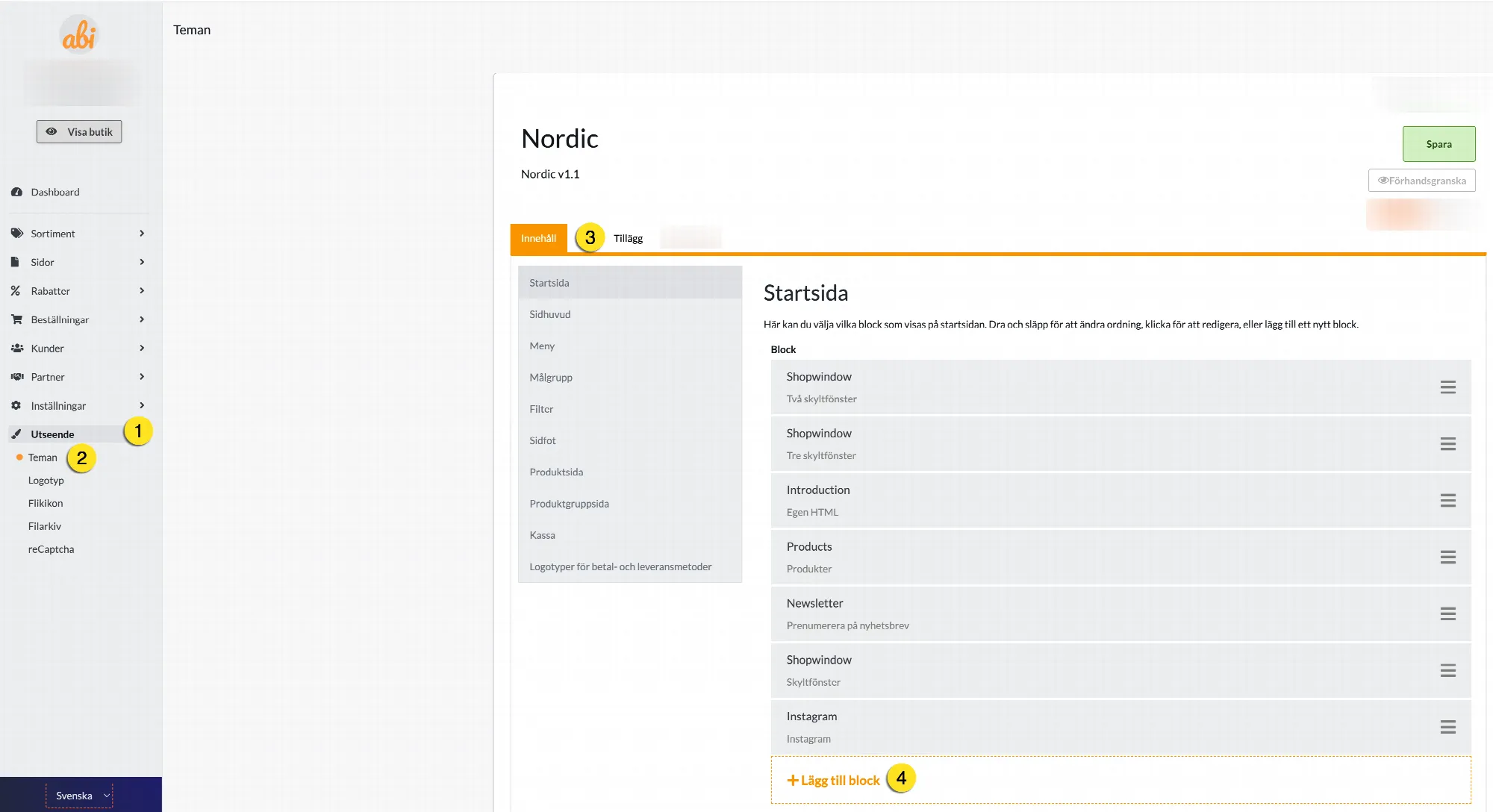
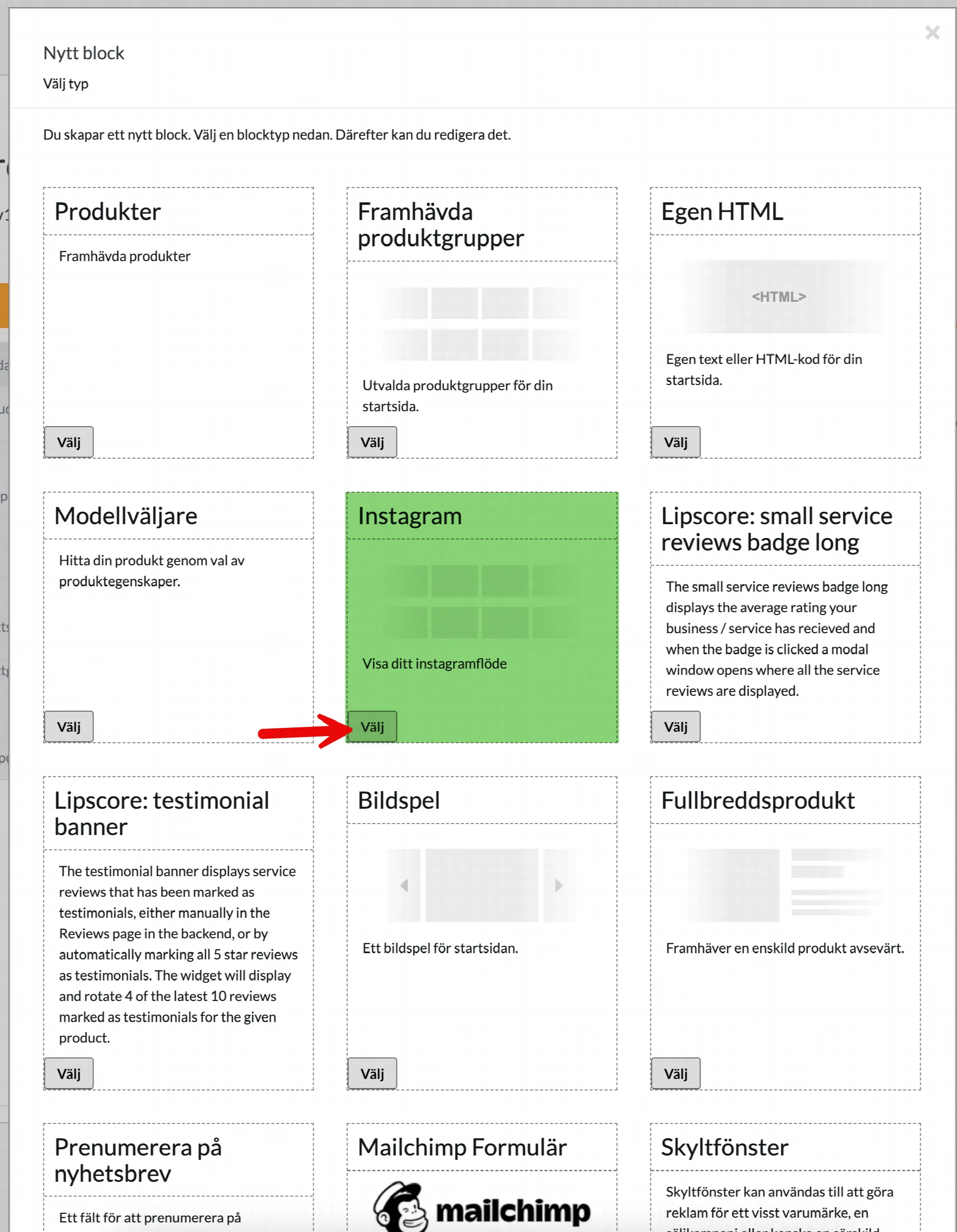
-
Generate an Access Token
- Click on the "Generate Token" button (see image for reference).
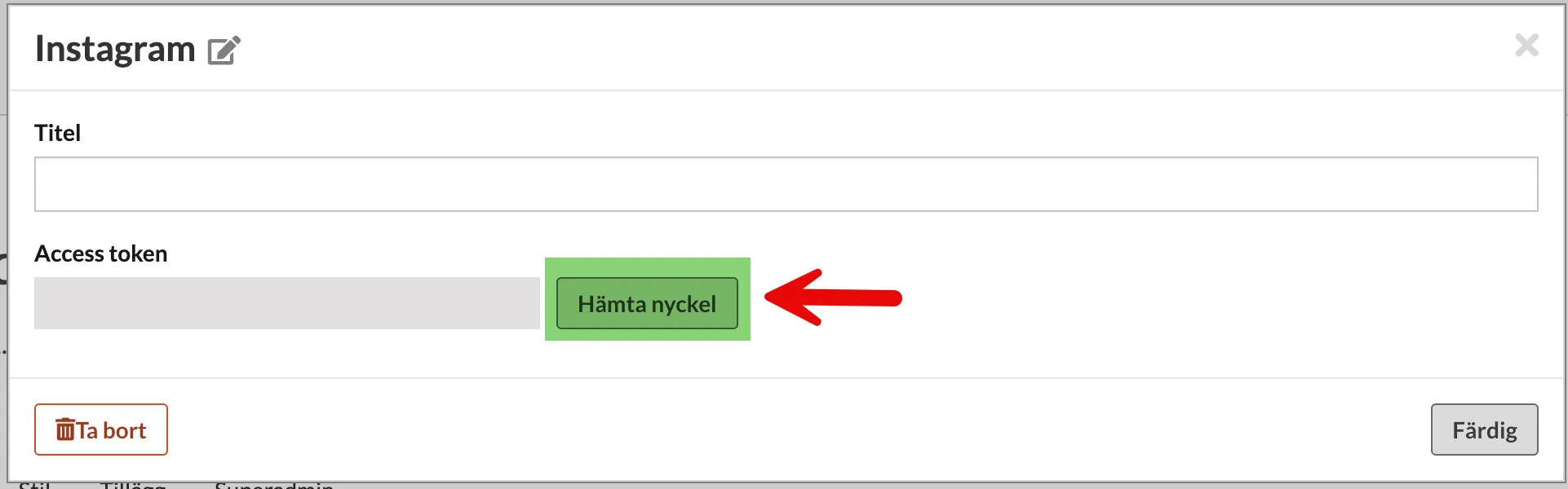
- You will be redirected to the Instagram login page.
- Log in with your Instagram account. Make sure it's a Business or Creator account.
- Click "Share" to authorize and generate a token.
- Click on the "Generate Token" button (see image for reference).
-
Save the settings
- Access Token is automatically updated in Abicart.
- Click "Save" to save your changes.
Now your Instagram feed will appear on your online store homepage.
Customization options
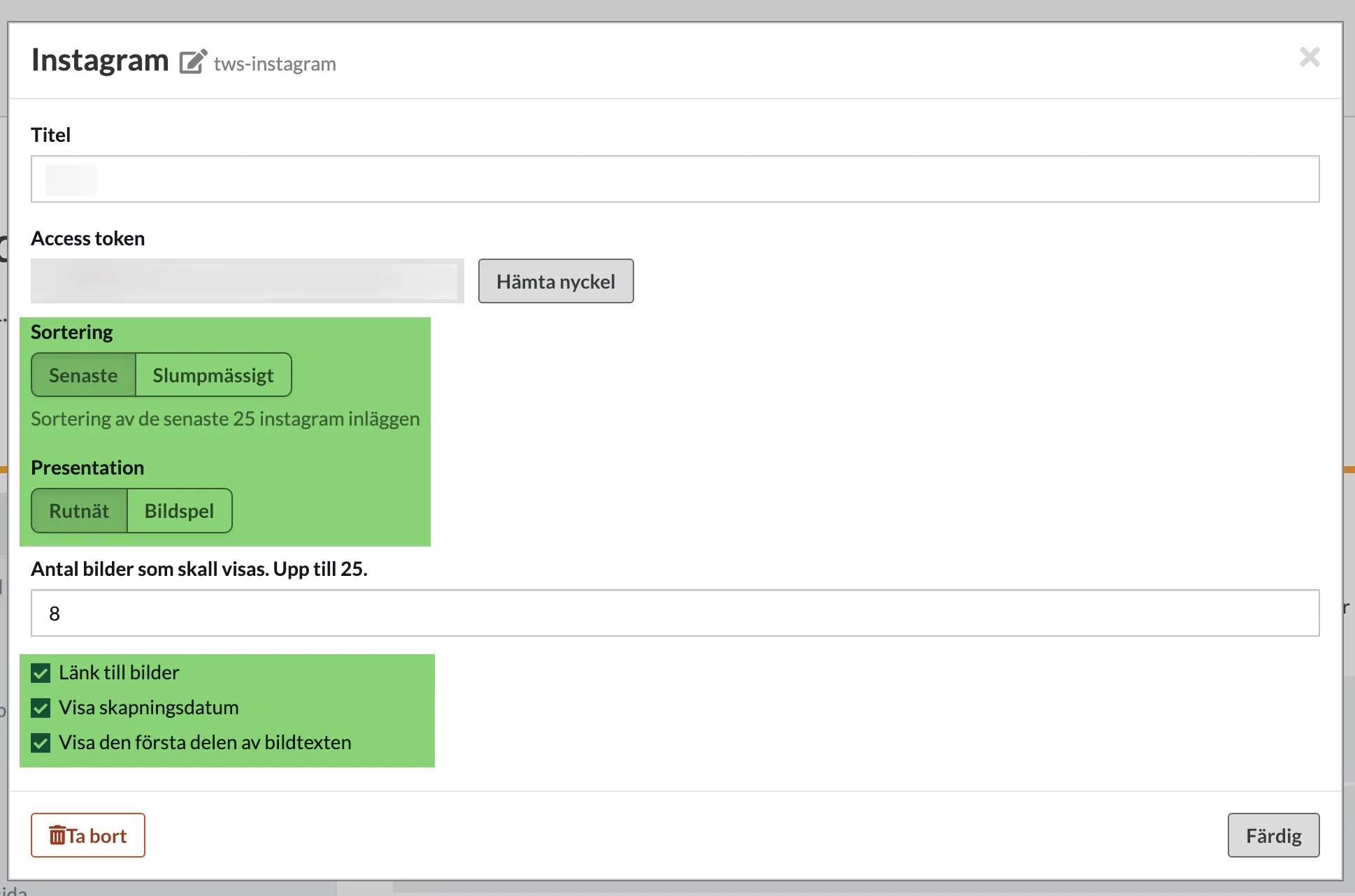
Sorting (Up to 25 images)
- Recent: Displays the most recent posts from your Instagram account.
- Random: Displays a random set of posts.
Presentation
- Grid: Displays posts in a table format.
- Slideshow: Displays posts as a slideshow.
Images
- Link to the images: Links the posts directly to Instagram. When you click on an image, the post opens in Instagram.
- Show creation date: Shows when the post was created when you hover over the image.
- Show beginning of caption: Shows the beginning of the post's caption when you hover, similar to the creation date.
With these features, you can seamlessly integrate and customize your Instagram feed on your online store homepage.
Remove the Abicart app from Instagram
Log in to Instagram
- Click on More at the bottom left and then select Settings.
- Under Apps and media, click on Site permissions.
- Click on Apps & Websites and select the Active tab.
- Click Delete next to the Abicart IG app to remove it.
Remove Access Token from Abicart
-
Navigate to the Instagram block:
Go to:
Appearance → Themes → Edit → Content → Instagram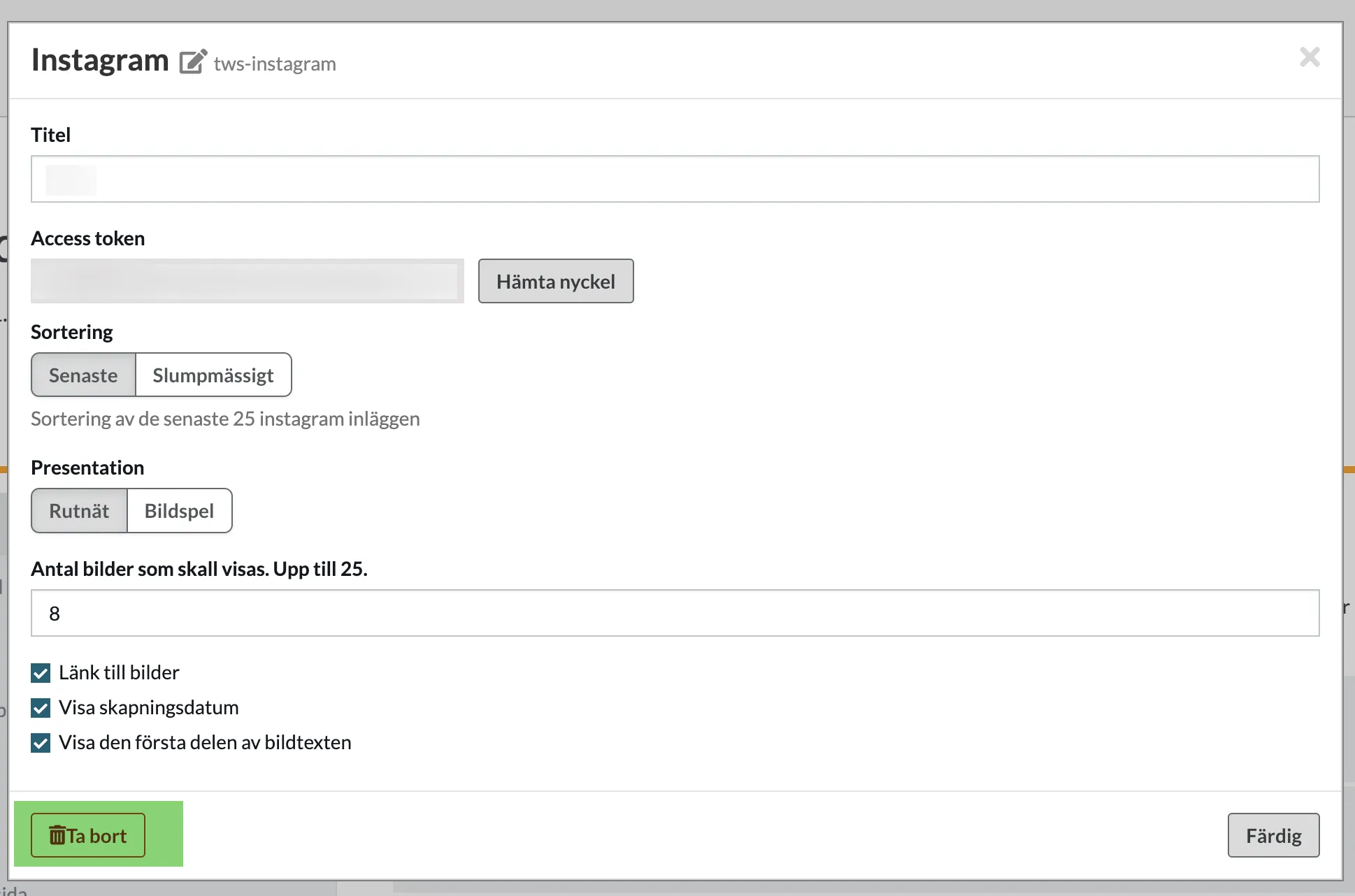
-
Click on Delete to remove the component.
-
Click Save to apply the changes.
That's it!