


Other articles by Althea
-
Single Sign-On (SSO) - Settings
1 Jun 2026
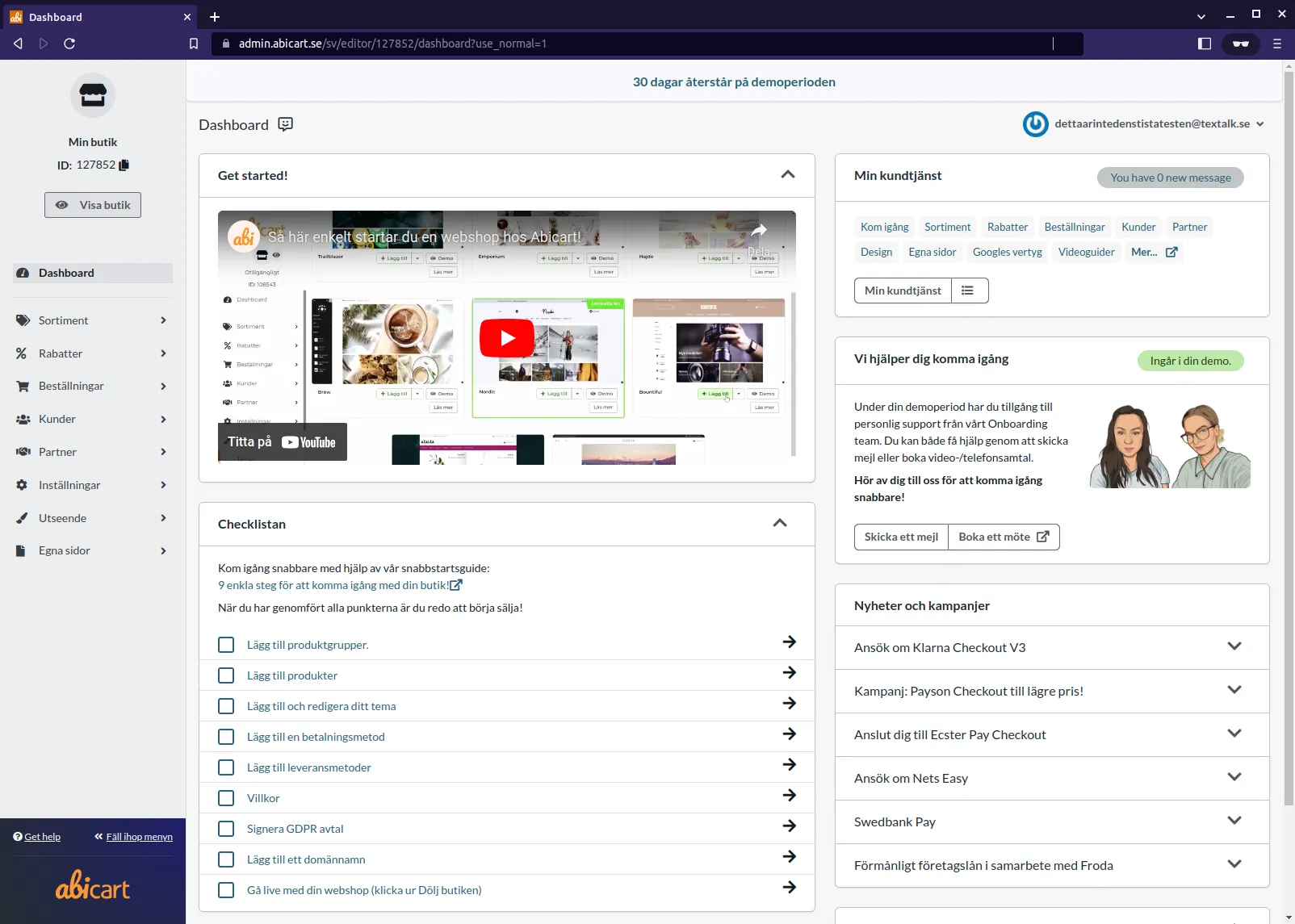
Abicart Admin · Quick Setup Guide Single Sign-On (SSO) This guide walks you through the setup in four steps. Supported protocols are SAML 2.0 (recommended) and OAuth2. i Before you start SSO is an add-on service, so reach out to Abicart Support first to have it enabled on your account. What you'll need A few things to have ready before you begin: Access to your identity provider's admin panel, such as Azure AD, Google Workspace or Okta The SAML metadata URL or XML from your identity provider SSO enabled on your Abicart account by Abicart Support Admin access to your Abicart back office Setting up SSO in four steps 1 Create your SSO configuration in Abicart Admin Go to Settings > Single Sign-On (SSO) in your Abicart admin panel and add a new configuration. Give it a name, for example your company name, and save it. Saving generates Abicart's metadata URL for this configuration. You'll find it on the same page, labelled Abicart Metadata URL (URL till Abicart-metadata). Copy it directly. You do not need to type anything or enter the IDs manually. ✓ Tip Keep this page open in a tab. You'll come back to paste your identity provider's metadata into it in step 3. 2 Create a SAML application in your identity provider In your identity provider, for example Microsoft Azure AD, create a new SAML application for your webshop and paste in the Abicart metadata URL you copied in step 1. ✓ Tip For Azure AD, your identity provider's own metadata URL, which you'll need in step 3, usually looks like this: https://login.microsoftonline.com/{tenant-id}/federationmetadata/2007-06/federationmetadata.xml?appid={app-id} 3 Paste your identity provider's metadata back into Abicart Back on the SSO configuration page from step 1, fill in the following: Identity Provider MetadataThe metadata URL or XML from your identity provider, from step 2. MappingAttribute mapping in JSON format. See the default below. Default mapping for Microsoft Azure AD: { "sub": "http://schemas.xmlsoap.org/ws/2005/05/identity/claims/emailaddress", "name": "http://schemas.microsoft.com/identity/claims/displayname", "family_name": "http://schemas.xmlsoap.org/ws/2005/05/identity/claims/surname", "given_name": "http://schemas.xmlsoap.org/ws/2005/05/identity/claims/givenname", "email": "http://schemas.xmlsoap.org/ws/2005/05/identity/claims/emailaddress" } The settings that matter most: Active (Aktiv): Must be on. The configuration will not work otherwise. Create missing customer on login (Skapa saknad kund vid inloggning): Turn this on to automatically create a customer account on the first login. Update existing customer on login (Uppdatera befintlig kund vid inloggning): Turn this on if customer details should be updated from the identity provider during login. Disallow other login methods (Inga andra inloggningsmetoder tillåtna): Leave this off unless standard password login should be fully blocked. More information is provided below. 4 Save and test Click + Update (+ Uppdatera) to save, then click Test to try the login flow. If it does not work immediately, double-check that the metadata URLs are correct on both sides and that the attribute mapping matches the claims sent by your identity provider. Using SSO in a multistore setup Each webshop has its own SSO configuration. This means you can use different login experiences for different shops within the same multistore setup. Shop A can require SSO for all users. Shop B can offer both SSO and password login. Shop C can continue using standard password login only. Only the webshop where an SSO configuration or automatic redirect is enabled is affected. Other shops continue using their own login settings. Choose your login experience There are three ways to configure the login experience, from the most flexible option to the most restricted. Choose the setup that best matches how your customers should sign in. 1. SSO as the primary sign-in method Customers sign in through your identity provider. This is suitable when SSO should be the main login method but visitors do not need to be redirected automatically as soon as they enter the shop. Self-service Configure and test the SSO connection directly in Abicart Admin. 2. SSO and password login shown together Customers see both options on the login page and can choose either SSO or their email address and password. The login page must be configured to present both choices. Requires Abicart Support Ask Support to configure a login page that offers both methods. 3. SSO required for everyone, with no password fallback Any customer who is not already logged in is redirected to SSO automatically as soon as they enter the shop, before they reach a standard login page. Password login is therefore not available as a fallback. Requires Abicart Support Ask Support to add an automatic SSO redirect script to your active theme. ! Only choose this setup if every customer should authenticate through your identity provider. The automatic redirect prevents visitors from reaching the standard password login page. i About “Disallow other login methods” This setting is separate from the automatic redirect script. Enable it only when other login methods should be blocked completely, including through a direct link to the standard login page. Customer groups by SSO configuration If multiple SSO configurations are connected to the same webshop, each configuration can automatically assign customers to a different customer group. This makes it easier for several companies to share one webshop while receiving different pricing, assortments or other customer-group-specific settings. For example: Customers signing in through the Company A SSO configuration can be assigned to A Staff. Customers signing in through the Company B SSO configuration can be assigned to B Staff. Customers signing in through the Company C SSO configuration can be assigned to C Staff. Once configured, the customer group is assigned automatically when the customer account is created. No manual reassignment is needed. Available in Admin Each SSO configuration can be linked to its own customer group directly from the SSO settings. Key URLs Abicart SSO metadatahttps://saml.abicart.com/{SHOP_ID}/{SSO_ID}/meta SSO test and login URLhttps://saml.abicart.com/{SHOP_ID}/{SSO_ID} SSO admin panelAbicart Admin > Settings > Single Sign-On Need help? Whether you're setting up your first SSO connection, configuring multiple identity providers or planning a multistore solution, we're happy to help. Contact Abicart Support and we'll guide you through the setup.
-
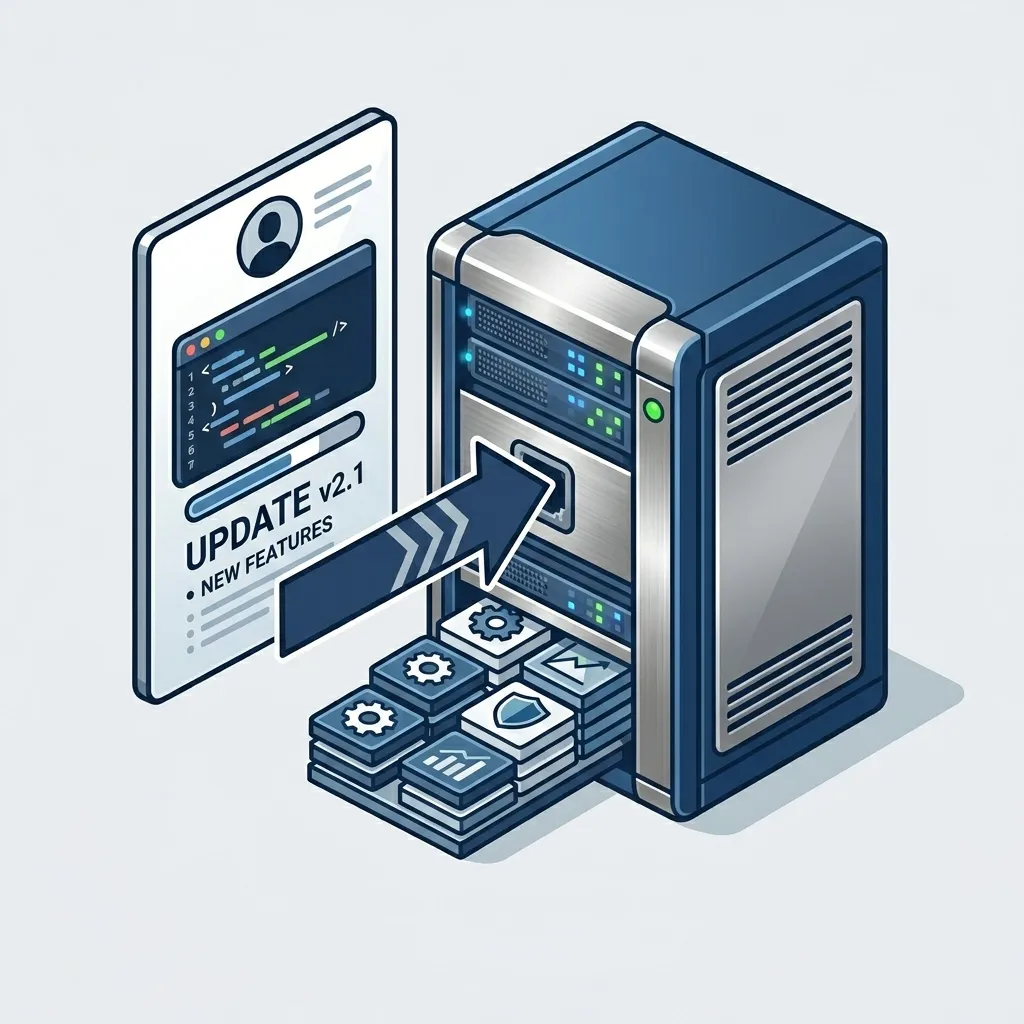
April 2025 - Software updates
17 Feb 2026
We've fixed a number of things, added new features and improved performance to make your experience even better. Here are some of the highlights:- Support for TinyMCE toolbar in introductory text on product page in admin. - Support for FA icons (Font Awesome icons) in TinyMCE. - New settings in Specter integration when exporting orders: Do not send internal comments Do not update invoice address Export values from buyer fields only Use order number as customer order referenceRead more about the Specter integration here >>
-
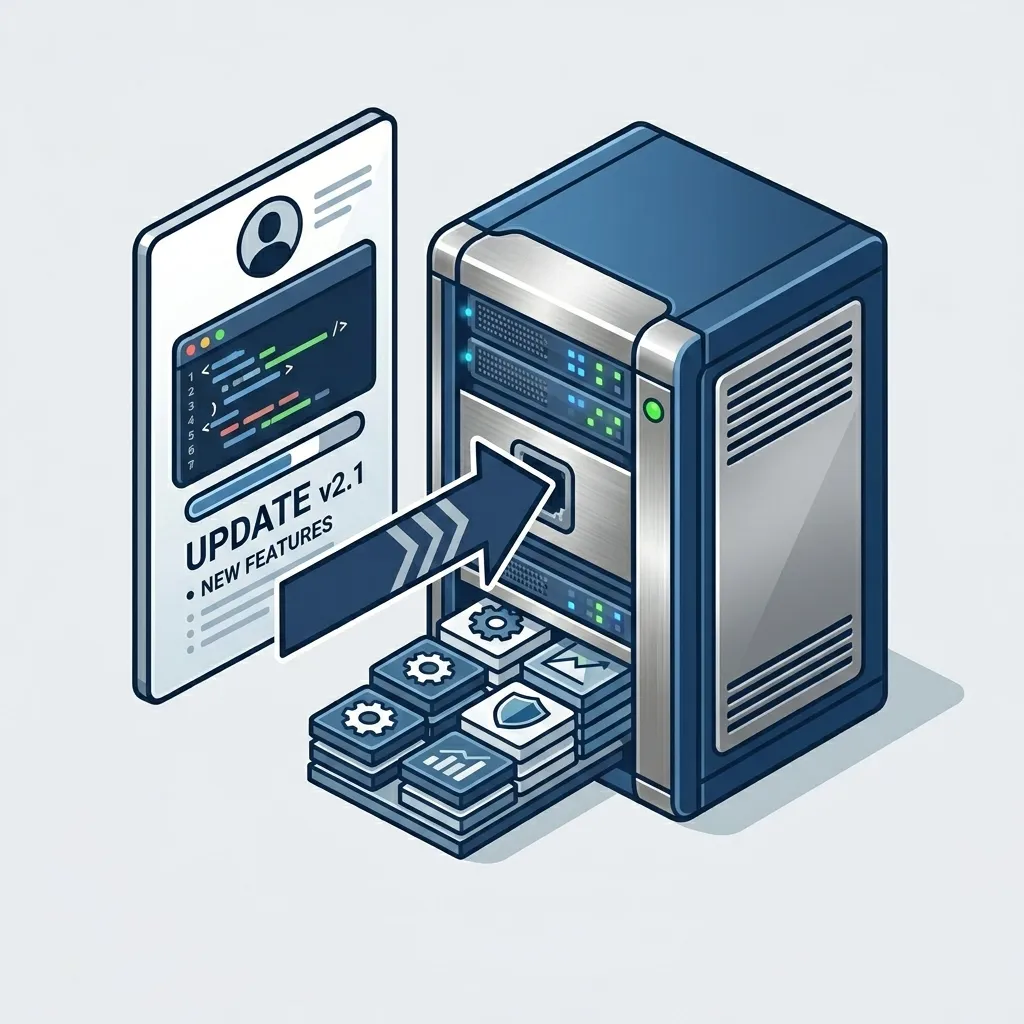
February 2024 - Software updates
17 Feb 2026
We've fixed a number of things, added new features and improved performance to make your experience even better. Here are some of the highlights: Fortnox: Customer mapping Google feed: Global attributes for certification and energy efficiency Google Consent Mode v2
-
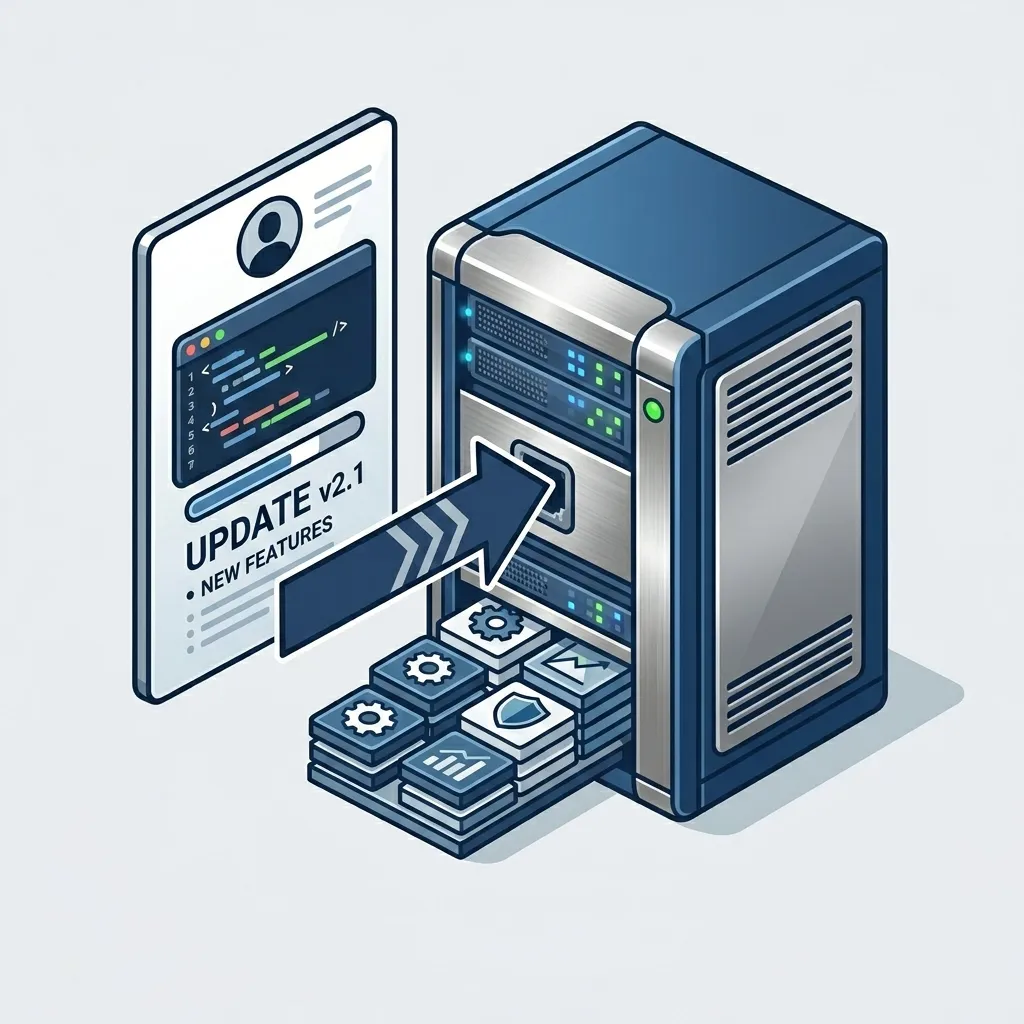
March 2023 - software updates
17 Feb 2026
We've fixed a number of things, added new features and improved performance to make your experience even better. Here are some of the highlights: OpenAI integration: We've added client support for Open AI, which means we can now offer smarter and more advanced AI features. Product management: Now you can see how weight and price affect your products. Plus, we've added a country parameter for even better file management. Subscriptions: We've fixed some things around subscriptions and added support for auto-renewing them. Customer support: We have introduced a new system to handle callback requests, so we can provide even better service to our customers. Prisjakt integration: We have improved the feed for Prisjakt and added a new feature to our Prisjakt feeds. In-App messaging is a brand new feature we've developed to improve communication between us and you working in the Abicart admin. We know that quick and clear communication is important, and with this service we can easily send messages and information directly to you via the admin interface. More integrations: We have worked to improve integration with Visma, Fortnox, PostNord and several other services. User interface: We have made various bug fixes and improvements to make it easier and more efficient to use our platform. GA4 Schema: We have added support for Google Analytics 4 (GA4) Schema, which means you can now benefit from the latest analytics features from Google. We hope you'll love all the new improvements and features! If you have any questions or concerns, please do not hesitate to contact our customer service.
-
Create campaign-based product group
2 Feb 2026
You can quickly highlight the right products, direct traffic to where you want and increase both conversion and average purchase - without changing your regular structure. Why create a campaign-based product group? By gathering products for a current campaign in a separate product group, the shopping experience becomes both easier and more inspiring for the customer. Instead of searching through the entire range, the customer is presented with a clear selection that suits that particular occasion. This creates confidence, saves time and makes it easier to make purchasing decisions. Create a product group based on your current campaign, for example, Favorites for Valentine's Day or Under 500 SEK for Mom. Create a product group based on your current campaign, such as Valentine's Day Favorites or Under $500 for Mom. Product groups and products
-
Integrating ShipNordic with your Abicart Store
14 Jan 2026
ShipNordic provides automated solutions for shipping and order management, specifically designed to simplify logistics for small to medium-sized e-commerce businesses. By integrating ShipNordic with Abicart, you can automate your shipping workflows, offer flexible delivery options, and manage returns efficiently.Key Features of the Integration Automated Shipping: Streamline your order fulfillment process. Customer Choice: Let your customers choose their preferred delivery points. Easy Returns: Simplify the return process with QR codes and clear overviews in your admin panel. EU-Based: All data is hosted on servers within the EU for maximum data protection (GDPR compliance). Video Tutorial: How to Set Up ShipNordic in Abicart The easiest way to get started is to follow our video guide. This video walks you through the step-by-step process of connecting your Abicart store to the ShipNordic platform. https://www.youtube.com/watch?v=p_oLuD9DHRw Step-by-Step Instructions If you prefer written instructions or need to troubleshoot specific settings during the connection process, please refer to ShipNordic’s official documentation: How to connect your Abicart store to ShipNordic Summary of the Setup Process Log in to your Abicart admin panel. Follow the steps shown in the video above to generate the necessary API credentials/connection. Configure your shipping methods within ShipNordic to match your Abicart settings. Test the integration by processing a sample order to ensure labels and tracking are generated correctly. For further assistance regarding your ShipNordic account or specific shipping rates, please contact ShipNordic support directly.
-
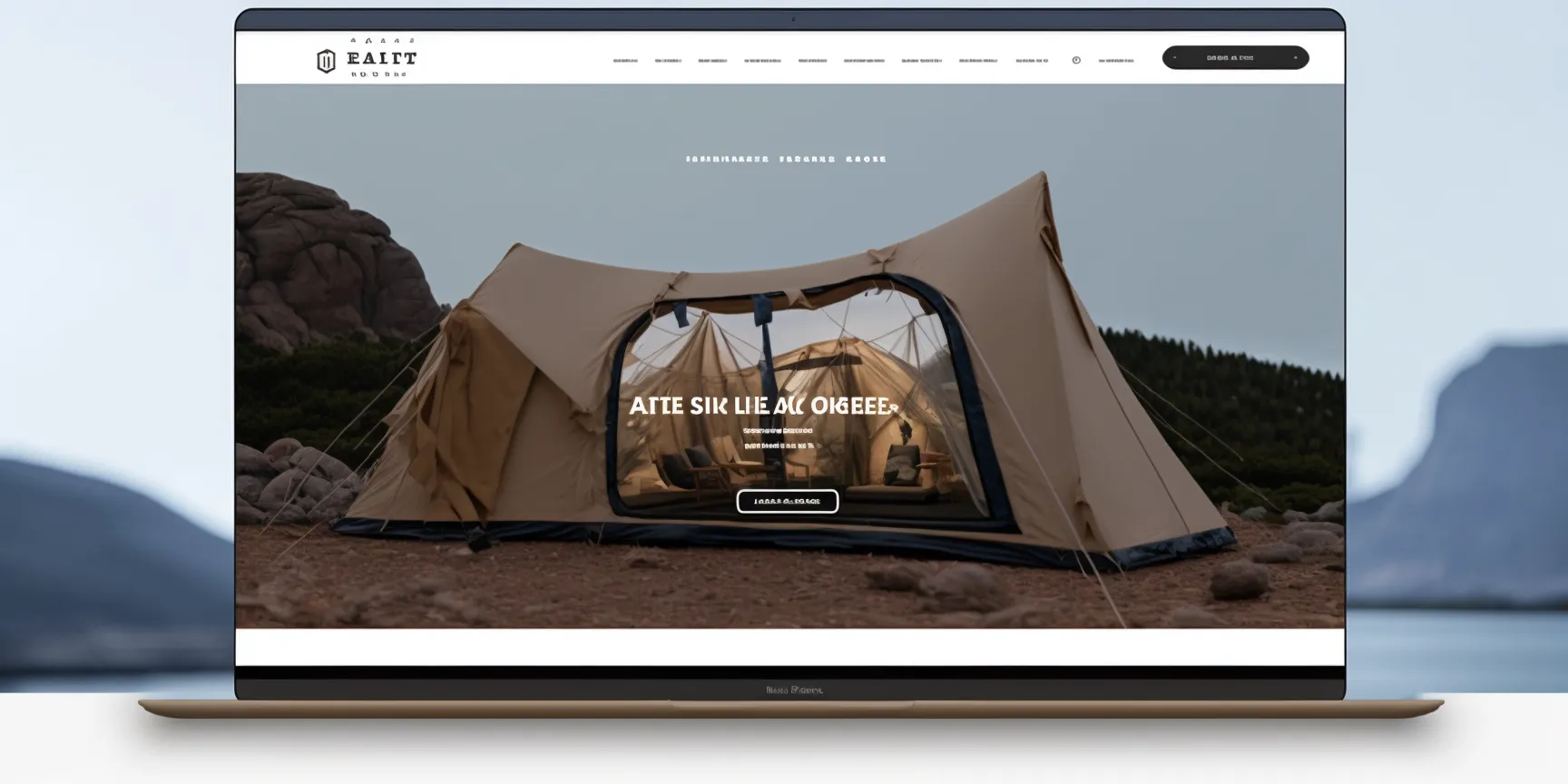
Sell tents online – how to get started
18 Dec 2025
Do you want to sell tents online in your own webshop? Abicart is a complete and professional e-commerce solution with hundreds of features that are perfectly suited for you to succeed in selling tents. It's completely free to try - and best of all - it's extremely affordable if you choose to subscribe to any of our versions.Start a webshop and sell tents with us. Free demo for 30 days!Click here and start your webshop - Free demo! You'll be up and running in minutes!Free access to Abicart's customer service.No card requiredLooking for a good platform to sell tents online? Then your own webshop with a focus on tents is a good option. Starting your own webshop makes it easy for you to reach a wider audience and sell your tents all over the world.When starting your own tent webshop, there are several things you should consider to optimise your sales. First and foremost, make sure your webshop is search engine optimised to appear high up in the search results when potential customers search for "sell tents". This can include using relevant keywords in your product descriptions and meta tags, as well as creating high-quality product images and descriptions that help your customers understand what they're buying.Another important factor is to create a webshop that is easy to use and navigate for your customers. This includes having a simple checkout process, quick and clear shipping options, and an easily accessible customer service team to answer any questions or concerns.It's also important to have a varied product line and offer different types of tents to suit different needs and purposes. This can include camping tents, family tents, backpacking tents, pop-up tents and more.Finally, promote your online store in various ways, such as social media and search ads, to reach out to potential customers. By following these strategies, you can maximize your tent sales and create a successful online store that meets your needs and requirements.
-
Sell wreaths online – how to get started
18 Dec 2025
Do you want to sell wreaths online in your own webshop? Abicart is a complete and professional e-commerce solution with hundreds of features that are perfectly suited for you to succeed in selling wreaths. It's completely free to try - and best of all - it's extremely affordable if you choose to subscribe to any of our versions.Start a webshop with us. Free demo for 30 days!Click here and start your webshop - Free demo! You'll be up and running in minutes!Free access to Abicart's customer service.No card required
-
How to start a webshop selling glass
18 Dec 2025
Do you want to sell glass online in your own webshop? Abicart is a complete and professional e-commerce solution with hundreds of features that are perfectly suited for you to succeed in selling glass. It's completely free to try - and best of all - it's extremely affordable if you choose to subscribe to any of our versions.Start a webshop with us. Free demo for 30 days!Click here and start your webshop - Free demo! You'll be up and running in minutes!Free access to Abicart's customer service.No card required
-

How to start a webshop selling beads
18 Dec 2025
Do you want to sell beads online in your own webshop? Abicart is a complete and professional e-commerce solution with hundreds of features that are perfectly suited for you to succeed in selling beads. It's completely free to try - and best of all - it's extremely affordable if you choose to subscribe to any of our versions.Start a webshop with us. Free demo for 30 days!Click here and start your webshop - Free demo! You'll be up and running in minutes!Free access to Abicart's customer service.No card required
-
Online store for snowboards – tips to get started
18 Dec 2025
Do you want to sell snowboards online in your own webshop? Abicart is a complete and professional e-commerce solution with hundreds of features that are perfectly suited for you to succeed in selling snowboards. It's completely free to try - and best of all - it's extremely affordable if you choose to subscribe to any of our versions.Start a webshop with us. Free demo for 30 days!Click here and start your webshop - Free demo! You'll be up and running in minutes!Free access to Abicart's customer service.No card required
-

Build a webshop for accessories
18 Dec 2025
Do you want to sell accessories online in your own webshop? Abicart is a complete and professional e-commerce solution with hundreds of features that are perfectly suited for you to succeed in selling accessories. It's completely free to try - and best of all - it's extremely affordable if you choose to subscribe to any of our versions.Start a webshop with us. Free demo for 30 days!Click here and start your webshop - Free demo! You'll be up and running in minutes!Free access to Abicart's customer service.No card requiredSelling accessories in your own webshop can be a fun business. Accessories can be anything from jewellery, bags, scarves, hats, belts and other fashion accessories. Here are some tips to help you succeed in selling accessories in your own webshop:Create an attractive webshop: a good webshop is crucial to selling accessories successfully. Create a user-friendly and attractive website that makes it easy for your customers to find what they are looking for. Use high-quality images that show the accessories from different angles, so that customers can see all the details.Specialise: It's important to specialise in a particular type of accessory or style to stand out from the crowd. This way you can attract a specific target audience and become an expert in your field.Be unique: try to offer accessories that are not available everywhere. This may mean looking for lesser-known brands or unique items that are hard to find elsewhere. This will help you create a unique brand identity and attract loyal customers.Provide excellent customer service: customer service is essential to building loyal customers. Make sure you have simple and clear return and refund policies. Respond quickly to customer queries and always be helpful and professional.Market your webshop: To attract new customers, it is important to market your webshop. Use social media to promote your accessories and use SEO techniques to increase your visibility on search engines. Collaborate with bloggers and influencers in your niche to reach a larger audience.Offer competitive pricing: pricing is important to attract customers. Research competitors' prices and make sure your prices are competitive while still maintaining a reasonable profit margin.Selling accessories in your own webshop can be a fun and profitable business. By following these tips, you can create an attractive webshop, build loyal customers and increase your sales.
-
Sell spices online – how to get started
18 Dec 2025
Do you want to sell spices online in your own webshop? Abicart is a complete and professional e-commerce solution with hundreds of features that are perfectly suited for you to succeed in selling spices. It's completely free to try - and best of all - it's extremely affordable if you choose to subscribe to any of our versions.Start a webshop with us. Free demo for 30 days!Click here and start your webshop - Free demo! You'll be up and running in minutes!Free access to Abicart's customer service.No card required
-
Start an online store for wallpaper
18 Dec 2025
Do you want to sell wallpaper online in your own webshop? Abicart is a complete and professional e-commerce solution with hundreds of features that are perfectly suited for you to succeed in selling wallpaper. It's completely free to try - and best of all - it's extremely affordable if you choose to subscribe to any of our versions.Start a webshop with us. Free demo for 30 days!Click here and start your webshop - Free demo! You'll be up and running in minutes!Free access to Abicart's customer service.No card required
-
Online store for lumber – tips to get started
18 Dec 2025
Do you want to sell lumber online in your own webshop? Abicart is a complete and professional e-commerce solution with hundreds of features that are perfectly suited for you to succeed in selling lumber. It's completely free to try - and best of all - it's extremely affordable if you choose to subscribe to any of our versions.Start a webshop with us. Free demo for 30 days!Click here and start your webshop - Free demo! You'll be up and running in minutes!Free access to Abicart's customer service.No card required
-
Get started selling snacks online
18 Dec 2025
Do you want to sell snacks online in your own webshop? Abicart is a complete and professional e-commerce solution with hundreds of features that are perfectly suited for you to succeed in selling snacks. It's completely free to try - and best of all - it's extremely affordable if you choose to subscribe to any of our versions.Start a webshop with us. Free demo for 30 days!Click here and start your webshop - Free demo! You'll be up and running in minutes!Free access to Abicart's customer service.No card required
-
Online store for glasses – tips to get started
18 Dec 2025
Do you want to sell glasses online in your own webshop? Abicart is a complete and professional e-commerce solution with hundreds of features that are perfectly suited for you to succeed in selling glasses. It's completely free to try - and best of all - it's extremely affordable if you choose to subscribe to any of our versions.Start a webshop with us. Free demo for 30 days!Click here and start your webshop - Free demo! You'll be up and running in minutes!Free access to Abicart's customer service.No card required
-

Sell autographs online – how to get started
18 Dec 2025
Do you want to sell autographs online in your own webshop? Abicart is a complete and professional e-commerce solution with hundreds of features that are perfectly suited for you to succeed in selling autographs. It's completely free to try - and best of all - it's extremely affordable if you choose to subscribe to any of our versions.Start a webshop with us. Free demo for 30 days!Click here and start your webshop - Free demo! You'll be up and running in minutes!Free access to Abicart's customer service.No card requiredAbicart is a modern e-commerce platform that can help you easily create and manage your own webshop to sell autographs online. The platform is easy to use and offers a variety of features that can help you create a professional online presence and increase your sales.To use Abicart to sell autographs, you first need to create an account on the platform and choose the package that suits your needs. Then you can easily create your own webshop by choosing one of the ready-made templates and customizing it to your liking. It is also possible to use your own templates and design tools if you want to have more control over the appearance of your webshop.Once you have created your webshop, you can easily upload images and descriptions of your autographs and manage your inventory. Abicart also offers integration with other tools to manage sales, accounting and other things that may be needed in your business.To promote your webshop, you can use social media and other online channels. Abicart also has a built-in function to optimize your webshop for search engines, which can help you reach a larger audience and increase your sales.Once you have received an order from your webshop, you can easily manage payments and shipping via Abicart's integrated payment and shipping options. Abicart also offers support for multiple payment methods and shipping options, making it easy for your customers to purchase autographs from your webshop.Using Abicart as your e-commerce platform to sell autographs can be an effective and simple solution. With an easy-to-use platform, integrated tools and support for multiple payment and shipping options, you can build a successful webshop to sell autographs online.
-
E-commerce with sunglasses: from idea to online store
18 Dec 2025
Do you want to sell sunglasses online in your own webshop? Abicart is a complete and professional e-commerce solution with hundreds of features that are perfectly suited for you to succeed in selling sunglasses. It's completely free to try - and best of all - it's extremely affordable if you choose to subscribe to any of our versions.Start a webshop with us. Free demo for 30 days!Click here and start your webshop - Free demo! You'll be up and running in minutes!Free access to Abicart's customer service.No card required
-
Online store for mugs – tips to get started
18 Dec 2025
Do you want to sell mugs online in your own webshop? Abicart is a complete and professional e-commerce solution with hundreds of features that are perfectly suited for you to succeed in selling mugs. It's completely free to try - and best of all - it's extremely affordable if you choose to subscribe to any of our versions.Start a webshop with us. Free demo for 30 days!Click here and start your webshop - Free demo! You'll be up and running in minutes!Free access to Abicart's customer service.No card required
-

Online store for flowers – tips to get started
18 Dec 2025
Do you want to sell flowers online in your own webshop? Abicart is a complete and professional e-commerce solution with hundreds of features that are perfectly suited for you to succeed in selling flowers. It's completely free to try - and best of all - it's extremely affordable if you choose to subscribe to any of our versions.Start a webshop with us. Free demo for 30 days!Click here and start your webshop - Free demo! You'll be up and running in minutes!Free access to Abicart's customer service.No card requiredSelling flowers in your own webshop is a great idea to reach more customers and increase sales. With an e-commerce solution like Abicart, you can easily set up and run a webshop for your flower sales.Abicart is a Swedish e-commerce platform that offers a variety of features to create and run a successful webshop. By using Abicart as your e-commerce solution, you can easily create a stylish and professional webshop without having any technical knowledge or experience with webshops.To sell flowers on your webshop, you first need to choose which flowers you want to sell and then take pictures of them. You can also write descriptions about each flower and add prices. Abicart makes it easy to add products to your online shop and organize them in a nice and clear way.Once you have created your online shop, you can start marketing it to reach potential customers. Abicart offers various marketing tools to help you reach customers through social media, email and other channels. You can also use search engine optimization (SEO) to increase your visibility on search engines like Google.To succeed in selling flowers on your online shop, it's important that you offer high-quality images, good descriptions and competitive prices. You can also offer different payment and shipping options to make it easier for customers to buy from your online shop.Finally, it is important that you offer good customer service and handle any complaints or problems in a professional manner. By creating a positive experience for your customers, you can build loyal customers who will return to your online shop and recommend it to others.Inspiring story: Florist Cecilia builds a successful webshop with AbicartHere is an inspiring story about Cecilia, a florist who had a passion for flowers and wanted to expand her business. She decided to build a webshop with the help of Abicart and managed to create a successful online flower sale. Read on to discover how she used her creativity and Abicart's e-commerce solution to build one of the leading florists in Sweden. Please note that this is a fictional story written to inspire you to sell flowers online.Cecilia had always had a passion for flowers and had worked as a florist for many years. She loved creating beautiful bouquets and decorating with flowers for different occasions, but she wanted to reach more customers and expand her business. She decided to start a webshop for her flower sales and chose Abicart as her e-commerce solution.With the help of Abicart, Cecilia could easily create a stylish and professional webshop that showcased her creative and beautiful flower arrangements. She added descriptions of each flower and the different varieties she sold, and added high quality images that really showed off the beauty of the flowers.Cecilia was aware of the long tradition we have in Sweden of decorating our homes with flowers, and she wanted her webshop to showcase the Swedish floral tradition in a modern and creative way. She chose flowers that were popular and common in Sweden, but she also experimented with new types of flowers and trendy flower arrangements.Cecilia's webshop quickly became popular with customers and she received many positive reviews and recommendations from satisfied customers. She also used Abicart's marketing tools to reach more customers and advertised on social media and other channels.Cecilia continued to develop her webshop and she expanded her range with new flowers and products. She also offered different payment and shipping options to make it easier for customers to shop from her shop.Thanks to Cecilia's passion for flowers and her innovative use of Abicart's e-commerce solution, her webshop became a great success. She continued to build her business and develop new ideas on how to offer unique and creative flower arrangements to her customers. With the help of Abicart, she was able to build a successful webshop and become one of the leading florists in Sweden.
-

Build a webshop for dolls
18 Dec 2025
Do you want to sell dolls online in your own webshop? Abicart is a complete and professional e-commerce solution with hundreds of features that are perfectly suited for you to succeed in selling dolls. It's completely free to try - and best of all - it's extremely affordable if you choose to subscribe to any of our versions.Start your online shop with us. Free demo for 30 days!Click here and start your webshop - Free demo! You'll be up and running in minutes!Free access to Abicart customer service.No strings attachedIn the digital age we live in today, it's more important than ever to have a strong online presence. If you're passionate about dolls and want to share your love with other enthusiasts, starting a doll webshop is a great way to reach a global audience. With Abicart as your e-commerce platform, you can easily set up and run your own doll webshop and achieve e-commerce success.Why Abicart?Abicart is a Swedish e-commerce platform that has helped thousands of entrepreneurs create and run successful webshops. The platform offers many benefits, including:Simplicity: Abicart is designed to be simple and user-friendly. You don't need to be a technical expert to set up and run your online store.Scalability: Whether you're starting small and want to grow, or already have a large business, Abicart can scale up or down according to your needs.Customizability: You can customize your online store to your liking and create a unique and personalized experience for your customers.Security: Abicart prioritizes security and offers features like SSL certificates and secure payment solutions to protect both you and your customers.Support: Abicart has a dedicated support team that can help you with any problems or questions along the way.Steps to start your online doll shopPlanning: Start by planning your product range and pricing. Decide which dolls you want to sell, whether you want to offer accessories, and which categories of dolls you want to have in your online shop.Create an account with Abicart: Go to Abicart.se and register for an account. Choose a plan that suits your business.Design your webshop: Use Abicart's simple tools and templates to create an attractive and functional website. You can also customize colors, fonts and layout to match your vision.Add products: Photograph your dolls and accessories, write detailed product descriptions and upload them to your online store. Learn more about products in AbicartMarketing: Use social media, email marketing and search engine optimization (SEO) to drive traffic to your online store and reach out to potential customers. Learn more about MarketingManage orders and customer support: Make sure you have an efficient order management and customer support system in place to ensure a smooth experience for your customers.Click here to start your online shop - Free demo! Please note that this success story is an ad text that aims to inspire and encourage readers to consider starting their own online store to realize their dreams and passions. Abicart, as mentioned in the text, is an e-commerce platform that can help you create and run a successful online shop. By sharing Frida's success journey, we hope to give you an insight into how Abicart can be a valuable resource to expand your business and reach a larger audience online. If you also dream of starting your own online store, Abicart could be the perfect choice to make your vision a reality.Success Story: Frida's success story selling dolls in a physical store and online shop with AbicartFrida has always had a passion for dolls and dreamed of opening her own shop where she could sell unique and unusual dolls to collectors and enthusiasts. After years of hard work and planning, she opened her first physical store, "Fridas Fantastiska Dockor", in a picturesque town in southern Sweden. The shop quickly became popular with locals and tourists who appreciated her carefully selected range of dolls and accessories.Despite the success of the physical store, Frida realized there was huge potential to reach a larger audience and offer her products to doll enthusiasts all over the world. She decided to expand her business by creating a webshop using Abicart, a Swedish e-commerce platform.Frida registered on Abicart and started building her webshop with the user-friendly tools and templates the platform offered. She customized the design to match her physical store and added clear product images and descriptions to make the shopping experience smooth and informative for her customers. Before long, "Frida's Fantastic Dolls" was ready to launch online.To promote her new online shop, Frida used social media, email marketing and search engine optimization (SEO) to reach out to potential customers and attract them to her online shop. She also offered customer logins and regular promotions to encourage repeat customers and increase sales.The success of the webshop exceeded Frida's expectations. She saw a significant increase in sales and was able to reach customers from all over the world. Frida's Fantastic Dolls quickly became known among collectors and enthusiasts as a place to find unique and rare dolls. By using Abicart as her e-commerce platform, Frida was able to easily manage her growing business and offer a secure and smooth shopping experience for her customers.Frida's success story shows that it is possible to combine a physical store with an online shop to reach a larger audience and increase sales. With the help of Abicart, Frida has realized her dream of spreading her love for dolls and creating a successful business that reaches customers all over the world.Click here to start your online shop - Free demo!
-
Online store for solar panels – tips to get started
18 Dec 2025
Do you want to sell solar panels online in your own webshop? Abicart is a complete and professional e-commerce solution with hundreds of features that are perfectly suited for you to succeed in selling solar panels. It's completely free to try - and best of all - it's extremely affordable if you choose to subscribe to any of our versions.Start a webshop with us. Free demo for 30 days!Click here and start your webshop - Free demo! You'll be up and running in minutes!Free access to Abicart's customer service.No card required
-
Sell lip gloss online – how to get started
18 Dec 2025
Do you want to sell lip gloss online in your own webshop? Abicart is a complete and professional e-commerce solution with hundreds of features that are perfectly suited for you to succeed in selling lip gloss. It's completely free to try - and best of all - it's extremely affordable if you choose to subscribe to any of our versions.Start a webshop with us. Free demo for 30 days!Click here and start your webshop - Free demo! You'll be up and running in minutes!Free access to Abicart's customer service.No card required
-
Build a webshop for purses
18 Dec 2025
Do you want to sell purses online in your own webshop? Abicart is a complete and professional e-commerce solution with hundreds of features that are perfectly suited for you to succeed in selling purses. It's completely free to try - and best of all - it's extremely affordable if you choose to subscribe to any of our versions.Start a webshop with us. Free demo for 30 days!Click here and start your webshop - Free demo! You'll be up and running in minutes!Free access to Abicart's customer service.No card required
-
Build a webshop for records
18 Dec 2025
Do you want to sell records online in your own webshop? Abicart is a complete and professional e-commerce solution with hundreds of features that are perfectly suited for you to succeed in selling records. It's completely free to try - and best of all - it's extremely affordable if you choose to subscribe to any of our versions.Start a webshop with us. Free demo for 30 days!Click here and start your webshop - Free demo! You'll be up and running in minutes!Free access to Abicart's customer service.No card required
-
Online store for kayaks – tips to get started
18 Dec 2025
Do you want to sell kayaks online in your own webshop? Abicart is a complete and professional e-commerce solution with hundreds of features that are perfectly suited for you to succeed in selling kayaks. It's completely free to try - and best of all - it's extremely affordable if you choose to subscribe to any of our versions.Start a webshop with us. Free demo for 30 days!Click here and start your webshop - Free demo! You'll be up and running in minutes!Free access to Abicart's customer service.No card required
-
E-commerce with paintings: from idea to online store
18 Dec 2025
Do you want to sell paintings online in your own webshop? Abicart is a complete and professional e-commerce solution with hundreds of features that are perfectly suited for you to succeed in selling paintings. It's completely free to try - and best of all - it's extremely affordable if you choose to subscribe to any of our versions.Start a webshop with us. Free demo for 30 days!Click here and start your webshop - Free demo! You'll be up and running in minutes!Free access to Abicart's customer service.No card required
-
Build a webshop for mattresses
18 Dec 2025
Do you want to sell mattresses online in your own webshop? Abicart is a complete and professional e-commerce solution with hundreds of features that are perfectly suited for you to succeed in selling mattresses. It's completely free to try - and best of all - it's extremely affordable if you choose to subscribe to any of our versions.Start a webshop with us. Free demo for 30 days!Click here and start your webshop - Free demo! You'll be up and running in minutes!Free access to Abicart's customer service.No card required
-
Start an online store for guitars
18 Dec 2025
Do you want to sell guitars online in your own webshop? Abicart is a complete and professional e-commerce solution with hundreds of features that are perfectly suited for you to succeed in selling guitars. It's completely free to try - and best of all - it's extremely affordable if you choose to subscribe to any of our versions.Start a webshop with us. Free demo for 30 days!Click here and start your webshop - Free demo! You'll be up and running in minutes!Free access to Abicart's customer service.No card required
-

Get started selling paint online
18 Dec 2025
Do you want to sell paint online in your own webshop? Abicart is a complete and professional e-commerce solution with hundreds of features that are perfectly suited for you to succeed in selling paint. It's completely free to try - and best of all - it's extremely affordable if you choose to subscribe to any of our versions.Start a webshop with us. Free demo for 30 days!Click here and start your webshop - Free demo! You'll be up and running in minutes!Free access to Abicart's customer service.No card required
-
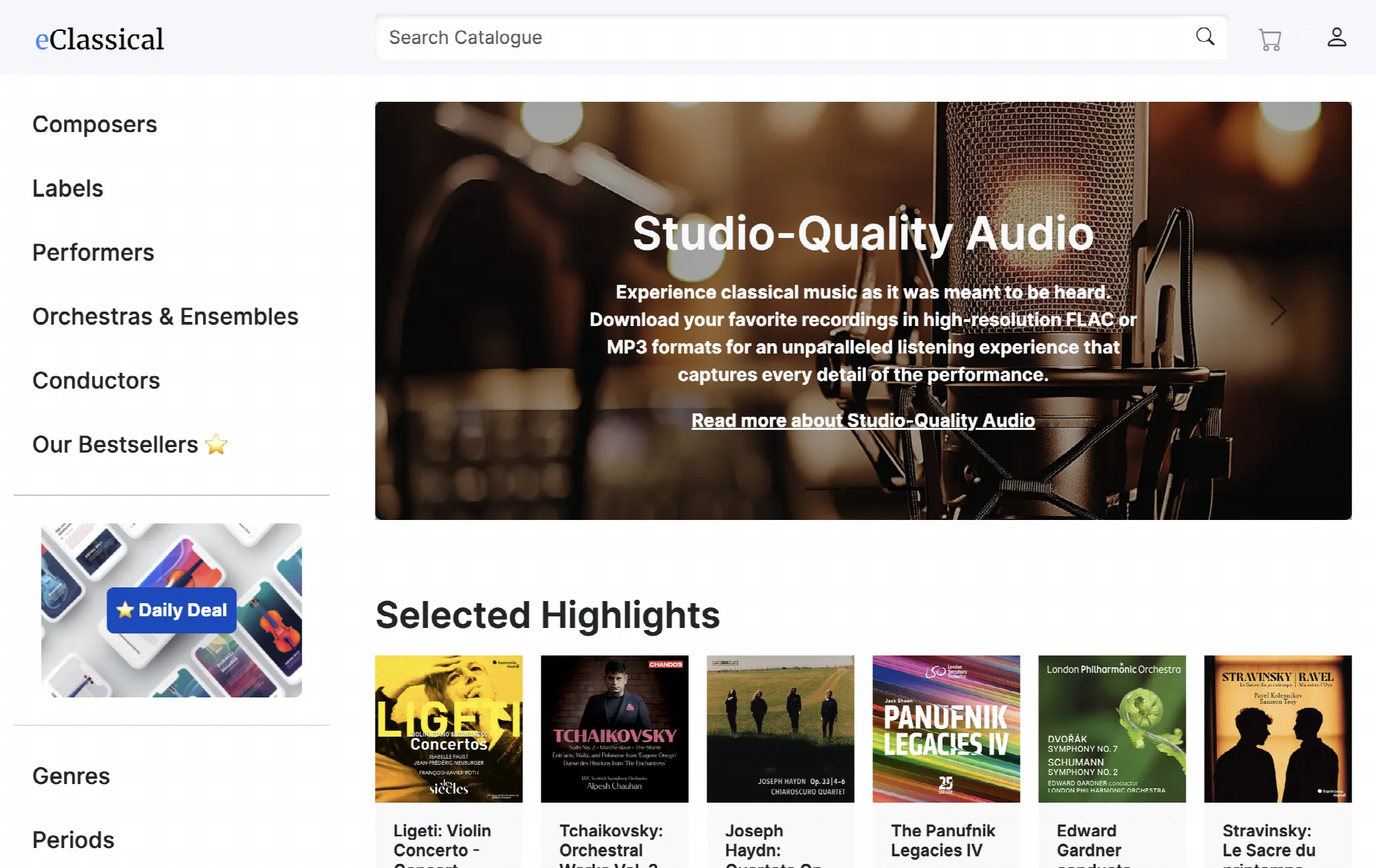
A classic boost: eClassical.com is now launched on Abicart with a new engine and specially designed theme!
18 Dec 2025
We are pleased to announce that eClassical.com has now launched on Abicart, featuring a custom-designed theme built on a brand-new rendering engine. Our new rendering engine meets eClassical’s unique needs in a way previously not possible – all while enhancing the site's character and identity.A digital pioneer renewedSince 1999, eClassical has been a leading provider of high-quality classical music downloads in FLAC and MP3 formats. With a unique pay-per-second pricing system and close collaboration with prestigious labels such as BIS, Harmonia Mundi, and Chandos, eClassical has built a loyal customer base. After years on a proprietary platform, there was a clear need for modernization – both technically and visually.From complex demands to flexible solutionsThe migration to Abicart was no ordinary move. eClassical’s catalog structure, including albums, collections, and individual tracks, required an especially flexible solution. Previously, our platform couldn't provide the necessary custom solutions without complicated compromises.With our new rendering engine, creating these custom solutions has become significantly easier. We can now design page types and product views tailored to eClassical’s needs – not the other way around. The result is an intuitive shopping experience where each product is presented clearly and naturally.A user experience in harmony with musicThe new theme is specially designed for music lovers who have high standards for both functionality and aesthetics. Inspired by classical album covers and traditional sheet music, the theme features clear typography and a clean, minimalist color palette.Navigation between composers, record labels, and genres has been significantly enhanced. Additionally, performance is a crucial part of the user experience, maintaining top-level responsiveness even when displaying thousands of options simultaneously. Sound samples, an essential feature for customers, are seamlessly and efficiently integrated.Ready for the futureThe launch of eClassical on Abicart showcases the strength of our new technical platform: the ability to handle specialized needs with high complexity and international reach. This is an important milestone proving we are ready for future challenges in e-commerce.Visit eClassical.com and experience the difference yourself!
-

A status update on TPL
18 Dec 2025
Here's a brief update on what's going on behind the scenes of the TPL project, our new theme engine. Right now, we're working with two different clients to develop two TPL sites. We're using the insights we get from these projects to improve and scale TPL:We finalize features needed to use TPL on a large scale. For example, translations, managing code updates and sharing code between different themes and versions.A first draft of our first theme is ready. Right now, we're working on refining it to ensure it's robust and sustainable over time. The theme will be more customizable and can be extended with new functionality in the future.We are also developing a new admin for theme management. On the one hand, TPL themes require a different technical solution, and on the other hand, we are making improvements that could not be solved with our current themes.We are putting a lot of effort into building a stable and scalable foundation. The next step is to make sure our themes cover all our features, and that they are easy to customize and manage.
-

The power of direct-to-consumer (DTC) e-commerce: how to build a successful DTC brand in 2024
18 Dec 2025
Explore the benefits of Direct-to-Consumer (DTC) e-commerce. Learn how to build a successful DTC brand in 2024 with Abicart by leveraging direct customer relationships, data-driven strategies and personalized experiences.Introduction: The rise of direct-to-consumer e-commerceThe direct-to-consumer (DTC) model has revolutionized the way brands interact with customers. By eliminating intermediaries such as wholesalers, distributors and retailers, brands can directly reach their consumers, offer a more personalized experience and capture higher profit margins. As we enter 2024, the DTC model continues to gain ground, and more businesses are adopting this approach to gain control of their brand, customer experience and data.In this blog, we will explore the key benefits of the DTC model, how to build a successful DTC brand, and what strategies are required to succeed in this competitive landscape. With the right ecommerce platform, like Abicart, you can fully capitalize on the benefits of the DTC model and build a brand that resonates with your target audience.What is Direct-to-Consumer (DTC)?Direct-to-Consumer (DTC) is a business model where companies sell their products directly to consumers without using third-party retailers or other intermediaries. This model allows brands to manage every aspect of the customer journey, from product development to marketing, sales and customer service.Key characteristics of the DTC model:Direct Customer Relationships: Brands maintain direct relationships with their customers, allowing them to collect valuable data and offer personalized experiences.Full Control of Brand and Marketing: DTC brands control their brand, messaging and marketing strategies, ensuring consistency across all channels.Higher Profit Margins: By bypassing intermediaries, DTC companies can retain more of the revenue, which can be reinvested into the business for growth.Data-driven Decision Making: Direct access to customer data allows DTC brands to make informed decisions about product development, marketing and customer service.Benefits of the DTC modelStronger Customer Relationships:One of the biggest benefits of the DTC model is the ability to build strong, direct relationships with customers. By eliminating intermediaries, DTC brands can interact directly with their customers and gain insights into their preferences, behaviors, and needs. This direct relationship enables brands to offer personalized experiences that foster loyalty and drive repeat business.Greater Control Over Brand Image:DTC brands have full control over their brand image and how it is presented to customers. From web design and product packaging to marketing campaigns and customer service, every aspect of the brand experience is managed by the company. This control ensures a consistent brand message and helps build a strong and recognizable brand identity.Higher Profit Margins:By selling directly to consumers, DTC brands can capture higher profit margins. Without the need to share revenue with intermediaries such as retailers or wholesalers, brands can keep more of the profits. This extra revenue can be reinvested in the business, whether for product development, marketing or expansion.Data-driven insights:Direct access to customer data is a significant benefit of the DTC model. Brands can collect and analyze data from customer interactions, including website behaviors, purchase history, and feedback. These insights allow brands to make informed decisions about product offerings, marketing strategies, and customer service improvements, ultimately driving growth and customer satisfaction.Agility and Innovation:DTC brands are often more agile than their traditional counterparts. Without the constraints that come with dealing with third-party retailers, DTC companies can quickly adapt to changes in the market, launch new products, and implement innovative marketing strategies. This agility gives DTC brands a competitive advantage in a rapidly changing market.Challenges of the DTC modelWhile the DTC model offers many benefits, it also comes with its own challenges:Customer acquisition costs:One of the biggest challenges for DTC brands is the cost of acquiring new customers. Without the built-in audience that retailers or marketplaces offer, DTC brands have to invest heavily in digital marketing, social media and content creation to drive traffic to their websites. These costs can add up quickly, especially for new brands trying to establish themselves in the market.Supply chain management:Managing the entire supply chain-from production to warehousing and shipping-can be complex and resource-intensive. DTC brands need to ensure they have effective processes in place to manage these operations, which can be challenging for smaller businesses with limited resources.Building Brand Trust:For new DTC brands, building trust with customers can be difficult. Without the support of a well-known retailer, customers may be hesitant to buy from an unknown brand. DTC companies need to invest in building a strong brand presence, offering excellent customer service and creating a seamless shopping experience to overcome this challenge.Customer retention and loyalty:While acquiring customers is important, retaining them is equally important. DTC brands need to focus on customer retention strategies, such as loyalty programs, personalized marketing, and outstanding customer service, to keep customers engaged and loyal.How Abicart Can Help You Succeed with the DTC ModelBuilding a successful DTC brand requires not only a strategic approach but also the right tools and platform to support your efforts. Abicart offers everything you need to create, manage and grow a DTC brand in 2024:Customizable Storefronts:Abicart allows you to design a unique, branded online storefront that reflects your brand's identity and values. The platform's customizable templates make it easy to create a professional and appealing storefront that resonates with your target audience.Integrated Marketing Tools:Abicart seamlessly integrates with key marketing tools like Google Analytics, Google Ads, and social media platforms, enabling you to effectively manage your marketing efforts. You can track performance, optimize campaigns, and make data-driven decisions to improve your marketing strategies.Scalable Solutions:As your DTC brand grows, Abicart's platform grows with you. Whether you need to expand your product offering, integrate with new sales channels, or add advanced features, Abicart offers the flexibility and support you need to grow your business.Outstanding Customer Support:Abicart's customer support team is dedicated to helping you succeed. With over 30 years of experience in the Swedish and Scandinavian markets, Abicart understands the unique challenges and opportunities of the region and offers customized support to meet your needs.The Future of DTC: Trends to Watch in 2024As the DTC model continues to evolve, several trends are shaping the future of this way of doing business:Increased Focus on Sustainability:Consumers are becoming increasingly aware of the environmental impact of their purchases. DTC brands that prioritize sustainability-whether it's eco-friendly products, sustainable packaging, or ethical production-are likely to resonate with a growing portion of the market.Expansion into Physical Retail:Although DTC brands traditionally operate online, many are expanding into physical retail through pop-up stores, flagship stores, or partnerships with established retailers. This omnichannel approach allows brands to reach new customers and offer a tactile experience that complements their online presence.Use of Artificial Intelligence and Personalization:AI and machine learning are becoming increasingly important for DTC brands. These technologies enable brands to offer highly personalized experiences, from product recommendations to tailored marketing campaigns. As AI continues to evolve, its role in DTC e-commerce will grow.Focus on Community Building:Building a strong community around your brand can drive customer loyalty and recommendations. DTC brands are increasingly using social media, online forums and events to create a sense of belonging among their customers, fostering long-term relationships.Conclusion: Adopting the DTC Model for Long-Term Success with AbicartThe Direct-to-Consumer model offers significant opportunities for brands to forge deeper relationships with customers, control their brand narrative and capture higher profit margins. However, success in the DTC space requires careful planning, a focus on quality and customer experience, and the agility to adapt to changing market trends.By leveraging Abicart's robust ecommerce platform, you can confidently navigate the DTC landscape and create a strong, sustainable brand that thrives in 2024 and beyond. Whether you're just starting out or looking to scale your DTC business, Abicart offers the tools, support, and expertise you need to succeed.
-

Boost Your Sales with Social Commerce: Integrating Social Media into Your E-commerce Strategy
18 Dec 2025
Discover how to leverage social commerce to increase sales by integrating social media with your e-commerce platform. Explore key strategies and benefits for businesses looking to thrive in the digital marketplace.Introduction: The Rise of Social CommerceSocial media has revolutionized the way we connect, communicate and consume content. In recent years, it has also transformed the way we shop. Social commerce-the integration of social media with e-commerce-has become a powerful tool for businesses looking to increase sales and engage customers in new and dynamic ways.For businesses, especially those in the Scandinavian market where the use of social media is widespread, the integration of social commerce into your e-commerce strategy is no longer optional-it's essential. In this blog, we'll explore the growing trend of social commerce, discuss how businesses can effectively integrate social media with their e-commerce platforms, and outline the benefits of doing so.What is Social Commerce?Social commerce is the process of selling products directly through social media platforms. Unlike traditional e-commerce, where customers are redirected from social media to a separate website to complete a purchase, social commerce allows them to make purchases directly within the social media platform. This seamless shopping experience is becoming increasingly popular with consumers who value convenience and speed.Platforms such as Instagram, Facebook and Pinterest have developed robust social commerce features that allow businesses to showcase products, provide detailed descriptions and enable in-app purchases. For businesses, this represents a significant opportunity to reach customers where they spend much of their time online.The importance of integrating social commerceIntegrating social commerce into your e-commerce strategy is crucial for several reasons:Increased Visibility and ReachSocial media platforms have billions of active users, giving businesses an unrivaled opportunity to reach a global audience. By integrating social commerce, you can showcase your products to potential customers who might not have discovered your brand through traditional channels.Improved customer engagementSocial media enables direct interaction with customers, providing a platform to answer questions, get feedback and build relationships. Engaging content, such as product demonstrations, customer reviews and influencer collaborations, can significantly improve customer engagement and trust.Streamlined shopping experienceSocial commerce offers a seamless shopping experience that reduces the friction between discovery and purchase. Customers can browse, learn about, and purchase products without ever leaving their preferred social media platform, leading to higher conversion rates.Leverage User-Generated ContentUser-generated content (UGC) is a powerful tool in social commerce. Encouraging customers to share photos and reviews of your products on social media can act as authentic recommendations, driving more sales and increasing brand credibility.Data-driven InsightsSocial media platforms offer valuable data and insights that can help you understand your customers' preferences and behaviors. By analyzing this data, you can refine your marketing strategies, optimize your product offerings, and improve overall customer satisfaction.How to Integrate Social Commerce into Your E-Commerce StrategySuccessfully integrating social commerce into your e-commerce strategy requires a well-planned approach. Here are some key steps to consider:Choose the Right PlatformsNot all social media platforms are created equal. It's important to choose the platforms that align with your target audience and product offerings. For example, Instagram and Pinterest are highly visual platforms that work well for fashion, beauty, and lifestyle brands, while Facebook is more versatile and appeals to a wider audience.Set up Features for Social CommerceOnce you've chosen your platforms, the next step is to set up the social commerce features. This usually involves creating a business account, setting up a product catalog, and enabling shopping features. Each platform has its own guidelines and tools for this process, so make sure to follow them carefully.Create Engaging ContentContent is king in social commerce. To attract and retain customers, you need to create high-quality, engaging content that resonates with your audience. This can include product photos, videos, tutorials and behind-the-scenes content. Consistency is key, so develop a content calendar to ensure regular posts.Leverage Influencer MarketingEngaging with influencers can amplify your reach and credibility. Influencers can showcase your products to their followers and provide authentic recommendations that can drive sales. Choose influencers whose audience aligns with your target market and who genuinely resonate with your brand values.Use Paid MarketingSocial media platforms offer sophisticated advertising tools that allow you to target specific demographic groups, behaviors and interests. Invest in paid marketing to increase the visibility of your products, drive traffic to your social media profiles and boost conversions.Engage with your audienceEngagement is crucial in social commerce. Respond to comments, messages and reviews quickly. Encourage conversations, ask for feedback and show appreciation for your customers. This level of interaction builds trust and promotes loyalty.Analyze and OptimizeRegularly analyze your social commerce performance using the analytics tools offered by social media platforms. Track key metrics such as engagement rate, click-through rate and conversion rate. Use these insights to optimize your strategy, improve content, and refine audience targeting.Benefits of Social Commerce for Your E-Commerce BusinessIntegrating social commerce into your e-commerce strategy offers many benefits:Increased Sales: By reaching customers directly where they spend the most time online, social commerce can significantly increase your sales. The convenience of in-app purchases and the power of social proof can lead to higher conversion rates.Improved Customer Loyalty: Engaging customers on social media helps build strong relationships and promotes loyalty. Customers who feel connected to your brand are more likely to make repeat purchases and recommend your products to others.Increased Brand Awareness: Social media platforms are excellent for increasing brand awareness. By consistently sharing content and engaging with your audience, you can extend your brand's reach and attract new customers.Valuable Customer Insights: The data collected from social media interactions provides valuable insights into customer preferences and behaviors. This information can help you tailor your marketing strategies, product offerings and customer service to better meet your customers' needs.Conclusion: Harnessing the Power of Social CommerceSocial commerce isn't just a trend-it's the future of e-commerce. For businesses in the Scandinavian market and beyond, integrating social commerce into your e-commerce strategy is crucial to stay competitive and drive growth. By choosing the right platforms, creating engaging content and actively engaging with your audience, you can leverage social commerce to increase sales, boost brand loyalty and expand your reach.At Abicart, we are committed to helping businesses succeed in the digital marketplace. Our platform integrates seamlessly with the major social media channels, enabling you to harness the full potential of social commerce. Whether you're just starting out or looking to improve your existing strategy, Abicart offers the tools and support you need to succeed in the world of social commerce.
-

Navigating the Scandinavian E-commerce Market in 2024: Key Trends and Growth Opportunities
18 Dec 2025
Explore the latest trends shaping the Scandinavian e-commerce market in 2024 and discover growth opportunities for your business. Learn how to leverage these trends with Abicart's powerful e-commerce platform.Introduction: The Evolution of the Scandinavian E-commerce MarketThe Scandinavian e-commerce market, known for its high internet penetration and tech-savvy consumers, continues to develop at a rapid pace. As we enter 2024, the region presents a unique mix of opportunities and challenges for businesses looking to establish or expand their online presence. To succeed in this competitive landscape, businesses need to stay ahead of the latest trends and take advantage of the opportunities they offer.In this blog, we will analyze the current trends shaping the Scandinavian e-commerce market in 2024, explore the opportunities for growth, and discuss how businesses can leverage these trends using the Abicart platform.Current Trends in the Scandinavian E-commerce MarketSustainability as a Driving ForceSustainability has become a crucial factor for Scandinavian consumers when making purchasing decisions. Shoppers in this region are increasingly prioritizing eco-friendly products and companies that demonstrate a commitment to environmental responsibility. Businesses that embrace sustainable practices, from using recycled materials to offering carbon-neutral shipping, are more likely to attract and retain customers.The dominance of mobile commerceThe rise of mobile commerce (m-commerce) continues to shape the e-commerce landscape in Scandinavia. With high smartphone penetration and widespread access to fast mobile internet, more consumers are shopping on their mobile devices than ever before. To capture this growing market, businesses need to ensure that their e-commerce platforms are fully optimized for mobile users and offer a seamless and intuitive shopping experience.The growth of Social CommerceSocial commerce, the integration of social media and e-commerce, is gaining traction in Scandinavia. Consumers are increasingly discovering and buying products directly through social media platforms such as Instagram, Facebook and Pinterest. By leveraging social commerce, businesses can engage with their audience where they spend most of their time online and drive more sales.Personalization and AIPersonalization has become a key expectation among Scandinavian consumers. Advances in artificial intelligence (AI) enable businesses to deliver highly personalized shopping experiences, from tailored product recommendations to personalized marketing campaigns. Implementing AI-driven personalization strategies can significantly increase customer satisfaction and raise conversion rates.The emergence of Subscription modelsSubscription services are becoming increasingly popular across industries in Scandinavia. From fashion and beauty boxes to grocery bags and digital services, subscription models offer a convenient and personalized shopping experience that appeals to modern consumers. E-commerce businesses can capitalize on this trend by offering subscription options that cater to specific customer needs.Opportunities for Growth in the Scandinavian E-commerce MarketExpanding into Niche MarketsAs the e-commerce market matures, demand for specialized products that cater to niche markets is increasing. Businesses that identify and target underserved segments can create a profitable place in the market. For example, environmentally conscious consumers, animal lovers or hobby enthusiasts represent niches with significant growth potential.Leveraging Cross-Border E-commerceScandinavian consumers are known for their willingness to shop across borders, especially within the Nordic region. Businesses that offer seamless cross-border shopping experiences, including local payment options and fast international shipping, can tap into a wider customer base and increase sales.Improving the customer experience through omnichannel strategiesAn omnichannel strategy that integrates online and offline experiences is increasingly important. Scandinavian consumers expect a consistent and convenient shopping experience across all touchpoints, whether they are browsing online, using a mobile app or visiting a physical store. Businesses that invest in omnichannel strategies can increase customer loyalty and drive higher sales.Adopt Advanced Analytics and Data-Driven Decision MakingData analytics is a powerful tool for understanding customer behavior and optimizing business strategies. By leveraging advanced analytics, businesses can gain insights into customer preferences, anticipate trends, and make informed decisions that drive growth. Investing in data-driven marketing and operations is crucial to stay competitive in the Scandinavian e-commerce market.How Abicart Can Help You Benefit from These TrendsAt Abicart, we understand the unique dynamics of the Scandinavian e-commerce market, and our platform is designed to help businesses navigate and thrive in this environment. Here's how Abicart can support your growth:Sustainability Features: Abicart offers tools and integrations that support sustainable business practices, such as eco-friendly packaging options, carbon-neutral shipping integrations, and the ability to highlight sustainable products in your store.Mobile Optimized Design: Our platform offers responsive, mobile-optimized templates that ensure your e-commerce store looks great and works perfectly on all devices, giving customers a seamless shopping experience.Social Commerce Integration: Abicart seamlessly integrates with the major social media platforms, making it easy for you to set up social commerce features and sell directly through your social media profiles.AI and Personalization Tools: Abicart allows you to leverage AI-powered tools to deliver personalized shopping experiences, from product recommendations to targeted marketing campaigns, helping you to increase customer engagement and conversion rates.Support for Subscription Models: Abicart's flexible platform makes it possible to offer subscription-based products and services, catering to the increasing demand for convenience and personalized shopping experiences.Advanced Analytics: Abicart provides comprehensive analytics tools that give you insights into customer behavior, sales trends, and marketing performance, enabling you to make data-driven decisions that drive your business growth.Conclusion: Navigating the Future of Scandinavian E-commerceThe Scandinavian e-commerce market is poised for continued growth in 2024, driven by trends such as sustainability, mobile commerce and personalization. Businesses that understand and adapt to these trends will be well positioned to capitalize on the opportunities they present.With Abicart, you have a partner that understands the nuances of the Scandinavian market and offers the tools and support you need to succeed. Whether you're looking to improve your sustainability efforts, optimize for mobile commerce, or leverage social media to drive sales, Abicart is here to help you navigate the future of ecommerce.
-
Build a blog feature in Abicart
18 Dec 2025
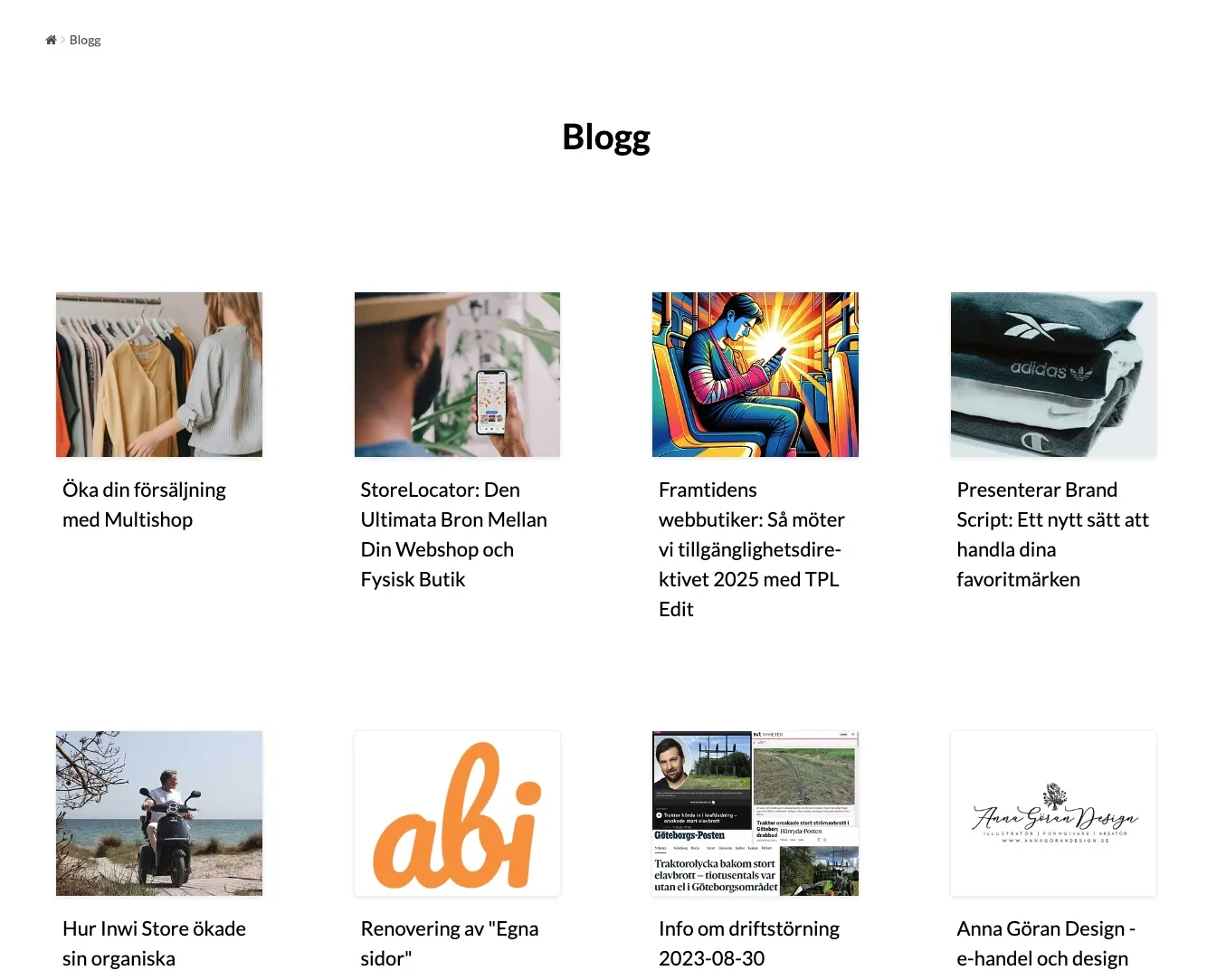
Here's a guide on how you can use product groups and products to build a blog feature on your Abicart store. This feature will allow you to publish content in a blog-like way and improve your SEO.Step 1: Create a product group for your blogGo to Assortment in your Abicart admin.Select Product Groups and then click on New Product Group.Name this product group for example "Blog" or something else suitable that represents your blog section.Save the product group.Step 2: Create a product for each blog postCreate a new product that will become your blog post, categorize the product with the new product group "blog". Each product will act as an individual blog post.Name the product with the title of the blog post and fill in the relevant content in the form of text and image.Leave the price field empty.Check the 'For viewing only' box on the product page. This hides the buy button on the shop.Save the product.Step 3: Hide pricesHide so that no prices appear on your blog posts:Go to Assortment >> Settings >> Products without price.Enable the option that allows products without price to be available for viewing and ordering.Step 4: Customize the appearanceIf you want, you can further customize the look of each product group page to mimic a blog page. With custom HTML/CSS you can create your own design in your store, read more about custom HTML and CSS here.Want help creating a customized design in your store? Then our designers can help you! Read more here.Step 5: Link to your blogTo make your blog accessible and visible, add the main 'Blog' group as a menu item in your store's navigation. This will allow visitors to easily find and navigate to your blog from the main menu. In this manual you can read how to add a menu item.Example: Abicart's blogDid you know that we built our own blog in Abicart? Check it out here!
-

Dekortorget creates homes with personality
18 Dec 2025
We meet Johanna, the driven and passionate founder of Dekortorget - a Swedish e-commerce business that specializes in creating homes with personality. By offering unique and customizable wall decorations and interior design products, Johanna has managed to find her niche with appreciated products on the Swedish market.What do you sell in your shop Dekortorget?We have a unique product portfolio, from wall decor and wall texts for the home to wall stickers for children's rooms, as well as name boards and posters. Our products are popular gifts for christenings and birthdays. We also have a wide range of self-adhesive tile decor for bathrooms and kitchens. Customers can also create their very own wall text with us. Interestingly, how did you come up with the idea of starting an e-commerce business?We had some prior knowledge in manufacturing and saw a market that could be complemented by our products. We simply saw a gap in the market. Even though I had no experience in e-commerce, I decided to give it a try. It started as a side project but has grown over time," says Johanna. When did you start your e-commerce?We opened the webshop in 2013. And how has your e-commerce developed since then?We have developed better products and a larger range. Creating new products is a big part of the joy of running a webshop with your own products. In which countries do you sell your products?Currently, we only sell to Sweden. We at Abicart are happy that you chose us as your e-commerce platform. What made you choose Abicart?After comparing several options, I chose Abicart for its extensive functionality. You were also able to customize the platform to our unique needs. The freedom to customize the look and feel of the webshop and create custom pages also weighed heavily. It is a platform that you can grow with. What challenges have you encountered when it comes to running e-commerce?As a small company that hasn't expanded quickly, we haven't faced any major challenges. We have taken time to develop the store and our products. Much of the work with a webshop is about SEO, where we could have learned more from the start. How do you market your webshop?We mainly market ourselves through Google and social media. How have you dealt with competition in the market, and standing out from similar online retailers?We have chosen to focus on quality rather than quantity. As we have our own production facilities, we can quickly adapt to customer needs and wishes, but also offer customized solutions. What are the main advantages of running a webshop?The biggest advantage is flexibility. Being able to reach out to customers regardless of time and place is incredibly valuable. It seems that you value customer opinions highly. How have you used feedback from customers and webshop visitors to improve your store and customer experience?From the very beginning, we have listened to feedback from our customers, both positive and negative. Since we manufacture everything ourselves, we have been able to make changes to both design and materials based on this feedback. Can you tell us which subscription you use with us and why?We use the Pro plan. It meets our needs and gives us access to all the features we need to run our business. Which features or integrations are most important for your business?The features that facilitate logistics, such as the integration with shipping systems, are particularly important to us. What are your future plans for your webshop?We want to continue to develop along the same lines as now. We love what we do and want to keep improving our products. Finally, what tips would you give to others who are thinking of starting a webshop?My advice would be to familiarize yourself with the market you want to sell in and to work a lot with SEO. Knowledge is power, and the more you know about your market and how to reach your customers, the more successful your business will be. Thank you Johanna for sharing your journey and experience, and for giving us the opportunity to learn more about Dekortorget!Visit DekortorgetClick here and start your webshop - Free demo!
-

Anna Göran Design - e-commerce and design that flourishes
18 Dec 2025
With an impressive background as an illustrator and designer, Anna has not only created great design, but also a thriving e-commerce business. Anna shares her e-commerce journey with us at Abicart and how she has combined her passion with our platform to succeed online.What do you sell in your shop?In my shop, I offer a variety of products that I design myself. It ranges from wedding invitations to festive details such as mugs and trays for the home. Why did you decide to start an online shop?I wanted to reach more people and make my designs available all over Sweden. Having a webshop allowed me to reach a wider audience than just my city. When did you open the webshop?My shop opened in 2013, which means I have been running it for 10 years now. How has your online shop evolved since its inception?I have worked on improving the product images and SEO to increase visibility. The latest features from Abicart have really helped me to design and customize the store more easily. In which countries do you sell your products?I mainly focus on Sweden, but my products also reach customers in Norway and Finland. What made you choose Abicart as your e-commerce platform?I chose Abicart, formerly Textalk webshop, partly because of the free period offered when I started. What are the biggest challenges you have faced in running an e-commerce business and how have you solved them?Standing out and reaching the right audience has been a challenge. I have invested in SEO optimization and make sure my images and texts are consistent for a better customer experience. How do you market your webshop?I use social media like Pinterest and Instagram to share my products. SEO is important to be visible on Google. How have you dealt with competition in the market, and standing out from similar online retailers?I focus on creating unique products and being active on social media to build a loyal customer base. What are the main benefits of running a webshop?One of the best things is that my webshop is open 24/7 so I can sell even when I'm sleeping. What are your future plans for your webshop?I plan to continue developing my range and work more on search optimization. I also want to improve the design and customer experience. What tips would you give to others who are thinking of starting a webshop?My advice is to dare to try and experiment. Think about SEO from the start and make sure your images and text work together to create a clear picture for visitors.Click here to start your webshop - Free demo!
-

How Inwi Store increased its organic walking scooter traffic by over 3000% through SEO strategy
18 Dec 2025
Recently, our SEO work at Inwi Store has resulted in an impressive organic growth of over 3000%. A central part of this work has been to develop our blog and several of our blog posts now rank on the first page of Google.Focus on SEO and Blogs for Organic Growth:We at Inwi Store have a clear focus on becoming the number one destination for walking scooters in Sweden. Over the past few months, we have been working intensively to increase our organic traffic, and one of our main strategies has been to optimize our SEO work where the development of a blog platform has been part of the work. Abicart's Role in Our SEO Success:In our SEO work, Abicart has been an important partner. Through their customer-focused approach, they have helped us create a blogging strategy that has made all our articles searchable. This has led to excellent results for our organic traffic, with several of our blog posts appearing on the front page of Google.Using the Blog as an Effective Marketing Forum:Our blog platform has proven to be a perfect forum for our efforts to create relevant content for our target audience. Here we can be creative and offer our customers everything from maintenance tips for their mobility scooter to presenting news and inspiring the freedom of a mobility scooter. Conclusion and Recommendation:If you are also looking to increase your organic traffic, we highly recommend that you take a closer look at our work and consider contacting Abicart to learn more about their SEO strategy and blogging capabilities. About INWI Store:Inwi Store - Your Destination for Sustainable Electric Vehicles and Walking ScootersInwi Store is your leading supplier of sustainable electric vehicles and walking scooters in Sweden. Discover our wide range of high-quality mobility scooters and electric vehicles, designed to improve your mobility and quality of life.Expertise and ServiceOur team of experts is here to provide you with the best advice and service when it comes to choosing a mobility scooter. We offer secure payment options, free shipping and fast home delivery for a smooth shopping experience.Welcome to the Inwi Store - your trusted destination for sustainable electric vehicles and mobility scooters.Visit the INWI Store
-

Start a webshop without a business?
18 Dec 2025
You don't need to have a company to start your webshop. At Abicart, you can start and try your hand on a small scale as a private person without your own company. We still recommend that you start a business from the beginning, it's actually easier than many people think.But you can of course start a webshop with Abicart without having a company. With us, there is no requirement to have a company in order to have an account. So just start trying - completely free and without any preconditions.Start your webshop here, you'll be up and running in minutes!Once you've tried a bit and are ready to take the plunge and start selling online, starting your own business can make it easier. Most payment solutions actually require you to have a business. It's also good considering how you need to deal with taxes and VAT.Here's a worthwhile article with tips on the road when starting your own business.And here's another article that might be good to read through where we go through things that are good to consider when you're starting your own webshop.
-
E-commerce was the next step in Maria's yoga business
18 Dec 2025
After working as an international project manager and regional manager, Maria Wernerheim is now living her dream. She runs her company Yoga and Enjoy from her farm in Värmland and to reach more customers she has recently added an e-commerce to her business. Jennie Jonsson (Digital Entreprenher) talks to Maria about her entrepreneurial journey, how she makes her own unique products, her e-commerce journey so far and of course she also gives tips for those who want to start their own e-commerce business. Listen to the podcast! Visit Yoga and Enjoy The Digital Entreprenher Podden is made in collaboration with Abicart Sweden - one of Sweden's largest e-commerce platforms and well-known payment solution Payson.
-

Intelligent image optimisation with ShimmerCat
18 Dec 2025
Compressed images - faster webshop Large images are the most common reason why websites load slowly. Not only does this annoy visitors - it negatively affects your ranking in search results. In many cases, page size and loading time can be cut in half just by compressing images. Images take up a lot of space on websites and they can take a long time to download if a visitor has a slow mobile connection, for example. It is therefore important to compress your images so that they take up as little space as possible. You can often compress formats such as .jpg and .png by more than 70% without compromising image quality. For example, if you have a 1 MB image, it can be compressed to take up only 0.1 MB. As you probably have ten or more product images on your product pages, image optimisation can therefore have a significant effect on loading time. At the same time, image compression is also about quality. It is always possible to compress images so that they take up almost no space at all, but on the other hand it may be impossible to see what the image represents. The great challenge of effective image optimisation is to find a harmony between quality and compression - and this is precisely what ShimmerCat focuses on. With an automated solution based on AI developed by researchers, you can get the most intelligent image optimization on the market that takes care of itself!Image optimisation is not only compression but also qualityThe primary goal of image optimisation is to find a balance between minimum file size and acceptable image quality.To reduce file size, lossy compression is used to remove information from the image. If this can be done in an intelligent way, for example by using regularities in the image that the human eye cannot detect, it is possible to find results with acceptable image quality as well. The two primary things to consider in image optimization are the file format and the type of compression used. By choosing the right combination of file format and compression type, image optimization can have great effects.For example, if you want to learn more about image compression, check out the blog post Image compression and next-gen image formats. Optimised images and Google PageSpeed InsightA common recommendation in Google PageSpeed Insights is "Serve images in next-gen formats". With ShimmerCat's image optimization, you'll start to meet this, and the effect on your website's rankings is usually very positive. What are next-gen formats?Next-gen image formats are modern file formats such as WebP and AVIF that offer better and more efficient compression for images compared to the traditional JPEG and PNG formats.WebP is an image format developed by Google with really good compression capabilities. They promise 25-35% smaller image files than JPEG and 26% smaller than PNG. It also supports compression, transparent backgrounds and animation. Therefore, it can be seen as a good alternative to both JPEG, PNG and GIF.AVIF (AV1 Image File) is a new image format developed Alliance for Open Media. AVIF is a competitor to not only JPEG but also next-gen formats like JPEG 2000 and JPEG XL, as well as Google's WebP. The goal is to offer AVIF as a better alternative with higher image quality while the compression (which reduces file size) is better.Are there any drawbacks to the new next-gen formats?Not at all, but one small drawback to using WebP today is that Safari still does not support the format. However, Apple has officially announced that support has been added to Safari 14 on macOS Big Sur as well as iOS and iPadOS, read more here.How does ShimmerCat optimise for next-gen formats?ShimmerCat uses image quality as the starting point when optimising original images for next-gen formats. When ShimmerCat optimizes an image, it tests several different settings for each image format and then uses an independent quality metric to select the copy of the image to be delivered.This means that ShimmerCat can determine for each individual image whether it should be delivered as WebP, AVIF or optimized JPEG. Since all formats have undergone quality checks, ShimmerCat can select the image format that the browser can accept that has the smallest file size. The function that includes the quality metric and determines if an image is "good enough" is a neural network trained specifically on product images from e-merchants, so it is very well adapted to finding optimal conditions to maintain quality while compressing file size.Delivering the smallest image among several image formatsNote that ShimmerCat delivers the smallest image among several image formats that the browser supports and that have been enabled for the domain. Example:If an image is optimized with ShimmerCat so that the Webp version is 48 kilobytes, the AVIF version is 22.3 kilobytes, and the optimized JPEG version is 30 kilobytes,then the optimized JPEG version of the image will be delivered to all browsers that do not yet support AVIF. Because ShimmerCat's image optimization is unique in that it includes a custom web server, it has been adapted to make use of the contents of the "Accept:" HTTP header to maximize the handling of image delivery. All browsers use that header and the logic of ShimmerCat works as follows:ShimmerCat parses the "Accept" header and adds image formats that are universally supported by all browsers, such as PNG, GIF, JPEG and BMP. From the supported formats for the specific HTTP client (browser), the smallest image is selected from those produced, and sent to the visitorSo regardless of the browser, a valid image is delivered that the browser can display. Without the need for javascript or query parameters.Image CDN for faster delivery of imagesCDN stands for Content Delivery Network and can be explained as a network of servers to enable faster delivery of content. These servers sit as an additional layer on top of the origin server and both offload and help deliver content from the web page to visitors. Because the servers are located close to the visitors ("on the edge"), they are often referred to as edge servers. ShimmerCat's image optimization includes a CDN with edge servers to cache optimized images in order to deliver the images faster to visitors. Avoid uploading a heavily compressed imageWhen optimizing, ShimmerCat uses a quality metric that compares the optimized and compressed image with the original image to find the smallest image that also provides the highest quality.If the original image is already compressed, it means that valuable information in the image has already been "scaled down". It also means that it is difficult to compress the image further. In such cases, it is better to avoid uploading a compressed image and instead let ShimmerCat perform a quality-adapted optimization on the uncompressed original.For best effect when using ShimmerCat, it is therefore recommended not to upload a highly compressed image as the original image . See the effect of image optimization with the Abicart Chrome ExtensionTo view the optimization effects, it is possible to use a dedicated Chrome extension that displays statistics on the web page about the image optimization.More specifically, it allows the user to see which images have been optimized, in which formats and how much they have been compressed. You can find the extension here.Sample As an example, we took an image from Abicart's website abicart.se and did a simple optimization, see below. Without compromising quality, the image size is reduced by over 40%. The result can be seen here.
-

New VAT rules for trade with other EU countries
18 Dec 2025
What do the new VAT rules mean for me as an e-retailer? New VAT rules for trade to other EU countries From 1 July 2021, new VAT rules will apply to you if you sell goods or services to EU countries other than Sweden. Here we go through what applies and what you need to consider. In short, if you sell to other EU countries and exceed the threshold, you'll have a simpler procedure for handling your VAT. Instead of having to keep track of and follow up on the VAT rules in each EU country, you can do it all through one single e-service, namely OSS. The Tax Agency takes care of the rest and you avoid the extra work.MOSS and OSS - what is it?For the activities that fall within the scope of electronic services, telecommunications services and radio and television broadcasting, there is an e-service provided by the Tax Agency, called MOSS. MOSS is an abbreviation of Mini One Stop Shop. Through MOSS, these businesses can file their VAT returns in one place and avoid having to register for VAT in each EU country in which they sell their goods or services. With the change in VAT rules on 1 July, MOSS will be replaced by a new e-service, OSS (One Stop Shop). OSS works in a similar way to MOSS, with the difference that the service is available to all businesses subject to the new VAT rules, not just those selling electronic services, telecommunications services or broadcasting.Changed rules and new thresholdBy 1 July 2021, businesses that do not have access to MOSS will need to be VAT registered in each EU country where they sell goods or services. The new VAT rules will change this and simplify the whole procedure. Provided that the total amount of sales to other EU countries exceeds the new threshold of €99,680 excluding VAT per calendar year, you as an e-merchant can manage your VAT reporting via the new OSS e-service. Please note that the threshold applies to your total sales in all EU countries in which you sell, so the value is not SEK 99 680 per country but in total. If your business does not meet the threshold, you still need to register for VAT in the country to which you sell goods or services.Once you have registered your business in OSS, the Swedish Tax Agency forwards your declaration details to the authority responsible for VAT and tax in the country where the customer who bought your services or goods lives. Registration for OSS opened on 1 April this year, so you can and should register as soon as possible if you haven't already done so.Settings to make in the Abicart platformOur platform has always supported VAT by country, but to double-check that everything is in order, do this:Go to Settings > VAT > General. Here you set your prices to be entered exclusive/inclusive VAT.In the VAT by country of delivery section, activate the countries where you want to sell your goods or services, and enter the VAT rate for each country. These settings become global settings and are then automatically applied to all your products in your webshop.If you need to make specific changes, you can do so at product level afterwards.Read more at the Swedish Tax AgencyMore information about the new VAT rules is available at Skatteverket's website, where you will also find notification to OSS. Look forward to hearing from you and please let us know if you have any concerns or questions!
-

Major social media effort helped Vildavi to success
18 Dec 2025
Vildavi is an online shop that has grown considerably in recent years, thanks in large part to good partnerships and effective social media efforts. Here's how it happened.Vildavi's founder, Madelaine Hoffman, is a trained photographer and worked for a long time in the Police's technical unit. During her second maternity leave, she took a course in programming, among other things, and at the same time had a dream of starting a business alongside her day job. She quickly fell in love with social media and that's how it all started. I thought social media was great fun, it was a perfect match. With my training in programming, I understood the algorithms of social media and was able to reach out. In the beginning, I was just making organic content and building my brand, says Madelaine."Samarbete med fotbollsfruarAfter 13 years with the police, she finally resigned and now makes a living from her e-commerce business. It was a bit of a coincidence, though, that it became clothing. I needed something to sell, and clothes were a natural fit. At a very early stage she started collaborating with footballers' wives, artists and celebrities, among others, who both posed for photo shoots and showed the clothes in their channels. Sofie Granqvist was one of my first models, as well as the artist Nilla Nielsen. Magdalena Graaf was another one I started collaborating with. She and her friends blogged about when they wore my garments on a night out and that's when it took off.A big part of the work is in Madelaine's photographic interest. She travels a lot for work - at least outside of pandemic times - and holds various photo sessions with her models. I love to travel and make connections. On the one hand I get to travel and meet suppliers, and on the other hand I travel a lot to shoot, which is extra fun of course.Priceless fashion and a big push on social mediaMadelaine describes Vildavi as "a happy bunch of girls with a lot of community who sell clothes online". They sell popular clothes in a good price range, in short.It's affordable fashion. I think I've found clothes and suppliers that are timely and in high demand. For example, I sell from a brand called Stajl, which I found just as they were starting to establish themselves in the fashion industry. They have grown considerably and have now managed to create an incredible 'ha' demand among their customers. Their summer dresses that we release every spring sell out instantly and then we retailers can't get our hands on those garments anymore.The key to success, Madelaine also believes, lies in her investment in social media. As I said, I built up my social media organically over many years, without spending any money at all on it. Then when I started advertising, it really took off.As a result of her social media success, Madelaine was even selected by Facebook to participate in a community for entrepreneurs in Sweden. She has sat in on several interviews with the social media giant, who asked her questions about everything from what it's like to be an entrepreneur on Facebook to what she thinks they could do better. They said I stood out, that their algorithms had found me. I'm incredibly honoured to be part of this, and the fact that Facebook is calling me feels very good of course," she says."Flexible and good at finding solutions"Madelaine runs her e-commerce through Abicart's platform and is happy with how it works.I'm very happy with it. I don't have to worry about the technical stuff, they have what I need. When I have had specific requests, they have always helped. They are flexible and good at finding solutions.Madeleine's top three tips for success in e-commerceDon't give up!Find what you enjoy and focus on it.Don't expect to make a living from your e-commerce from the start, it takes some time. We thank Madelaine for the tips and wish her the best of luck in the future.If you want to visit Vildavis webshop, you can find it here.
-

She took her physical store online
18 Dec 2025
"Today I live on my hobby!" Kristina Andersson runs the shop Trådspira Idé och Design half a mile outside Mora. She is self-employed and has been selling jewellery for the home and garden since 2008. In short, Kristina makes all sorts of wrought-iron arrangements - everything from candle lanterns to facade decorations, with a touch of Dalarna, of course. - It all actually started with a burnout, where the garden was what healed me. Then, when winter came, I realised that there wasn't really much left in the garden that touched me any more, and somewhere there the idea for my garden ornaments was born," Kristina says.Working at home at the kitchen table- 2008 was probably when the company really took off. I was exhibiting at a fair in Stockholm and people stopped by my stand and wondered what I was selling. At the time, we didn't decorate our gardens the way we do today, so the term 'garden jewellery' was relatively unknown," she says. She started at home at the kitchen table, but as the business grew, it went from first being housed in a small study in her home to finally moving to a space just outside Mora, where she is based today. The disadvantage of running the business a bit outside the city centre is, according to Kristina, obvious:- Here it's almost impossible for spontaneous customers to find one, because they don't pass the engine shed where I'm based.The solution? An online shop, of course! Are you also keen to start a webshop? Click here! "It just works"In the autumn of 2020, Kristina started her webshop via Abicart.- It's the best thing I've done, for sure! I've got a completely different window to the outside world and it's also clearer for the customer. Many of my customers who visit my physical shop also look at the online shop before coming here.- I have tried another e-commerce platform before, but it was both expensive and complicated. I think Abicart is as good as it gets. The platform is easy to work with, I get good support and it feels secure. It's fast, easy and smooth and it just works. It's worth every penny!To get traffic to her online store, Kristina advertises in the local newspaper, via Google Ads and Facebook. She herself is not technologically inclined at all.- No, I'm completely tech-free, haha! I get a little help from a technician with the Google ads, and Abicart has helped me a lot with the startup of course. Otherwise, as I said, Abicart is a very easy platform to use so you don't have to be very technical and I like that," she says.Living on her hobbyAccording to Kristina, starting the web shop was absolutely necessary.- Absolutely. If I hadn't started my new web shop last fall, my business probably wouldn't have survived, much due to the pandemic. Now, instead, I have been able to benefit from more people shopping online. I now have the luxury of being able to make a living from what was originally just a hobby," she says.What's the hardest part?- Of course, it's always difficult to close a deal, a purchase, plain and simple. It's about having clear images, order and a good structure, otherwise you lose the customer. I really think Abicart's e-commerce platform enables that in a good way.What have you learned during your time as an e-tailer?- That you have to be goal-oriented and humble towards your customers. I have a very narrow niche with a rather unique product and therefore the online shop, which is my window to the world, means a lot. All customers are equally important, big or small. Every package I send becomes part of my marketing. Kristina's advice!Have you also thought about expanding your business and opening up your shop online? Here are five tips from Kristina to keep in mind:Be patient and goal-oriented! It takes hard work and there are no shortcuts. Also, keep in mind that it will take time to build something really good.What is your message and purpose? What do you really want from your online shop? What do you want to convey? Make sure you are clear!Who is your target audience? Make sure you know where your customers are and who they are.Believe in yourself and don't be afraid! Although it can feel difficult and scary, it's all about actually taking the plunge.Have fun! It's much easier if you think positively and try to have fun, no one can take that away from you. Besides, it's completely free!Thanks to our partnership with MoreFlo, you can, just like Kristina, easily sync your physical store with your webshop.Read more here!
-

Inwi Store: A customer case that is revolutionizing the electric vehicle trade
8 Dec 2025
In today's digital landscape, e-commerce is an important part of expanding the reach of businesses and making it easier for customers to find and buy products. One company that has successfully integrated e-commerce into its operations is Inwi Store, an authorized distributor of Veleco in Sweden. With the help of Abicart, a leading e-commerce platform, Inwi Store has been able to offer its customers a smooth and secure shopping experience when it comes to buying sustainable electric vehicles. Visit inwistore.seInwi Store's vision and valuesInwi Store strives to improve society by offering innovative and sustainable electric vehicles that enhance the quality of life. By partnering with Veleco, one of Europe's leading manufacturers of electric scooters, they are able to offer vehicles that are specially adapted for European conditions. Inwi Store's dedicated team works with the conviction that a better environment and increased freedom can be achieved through electric vehicles and a joint effort.Inwi Store's product range and customer focusInwi Store offers a wide range of electric vehicles for all needs and ages. With a customer focus, their goal is to help customers find the right vehicle to enhance their quality of life. Inwi Store's electric vehicles are not only environmentally friendly, but they also offer a comfortable and convenient transportation solution to suit different needs and lifestyles.Abicart - the e-commerce solution that makes a differenceAbicart has played a crucial role in Inwi Store's success by providing an e-commerce platform that is easy to use, secure and efficient. With Abicart, Inwi Store can offer its customers a smooth shopping experience, secure payment solutions and easy access to its wide range of electric vehicles. This e-commerce solution has not only simplified the sales process for Inwi Store, but also allowed them to reach a larger customer base and expand their business.Inwi Store is a shining example of how a company can use e-commerce to reach more customers and offer a better shopping experience. By using Abicart as its e-commerce solution, Inwi Store has been able to offer its customers a smooth and secure way to find and buy sustainable electric vehicles that suit their needs and contribute to a better environment. Together with Abicart, Inwi Store continues to grow and spread its message of sustainable mobility and environmental awareness. By offering a simple and secure platform to explore and purchase electric vehicles, Inwi Store and Abicart are working side by side to enable consumers to make more environmentally friendly choices and contribute to a sustainable future. This customer case shows how collaboration between business and technology can create a meaningful impact on both customers' lives and the wellbeing of our planet. Visit inwistore.com
-
Baristashopen - From business idea to online store in one day
8 Dec 2025
Erik worked for many years building online stores for others when he worked at an IT company as a project manager and IT consultant. This sparked an interest in him to run his own webshop as a hobby project, alongside his day job. The idea was born when he was on his way home from work one day. The problem was that he didn't know what he was going to sell, but after a conversation with his friend, they decided that he should pursue his interest in coffee and the friend advised him to go and talk to the people who worked at the coffee roastery a short distance from his home. Immediately after the tip, he went there and in the 15 minutes it took to drive, Erik had come up with his business idea, which he then pitched to the CEO of the roastery. The idea was to sell date-marked and freshly roasted coffee beans online of the highest quality. It was a niche that didn't exist in the market so they thought it sounded like a really good idea and started up a partnership with Erik. He was able to sell their coffee beans in his webshop, just by coming and picking up what he needed directly from the roastery. In one day, Erik took his hobby project from business idea and products to starting up his online store baristashopen.se "I clearly remember my first customer Ulf, he bought coffee that I didn't have at home so I went and picked up his coffee beans directly from the roastery. So he got coffee that was roasted a day before he got it home. He got great fresh roasted coffee and was super happy. He wrote about how happy he was on various coffee forums and it spread online and attracted more customers." Each time Erik received more money, he expanded the range in order to have everything needed to make a really good cup of coffee at home, in the office or for cafés. It started as a hobby project with Erik's great passion where the warehouse was a 10 m2 storage room, but over the years he has developed the business and today he owns and runs it full time and has several full time employees to keep up with it. We interviewed Erik Sonesson:"The coolest thing about running your own business is working on your passion"What do you sell in your webshop?We always have the most freshly roasted coffee on the market from the best roasters in Sweden. We sell coffee, tea, and all the best around to private individuals, retailers, and corporate customers. We sell everything you need to have a really good cup of coffee.We only have high-quality products and we only work with sustainable products. We care about how the coffee beans are produced and the well-being of the farmers who work in the fields. It is important to us that the farmers are well off and that they can build and develop their business and their villages.The farmers we work with receive a premium depending on the quality of the coffee beans they deliver, so they get more money the better the quality of the coffee is. This means that they always aim to deliver the best quality coffee possible. All the coffee beans we sell are hand-picked, have a red ripe color, and are of the highest quality.Our coffee and espresso machines and grinders are of the highest quality and have been carefully tested by our test panel. We also offer a carefully tested selection of the best accessories on the market to put you in the best position to fully succeed as a barista. Why did you choose Abicart as your e-commerce platform? In 2008, when I was about to start up my webshop, I was working on a side project together with a friend. They were selling art online and they were using Abicart or Textalk as you were called then. They thought it worked well and recommended the platform to me, which made me want to try it too. I found it affordable and easy to get started with. I built my webshop in the evening and it's pretty much the design I have today. I think an online store should be easy to navigate and clear for customers and I think ours is. We stayed with Abicart because it's an affordable solution, you have good uptime and it means a lot to us that you can work in it whenever you want. I also think it feels like a very secure platform because no data has been lost in all these years that we have been a customer at Abicart. I definitely recommend Abicart, it's a great shopping solution for everyone, whether you have existing stores or you want to start up something new. It is easy to get started and it is an affordable solution, there is a lot included at a low cost. The platform works well and has done for a long time, as I said I have been with it since 2008 and it has flowed well over the years.You only sell your products on the web, have you considered setting up a physical store in addition?We have actively chosen not to set up a physical store as we are a lean organization but customers are able to come to our warehouse to pick up their orders. Our customers also have the opportunity to make an appointment with us to try out machines that we have set up in our warehouse. But the market and the organization can change so we do not exclude starting up a physical shop in the future.What is the best thing about running your own business and online store?The best and coolest thing about running your own business is that you can work with your passion. I wanted to do something that I am passionate about and that I can be proud of because then everything feels so much more meaningful and it becomes worth living for. My great interest in life is really coffee and the fact that I get the privilege to sell, talk and work with my interest every day is really wonderful. If you have an interest and you enjoy your job, I think you do a better job. Because it's more fun to spend a lot of time and put yourself into something you're passionate about. Then, of course, it's nice when, after a while, you can run your own business with staff and you can spend your time a bit more as you wish. Starting your own business is not always a bed of roses, I had a pretty tough start and it has clearly been a long journey to get to where I am today. But I wanted to go for it and now I'm glad I did despite the pretty tough years at the beginning. Today we have our own property that we own and now we have a large warehouse and several full-time employees. We have managed to do all this without having to borrow any money. I think my advantage was that I had the time, I was only working 50% and I had a big focus on making this work. Do you have any tips for others who want to start an online store? 1.If you have a smaller business or are just starting out, you usually don't have a huge warehouse, so my tip is to use dropshipping. If you want to offer products that take up a lot of space and that you do not have room for in your own warehouse, you can use someone else's warehouse. As soon as you receive an order for such a product, you send a shipping note to the other warehouse and they send the product instead. In this way you can broaden your range and still get a decent margin. I have been able to expand my stock in a cost-effective way. 2. Appreciate all your customers and make sure that customers are always satisfied. Communicate with customers at all times and be ahead of the customer when a problem arises. If we discover a problem with an order, for example, we will call the customer, acknowledge the error and then do everything we can to ensure the customer's satisfaction in the end. Just getting in touch with the customer before they have perceived it as a problem is a good start, which means that the customer hasn't had time to become dissatisfied yet, many times just communicating with the customer is enough. Always be on your toes with your customers.3. Listen to what your customers want and be prepared to change and improve your business all the time. Have a reputable rating service like Trustpilot or Lipscore and display the ratings on the site and embrace the criticism, you are no better than your worst review.4. Dare to go for it if you have an idea. Check out the market first just so you find a niche that doesn't already exist, otherwise, it will be hard to break through. Bring in things you would buy yourself and that you are passionate about and do it in your unique way. Listen to yourself and dare to run, I promise it will be a hell of a rush when things go well and you succeed. 5. Always make sure you have products that the market is demanding and don't be afraid to fail. Then it is important not to do too many things at the same time, you do not have a lot of time so make sure to dispose your time on the most important for the moment and bring in external help on the pieces you yourself do not have time for or are less good at.6. Be visible. This can be done in many different ways but either at events, fairs, and more or post interesting content on the social channels of your target audience. Another important part is to be on price hunt and pricerunner, no matter what price level you are at, it is a good way to be visible even if you are not offering the cheapest price. 7. My last tip is not to try to sell too few products, it is very difficult to survive if you have few products, if you broaden your business with many products and accessories you broaden your market enormously and it can be the difference if your business survives or not. Which of our subscriptions do you use and why?We have the Plus subscription with you and I have always had it. You offer the features we need and so far we are doing well.The factory theme I have also had from the start, it allows me to build a simple and easy-to-use online store for my customers. Visit Baristashopen!
-
Team Sportia Umeå
8 Dec 2025
At Team Sportia UMEÅ, we are passionate about sports, active living and customer satisfaction. That's why good customer service, high product knowledge and genuine commitment are very important to us. In the shop you will find bikes, skis, clothes, shoes and equipment for running, cross-country, football, training - yes, most things for an active life. Part of our range can be found on our website, but there are always some extra goodies in the shop. Our shop is part of the Team Sportia sports chain. Team Sportia stores are run by independent traders who all agree that exercising is good, but exercising outdoors is even better! Thank you for shopping locally! Read more about Team Sportia here. Welcome to Team Sportia UMEÅ
-

Redcarpet
8 Dec 2025
We Redcarpet is a digital marketing agency that helps companies advance their digital marketing and presence across Sweden. With the help of services such as Google Shopping, Google Ads, social media and search engine optimization, we have helped many Abicart's stores to take the next step in the growth journey. We are passionate about what we do and our philosophy is to have fun at work every day and deliver results above expectations to our customers. We always start the work by doing a free needs analysis to be able to estimate the right fee for you as a company. Regardless of which marketing channel you choose, we think it is important to set a well-thought-out long-term strategy that lasts in the long run and can be scaled up when the conversions take off. If you want to know more, you can contact us at redcarpet.se.
-
Postnord
8 Dec 2025
The Abicart Pro and Postnord TA integration takes full advantage of Skicka Direkt Business, a free and user-friendly freight booking tool that provides you with the best possible shipping methods based on the information you provide.Maximize the efficiency of your e-commerce with Abicart Pro and our smooth integration with Postnord TA!With Abicart Pro you get access to our seamless integration with Postnord Skicka Direkt, which allows you to manage and send your shipments easily and smoothly. Follow our simple checklist to get started:Enter the weight of all products in AbicartFill in store information under Settings >> Store informationTo set up the integration you need:Create an account at https://www.postnord.se/ and copy your account number (customer number)Create an account on https://developer.postnord.com/ and copy the API keysEnter your EORI number (if you plan to use customs declarations)Create smoother and more efficient shipping processes today with Abicart Pro and Postnord TA integration! Let us help you take your e-commerce to the next level!Read more in the manualhttps://www.abicart.se/om-abicart/manual/installningar/leverans/postnord-skicka-direkt-postnord-ta
-

Ongoing
8 Dec 2025
The leading cloud-based WMS in the Nordics. This integration is used if you outsource your logistics to a logistics partner (3PL) that uses Ongoing WMS, or if you want to streamline your own warehouse operations using Ongoing WMS. Read more about their integrations here With fast deployments, excellent integration possibilities and smart features, Ongoing WMS streamlines your logistics flows. Book a personal demo online to try it out! The market's largest range of integrations & APIs Ongoing WMS has the market's largest range of integrations to e-commerce systems, ERP systems, transportation systems and automation equipment. Modern APIs (technical interfaces) make it possible for other parties to integrate easily. Read more about our integrations here or see a list of ready-made integrations to the most well-known systems. Get started with OngoingSmart features streamline your warehouseOngoing WMS has all the features expected of a competent and full-scale drop shipping warehouse system. Great flexibility is available to handle different types of goods flows in an efficient way. The service has many standard channels that can be quickly set up depending on your needs. For example, picking with a picking cart is a useful scanning function for e-merchants. Get started quicklyYou'll be up and running right after the web demo. Our customers find Ongoing WMS easy to use, intuitive and simple to learn. Our manuals and videos allow you to quickly get up to speed on the system's features. Ready-made integrations make the process of getting started easy. Software as a Service (SaaS) means a monthly fee based on the number of users - no setup fee or cumbersome installation required.Personal and fast customer serviceAs a customer, you will be assigned a competent and logistics-savvy system developer as your personal contact person. We are easily reached by phone.
-
Worldline
8 Dec 2025
The perfect payment solution for your online shop. For us at Worldline (formerly Bambora), the goal is to make payments easy, both for you as a merchant and for your customers. With extensive experience in a variety of industries, we will help you find the right payment solution for you and your business, which will make the payment process seamless regardless of the channel. Contact us today and we will help you! Get started with Worldline
-

Björn Lundén
8 Dec 2025
Easy-to-use accounting software for sole traders or limited companies. Our easy-to-use accounting software has been simplifying accounting for small and medium-sized businesses for more than 20 years. As well as being tried and tested, you can rest assured that you'll get expert software support from real people. We automate many aspects of the programs, but not support and customer care. Get started with Björn Lundén20 years of experienceMore than 20 years of experience in easy-to-use accounting software for companies and associationsHälsinglandAll software development and support is delivered from Näsviken and Ljusdal in HälsinglandSupport includedProgram support and other forms of user support are included in the priceOpen purchaseYou always have 30 days open purchase when you order software from us
-

24/7 chatbot support with Henryk
28 Nov 2025
Get instant answers to your questions anytime with Henryk, Abicart's AI chatbot. Trained on the comprehensive Abicart manual using advanced GPT-4 technology, the chatbot offers quick and relevant assistance, acting as an excellent first point of contact for support.How it Works Trained on the Manual: Henryk has an extensive understanding of the platform's features and instructions, pulling directly from the Abicart manual content. Real-time Assistance: For common problems and questions, Henryk can provide immediate solutions, offering support 24 hours a day, 7 days a week. Integrated Support: When searching the manual or forum doesn't provide an answer, the AI chatbot is the next available step before submitting a support message or requesting a callback. While Henryk is highly capable of addressing many queries, human customer service remains available for more complex issues via messages or a requested callback during standard support hours. This multi-layered support approach ensures you always have the help you need for a smooth e-commerce operation.
-

Ongoing WMS integration for warehouse, picking and packing
28 Nov 2025
Abicart is designed to integrate seamlessly with external systems to automate and manage complex warehouse and logistics processes, directly supporting your growing e-commerce business.Centralized Order and Inventory Management By connecting Abicart with an external Enterprise Resource Planning (ERP) or business system, you ensure that every part of your order fulfillment process is synchronized. This capability is essential for efficient warehouse operations: Order Flow: Orders placed in your webshop can be automatically transferred to your business system (such as Fortnox or Specter) to initiate the picking and packing workflow. Inventory Accuracy: Real-time synchronization of stock balances means your inventory on the webshop is always up-to-date, minimizing the risk of overselling and ensuring accurate stock for your warehouse team. Seamless Labeling: Integrations with Transport Administration (TA) systems like nShift (formerly Unifaun) and Shipmondo automatically manage shipping details, generate freight labels, and facilitate the creation of customs documents for international shipments. This integration capability ensures that as soon as an order is completed, the necessary data is immediately available to your warehouse management system or personnel, making the transition from order placement to shipping a fast, organized, and reliable process. Furthermore, developers can utilize the flexible Abicart API to create custom connections for specialized warehouse management (WMS) or third-party picking and packing applications, allowing for a truly tailored logistics solution for your specific needs.
-

Accounting integrations with Fortnox, Visma, Business Central, Specter and more
28 Nov 2025
Abicart provides integrated connections with leading business and financial systems, including **Fortnox, Visma eEkonomi, Visma Administration, Specter, BL Administration**, and others. These integrations are designed to automate and simplify your e-commerce financial processes, allowing you to manage orders, customers, products, and inventory with efficiency.The ability to connect your webshop to an Enterprise Resource Planning (ERP) or accounting system is one of the key benefits of the **Abicart PRO** subscription, making it a cost-effective solution for comprehensive business management. Key Advantages of Financial Integrations Automated Data Transfer: Transfer new orders, customers, and product information directly from Abicart to your chosen financial system on an ongoing basis. This significantly reduces manual data entry and minimizes the risk of errors. Synchronized Inventory and Pricing: Ensure accuracy across all sales channels. You can configure the integration to automatically update stock balances and prices in your webshop with the latest data retrieved from your ERP system. Centralized Customer Management: Customer records can be transferred, allowing you to manage and update customer information in a single, reliable system. Simplified Accounting: Orders are booked in your financial system as invoices, cash invoices, or orders, depending on the payment method used, streamlining the reconciliation process. Integration Features at a Glance Depending on the chosen system, the integration can support a variety of features: Functionality Benefit Order Export New orders placed in Abicart are automatically sent to your accounting system (e.g., Fortnox, Specter) for invoicing and processing. Product & Price Export/Import Transfer product details and prices between systems. This ensures your webshop always reflects the correct, up-to-date catalog information. Stock Status Synchronization Inventory changes, whether from a webshop order or a POS system (like Northmill Flo), are synchronized to maintain accurate stock levels in both systems. Customer Record Transfer Customer information is transferred, preventing duplication and ensuring a consistent customer register. When selecting a system for integration, consider whether the primary source for managing your inventory and product information will be Abicart or the external ERP system to ensure the event settings (e.g., immediate update, scheduled periodic updates) are correctly configured for a seamless workflow.
-

Facebook Conversion API and retargeting with Meta
28 Nov 2025
The success of advertising campaigns on platforms like Facebook and Instagram (Meta) relies heavily on accurate data. As browser privacy settings and ad-blocking software become more widespread, traditional browser-based tracking methods, such as the Meta Pixel, can face limitations, resulting in data loss. To counteract this, Abicart offers an integration with the Facebook Conversions API (CAPI).How Conversions API Improves Your Marketing CAPI establishes a secure, direct, server-to-server connection between your Abicart webshop and Meta's systems. This server-side tracking complements the Meta Pixel by ensuring that crucial marketing data, like customer actions and conversion events, is accurately captured and sent to your Meta Ads Manager, even when browser restrictions interfere with the pixel. By implementing CAPI, you benefit from: Improved Data Accuracy: CAPI bypasses ad blockers and browser limitations, leading to a more complete and reliable dataset for your advertising efforts. Enhanced Ad Optimization: With a consistent flow of high-quality data, Meta's ad delivery algorithms can better optimize your campaigns, potentially reducing your cost per result. Effective Retargeting: The precise data collected by CAPI improves your ability to create highly effective Custom Audiences and Lookalike Audiences for retargeting, ensuring you reach the most relevant potential customers. Event Deduplication: The Abicart integration is designed to work seamlessly alongside the Meta Pixel, using matching event IDs to prevent double-counting conversions in your reports. Key Events Tracked by the Integration The Abicart integration supports server-side tracking for critical e-commerce events, providing Meta with a comprehensive view of the customer journey: PageView: A visitor views any page on your shop. ViewContent: A customer views a specific product page. AddToCart: A product is added to the shopping cart. Purchase: A customer completes a purchase. Getting Started To leverage the power of CAPI with your Abicart shop, you will need a Meta Business Manager account, your Pixel ID, and a Conversion API Access Token. The final setup involves entering these details within the theme's extension settings in your Abicart admin.
-

Blog and news pages in your webshop
28 Nov 2025
Abicart provides a flexible way to create dynamic content like a blog or news section for your online store by utilizing its Custom Pages feature.Why Content is Key Creating and regularly updating a blog or news page with high-quality, relevant content is crucial for a successful webshop. [cite_start]It can enhance your search engine optimization (SEO) by providing fresh keywords and valuable information that answers customer questions, thereby increasing your store's visibility in search results. Building Your Blog/News Pages The standard pages offered by Abicart include essential elements like "Terms & Info" and a "Contact form", but for custom content like a blog or news page, you create an Own Page. Navigate to the My Pages section in your admin area to create a new page. Use the Optional text/image block within the page editor to add rich content, including text, images, and embedded videos (such as from YouTube). For advanced formatting, the editor supports HTML, allowing for semantically correct tags (like <h2>, <p>, <ul>) which is highly recommended for strong SEO. Customizing Your Presentation To ensure your content displays correctly and is mobile-friendly, be mindful of image and table sizing. If you embed content or use tables, always ensure their width is set using relative percentages, such as width: 100%, rather than fixed pixel values, to maintain a responsive design across all devices. Making the Page Accessible Once your news or blog page is created, it does not automatically appear in your shop’s navigation. You must manually create a link to it in your theme's menu settings to make it visible to customers.
-
Printing shipping labels from Abicart
28 Nov 2025
Efficient order fulfillment is critical for a successful online shop. Abicart integrates with Transport Administration (TA) systems like nShift (formerly Unifaun) and PostNord TA (available with the Pro subscription) to streamline your shipping process, including the printing of shipping labels.By connecting your Abicart shop to an integrated TA system, the necessary shipping information is automatically transferred from your order data. This minimizes manual data entry and reduces the risk of errors, saving you valuable time. Integrated Label Generation When an order is placed, it is exported to the linked TA system (e.g., nShift or PostNord TA) based on the event settings you configure for your delivery methods (e.g., upon registration, payment, or manual trigger). Once the order data is received and processed by the TA system, a shipping label and tracking number are generated. For PostNord TA, the system supports printing labels in the ZPL format for use with specialized label printers, often utilizing an external application like the Abicart ZPL PrintApp for Windows. You can manage the printing process by selecting the relevant orders in your Abicart admin under Orders >> Orders and executing the function to produce EDI labels. Benefits of Streamlined Label Printing Direct integration with transport systems through Abicart provides several advantages: Saves Time: Eliminate the need to manually enter address and order details into a separate carrier system. Reduces Errors: Automated data transfer ensures accurate information on your shipping labels. Fast Fulfillment: Quickly generate labels to process and send out orders promptly. Tracking Visibility: The tracking number generated by the carrier is automatically sent back to Abicart and can be included in the delivery confirmation email to your customer. To start using this feature, you typically need to sign an agreement with the respective transport provider (e.g., nShift or PostNord), and ensure all your products have the correct weight entered in Abicart, as this is mandatory for the export process.
-

Shipping classes and partial deliveries
28 Nov 2025
Abicart offers robust features for handling complex shipping scenarios, ensuring a smooth process for both you and your customers. This capability is especially beneficial for managing diverse product ranges and dynamic stock situations.Handling Varied Product Types with Shipping Classes The system allows you to define different shipping classes to accommodate products with unique characteristics, like items that are physically large or heavy. You can utilize a "Bulky" tag for products that require specialized handling or restricted delivery methods. Mark a product as Bulky on its product page in the admin. Configure your delivery methods to either support all products, disable for bulky products, or explicitly enable only when the cart contains a bulky product. This ensures that if a customer has a bulky item in their cart, only the appropriate delivery methods (e.g., "Pick up in store" or a specialized carrier) are presented at checkout. Streamline Fulfillment with Partial Deliveries If an order contains multiple products and some are temporarily out of stock, Abicart's partial delivery feature allows you to fulfill the order in multiple shipments. This prevents delays for the items you currently have on hand, improving customer satisfaction. When an order needs to be split: You can create separate shipments directly from the order page in the administration. For each shipment, you specify the quantity of products being sent. Each shipment can then be individually marked as "shipped" and a tracking code added, with the remaining products marked as "unhandled" until they are ready to go. This function integrates with external systems like nShift and Postnord, provided the proper settings are activated in the respective delivery methods. For large volume operations, consider integrating with a Transport Administration (TA) system like nShift Delivery or Shipmondo, included with the Pro subscription, to automatically handle labels, customs documents, and tracking information.
-
Pick lists and packing slips
28 Nov 2025
Efficient order fulfillment is crucial for any successful e-commerce operation. Abicart provides built-in tools to help streamline your warehouse processes with customizable picking lists and packing slips.Customizable Documents for Efficient Order Processing You have full control over the information displayed on your picking lists and packing slips, ensuring they meet the specific needs of your business. This customization helps your team quickly and accurately fulfill orders. Picking Lists: Select which order details should be included in the printout of the picking list to guide staff in gathering products efficiently. Packing Slips: Choose the properties to display in the printout of the delivery note, ensuring accuracy when preparing the package for shipment. Print Settings for Localization If you operate a multi-language store, Abicart allows you to set the language for your printed documents, offering flexibility based on administrative or customer preference. Administrator Language: Documents can be printed in the language selected in your admin's "My profile" settings. Customer's Language: Documents can be printed in the language the customer selected when the order was placed. By offering simple, customizable, and localized tools for generating these essential documents, Abicart helps you maintain professional documentation and accelerate your order management workflow.
-
Supported payment methods: Kustom, Swish, Nets, Stripe and more
28 Nov 2025
A seamless checkout experience begins with offering your customers familiar and trusted payment methods. Abicart provides built-in support for a comprehensive range of leading payment solutions, ensuring high conversion rates and the flexibility needed to sell both domestically and internationally.Our platform integrates with popular checkout solutions and individual payment services, allowing you to select the precise combination that fits your business model. Available options include: Checkout Solutions: Integrate full checkout experiences from providers like **Kustom Checkout**, **Nets Easy**, **Svea Checkout**, **Swedbank Pay Checkout**, **Avarda Checkout**, and **Hygglig Checkout**. These solutions typically bundle several payment methods (such as invoice, installment, card, and direct bank payments) into a single, optimized flow, often assuming credit and fraud risk. Individual Payment Services: Implement specific payment methods like **Swish Commerce** (ideal for the Swedish market), various **Card Payment** providers (including **Stripe**, **Nets Netaxept**, **Certitrade**, and **Verifone**), **PayPal Checkout Express**, **PayEx card payment**, and **QuickBit Pay Checkout**. Whether you need a full-service checkout or direct card processing, Abicart makes activation straightforward. Once you have an agreement with your chosen provider, you simply enter the required API keys or credentials within the Abicart admin panel (under Settings > Payment Methods) and mark the service as active. Customizing Payment Availability You maintain control over how and where each method is displayed: Geographic and Currency Control: Easily restrict any payment method to specific countries and currencies to ensure compliance and a smooth international shopping experience. Customer Segmentation: Control access for different customer types, making methods available exclusively for private individuals or businesses. Order Total Limits: Set restrictions based on the total order value, allowing you to manage risk or tailor payment options to specific product ranges. By offering a broad portfolio of integrated, customizable payment options, Abicart helps you reduce cart abandonment and provide a professional, secure platform for your customers worldwide.
-

Countdown timers for campaigns
28 Nov 2025
Instilling a sense of urgency is a proven technique for boosting sales, and a Countdown Timer is one of the most effective tools for this in e-commerce. Abicart provides a built-in feature to effortlessly integrate this powerful psychological trigger directly into your store's homepage.Drive Conversions with Urgency The "Event Countdown" block is designed to build excitement and encourage immediate purchases for time-sensitive events like: Flash Sales and Limited-Time Offers: Clearly communicate the exact moment a discount will expire, compelling visitors to complete their purchase before they miss out. New Product Launches: Generate buzz and anticipation leading up to a release, increasing initial sales volume. Seasonal Promotions: Mark the start of major shopping events, such as Black Friday or holiday sales. Key Features of the Event Countdown Block The setup is highly flexible and can be customized within your theme, allowing you to tailor the visual and timing elements to your specific campaign needs: Custom Timing: Easily set a start date and time for when the countdown should appear and an end date and time for the event itself. Rich Content Integration: Above the live counter, you can add your own informational text, compelling images, or even complex HTML content to frame the event effectively. Design Control: The block offers settings to manage the appearance, including the option to crop a background image and select text color, ensuring it seamlessly matches your store’s theme. Easy Activation on Your Homepage To quickly deploy this conversion-driving tool, you simply access your theme settings: Navigate to Appearance → Themes → Edit Theme. Go to the Home page content tab. Click Add Block and select the Event counting block. Configure the timer settings, content, and design as desired, and then Save. By prominently featuring a countdown timer, you tap into your customers' fear of missing out, transforming casual browsing into urgent action and significantly increasing your campaign's effectiveness.
-
Favorite list/Wishlist
28 Nov 2025
Increase sales and strengthen customer relationships by enabling the favorites feature in your Abicart online store. With our favorites feature, customers can easily mark and save their favorite products.Have customers shown interest in your products but never returned? The favorites feature is a simple and effective solution. With the favorites feature, customers can easily mark and save products they like directly in your online store. By clicking the heart icon on a product page, the item is saved to the customer’s personal favorites list. This makes it easy for them to return and find their favorite products again—without having to browse through the entire store. The favorites feature is easy to enable in your Abicart theme and helps create a more personal and engaging shopping experience. By making it easier for customers to return to products they’ve already shown interest in, you increase repeat visits and sales opportunities. Enable the favorites feature in your store and give customers a smooth way to save, return, and purchase.
-
Product filtering
28 Nov 2025
Product filters are an essential feature in your online store, helping customers quickly and easily find the right products. Attribute filters allow customers to narrow down the selection based on characteristics such as size, color, or material, while price filters make it possible to display products within a specific price range. Customer selection filters also enable shoppers to filter based on their own preferences and choices, creating a more personalized and relevant shopping experience. By offering clear and useful filters, you increase the likelihood that customers find the right product faster—leading to higher customer satisfaction, improved conversion rates, and increased sales for your store.Product filters are an invaluable feature in your online store, benefiting both you as a merchant and your customers. Clear and well-designed filters allow customers to quickly find products that match their needs and preferences, creating a smoother, more relevant, and less time-consuming shopping experience. For you as a merchant, effective product filters mean that more customers find the right products and complete their purchases. This leads to higher customer satisfaction, increased conversion rates, and a reduced risk of incorrect purchases and returns. At the same time, it increases the likelihood that customers will return to your store. The most common types of filters are attribute filters, price filters, and customer's choice filters.Attribute filters allow customers to filter products by characteristics such as color, size, or material. Price filters make it easy to display products within a specific price range and help customers stay within their budget. Customer selection filters let shoppers filter based on their own choices and preferences, such as specific variants or features relevant to the product. In summary, product filters contribute to a better customer experience and a more efficient online store. By making it easy for customers to find the right products, you create both happier customers and stronger sales results.
-

Instagram Feed
28 Nov 2025
Show your instagram feed in the webshop.There are several benefits to displaying your Instagram feed on the homepage of an online store. Firstly, it can help increase engagement from visitors to the site, as it gives them an insight into what's happening behind the scenes and shows how the business or brand is using Instagram. It can also help to increase trust in the business or brand, as it shows that it is active on social media and has a strong online presence.Another benefit is that it can help increase sales, as it gives visitors a chance to see the products in use and get inspiration for how they can use them. It can also help increase traffic to the Instagram account, as visitors to the website may want to follow the business or brand on Instagram to see more content.Overall, displaying your Instagram feed on the homepage of an online store can help to increase engagement, trust and sales, as well as increase traffic to the Instagram account. Linking Instagram to your online store homepage The voucher is valid for 60 days. After that, you need to "get the key" again, see step 2 below. You can link your Instagram account to your online shop homepage by following these steps: Go to the Instagram blockNavigate to:Appearance → Themes → Edit → Content → Add block → Instagram Generate an Access Token Click on the "Generate Token" button (see image for reference). You will be redirected to the Instagram login page. Log in with your Instagram account. Make sure it's a Business or Creator account. Click "Share" to authorize and generate a token. Save the settings Access Token is automatically updated in Abicart. Click "Save" to save your changes. Now your Instagram feed will appear on your online store homepage. Customization options Sorting (Up to 25 images) Recent: Displays the most recent posts from your Instagram account. Random: Displays a random set of posts. Presentation Grid: Displays posts in a table format. Slideshow: Displays posts as a slideshow. Images Link to the images: Links the posts directly to Instagram. When you click on an image, the post opens in Instagram. Show creation date: Shows when the post was created when you hover over the image. Show beginning of caption: Shows the beginning of the post's caption when you hover, similar to the creation date. With these features, you can seamlessly integrate and customize your Instagram feed on your online store homepage. Remove the Abicart app from Instagram Log in to Instagram Click on More at the bottom left and then select Settings. Under Apps and media, click on Site permissions. Click on Apps & Websites and select the Active tab. Click Delete next to the Abicart IG app to remove it. Remove Access Token from Abicart Navigate to the Instagram block:Go to:Appearance → Themes → Edit → Content → Instagram Click on Delete to remove the component. Click Save to apply the changes. That's it!
-
Facebook product catalog
28 Nov 2025
Show your products on your Facebook page.
-
Product variants / customer choice
28 Nov 2025
Optional product variants such as color, size and material with the possibility of a price increase or decrease for your different variants.
-
Import / export of assortment
28 Nov 2025
Import and export all or part of your assortment from excel or csv files. Read more in the manual about Importing and exporting assortments in your webshop
-

Multiple currencies in your webshop
28 Nov 2025
Sell worldwide and charge in any currency you want. As natural as having multi-language support in your webshop, it's just as natural to be able to charge in different currencies. Multi-currency support is available in all versions of Abicart. And with the automatic exchange rates from the European Central Bank, you can always keep your exchange rates up to date. Read more about currencies in the manualCurrently we support the following currencies in Abicart:AUD: Australian Dollar THB: Baht BRL: Brazilian Real BGN: Bulgarian LEV CAD: Canadian Dollar CZK: Czech Koruna DKK: Danish Krone EUR: Euro HUF: Forint HKD: Hong Kong Dollar ISK: Iceland Krona INR: Indian Rupee IRR: Iranian Rial HRK: Kuna MGA: Malagasy Ariary MYR: Malaysian Ringgit MZN: Malaysian Ringgit MZN: Metical MXN: Mexican Peso ILS: New Israeli Sheqel TWD: New Taiwan Dollar NZD: New Zealand Dollar NOK: Norwegian Krone PHP: Philippine Peso GBP: Pound Sterling ZAR: Rand IDR: Rupiah RUB: Russian Ruble SGD: Singapore Dollar LKR: Sri Lanka Rupee CHF: Swiss Franc TRY: Turkish Lira USD: US Dollar KRW: Won JPY: Yen CNY: Yuan Renminbi PLN: Polish Zloty RGB: Russian Ruble
-

Responsive themes
28 Nov 2025
Stylish and sellable themes are available from the start. Adapted for all kinds of screens. Read more about editing themes in the manual Responsive web design is web design that allows the layout to change depending on the screen size of the user, and depending on the elements that your webshop contains.Section dimensions and images are automatically adjusted, images are resized depending mainly on the width of the browser. This means that visitors can see the same webshop from a mobile phone, a reader/tablet or a regular computer without and your webshop will always look great!
-
Google Consent Mode Version 2
27 Nov 2025
Google Consent Mode version 2 is an updated version of Google's consent framework that allows website owners to customize how Google services use cookies and collect data based on visitors' consent. As of March 2024, Google Consent Mode version 2 will be mandatory for all users of Google's ad services. This update is essential to comply with data protection laws such as the GDPR. Abicart now supports Google Consent Mode V2. It is important that you enable this so that measurement and advertising via Google is not negatively affected.
-
Deactivate Kustom Shipping Assistant (KSA)
27 Nov 2025
Here you can learn how to deactivate the Kustom Shipping Assistant (KSA).Kustom Shipping Assistant (KSA) can be activated in two different ways: 1) Own shipping methods in Abicart - Link to the manual: Kustom Shipping Assistant (KSA) - Shipping methods in Abicart. 2) External TMS via Kustom - Link to the manual: Link to the manual: Kustom Shipping Assistant (KSA) - Shipping methods in Abicart. Therefore, KSA can also be disabled in two ways: Disable KSA 1) Custom delivery methods in Abicart A) Go to Settings >> Checkout >> Uncheck the setting "Use Kustom Shipping Assistant" >> Save. Done! 2) External TMS via Kustom A) Log in to the Kustom portal >> delete the TMS profile(s) you created there. B) Log in to admin >> Go to Settings >> Settings >> Checkout >> Uncheck the setting "Use Kustom Shipping Assistant" >> Save Done!
-
Kustom Shipping Assistant (KSA) with External TMS Shipmondo
27 Nov 2025
Here you can read about KSA with external TMS Shipmondo.How to do this 1) First, you have followed the manual Kustom Shipping Assistant (KSA) - Delivery methods via external TMS. 2) Next: Log in to Shipmondo and create your TMS and set up which delivery methods you want to be available. These delivery methods will be displayed through KSA in the Abicart checkout. 3) Log in to Kustom portal and add Shipmondo as TMS. See examples from Kustom portal in the manual for external TMS Postnord. Shipmondo The image below shows KSA checkout with external TMS Shipmondo where you have chosen to use the delivery methods Budbee Home Delivery and Postnord Delivery Point: External TMS Shipmondo where you have chosen to use the delivery methods Budbee Paketskåp and Postnord Utlämningställe: You choose which of Shipmondo's delivery methods you want to use by adding them to Shipmondo: Read more here
-

Kustom Shipping Assistant (KSA) with External TMS Postnord
27 Nov 2025
Here you can read about how to set up KSA with external TMS Postnord.How to do this 1) First, you have followed the manual Kustom Shipping Assistant (KSA) - Delivery methods via external TMS. 2) Next: Log in to Postnord and create your TMS and set up which delivery methods you want to be available. These delivery methods will be displayed via KSA at the checkout in your store. Link to Postnord. 3) Log in to the Kustom portal and add Postnord as TMS. See steps below: Settings in Kustom 4) Log in to the Kustom portal 5) Click Integrations >> Shipping >> Add New 6) Enter the name of the TMS >> Choose the correct TMS from the drop down >> Add "Identifier" and "key". They are keys for each TMS and can be found in the supplier's portal. If you have signed an agreement for e.g. Postnord, you can download the keys in their portal >> Paste here >> Then click "Create Profile". 8) Click the newly created profile and select the countries you wish to activate it for. How to manage an order with delivery method from TMS: 1) The order is finalized and the order is created 2) The order is sent to the specified TMS - e.g. Postnord (Abicart >> KSA >> TMS). 3) Manage the order in the respective portal - e.g. Postnord's portal. 4) Mark the order as sent in Abicart. 5) Done!
-

Yotpo & Trustpilot
27 Nov 2025
Integrating Yotpo and Trustpilot with AbicartAbicart gives you the ability to integrate your website with popular review platforms such as Yotpo and Trustpilot. This integration allows you to export your orders to these platforms, where you can enable the option to send out review emails after an order has been placed. Use Automatic Feedback Systems (AFS) Abicart also offers the ability to export your order information to Yotpo and Trustpilot, enabling you to use their Automatic Feedback Systems (AFS) to automatically collect customer reviews. What is AFS? Automatic Feedback Service (AFS) is an invitation method that can be used to automate the collection of service and product reviews. Why is AFS important? This feature automates the process of collecting feedback by sending review requests to customers after a certain period of time, for example after they have received their order. For instance, let’s imagine that you sell electronics online. With Abicart’s ability to connect to Yotpo and Trustpilot (AFS integration), you can set up automated review requests that are sent to customers two weeks after they have received their purchased electronics. This timing allows customers to experience the product before providing feedback, resulting in more insightful and meaningful reviews. How do you enable AFS for Trustpilot and Yotpo in Abicart? Here’s how you can enable AFS for Trustpilot and Yotpo in Abicart: In Trustpilot Business or Yotpo, go to Get Reviews > Invitation Methods > Trustpilot/Yotpo Automatic Invitations (AFS). Copy their unique email/API key and add it to your Abicart account under Settings > External Integrations > Trustpilot/Yotpo. Depending on the settings you have chosen under External Integrations > Yotpo / Trustpilot, you can choose to export the order to them based on the following three scenarios: Option 1: As soon as the order is placed in Abicart Option 2: When the order is marked as paid Option 3: When the order is marked as shipped When the order is sent to Yotpo or Trustpilot, it will trigger an email to the buyers asking them to leave a review. (This is based on your settings in the respective integrations.) Support for multiple stores If you have a multi-store setup within Abicart, you can add separate Yotpo and Trustpilot accounts to each sub-store. This allows you to manage reviews and feedback independently for different parts of your business. For example, suppose you have an e-commerce platform based on Abicart with multiple sub-stores specializing in different product categories, such as fashion, home appliances, and electronics. By integrating separate Yotpo and Trustpilot accounts with each sub-store, you can tailor the review and feedback collection process to the specific needs and characteristics of each sub-store. Note While both Yotpo and Trustpilot allow you to display reviews on your website, it is important to note that the feature under Appearance is limited to the language associated with the selected account. This means that if you have a Yotpo or Trustpilot account in English, the reviews will only be displayed in English on your website. This distinction is an important difference between the two features found under Settings and Appearance.
-
Activate delivery point selection - Service point Postnord TA / Shipmondo.
27 Nov 2025
Here you can read how to activate Postnord service point so that customers can choose where they want to collect their parcels (Postnord service point).Tip. If you want to see the images on a larger screen, you can right-click on them and choose "open in new window". How to do this 1) Upgrade your subscription to PRO and activate the Postnord integration.You can read more about the Postnord integration here. 2) Disable Kustom Shipping Assistant (KSA) (skip to point 3 if you don't use KSA). 3) Go to Settings >> Shipping and edit the delivery method that should offer delivery to a pickup point. 4) Check the box "Let the user select pick-up location" >> SAVE. 5) Continue down to Postnord TA event settings (Action settings) >> check "Enable Service Locations" >> SAVE 6) Go to Connect rate to delivery address >> Click on EU countries >> Sweden >> Click on "Add" >> Enter * in the postal code field >> Done >> SAVE. 7) Done!
-

Stripe (card payment)
27 Nov 2025
What is Stripe?Stripe is an American technology company that offers payment solutions for e-commerce and online businesses.How do I get started with Stripe? Contact Stripe on their website and get a subscription. Add Stripe to your store Go to Settings -> Payment methods -> Add new payment method. Select "Stripe" in the list and then click "Add". (If Stripe is not available in the list, contact support and we will activate it for you. ) This will take you to the settings page. Stripe status ActiveCheck the box to activate and make the payment method visible in the store. DefaultA setting to make the payment method default in the checkout. Make available only to those customers or customer groups where I specify it.If you do not want all customers to be able to use this payment method, you can disable it for non-logged-in customers through this setting. You then go to the respective customer group to activate the payment method there. Available for customer typeYou can set the payment method to be available only for one customer type or all. Require buyer to enter personal/organization numberCheck to make the personal/organization number mandatory at checkout. Send payment status confirmation to the store ownerA setting to enable a separate payment status email for this payment method to be sent to the shop owner. Turn off the purchase of gift card products with this payment methodEnable a setting to prevent the gift card product type from being purchased with this payment method. Account The next block contains fields for Stripe's data that you receive from Stripe. Shared secret - Data you receive from Stripe. Private secret - Information you receive from Stripe. Name and Description NameEach payment method has a name that will be displayed in the checkout but if you want to modify this, you can enter a new name in this field. An optional field that can be left blank. Detailed descriptionA field to enter a text that informs the buyer about how the payment method works. Can be left empty. Currencies If you have several active currencies in your shop, you can limit these for each payment method. The default setting is "All active currencies in the shop", but if you check "Specific currencies", all active currencies are displayed and you can choose to disable those that should not apply to this payment method. Countries The default setting of the payment method is that it applies to all countries to which the shop offers delivery (Settings -> Shipping). If you want to limit a payment method to only certain countries, you can check "Specific countries" and then specify the countries that can use this payment method. Order status If you want orders placed via this payment method to have a specific order status, you can enter it here. Select the status from the list. Restriction on the order total A setting to limit the amount that a payment method can handle. If you choose to limit the amount between two intervals, it is always the total order value including shipping and other fees. Fee added at checkout when placing an order A function to add an additional fee to the purchase, such as a handling fee.
-

8 things to consider before selling to a new country
27 Nov 2025
Do you want to open up your webshop to sell to a new country? In this article, we'll look at seven points to consider when you're about to start selling to a new country. Keep reading to learn more!ChecklistTranslate your shop into the new languageWhen you want to start selling in a new country, you need to translate your shop into the language of the new country. Abicart allows you to add multiple languages to your store. To do this, go to "Settings" > "Languages" and select the new language you want to add. You can either translate the shop manually, translate file (export/import) and or use a professional translation service.Link to the manual on Languages and language translationsBuying a suitable domain When you want to sell to a new country, it is important that you buy an appropriate domain for that country. For example, if you want to sell to Finland, you should buy a .fi domain. This makes it easier for your customers to find your store and gives it a professional feel.Connecting your domain to your storeAfter you have purchased your new domain, you need to connect it to your Abicart store. You do this by going to Settings >> Domains and SEO >> Domains >> click on "Add a new domain". Follow the instructions in the linked article:Link to the manual on connecting domain to shopConnecting your domain to the new languageOnce you have connected your new domain to your shop, it is important to connect it to the new language as well. To do this, go to Settings >> Domains and SEO >> Domains >> URL settings. Then click on "Select domain" and choose the right domain from the list. Example:Check if the payment method works in the countryBefore you start selling to a new country, it's important to check if the payment methods you offer work in the new country. For example, if you use Klarna as a payment method, double check that they support EUR as a currency and that EUR is activated for your Klarna Merchant ID. Contact the payment method and make sure it works.Check that the delivery method works for the countryIt is also important to check that the delivery methods you offer work in the new country. Add a tariff and link it to the new delivery country or get a completely new delivery method that works for the country you want to start selling to.Link to the manual on delivery methods / shippingVAT per country if you report VAT according to OSSIf you are reporting VAT under OSS (One Stop Shop), you need to check which VAT applies to the new country. This may differ from the VAT rules in your home country. Abicart allows you to set up VAT per country of delivery. Go to "Settings" > "VAT"Link to the manual on VATAudience selectorAdd a new target group to make it easier for the customer to select e.g. Finnish/Finland/EUR.Link to the manual on the target group selectorSummary of the articleWe hope this article contributes to a better understanding of what it takes to start selling to a new country. Expanding your business into new markets can be exciting and profitable. With the right preparation, you can increase your chances of success. By following these 8 points, you will be well equipped to take your online shop to the next level and offer your products to a whole new audience. Good luck with your new venture!
-
Multi-store system
27 Nov 2025
Multi-store system is a feature that allows you to create and manage multiple sub-stores within the same system, which is cost-effective for running multiple online stores. It is suitable for companies selling to different countries, individuals and retailers. The feature is available for Abicart Pro subscription. The cost varies depending on the number of sub-stores and requires an Abicart Pro subscription. All sub-stores can have different looks, themes and domain names. The feature is intended for one company with multiple stores and not for multiple companies with different stores. Please note that it is not possible to undo the activation of the multi-store system or merge existing stores into a multi-store system. To activate the multi-store system, please contact support. Read more about the multi-store system here https://www.abicart.com/explore-abicart/manual/multi-store-system/multi-store-systems-overviewAdvantages of the Multi Store System: Cost-effective: Run multiple online stores within the same system, reducing costs compared to having separate systems for each store. Easy administration: Manage all sub-stores from one central location, making it easier to administer and update the stores. Flexibility: Each sub-store can have a unique look, theme and domain name, allowing you to customize each store according to your target audience and market. Customized assortment: Choose to display all or part of the assortment in each sub-store, making it easy to customize products for specific customers or markets. Customized payment and delivery methods: Choose which payment and delivery methods to display in each sub-store, allowing you to offer the right options for different customer groups. International sales: Create sub-stores for different countries to customize the assortment according to local needs and preferences. B2B and B2C: Ability to create separate stores for individuals and retailers, making it easy to offer different products, prices and conditions for different customer groups. Consolidated accounting: Book all orders in the same place, regardless of which online store they come from, simplifying administration and accounting.
-
The discount system in Abicart: A complete guide
27 Nov 2025
Abicart offers a range of discount features to help you attract and retain customers on your e-commerce platform. In this article, we will go through the different types of discounts available, how they work, and how you can create and manage them. Discounts become visible & are deducted only at checkout Sale prices are shown directly on the product page & product group page as -X SEK or -X%Click here to read more about sale prices 1. Extra prices When you create a fixed discount, you can choose how additional prices on products are handled. There are two options: The discount is based on any extra price, otherwise the normal price. The discount is based on the normal price. If there is an extra price for the product, the lowest price is always used. Read more about pricing https://www.abicart.se/om-abicart/manual/produkter/prissattning/prissattning-prislistor-och-stafflade-priser 2. fixed discount A fixed discount means that a fixed amount is deducted from the price of one or more products in the shopping cart. This type of discount does not apply to the total amount at checkout. If you want to give a discount on the total amount, it is recommended to use gift cards instead.To create a fixed discount, go to Discounts -> New discount -> New fixed discount. You enter the discount in a price list, for example 50 SEK. If the product is added to the shopping cart and is in the discount selection, the amount entered will be deducted from the product price at checkout.Read more about fixed discounthttps://www.abicart.se/manual/fast-rabatt 3. percentage discount A percentage discount means that a certain percentage is deducted from the price of one or more products in the shopping cart. To create a percentage discount, go to Discounts -> New discount -> Percentage discount.Read more about percentage discounthttps://www.abicart.se/om-abicart/manual/rabatter/procentuell-rabatt 4. Buy X, pay for Y discount This type of discount means that customers can buy a certain number of products but only pay for a lower number, for example buy 3, pay for 2. To create such a discount go to Discounts -> New discount -> Buy X, pay for Y discount.Read more about buy X, pay for Yhttps://www.abicart.se/om-abicart/manual/rabatter/hur-fungerar-rabatten-kop-x-betala-for-y 5. "Cheapest product for free" discount A "cheapest product free" discount means that the customer gets the cheapest product in the shopping cart at no cost when they meet the conditions you set, such as buying a certain amount of products. This is an effective way to encourage customers to buy more products from your online shop and can be used as part of a promotion or sale.To create such a discount in Abicart, follow the steps described above in the "Create the discount" section. In the discount settings, you specify how many products the customer must have in the cart for the discount to be activated. You can then schedule the discount, use codes if desired, and select which products or customer groups the discount applies to.Read more about "Cheapest product for free"https://www.abicart.se/om-abicart/manual/rabatter/billigaste-produkten-gratis 6. discount codes You can require customers to enter a discount code to activate the discount. To create a new code, click on "Add code" and enter your own discount code or generate one automatically. 7. discount code for free shipping A free shipping discount code means that customers who enter the code at checkout do not have to pay for the shipping of their goods. This can be an attractive offer to attract new customers or reward returning customers.To create a free shipping discount in Abicart, follow the steps described above in the "Create the discount" section. When you select the "Free Shipping" discount type, you will be able to set up scheduling, use codes and choose which customer groups the discount applies to.By using a combination of different discounts and offers, you can create an attractive shopping experience for your customers, while increasing sales and customer loyalty.Read more about Free shipping discount codehttps://www.abicart.se/om-abicart/manual/rabatter/hur-fungerar-rabattkod-for-fri-frakt 8. Product and customer selection When creating discounts, you can choose which products and customer groups will be affected by the discount. You can choose to apply the discount to the entire range, specific products, product groups or customer groups. 9. Active discounts and discount restrictions If there are several active discounts, the system will select the most favorable discount for each product. This means that the customer can only receive one discount per product. Multiple discounts cannot be combined on the same product.Abicart offers a variety of discount systems to help companies offer attractive deals to their customers. With fixed discounts, percentage discounts and buy x, pay for y discounts, businesses can create customized promotions and reward their customers in multiple ways. The use of discount codes, scheduling of promotions and the ability to select specific product groups or customer segments make the Abicart discount system both flexible and customizable. So no matter what type of promotion or offer you want to offer your customers, there is a discount solution to suit your needs within Abicart. Remember to always create a new discount every time you want to change the discount rate or terms. Never reuse a previous discount. This is to avoid errors in texts on orders.
-
Starting a webshop with Abicart is simple and easy
27 Nov 2025
Abicart offers a variety of design templates that you can choose from to create a professional and user-friendly webshop. There is also a wide range of add-on modules that you can use to extend the functionality of your webshop, such as payment solutions and delivery options.Click here and start your webshop - Free demo! You can get started quickly by watching this introductory video:There are several advantages to choosing an affordable do-it-yourself solution like Abicart to start a webshop, compared to hiring an expensive consulting solution. Firstly, it is economically advantageous as it is cheaper to buy a ready-made e-commerce platform than to pay for a consultant to create one from scratch. Secondly, a do-it-yourself solution gives you full control over your webshop, so you can make changes and updates when needed without having to wait for a consultant.Abicart is a good example of an affordable do-it-yourself solution for e-commerce. It is a simple and user-friendly platform that is easy to use, even if you have no previous experience in creating a webshop. It includes all the tools needed to create a professional webshop with a wide range of products and payment options. It is a smart choice for individuals or companies who want to start an e-commerce business without having to spend too much money.Click here and start your webshop - Free demo!
-
Create an SPF record on your domain in Abicart
27 Nov 2025
These instruction applies if you use your own domain and Abicart SMTP server to send emails from Abicart. If you use Custom SMTP settings, you do not need to add Abicart SPF.Add an SPF record to your DNSFollow the instructions below to add an SPF record to your domain. Please note that it can take up to 24 hours for the changes to be activated.To add an SPF record for a domain, you first need to access the DNS configuration for the domain. If you use a web-based DNS service to manage your domain, you can usually add an SPF record by logging in to your account and navigating to the relevant section for adding DNS records.If you have your own DNS server, you can add an SPF record by editing the DNS configuration files for the domain.Do this:Once you have accessed the DNS settings, create a new TXT record.In the "Name" field, enter the hostname to which you want to apply the SPF record. This is the one after the @ sign in your email address. So if your email address is namn@exempel.com, you should add an SPF record for example.com.Enter the following text in the "Value" field:v=spf1 include:spf.abicart.com -allSave the record and wait for the changes to take effect. This can take up to 24 hours, depending on your DNS provider.Keep in mind that SPF records can be quite tricky, and it's important to make sure you have the right syntax and formatting. If you are unsure whether your SPF record is correct, you can use an online SPF record checker to verify it.NOTE! You also need to include your own email provider in this SPF record, depending on the provider you use. Some examples:one.com(read more here)v=spf1 include:_custspf.one.com include:spf.abicart.com -allgmail(read more here)v=spf1 include:_spf.google.com include:spf.abicart.com -allLoopia(read more here)v=spf1 include:spf.loopia.se include:spf.abicart.com -allWhat does this change mean?By adding this SPF record, you are telling email servers that you authorize Abicart to send emails on your behalf. For example, order confirmations sent to end customers.If something goes wrong along the way and the order confirmation does not reach the end customer, the shop owner will receive an email informing them of this and an error message about the reason.The error message displayed in the email can look different but here are two different examples: ==================================================================The MAIL FROM domain [your_domain] has an SPF record with a hardfail policy (-all) but it fails to pass SPF checks with the ip:[192.121.104.215] (Abicart's IP address). To best protect our users from spam and phishing, the message has been blocked. ===========================================================SMTP error from remote mail server after end of data:This mail is unauthenticated, which poses a security risk to thesender and Gmail users, and has been blocked. The sender mustauthenticate with at least one of SPF or DKIM. For this message,DKIM checks did not pass and SPF check for [your_domain] did notpass with ip: [192.121.104.215] (Abicarts IP address).===========================================================If everything is set up correctly, your email addresses will get a green mark under Settings > Email, which means you are ready.Read also about how to set up DKIM and DMARC here.
-

Automatic product export via FTP/SFTP
27 Nov 2025
-

Manage 301 redirects
27 Nov 2025
What is a 301 redirect? 301 redirect is a permanent redirect that tells the web browser and search engines that the page has moved from “Old URL” (destination A) to “New URL” (destination B). It is important on two major reasons:Retaining your search ranking: Search Engines consider the linking of one page to another as an important aspect. So when you tell the search engine that the page is permanently moved from URL 1 to URL 2, it will help to properly transfer the pages thus preserving your SEO to maintain your search engine ranking.User Experience: Without a 301 redirect, users trying to access the old URL would encounter a frustrating error message, like a "404 Not Found" page. A 301 redirect automatically sends them to the new page, ensuring a smooth experience and improving customer satisfaction with your website.This is mainly important to the people who change domain name, move platforms or move the webpage location.Why 301 redirect? As a seller, it's important to avoid your online store pages leading to a 404 page and to do a proper redirect. The reason is that when you move platforms, all your old pages already indexed by Google will lead to a "404 Not Found" page and become inaccessible. A 301 redirect therefore tells the browser that the page has been moved and instead provides the alternative URL link to be displayed. Importing 301 redirects in Abicart Create an Excel document with THREE columns: Domain for old address without http - e.g. "www.er_domän.com" Path of old URL (not domain) including slash, e.g. "/index.php?main_page=index&cPath=47_56" New complete URL, e.g. "http://www.er_domän.se/se/grp/orhangen.php" Then attach the file in a message to customer service and we can import it for you. NOTE! Please note that links containing GET parameters such as /product.asp?pid=55849 and /product.asp?pid=56402 will be interpreted as /product.asp and redirected to the first imported link. This means that all these links will be redirected to the first imported link. Example: Example This is what the file should look like. You can download the example file under "Attachment" at the bottom of the page. How do I do an internal 301 redirect after deleting a page? If you change the file name of a product or product group, a 301 redirect will be automatically created from the old URL to the new one. Go to https://admin.abicart.se/backend/jsonrpc/v1/console/ Type Admin.login("username", "password") and click enter. Username: Your Abicart login username Password: Your Abicart login password Copy the code from the result and paste it under the "Auth" field on the right. Then add this code: For example: Url.redirect("https://(OLD URL)", "https://(NEW URL)") and then click enter. If it goes through successfully, it will return this {} as a result. If it says forbidden, it means that the old link is still valid or hidden on the site and it can't perform the 301. My store has a lot of links in the search engines that go to 404 pages. Is it possible to redirect these to the homepage instead? According to Google's recommendations, you should not make 301 links to the home page on old pages/products that no longer exist. You should only create a 301 link if there is another page with identical content to the previous page.If you redirect old pages (404 pages) to the start page, you are technically doing a so-called "soft 301 redirect" and Google senses this and interprets it as "manipulation" (which it actually is) and then you can instead be penalized by being removed from the search engines.Google says that there is nothing wrong with "real" 404 pages and you will not be penalized for this. You have the option to edit the appearance of the 404 page in the store and make sure there is a link to the store's home page so that the visitor can easily click through and continue shopping in the store. You edit this page under Pages >> System Pages >> 404 Pages ("The specified page could not be found"). Contact customer service If you have any questions, please contact Abicart customer service.https://cdn.abicart.com/shop/ws3/156403/art45/223086845-cb7419-193282478-9c8b54-301_external_redirect_example.csv
-

E-commerce laws
27 Nov 2025
The E-Commerce Act and the Distance and Off-premises Contracts Act (DAL) are important laws that you should know when selling goods and services over the internet. Read more at konsumentverket.se
-

Video guide: product import, how to import products in Abicart
27 Nov 2025
In this guide we will go through how to import a file with products.To import new products, certain mandatory properties must be included in the file, such as the product number, the product name in the base language and the price in the base currency.To update existing products, only the product number and the property you want to update, such as stock balance or price, need to be included in the file.Many shops usually receive products from their suppliers in a text file. The supported formats are CSV, txt, Tab or skv. If the file is in any other format, for example, excel, xls, xlsx or Mac and numbers, the file must be resaved before it can be imported. We will go through this a little later in the Guide. Start by opening the file in a spreadsheet program. In this example, we're using the free LibreOffice Calc, but Excel and other spreadsheet programs will also work.The most important thing when you open the file, and see what the contents look like, is that the properties are in separate columns, and that special characters like å ä ö look correct. If something is not correct, you have to close the file and try to open it again. If you use LibreOffice Calc, you can easily make sure that you open the file correctly. Once you have double-clicked on the file, a preview window will open. In this window you can choose how to open the file.In this example the large field looks a bit messy, so we need to make some adjustments before we can open the fileIf we look in the preview window, we can see on the top line, that the headings are there and there is also a semicolon between each heading. We can then assume that the semicolon is the field separator in this file. We check the semicolon and see how it turns out. Much better!But there still seems to be something wrong. And we can see it in some characters like Å Ä and Ö. This means that the character encoding is not set correctly. The most common character encoding used is Windows 1252, also called Windows Latin 1, or utf-8. In this example, the default is windows 1252 and win latin 1, and then we test changing to utf-8. Now it looks good! Å, Ä and Ö are correct. Then we open the file. If we look at the products, we can see that all products, except one, have a stock balance, and four products have a discount. No problem, this file can be imported.Keep in mind that if the file is in any other format than csv, txt, tab or skv, the file must be resaved. In that case, go to Archive, Save as. At file format, select text csv, tick edit filter settings and then click the save buttonIn the popup box that appears, we select utf-8 as the character encoding, semicolon as the field delimiter, and then we make sure that the quotation marks are selected in the string delimiter. Then click the OK button.Now the file is ready to be imported.Go to Assortment / Import. Select the file to be imported and then select: automatically, at, Fields separated by, and, Character encoding. The system will then detect which separators and character encoding are in the file.Then click on Continue.Since our import file contains column headings in the first line, we check: First line contains column headings. Then you need to explain to the system which column contains which property. Since we have column headings in the first row, it is easy to select and match each column.In this example, we know that the column named EAN is completely empty. Then there is no need to select it, but leave it set to ignore column. This will then be skipped in the import. If you know that you are going to redo this import several times, maybe once a week, or once a month, you can save a template with the column order, so you don't have to match the columns one by one each time. In this case, check: save column order for future imports. Then click on Start import.If you have checked: save column order for future imports, you will need to enter a name for this template. Enter a name, such as today's date and new products. Then click on save and start the import.Depending on how many products are to be imported, this can take anywhere from a few seconds to several hours. We can see how many lines were found in the file, as well as how many products were imported. Since we only have seven products, this is very fast. We can click on Products in the menu to see the result. Here are our products. We can also make sure that the product groups were correct. Click on Product Groups in the menu, and the groups and their sub-levels are shown here. Everything looks correct and this file is now imported. Hope this guide has clarified how to import products in Abicart. Please feel free to comment and leave feedback in the comments section. If you have any questions, please feel free to contact our customer service by logging into admin and clicking on My Customer Service.
-
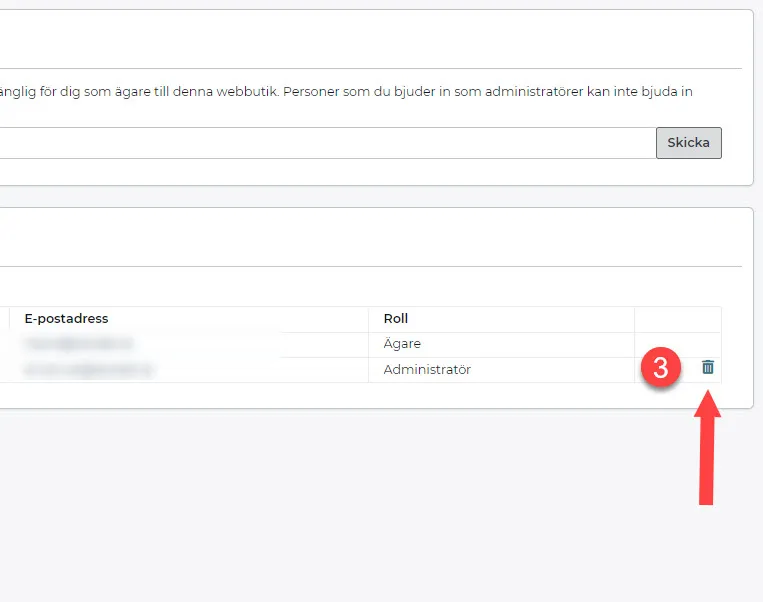
Delete an administrator
27 Nov 2025
If you are the owner of a shop, you can delete & add administrators.How to delete an admin account in your shop 1) Log in to admin - https://www.abicart.se/ 2) Go to Settings >> Administrators. 3) Click on the trash can icon to delete. (If you change your mind after deleting an admin, you will have to send them a new invitation)
-

Work with custom HTML and CSS in Abicart (HTML on product pages)
27 Nov 2025
In Abicart, you have great opportunities to influence the appearance and content.To work with custom HTML on product pages, go to Assortment -> Settings and select Allow full HTML in product descriptions. To work with custom HTML in Abicart's text editing tool, go to Settings -> General and select HTML in "Text editing tool"Work with custom CSS in a theme:Go to Appearance, Themes and select edit on current theme. Then select the Style tab and then Custom CSS.
-

Google: Set up goal conversion in Analytics
27 Nov 2025
Understand your visitors' behaviour and their experiences to set up different strategies for your store. What is target shifting? For example, if you advertise online and want to promote a specific product page or category page, you can use target conversion to understand visitors' behaviour and their experience of the site. In this way, you can see gaps and opportunities in an easy-to-understand way. With this as a basis, you can set up different strategies for your store.Note that target conversionis notthe same as e-commerce tracking.Create goal conversion in AnalyticsLog in to Analytics accountHere's how to set up Google Analytics account for responsive themes to enable tracking of completed goals. This goal we're creating now will give you a funnel of how many customers came to a completed purchase.Start by logging in to your Google account and clicking on the "Gear".Under "View" you will find "Goal".Create a conversion goalCreate a conversion goal to measure, for example, how many of your visitors reach a campaign page or a new product that you recently launched. Click on "New goal".Name it for example "Completed purchase".In type we select "Goal" and click "Next step".In "Goal settings" select "Custom" and then click "Continue".In "Goal description" we type for example "Campaign" then type should be on "Goal". Click on "Continue".In "Target information" we select "Start with" and type the file name for the page (product or product group). e.g. /summer campaign/. Tick: Shift-sensitive."Value" we leave off because there is an e-commerce tracking that you can activate instead if you want to follow the value of your orders.Don't forget to save! Now this page will be tracked and you will find the statistics under your profile → Conversions → Overview.Please note that the statistics displayed in Google are delayed by a maximum of one day, so it may take a while for the correct results to appear.Please also note that orders placed by a logged-in administrator are not reported to Google Analytics.
-

Google: Connect Search Console with Analytics
27 Nov 2025
Use the search information and read it in Analytics.Connecting Search Console with Analytics Connecting Search Console to your Analytics account brings your organic search data into one place. You'll be able to see how your pages rank, which searches bring visitors to your site, and what those visitors do once they arrive, all without switching between two separate tools. Once the two are linked, Search Console data appears directly inside Analytics, so you only need to log in to one place. How to Connect In Admin, under Product links, click Search Console Links. In the link table, click Link. If you are a verified owner for one or more Search Console properties, in the row for "Link to Search Console properties I manage", click Choose accounts, then select the account you want to link your property to. Click Confirm. Click Next. Select the web data stream for your site. Click Next, then review and submit your configuration settings. Where to Find Your Data Once connected, go to Acquisitions → Domains & SEO in Analytics to view your Search Console data.
-

Things to consider when launching your webshop
27 Nov 2025
Everything is ready and the shop is ready to be activated. Glad you're ready to activate your shop! But before you do, double-check that you haven't missed deleting any of the default text that's inserted into the theme. You should also do some test purchases and make sure your payment methods are active and that shipping is working properly. We'll go through everything you need to consider in this article, step by step.About domain: only after you have activated and made your shop visible, you can add your domain. This is the last thing you do when you are about to release the store live. Read moreRemoving default texts in the themeBy default, there are some information texts in the theme and these need to be edited or removed. For example, there is a text in the header: "Free shipping! Edit this text under Content & Header.". There are also similar texts on the home page, on the article page, footer and in the checkout.Go to theme under Appearance -> Themes -> select theme, edit.HeaderContent -> Header -> Custom content in the top row -> Custom contentHome pageContent -> Home page -> Blocks on the right.Article pageContent -> Article page -> Unique selling pointsContent -> Article page -> FreewritingAt the bottom of the article page there are also different blocks. In the block for "Own HTML" there is text that we put in. Click on the block to edit it or delete it. So this appears at the bottom of the page when you go to an article.Page footerContent -> Page footer -> Own content. For example, the "Click here to edit" block.CheckoutContent -> Checkout -> Unique Sellings PointsContent -> Checkout -> DisclaimerCheck payment methodsGo to Settings -> Payment methodsAre you applying for Klarna Checkout? Make sure it's active before you launch your store. Klarna Checkout is called "Invoice, Part Payment, Card Payment and Direct Payment" with us. Click on the payment method to access the settings. Tick to make it active.Also make sure to remove Klarna DEMO and the regular invoice that is loaded from the start. Klarna DEMO is not a real payment method. The regular invoice is not needed if you use Klarna Checkout. Click on the trash can on the right to remove a payment method.Check the delivery methodsGo to Settings -> Shipping and delivery.Create the delivery methods you need by following the guide on the manual page called "Shipping and delivery".A tip to see which countries the store delivers to is to look in the overview of the delivery methods in the column "Applicable in".Terms and infoGo to Own pages -> Terms and infoMake sure the page is not hidden.You are required by law to inform your customers why you collect their data. Make sure you have a page where you are clear about how your customers' data is processed, that they have the right to know what kind of data you have, that they may receive mailings from you, etc.If you have a policy on returns, write it here. Write everything a customer might need to know when shopping in your store. Be sure to mention that everything is done in accordance with the GDPR.You can read more about handling personal data on our GDPR manual page.Do test purchases in the storeTo make sure everything works with shipping fees etc., you should do some test purchases. Add a payment method that doesn't charge any money, such as "Prepayment". Then make a few test purchases and see how the checkout looks and make sure there is the right information in the order confirmation.If everything looks good, you can then shred the test orders and don't forget to remove or hide the payment method when you are done.Activate your storeIs everything ready? Great, time to activate!Click on your login name in the top right corner and select "My subscription":Select subscriptions and any additional services.Then go ahead and select payment methods. If you pay by card, the shop will be activated immediately and you can then print an invoice after payment has been made.Connect domain to shopOnce the shop has been paid for and activated, connect the domain to the shop.It is not a good idea to connect the domain before everything is ready. This is the last step to do when the store is ready to launch.First go to Settings -> General -> Hide Store and make sure this checkbox is not checked.Then log in to your domain provider/web host and re-designate your domain. You can point the domain in two different ways:CNAME - Point the domain to the domain shop.textalk.seA-record - Point the domain to the IP address: 192.121.104.141.If you need help doing this repointing, you need to contact the support of your domain provider/web host. Please remember to repoint the domain both with www and without www.For example abicart.se and www.abicart.se.When everything is re-marked, go to the store and Settings -> Domains and SEO -> tab "Domains".Click on "New domain name" and enter your domain name. Click on "Add Domain".If you have reassigned multiple domains, for example with and without www, add the second domain in the box just below the already added domain and then click on the "Add" button.If you have multiple languages in the store and want to link different domains to them, that's fine. In that case, point to all the domains via CNAME or A-pager above and via the "New domain" button add your domains, for example www.abicart.se, www.abicart.com etc.Then go to the "URL settings" tab.Here a block is shown for each active language that is in the store. The most common one is the Swedish language at the top and here are some settings that need to be done.Domain namesThe list shows the domains that are entered in the "Domains" tab. Select the domain.Language prefixIf you only have one language, you do not need to use a language prefix. We recommend clearing the contents of this field.If you have multiple languages and use the same domain for them, you must use language prefixes. We recommend not having a language prefix for the base language, but for the remaining languages you must specify one, such as "en" for English.SuffixThis field is purely aesthetic and has no technical significance. Some people want to use a prefix, but many people want the shortest possible address to the store pages, so there is no need to use this. We recommend clearing the contents of this field.If you have multiple languages in the store and want to link different domains to them, that's fine. In that case, point all the domains via CNAME or A-pager above and via the "New domain" button you add your domains, for example www.abicart.se, www.abicart.com etc.Think about after you activate the storeYour store is active!Now you can start thinking about search engine optimization of the store. Check out our tips on the "SEO optimization in Abicart" manual page.
-

How does free shipping discount code work?
27 Nov 2025
Create a discount that is activated via a code at checkout that gives the buyer free shipping.Create the discountClick on Discounts -> New discount -> Free shipping.Discounts are included in Abicart Plus and Abicart Pro.NamePlease enter a name for your discount. This name will appear in the admin as well as in the checkout and on the order confirmation. In our example we enter "Free Shipping"SchedulingIf you want the discount to be valid only for a certain time, you can enter a start and end date. Keep in mind that the day starts at 00:00 and ends at 23:59.For example, if you want a discount that is valid for one day, enter 2022-01-01 at 00:00 as the start time and 2022-01-01 at 23:59 as the end time.CodesIf you want customers to enter a discount code to activate the discount, check the "Use codes" box. At the bottom of the box, existing discount codes will be displayed.To create a new code, click on "Add Code". In the "code" field you can enter your own discount code. If you click on the "Generate" button, a code will be created automatically.Number of times the code can be usedIf you want to limit the code to only a certain number of purchases, enter a number in the field. Otherwise, the code is unlimited.Customer selectionHere you can control which customers have access to the discount. You can choose between "All customers", "All customers who are not logged in", "All logged in customers" or a specific customer group.
-
Integration with Visma eEconomy
27 Nov 2025
Export items, customers and orders to Visma eEconomy. What is Visma eEconomy? Visma eEkonomi is an online accounting software. Invoice digitally and connect eEkonomi Smart with the bank and much of the bookkeeping is done automatically. Then you approve with just one click. Visma eEkonomi senses how your customers want their invoices and automatically sends them via letter, pdf or e-invoice. You don't need to frank and post invoices - the software does that for you. In other words, invoice less and get paid more. Supplier invoices are interpreted by Visma eEconomy, and all you have to do is approve them. It doesn't get any more efficient than that. Do you use Visma Administration 1000 or 2000? Read about that integration hereGet started with Visma eEconomyIntegration to Visma is included in the Abicart PRO subscription.First purchase a subscription on the Visma website. You then order the additional service "Link to Visma eEkonomi" under "My subscription".Activate the integration option in Visma eEkonomiTo be able to link Visma eEkonomi with Abicart, the integration option must be activated in Visma eEkonomi. Do this:Log in to your account in Visma eEconomi.Under the menu on the left you will find "Options", select this.Then select "More options" and scroll down to "Visma Integrations"Select this and press "Activate".Connect Abicart Webshop to Visma eEkonomiGo to Settings > External Connections > Visma eEconomy (eAccounting)Click on the link Connect to "Visma eAccounting". You will now be redirected to a Visma page where you can log in with your Visma eEconomy login details.After logging in you will be taken to a page titled "Request for Permission", here you need to grant the integration access to Visma eEconomy by pressing the "Allow" button.You will now be directed back to Abicart - there should now be your company name in VismaeEconomi under the heading "Connection".This is what it looks like when your Abicart is connected to your company in Visma eEkonomi:The next step is to make sure that there are 5 items in Visma eEkonomi for shipping. You need to create these yourself in Visma eEkonomi.1. ShippingIn order for the freight to be recorded correctly, you first need to create an article account for freight. You do this here in Visma eEkonomi:Then you create an article for shipping. This article should have the article account "Shipping" that you just created.Then enter the item number for shipping in the Abicart settings.Do similarly for Cash on Delivery, Transaction Fee, Discounts.2. Gift cardsFor other payments, which can only be gift cards, you need to create an item account for gift cards and then create an item with this account.For gift vouchers, choose an account that is not shown on the VAT report, for example, choose account 2420 (advances from customers). You can also choose account 2421 (unredeemed gift vouchers) if this account is activated in the chart of accounts.Next, create the item and select the gift card item account as shown in the image below.In the example below we have specified that when a new customer registers in Abicart and is then transferred to Visma eEkonomi, the payment term of the customer should be set to 10 days net.Under Payment terms in Visma, you link a payment method in Abicart (the one on the far right) to a payment term in Visma. It could look like this:In our example, this means that if a customer has chosen to pay the order by Swish, the payment term in Visma will be set to "10 days net". What is in the menu is what the payment term will be in Visma, what is on the far right is what payment method it corresponds to in Abicart. Under Delivery terms in Visma, you link a delivery method in Abicart to a delivery term in Visma. What is in the menu is what should be entered in Visma and what is on the far right is what the delivery method is called in Textalk Webshop. You could create a delivery term in Visma called "Pick up" and link this to "Pick up your order at Fyndiga Djur". Similarly, you could add delivery terms in Visma that match the other delivery methods in Abicart.Under Documents in Visma, you specify what the integration should add to Visma eEkonomi when an order in Abicart is transferred to Visma eEkonomi. What is in the menu is the type of document in Visma, what is on the far right is the payment method in Abicart. Visma eEkonomi handles 3 types of documents, "Order", "Invoice draft" and "Order paid by credit card".Orders and draft invoices are transferred to Visma eEkonomi and must then be processed manually. An "Invoice paid by credit card" creates a paid invoice in Visma eEkonomi and records this as a single entry on the card collector. When you receive money from the card redeemer, this should be recorded as a receipt from the card redeemer. Event settingsUnder Event settings, you set when things should be transferred to or from Visma. If there is no entry under this heading, you must click the save button once first. Then the settings will appear. It will then look like this:Export orders: here you specify what should happen when an order is registered in Abicart. In our example, we specify that as soon as the order is registered in Textalk Webshop, it should be transferred to Visma eEkonomi (it may take a few minutes even if it says "Update immediately").Export article when adding/changing: Here you specify what should happen if an article is updated in Abicart. You can choose to transfer the article to Visma eEkonomi. However, you should not activate both export and article import at the same time but choose one of them.Article import: Here you can specify that Abicart should periodically retrieve article information from Visma eEkonomi. You should not activate both export and article import at the same time but choose one of them. In our example, we have specified that we want to retrieve article information from Visma at 10:10 every day (see picture above).Export customer list: here you can specify that Abicart should periodically transfer customer information from Abicart to Visma eEkonomi. You should not activate both "Export customer list" and "Import customer" at the same time but choose one of them.Import customer: Here you can specify that Abicart should periodically retrieve information about new and updated customers from Visma eEkonomi and add them to Abicart. You should not activate both "Export customer list" and "Import customer" at the same time but choose one of them.
-

Klarna On-site messaging
27 Nov 2025
With Klarna On-site messaging, you can add customised messages to your webshop. Inform your customers about the different payment options even before checkout, and get an opportunity to influence the customer at an early stage.Klarna on-site messaging is a feature that allows you to set up personal messages to your customers on multiple pages in your webshop. The information can be about possible instalment plans or any offers you plan to give your customers via Klarna. Note that you must have Klarna v.3 and have activated Klarna Checkout to add on-site messaging. No other payment solutions are allowed. How do I set up Klarna On-site Messaging? Go to Design -> Themes -> Edit -> Extensions -> Klarna Save and reload the theme. Now there should be an option to add the script. Copy and paste the script from the Klarna Merchant portal under On-site Messaging -> Installation and save. Now the widget will be able to be added to different pages. Users can choose the page, position and content they want to display via Klarna On-site Messaging. The page and position are selected under Abicart admin and the content is edited under Klarna Merchant Portal -> On-site Messaging -> Placeholder. This is only available in the latest versions of our themes. This can be added to the home page, header, footer, sidebar and product page. Settings Abicart admin Design>> Themes >> Startpage, top bar, footer & product page Possible reasons why Klarna On-site messaging is not displayed on the website: Klarna checkout is not activated in the store. The selected country of delivery does not have Klarna as a payment method. There are a few cases where the Klarna Checkout payment method will not be available for the current order because the user may have set a limit on the order total. If the order amount exceeds the limit, the widget will be hidden on the website together with the payment method. Klarna merchant ID is not filled in or is invalid under Additions -> Klarna. **[Read more about On-site Messaging at Klarna.](https://www\.klarna\.com/se/foretag/on\-site\-messaging/)**
-
Newsletter
27 Nov 2025
Newsletters is a feature where the shop can easily send out emails to all customers in the customer register who have chosen to receive newsletters from the shop.Newsletters are included at no extra cost in Abicart Plus and Abicart Pro.How many emails can I send from the store?We have a limit of 2000 emails / day for newsletters. If you have more customers in the mailing, the newsletter will be split and sent out 2000 emails / day until all customers have received the email.If you need to send more than 2000 emails / day we can recommend Mailchimp, which is an external service for sending newsletters. We have an integration to Mailchimp included at no extra cost and through it you can easily transfer all your customers and then send out newsletters from there. Can I send to customers who are not in the customer register?No, there is no feature in the store where you can send to customers/mailing addresses that are not in the customer register. You can only send to customers in the customer register who have agreed to receive newsletters. I have many customers who have shopped in the store, why are they not in the customer register?In order for a customer to be in the customer register, the customer must have chosen to create a login account in the store. If the customer shops as a guest (without logging in), they are not included in the customer register. I have a file with email addresses, how do I get them into the customer register?Please note that according to the GDPR law, you cannot add people to a register without their consent to do so. If you have a file with customers where they have given consent for newsletters, we have a function to import customers into the customer register. It can be found under Customers -> Import customers. How do I create a newsletter?Go to Customers -> Newsletters -> Click on "New newsletter"LogotypeClick on "select image" and you will be taken directly to file archive where you can select from your images or upload new ones.Maximum widthThis is where you specify the width of the newsletter. The default width is set to 800 points.LanguageIf you have added multiple languages to the store, you can choose between these languages here.SubjectWhat you type here will appear in the recipient's subject line in the mail application:HeadingEnter a heading that appears below any logo in the newsletter.Introductory textThe text you write here will appear below the heading of the newsletter.Select articlesIf you want to include articles in the newsletter, select them here. Click on the drop-down menu and tick the articles you want to include.Be careful not to include too many products in the newsletter as this will make the mailing process heavier. This increases the risk of the mailing getting caught in a spam filter. You should avoid having more than eight products. Instead, refer customers to a page in the shop that shows more products.PricesSpecify how the prices of the items should be displayed, with or without VAT.CurrencySelect the currency in which the product prices should be displayed.Closing textIn this field you can slice text that will appear below the articles, at the bottom of the newsletter.In the fields "Opening text" and "Closing text" you can insert text and images. Be careful not to add too heavy images as this increases the risk of the newsletter getting caught in a spam filter.PreviewClick on "save and preview" at the bottom of the page:A preview of what the mailing will look like is shown below.Note that the appearance of the newsletter may vary in different email clients, so this preview may not necessarily match exactly what your customers will see. Send out newsletterClick on the "Prepare mailing" tab.There are three different functions for sending out the newsletter. Test mailingEnter an email address and then click on "Start mailing". A newsletter will only be sent out to the address entered. A very good feature to use to see how the newsletter will look like in a mail client.All who want newslettersIf you choose this option, newsletters will be sent to all customers in the customer register who want newsletters.Customers who want newsletters in selected customer groupsHere you can select one or more different customer groups and then send to the customers who are in one of the selected customer groups and who want newsletters. Newsletter unsubscribeThere is a built-in function that automatically adds an unsubscribe text at the bottom of the newsletter. The text reads: "If you no longer wish to subscribe, you can unsubscribe from the newsletter here: Unsubscribe from the newsletter". When you click on the link, "Want newsletter" will be unchecked for the specific customer in the customer register.
-

How to send automated review invitations with Yotpo
27 Nov 2025
Automatic post-purchase customer review invitations help you collect product reviews from past customers. The invitations are synchronised with the orders in your webshop and are sent out a number of days after the order is delivered to the customer. Once an invitation has been sent, the customer can easily leave a product review on the products they have purchased.How do I get started with Yotpo? 1. Log in or create a new account in Yotpo.2. Go to your profile > Store settings > General Settings > API credentials.3. Copy the keys.4. Log in to Abicart admin.5. Go to Settings > External Connections > Yotpo.6. Paste the keys from Yotpo.7. To activate Yotpo, you also need to tick the "Active" box.8. Save!The integration exports order data from Abicart to Yotpo, which is used by their auditing and marketing tools. Read more on how to display reviews hereRead more about how you can customize and design your review invitations with Yotpo here.
-

PayPal Checkout Express
27 Nov 2025
What is PayPal? PayPal acts as an electronic wallet and is the leader in online payments, allowing buyers and businesses to send and receive money online. PayPal is available in more than 200 countries and when you use PayPal, your payment details are never shared with the e-shop.How do I get PayPal?To use the service you need to register a business account with PayPal: http://www.paypal.com/seIf you have any questions regarding payment and transaction fees, please contact PayPal.Activate data in PayPal adminBefore we can activate the payment service in the shop, we need to retrieve some data from PayPal. Log in to the PayPal admin, click on the gear in the top right corner and select "Account settings"....click on "Account access" and then click update at "API access".At the bottom of the page under the heading "Integration of API for NVP/SOAP (classic)", click on "Manage API tasks".Then select "Request API signature" and click the "Approve and submit" button.Click on "View" and you will see your details.These are the details you enter on the payment method in the shop.Activating PayPal in the shopOnce you have created a business account with PayPal, you need to activate the payment service in your shop.Go to Settings -> Payment methods -> "Add a new payment method". Select "PayPal Checkout Express" and click "Add".StatusActive - Check the box to activate the payment method at checkout.Default payment method for customer - Check if the payment method should be default for all customers in the checkout. Only one payment method can be preselected.Make available only for the customers or customer groups where I specify it- If you want to limit the payment method for one or more customer groups, check the box. You then select the payment methods that can be used for each customer group.Available for customer type - If you want to limit the payment method to a specific customer type (private person or company), you can select this here. If "All" is selected, both customer types can use the payment method.Donot allow another delivery address for this payment method - Turn off the possibility for the buyer to choose another delivery address. You can then only have the order sent to the civil registration address.AccountAPI username - Found in PayPal under "API signature".API password - Found in PayPal under "API signature"Signature - Found in PayPal under "API signature"Chargingmethod - There are two choices when charging the buyer's card. With "Direct debit" the money will be charged immediately when the buyer clicks on "Complete purchase" at checkout. If the option "Charge when the order has been shipped" is selected, only a reservation is made at the time of purchase and you can then charge the purchase manually via a button on the order.Display the shop's logo on Paypal - If different logos are used for different languages, the logo linked to the language of the order will be used.Information sent to PayPal - "Summary only" means that only a summary of the order is sent to PayPal. With this setting, the order is not covered by PayPal's sales guarantee but the order can be paid by combining different payment methods, such as gift cards and PayPal."Complete information" means that the complete order is sent to PayPal. With this setting, the order is covered by PayPal's sales guarantee but the order cannot be paid by a combination of payment methods. Gift cards will not be able to be used on the order.PayPal home page - Determines the PayPal landing page. Please note that this does not affect the customer's ability to pay by card or account, only the default page used.Use address from PayPal (Required for seller protection) - If selected: the customer selects or enters an address at PayPal. Otherwise, the address is entered at the online shop checkout.Use email address provided by PayPal - Use email address provided by PayPalIf selected, the customer's email address is set to the same one they use in PayPal. Otherwise, the email address is entered at the online shop checkout. Name and DescriptionNameEach payment method has a name that will be displayed in the checkout but if you want to modify this, you can enter a new name in this field. An optional field that can be left blank.Detailed descriptionA field to enter a text that informs the buyer about how the payment method works. Can be left empty.CurrenciesIf you have several active currencies in your shop, you can limit these for each payment method. The default setting is "All active currencies in the shop", but if you check "Specific currencies", all active currencies are displayed and you can choose to disable those that should not apply to this payment method.CountriesThe default setting of the payment method is that it applies to all countries to which the shop offers delivery (Settings -> Shipping). If you want to limit a payment method to only certain countries, you can check "Specific countries" and then specify the countries that can use this payment method. Order statusIf you want orders placed via this payment method to have a specific order status, you can enter it here. Select the status from the list. Restriction on the order totalA setting to limit the amount that a payment method can handle. If you choose to limit the amount between two intervals, it is always the total order value including shipping and other fees. Fee added at checkout when placing an orderA function to add an additional fee to the purchase, such as a handling fee.
-

Your own invoice
27 Nov 2025
A payment method for own invoicesWhat is the invoice payment method?The invoice payment method is intended for use by shops that create their own invoices in a financial or business system and then send them out to the buyer. Create your invoices manually or in your financial systemPlease note that it is not possible to create invoices in the shop, they must be created manually or in a financial/business system.Enter the payment method in the shopGo to Settings -> Payment methods -> Add a new payment method -> Invoice -> click on "Add". The most important settings to consider are the following:ActiveTo activate the payment method in the checkout, you need to tick this box. NameEnter a name for the payment method, for example, "Invoice 30 days". Detailed descriptionHere you need to explain to the buyer how they will pay. Enter the bankgiro, post office or bank number and inform what rules apply. You send the invoiceRemember that this is a manual invoice that you handle entirely yourself. You create the invoice and send it to the buyer yourself. There will be no invoice created or sent out automatically by Abicart with this payment method.Use an invoicing service instead.One tip is to use one of the various invoicing services we support, such as Klarna Checkout. If you use their services, you as a shop owner will receive your money for the order within a few days and you will avoid problems with any invoices that are not paid. Apply for Klarna or DIBS today. You do this on the right-hand side of the home page in the shop's administration.
-

Nets Netaxept
27 Nov 2025
Take payment via Nets NetaxeptWhat is Nets Netaxept?Nets is a Payment Service Provider (PSP) and handles card payments on the Internet and in stores. Netaxept has been on the market for over 10 years and meets the market's requirements for secure online payments with certifications such as PCI DSS as well as its own developed concept, Cash Management @ Internet and so-called Anti-Fraud solutions for secure e-commerce sites.How do I get Nets Netaxept?Contact Nets and get a subscription.Tel: 08 / 609 94 00E-mail: sales-inhouse-se@nets.euWebsite: www.nets.seAdd Nets Netaxept to your storeGo to Settings -> Payment methods -> at the bottom there is a list, "Add a new payment method".Select "Nets Netaxept" and click on "Add".StatusActive - Check the box to activate the payment method at checkout.Default payment method for customer - Check if the payment method should be default for all customers in the checkout. Only one payment method can be preselected.Make available only for the customers or customer groups where I specify it. - If you want to limit the payment method for one or more customer groups, check the box. You then choose which payment methods to use for each customer group.Available for customer type - If you want to limit the payment method to a specific customer type (private person or company), you can select this here. If "All" is selected, both customer types can use the payment method.Do not allow another delivery address for this payment method - Turn off the possibility for the buyer to choose another delivery address. You can then only have the order sent to the civil registration address.AccountUsername - This information is provided by Nets.Secret word (Token) - This information is provided by Nets.Design (template) - There are different templates in Nets-admin to choose from. The field can be left empty. Then Nets standard template is used.Require 3D-secure - Require card payments to be verified with 3D-secure.Identify card type automatically - Netaxept identifies the card type from the card number automatically instead of first asking what type of card it is.Charging method - There are two different choices here, with "Direct debit" the money is deducted from the buyer's card immediately when they complete the purchase at the checkout. If you choose "Charge when the order is shipped", the purchase will be reserved at the time of purchase and you can charge the card when you deliver the order.To charge the card on delivery, you need to activate the order when you send it to the customer. Go to the order, in the box "Perform actions", make sure that the checkbox "Charge (Nets Netaxept)" is checked and then click on the button "Perform selected actions". When this is done, the buyer's card will be charged at Nets.You can also activate the order in the order list. Then click on the icon with a lightning bolt at the far right.Remember that you need to charge/activate each order for the order to be charged by Nets and for you to receive your money.Name and DescriptionNameEach payment method has a name that will be displayed in the checkout but if you want to modify this, you can enter a new name in this field. An optional field that can be left blank.Detailed descriptionA field to enter a text that informs the buyer about how the payment method works. Can be left empty.CurrenciesIf you have several active currencies in your shop, you can limit these for each payment method. The default setting is "All active currencies in the shop", but if you check "Specific currencies", all active currencies are displayed and you can choose to disable those that should not apply to this payment method.CountriesThe default setting of the payment method is that it applies to all countries to which the shop offers delivery (Settings -> Shipping). If you want to limit a payment method to only certain countries, you can check "Specific countries" and then specify the countries that can use this payment method. Order statusIf you want orders placed via this payment method to have a specific order status, you can enter it here. Select the status from the list. Restriction on the order totalA setting to limit the amount that a payment method can handle. If you choose to limit the amount between two intervals, it is always the total order value including shipping and other fees. Fee added at checkout when placing an orderA function to add an additional fee to the purchase, such as a handling fee.
-

Svea Checkout
27 Nov 2025
An integration with Svea Ekonomi's Checkout solution that includes multiple payment methodsWhat is Svea Checkout?It is Svea Ekonomi's Checkout solution that includes several payment methods.Included payment methods - Invoice, Partial payment, Account, Direct bank and Card.Support for both B2C and B2B for maximum conversion.Different invoice and delivery addresses are verified with Mobile Bank ID.Payment is made the day after deliveryIn which countries does Svea Checkout work?Svea Checkout works in Sweden, Norway and Finland. Please note that you can add different payment methods for each country.Order Svea CheckoutYou can order Svea Checkout by contacting Svea Ekonomi here >>.Add Svea Checkout to your storeGo to Settings -> Payment methods -> "Add payment method". Select "Svea Checkout" -> click on "Add".StatusActive - Check the box to activate the payment method in the checkout.Default payment method for customer - Check if the payment method should be default for all customers in the checkout. Only one payment method can be preselected.Make available only for the customers or customer groups where I specify it- If you want to limit the payment method for one or more customer groups, check the box. You then select the payment methods that can be used for each customer group.Available for customer type - If you want to restrict the payment method to a specific customer type (private person or company), you can select it here. If "All" is selected, both customer types can use the payment method.Donot allow another delivery address for this payment method - Turn off the possibility for the buyer to choose another delivery address. You can then only have the order sent to the civil registration address.In the Account box, enter the information received from Svea Ekonomi.Mode - Before going into live mode, you can make some purchases in test mode if desired. Then select "Test". Otherwise select "Live".Trader ID - Enter your ID that you receive from Svea Ekonomi.Test secret - If you have selected "Test" in the "Mode" field above, you must enter test information in this field. You will receive these from Svea Ekonomi, otherwise it is left blank.Live secret - Enter information that you receive from Svea Ekonomi.Customer type in Svea Checkout - (Customer type in Svea Checkout) - A setting to select the customer type in the Svea payment window. Otherwise, the store's settings above (Available for customer type) are used.Allow gift cards - Check if customers should be able to combine payment with gift cards with this payment method.Name and DescriptionNameEach payment method has a name that will be displayed in the checkout but if you want to modify this, you can enter a new name in this field. An optional field that can be left blank.Detailed descriptionA field to enter a text that informs the buyer about how the payment method works. Can be left empty.CurrenciesIf you have several active currencies in your shop, you can limit these for each payment method. The default setting is "All active currencies in the shop", but if you check "Specific currencies", all active currencies are displayed and you can choose to disable those that should not apply to this payment method.CountriesThe default setting of the payment method is that it applies to all countries to which the shop offers delivery (Settings -> Shipping). If you want to limit a payment method to only certain countries, you can check "Specific countries" and then specify the countries that can use this payment method. Order statusIf you want orders placed via this payment method to have a specific order status, you can enter it here. Select the status from the list. Restriction on the order totalA setting to limit the amount that a payment method can handle. If you choose to limit the amount between two intervals, it is always the total order value including shipping and other fees. Fee added at checkout when placing an orderA function to add an additional fee to the purchase, such as a handling fee.Manage ordersEvery time you receive an order via Svea Checkout, you need to activate the order when you send it to the customer. Go to the order, in the "Perform actions" box, make sure the "Debit (Svea Checkout)" checkbox is selected and then click the "Perform selected actions" button.When this is done, the order is activated at Svea and they send out an invoice to the customer or charge the buyer's card.You can also activate the order in the order list. Then you click on the icon with a lightning bolt at the far right.Canceling an orderIf you need to cancel a debited order, you cancel the order in the store as usual. Then you must also log in to Svea's administration and also cancel the order there.
-
Link to a file in the file archive
27 Nov 2025
Upload a file to the file archive and then link to the file from a product or custom page. You may want to link to a file, such as a PDF, or perhaps link to an image in the description of a product. Then you can use the file archive to upload the file, and link to it from another page.Link to a file from the home pageFirst you need to upload the file in the file archive. To do this, go to Appearance -> File archive -> click on the upload icon (floppy disk).By default, the maximum space is 20 MB for one file. For customers with a PLUS subscription, we now offer a maximum of 50 MB. PRO customers can get access to upload a maximum of 100MB files. Please contact customer service if you need to change the upload size, and if you have an active PLUS/PRO subscription.Then select the file from your computer. It will then appear in the large white bar on the right. In this case, the file is called "catalog-news.pdf".Then double-click on the file so that it opens. Then select the URL of the file as shown in the address window. Right click and select "copy" or hold down the CTRL key and press "C" to copy the URL we need to link to the file.Place the cursor in the "URL" field and right-click and select "Paste" or hold down the CTRL key and press "V". The file address should then appear in the field. Then click on "OK".If everything is correct, the text should now appear as a link.Click on "Done" and "Save".Add images to the description of a productIn some cases, you may not only want to show images in the image feature of the product. You may want images in the description as well. In this case, you can upload these images to the file archive and then use HTML code to insert the images.First you need to upload the image in the file archive. You do this under Appearance -> File archive -> click on the upload icon (floppy disk). See the image.Then select the image from your computer. It will then appear in the large white bar on the right. In this case the image is called "football.jpg".Then double-click on the image to open it. Then select the file URL that appears in the address window. Right click and select "copy" or hold down the CTRL key and press "C" to copy the URL we need to link to the image.Then go to the article where the image should appear. Assortment -> Products -> select product, edit -> scroll down to the "Description" field.In the field we need to enter an HTML code to insert an image and the basic code looks like this:<img src="xxx" alt="yyy">xxx - To be replaced with the source of the image. The URL we copied from the browser address window above.yyy - Is a text (alternative text, also called ALT text) used by search engines to index the image. It is also useful for visually impaired people as it should describe what the image represents. Simply a short description of the image.The finished code looks like this in this example:Done. Don't forget to save.
-

Pricing, price lists and graduated prices
27 Nov 2025
Use several different price lists and switch between them during a sale, for example. Create tiered prices so that the more you buy, the cheaper it getsBe careful when editing active price lists!We ALWAYS recommend copying the price list you want to edit. Once you have applied e.g. percentage price change, you cannot go back one step if it goes wrong. If you edit in one copy, you can always start again in a new copy if the first attempt was wrong.What are price lists?A price list is a list of prices that you can link to the shop's basic price, additional price or to a customer group that should have customized prices.The advantage of price lists is that you can prepare price changes in peace and quiet, a couple of days before the price change is to take effect and then switch the price list manually or via a schedule when the new prices are to take effect.Price lists are managed under Assortment -> PricingIn Abicart Plus and Pro, unlimited price lists are included. In Abicart Go there are only two price lists, Global (regular price) and Global (extra prices).Extra prices are shown on the product page & product group page as -X SEK or -X%. While discounts are deducted first at checkout. Click here to read more about discounts.Things to keep an eye onNormal prices, extra prices and purchase prices are managed in separate price lists, which are then linked to where they should be used.Sub-stores and customer groups can be linked to price lists which are then used instead of the main list. Several sub-stores and/or customer groups can be linked to the same list.If a price field is left empty, the product is not available for purchase. If the store allows free items, you can enter 0 as the price, but an empty field will also make the product non-purchasable with that setting.If you change prices on the product page or product list, the price in the active price list will change.Prices are listed including or excluding VAT depending on the store's basic VAT settings (Settings -> VAT -> Price management). You cannot have some price lists including VAT and others excluding VAT.ConversionWhen the functionality is activated, existing prices will be converted to the new structure. However, the store should go through the prices and confirm that it looks right, as various settings affect how the conversion takes place.Normally, three different price lists will be created, one for regular price, one for extra prices and one for purchase prices. If no product has an extra price or purchase price, only one price list is created, Global (regular price).Linking price listsUnder Assortment -> Pricing -> "Usage" tab, you link the store's price lists.In the example above, we have three price lists linked in the store. Regular price, extra price and purchase price.If you use customer groups, you can easily set which price list each customer group should use. These are shown under the block with "Global pricing".Create a new price listYou can create a new price list in a few different ways. The most common is to go to Assortment -> Pricing and click the "+New price list" button in the top right corner. This creates an empty price list without any prices.Name - Enter a name for the price list, for example "Black Friday", "Promotion" or similar. This is not displayed anywhere towards the customer but only in admin.Search - If you have many items and only want to enter prices for some, you can easily add a search parameter for product number or product name and then search for which items to price.If you do not want to create an empty price list but want to copy and edit an existing price list, this is also possible. In that case, go to an existing price list, then click on "Tools" in the upper right and then select "Create copy of this price list". You can then rename it and update the prices manually.Updating prices in a price listYou can update prices in four different ways:Change manually on the product page in the administrationEnter the product as usual (Assortment -> Products -> Edit product -> Price) and enter the new price. For example, if you change the "regular price" and "extra price" on the article, the price lists for each price will also be updated, in this case "Global (regular price)" and Global (extra price).Change manually in the product listingGo to Assortment -> Products and click on the price in the product list. Then enter the new price in the box below. Change manually in the price listGo in and manually edit the price list (Assortment -> Pricing -> click on the edit icon "pencil" to the right of the price list). All items are then listed in a long list and you can make manual changes behind each product. Change prices via text file importIf you want to update all the prices in a price list or perhaps create a completely new one, you can do this by importing a text file.What should the file look like?The file should contain at least three columns with the following headings:ArticleQtyCurrency code, for example SEKIf you have several currencies, you enter these in each column after each other. See example.To update an existing price list, go to Assortment -> Pricing and click on a price list via the edit icon (pencil) on the right. Then click on the gear in the upper right, "Tools" and then "Import prices from file". This opens a pop-up window where you select your import file. There is a setting where you can choose between product number and product ID. This is if you do not have your own product numbers on your articles, you can use the database's product ID instead.Select the file and click "ok". The file will then be analyzed and if everything is okay, a green box will appear below.Then click on the import button and wait. The import may then take a while depending on how many items are included in the price list.Once the page has reloaded, everything is ready and the new prices have been loaded into the price list.If something is wrong, for example if there are two items with the same product number or if the product number does not exist, this will be shown in the box.Remove tiered prices via importTo remove tiered prices via import, export the price list. Then edit the file and delete the price; the value in the "Qty" column should remain. See example:Column A = Item no.Column B = The quantityColumn C = PriceThis is what the file looks like after export:Edit the file so that it looks like the image below. Then import the file into the price list in admin again.Scheduling(Webshop Plus and Pro only)The store can schedule a price list to be activated at a specific time. The function replaces the previous "scheduled extra prices", also known as "Black Friday", and is done under Discounts -> Scheduling.The function switches which list to use for extra prices at the specified time. It is also possible to set if/when the system should revert to the previously active price list.Create a new scheduleDiscounts -> Scheduling -> +Create scheduled event Name - Enter a name for the schedule, for example "Black Friday". This is not shown anywhere to the customer, but only in admin.Scheduling - Enter a date when the price list should be activated.If you want this price list to be temporary, you can check "Deactivate and return to regular price list" and enter a new date when this price list should be removed.Event settings - Specify which price list to activate. The list shows all the store's price lists.In this example we choose "Black Friday".Then click on "Add" to activate the scheduling.Tiered pricesIf you want to give customers a cheaper price the more of the same product is purchased, you can create tiered prices. Go to Assortment -> Pricing and then choose which price list you want to use and click on it.Between the name and the price there is an icon with some dots and dashes. Click on it.This will add a row, a box for quantity and then a box for price.In this example, we want to give customers a discount if they buy three items, so we enter a three in the box for quantity and the price what the unit price for three pieces should be, 120 SEK. Then just save the price list. Done.In the example above, the unit price will be SEK 220 if you buy one or two items. If you buy three or more, the unit price will be 120 SEK.If you exceed a limit, the price applies to all quantities (not just the quantity that exceeds).Show tiered prices on the product pageTo show the price steps on the product page, you need to activate this in the theme.Go to Appearance -> Themes -> select theme, edit -> Content -> Product page.Scroll down to "Price table" and click the "Enabled" button and save.Note! Displaying tiered prices on the product page only works on regular price. It is not possible to display the table on the product page for any graduated extra prices.Show extra price in percent or value?To show the extra price in SEK instead of -x%, edit the store theme:Go to Product group page >> Scroll down to Extra price in percent >> Change to "value" >> SaveDone!
-

Delivery information
27 Nov 2025
Display different texts with delivery information depending on the stock status of the productsDelivery informationShipping information is a text message that appears on the product page, at checkout and on the order confirmation depending on the shipping template and the stock balance of the products. You can set a text for when the item is in stock, and another text for when the product is sold out.The most common is to have a template that has a text message for when the product is in stock and another text when it is sold out. For example, "In stock. Immediate delivery" and "Out of stock. Delivery in 8-10 days".You can create several different templates with different texts, but each product can only have one template active at a time.Stock messageStock message is a product setting under Inventory Management (Assortment >> Products >> Edit a product >> Inventory Management). The stock message & its related settings are also available via export/import.Send me an email when stock is lowCheck this box to receive an email notification when stock is low. The email will be sent to the same email specified under "Recipient Order Confirmation Copies" (Settings >> Email)What is the difference between delivery information and "Show stock balance/Stock notification for goods not in stock"?In order to show delivery information and stock balance/stock message, it is required that "Enable stock management" is activated.The delivery template is intended as a general text that can be used for products: general delivery information.The stock message, on the other hand, can be written more specifically and vary from product to product.The delivery template can only be edited in admin, but the choice of delivery template per product can be done both manually via admin and via import. See more info under the heading "Import delivery templates".Stock message can be edited manually via admin and via export / import. See image example below.If you use both delivery information and "Show stock balance/Stock message for goods not in stock", two messages are displayed at the same time. Sometimes this can be good, other times it might cause confusion. Use only one of these functions at the same time delivery information and stock message do not fit well together. Example stock message & delivery information on product page:Example properties for export when you want to edit stock message via import:The properties highlighted in yellow are needed to activate and enter the stock message. The orange highlighted property is only needed if you want the product to be ordered despite being out of stock.What is required for shipping information to workFor the feature to work, it must:"Enable stock management" must be active on the product.The product's stock balance must not be empty.There must be at least one delivery template.Create a delivery templateTo enter a delivery message, you first need to create a delivery template.Go to Products -> Delivery information.Under "New template" there are three fields that you can fill in.Name of the templateEnter a name, for example "standard template", "template 1", "5 days delivery" or similar.The name is only displayed in admin.Text displayed when the item is in stockEnter a text, for example "In stock, immediate delivery".Text when the item is out of stockEnter a text, for example "Out of stock. Back in stock in 8-10 days".Do not forget to save.You can create several different templates but each product can only have one active template.Choose the default templateWhen you create a shipping template, it automatically becomes default template. If you have created several delivery templates, you must select one of the templates as the default template. You do this by ticking the ring to the right of the template name. (If you change the label "default" to a new template, all products that have "Show store default template for shipping information" will get the new template).Delete a shipping templateIf you want to delete a template, select the template via the checkbox in front of the template name and then click the "Delete selected" button.Select the delivery template on the productsGo to Assortment -> Products -> select product, edit -> scroll down to the box "Shipping" -> Shipping information.Here you have three different choices:Show store default template for shipping informationBy default, the default template is selected on all products.Show no shipping informationNo template will be used.Choose your own product-specific template for shipping informationIf you select this, all shipping templates available in the store will be displayed and you can choose a different template than the default template.Importing delivery templatesIf you have many products that will use different templates, you can make an import to avoid having to manually select each product. Under Products -> Delivery information, there is a box at the top with the heading "Import delivery information".To import the delivery template on the products, a text file is needed that is semicolon separated and contains two columns.Column A should contain the item numberColumn B should contain the name of the shipping template. It must be the exact name in lower case, upper case, etc.Note that you can only change the template via import. It is not possible to change to"Show no delivery information".
-

Pricing files
27 Nov 2025
Price file (product feed) to various price comparison services such as Prisjakt, Pricerunner, Ciao, Kelkoo and Prisvis."What is a price file?In order to list your products on external sites, such as price comparison sites, you need a product file (or product feed) that you upload to the external site. The format of these price files can vary a bit, but it is usually a text file (CSV) or an XML file. If it is a product feed, you usually enter a URL to the products.The file/feed contains product information: product name, description, link to product images, price, etc.In order to access a price file/feed for Google Shopping, Facebook Catalog and Instagram, an additional service, "Product feed for Google Shopping and Facebook Catalog" is required and can be purchased in the store under "My subscription".What price files do you support?At the moment we have ready-made solutions for Prisjakt, Pricerunner, Ciao, Kelkoo and Prisvis. We also have feeds for Google Shopping and Facebook Shopping.Activate price files in storeGo to Settings -> External links -> Price comparison system.In the "Price comparison sites" box, activate the product feed(s) you want to use by clicking the "ON" button.A URL is then displayed that goes to the product feed. This URL is then entered into the price comparison system.In the "Settings" box on the right there are some choices you have to make.Allow external parties to download price listsTo make the feeds available, "Yes" must be selected. In case of "No" the feeds are hidden.General delivery time (if a product is not in stock) *Specify a text with a general delivery time for products that are not in stock. For example, "2-5 days"Delivery method to be includedIn order for shipping to be included in the flow, a choice must be made. The list shows all the store's delivery methods as well as "Cheapest". Depending on any weight ranges on the delivery methods, the shipping charge may be dynamic. Please note that delivery method with weight restriction may cause products outside its range not to appear in the price file.Other language or currency in price fileThe URL displayed in the price file is based on the store's base language and the currency associated with that language. You can change the URL to show a different language, currency, etc. by adding different parameters to the URL.Parameterslang=xx - Swedish (1), English (2), Norwegian (3), Deutsch (4), Dansk (5), Suomi (6)currency=xx - SEK (14), EUR (1), GBP (3), DKK (41), NOK (118)p (type of price file) - Ciao (6), Gula Priserna (4), Kelkoo (2), Pricerunner (3), Prisjakt (1), Prisvis (5), Spara30 (7)id=xxxx (store ID number)country (for delivery)shipmentMethod (delivery method)http://shop.textalk.se/pricefile/pricefile.php?id=xxxx&p=x&lang=xx&currency=xxExample price file for Prisjakt, language: Danish, currency: DKKhttp://shop.textalk.se/pricefile/pricefile.php?id=xxxx&p=5&lang=5&currency=41Cache on price filesThe price file has a cache period of 5 hours. When the time has expired, the price file is regenerated on the first call. "
-

General settings
27 Nov 2025
General store settings. Hide the shop, minimum order amount etc.The general settings for the store are available under Settings - General.Make your store visible or hiddenTo make your store visible you need to click Hide store. If you want to temporarily hide your store, check this box. (Only logged-in administrators have access to a hidden store.)Remember to press the green Save button.Minimum order amountIf you set an amount here, your visitors cannot place any orders below that amount. The limit refers to the total checkout amount including shipping and other charges, regardless of whether this total amount includes or excludes VAT.Text on address labelsUsed to insert e.g. the name and address of the store in address labels. The latter are created in the "Orders" tab.Export settingsDepending on which operating system and spreadsheet program you have on your computer, you need to make some export settings so that you can open the file correctly.Set how the file should be saved, for example comma separated with the character encoding UTF-8. Then all exports in the system (see below) will create the files in this format.Article export (Assortment → Export) [Webshop Basic and Plus]Orders (Orders → Export) [Webshop Basic and Plus]Customers (Customers → Export) [Webshop Plus]The checkbox for "Include delimiter on first line in file" is there to make it easier to open the file in newer versions of Microsoft Excel.Recommended settings for users with Microsoft ExcelDelimiter: comma Character encoding: ISO-8859-1 Also check the "Include delimiter" box.