
3 min read
Related products

Related products allow you to show complementary or similar products on the product page, such as Accessories, Similar products or Others also purchased.
By displaying relevant products, you can increase upselling, increase order value and help customers find more products they are interested in.
Different ways to create lists of related products
You can create lists of related products in several ways depending on how you want to work in your store:
1. Manually on the product (product-specific list)
You can create a related list directly on a product and manually select which products to display, or choose to display an automatic list based on purchases.
2. Via product templates (only for Abicart Plus and Abicart Pro subscriptions)
If you use product templates, you can create relationship lists in the template. The lists will then automatically appear on all products that use that template. You can choose to hide related products from the product template on a specific product by checking the "Hide lists inherited by product template" box on the product's related products settings.
Read more about product templates here
3. Via import
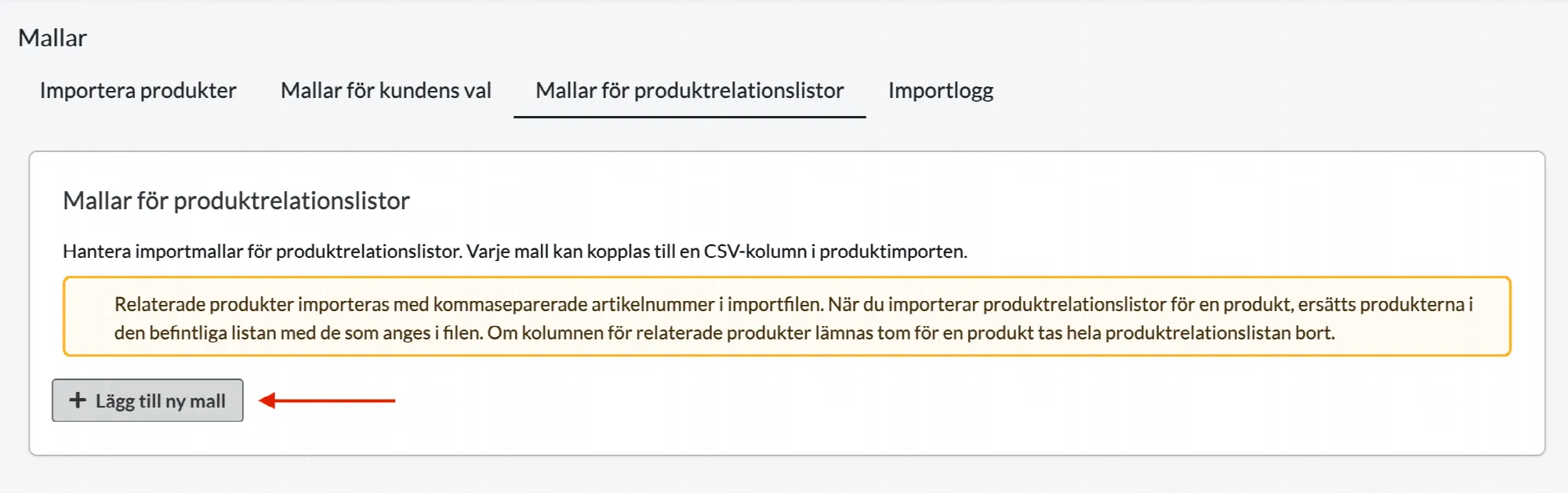
If you have many products, you can create or update related lists via import. This allows you to manage related products on a larger scale.
Read more about how to import related products here
Info for you with Plus & Pro: You can choose to show related products both from item template and from product specific list (list created via import/manually per product).
Add related items to a product
Go to Assortment -> Products -> Select product, edit -> Go to the "Related Products" tab.
Click on "Add relation list".
Name of the list
Enter a name for the list. The name will appear above the products in the list on the product page.
Settings
Set where the relationship list will be displayed in the store:
- Show on product page
- Show when product is added to cart
- Always show in cart
Appearance
A setting for how the relationship page should be presented, as a list or table.
Select "Manual selection" and then click on "Add product". Locate the product by first selecting the product group and then the product. Repeat the step to add more products to the list.
Enable the display of related products in the theme
Go to Appearance -> Themes -> Select theme, edit -> Content -> Article pages.
Scroll to the bottom of the page to "Block". Click on "Add block" and select "Related, visited or other products". Click on add.
Enter a name for the block (only shown in admin) and at "List" select "Related products". Under "Automatic or manual" select "Manual" for a manually created list. If you choose "Automatic", the system will show products that other buyers have traded at the same time as the product you are looking at.