


3 min read
How does the buy x, pay for y discount work?

Discounts work by deducting the value of one or more products at checkout. The discount only appears at checkout for the buyer. If you want to show a discount directly on the product page, you should enter the extra price of the product instead. If you want to discount the total at checkout, use gift cards instead.
If there are several active discounts, the system will select the best discount for each product. You can only get one discount per product.
Discounts are included in the Abicart Plus and Pro subscriptions.
Create a "Buy X, Pay for Y" discount
Click on Discounts -> New Discount -> “Buy X, Pay for Y” discount.
Name
Enter a name for the discount. This name will appear in the admin panel, at checkout, and on the order confirmation. In our example, we’ll enter “Buy 3, pay for 2.”
Discount Settings
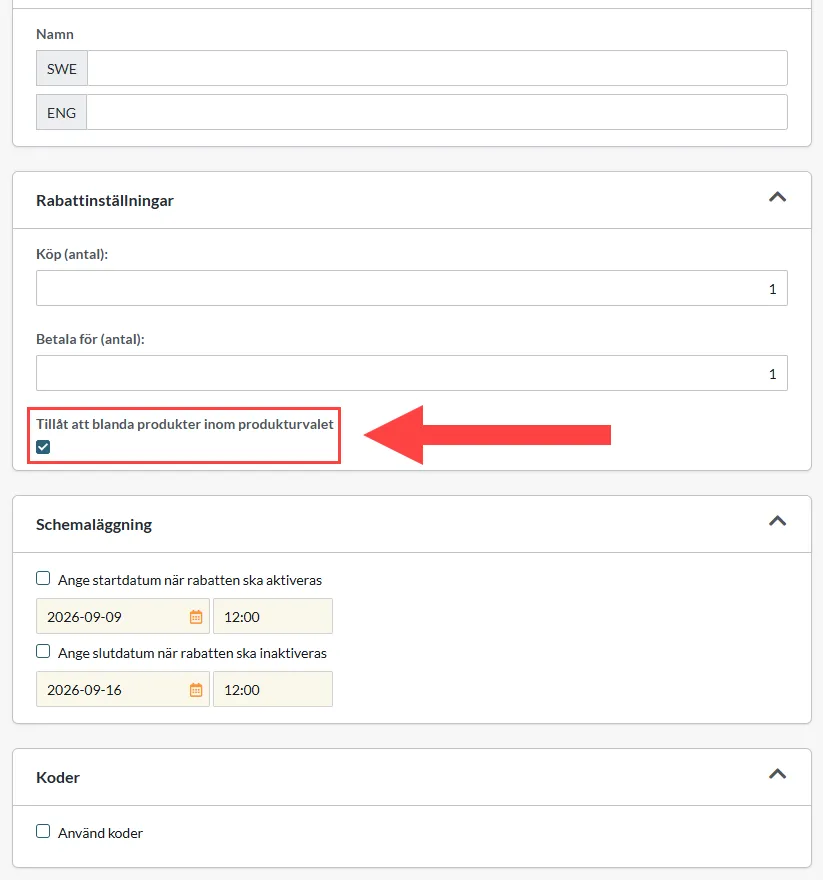
There are two options here. "Buy (quantity):" is the number of items the customer must have in their cart for the discount to be applied. In our example, we’ll enter "3" in this field.
In the “Pay for (quantity):” field, we’ll enter the number of items the buyer will pay for. In our example, we’ll enter “2” here.
This discount applies to all products within the discount’s product selection. This means you can mix different products as long as the “Allow mixing of products within the product selection” setting is checked. If you do not want to mix products, uncheck the setting.
Scheduling
If you want the discount to apply only during a specific time period, you can specify a start and end date. Keep in mind that a day begins at 12:00 a.m. and ends at 11:59 p.m.
For example, if you want a discount to be valid for one day, enter January 1, 2022, at 12:00 AM as the start time and January 1, 2022, at 11:59 PM as the end time.
Codes
If you want customers to enter a discount code to activate the discount, check the "Use codes" box. Existing codes for the discount are displayed at the bottom of the box.
To create a new code, click “Add Code.”
In the “Code” field, you can enter your own discount code. If you click the “Generate” button, a code will be created automatically.
Number of times the code can be used
If you want to limit the code to a specific number of purchases, enter a number in the field. Otherwise, the code is unlimited.
Product selection
Here, you can specify which product(s) the discount applies to. If the discount should apply to all products, check the box to the right of "Entire assortment." You can also search for a specific product by entering the name or item number. It’s also possible to select entire product groups.
NOTE:If a product belongs to multiple product groups, you can now choose whether the discount should apply only to the product’s primary product group—which is the default setting—or to all product groups to which it belongs. You can configure this setting under Product Range -> Settings -> Product Group Settings.
Customer Selection
Here you can control which customers have access to the discount. You can choose between “All customers,” “All customers who are not logged in,” “All logged-in customers,” or a specific customer group.