


Delete an administrator
Remove an administrator’s access to the correct shop and check your permissions first.
This guide is for the shop owner. An ordinary invited administrator cannot invite or remove other administrators. Check the shop ID and sign in with the owner account before following these steps.
Remove the correct administrator
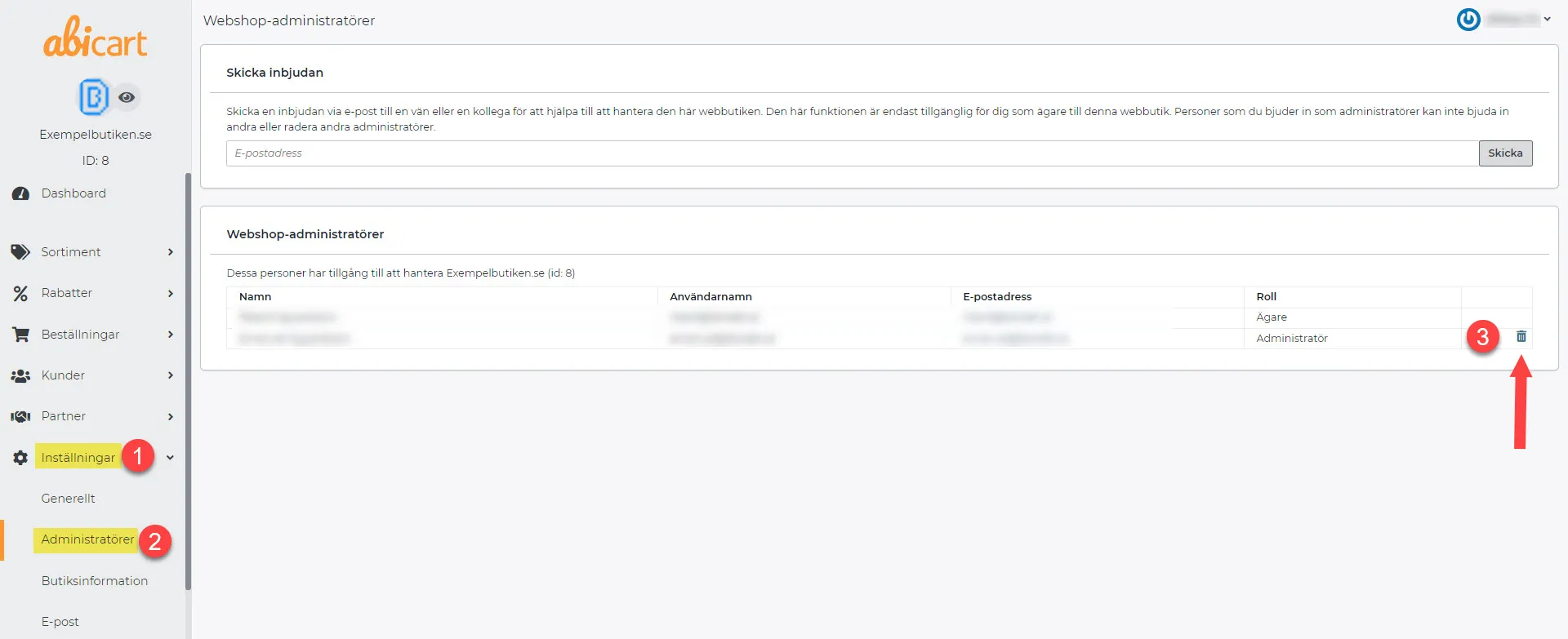
- Open Settings → Administrators. The page may be headed My team.
- Identify the correct person by name and username. Check the role; the owner must not be removed as an administrator.
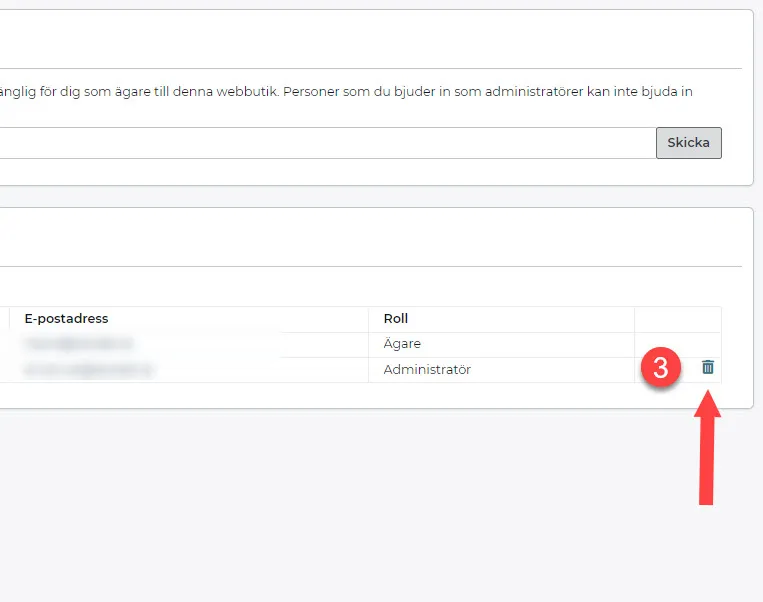
- Choose the trash icon on that row. Read any confirmation and proceed only if this is the access you intend to remove.
- Check that the person is no longer listed as an administrator in the affected shop.
If the trash icon is missing or removal is blocked
- Check that you are the shop owner and have selected the correct shop. An administrator account is not automatically an owner account.
- This function cannot remove the owner. Ownership transfer is a different matter.
- The sole administrator cannot be removed. Keep working owner/administrator access.
- If the role or ownership appears incorrect, contact Abicart support with the shop ID and affected username. Do not send passwords.
Understand the scope
In a multishop system, removal at the top level can also remove that person’s administrator access to the subshops. Check the scope before confirming. This is not a way to delete the shop’s orders or products. Do not assume that shared passwords or separate integration keys disappear; review that access separately.
To restore access, the owner needs to send a new invitation. Afterwards, check that the person has only the intended access.
Quick start
- Check the shop and owner account.
- Select the correct person under Administrators.
- Remove and read any confirmation.
- Check the list and affected subshops.
Owner permissions are required; a higher subscription does not replace the correct account and role.