


Discounts
-
Bulk Price Adjustments
2 Mar 2026
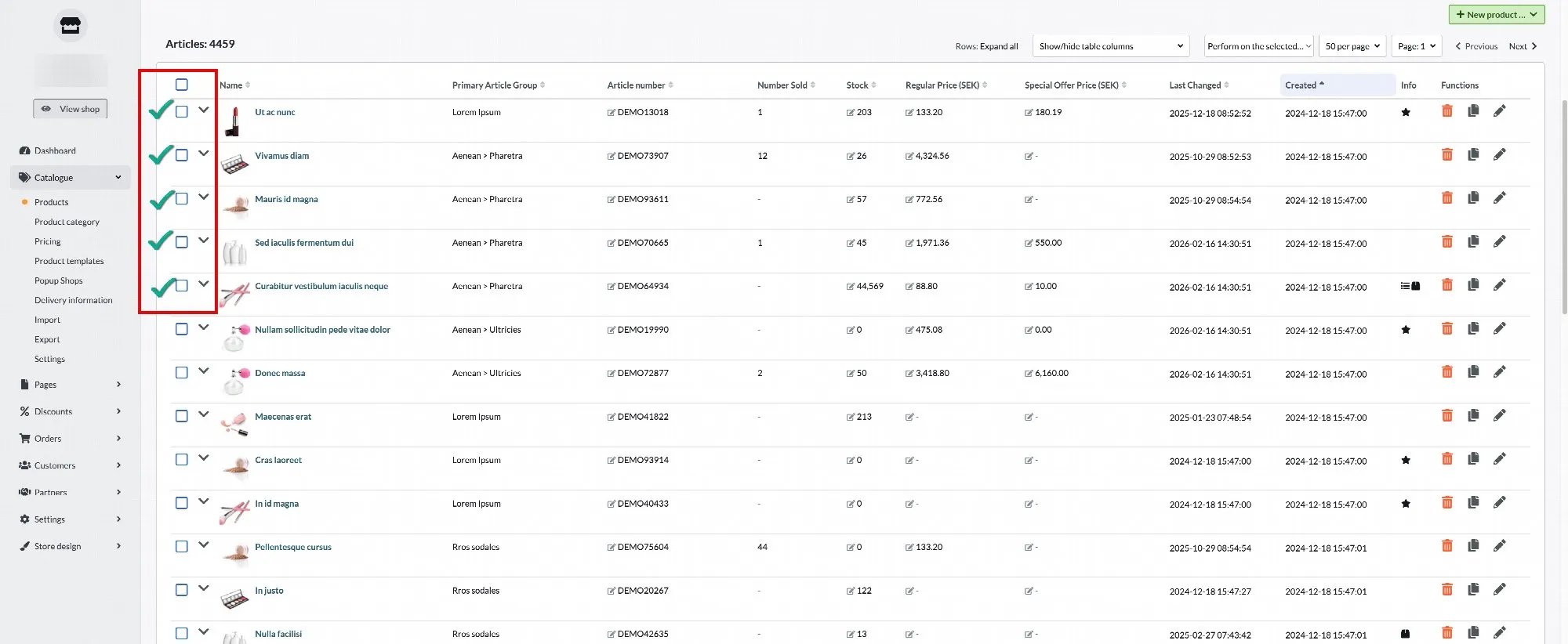
There are two ways to change product prices in bulk.Bulk Price Editing Two ways to update prices across many products at once, plus how to stay safe while doing it. Option 1: Bulk Discount via Assortment → Products Use this option when you want to apply a discount to specific products. Steps Go to Assortment → Products. Select the products you want to discount. Click Perform action on the selected. Select Additional Operations. Enter the percentage you want to reduce the price by (for example, 20). Click OK. The selected products will now be discounted by the specified percentage. Pros You can select specific products individually. Works across different product groups. Simple and quick when adjusting only a few products. Ideal for campaigns or targeted promotions. Cons Can only reduce prices (not increase). Not practical when updating large product groups. Requires manual product selection. Possible Error While performing this action, you may encounter the following error message: What does this mean? This error occurs when no special price list is connected to your store under Assortment → Pricing → Usage. How to Resolve It Go to Assortment → Pricing → Usage. Check whether a special price list is assigned to your store. If no price list is connected, select the appropriate price list. Save your changes. Once a price list is connected, you should be able to complete the bulk price update without issues. Option 2: Bulk Price Change via Assortment → Pricing Use this option when you want to increase or decrease prices for an entire product group or all products. Steps Go to Assortment → Pricing. Select either a specific product group or All products. Click Tools (top-right corner). Select Apply Percentage Changes. Enter the percentage: Use a negative value (e.g., -20) to reduce prices. Use a positive value (e.g., 10) to increase prices. If you selected a specific product group, ensure the option is checked so changes apply only to that group. Confirm the changes. The selected products will now be updated. Pros Can both increase and decrease prices. Efficient for updating entire product groups or all products. Ensures consistent pricing adjustments across categories. Saves time when making large-scale changes. Cons You cannot select individual products. Limited to product groups or all products. Higher risk of affecting unintended products if not reviewed carefully. Recommendation: Work on a Copy of the Price List Before making bulk price changes, we strongly recommend creating a copy of your price list. Why? Bulk changes affect many products at once. Working on a copy ensures: You have a backup. You can review changes safely. You can revert if something goes wrong. How to Create a Copy of a Price List Go to Assortment → Pricing. Open the price list you want to modify. Click Copy (or the corresponding duplicate option). Enter a new name for the copied price list (for example: Price List, Updated). Save the copy. Make your price changes in the copied version. Review all changes carefully. When everything is correct, activate the new price list. This way, your original price list remains unchanged and can be used as a backup if needed.
-

The discount system in Abicart: A complete guide
27 Nov 2025
Abicart offers a range of discount features to help you attract and retain customers on your e-commerce platform. In this article, we will go through the different types of discounts available, how they work, and how you can create and manage them. Discounts become visible & are deducted only at checkout Sale prices are shown directly on the product page & product group page as -X SEK or -X%Click here to read more about sale prices 1. Extra prices When you create a fixed discount, you can choose how additional prices on products are handled. There are two options: The discount is based on any extra price, otherwise the normal price. The discount is based on the normal price. If there is an extra price for the product, the lowest price is always used. Read more about pricing https://www.abicart.se/om-abicart/manual/produkter/prissattning/prissattning-prislistor-och-stafflade-priser 2. fixed discount A fixed discount means that a fixed amount is deducted from the price of one or more products in the shopping cart. This type of discount does not apply to the total amount at checkout. If you want to give a discount on the total amount, it is recommended to use gift cards instead.To create a fixed discount, go to Discounts -> New discount -> New fixed discount. You enter the discount in a price list, for example 50 SEK. If the product is added to the shopping cart and is in the discount selection, the amount entered will be deducted from the product price at checkout.Read more about fixed discounthttps://www.abicart.se/manual/fast-rabatt 3. percentage discount A percentage discount means that a certain percentage is deducted from the price of one or more products in the shopping cart. To create a percentage discount, go to Discounts -> New discount -> Percentage discount.Read more about percentage discounthttps://www.abicart.se/om-abicart/manual/rabatter/procentuell-rabatt 4. Buy X, pay for Y discount This type of discount means that customers can buy a certain number of products but only pay for a lower number, for example buy 3, pay for 2. To create such a discount go to Discounts -> New discount -> Buy X, pay for Y discount.Read more about buy X, pay for Yhttps://www.abicart.se/om-abicart/manual/rabatter/hur-fungerar-rabatten-kop-x-betala-for-y 5. "Cheapest product for free" discount A "cheapest product free" discount means that the customer gets the cheapest product in the shopping cart at no cost when they meet the conditions you set, such as buying a certain amount of products. This is an effective way to encourage customers to buy more products from your online shop and can be used as part of a promotion or sale.To create such a discount in Abicart, follow the steps described above in the "Create the discount" section. In the discount settings, you specify how many products the customer must have in the cart for the discount to be activated. You can then schedule the discount, use codes if desired, and select which products or customer groups the discount applies to.Read more about "Cheapest product for free"https://www.abicart.se/om-abicart/manual/rabatter/billigaste-produkten-gratis 6. discount codes You can require customers to enter a discount code to activate the discount. To create a new code, click on "Add code" and enter your own discount code or generate one automatically. 7. discount code for free shipping A free shipping discount code means that customers who enter the code at checkout do not have to pay for the shipping of their goods. This can be an attractive offer to attract new customers or reward returning customers.To create a free shipping discount in Abicart, follow the steps described above in the "Create the discount" section. When you select the "Free Shipping" discount type, you will be able to set up scheduling, use codes and choose which customer groups the discount applies to.By using a combination of different discounts and offers, you can create an attractive shopping experience for your customers, while increasing sales and customer loyalty.Read more about Free shipping discount codehttps://www.abicart.se/om-abicart/manual/rabatter/hur-fungerar-rabattkod-for-fri-frakt 8. Product and customer selection When creating discounts, you can choose which products and customer groups will be affected by the discount. You can choose to apply the discount to the entire range, specific products, product groups or customer groups. 9. Active discounts and discount restrictions If there are several active discounts, the system will select the most favorable discount for each product. This means that the customer can only receive one discount per product. Multiple discounts cannot be combined on the same product.Abicart offers a variety of discount systems to help companies offer attractive deals to their customers. With fixed discounts, percentage discounts and buy x, pay for y discounts, businesses can create customized promotions and reward their customers in multiple ways. The use of discount codes, scheduling of promotions and the ability to select specific product groups or customer segments make the Abicart discount system both flexible and customizable. So no matter what type of promotion or offer you want to offer your customers, there is a discount solution to suit your needs within Abicart. Remember to always create a new discount every time you want to change the discount rate or terms. Never reuse a previous discount. This is to avoid errors in texts on orders.
-
Fixed discount
27 Nov 2025
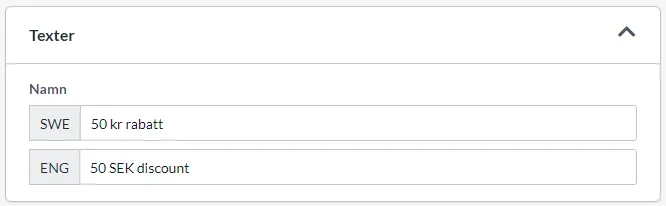
Please note that this fixed discount only applies to each individual product in the shopping basket. It does not discount the total amount. If you want to give a discount on the total amount in the checkout, you should use gift cards instead.How does the fixed discount work?The discount is used when you want to give a fixed amount as a discount on one or more products. You enter the discount in a price list, for example 50 SEK. If the product is added to the shopping basket and is included in the discount selection, the specified amount will be deducted from the price of the product at checkout. The discount must be applied to all products in the price list that are to be discounted.Create a fixed discountGo to Discounts -> New discount -> New fixed discount.In the "Name" field, enter the name of the discount. This name will appear at checkout if the discount is applied to a product.Extra pricesIf there are extra prices on one or more products included in the discount, you can choose how to handle them. First choice, "The discount is based on any extra price, otherwise the normal price" will deduct the discount from any extra price.The second choice, "The discount is based on the normal price. If an extra price exists for the product, the lowest price is always used." deducts the discount from the regular price. If the extra price is better than the discount, the extra price is used. Otherwise, the discount is applied to the regular price.Price reduction listSelect which list to use. This is the list where you enter the amount of the discount. When you create a discount for the first time, a default list will be created. It can be found under Assortment -> Pricing -> Reduced price list.Click on the name to edit the list. Then all products in the shop will be displayed. Enter the discount to be deducted on each product. In this example we enter 50 kr on one product. When you put the product in the shopping cart and go to the checkout, the discount will be deducted and the name of the discount will appear in the checkout.Enter discount on multiple productsIf you need to enter a discount on many products, you can use the import function on the price list. The import file should be a CSV file containing three columns with the headings "Article", "Qty" and the currency code, in this example "SEK". Enter the discounted price of all products to be priced in column C. Qty is for quantity and is not used in reduced price lists but must be present for the import to work and it must contain the value zero on all linesImport the CSV file of the price listGo to Assortment -> Pricing and click on the name of the price list with the reduced prices to be updated. Then click on "Tools" in the top right corner and then "Import price list from file".Select the file and then click on "Import". The file will be imported and then the result will be displayed.
-

How does the percentage discount work?
27 Nov 2025
You can create a percentage discount to be deducted from the items at checkout. The discount works by deducting a value from one or more products in the checkout. The discount is applied first at checkout for the buyer. If you want to display a discount directly on the product page and in the product categories, enter the extra price of the product instead. If you want to discount the total at checkout, use gift cards instead. If there are several active discounts, the system will select the best discount for each product. You can only get one discount per product. Discount features are included at no extra cost in Abicart Plus and Pro subscriptions.Discounts are deducted at checkout while special prices are displayed directly on product page & product group page as -X SEK or -X%. Click this link to read more about special prices.Create a percentage discountClick Discounts -> New Discount -> Percentage Discount.NameName the discount. This name will appear in the admin as well as in the checkout and on the order confirmation. In our example we enter "Maximum discount 20%"Rebate percentageEnter the value of the discount percentage. In our example we enter 20 for 20%.Extra pricesIf there are extra prices on one or more products included in the discount, you can choose how to handle this. The first choice, "The discount is based on any extra price, otherwise the normal price" makes the discount deducted from any extra price.The second choice, "The discount is based on the normal price. If there is an extra price for the product, the lowest price is always used." deducts the discount from the regular price. If the extra price is better than the discount, the extra price is used. Otherwise, the discount is applied to the regular price.Minimum cart amountSpecify a value when the discount should take effect. The specified value is compared to the cart value. The order value is calculated based on the total cost of included products, but does not include fees or discounts. Amounts are given MOMS excluding VAT.SchedulingIf you want the discount to be valid only for a certain time, you can specify a start and end date. Keep in mind that the day starts at 00.00 and ends at 23.59.If you want a discount that is valid for example for one day, enter 2019-01-01 at 00.00 as the start time and then 2019-01-01 at 23.59 as the end time.CodesIf you want the customers to enter a discount code to activate the discount, tick the box "Use codes". At the bottom of the box, existing codes on the discount are displayed.To create a new code, click on "Add code". In the "code" field you can enter your own discount code or click on the "Generate" button and a code will be created automatically.Number of times the code can be usedIf you want to limit the code to only a certain number of purchases, enter a number in the field. Otherwise, the code is unlimited.Product selectionHere you set which product(s) will be affected by the discount. If you want the discount to apply to all products, tick the box to the right of "All products". You can also search for a specific product by entering the name or item number. It is also possible to select entire product groups. One discount per productIf the product is part of more than one active discount, the system will choose to give the customer the most advantageous discount. Multiple discounts cannot be combined on the same product. Customer selectionHere you can control which customers will have access to the discount. You can choose between "All customers", "All customers who are not logged in", "All logged in customers" or a specific customer group.
-

How does free shipping discount code work?
27 Nov 2025
Create a discount that is activated via a code at checkout that gives the buyer free shipping.Create the discountClick on Discounts -> New discount -> Free shipping.Discounts are included in Abicart Plus and Abicart Pro.NamePlease enter a name for your discount. This name will appear in the admin as well as in the checkout and on the order confirmation. In our example we enter "Free Shipping"SchedulingIf you want the discount to be valid only for a certain time, you can enter a start and end date. Keep in mind that the day starts at 00:00 and ends at 23:59.For example, if you want a discount that is valid for one day, enter 2022-01-01 at 00:00 as the start time and 2022-01-01 at 23:59 as the end time.CodesIf you want customers to enter a discount code to activate the discount, check the "Use codes" box. At the bottom of the box, existing discount codes will be displayed.To create a new code, click on "Add Code". In the "code" field you can enter your own discount code. If you click on the "Generate" button, a code will be created automatically.Number of times the code can be usedIf you want to limit the code to only a certain number of purchases, enter a number in the field. Otherwise, the code is unlimited.Customer selectionHere you can control which customers have access to the discount. You can choose between "All customers", "All customers who are not logged in", "All logged in customers" or a specific customer group.
-

Enter percentage extra price on several products at the same time
27 Nov 2025
A quick way to enter percentage surcharges on multiple products simultaneously without having to use imports.Instructions for price lists Go to Assortment -> Pricing -> select a price list and click on it. First you search for the products you want to set a surcharge on. To search for all products in a certain product group, add a search parameter called "Product group (primary)".Then click the list on the right.Select which group(s) will receive new extraprices.Then click on the SEARCH button so that the products are displayed below.Then click on the Tools button in the top right corner and check "Add percentage change to prices". Enter percentage and any rounding.Tick the "Only apply to prices in current filter selection" checkbox. Then only the selected product groups will be affected.Then click on "Apply change" and don't forget to save.If you want to make a price increase, do the same thing but put a plus sign before the percentage you want to increase the prices by. For example, +10. Remember to make the price increase in a copy of your active regular price list - e.g. Global (regular price).
-

How does a discount work where the buyer gets the cheapest product for free?
27 Nov 2025
Cheapest Product Free Discount Create a discount that makes the cheapest product in the shopping cart free once a minimum item count is reached. Discounts are included in the Abicart Plus and Pro subscriptions. Discounts work by deducting the value of one or more products at checkout, so the discount only becomes visible to the buyer at that stage. If you'd rather show a reduced price directly on the product page, use the product's extra price field instead. If you want to discount the total order value rather than specific products, a gift card is the better fit. When several discounts are active at once, the system automatically applies whichever one is best for each product. Only one discount can apply per product. Create the Discount Go to Discounts → New discount → Cheapest product free. Name Give the discount a name. It will appear in the admin panel, at checkout, and on the order confirmation. For example: "Buy 5 items and get the cheapest product free". Discount Settings Enter how many items need to be in the shopping cart for the discount to activate. In this example, that number is five. The discount activates once the item count is reached, as long as the cheapest product in the cart is part of the discount's product selection. The other items in the cart don't need to be part of that selection themselves. Scheduling If the discount should only run for a set period, add a start and end date. Each day runs from 00:00 to 23:59, so a discount valid for a single day would use 2022-01-01 00:00 as the start and 2022-01-01 23:59 as the end. Codes To require a discount code at checkout, check "Use codes". Any existing codes will be listed at the bottom of the box. Click "Add Code" to create a new one. You can type your own code into the "Code" field, or click "Generate" to have one created automatically. Usage Limit To cap how many times a code can be used, enter a number in the usage limit field. Leave it blank for unlimited use. Product Selection Choose which product or products the discount applies to. Check the box next to "All products" to apply it store-wide, or search for a specific product by name or item number. Entire product groups can be selected as well. Note: If a product belongs to multiple product groups, its primary product group must be the one checked for the product to be included in the discount selection. Customer Selection Control who has access to the discount by choosing "All customers", "All customers who are not logged in", "All logged in customers", or a specific customer group.
-

How does the buy x, pay for y discount work?
27 Nov 2025
Buy 3, pay for 2, etc.Discounts work by deducting the value of one or more products at checkout. The discount only appears at checkout for the buyer. If you want to show a discount directly on the product page, you should enter the extra price of the product instead. If you want to discount the total at checkout, use gift cards instead. If there are several active discounts, the system will select the best discount for each product. You can only get one discount per product. Discounts are included in the Abicart Plus and Pro subscriptions. Create a "Buy X, Pay for Y" discount Click on Discounts -> New Discount -> “Buy X, Pay for Y” discount. Name Enter a name for the discount. This name will appear in the admin panel, at checkout, and on the order confirmation. In our example, we’ll enter “Buy 3, pay for 2.” Discount Settings There are two options here. "Buy (quantity):" is the number of items the customer must have in their cart for the discount to be applied. In our example, we’ll enter "3" in this field. In the “Pay for (quantity):” field, we’ll enter the number of items the buyer will pay for. In our example, we’ll enter “2” here. This discount applies to all products within the discount’s product selection. This means you can mix different products as long as the “Allow mixing of products within the product selection” setting is checked. If you do not want to mix products, uncheck the setting. Scheduling If you want the discount to apply only during a specific time period, you can specify a start and end date. Keep in mind that a day begins at 12:00 a.m. and ends at 11:59 p.m.For example, if you want a discount to be valid for one day, enter January 1, 2022, at 12:00 AM as the start time and January 1, 2022, at 11:59 PM as the end time. Codes If you want customers to enter a discount code to activate the discount, check the "Use codes" box. Existing codes for the discount are displayed at the bottom of the box. To create a new code, click “Add Code.” In the “Code” field, you can enter your own discount code. If you click the “Generate” button, a code will be created automatically. Number of times the code can be used If you want to limit the code to a specific number of purchases, enter a number in the field. Otherwise, the code is unlimited. Product selection Here, you can specify which product(s) the discount applies to. If the discount should apply to all products, check the box to the right of "Entire assortment." You can also search for a specific product by entering the name or item number. It’s also possible to select entire product groups. NOTE:If a product belongs to multiple product groups, you can now choose whether the discount should apply only to the product’s primary product group—which is the default setting—or to all product groups to which it belongs. You can configure this setting under Product Range -> Settings -> Product Group Settings. Customer Selection Here you can control which customers have access to the discount. You can choose between “All customers,” “All customers who are not logged in,” “All logged-in customers,” or a specific customer group.
-

Enable discount and gift card code input fields at checkout
27 Nov 2025
Do you want to activate the input field for discount and gift voucher codes? Here's how to do it: View >> Themes >> Edit theme >> Checkout >> Activate "Discount Codes & Gift Cards" >> Save Done!