
Delete/remove images via import (bulk action)
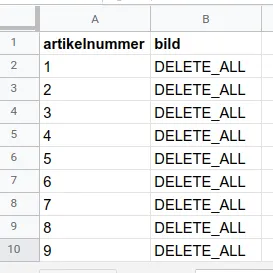
Remove all product images for selected products using an import file. This is a destructive bulk action, not a way to remove one selected image. Use it only when you intend to delete every image for each listed product number.
Prepare a recovery copy
Save the original image files and their product associations before import. An export containing image URLs is not a backup of the image files themselves. Image deletion also removes image information such as alt text; do not rely on a simple undo function.
Create the file
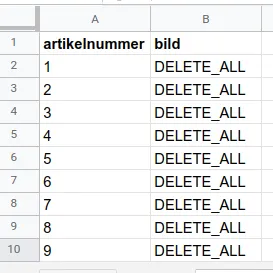
Use two columns: Product number and Image. Include only products whose images should all be removed. Enter exactly DELETE_ALL in the Image column for each intended row. Keep product numbers as text if they contain leading zeroes.
Import a small selection first
- Save the file as delimited text with the correct encoding.
- Open Assortment → Import and select updating of existing products.
- Identify any header row and map only Product number and Image. Ignore all other columns.
- Check the selection and mapping carefully before starting. Test one intended product before continuing with the rest.
- Read the import log and verify that only the intended products changed.
Check external uses
Deleted product images can also affect variants, product feeds and external image links. External systems may retain an older copy for a while. Seeing an old image there does not therefore prove that the import failed. To retain some images, edit them individually instead of using DELETE_ALL.
Quick start
- Save image files and product associations.
- Create a file with Product number and Image = DELETE_ALL.
- Check and import a small intended selection.
- Verify the result before continuing.