


Product import

Import new products or update selected information using a text file. The product number identifies the product: an incorrect number or column mapping can therefore change the wrong information or create unwanted products.
This guide covers the store’s product import under Assortment → Import. Export the affected information as a backup before a bulk change and start with a few products. If a business system controls prices or stock, coordinate the change there so that the next sync does not overwrite it.
Prepare the file
Use a delimited text file, such as CSV, TXT or SKV, with one property per column. Save an Excel, Numbers or other spreadsheet file as text/CSV before import; merely renaming the extension does not convert it. Select the intended worksheet.
A product number is mandatory and must identify the intended product. Preserve leading zeroes by treating it as text. For a usable new product, also provide its name and description in the store’s base language and a price in its base currency. Check VAT and the other settings before offering it for sale.

For a limited update, use the product number and the property to change, such as price. Remove or ignore columns that should not be updated. A blank cell in a mapped column is not a general instruction to retain the old value: blank-value handling depends on the field.

This guide describes ordinary products. Importing a package’s product type is not the same as configuring its component products and quantities; manage package contents in the package editor. Product groups’ own SEO texts are also separate from product fields and are not updated by selecting product description here.
Save from a spreadsheet program
In Excel, choose Save As and a CSV/text format. Confirm that the intended sheet is saved as text, and keep the original workbook separately. In LibreOffice/OpenOffice, choose File → Save As and Text CSV. The illustrations below show an older interface.


Select Edit filter settings where available so that you can check the delimiter and encoding.

One working example is Unicode (UTF-8), comma as field delimiter and quotation marks as text delimiter. The import supports UTF-8 and ISO-8859-1. Do not export as UTF-16 for this workflow. Check accented characters and text containing commas in the preview.

Select the file and update mode
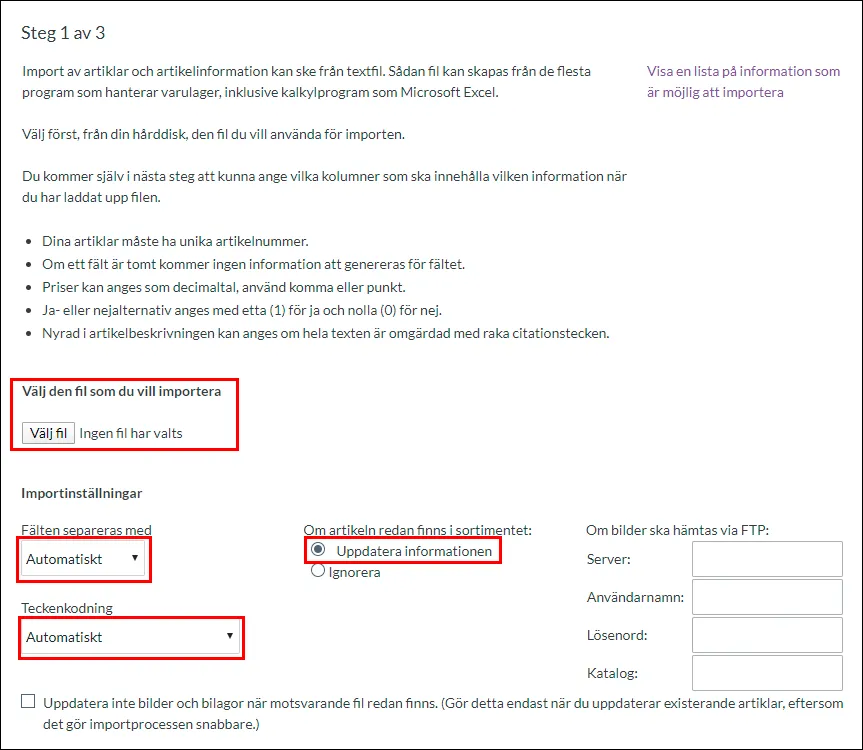
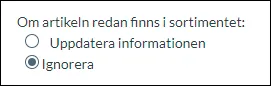
Open Assortment → Import and select the file. Automatic can detect the format; if the preview is incorrect, select the file’s actual delimiter and encoding. To change existing products, choose Update information under If the item already exists in the assortment. Do not select updating by default if existing products should remain untouched.
Map the columns
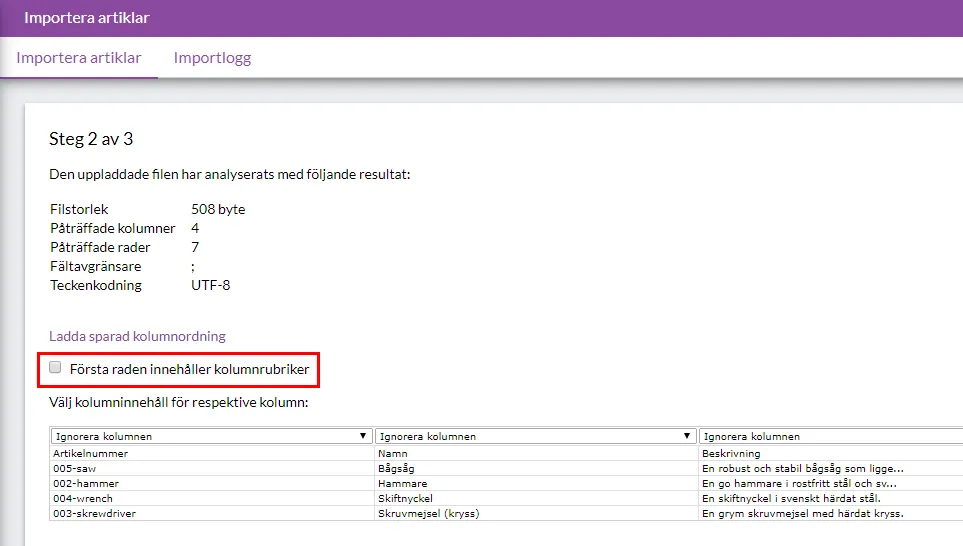
Continue to the preview. Select First row contains column headings if the file’s first row is a header; otherwise that row may be treated as product data.
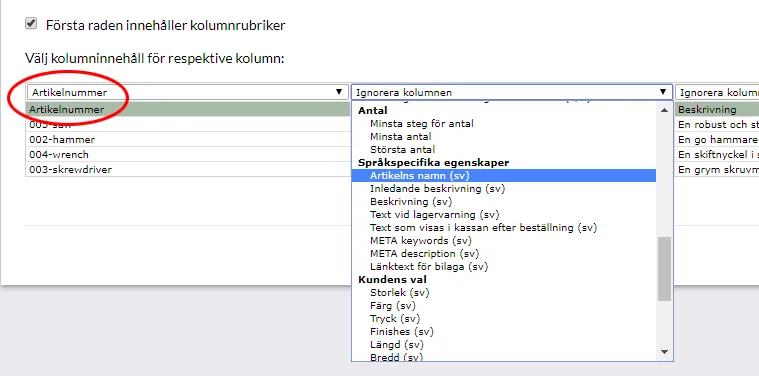
Select Product number for the appropriate column and map every other column to the correct field, language and currency. Choose Ignore column for information that should not change. Check actual values in every column, not just its heading. Prices must be numeric, without kr, SEK or other currency text.
Reuse a column mapping carefully
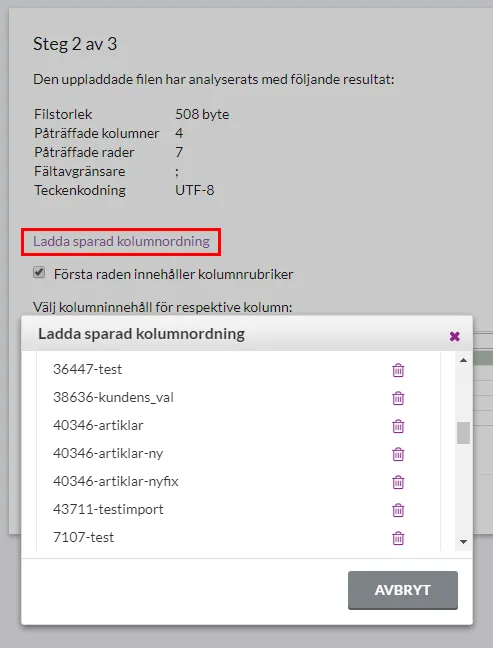
Save column order for future imports stores the mapping between file positions and fields. Give the mapping a descriptive name. This is not a product name or a scheduled import.
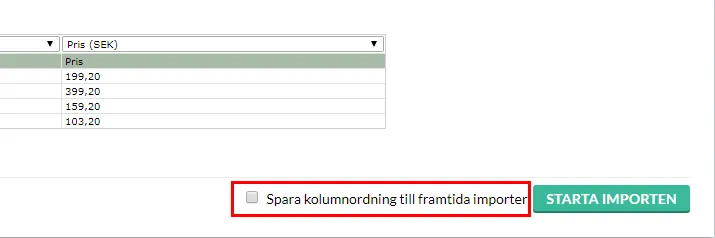
Load saved column order can be used when the next file has exactly the same column order and meaning. Check the mapping again if the supplier added, removed or moved columns.
Run and check the result
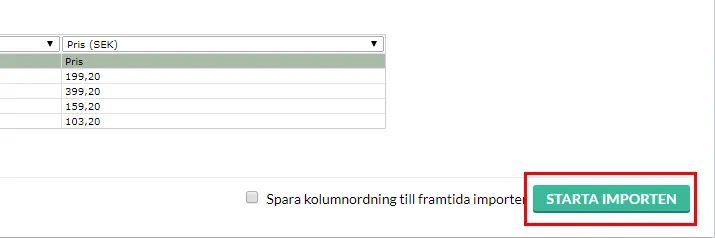
Start with a small selection. Click Start import and wait for the result. A started import is not a completed import. Do not submit the same file again merely because it is still processing.
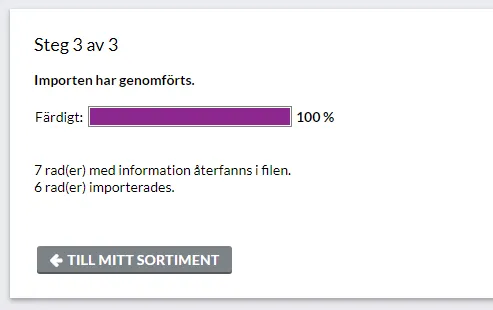
Check processed, imported and ignored rows and the import log. Header rows are not imported products. Open a few products and check price, VAT, groups, stock and images before continuing with the rest. Hidden products or products outside a sub-store’s selection do not automatically become visible to customers.
Multiple product groups
Where the store supports multiple product groups, repeat the product number on additional rows and provide each group and subgroup in the group columns. Check the intended hierarchy; the same group name at the wrong level can produce an incorrect structure.

Do not assume that omitting an old group removes it. Check group assignments after import and handle intended removals separately in admin. If incorrect groups appear, stop the bulk import and correct the file and mapping before continuing.
Multiple images
Repeat the product number on a new row for each image and provide its filename or accessible URL in the Image column. In the example, three images belong to the same product.
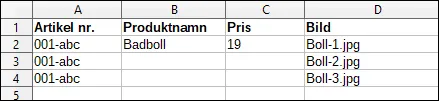
If images occupy separate columns, import one image column at a time: first map the product number and first image column, then repeat for the next. Ignore other fields in these additional image imports. Check duplicates and image order. Do not use DELETE_ALL to add or replace a single image.
Examples: prices and stock
For a price update, put the product number in the first column and the new price in the next. Check the intended currency and whether the store enters prices including or excluding VAT.
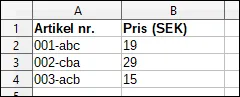
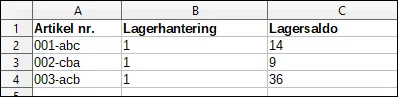
For stock, provide the product number and new stock balance. Stock management can be set to 1 for yes or 0 for no. A stock balance is the new quantity, not an increment added to the old balance. Products with variants or customer choices holding their own stock require the correct variant/customer-choice mapping.
Mark as new until a date
Map a date column to New until. Use YYYY-MM-DD, for example 2026-12-31. The date enables the new-product marker without a separate New item column, unless the same row explicitly sets New item = 0.
The marker is scheduled to end at the specified time. To include all of 31 December, enter 2027-01-01. An invalid date is logged and ignored while other information on the row can still be imported. A blank New until field retains the current setting; always check the result.
If rows are ignored
Check product numbers, mapping and the mode for existing products. If Ignore is selected, existing products are not updated. Switch to Update information only when that is intended, and review the log before running again.
To remove new-product markers in bulk, export product numbers and New item, set New item to 0 for the intended products, and import only those fields. Keep an untouched export and test a small selection first.
Quick start
- Export a backup and create a small CSV test file.
- Check product numbers, format and column mapping.
- Select the intended update mode and run the import.
- Read the result/log and check products before continuing.