

1 min read
Add new product group to be displayed in the sub-store (Multi-store system)
First create the new product group (Link to the product group manual)
1) Go to Store System >> 2) Stores >> Properties of the sub-store you want to display the product group in 3)
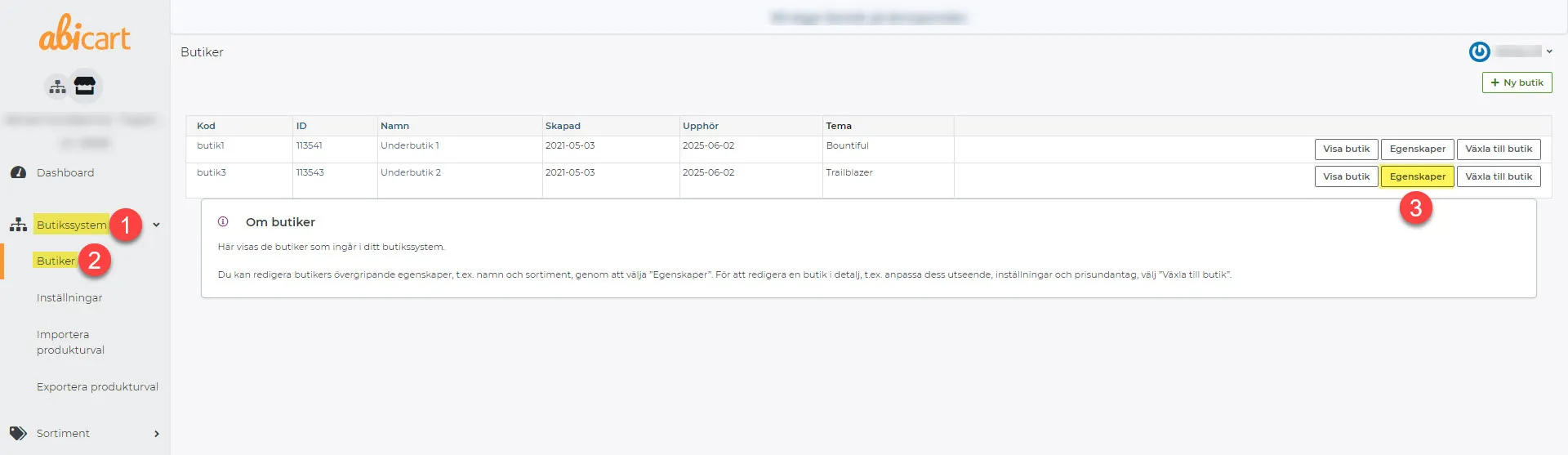
4) Click on Product selection
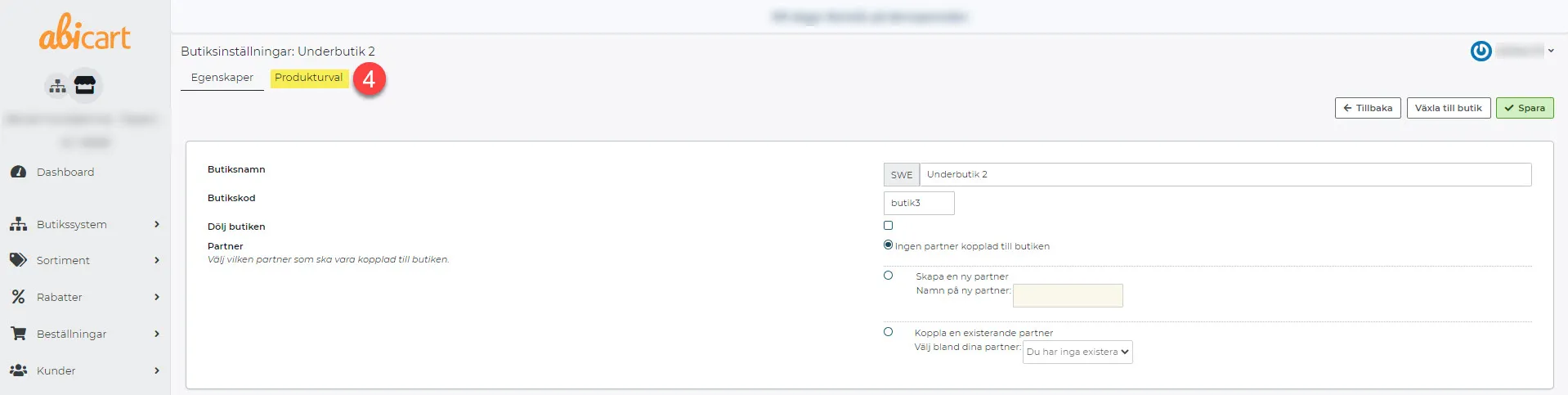
5) Check that the product group should be visible in the store
6) Save
Link to the manual for multi-store systems.
Related pages
-
Multi-store system
27 Nov 2025
Multi-store system is a feature that allows you to create and manage multiple sub-stores within the same system, which is cost-effective for running multiple online stores. It is suitable for companies selling to different countries, individuals and retailers. The feature is available for Abicart Pro subscription. The cost varies depending on the number of sub-stores and requires an Abicart Pro subscription. All sub-stores can have different looks, themes and domain names. The feature is intended for one company with multiple stores and not for multiple companies with different stores. Please note that it is not possible to undo the activation of the multi-store system or merge existing stores into a multi-store system. To activate the multi-store system, please contact support. Read more about the multi-store system here https://www.abicart.com/explore-abicart/manual/multi-store-system/multi-store-systems-overviewAdvantages of the Multi Store System: Cost-effective: Run multiple online stores within the same system, reducing costs compared to having separate systems for each store. Easy administration: Manage all sub-stores from one central location, making it easier to administer and update the stores. Flexibility: Each sub-store can have a unique look, theme and domain name, allowing you to customize each store according to your target audience and market. Customized assortment: Choose to display all or part of the assortment in each sub-store, making it easy to customize products for specific customers or markets. Customized payment and delivery methods: Choose which payment and delivery methods to display in each sub-store, allowing you to offer the right options for different customer groups. International sales: Create sub-stores for different countries to customize the assortment according to local needs and preferences. B2B and B2C: Ability to create separate stores for individuals and retailers, making it easy to offer different products, prices and conditions for different customer groups. Consolidated accounting: Book all orders in the same place, regardless of which online store they come from, simplifying administration and accounting.
-
Multi-store systems - Overview
27 Nov 2025
Have several stores under the same roof.Multi-store system is a feature to create multiple sub-stores and can be activated in Abicart Pro subscription. This add-on service makes it cost-effective to run multiple online stores. You need to have Abicart PRO to use the multi-store system and only pay the PRO subscription for the top level. Sub-store 1 is included in the top level. Sub-store 2+ costs according to the PLUS subscription but works as a PRO store. This means that you can use integrations and all PRO functionalities in all sub-stores at no extra cost.Read more about our prices here.This feature is suitable for those who book all orders in the same place, regardless of which online store the orders come from.The multi-store system works by having a top level (think a warehouse for products, payment methods, delivery methods, customers, etc.) and then one or more sub-stores. The top level is not displayed to the customer, only the sub-stores are displayed to the outside.You can set a sub-store to use all or part of the range. The same applies to payment methods and delivery methods. Sub-stores can choose to use all or some. Each sub-store is free to choose this.If you sell to several different countries, you can have a sub-store for each country to adapt the range for different countries.If you sell to both private individuals and retailers and prefer retailers to have their own shop, you can create a sub-store for them.Each sub-store can have a different look and theme.Each sub-store also has its own domain name.One business per multi-store systemThe multi-store system is built for a company that will have several different stores. If you have several different businesses and want to have different stores for each business, you should not use multi-store systems.Things to considerOnce you have connected to the multi-store system, you can 't undo it and go back to a regular store again. Therefore, make sure you are absolutely sure that you want to use the multi-store system before we switch it on. Feel free to create a demo shop and test the multi-store system first if you are unsure. There is no extra cost for this.Please note that you cannot merge existing stores into a multi-store system. You have to activate the function in one store and then all new stores are created in this multi-store system. You can hide sub-stores that should no longer be active, but you cannot delete them.How to activate the multi-store system?Contact support and we will activate it for you.Store system and settingsWhen "Multi-store system" is activated, there is a new option in the left menu, "Store system". To manage the sub-stores and create new ones, go to Store system -> Stores.Product selection in sub-storesAll products are created at "top level" under Assortment -> Products. You can then make a selection in each sub-store and choose to show all products or only some. Go to Store system -> Stores. Then click on the "properties" button for each sub-store. Then click on the "Product selection" tab. Then select the product groups to be included in the sub-store.Display of payment methods in sub-storesBy default, all payment methods are displayed in all sub-stores. If you want to limit the display of payment methods in a sub-store, you can do so. Go to Store system -> Settings. There are three different choices. You can have all payment methods at the top level used in all sub-stores. This is the default setting.You can also choose to show some of the payment methods at the top level or you can choose to put the payment methods in each sub-store. In this case, none of the payment methods are used at the top level. If you want to use "Each store has a selection of the store system's payment methods", you make this selection under Store system -> Stores -> "Properties" button.Then click on the "Payment methods" tab and choose which ones to use. If you choose the third option, "Custom payment methods are set for each store", you create the payment methods in each sub-store. Go to Store system -> Stores and then click on the button "Switch to store". Then you create the payment methods under Settings -> Payment methods in that sub-store.Viewing delivery methods in sub-storesAll shipping methods are created at the top level under Settings -> Shipping as usual. By default, all delivery methods are displayed in all sub-stores. If you want to limit this, you can do so. Go to Store system -> Settings. Select "Each store has a selection of store system delivery methods" and save. Then go to Store System -> Stores -> "Properties" button.Then click on the "Delivery Methods" tab and then select which delivery methods should be available in the selected sub-store.