


Plan and get started with a multi-store system
Gather multiple stores for the same company in a common system and adapt each sub-store to its market.
This guide is for companies planning or administering a multi-store system in Abicart Pro. Sub-stores have separate settings but share central data with the main store. The feature is intended for multiple stores within the same company, not as a solution for separate legal entities.
1. Choose between languages, customer groups, and sub-stores
- Multiple languages: is suitable when the same store needs to be presented in multiple languages. Language, currency, and the language's web address are not the same as a separate sub-store.
- Customer groups and price lists: can be sufficient for, for example, different customer prices in a shared store. Control which customers can see each product range and price; a general discount should not be used as a substitute for customer-specific prices.
- Sub-stores: are suitable when you need separate store views with their own themes, domains, or selections of products, payment methods, and shipping methods.
Choose based on what actually needs to be different. An extra language does not automatically require a new sub-store, and a new domain does not automatically create a multi-store system.
2. Plan before support activates the feature
The activation cannot be undone by turning off the feature. Existing standalone stores cannot be automatically merged into a multi-store system. Contact support before you order or move content if you already have multiple stores.
- Describe which markets and customer groups each sub-store will serve.
- Determine the product range, pricing structure, languages, currencies, domains, and theme for each sub-store.
- Review payment agreements, shipping terms, and which integrations will be used in each store.
- Request a cost estimate for Pro, the desired number of sub-stores, and any add-ons.
- Contact support for activation and agree on how existing data and integrations should be handled.
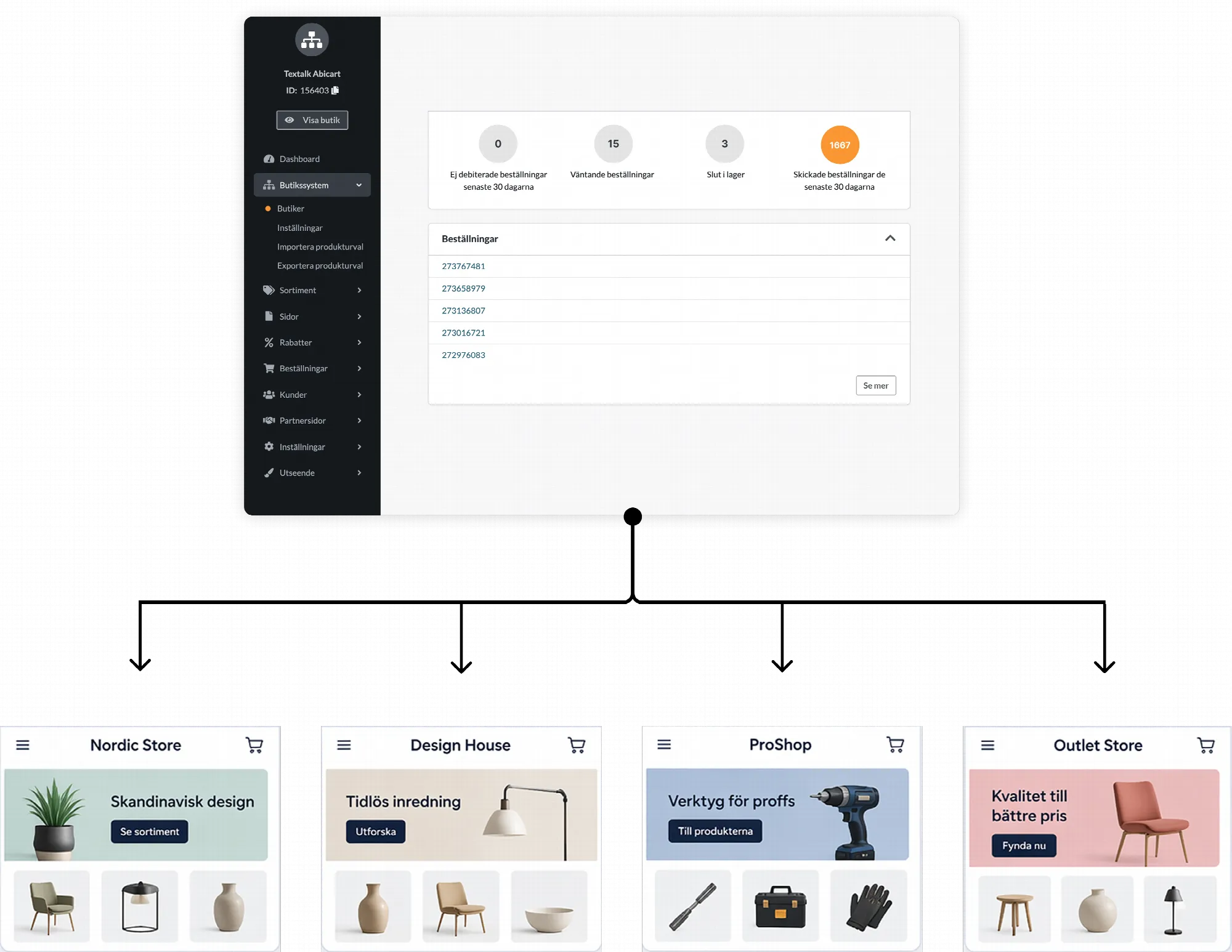
3. Configure and check each sub-store
Select the correct store in the admin panel before editing. The sub-store can have its own theme and domain name, as well as a selection of the shared product range and available payment and shipping methods. Some settings are shared or inherited from the main store. Therefore, check if a field applies to the entire system or just the selected store before changing it.
Follow the multi-store system's setup guide once the structure is decided. Then, check each customer view: correct domain, language, currency, visible products, customer prices, payments, and shipping options.
Shared administration does not mean that accounting, order exports, or an external integration will automatically be correctly divided. Check the store connection, order tagging, inventory responsibility, and export flow with the relevant integration before the sub-store goes live.
4. Follow up on subscriptions and sub-stores
Check which sub-stores and add-ons are included when the subscription is renewed, and read the order summary's period, price, and VAT before confirming. Hiding a store or stopping its use is not a cancellation. Follow the subscription's cancellation process if a part is to be terminated.
Quick start
- Determine if languages or customer groups are sufficient, or if you need sub-stores.
- Plan each store's product range, prices, and integrations.
- Confirm costs and activation with support before making the change.
- Configure and check each sub-store separately.
Subscription and costs
Multi-store systems require Pro. The cost is affected by the number of sub-stores and ordered add-ons. The current agreement and order summary apply; do not assume that a sub-store is free of charge because it is administered from the same account.

