


Short movie: hide an element on an Abicart page with custom css
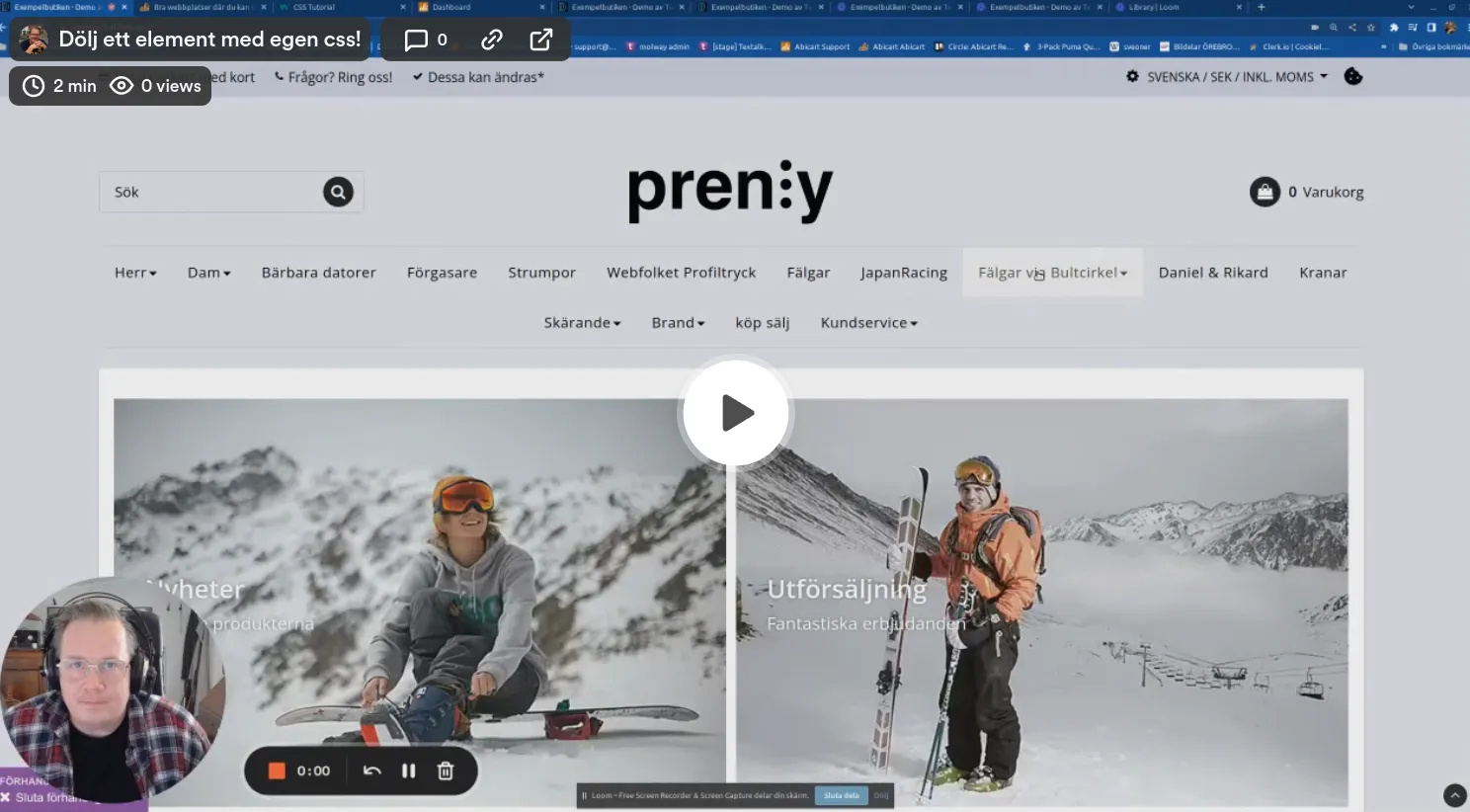
Hide a specific visual element using custom CSS and check that the change does not conceal important information or affect other pages.
The video supplements the steps below. Follow the store’s current labels and controls if the interface differs from the video.
This guide is for someone able to identify the correct element and edit the active theme’s CSS. In Diversity themes such as Fabrikk and Nordic, Custom CSS is in the theme’s style settings. In a TPL theme, styles are handled through that theme’s files and workflow; do not treat the Diversity field instructions as the same editor.
1. Identify the element and retain the previous CSS
Check which theme is actually active. Use the browser’s inspection tools to identify a narrowly scoped class or other appropriate selector for that particular element. Save the previous CSS so you can restore it. A broad selector matching many elements can disable large parts of the store.
2. Add a narrowly scoped rule
The example below hides elements that actually have the class example-note. This is an example, rather than a class present in every Abicart theme. Replace the selector with the actual element you identified.
.example-note {
  display: none;
}
In Diversity, open the relevant theme, go to the style settings and Custom CSS, add the rule without replacing other working rules, and save using the theme’s normal workflow. Custom CSS can apply across the entire site, so check more than the page where you started.
3. Check desktop, mobile and rollback
Check the intended page, another page with similar content, and both desktop and mobile views. Check that navigation, the buy button, price and terms information, and accessibility have not been impaired. Remove the new rule or restore the previous CSS if it matches the wrong element.
CSS hiding does not remove information from the page content, change a product price or provide access control. Do not use it to protect secrets or conceal mandatory customer information. A theme change can also alter element classes and make the old rule incorrect.
Quick start
- Identify the active theme and exact element.
- Save the previous CSS.
- Add a narrowly scoped rule.
- Check multiple pages and restore if incorrect.