


4 min read
How to Add Your Abicart Product Feed to Google Merchant Center
This is a two-step process:
- Prepare your product feed in Abicart
- Add the scheduled feed to your Google Merchant Center account
Mandatory Prerequisites
Make sure each product in your Abicart store has these fields filled out:
- Product number
- Product name
- Description and/or introductory text
- Product group
- Price
- GTIN (Global Trade Item Number)
- Google Taxonomy code
If you need additional attributes (e.g. store code, store address, certificates), go to Catalogue → Settings → Product attributes.
Let's break down Google Product Taxonomy, since it's the single most important factor for your products to appear in the Google feed. Even if every other mandatory field is filled out, a missing Google Taxonomy code will prevent that product from being included in your feed.
What Is Google Product Taxonomy?
Google Product Taxonomy is a hierarchical list of predefined product categories that Google uses to organize every item in its Shopping ecosystem. Think of it like nested folders, from broad categories (e.g. "Electronics") down to very specific ones ("Electronics > Computers > Computer Accessories > USB Hubs").
Why It Matters
- Better visibility & targeting
Assigning the correct Google Product Taxonomy ensures your items show up for the most relevant searches. When Google understands exactly what you're selling, it can match your products to shopper queries like "USB hub for MacBook" rather than generic "electronics." - Consistent classification
Using the official taxonomy prevents mismatches from homemade labels. Everyone, retailer, Google, and end-user, refers to the same category names and numeric IDs, which reduces errors and disapprovals in Merchant Center. - Simplified reporting & bidding
Once your items share a standardized category, you can group them in Merchant Center and Google Ads for bulk reporting, bid adjustments, and campaign structuring. For example, you can raise bids on "Electronics > Audio > Headphones" as one unit instead of tweaking each SKU individually. - Accurate tax calculation
In regions like the U.S., certain product categories carry specific tax rates. Providing the right taxonomy code lets Google automatically apply the correct sales tax rules, ensuring compliance and avoiding surprises at checkout.
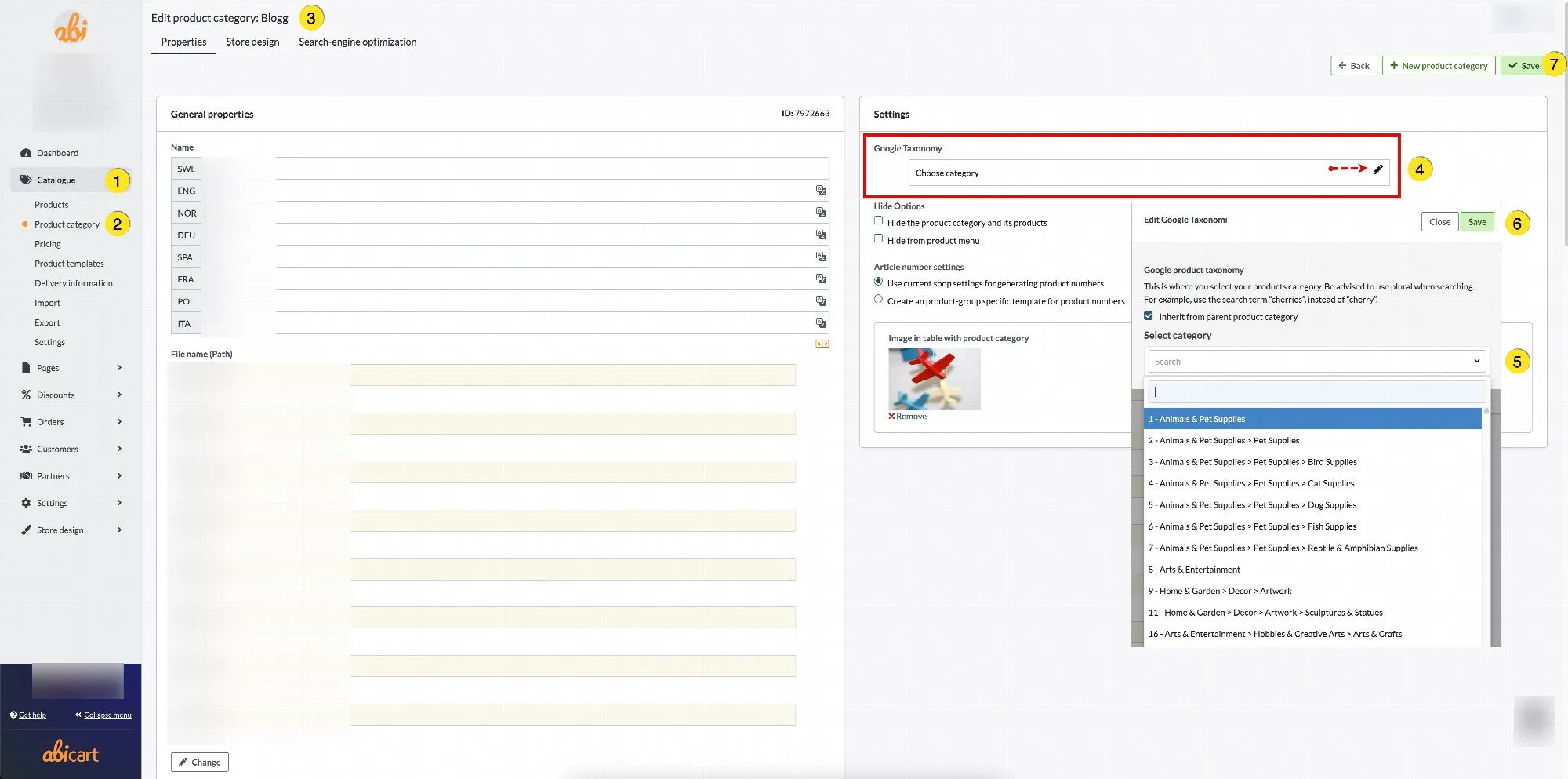
How to Add or Update Google Taxonomy in Abicart
- Catalogue → Product groups → Edit product group
Assign one taxonomy code to the entire group.
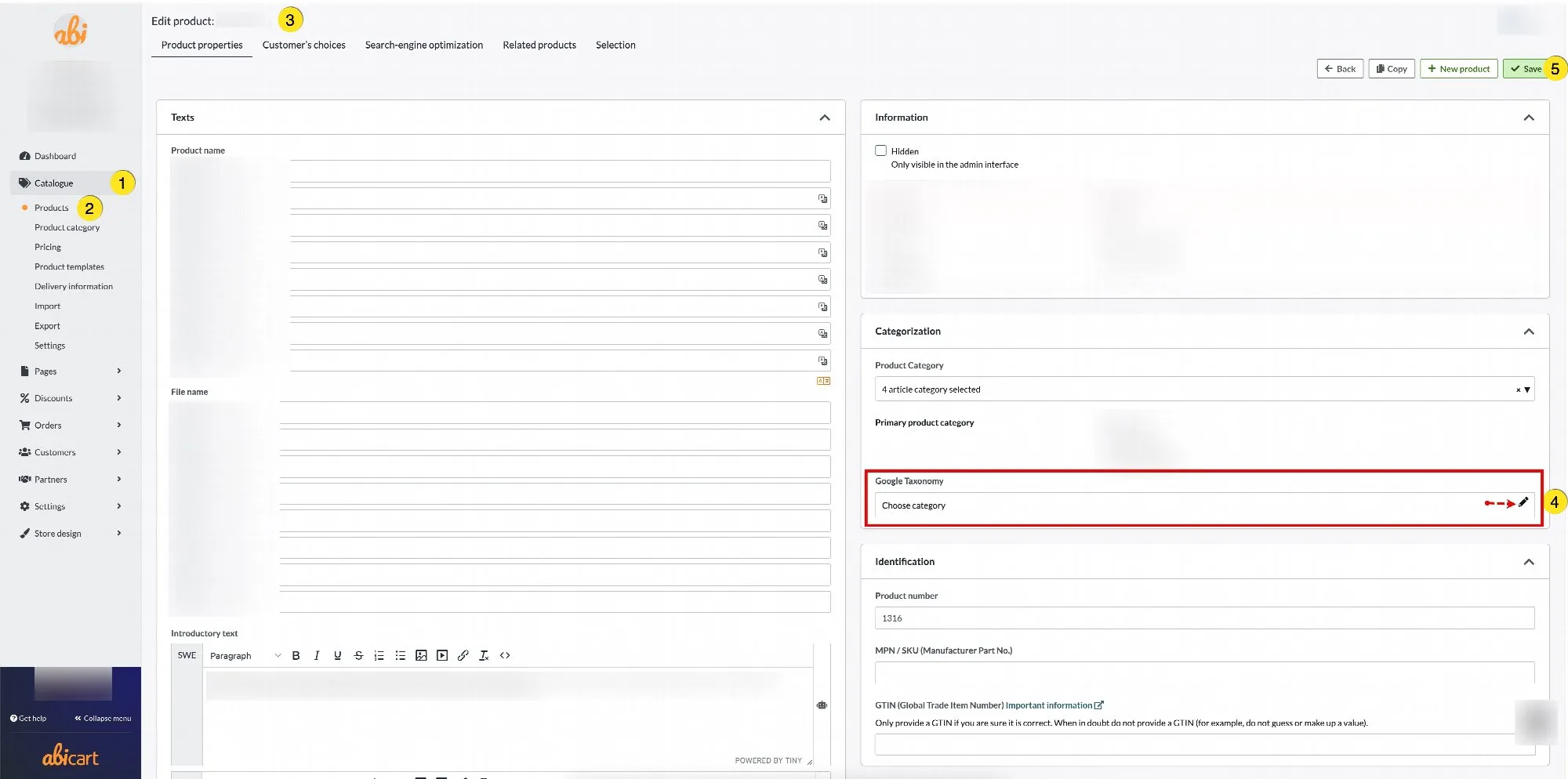
- Catalogue → Products → Edit product
Under Product category, enter a taxonomy code per product to override the group.
- Catalogue → Import
Create an import file with
product_numberandgoogle_taxonomycolumns and import for bulk updates.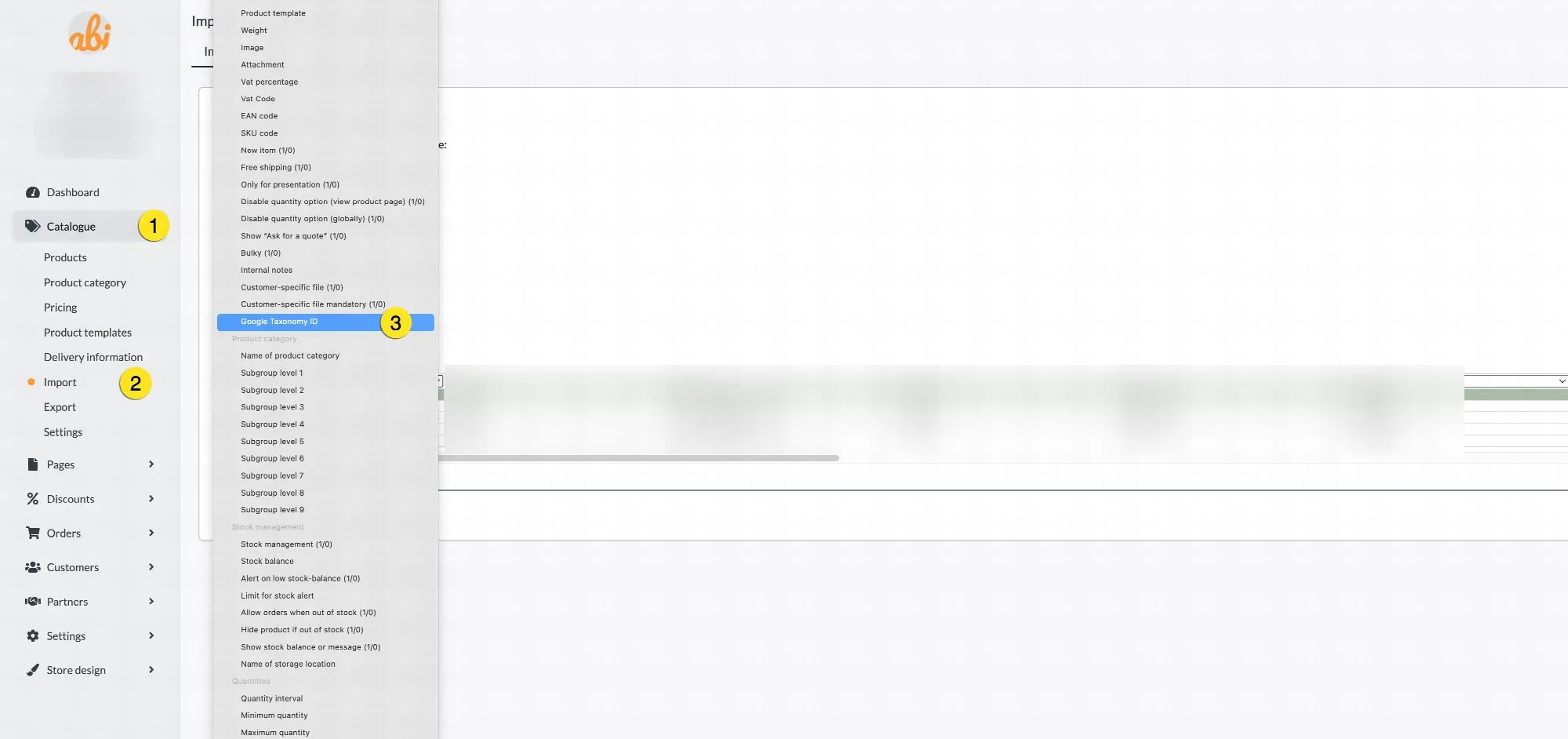
Generate Your Feed URL
- Go to Settings → External Connection (Apps) → Product feed → Google feed
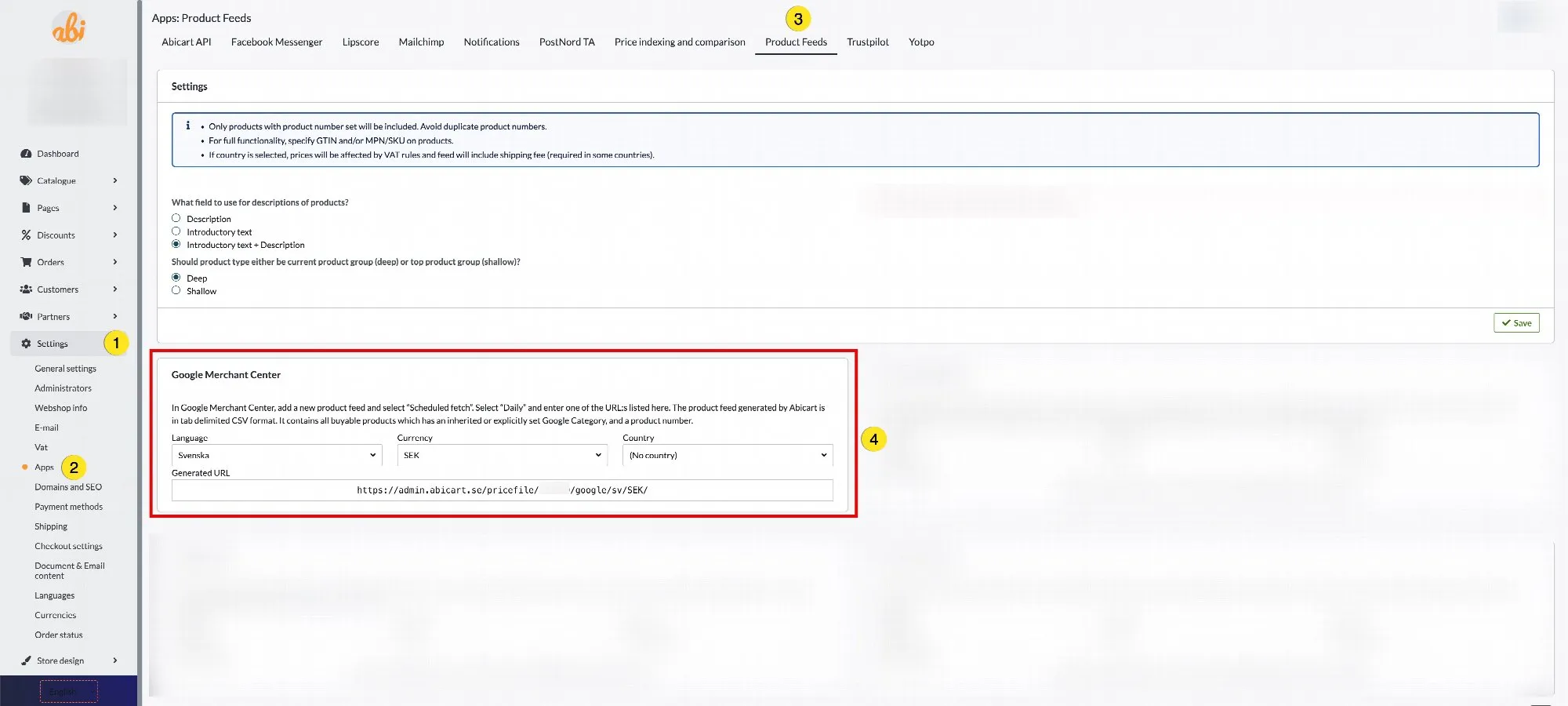
- Select Country, Language, and Currency
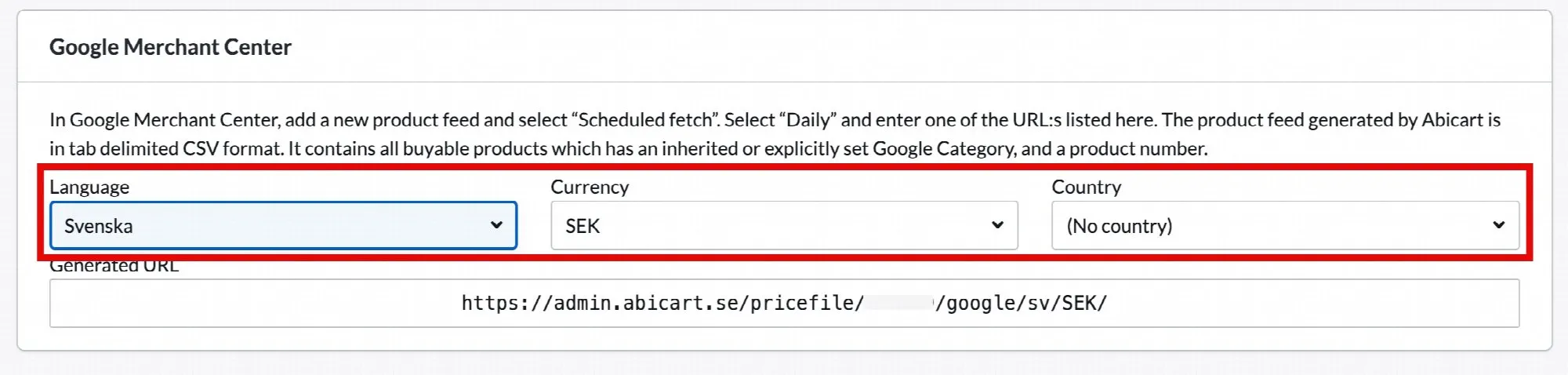
- Copy the final Feed URL that Abicart generates.
Note: Shipping info is only included if you select a delivery country here. If you prefer to set up shipping in Google Merchant Center directly, you can skip that selection.
Step 2: Add the Feed to Google Merchant Center
- Open Google Merchant Center
Go to https://merchants.google.com and sign in.
- Navigate to Feeds
Click Tools & settings (wrench icon) in the top right, then choose "Data Source".
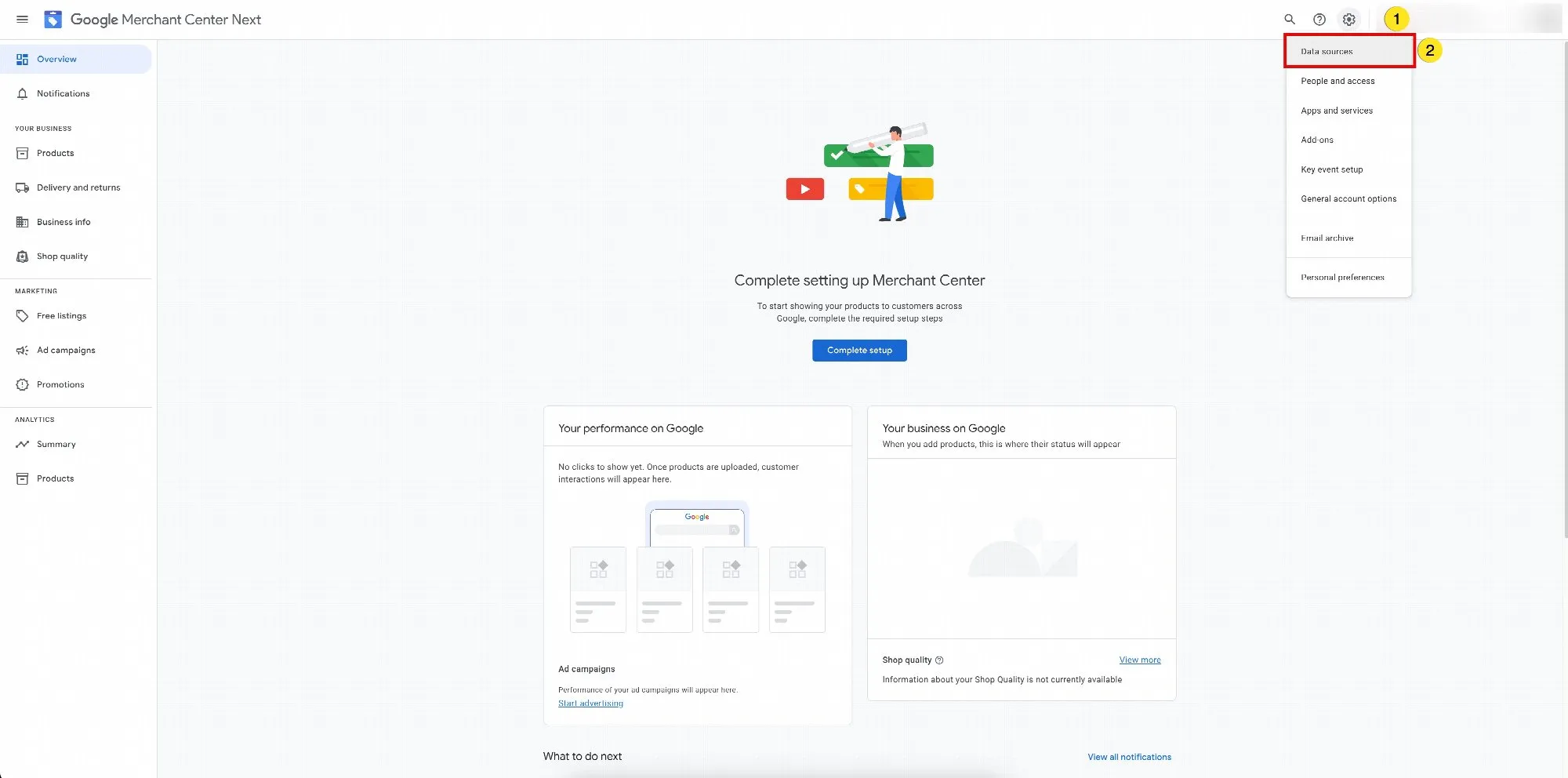
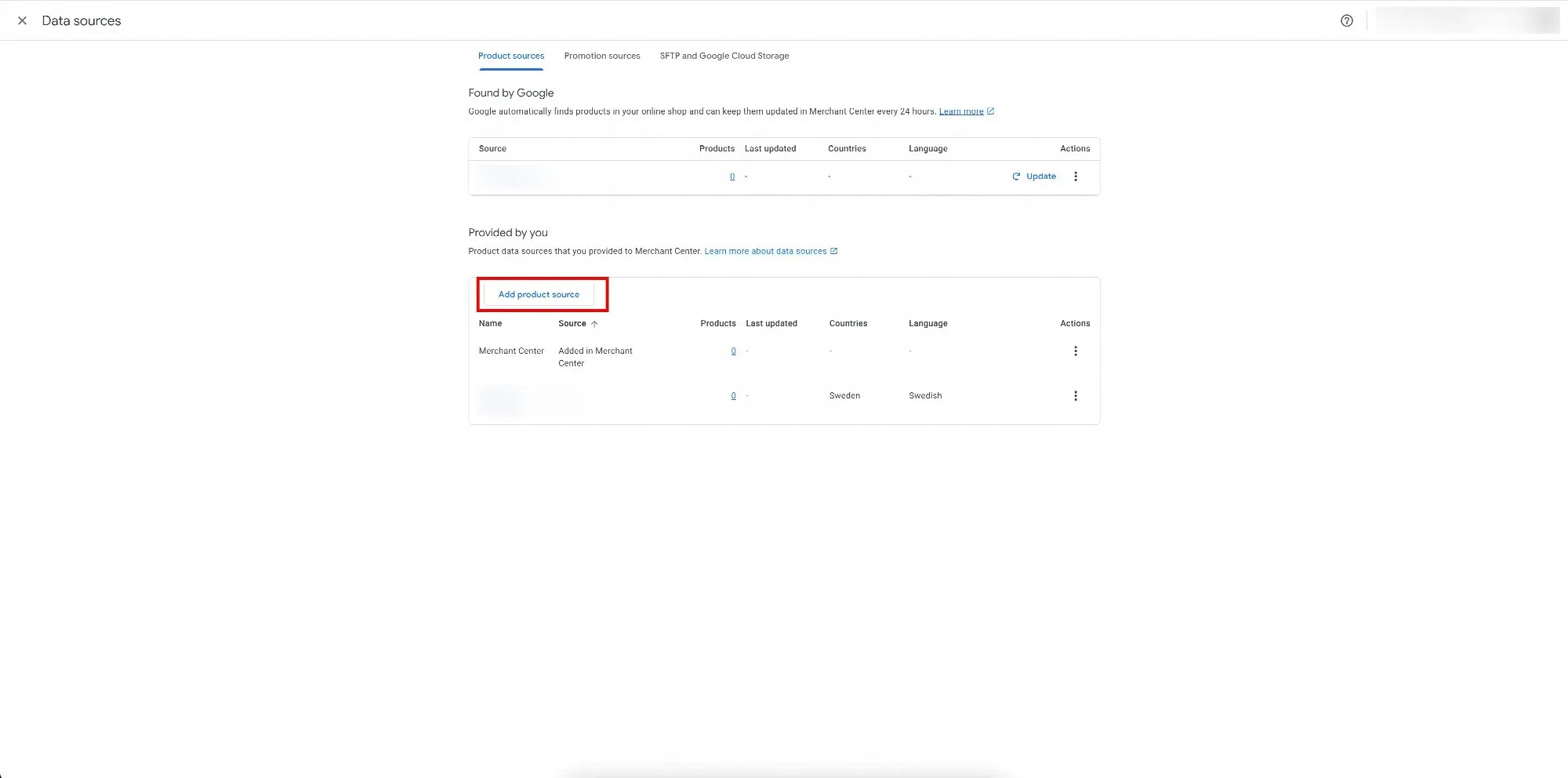
- Create a Scheduled Fetch
Click the + button and select Scheduled fetch.
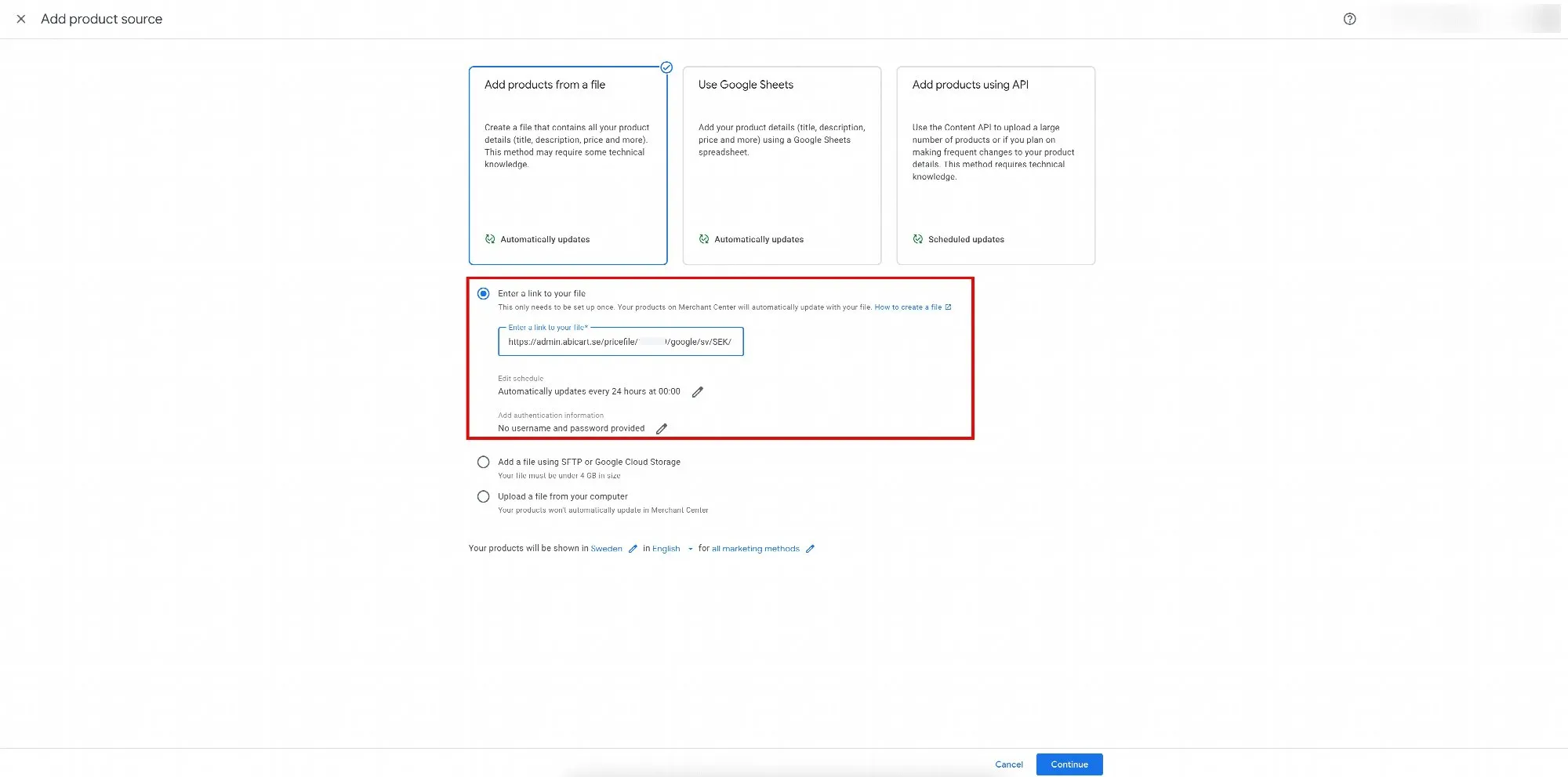
- Enter Feed Details
- Feed name: e.g. "Abicart Daily Feed"
- Country of sale & Language: match your Abicart settings
- Fetch URL: paste the URL you copied from Abicart
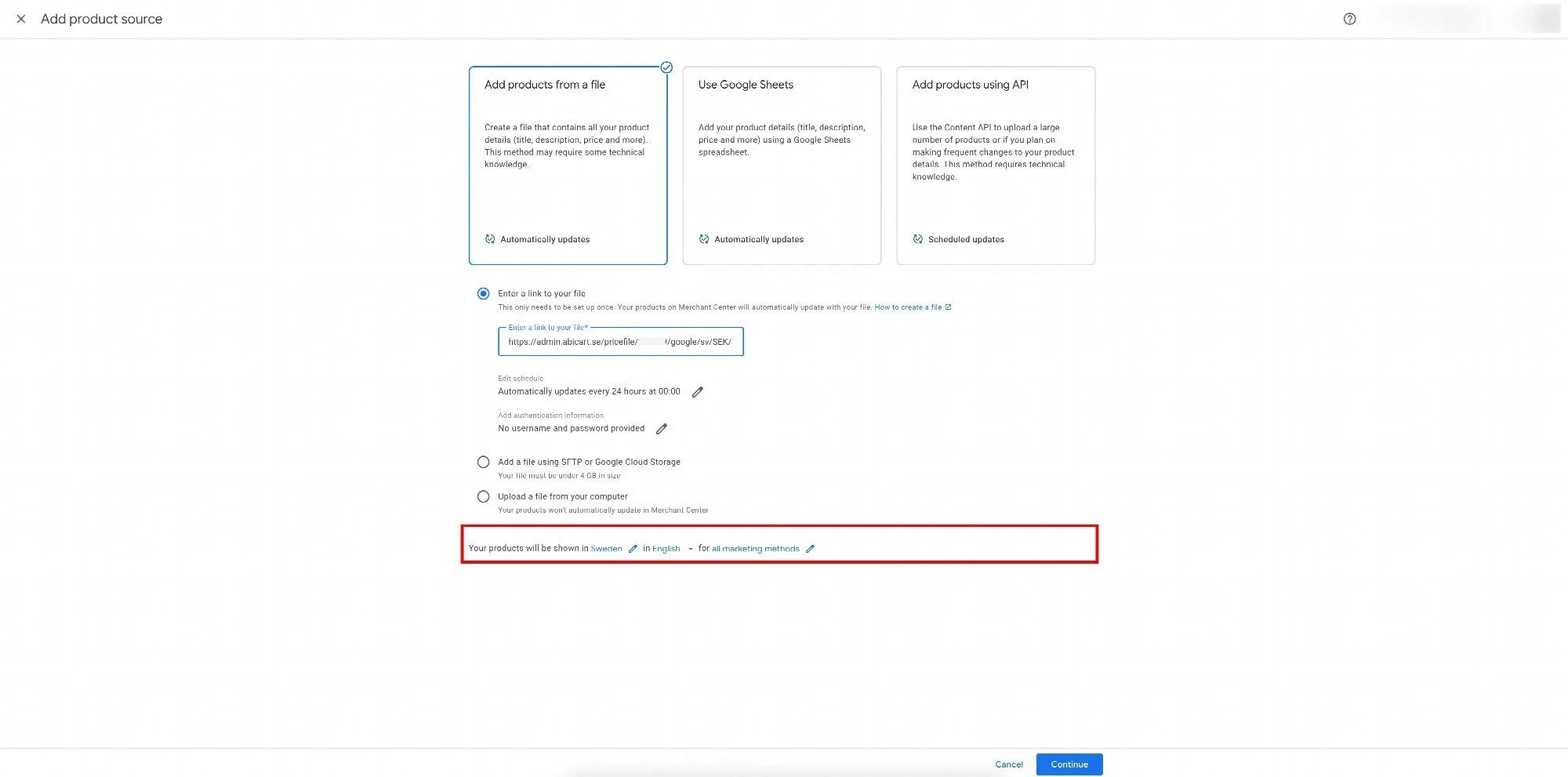
- Set Fetch Schedule
- Choose Frequency (Daily, Weekly, Monthly)
- Set the Time (in your account's time zone)
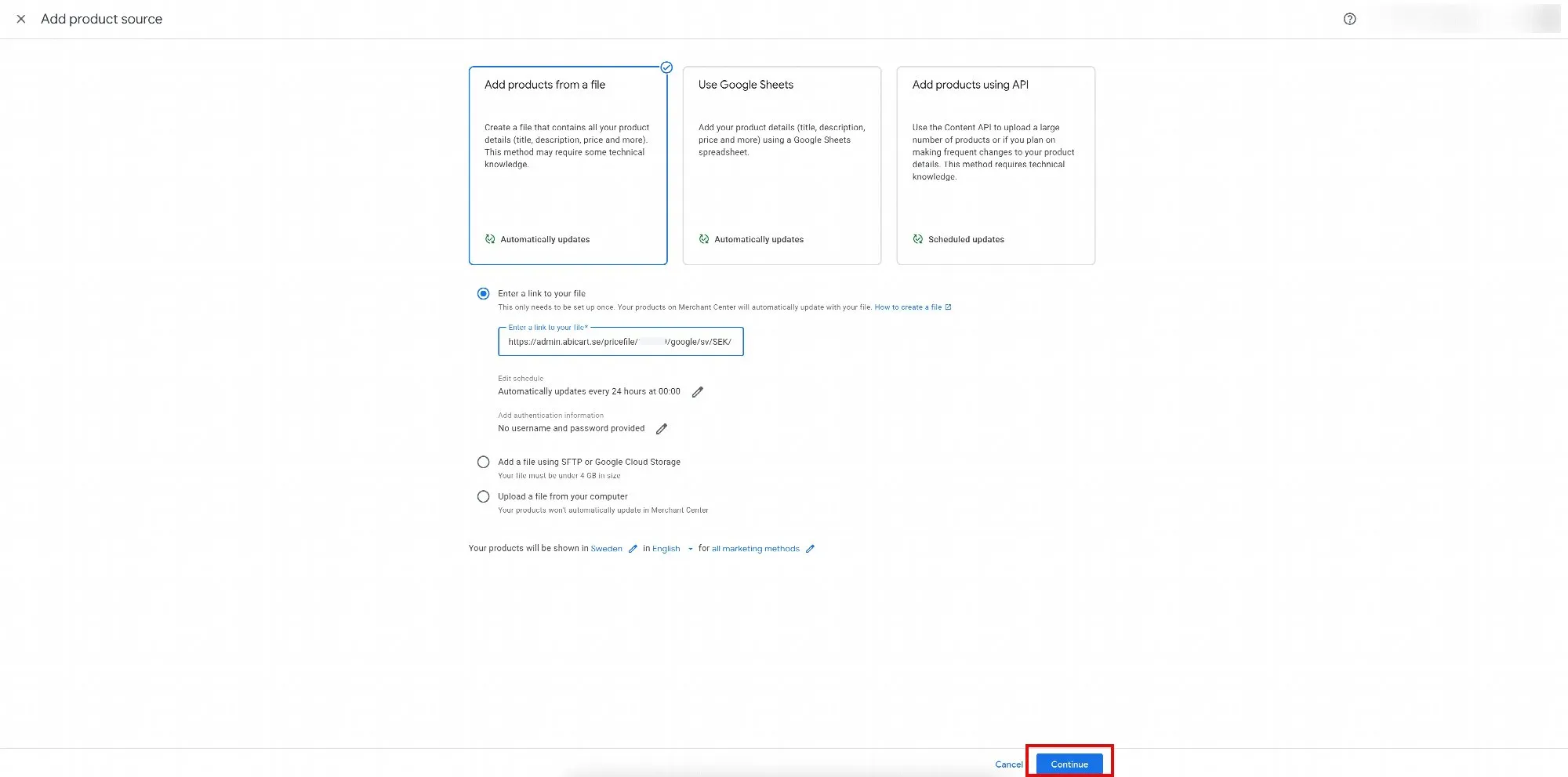
- Review & Create
Click Create Feed. Google will fetch your feed at the next scheduled time.
Tips & Troubleshooting
- Verify URL access: Open your feed URL in a browser to ensure the file loads.
- Monitor Diagnostics: Check the Diagnostics tab in Merchant Center for errors or warnings.
- Automatic Updates: Any changes in Abicart will be picked up at the next scheduled fetch.
With these steps, your Abicart product feed will be automatically synchronized with Google Merchant Center and kept up to date.