


-
Production - Attribute
31 Jul 2026
Production The Production attributes let you describe where and when a product was made, and who supplied or manufactured it. All fields are optional and can be shown to customers on the product page. Available attributes: Country of origin: the country where the product was manufactured Expiry date: the date after which the product should no longer be used or sold Production date: the date the product was manufactured Supplier: the name of the supplier Manufacturer: the name of the manufacturer Note: Check the visibility setting for each Production attribute before publishing your products, since this determines whether the information is shown to customers on the product page. Setting up Production attributes 1. Enable the attributes Go to Assortment → Products → Product Settings. In the panel on the right, locate the Product Attributes section. Scroll down until you find the Production heading. For each attribute you wish to use, click the edit icon and select your preferred visibility option, then click Save. 2. Add production details to a product Go to Assortment → Products and open the product you wish to edit. Scroll to the bottom-right of the product page. You will find the Production fields, where you can fill in the relevant details for each attribute. If you have any questions, please contact customer support.
-

Specification - Attribute
31 Jul 2026
Specification The Specification attributes let you record technical or regulatory details about a product, such as strength, type, and volume. These fields are optional and are private by default, meaning they are visible only to store administrators unless you choose to change this. Available attributes: Strength: the strength or potency of the product (e.g. alcohol percentage, dosage) Type: the type or variant classification of the product Volume (ml): the volume of the product in milliliters Note: These attributes default to Private. If you want customers to see this information on the product page, you need to change the visibility setting. Setting up Specification attributes 1. Review the attributes Go to Assortment → Products → Product Settings. In the panel on the right, locate the Product Attributes section. Scroll down until you find the Specification heading. For each attribute, click the edit icon and select your preferred visibility option, then click Save. 2. Add specification details to a product Go to Assortment → Products and open the product you wish to edit. Scroll to the bottom-right of the product page. You will find the Specification fields, where you can fill in the relevant details for each attribute. If you have any questions, please contact customer support.
-

Target Audience
31 Jul 2026
Target audience The Target audience attributes let you describe who a product is intended for. This information is used to guide customers to suitable products and can also be required for compliance in certain product categories. Available attributes: Adult content: indicates whether the product is intended for adults only Suggested age group: the recommended age group for the product Suggested gender: the recommended gender for the product Note: Suggested age group and Suggested gender matter most for categories like clothing, toys, and accessories, where the right value helps customers filter to products meant for them, for example separating kids' shoes from adult shoes, or menswear from womenswear. Fill these in whenever they clearly apply to the product. Setting up Target audience attributes 1. Enable the attributes Go to Assortment → Products → Product Settings. In the panel on the right, locate the Product Attributes section. Scroll down until you find the Target audience heading. For each attribute you wish to use, click the edit icon and select your preferred visibility option, then click Save. 2. Add target audience details to a product Go to Assortment → Products and open the product you wish to edit. Scroll to the bottom-right of the product page. You will find the Target audience fields, where you can fill in the relevant details for each attribute. If you have any questions, please contact customer support.
-

Activate the digital right of withdrawal feature and manage withdrawal cases
9 Jun 2026
Make it easy for the customer to submit a notice of withdrawal and keep the receiving, processing, and refunding separate. This guide is for store administrators in Go, Plus, and Pro. The digital right of withdrawal feature is available in all three plans. The legal requirement applies to distance contracts with consumers where a right of withdrawal exists; pure B2B trade is not covered by this consumer requirement. How the link is added depends on the active theme, language, and sub-store. 1. Understand the feature's scope The rules on the digital right of withdrawal feature apply from June 19, 2026. The customer must be able to submit a notice that they are exercising their right of withdrawal via a clearly accessible online interface and receive a confirmation of receipt. The receipt shows that the message has been received, not that the store has approved the case. The terms and exceptions for the right of withdrawal must be assessed separately; this article does not imply that all purchases have a right of withdrawal or an automatically extended withdrawal period. See Konsumentverket’s information about the change (in Swedish). 2. Get the correct system page linkPlace a clearly labeled link, for example "Cancel purchase", where the customer can easily find it throughout the withdrawal period. Check on both mobile and desktop, the correct sub-store, and public languages. A link only deep within the terms and conditions text is not sufficient if the feature is then difficult to find. The customer can also submit a clear notice of withdrawal in other ways; do not require a message already sent to be resubmitted through the form. Select the store/sub-store where the customer shops.Go to Pages → System pages → Cancel purchase.Copy the address in the field URL. Use the generated address for the correct store and language; do not write your own assumed path.Check the link in the public store. A disabled language can result in an inaccessible page even if a corresponding page works in the store's base language. Option A: Built-in link in the older theme editor's footer This path applies to themes that have the footer setting: Fabrikk from 1.6, Nordic/Hajde/Bountiful/Emporium/Trailblazer/Brew from 1.1, and Azalea from 1.2. Check the actual active version. TPL or another editor may have a different setup; in that case, use your own system page link according to option B and the correct editor. Open Appearance → Themes → Edit the active theme → Content → Footer.Turn on Link to right of withdrawal form. Adjust the link text if needed.Save and check that the link is visible and goes to the correct form. In this footer layout, it is displayed next to the address details. If the footer uses custom HTML blocks, for example in all four columns, add a regular text link in a suitable block according to option B. The absence of an address field does not prevent you from adding your own link. Option B: Link on a custom page or in an HTML block Copy the URL from the correct system page: Open the page where the link should be, for example Pages → System pages → Terms & info.Write a clear link text, for example, "To the withdrawal request form". Select it and choose the link icon. Paste the system page URL into the link field, save the link, and then save the page. Option C: Link in the menu Copy the URL from Withdrawal request.In the older theme editor, open Content → Menu. In Fabrikk, for example, the menu is located under Content → Header.Under Menu items: select Add → Custom link, paste the URL, and enter a clear link title.Add, save the theme, and check the public menu. Repeat the check for each affected sub-store and public language. A theme change can alter the link's position; check again after the change. 3. How the customer submits their declaration of withdrawal The customer opens the form and enters the order number and the email address associated with the order. If the order number and email match an order, the system attempts to send an identification link. The first form does not yet create a withdrawal case. The customer follows the link, checks the information, writes their message, and submits the declaration of withdrawal.The confirmation after the first form only means that the identification process has started. It does not confirm that the details matched an order or that the email was delivered. The identification link is valid for 24 hours; an expired link can be replaced with a new one. The link's validity period does not change the withdrawal period. In case of email problems, the customer needs to be able to contact the store directly to submit their message. Upon actual submission, the link and order are verified, the declaration is saved, and then the system attempts to send a receipt to the customer and a notification to the store. An email error does not delete an already saved declaration. Therefore, distinguish between a missing email and a case that was never submitted. 4. Process in admin and handle the order separately Open Orders → Withdrawal cases. New cases have the status New. Filter by, for example, All, New, Approved, or Denied. Open Details, read the customer's message, and make notes on the processing. Document the processing with the correct case status. The status change only affects the withdrawal case: it does not send an automatic decision email, cancel any order, or issue any refund. A valid withdrawal message submitted on time is not dependent on you later selecting Approved in admin. Assess any exceptions to the right of withdrawal separately and inform the customer of the outcome. Click the order number when you need to open the order and take the correct order or payment action. 5. Check emails, language, and common errors Identification email is missing: check the order number, the order's email address, spam folder, and the store's email sending settings. An initiated identification is not a submitted case.Receipt is missing: first check Withdrawal cases before the customer tries again; the declaration may have been saved despite the email error. If the case exists, ensure that the customer receives a readable and saveable confirmation of receipt without delay, stating what the message is about and when it was received.Wrong recipient/sender: open Settings → Email and use the withdrawal-specific sender/notification fields. The withdrawal-specific sender can be left empty to use the sender for order confirmations.Wrong language: the message text is based on the order's language, with the store's base language as a fallback. Also check that the public language is activated.404 or missing link: get the current URL from the correct sub-store's system page and check the active theme and language. A link to another store or an inactive language should not be used. Quick startGet the withdrawal page's URL for the correct store and language.Add a clear link in the correct active theme and check it publicly.Understand the difference between identification and actual submission.Ensure confirmation of receipt, process the case, and perform any order/payment action separately. Subscription and accessThe digital withdrawal feature is included in Go, Plus, and Pro. The built-in footer link depends on the theme and version; a system page link can be used when that setting is missing. The application of the legal requirement depends on the customer and agreement, not on the subscription.
-
Single Sign-On (SSO): configure and test SAML login
1 Jun 2026
With Single Sign-On (SSO), customers can log in to your online store using their existing company account. This guide applies to SAML 2.0 for customer login, not for store administrators' login. SSO is offered as an add-on in Abicart Pro and needs to be activated by Abicart Support. Ask support to confirm the service's price and scope for your store. Check for Abicart Pro and confirmed SSO activation. Have an administrator from your identity provider on hand.Create the connection in Abicart, exchange metadata with the identity provider, and save the attribute mapping.Test the correct store, new and existing customers, and their customer groups before SSO is required for everyone.Then, choose whether to keep standard password login. Automatic redirection and blocking other login methods are two different settings. Choose the right type of connectionSAML 2.0 uses metadata and attribute mapping as described in “Configure SSO in four steps”. OAuth2 and OpenID Connect (OIDC) use different settings. If you want to reuse an existing login from another website, support must first confirm which connection is suitable; do not paste SAML metadata as a solution for an OIDC flow.See the SSO add-on for Abicart Pro for the service's commercial information. The steps on this page apply to the SAML connection.What you'll need Have the following ready before you start: Access to the administration panel of your identity provider, such as Azure AD, Google Workspace, or Okta SAML metadata as XML or a URL from the identity provider SSO activated on your Abicart account by Abicart Support Administrator permissions in Abicart Admin Configure SSO in four steps 1 Create your SSO configuration in Abicart Admin Go to Settings > Single-Sign-On in Abicart Admin and add a new configuration. Give it a name, for example, your company's name, and save. When you save, Abicart's metadata URL for the configuration is created. You can find it on the same page under URL to Abicart metadata. Copy the URL directly. You don't need to type anything or fill in any IDs manually. ✓ Tip Keep this page open in a tab. In step 3, you will return here and paste the metadata from the identity provider. 2 Create a SAML application with the identity provider Create a new SAML application for the online store with your identity provider, for example, Microsoft Azure AD. Then paste the Abicart metadata URL that you copied in step 1. ✓ Tip In Azure AD, the identity provider's metadata URL, which you need in step 3, usually looks something like this: https://login.microsoftonline.com/{tenant-id}/federationmetadata/2007-06/federationmetadata.xml?appid={app-id} 3 Enter the identity provider's metadata in Abicart Go back to the SSO configuration from step 1 and fill in the following: Identity provider's metadata (XML or URL)Metadata as XML or a URL from the identity provider in step 2. MappingAttribute mapping in JSON format. See the default mapping below. Default mapping for Microsoft Azure AD: { "sub": "http://schemas.xmlsoap.org/ws/2005/05/identity/claims/emailaddress", "name": "http://schemas.microsoft.com/identity/claims/displayname", "family_name": "http://schemas.xmlsoap.org/ws/2005/05/identity/claims/surname", "given_name": "http://schemas.xmlsoap.org/ws/2005/05/identity/claims/givenname", "email": "http://schemas.xmlsoap.org/ws/2005/05/identity/claims/emailaddress" } Check which customer account the login opens. The value in sub identifies the customer account. Verify that the value is unique to the correct person and comes from the trusted identity provider. Do not change the mapping for existing customers without first checking how their accounts should be linked. A successful login is not enough: check the correct customer account, order history, and permissions for both new and existing customers. The most important settings: Active: Must be enabled. Otherwise, the configuration will not work. Create missing customer on login: Enable this setting if a customer account should be created automatically when the customer logs in for the first time. Update existing customer on login: Enable this setting if the customer details should be updated from the identity provider on login. No other login methods allowed: Leave this setting disabled if standard password login should still be possible. More information is available below. 4 Save and test Click Update to save and then on Test to try the login flow. First, test with a designated test account. Check a new and an existing customer, the correct customer group, and which store the customer ends up in. If it doesn't work, compare the metadata URLs and attribute mapping with what the identity provider actually sends. Keep an agreed-upon fallback path for customer login until the tests are complete. Using SSO in a multi-store Each online store has its own SSO configuration. This means that different online stores within the same multi-store can have different login solutions. Store A can require SSO for all users. Store B can offer both SSO and standard login with a password. Store C can continue to use only standard password login. SSO configuration and automatic redirection are set per online store. Other stores keep their own login settings. However, customer accounts can be shared with the main store. If the setting Update existing customer on login is enabled, the name and email address on the shared customer account can be updated upon SSO login in a sub-store. Therefore, also check how the update affects the same customer account in the other stores where it is used. Separate SSO settings do not automatically mean separate customer registries. Choose how customers log in The login can be configured in three different ways, from the most flexible option to the most restrictive. Choose the solution that best matches how your customers should log in. 1. SSO as the primary login method Customers log in via the identity provider. This option is suitable when SSO is to be the primary login method, but customers do not need to be automatically redirected as soon as they visit the store. Can be configured in Admin: configure and test the SSO connection directly in Abicart Admin. 2. SSO and standard login are displayed together Customers see both options on the login page and can choose between SSO and standard login with an email address and password. The login page needs to be configured to display both options. Requires help from Abicart Support: contact support to configure a login page that offers both options. 3. SSO is required for everyone, with no standard login alternative Customers who are not already logged in are automatically redirected to SSO as soon as they visit the store, before they reach the standard login page. Therefore, it is not possible to use password login as a fallback solution. Requires help from Abicart Support: contact support to add automatic SSO redirection to the active theme. ! Only choose this option if all customers should log in via the identity provider. The automatic redirection prevents customers from reaching the standard login page. i About the “No other login methods allowed” setting This setting is separate from the automatic redirection. Enable it only if other login methods should be completely blocked, even via a direct link to the standard login page. Customer groups based on SSO configuration If multiple SSO configurations are linked to the same online store, each configuration can automatically place customers in its own customer group. This makes it easier for multiple companies to use the same online store and at the same time get different prices, product ranges, or other customer group-specific settings. Example: Customers who log in via the SSO configuration for Company A can be placed in the customer group A Staff. Customers who log in via the SSO configuration for Company B can be placed in the customer group B Staff. Customers who log in via the SSO configuration for Company C can be placed in the customer group C Staff. The connection is made per SSO configuration, not by having any email domain automatically select the customer group. The customer group is assigned when the customer logs in through the relevant SSO configuration, for both new and existing customer accounts. The assignment adds the selected group; it does not mean that the customer's other groups are removed. Therefore, check the customer's combined groups and what prices and product ranges they provide access to. Available in Admin: each SSO configuration can be linked to its own customer group via the setting Assign to customer group. Important URLs Abicart's SSO metadatahttps://saml.abicart.com/{SHOP_ID}/{SSO_ID}/meta URL for testing and SSO loginhttps://saml.abicart.com/{SHOP_ID}/{SSO_ID} SSO settings in AdminAbicart Admin > Settings > Single-Sign-On. Check the correct store and the names of existing configurations if you cannot find the connection you are looking for. Need help? Whether you are configuring your first SSO connection, using multiple identity providers, or planning a solution for a multi-store, we are happy to help. Contact Abicart Support, and we will help you with the configuration. Troubleshoot the loginSymptomCheck and next steps The SSO configuration cannot be foundCheck the selected store, permissions, and the configuration's name. A missing menu item does not prove that an existing SSO connection is disabled. Contact support if you still cannot find it. The identity provider rejects the loginAsk your IT administrator to check the assigned user, current metadata, certificate, Identifier/Entity ID, and Reply URL/ACS against Abicart's metadata. Do not use example addresses from another application. Login works but the customer gets the wrong group or product rangeCheck which SSO configuration the customer used, its setting Assign to customer group and the customer's existing groups. Log in again after making a correction and check the result in the correct store. Standard login cannot be reachedCheck both the automatic redirection in the theme and No other login methods allowed. Get help from support and your IT administrator before enabling more restrictions. When contacting support: provide the store, configuration name, time, error message, and whether the error occurs with the identity provider or in Abicart. Do not send passwords, login tickets, or an unedited SAML response with customer data in a regular support request.
-

Product feed: Prisjakt
28 Apr 2026
Product feed for Prisjakt. A product feed contains important data about your products. Among other things, product names, manufacturers, prices and product codes (GTIN/MPN). The product feed can be found under Settings -> External connections -> Product feeds.Note that this is our new feed for Prisjakt. You should use this instead of the previous price files found under Settings -> External links -> Price comparison system. What properties must be filled in on the product? For a product to be included in the feed, the following properties must be entered: article number product name description and/or introductory text product group price Brand name* or GTIN Google Taxanomi * activate brand name under Assortment -> Settings -> Product attributes Google Taxonomy You can choose taxonomy on the product group or on the product. If you choose on the product group, all products in the group will inherit the selected taxonomy. Enter Google Taxonomy on a product Go to Products -> select a product, edit -> in the box "Categorization" on the right there is Google Taxonomy. Enter Google Taxonomy on a product group Go to Products -> Product groups -> select a product group, edit -> under General there is Google Taxonomy.Enter for example "clothes" in the search bar and choose the category that fits best. You can also set a category on an entire product group/subgroup and choose that the products in that group will inherit the category (then you do not have to go into each individual product): You can't create your own categories, everything is retrieved from Google. You must therefore choose one of the existing ones. Generate URL to the product feed Go to Settings -> External links -> Product feeds. In the "Prisjakt Feed" box, select language, currency and country. Then copy the "Generated URL" and add it to Prisjakt's administration. The feed will then contain all products in the store that have the required properties (see above).
-

Setting Up a New Language
13 Apr 2026
This guide explains how to add and configure a new language in your Abicart store covering translations, domain setup, shipping, VAT, and product feeds. Finnish is used as the example throughout, but the same steps apply to any language. Follow the steps in order. Steps 1 and 2 must be completed before the remaining settings become available in your store.1. Activate Language and Currency Begin by enabling the new language and adding its corresponding currency. Once activated, additional localization settings will appear throughout your store administration. Activate the language Navigate to: Settings → Languages Locate the language you want to add and set it to active. If you do not want the language to be visible to store visitors yet, set it to Hidden — the language fields will still be available in your administration panel. Add the currency Navigate to: Settings → Currency Select Add currency and choose the appropriate currency for the target market (for example, EUR for Finland). 2. Translate Your Store The recommended approach for translating store content is to export all texts to a file, complete the translations, and re-import. This covers the majority of your translation in a single operation. Export content for translation Navigate to: Settings → Languages → Export Configure the export options: Translate from - Select your current primary language (the language content is written in). File format - XLXS recommended. It opens directly in Microsoft Excel or LibreOffice Calc. Data to include - Select all content types: Articles, Article groups, Delivery methods, Payment methods, Delivery information, Article template, Own pages, and Theme. Click Export. The file is downloaded to your computer. Complete translations in the file Open the file in a spreadsheet application. It contains three columns: Column A (key) - Internal identifier. Do not edit. Column B (content) - Source language text. Column C (translation) - Enter your translations here. Leave columns A and B unchanged. Important: Do not make changes to your store between export and import. Translation strings are matched by their key values. Modifying store content before importing the translated file may cause mismatches. Import the translated file Navigate to: Settings → Languages → Import Select the target language, choose the translated file from your computer, and click Import. If importing a CSV file, ensure: The file is saved with UTF-8 character encoding. The delimiter is set to comma. For full documentation on this process, see: https://www.abicart.com/support/assortment/import-and-export/translations-exportimport-texts-in-multiple-languages 3. Configure Shipping and VAT Each market requires its own shipping methods and tax rates. These must be configured correctly before the new language is made publicly available. Add a shipping method Navigate to: Settings → Shipping Select Add shipping method and configure an option applicable to the target country. Add the VAT rate Navigate to: Settings → VAT Add the correct VAT rate for the target country. Consult the local tax authority for the applicable rate. 4. Email Content and Other Texts If your store uses customised transactional email templates — such as order confirmations, shipping notifications, or invoices — these must be translated separately. Translate email templates Navigate to: Settings → Documents → Email Content Add a translated version of each template for the new language. Other texts Some content, such as discount names, is managed within its own section and must be translated manually. The export/import workflow described in Step 2 covers all standard storefront and theme content. 5. Add a Language-Specific Domain You can associate a separate domain with each language. For example, Finnish customers could be served from a .fi domain while your primary store uses .se. Register the domain Navigate to: Settings → Domain & SEO → Domain Enter the new domain address and save. Connect the domain to the language Navigate to: Settings → Domain & SEO → URL Settings A section for each activated language is shown. Select the domain you registered from the drop-down for the relevant language. Note: This step can be completed at any point after Step 1. The domain assignment does not affect the translation or shipping configuration. Make sure to have the language set to “active” before this step. 6. Create Language-Based Product Feeds If you advertise on Google Shopping or Meta (Facebook/Instagram), you can generate a separate product feed for each language and currency. Navigate to: Settings → External Connections → Product Feed Select the target country, currency, and file format. The system generates a feed URL for that language and currency combination. Use this URL when configuring your feed in Google Merchant Center or Meta Commerce Manager. Note: Ensure the correct currency is selected. An incorrect currency selection will result in wrong prices being displayed in your advertising campaigns. Checklist Before Launch Use this checklist to confirm all steps have been completed before making the new language available to customers. Language activated under Settings → Languages Currency added under Settings → Currency Translations exported, completed, and imported Shipping method configured for the target country VAT rate configured for the target country Email content translated (if using custom templates) Domain registered and connected to the language (if applicable) Product feed generated for the language/currency (if applicable)
-
Change domain in live webshop
10 Apr 2026
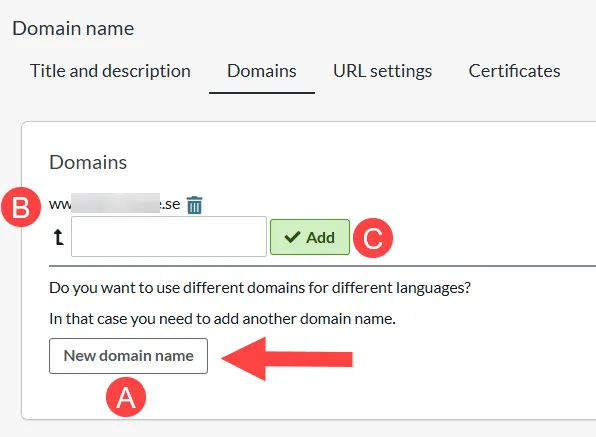
This manual shows you how to change the domain of a webshop that is already active (live). For example, if your online shop changes its name after a few years.Step-by-step: 1. you have purchased your new domain 2. point the new domain to Abicart according to this manual: Domain: Connect a domain to your webshop *Point the domain both with and without www. 3. insert the new domain under the old one and wait 24 hours.Settings >> Domains & SEO >> Domains >> New domain name >> Enter the domain >> Add >> Add www. domain as subdomain >> SaveNOTE!It may take 1-24 hours before the domain is correctly pointed (step 2) and you can continue with step 3. If it is not possible to add the domain immediately, wait 1 hour at a time until it is possible to add the domain as a subdomain. 4. After the new domain has been a subdomain for 24 hours , delete it from the list of subdomains and add it as a new domain name. 5. Go to URL settings and change the domain name for the store language >> save.Now set the new domain as the main domain. We go through how to do this in the linked manual.*Also edit the language prefix and suffix as desired. See the same manual as above. 6. Now put the old domain under the new domain: i) Go back to "domains" and copy your old domain and main domain and paste into a document.ii) Delete the old domains from the list in admin to be able to move them (delete subdomain first, then main domain)iii) Add the old domains as subdomains to the new domain name, one domain at a time (e.g. by copying the domains from the document where you just pasted them). See picture:A: New domain name - Here you enter your new domainB: Domain name - Your new main domainC: Add - Here you enter your subdomain. If the customer has a link with the subdomain, it will automatically redirect to the main domain. Once this is done, the redirection from the old domain to the new domain will happen automatically. So a customer clicking on an old link will be redirected to the same page with the new domain (if the page still exists). 7. what's left to do: - Contact any payment methods and inform them that you have changed domainThe same goes for any external tools, such as Google tools: update the service with your domain change.Then it's done!
-
Shipping and delivery: Pick up in store
2 Mar 2026
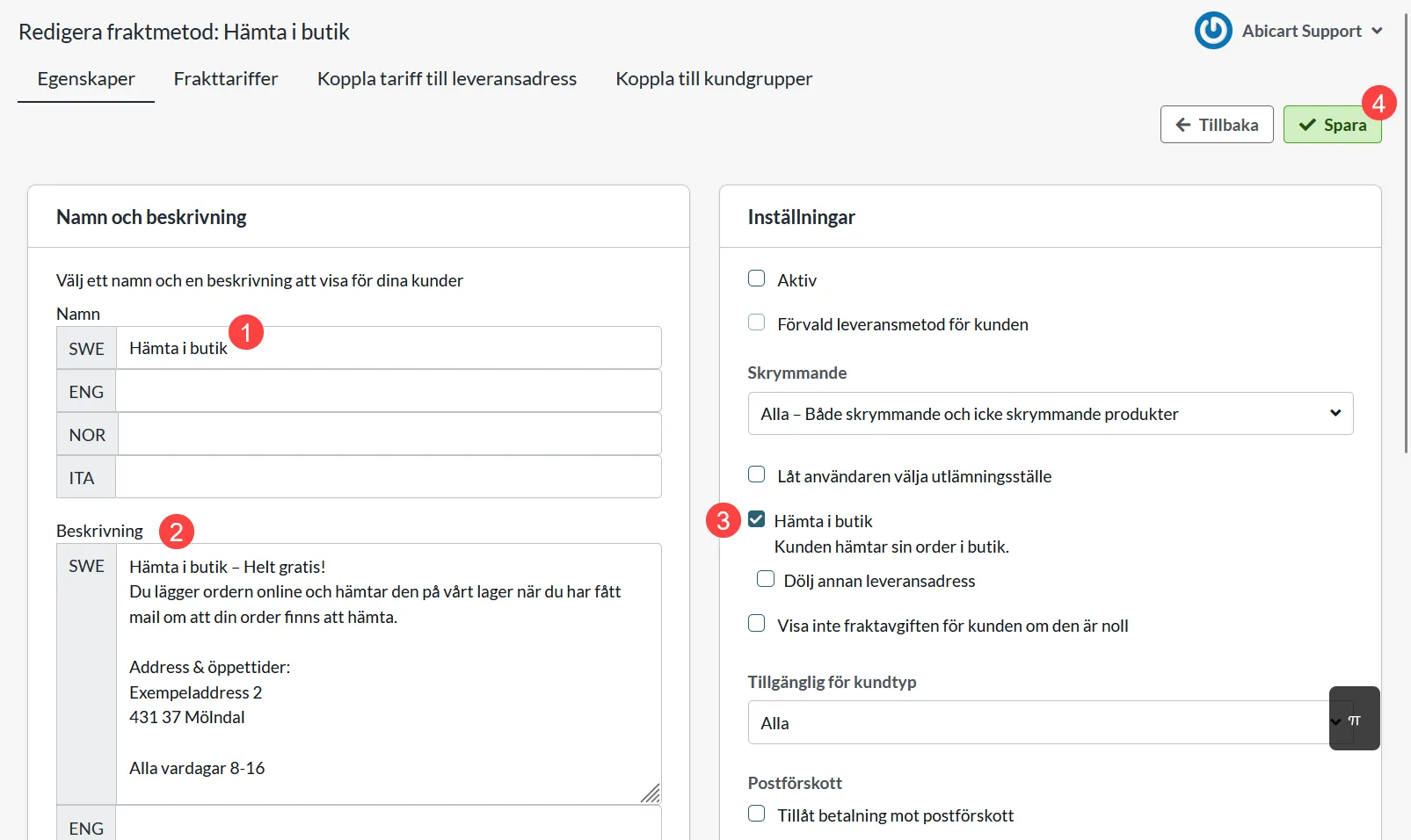
Create a delivery method for pickup in your physical storeBefore creating a shipping method, it's a good idea to watch our video guide and read this manual: Shipping and delivery: How do I create my shipping methods? Video guide Download in store Settings >> Shipping >> +New shipping method 1) Create a new shipping method and name it 2) Enter a description 3) Check the box "Pick up in store"Checking this setting is important as it excludes the delivery method from your product feed. Without this setting, misleading information about the free delivery method will be sent to Google. 4) Click on Add 5) Click on Shipping Tariffs >> Introduce new tariff 6) Name the tariff 7) Click on Add 8) Click on Link tariff to delivery address 9) Click on the arrow for countries within the EU* *If your store or warehouse for collection is located in a country other than the EU, select the section that lists the country. 10) Click on the country 11) Click on the tariff you recently created 12) Save Now you see that a country has an active tariff: 13) Click on Properties >> Check Active to activate the delivery method 14) Save Done!
-

Qliro Checkout
23 Jan 2026
What is Qliro?In today's e-commerce, payment is a crucial part of the customer experience - and a key driver of growth. Qliro is one of the leading companies for modern commerce and helps e-retailers increase sales, loyalty and profitability through a checkout built for results. With modular technology, data-driven insights and a focus on conversion, Qliro creates a smooth and secure payment experience for the end customer.How do I get started with Qliro Checkout? Contact Qliro on their website and get a demo. Add Qliro Checkout to your store Go to Settings -> Payment methods -> Add new payment method. Select "Qliro Checkout" in the list and then click "Add". You will then be taken to the settings page. Status ActiveCheck to activate and make the payment method visible in the store.DefaultA setting to make the payment method default at checkout.Make available only to those customers or customer groups where I specify it.If you do not want all customers to be able to use this payment method, you can deactivate it for non-logged-in customers through this setting. You then go to the respective customer group to activate the payment method there. Available for customer typeYou can set the payment method to be available only for one customer type or all. Require buyer to enter personal/organization numberCheck to make the personal/organization number mandatory at checkout.Send confirmation of payment status to the store ownerA setting to enable a separate payment status email for this payment method to be sent to the store owner.Turn off the purchase of gift card products with this payment methodEnable a setting to disable the gift card product type from being purchased with this payment method. Qliro settings The next block contains fields for Qliro data provided by Qliro Merchant API Key - Data you receive from Qliro Merchant API Secret - Data you receive from Qliro. Activate test mode - Activate for test mode Privacy Policy Page - Select the page that contains your privacy policy. This is a requirement from Qliro. Name and Description Name of payment methodEach payment method has a name that will be displayed in the checkout, but if you want to modify this, you can enter a new name in this field. An optional field that can be left blank. Detailed descriptionA field to enter a text that informs the buyer about how the payment method works. Can be left blank. Currencies If you have several active currencies in the store, you can limit these for each payment method. The default setting is "All the store's activated currencies", but if you check "Specific currencies", all active currencies are displayed and you can choose to disable those that should not apply to this payment method. Countries The default setting of the payment method is that it applies to all countries to which the store offers delivery (Settings -> Shipping). If you want to restrict a payment method to only certain countries, you can check "Specific countries" and then specify the countries that can use this payment method. Order status If you want orders placed via this payment method to have a specific order status, you can set it here. Select the status from the list. Limitation with regard to order total A setting to limit the amount that a payment method can process. If you choose to limit the amount between two intervals, it is always the total order value including shipping and other fees. Fee to be added at checkout when ordering A function to add an extra fee to the purchase, such as a handling fee.
-

Integrating ShipNordic with your Abicart Store
14 Jan 2026
ShipNordic provides automated solutions for shipping and order management, specifically designed to simplify logistics for small to medium-sized e-commerce businesses. By integrating ShipNordic with Abicart, you can automate your shipping workflows, offer flexible delivery options, and manage returns efficiently.Key Features of the Integration Automated Shipping: Streamline your order fulfillment process. Customer Choice: Let your customers choose their preferred delivery points. Easy Returns: Simplify the return process with QR codes and clear overviews in your admin panel. EU-Based: All data is hosted on servers within the EU for maximum data protection (GDPR compliance). Video Tutorial: How to Set Up ShipNordic in Abicart The easiest way to get started is to follow our video guide. This video walks you through the step-by-step process of connecting your Abicart store to the ShipNordic platform. https://www.youtube.com/watch?v=p_oLuD9DHRw Step-by-Step Instructions If you prefer written instructions or need to troubleshoot specific settings during the connection process, please refer to ShipNordic’s official documentation: How to connect your Abicart store to ShipNordic Summary of the Setup Process Log in to your Abicart admin panel. Follow the steps shown in the video above to generate the necessary API credentials/connection. Configure your shipping methods within ShipNordic to match your Abicart settings. Test the integration by processing a sample order to ensure labels and tracking are generated correctly. For further assistance regarding your ShipNordic account or specific shipping rates, please contact ShipNordic support directly.
-

Rule Integration
28 Nov 2025
Synchronize order data from your e-commerce store and deliver accurate marketing. Description Article no.: 1239 The integration to Rule is included in the PRO subscription How does the integration with Rule work? It is an integration that exports customer data from orders and the customer register to Rule. What is needed to use Rule? The PRO subscription + that you get a subscription with Rule. You do this on their website www.rule.se. Create and retrieve API data on Rule.se Log in to rule.se. Click on your username in the upper right (1) and then on "Settings" (2). Click on the "Developer" tab (1) and then on the "New API key" button (2). The API key is a password of about 30 characters and contains mixed numbers and letters. Click on the copy button to the right of the API key. Log in to the store and go to Settings -> External connections -> Rule. (Contact customer service to have Rule added under External connections). Check the Active box, then paste the API key you created in Rule admin in the "API Key" field and save. Order exportCheck this box for the product prices to be displayed incl. VAT in the mailings from Rule to the end customer. Connection - If the key entered is correct, a link will appear that says "Log out of Rule". This means that the store has connected to Rule. Initial Exports - A setting to enable an export of all customers in the customer register. It also requires that "Export Customer List" under "Event Settings" is enabled. Export order - Enable the export of new orders by selecting "Order has changed" under "Activation" and "Update directly" under "Run. Export customer list - Enable the export of new customers by selecting "Customer has changed" at "Activation" and "Update directly" at "Run. Export Abandoned Carts - Enabling the export of abandoned carts gives you the possibility to remind your visitors who have added items to their carts but not completed the purchase. Show more
-

Single sign-on (SSO) capability for customers. SAML or Oath2. (Additional service)
28 Nov 2025
Let your customers log in to your store with single sign-on (SSO) via SAML or Oath2.Additional service in Abicart Pro, 799 SEK/monthEasy and secure logins with Single Sign-On in Abicart Abicart strives to improve the customer experience for both businesses and consumers by offering innovative solutions and services. One of these services is the ability to offer Single Sign-On (SSO) via SAML or Oath2. This is an additional service for Abicart Pro customers, which aims to simplify and secure the login for customers. Read on to understand how SSO can improve your e-commerce platform.What is Single Sign-On (SSO)?Single Sign-On (SSO ) is an authentication process that allows users to log in to multiple related but independent software applications with a single login. This means that customers do not have to remember multiple usernames and passwords for different platforms, providing a smoother and more user-friendly experience.SSO via SAML or Oath2:Abicart offers SSO integration via two popular and secure standards: SAML (Security Assertion Markup Language) and OAuth2 (Open Authorization 2.0). Both standards enable secure and reliable authentication between your e-commerce platform and third-party services. Benefits of SSO for your e-commerce platform: Improved user experience: by offering SSO, your customers can easily and quickly log in to your platform without having to remember additional usernames and passwords. Increased security: SSO reduces the risk of security issues such as password theft and phishing attacks. Reduced administrative burden: With SSO, you don't need to manage and store multiple login credentials for your customers, reducing your administrative burden and improving data security. Cost and how to activate the service:The SSO service is available as an add-on service for Abicart Pro customers for 799 SEK/month. If you are interested in knowing more or activating the SSO service for your e-commerce platform, please contact us.By offering Single Sign-On (SSO) via SAML or Oath2, you can improve the customer experience, increase security and reduce administrative burdens for your e-commerce platform. If you are an Abicart Pro customer and want to take advantage of these benefits, do not hesitate to contact Abicart customer service to activate the service.
-

Northmill Flo: Show both regular and special prices on the Northmill receipt
27 Nov 2025
It is possible to show both regular and extra prices on the Northmill receipt. This can be achieved by setting up to only export regular price Abicart >> Northmill (NMF) and then create extra prices in Northmill.Because Abicart and Northmill handle prices/price lists differently, only one price is exported: the active price of the product.If the product has an additional price, it is the active price of the product. If the extra price is exported, it is this price that will appear on the receipt. So not both regular price and additional priceWhat to do:1) Set to only export regular prices to Northmill by checking the setting "Always use regular price for exporting items" >> Save.2) Create the campaign in Northmill by following Northmill's instructions:https://supportflo.northmill.com/s/article/Erbjudanden-och-kampanjer
-
Setting up DKIM & DMARC
27 Nov 2025
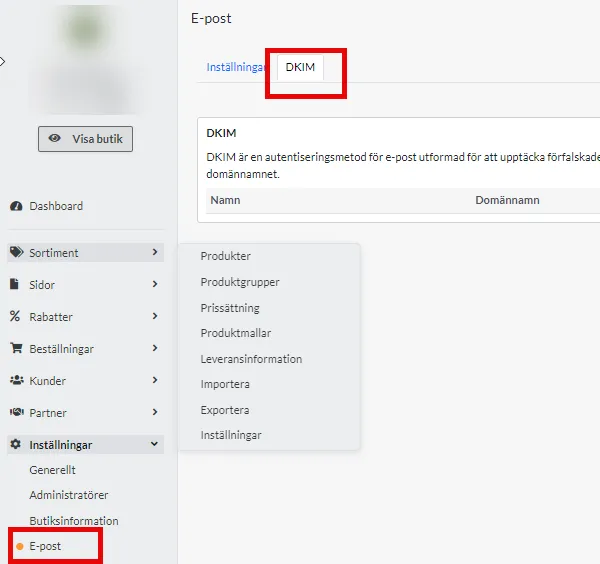
DKIM (DomainKeys Identified Mail) is an email authentication method that protects against email forgery by allowing the sender to add a digital signature to the header of emails. This signature is verified with a public key published in the sender's DNS. Using DKIM improves email deliverability and protects brand reputation by reducing the risk of spam and phishing, making it an essential part of a secure email configuration.To add DKIM, you need to add a setting at your domain name provider. If you do not know how to do this yourself, contact their support.This guide applies if you use Abicart's mail server. If you are using your own email server such as Google, they may already have DKIM and DMARC enabled, check with your provider's support to find out what applies.Add DKIM for the domain you use for emailingStart by creating your DKIM key in Abicart under Settings > Email > DKIM tabClick on Add and select the domain name you use for emailing, and a key is automatically generated in a unique format for your store, e.g. abicart20240131XXXXX._domainkey.Close the pop-up windowClick on the key to open a window with the settings you need to proceed. Copy the name and value.Log in to your domain name provider and add this information to your DNS as a TXT record.More information on how to do this is usually available on your provider's help pages. It is often also possible to contact your DNS provider and let them know the contents of the name and value fields and they will help you with the implementation.5. When DKIM is correctly set up at your DNS provider, it will say Registred = Yes in Abciart in the same place where you retrieved the data.Keep in mind that these types of settings can take up to 24 hours to take full effect.6. When registred has the value YES , click on your domain key and activate the setting so that the value in Active also changes from No to Yes.7. done!Setting up DMARCDMARC stands for "Domain-based Message Authentication, Reporting, and Conformance". It is an email validation method that helps protect your email domain from unauthorized use, such as phishing and spam. It helps reduce the risk of your emails being mislabeled as spam or someone else using your domain to send malicious emails.A DMARC policy determines what happens to an email after it has been checked against SPF and DKIM records.The DMARC policy determines whether a DKIM or SPF error results in the email being marked as spam, blocked, or delivered to the intended recipient.Mail servers can still mark emails as spam if there is no DMARC record, but DMARC provides clearer instructions on when to do so.You create a DMARC policy by adding a TXT record to your DNS with the name _dmarc.Example: _dmarc TXT "v=DMARC1;p=reject" or _dmarc TXT "v=DMARC1;p=quarantine"p = reject means that mail is not received at all, p=quarantine means that mail is received but will probably end up in the spam folder.If you want to receive reports from mail providers about mail that does not meet the DMARC policy, you can add this to your DMARC policy as follows:v=DMARC1; p=none; rua=mailto:email@example.com;There are several DMARC generators you can use if you wish, such as these: https://dmarcian.com/dmarc-record-wizard/ Try our Quick Record Wizard.See also Add SPF record
-

Connect your own SMTP server for your store's email
27 Nov 2025
Send your store's emails through your own email provider with the correct authentication, encryption, and allowed sender. This guide is for administrators in Go, Plus, and Pro who have access to Settings → Email and an SMTP account or a provider-approved IP relay. The store's theme does not affect the connection. Abicart's built-in email server is the default; using your own SMTP is an option. 1. Check that the provider supports the connection Abicart's connection can use a username/password (SMTP LOGIN) or the explicit choice None – the server accepts our IP. Encryption is a separate choice. This connection does not offer a built-in OAuth/XOAUTH2 login flow. Username/password: both need to be correct and allowed for SMTP by the provider. A preset is no guarantee of the account's policy.Gmail: use an app password if the account supports it, not the regular account password. Two-step verification must be enabled and the account's policy must allow app passwords.Microsoft 365/Outlook: check that SMTP AUTH and password-based SMTP are actually allowed for the tenant and mailbox. An old preset or a general deprecation date does not prove access. If the provider requires OAuth, you cannot replace this with a regular password in Abicart.None/IP relay: only use when the provider has explicitly approved Abicart's sending servers for relaying. Do not open a public relay or turn off encryption to solve an authentication error. 2. Fill in the server settings Open Settings → Email.Under Email server settings → Email provider, select a suitable preset or Custom SMTP settings.Check all values against the provider's current instructions, including pre-filled values. FieldWhat to enterHostThe provider's SMTP host, not the store's web domain unless it is also the correct mail server.Port and encryptionThe combination specified by the provider, for example 465 with SSL/TLS or 587 with STARTTLS. The port and encryption must match.AuthenticationUsername/password or an explicitly approved None/IP relay. None hides the account fields but does not control encryption.UsernameThe provider's account name, often the full email address.PasswordSMTP/app password according to the account's policy. Do not share it in support messages or screenshots.SenderAn address that the account or relay is allowed to send as. Also check order confirmations and other specific sender fields. Example: Google's SMTP host is smtp.gmail.com. Select the port/encryption according to Google's current SMTP instructions and use an app password when required. Do not use a regular Gmail password as a general solution. Create a Google app password if the account allows it Open your Google Account's security settings and check two-step verification.Open Google's current instructions for app passwords. If the option is missing, the account's organization or security settings may be preventing the feature; do not lower security to make it appear.Create an app password with a name that identifies Abicart. Google will show a 16-character password; it is not a numeric one-time code.Enter it in Abicart's password field and save the settings. Keep it secret and revoke it in Google when the connection is no longer needed. The existing screenshots show examples of Google's security flow. Names and placement may change; follow the current Google instructions and your account's policy. 3. Save and check the email Save the changes.Under Test server settings, enter a recipient you are allowed to send to and select Send. This sends an actual test email.Check the reception, sender, and any rejection information. A successful SMTP test is not proof for every order email or all recipients' spam filters.If SMTP is no longer to be used, select Abicart's email server and check the sender domain's SPF/DKIM/DMARC for the new sending path. Troubleshoot connection and delivery Authentication failed: check the account name, correct SMTP/app password, SMTP AUTH policy, and that the account is allowed to send as the selected address. Both username and password are required for LOGIN.534-5.7.9 or app password required: follow the Google section and check that the account actually allows the feature.Connection error/timeout: check the host, port, TLS/STARTTLS, and the provider's availability. Do not switch to unencrypted as a default action.Test arrives but order emails are missing: check the correct order and recipient, the specific sender fields, spam folder, and the provider's rejections. A successful test does not resend old order emails.SPF/DKIM/DMARC error: follow the actual SMTP provider's instructions for the domain. Adding Abicart's SPF does not automatically resolve another provider's authentication. Quick startConfirm that the provider allows Abicart's authentication method and sender.Select the SMTP provider and check the host, port, encryption, and account details.Save and send a successful test email to your own recipient.Check actual reception and correct any connection or domain errors. Subscription and accessThe email server settings apply to Go, Plus, and Pro. The email provider's account, agreement, and security policy determine which login methods and senders you can use. No specific theme is required.
-

Yotpo & Trustpilot
27 Nov 2025
Integrating Yotpo and Trustpilot with AbicartAbicart gives you the ability to integrate your website with popular review platforms such as Yotpo and Trustpilot. This integration allows you to export your orders to these platforms, where you can enable the option to send out review emails after an order has been placed. Use Automatic Feedback Systems (AFS) Abicart also offers the ability to export your order information to Yotpo and Trustpilot, enabling you to use their Automatic Feedback Systems (AFS) to automatically collect customer reviews. What is AFS? Automatic Feedback Service (AFS) is an invitation method that can be used to automate the collection of service and product reviews. Why is AFS important? This feature automates the process of collecting feedback by sending review requests to customers after a certain period of time, for example after they have received their order. For instance, let’s imagine that you sell electronics online. With Abicart’s ability to connect to Yotpo and Trustpilot (AFS integration), you can set up automated review requests that are sent to customers two weeks after they have received their purchased electronics. This timing allows customers to experience the product before providing feedback, resulting in more insightful and meaningful reviews. How do you enable AFS for Trustpilot and Yotpo in Abicart? Here’s how you can enable AFS for Trustpilot and Yotpo in Abicart: In Trustpilot Business or Yotpo, go to Get Reviews > Invitation Methods > Trustpilot/Yotpo Automatic Invitations (AFS). Copy their unique email/API key and add it to your Abicart account under Settings > External Integrations > Trustpilot/Yotpo. Depending on the settings you have chosen under External Integrations > Yotpo / Trustpilot, you can choose to export the order to them based on the following three scenarios: Option 1: As soon as the order is placed in Abicart Option 2: When the order is marked as paid Option 3: When the order is marked as shipped When the order is sent to Yotpo or Trustpilot, it will trigger an email to the buyers asking them to leave a review. (This is based on your settings in the respective integrations.) Support for multiple stores If you have a multi-store setup within Abicart, you can add separate Yotpo and Trustpilot accounts to each sub-store. This allows you to manage reviews and feedback independently for different parts of your business. For example, suppose you have an e-commerce platform based on Abicart with multiple sub-stores specializing in different product categories, such as fashion, home appliances, and electronics. By integrating separate Yotpo and Trustpilot accounts with each sub-store, you can tailor the review and feedback collection process to the specific needs and characteristics of each sub-store. Note While both Yotpo and Trustpilot allow you to display reviews on your website, it is important to note that the feature under Appearance is limited to the language associated with the selected account. This means that if you have a Yotpo or Trustpilot account in English, the reviews will only be displayed in English on your website. This distinction is an important difference between the two features found under Settings and Appearance.
-

Shipmondo
27 Nov 2025
Shipmondo is an e-commerce logistics service that offers companies the opportunity to manage their shipping and delivery processes efficiently.Integration with Shipmondo TA is included at no extra cost in Abicart Pro.Things to consider before activating the integration:Weight must be entered on all products. We cannot export orders to Shipmondo without weight.in addition to the usual details, the following fields are mandatory if you want to create customs documents for exports:HS NumberCountry of OriginSKU NumberYou must select a package template on the delivery method. Here's more information >>Your Shipmondo account needs to have funds at all time. If the balance of the account is emtpy, orders won't be able to export. Get a subscriptionGet a subscription on the Shipmondo website: shipmondo.comActivate the integrationSettings that need to be made at ShipmondoLog in to your Shipmondo account and go to Settings -> API-Access. If there are no API details already entered, click on the button "Generate API keys". You will then see a username (API User) and a password (API Key). There is more information on how to do this in the Shipmondo manual.Settings that need to be made in AbicartThe data created in the step above needs to be entered in the store under Settings -> External connections -> Shipmondo TA. If "Shipmondo TA" is not available under External connections in your store, contact Abicart's customer service and we will activate it for you. Account settingsAPI users - Enter data from the "API User" field in Shipmondo.API Keys - Enter information from the field "API Keys" in Shipmondo.Labels - Choose whether the label type should be printed as PDF or ZPL. Settings on the delivery methodsYou also need to activate the integration on the delivery methods you want to use Shipmondo. There is a block at the bottom of each delivery method for this. Go to Settings -> Shipping -> select delivery method and click on it to edit.Scroll down to Shipmondo TA - Event settings. Here there are three different headings:- Export order- Export shipment- SettingsHere you can choose to export the entire order (Export order) or divide each order into different shipments (Export shipment). If you do not use partial delivery or do not know which one to use, we recommend choosing "Export order". You should not have both active at the same time. Export orderActivation - Recommended setting "The order is registered".Execution - select "Update directly" when everything is ready.We recommend that you make the following settings the first time and then click the save button. This means that the integration is not activated on the delivery method, but it is possible to select the carrier and set up everything before activating the function.Then you will see new options for selecting the Carrier. Select the carrier you want to use and then click the save button again.Then a new setting for Transport service will appear.Select the transportation service and click the save button again.A new setting for Package type will appear. The box under package type is a setting for using your own agreement with the carrier when booking a delivery. If you do not check the box, the Shipmondo agreement is the default.When all the settings above are done, do not forget to activate the export of the orders by selecting "Update directly" at "Run" and save. Export shipmentActivation - Recommended setting "Shipment is sent".Execution - select "Update immediately" when everything is ready.We recommend that you make the following settings the first time and then click the save button. This means that the integration is not activated on the delivery method, but it is possible to select the carrier and set up everything before activating the function.Then you will see new options for selecting the Carrier. Select the carrier you want to use and then click the save button again.Then a new setting for Transport service will appear.Select the transportation service and click the save button again.A new setting for Package type will appear. The box under package type is a setting for using your own agreement with the carrier when booking a delivery. If you do not check the box, the Shipmondo agreement is the default.When all the settings above are done, do not forget to activate the export of the orders by selecting "Update directly" at "Run" and save.Settings blockIn this block, the settings may look slightly different depending on the transport service you have chosen. Each transport service offers different settings for delivery points and services. We list the ones available in your Shipmondo account and/or the selected transport service.ServicesTo send the tracking number from Shipmondo to the recipient, tick "Personalised e-mail" and "Personalised SMS". Then follow Shipmondo's instructions: Link to manual.Shipping Templates: Abicart & Shipmondo IntegrationShipmondo allows only one shipping country per shipping method. If you need multiple countries or configurations, use Shipping Templates. This two-step process lets you define as many templates as you need in Shipmondo, then import and assign them in Abicart.Step 1: Create Shipping Templates in ShipmondoLog in to your Shipmondo account.Navigate to Shipments → Templates.Click + New template and configure:Sender countryDelivery countryWeight rangesPackage dimensions / typesCarrier settingsSave each template.Read more about shipment templates:https://help.shipmondo.com/en/articles/1834976-shipment-templatesStep 2: Activate & Assign in Abicart2.1 Enable Shipping TemplatesIn Abicart, go to Settings → External Connection → Shipmondo TA.Toggle Activate Shipping Templates.Click Save.All your Shipmondo templates will now be imported.2.2 Assign Templates to Shipping MethodsGo to Settings → Shipping → Edit shipping methods.Choose the method you want to link (e.g. “Standard Shipping”).Under Shipmondo TA → Action Settings, select one or more of the imported templates.Click Save.How It WorksWhen an order is placed, Abicart cross-references:Order weightShipping countryDelivery countryPackage type / dimensions…with your selected Shipping Template. The matched template’s settings are then exported to Shipmondo for label creation and rate calculation.Restrictions & Best PracticesOne carrier per shipping methodTemplates only apply to the carrier chosen in the method’s settings—no mixing between carriers.Best-fit template by weightIf multiple templates exist for the same country, Abicart picks the one whose weight-range best matches the order.Package typesOnly consider the package types you’ve added (up to 2 types per method).SummaryCreate all required templates in Shipmondo (Shipments → Templates).Activate Shipping Templates in Abicart (Settings → External Connection → Shipmondo TA).Assign each template to your Abicart shipping methods (Settings → Shipping → Edit shipping methods → Shipmondo TA).Your store can now support multiple countries, weight-based rates and custom packaging rules—automatically handled via your Shipmondo templates.
-
Multi-store system
27 Nov 2025
Multi-store system is a feature that allows you to create and manage multiple sub-stores within the same system, which is cost-effective for running multiple online stores. It is suitable for companies selling to different countries, individuals and retailers. The feature is available for Abicart Pro subscription. The cost varies depending on the number of sub-stores and requires an Abicart Pro subscription. All sub-stores can have different looks, themes and domain names. The feature is intended for one company with multiple stores and not for multiple companies with different stores. Please note that it is not possible to undo the activation of the multi-store system or merge existing stores into a multi-store system. To activate the multi-store system, please contact support. Read more about the multi-store system here https://www.abicart.com/explore-abicart/manual/multi-store-system/multi-store-systems-overviewAdvantages of the Multi Store System: Cost-effective: Run multiple online stores within the same system, reducing costs compared to having separate systems for each store. Easy administration: Manage all sub-stores from one central location, making it easier to administer and update the stores. Flexibility: Each sub-store can have a unique look, theme and domain name, allowing you to customize each store according to your target audience and market. Customized assortment: Choose to display all or part of the assortment in each sub-store, making it easy to customize products for specific customers or markets. Customized payment and delivery methods: Choose which payment and delivery methods to display in each sub-store, allowing you to offer the right options for different customer groups. International sales: Create sub-stores for different countries to customize the assortment according to local needs and preferences. B2B and B2C: Ability to create separate stores for individuals and retailers, making it easy to offer different products, prices and conditions for different customer groups. Consolidated accounting: Book all orders in the same place, regardless of which online store they come from, simplifying administration and accounting.
-

Product feeds
27 Nov 2025
Settings for product feeds can be found under Settings >> Apps >> Product feedsOn this page in admin you will find settings for product feeds for Google Merchant Center and Facebook Catalog:SettingsWhich field should be used for product descriptions?Choose between description, introductory text or both introductory text + descriptionShould product type either be current product group (deep) or top product group (shallow)?Select the depth of the product group you want to include in the flow. See example below:A product belongs to product group 3. If you want product group 3 to be sent in the product flow, select the setting "Deep".If you want product group 1 to be included in the flow, select "Shallow" instead.Google Merchant CenterHere you can read more about Product Feeds: Google shopping.Facebook CatalogHere you can read more about Product Flow: Facebook Catalog
-
VAT settings for integration with Visma SPCS
27 Nov 2025
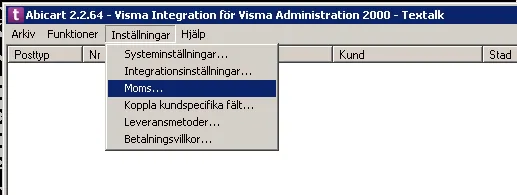
This manual article will guide you through setting up VAT for products with different VAT rates in our Visma SPCS integration program. Follow the steps in this article to ensure that your products with different VAT rates are registered correctly in Visma SPCS.Make the following settings in the integration program:Then make the corresponding settings for VAT in VismaSPCS. This example is from VismaSPCS 2000, but it looks similar in 1000. Do you sell to several EU countries with different VAT rates?Make these settings:Read more about US here https://www.vismaspcs.se/visma-support/visma-eaccounting/se/content/online-help/sales-oss.htm
-

Allow Abicart's email servers in the domain's SPF record
27 Nov 2025
Reduce the risk of your store's emails being rejected by authorizing the correct sending servers to send for your domain. This guide is for domain managers and store administrators who use their own sender domain and Abicart's email servers. It applies regardless of Go, Plus, or Pro subscription and regardless of theme. If a custom SMTP provider sends the emails, follow that provider's domain instructions; do not add Abicart as a sender unnecessarily. 1. Determine the sender, sending service, and DNS manager Open Settings → Email and check which address is used for the relevant emails.Determine if the emails are sent via Abicart's email server or custom SMTP.Open the DNS management for the actual sender domain. For name@example.com, it's example.com. A separate sender subdomain needs to be evaluated for that specific domain. You cannot change the SPF for gmail.com or another provider's domain that you do not own. An SPF record on your store's own domain does not grant permission to send as name@gmail.com. Instead, use your own sender domain or an SMTP configuration supported by the email provider. 2. Create or update a single SPF policy SPF is normally stored as a TXT record that starts with v=spf1. Read existing TXT records before making changes. Keep a single applicable SPF policy for the domain; do not add another record that starts with v=spf1. When no SPF record exists Create a TXT record with your DNS provider.Enter the correct hostname according to your provider's format, often @ for the domain root. Avoid having the provider add the domain name twice.If Abicart is the only intended sending service, the policy can be: v=spf1 include:spf.abicart.com -all Do not use this alone if, for example, your company's regular email also needs to send from the domain. When an SPF record already exists Add include:spf.abicart.com to the existing policy before its final mechanism: all. Keep other intended providers and do not change their settings or the final policy without evaluating the entire sending flow. Example for a custom domain that actually uses Google Workspace and Abicart: v=spf1 include:_spf.google.com include:spf.abicart.com -all This is not a setting for a private gmail.com address. Other previous examples are include:_custspf.one.com for one.com and include:spf.loopia.se for Loopia. Always check the current policy with the provider your domain actually uses: Google Workspace SPF, one.com or Loopia. Do not copy multiple providers just because they are in the example. 3. Save and check the correct domain Save the DNS change. How quickly it becomes visible depends on DNS cache and TTL; it can take up to a day, but this is not a fixed delivery time for emails.Look up the domain's TXT records and verify that a single, correct SPF policy is displayed.Check the syntax and the SPF limit of a maximum of ten DNS-demanding lookups during evaluation, including the providers' underlying lookups. The limit is not about the number of TXT records or characters.Check the sender address's SPF marker under Settings → Email. A green marker shows Abicart's SPF check for that address; it does not prove that all emails are delivered or that DKIM/DMARC is correct. Troubleshoot rejected emails No policy / none: check that the TXT record is on the correct sender domain.fail or softfail: check the actual sending service and if its authorization exists before the all mechanism. Do not add a fixed server IP from an old error message instead of the current include.permerror: check for duplicate SPF records, syntax, and the lookup limit.SPF passed but email is missing: check the recipient, spam folder, the provider's rejection notice, and DKIM and DMARC. SPF is only one part of email authentication. Errors might mention, for example, ”MAIL FROM domain”, ”hard fail policy (-all)”, or that ”SPF or DKIM” was not approved. Read the domain and the actual reason for rejection. Do not change the website's A/CNAME or the email's MX records to fix an SPF error. Quick startCheck the sender address and which server is sending.Find the domain's existing SPF policy with the DNS provider.Add include:spf.abicart.com when Abicart is sending and keep other intended senders.Verify a single valid policy, the lookup limit, and the sender's status. Subscription and accessThis guide applies to Go, Plus, and Pro when Abicart's servers send from your own domain. You need access to the domain's DNS or help from its manager. The theme does not affect SPF.
-

Tip: Recalculate currencies in Google Sheets with the GOOGLEFINANCE function
27 Nov 2025
Abicart supports automatic currency conversion via the European Central Bank (ECB). This means that when a customer makes a purchase on the platform, the price of the product can be automatically converted from the currency used by the seller to the currency in which the customer wishes to pay. Exchange rates are taken directly from the ECB and are updated regularly to ensure that prices are up-to-date. Although this feature is available, it is sometimes necessary to recalculate currencies in your own files before importing. The quickest way is probably to use Google Sheets and the GOOGLEFINANCE function: GOOGLEFINANCE can be used to convert currencies in csv files. To do this you can use the formula GOOGLEFINANCE together with the parameter "price" and specify the currency you want to convert from and to.This is what the formula looks like:=GOOGLEFINANCE("CURRENCY:" + from_currency + to_currency, "price")Where "from_currency" is the currency you want to convert from (e.g. "USD" for US dollars) and "to_currency" is the currency you want to convert to (e.g. "EUR" for Euros).Here is an example of how you can use GOOGLEFINANCE to convert a currency in a csv file:Open a new Google Sheet and import your csv file with the currencies you want to convert.Add a new column in the worksheet where you want to display the converted currency.Type the formula =GOOGLEFINANCE("CURRENCY:" + A2 + B2, "price") in the first cell of the new column, where A2 and B2 are the cells that contain the currency you want to convert from and to.Press Enter to see the result of the conversion.Drag the lower right corner of the cell to fill the formula in the rest of the column.Please note that GOOGLEFINANCE can only retrieve financial information in English and may be limited to certain financial information depending on your location. It is also important to remember that financial information may be subject to delays and may be inaccurate or incomplete, so it is important to verify the information before making decisions based on it.Read more about GOOGLEFINANCE here https://support.google.com/docs/answer/3093281?hl=en
-

Mamut in Sweden: secure existing data before switching
27 Nov 2025
Identify what exists in an older Mamut integration and plan a controlled switch without starting a new, uncontrolled sync. This guide is for existing Swedish Mamut users and their administrators/integrators. It is historical guidance, not a recommendation to reinstall a supported Mamut product. A current Abicart package does not make a discontinued vendor product supported. 1. Read the discontinuation notice According to Visma's announcement about Mamut in Sweden maintenance/support ended on December 31, 2024. Registration of new data in the system was closed on August 1, 2025, when the license/support agreements were terminated. Any access to existing data is not the same as ongoing vendor support. Older system requirement lists, Windows installation programs, and integration materials do not prove a currently supported product pair. Do not run an old installation archive as a first step. 2. Understand the historical connection The older Windows application between Textalk Webshop/Abicart and Mamut could:retrieve new customers and transfer them to Mamut,retrieve new orders and transfer them to Mamut,transfer inventory and prices from Mamut to the store,transfer product registers in both directions and an existing customer register to the store. A record being retrieved by the integration program is not the same as it being transferred to or posted in Mamut. Check where the data actually is before making migration selections or retrying. 3. Take inventory before changing anything Identify the correct store/sub-store, Mamut company database, and any local integration installation.Document the last known retrieval/transfer and where remaining orders, customer cards, and products are located.Map out product/variant numbers, customer numbers, order number series, and any prefixes so that a new system does not create collisions.Document fee products for shipping, payment fees, and discounts, as well as relevant currency/VAT connections.Determine which source contains the correct prices, inventory, products, and customers for the migration.Secure approved backups/exports and necessary archival records according to the company's legal requirements. Do not put passwords or customer exports in an open planning document. 4. Plan the new integration pathWhen switching systems, one person needs to be responsible for ensuring that the last transferred orders and customer/product changes are reconciled in both systems. Pause old scheduled transfers in the integration program before a new connection starts writing. Do not restart old transfers to fill a gap without first checking what has already been transferred. Preserve the old database and archival material; a paused sync is not a deletion. Choose a currently supported accounting system and check its integration access, company, data mapping, and Abicart's package/add-on terms. Pro has an included ERP choice, but it is not a promise of unlimited connections or vendor licenses. Plan a limited, permitted migration test and verify the correct quantities, numbers, balances, prices, and document references in the destination system before a larger transfer. A discontinued integration should not be subjected to a new resync to try to prove it is free of duplicates. Also document how old orders and archival data can be tracked without creating new accounting events. Quick startAssume that Mamut is a discontinued Swedish product.Take inventory of the existing database, store, and transfer statuses.Secure data and map out numbers, fees, and data sources.Choose a current integration path and check the migration result before a major switch. Subscription and accessThis guide is for historical Mamut data. A new Abicart package does not restore the provider's discontinued support or license. A replacement integration has its own package, agreement, and permission requirements.
-
Integration with Fiken
27 Nov 2025
-

Payment methods
27 Nov 2025
Abicart supports most of the established payment solutions on the market.How to add a payment method:Here are articles on how to add and set up the payment solutions available in Abicart.Read more
-
How to upgrade your subscription
27 Nov 2025
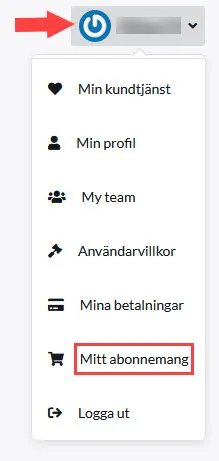
You can upgrade your subscription yourself whenever you want. It's quick and easy and can be done directly in the store. Upgrade from GO to PLUS, or GO/PLUS to PRO.Here's how:1) Log in as usual (must be done by the store owner)2) Click your name in the upper right corner3) Click My subscription4) Click Switch to this plan for the subscription you want to switch to. When a green box appears around the plan, you have selected it:5) Go to the bottom of the page and select Continue to payment6) Renew as usual by choosing card or invoice**You will now pay the difference between, for example, PLUS & PRO, and only for the remaining period of your current subscription.Done!To downgrade, for example from Plus to Go, contact customer service before the end of the binding period. According to the current general terms and conditions, section 4.5, the lower plan will start after the current binding period. The notice period for termination does not apply to a downgrade request. Specify the desired plan. We will check the date, price, and which features are affected. Also see the guide on subscriptions, payment, and cancellation. If you have problems renewing a subscription, check that your profile contains both a company name and a VAT number, then try again.
-

Print settings Abicart ZPL Print App - Postnord integration
27 Nov 2025
How to set up print settings for the Abicart ZPL Print App - Postnord integration. Once you have installed Abicart ZPL PrintApp for Windows, you will need to make some settings on your computer for the print window to open automatically when you select "perform function on selected orders" in Abicart admin. Tip: In some cases, printing may not start correctly if you already have a pop-up window open in your browser. Please close any pop-ups before sending your EDI shipment. We are aware of the problem and will fix it in the next version of the software.Here's what you do:0) Install Abicart ZPL PrintApp for Windows and export an order to Postnord1) Orders >> Orders >> Produce an order exported to Postnord2) Select the order >> Execute function on selected >> EDI labels. The file will be downloaded.3) Open the file explorer4) Select the file (1)5) Select Open with (2)6) Select choose another app (3)7) Select Abicart ZPL Print App + tick the box + OK8) Repeat: Select order >> Perform function on selected >> EDI labelsNow the window below will open (see picture).Click on (7) and select (8)9) Repeat for the third time: select the order >> Perform function on selected >> EDI labels 10) Then select the printer for printing and save.Link to manual: Postnord Send Direct - Postnord TA
-

Delete an administrator
27 Nov 2025
If you are the owner of a shop, you can delete & add administrators.How to delete an admin account in your shop 1) Log in to admin - https://www.abicart.se/ 2) Go to Settings >> Administrators. 3) Click on the trash can icon to delete. (If you change your mind after deleting an admin, you will have to send them a new invitation)
-

Sendify
27 Nov 2025
Cooperation with the transport service SendifyWhat is Sendify?We have no integration with Sendify, but you use the service independently from Abicart.Sendify is a logistics tech company that offers small business owners a simple and cost-effective shipping solution - so less time and money can be spent on logistics and more on driving business. Uniting technology with logistics, Sendify offers, since 2015, a TransportManagement System (TMS) that brings together business-critical logistics functions on a single web-based platform. The aggregated buying power of over 6,000 companies allows Sendify to offer competitive pricing, a free TMS, access to competitive contracting, and small business owners only pay for what they ship. With Sendify, business shipping simply doesn't have to be that difficult.You can then use Sendify to compare the costs of different transport companies.For more information about Sendify and our partnership, click here. Set up an API connection to Sendify To connect your shop to Sendify, create an auth token in the Abicart admin panel. The token is the API key that you use in Sendify. 1. Open Settings >> External integrations >> Abicart API >> 2. Click on ‘Select auth tokens’ >> Add3. Give your auth token a name, for example ‘Sendify’. You can also add a description.4. Click on ‘Create auth token’ to generate the key.5. Copy the value under “Token”. This is your API key. Enter it and your shop ID in Sendify. Your shop ID is displayed at the top left of the Abicart admin panel.
-

Northmill Flo: connection, inventory master and safe sync
27 Nov 2025
The Northmill Flo integration connects the webshop's products and sales to the POS system. It is available in Abicart Pro, where one selected business system integration is included, and requires an active Northmill agreement. First, decide which system will control the stock balance. The correct settings and how inventory changes are processed depend on that choice. Choose an inventory master before activationInventory masterBasic flowCheck AbicartProduct/balance changes are transferred from Abicart to Northmill. POS sales are retrieved through Import POS receipts (inventory changes) according to your schedule.Receipt import is intended for this inventory master. Do not select regular order import to retrieve POS sales. Northmill Flo, sometimes called MorefloAbicart's web orders are transferred to Northmill with order export. Inventory updates from Northmill need to reach Abicart through the activated connection.Receipt import is not shown as the same solution in this mode. Check that both web purchases and POS purchases reach the system that controls the stock balance. We recommend a clear inventory master, not the Both mode. Updating a sale and a manual inventory count are different events. If only the inventory count is missing, describe just that to support; do not activate another import job at random. Prepare the product rangeProducts, prices, customers and stock balances can be transferred. Product groups and images are not exported through this connection. Each product and each variant needs a unique item number (SKU) that matches in both systems. Products without an item number cannot be exported.Create product options (customer choices) and their variants in Abicart and export them from there. Product import from Northmill creates individual products; it does not automatically create a main product with product options. For new item numbers, letters, numbers, hyphens, and underscores are a suitable simple format. Do not change all already used numbers just because one contains /. Regular products, variants and bundle products need separate assessment. If special characters cause sync problems, give support the product type and exact item number so they can check what your connection supports. Before deleting a product: deletion can also affect the product and its variants in Northmill. If it is to remain in the POS system, the sync must first be disconnected in a coordinated manner. Get help before you delete or clear article numbers on an active integration. Connect and activate step by stepSign an agreement with Northmill and ask for the integration details. Check Abicart Pro and that Northmill is your selected included business system integration. See current packages and prices in Swedish or English and Northmill's integration overview (Swedish); have Northmill confirm your agreement and connection details.Open Settings > External Connections > Moreflo. Moreflo is the older name that may be displayed in Admin. Contact Abicart Support if the connection is missing.Fill in the details under Account Settings and save. Do not send your username/password in a regular support request.Verify that the item numbers for special products, such as shipping, exist in Northmill. The pre-filled fields should not be changed without reconciliation.Select the inventory master and the relevant sales/VAT settings. Ask the person responsible for finances to confirm how goods, services, and fees should be classified.Save and check for warnings about missing or duplicate item numbers. Reconcile them before the first major export.See resolve item numbers for Northmill regarding duplicates or missing numbers. Do not change the connections to already sold items without checking the consequences. Reconcile starting inventory and first exportSelect the balance that matches your physical inventory and correct the information before starting. Make an export/backup of the existing product range and balance in Northmill.Schedule a time without POS sales during the actual transfer. Verify that you are authorized to make the changes that the export entails.Keep your selected inventory master for the first product export. Activate product export and use Initial exports > Export all products when such a transfer is intended. Do not switch to Abicart as a temporary export step. With Northmill as the inventory master, a normal product export does not send Abicart's stock balance, but names, prices, and active status can still be overwritten and missing products created. Only transfer balance from Abicart when Abicart is explicitly the source for reconciled starting balances.Wait for the transfer to actually complete and reconcile the result. Do not use a general waiting time as proof that it is finished.Keep the same inventory master and activate the correct events as described below. Coordinate an actual change of inventory master before sales resume; do not do it in the middle of ongoing sales. If Northmill's inventory is the starting point, a file transfer may need to be adapted for Abicart's product import, particularly for customer choices. The initial inventory reconciliation is a separate task from ongoing receipt or order transfers. Ask support to help plan it if you are unsure. Activate the correct ongoing eventsAbicart as inventory master: activate Export products on add or change and Import cash receipts (stock changes). Select a schedule for receipt import, for example every hour, and check that both activation and execution are selected.Northmill as the inventory master: activate the intended product export and Export order. Reconcile which data product updates are allowed to overwrite and check the stock update back to Abicart.Test and see that it succeededUse an agreed test setup; purchases can affect payment, accounting, and stock. Note the item number, variant/package, order/receipt reference, and balance before and after. Check both a web purchase and a POS sale in the setup you have chosen. TestAbicart before/afterNorthmill before/afterReference and timeAn item is purchased in the webshop10 → 910 → 9Note actual referenceAnother item is sold at the POS5 → 45 → 4Note actual receipt The values are examples only. Wait for the actual scheduled run or transfer, read the status, and compare the same items in both systems. An AI confirmation or a saved setting choice does not indicate that the stock is reconciled.Integration settingsThe screenshots show examples of the integration's settings. Proceed to the named section you need before changing a field. Some images show Swedish menu texts; use the setting names in the text to find the corresponding fields.Here we go through the integration's settings:Settings >> External connections >> Moreflo (Northmill was previously called Moreflo)If Moreflo is missing under External connections: follow the section Connect and activate step by step and contact support if the connection is still missing.Remember to SAVE with the green button when you have changed a settingSettingsActiveTo access all the integration's settings, check this box >> Save. The sync between the systems only starts when you activate the event settings.Account settingsHere you enter the API keys you get from Northmill (Username and password) >> SaveSpecial productsThese fields are automatically filled in. Do not edit manually.Inventory management (inventory master)Select the system where you want to manage the products' stock balance:- Abicart or Moreflo (Northmill)*We advise against using "Both". It is always most stable to let one system decide.Sales and operating income accountsFill in the VAT rates that are relevant for your store. Select a suitable option in the drop-down list.Item = goodsService = ServicesFee = ServicesExample: For items with 25% VAT, select the corresponding product account with 25% VAT. If you also sell books subject to 6% VAT, you also need to select the corresponding product account with 6% VAT. Set up every VAT rate that is actually used; have the person responsible for finances confirm the classification and any exceptions.Fees cover VAT handling for shipping and need to be configured. Services with 25% VAT is an example of when this VAT handling applies to your shipping; do not use the same selection as a general rule for all stores. Have the person responsible for finances and the person responsible for the integration confirm the correct option for your setup.Initial exports--> Export all productsThis setting is configured last of all, if the product range is to be exported (see image below).*The setting requires that you have "Export products" enabled.To enable the setting:Check the box >> SaveEnable only if you want to send all products from Abicart >> Northmill (if you have Abicart as the inventory master, the stock status is also sent).NOTE! Product information in Northmill will be overwritten with product information from Abicart. Only the SKUs that exist in both Abicart and Northmill are updated. If a product only exists in Abicart, it is exported + created in Northmill. SKUs that only exist in Northmill remain untouched.Are you going to run this export with a previously active integration?- Run an export in Northmill first!Since Abicart overwrites Northmill products with the same SKU that exist in Abicart, it's a good idea to export the product range in Northmill before you run the export. A product that is inactive in Northmill but active in Abicart will become active again during the export.--> Export all customersTo enable the setting:Check the box >> SaveEnable only if you want to send all customers from Abicart >> Northmill*The setting requires that you have "Export customer registry" enabled.Event settingsExport product on add/changeActivation = Inactive / Product updated (including stock balance)Execution = Inactive / Update immediatelyChange to "Product updated" and "Update immediately" to enable the setting.*When this is active, products are exported from Abicart >> Northmill when added or changed. This setting is recommended so that products with customer choices are created correctly. Exporting products Abi >> NMF saves you time because you do not need to edit the product in two places:The product is created in Abicart with all the information it needs in the webshop. Information that can be exported to Northmill is sent there (name, item number (SKU), price, etc.). You can then add other settings to the product in Northmill, but information that can be exported through the integration must be edited in Abicart and exported to Northmill. If, for example, you change the product name in NMF, Abicart will overwrite it the next time the product is exported Abi >> NMF.Export customer listActivation = Inactive / Customer.(changed|created|deleted)Execution = Inactive / Update immediately*Keep inactive if you do not want to export the Abicart customer registry >> Northmill. We recommend starting the integration with this setting inactive. You can always enable it later if you want to sync customers.Export orderActivation = Inactive / The order has been changedExecution = Inactive / Update immediately*Activate only when using Northmill (Moreflo) for inventory managementProduct importActivation = Inactive / Scheduled activationExecution = Inactive / Scheduled (enter cron string) *Then set to e.g. 1 time/hour*Products are imported as individual products. Product import from Northmill cannot build a main product with product-option variants. Create those products in Abicart, either through product-options import or manually in Admin. Read more about product options here.Import order*Used to import orders created manually in Northmill. NOT for importing POS sales. To sync inventory balance, use the setting "Import POS receipts (inventory changes)".Activation = Inactive / Scheduled activationExecution = Inactive / Scheduled (enter cron string) *Then set to e.g. 1 time/hourOption = Enter the payment method* to be registered for the order importCreate or select an internal payment method, for example, manual invoice, and enter it in the order import job. It can be named Northmill invoice and be inactive in the customer checkout, but the name does not determine the type. The import requires an internal payment method for the order to be created correctly.Import POS receipts (inventory changes)In a multi-store system, you also select the sub-store where the receipt items will be created. Check the target sub-store before starting the import.*This setting is only visible when using Abicart for inventory management.*This is the setting to activate to sync inventory balance from Northmill >> Abicart when using Abicart for inventory managementActivation = Scheduled activationExecution = Scheduled (enter cron string) *Then set to e.g. 1 time/hourOptions*Used in specific cases IF you want to import previous receipts (from before the integration was activated) Import all receipts created since - specify time interval (7-90 days)Import historical receipts - Check the box to activate >> Save the integration pageNOTE! This setting is used in exceptional cases and with caution.Which product details can be changed?Depending on the direction, item type, and inventory master, the transfer can include sales class, item number, inventory balance, supplier's item number, name, product text, unit, barcode/EAN, purchase price, sales price, item type, active/webshop visible/stock item, and weight. Check an example in your setup; an update is not always limited to the balance.An inactive product in Northmill can become active again if an active Abicart product is exported. Data controlled by the export should be changed in the source system; otherwise, a local correction in the target system may be overwritten next time. Troubleshoot without duplicate inventory movementsAfter a failed receipt import: verify exactly which receipts are missing and if their inventory movements have already been corrected manually. Do not assume that the next scheduled run will fetch older, failed receipts. Ask support to check receipt references, the last import time, and a limited history interval before activating historical import. Do not make the same inventory correction both manually and through import.SymptomNext checkThe product or order is missingCheck for a unique item number, active export job, triggering event, and if the object already exists with another connection. Specify regular product, variant, or bundle.POS sales do not change Abicart's stock.Check the inventory master first. If Abicart is the inventory master: check the receipt import schedule and the last run. If Northmill is the inventory master: ask support to check the intended stock update.Manual stocktaking is missing, but sales are working.Note exactly which change is missing and when it was made. This is a different flow from a POS receipt. Ask support to confirm whether your connection supports that specific stocktaking change; do not select an invented stock-import job.Item numbers with / or a bundle item do not work.Do not bulk change item numbers as a first step. Ask support to check the item type, current connection, and any older failed transfers.Errors have been corrected and old events are pending.Reconcile already imported orders/receipts and manual balance adjustments before running anything again. The same sale must not decrease the stock twice.Send the store, inventory master, direction, item type/number, order/receipt reference, time, observed balances, and error message to support. Specify what you have already corrected manually. Do not send API passwords or customer registers. Quick startMatch item numbers and reconcile the actual stock before the first transfer.Choose an inventory master: Abicart or Northmill Flo. Only activate the jobs that belong to that setup.Check one item and an agreed-upon test sale in both directions before the entire flow is put into use.In case of an error: note the item type, number, order/receipt reference, and time. Do not resend all old orders before previous stock adjustments have been reconciled. Subscription and accessThe Northmill Flo connection is available in Abicart Pro as a choice among the included business system integrations and requires an active Northmill agreement. Choose an inventory master and use the transfers that belong to that setup. Agreement, feature access, and actual sync results are separate checks.
-

Connect your webshop with Sello
27 Nov 2025
With Sello, you can sell on marketplaces such as Amazon, CDON, Tradera, Ebay, Fyndiq and Miinto. In order to create the link between Abicart and Sello, you first need an account with Sello. Once you have your account, it's time to connect your webshop to Sello. Then you will need your Store ID and an API key, both of which can be found in the Abicart admin.Here's what you do:Log in your admin.Copy your Store ID as you see on the left, at the top of the menu.The next step is to create an API key.Log in your adminGo to: "Settings" -> "External Connections".Click on: "Edit" in the box called "API Keys".Click on: "+ Add".Tick the box called: "Active".Give your key a name and a description. For example, "Sello".Click on: "+ Add".Copy your created key.Once you have both your Store ID and an API key, you can establish the connection in Sello.Here's how to do it:Log in to Sello.Go to: "Settings" -> "Web shops" and find "Abicart".Click on: "Connect Now!".Enter your ID and your API key.Now everything is ready!The link is included in the Go, Plus and Pro price plans.
-

Set up Bonusway
27 Nov 2025
Results-based marketing via Bonusway. What is Bonusway? Bonusway is a cashback site that offers results-based marketing and generates new customers and more purchases for online stores. The Bonusway marketing channel is available for those who have a Textalk Webshop. Activate Bonusway in the shop Connect your store by adding your promotion ID (victim ID) directly to your theme. You can find your Offer ID in the Bonusway user interface. Go to Appearance -> Themes -> select your theme, edit. Then go to the Add-ons tab -> Bonusway and enter the Offer ID in the field. Note that if the shop has several active currencies, enter a "Offer ID" for each currency. Each currency has its own tab.
-

Connect Spiris Bokföring & Fakturering and select sync direction
27 Nov 2025
Connect the right company and select which products, customers, and orders to transfer between Abicart and Spiris. This guide is for administrators with the integration to Spiris Bokföring & Fakturering, formerly Visma eEkonomi/eAccounting. It is not the guide for Visma Administration 1000/2000. Pro has an included ERP choice where this integration is an option; this does not mean an unlimited number of ERP connections. The Spiris subscription's integration access is required separately. The theme does not affect the sync direction. 1. Prepare companies, identities, and access Check the correct Abicart store and Spiris company, as well as integration access in both.Give each product and each variant/customer choice a unique item number. The identities must match between the systems.Decide which system is the source for product information, price, available stock, and customers before you activate events.Check currencies, fee items, document choices, and payment/delivery terms. Older views may still be called Visma eEkonomi. In Spiris, the current service's integration access needs to be activated; follow its current instructions instead of relying on an older Smart/Pro package name or an old menu location. 2. Connect the right company Open Settings → External connections → Visma eEkonomi (eAccounting) or the corresponding Spiris name in your admin.Select Connect to Visma eAccounting when that is the displayed connection button. An authorized user logs in with the provider, selects the correct company, and approves the requested integration access. Then, check that the correct company name is displayed under Connection in Abicart. If the button still shows Connect: check that the connection was completed and that the user selected the correct company and had the right permissions. A login to Spiris without returning to Abicart is not a completed connection receipt. 3. Map fees and gift cards Create designated items in the accounting system for shipping, cash on delivery, transaction fee, discount, and other payment/gift card. Enter the respective item numbers in Abicart's integration settings. The example images show item posting and the item for shipping, as well as the mapping in Abicart: Gift cards need to be handled separately from regular product sales: Accounts and VAT handling must correspond to the company's actual sales and accounting. Older examples with 2420/2421 are not a general account choice for all gift cards. Choose accounts and VAT handling together with the person responsible for the company's accounting. 4. Select terms and documents per payment method Default payment terms apply to new customers that are transferred. ”10 days net” in the image is an example, not a requirement. Payment terms in Visma connects Abicart's payment method to the provider's payment terms. Delivery terms connects the corresponding delivery method, for example, Pick up to the store's pickup option. Check each line instead of blindly reusing the example. The document mapping can specify order, invoice, invoice draft, or ignore for the current payment method. An unmapped/ignored method should not be expected to create a document. Gift cards have special handling. An invoice, a paid invoice, and the customer's payment/settlement are different accounting events; choose the flow that suits the payment method. Check the invoice dispatch before automatic export. The choice Invoice creates a real invoice in Spiris; Invoice draft is a separate choice. Also check the setting Send invoice to customer, which may cause the invoice to be emailed to the customer. For already paid purchases, the document and payment handling must be reconciled so that the customer does not receive an incorrect payment request. 5. Configure direction and events DataChoose deliberatelyProductsExport from Abicart or import from Spiris. Import has separate choices for new items and updating existing ones.Existing product on importAll, stock, price, price/stock, or ignore according to the setting. The stock balance that is transferred is the available balance, not the physical stock.CustomersImport customer or export customer list according to the selected source, without competing sync.OrdersSelect the export event and the correct document mapping for each payment method. A full import can overwrite more data than just the stock. Product name, VAT, price, and visibility can be changed based on the data in Spiris. For example, an inactive product in Spiris can be hidden in the store. If Spiris should only control the stock, choose stock update for existing products instead of a full import. Check a few intended products and variants before using the automation on the entire assortment. The event settings specify when the transfer should occur. ”Update immediately” can still mean queued processing. Save the configuration if it is necessary to display the event fields. Do not activate competing import and export for the same data without a deliberate sync model. Check a limited set of records you are authorized to use and verify the correct company, item numbers, available stock, document types, and fees. If the export outcome is unclear, check for an existing order or document reference before trying again to avoid duplicate invoice records. Quick startConfirm integration, correct company, and unique item/variant numbers.Connect and check the company name in Abicart.Map fees, terms, and documents per payment method.Select source/direction per data type and review the actual transferred result. Subscription and accessSpiris/eEkonomi is an option in Pro's included ERP choice. The provider's integration access and agreement are also needed. Visma Administration is a different product; older package names and screenshots do not indicate the current exact Spiris offering.
-

Integration with Business Check
27 Nov 2025
Link credit information to your payment methodsWhat is Business Check?With our connection to Business Check, you can run credit checks and prevent unnecessary credit losses in your store. Business Check is suitable for those who have their own payment methods in the shop, such as their own invoice that you create and send out to buyers yourself.Business Check is an additional service that costs SEK 100 per month and is ordered under "My subscription" in the shop. More information is available here on the Business Check site. Go >>If you use invoicing services via, for example, Klarna, Svea, Dibs or any other company, the credit check is already included and you do not need to use this additional service. This is only for your own payment methods that you manage yourself.
-

What is an SSL certificate?
27 Nov 2025
What do I need to do to get HTTPS and for the page to be marked as secure in the browser?What is SSL encryption?SSL is included in our platform and is activated in the store as soon as you start a subscription.SSL stands for Secure Sockets Layer and is a security service for your shop that ensures that all the information your customers fill in themselves (for example, in various forms at login and checkout) is passed on as encrypted information to databases and payment systems.It is an important addition to have so that your visitors and customers feel safe. Many modern browsers automatically block pages that don't have SSL, which makes it extra important.How can you tell if a page has SSL?You can see whether a page is encrypted or not in front of the address in your browser's address window. If you see a padlock, there is an SSL certificate. The addresses of pages with SSL certificates always start with "https://".This domain does not have an SSL certificate:This domain has an SSL certificate (https):Important information about SSLSSL only works if you have your own domain associated with the store. SSL cannot be activated if you only have a domain through us e.g. "w65116.shop.abicart.se".SSL only works with our responsive themes. Not with the classic theme. Are you getting a warning on your site even though you have purchased SSL? Scroll to the bottom of this page to read about what could be causing it.Don't forget to change to HTTPS in Google Analytics after activationIf you're using Google Analytics, you'll need to make a change in Analytics once SSL has been activated. There you change from HTTP to HTTPS so that the statistics continue to work correctly.Log in to your Analytics account, and click on the gear in the bottom left corner. Then go to the middle column, "Property" and there click on "Property settings". In front of "Default URL" there is a selector for "http" and "https", select "https". Then scroll down and save. Done.Why do I get warnings that the site is not secure even though I have activated a subscription?In some cases, you may get warnings that the page is not secure even though SSL is enabled in the store, and this is usually because you have linked in an external script or image from another website that does not have SSL. In this case, you will need to find the script/image and upload the file to the store's file repository under Appearance -> File repository instead. Then you can link the script/image from there. Then the warning will disappear.
-

Sale of downloadable files
27 Nov 2025
You can sell downloadable files with Abicart. These can range from software and documents, to music and video files. If the buyer has a login account, they can log in to the store, where they can see all their previous orders and download files they have already purchased. As a shopkeeper, you can decide how long a particular file should be available to the customer.By default, the maximum space is 20 MB per file. For customers with a PLUS subscription, we now offer a maximum of 50MB. PRO customers can get access to upload a maximum of 100MB files. If you need more space than that, you can put the files on a dedicated server. We protect your files from public access using an encryption method. The maximum size per file here is 300 MB. Larger files must be split into several smaller ones.Please contact customer service if you need to change the upload size, and if you have an active PLUS/PRO subscription.The downloadable file is emailed to the customer when the order is marked as paidIf the "Downloadable files" tab is not visible in the admin, please contact customer service and we will activate the feature for you.Create a downloadable itemFirst create a product as usual under Products -> New product. Note that you must create the product before you can add files.Then click on the "Downloadable files" tab, and then on "New file".There are two ways to use this feature:Upload a file - Select a file from your own computer and click "OK". The file will then be uploaded to the product. The maximum file size is 10 MB/file.Enter a URL (external link) - If you want to upload files from your own server, enter the full address (URL) of the file, e.g. http://min-domän.se/filer/nedladdningsbar_fil.pdf. The file must be available on the server for download without password protection. When the customer buys this file, we will encrypt the real URL.Limit the time the file is downloadable - If you want to limit the time the file is available for download after purchase, enter it in this field. You enter an integer from one (1) upwards for the number of days the file will be available for download.
-

Integration with Creditsafe
27 Nov 2025
What is Creditsafe?With Creditsafe, you can run credit checks and prevent unnecessary credit losses in your shop. Creditsafe is suitable for those who have payment methods such as self-billing and want to know the creditworthiness of those you do business with.The link between Abicart and Creditsafe costs SEK 100 per month, and you also need to sign an agreement with Creditsafe for the link to work. Start by signing an agreement with Creditsafe. Then activate the additional service under My subscription. More information is available on the Creditsafe website >>If you use invoicing services via, for example, Klarna, Svea, Dibs or any other company, credit checking is already included, and you do not need to use this additional service. This is only for your own payment methods that you manage yourself.
-

Connect BL Administration and check product and order sync
27 Nov 2025
Connect a BL company and choose a safe direction for products, available stock, customers, and orders. This guide is for administrators with Abicart's BL Administration integration and a BL company stored in the cloud. BL is an option in Pro's included ERP choices; the supplier's agreement and integration access are required separately. The company key used by BL is for integration context, not a general customer password. 1. Prepare data and sync direction Each product and variant/customer choice needs a unique item number and name.Prices are entered excluding VAT in BL. A full product import reads Sales prices 1/sellPrice1.Activate the relevant currencies in BL before exporting orders in those currencies.Variants must first be created in Abicart and exported to BL so that the identities match.Determine the source for price, product data, available stock, and customers. Do not activate competing imports and exports for the same data. 2. Activate the integration in BL and connect the company In BL Administration, select File → BL integration. Select Abicart from the available integrations and activate it. Confirm Yes, start the integration when it is the correct company. Open the integration settings (gear icon) and copy the company's public integration key. In Abicart, go to Settings → External connections → BL Administration.Paste the company key under Connection and save.Verify that the connection is for the correct BL company before activating sync events. Missing feature access and a rejected key are different errors. 3. Map fee items Create items in BL for Shipping, Cash on delivery, Transaction fee, Discount, and Other payment. Enter their item numbers in the integration settings: Here is an example of a shipping item and its accounting entry: Account 3520 in the example is not a universal requirement. Fees, gift cards, VAT, and currency must be mapped according to the company's actual accounting workflow, with the correct signs and document handling. 4. Choose product import or export Product export: choose whether all products should be exported on the next event and if the customer choice name should be included in the product name. Product import: choose full import or Import stock balance only. Import choiceActual meaningFull importUpdates product details according to the BL fields, with the price from sellPrice1 and available stock from availableStock.Stock balance onlyPreserves name/price and does not import new products, but it is not completely free from other effects: product visibility, normal product type, and inventory management are set by the import, and the variant flag can be changed.VariantsMatching is done using the product/variant number. The initial setup bootstrap must be completed. Therefore, do not choose the stock mode to protect an intentionally hidden product without checking its other effects. Available stock is not the same as the physical count on the premises. 5. Set up events and review results Export order: choose when the order is transferred. Queued processing can take time despite Update immediately.Export item on add/change or Item import: choose an intended source/direction.Export customer list or Import customer: choose the corresponding customer flow. Check a limited, allowed basis: correct company, item/variant number, Sales prices 1, availableStock, visibility, currency, and fee lines. In case of an uncertain outcome, check existing supplier references before trying again; a successful connection is no general guarantee against duplicate order/invoice data. Quick startCheck the cloud company, access, and unique numbers.Activate the BL integration and connect the correct company key in Abicart.Map fees and choose a source/direction.Review the import's price/stock/visibility and the export's document reference. Subscription and accessBL Administration is an option in Pro's included ERP choices. A BL agreement, cloud-stored company, and integration permission are also required. Plan access does not automatically provide a correct accounting or sync model.
-

Integration with Fortnox
27 Nov 2025
Connection to the Fortnox business and financial systemWhat is Fortnox? Fortnox is a cloud-based financial management platform for small businesses, accounting firms, associations and schools. In addition to popular programs for e.g. invoicing, accounting, payroll and expense management, there are hundreds of industry-specific solutions from other providers that are integrated into our platform. Things to consider before activating the integration Integration to Fortnox is included in the Abicart Pro subscription (An integration to ERP is included) All items must have a unique item number and name. If you use the customer's choice, each choice must also have a name and item number. Note that spaces and other special characters are not allowed in the item number. Remember to activate the store's active currencies in Fortnox. If a currency is not activated in Fortnox, we cannot export an order placed in that currency. If you have variants (customer's choice), these must be created in the store for the first time, and then exported to Fortnox for the sync to work. It is therefore not possible to export variants from Fortnox to the store the first time. Activate license for integration in Fortnox In order to connect Fortnox with Abicart, the program license for Integration must be activated in Fortnox. If you do not already have the license for Integration, you need to add it. Do this as follows: Log in to your account in Fortnox. Click on "Administer users" as shown in the image below. Activate the license for Integration. Connect the store to Fortnox Under Settings -> External connections -> Fortnox you will find the settings for Fortnox.The first thing to do is to connect your store to your company in Fortnox. Click on the link shown in the picture below: Then log in to Fortnox with your Fortnox login details. When it is done, it says Connection + company name and a link to log out. Settings in Abciart Create articles in Fortnox The next step is to create three articles in Fortnox. The reason is that these should be linked to any shipping fees, discounts and other payment methods. Enter exactly the same article number on these articles in the three fields below. For example, the item numbers shown in the picture. It is also possible to enter a specific shipping item on each delivery method.Settings -> Shipping -> select shipping method, edit -> Fortnox Article export Export all items on the next eventCheck the box + save if you want to export the entire range on the next event. This setting exports the entire assortment once and overwrites the information found on the products in Fortnox (if the information differs). If you want to export products continuously when they are created/edited in Abicart, activate the event setting"Export item when adding/changing". Include customer selection in the item nameIf you have items that have the customer's choice, each variant will be exported to Fortnox as a separate item. To be able to see the difference between all variants, you should check this box that adds the name of the variant after the main article name. Uncheck webshop products for products hidden in AbicartWhen a hidden item is exported, it is deselected as "webshop item" in Fortnox. Important! Do not set up any product sales accountsA setting to not set any product sales accounts on the products in Fortnox. If this box is checked, we do not set sales accounts on items in Fortnox, but only set sales accounts on the order/invoice in Fortnox. If you use a different sales account for the products in Fortnox than what you specified in Abicart, it is important to check this box before activating the integration. Use item number as identifierBy default, the products' database ID is used as an identifier. This works as long as you have created the products in Abicart and then let the integration export the products to Fortnox. If you already have products in both Fortnox and Abicart before activating the integration, you must activate this setting so that the systems identify the products by article number instead. Article import Only webshop articlesThe import only retrieves the articles that are marked as "webshop articles" in Fortnox. Import only stock balanceThis setting ensures that only the stock balance is imported from Fortnox. Do not import product namesThis setting causes all properties to be imported on the products except the product name. Note that you also need to activate the event setting "Product import". Just checking one of these boxes is not enough to enable product import. Warehouse management In order to prevent unsynchronization between systems, you can choose which system will be the main warehouse. We recommend that you choose either Abicart or Fortnox, not both. Customer export Enter customer number in external systemThe setting means that the customer is transferred from the customer register in Abicart to Fortnox with the same customer number (own customer number) as the customer has in Abicart.If this box is not activated, Fortnox will create its own customer number. Enable custom mapping for customer fieldsSet priority for customer mapping by customer number, email or org number in the lists below. Order export Set order date to date for exportThe date of the order in Fortnox is set to the date when the order is transferred from Abicart to Fortnox. Without a cross, the date will be the same date as the order was registered with in Abicart. You can choose if an order should be transferred to Fortnox when: The order is registered in Abicart When the order is marked as paid in Abicart. When the order is marked as delivered in Abicart. Options 2 and 3 mean that the order can be transferred to Fortnox at a later date than when the order was registered in Abicart. Change delivery status to "delivered"The status of the order in Fortnox is set to delivered even if it is not flagged as delivered in Abicart. Without a cross, the delivery status in Fortnox will be the same as in Abicart. Do not refer to articles in external systemsWith a check in the box, no link is made between the products in the order and the item register in Fortnox. This means, among other things, that Fortnox does not count down the number in stock. Export content in package itemsWith a check in the box, the content of package items is "expanded", ie. the items included in the package are included in the order in Fortnox. Without a check mark, only the package item will be included in Fortnox (not the items included in the package). Type of resource in Fortnox Select the type of resource in Fortnox for each payment method. Select how the order should be created in Fortnox when it is transferred from Abciart, "Invoice", "Cash invoice", "Invoice paid by credit card", "Order" or "Offer".Depending on how the order in Abicart is paid, you can choose whether to create an Invoice or a Cash Invoice (which does not necessarily have to be paid in cash, it can be by credit card, for example).Here is an example from a store with four payment methods, card payment, Swish, Ecster installment and Invoice. Email notifications These settings above are if you want to send emails from Fortnox. Accounting accounts Under Sales and business income accounts, you will find the accounting accounts for sales depending on whether you are selling a good or a service, and the VAT rate that applies. If you use the Standard BAS plan, it could look like this: Event Settings Under the heading "Event settings" you activate what should be exported/imported. At "activation" there are three settings: xxx is registered xxx is paid xxx is sent At "execution" there are two choices: Inactive Update directly The most common is to select "registered" and "Update directly". Then orders/products/customers/price lists will be updated immediately when they are created/changed. Note that you need to select an option for both Activation and Running. If one of them is left as "Inactive", the event setting is not activated. Export order - Here you specify what should happen when an order is registered in Abicart. In our example, we specify that as soon as the order is registered in Abicart, it should be transferred to Fortnox (it may take a few minutes even if it says Update immediately). Customized logic - Advanced function. A field where you can enter code to make calls directly to Fortnox API. Export article when adding/changing - Here you specify what should happen if an article is updated in Abicart. You can choose to transfer the article to Fortnox. You should not activate both export and article import at the same time, but choose one of these. Product import - Here you can specify that Abicart should periodically retrieve trade item information from Fortnox. You should not activate both export and article import at the same time, but choose one of these. Export customer list - Here you can specify that Abicart should periodically transfer customer information from Abicart and transfer these to Fortnox. You should not activate both Export customer list and Import customer at the same time, but choose one of these. Import customer - Here you can specify that Abicart should periodically retrieve information about new and updated customers from Fortnox and add them to Abicart. You should not activate both "Export customer list" and "Import customer" at the same time, but choose one of these. Export price lists - Exports all the store's price lists to Fortnox. Import price lists - Imports all price lists in Fortnox to Abicart. New VAT rules from July 1, 2021 If you sell abroad, you need to make certain settings to be able to export correctly to Fortnox. Start by activating "VAT per country" in the store. 1) Settings -> VAT -> Price management.Previously, excl. VAT was required, but now it is just as good to have prices incl. VAT selected. If you have excl. VAT in admin, you can still show prices incl. VAT in the store. You manage this under "Presentation" just below this setting.2) When the setting above is as you want it, set "VAT per country" at the bottom of the page.Add the countries outside the EU that should pay VAT, for example Germany and Spain, and then enter the percentage for these countries. Save. When this is done, log in to Fortnox and create the VAT rates to be used in Fortnox: Next, create sales accounts for each country in Fortnox. Here are instructions for this in the Fortnox manual: https://support.fortnox.se/ordlista-bokforing/oss-one-stop-shop When this is done, you will be able to select sales accounts per country under Settings -> External connections -> Fortnox in Abicart: The products must be marked as active and "webshop item: yes" in Fortnox to work. Tip! If a business customer from a non-EU country placed an order with a non-approved VAT number, the order will not be exported to Fortnox. Solution: remove the VAT number from the order, from the customer card in Abicart and from the customer card in Fortnox. Click Export on the order page. Then the order will be exported. F.A.Q. - Frequently asked questions and answers I want to export orders as unposted invoices to Fortnox, how do I set this up? Under "Type of resource in Fortnox", select "Invoice" for the payment method(s) you want to export as "Invoice". At "Payment method in Fortnox" you then control whether the order should be posted or not. Ignore - The invoice is registered in Fortnox but not posted.Post - The invoice is registered in Fortnox and posted but not marked as paid.The other options (which ones are available here depend on which payment methods you have created in Fortnox) mean that the invoice is registered in Fortnox, posted and marked as paid with the selected payment method. How are customers managed? If you are a logged in customer in Abicart:First, we check if the customer in Abicart is already connected to the customer in Fortnox. Then that customer is used in Fortnox.Secondly, we check if there is a customer in Fortnox with the same customer number (own customer number) in Abicart. Then that Fortnox customer is used.Thirdly, we check if there is a customer with the same e-mail address. Then that Fortnox customer is used.If none of the above is met, a new customer is created in Fortnox.If you are not logged in as a customer in Abicart:We check if there is a customer with the same e-mail address in Fortnox. Then that Fortnox customer is used.If none of the above is met, a new customer is created in Fortnox. What properties are exported when exporting a product from Abicart to Fortnox? The following product properties are exported to Fortnox from Abicart. Name/Description Active/hidden Item number StockGoods - whether the item is a stock item or not StockWarning - level of stock warning Type - set to "STOCK" or "SERVICE" depending on the item type EAN - THE ARTICLE NUMBER Manufacturer's article number MPN/SKU Unit - set to the unit of the item (often pieces) WebshopArticle - set to true if the item is displayed in the store Quantity in stock is set for stock items Sales accounts are set if you have not ticked that you do not want this. Price is set Purchase price What properties are imported when importing products from Fortnox to Abicart? The following product properties are imported from Fortnox to Abicart. Article number Active/hidden Stock balance Weight of product EAN Manufacturer's article number MPN/SKU VAT rate, percent Unit of measure Name/Description Price of the item Purchase price
-

Connect nShift Delivery and control booking and tracking
27 Nov 2025
Connect order data to nShift Delivery and control the entire process from export to booking, label, and tracking. This guide applies to administrators with the standalone nShift Delivery/Unifaun Online integration enabled for the correct store. Abicart's integration, nShift/APIConnect, and carrier agreements are separate requirements. The Pro package's option for extended shipping administration refers to PostNord/Shipmondo alternatives and does not automatically imply an nShift agreement. Check your actual feature availability and the provider's agreement. 1. Prepare connection and dataConfirm the correct nShift product, account, and carrier service.Register the sender and the carrier's customer number. The sender's quick search value must correspond to the store's intended value.Create the correct API connection and handle the key as a secret.Enter product weights in grams; the integration converts them to kilograms. Check separate customs information where needed.Choose full order export or partial delivery on the shipping method, not both at the same time. 2. Detailed configurationAutomatic export of orders to manage and book shipments in nShift Delivery.What is nShift Delivery? nShift Delivery is a complete, secure, internet-based shipping administration system that manages all your shipments and carriers in one place. You get your labels, shipping documents, customs documents, shipping lists, reports, etc. printed. EDI is sent automatically to your carriers. For more information about nShift Delivery, visit their website here >> Note that all items must have a weight for orders to be exported to nShift Delivery. You can either enter the weight manually for each item or via import. If you need help, contact our support. Which shipping services are supported? DB Schenker DHL Express DHL Freight PostNord Sverige AB PostNord Brev Available shipping services depend on Abicart's integration and your carrier/nShift agreement. This list is an example of connections, not a promise of all current transport products or future support. How do I connect to nShift Delivery? Order the correct nShift Delivery/APIConnect service through nShift or your contract partner. Confirm carrier agreements and services for your store before activation. Activating the service Once you are connected to the service, you will receive login credentials for nShift Delivery from nShift. Set sender Log in to Unifaun Online here: https://www.unifaunonline.com/ Go to Maintenance -> Senders In the "Quick search value" field, enter your store's ID number in Abicart. You can find this in the upper left corner when you are logged into the store admin. Fill in the rest of the fields.Further down the page, you must select which carrier(s) you will use.In the "Customer number" enter your customer number with the selected carrier. If you are unsure what to enter in any of the fields, please contact nShift customer service for more information Create API keys Go to Maintenance -> API keys in the left menu. Click the "New API key" button. Fields for API keys Status - Select "Active" to activate the API key.Type: select Web Service call (REST). Note: for example, Abicart Integration. Valid IP addresses: nShift has optional IP restrictions; if you use them, the correct actual outgoing addresses must be allowed. The field is not generally required to be empty. Email: correct account/contact address. Developer ID: should refer to the integration developer making the API calls, not automatically your regular username. Follow nShift's current API key guide. Then click the "Finish" button. The following page is now displayed, and the "Combined ID" field is what should be used in the store's settings. Settings in the store Log in to your store and go to Settings -> External connections -> Unifaun Online. Under the "Account settings" heading, enter the "Combined ID" (which we created above) and also your store ID (in the "Sender's quick search value" field). Don't forget to check the "Active" box at the top. Print target - Make the print settings you want. Booking - Choose whether the booking should be stored or booked directly in Unifaun Online. Shipped - You can also choose whether the order should be marked as shipped or not in the store. Hide content - You can choose to hide the content on the package label. Activate nShift Delivery on the shipping methods Go to Settings -> Shipping and delivery -> select a shipping method, edit. Then scroll down the page a bit to "Unifaun Online Event Settings". Export order - Choose when the order should be exported to Unifaun Online. When the order is placed, when it is marked as paid, or manually (export button on the order). If "inactive" is selected, the Unifaun integration is not active for this shipping method.The "Execution" field should always be set to "Update immediately". Note that if you want to use "partial delivery", you must select "Inactive" for "Export order". You then use the "Export shipment" setting instead. Options - In this field, you select which carrier and shipping template you want to use for the selected shipping method. In our example in the image above, we have selected "PostNord Parcel SE". Export shipment - If you intend to use the "partial delivery" feature, select "Shipment is sent" under "Activation". The "Execution" field should be set to "Update immediately". If you do not want to use partial delivery, select "Inactive" for both activation and execution as shown in the image above. Options - In this field, you select which carrier and shipping template you want to use for the selected shipping method. In our example in the image above, we have selected "PostNord Parcel SE". Print favorites Unifaun Online has something called Print favorites, which can be used to configure shipping settings that are not made in Abicart Webshop. The settings can control how end customers are notified (SMS, email, letter notification), as well as other add-on services that can be used by the respective carrier. It also provides the ability to control which add-on services should be used (e.g., Climate compensation, Extended ID check, etc.). What you need to do is log in to the Unifaun admin and go to Maintenance -> Print favorites. Create a new print favorite and name it, for example, "favorite1".Then scroll down to the "Service and Add-on Services/Options" section. There are several different options for SMS, for example, "SMS notification", "SMS notification (Return option)", "Reminder via SMS", etc. Choose what you want and also check with Unifaun support about the cost and how to activate it with them. When everything is done there, go to the shipping method in your store and scroll down to "Unifaun Online Event Settings" and enter the name you gave the print favorite in Unifaun. In our example, "favorite1". You must enter the exact name with lowercase, uppercase letters, etc. Then that favorite will be used on the next order that is placed. F.A.Q. - Frequently Asked Questions How do I set it up so the buyer automatically receives the tracking number on the shipping confirmation? A: You need to make the following settings: 1 - Activate the "shipping confirmation". Under Settings -> Document and email content -> Shipping confirmation -> check the box "Send shipping confirmation by email when order is marked as shipped". 2 - Configure the export settings for Unifaun/Pacsoft. Under Settings -> External connections: "Booking" must be "Direct" 3 - Configure the shipping method Select an active trigger under "Export order" that corresponds to your workflow, or "Manual" if the export should be started from the order. "Inactive" results in no automatic order export. You must select a "Shipping service" that supports tracking numbers. Check this with Unifaun/Pacsoft if you are unsure which ones do. 4 - Set up notification for the shipping method Use the same intended export path as in step 3. For partial delivery, "Export shipment" is used instead of full order export; do not activate both paths by default. Go to the shipping method >> Scroll down to Unifaun Online Event Settings >> Options >> Select the notification Option that is specific to the shipping method you are editing. Example: How does it work in practice? When an order is placed, it is exported to Unifaun directly or manually depending on the setting you have chosen for "Export order" on the shipping method. If you have manual export, you must make sure to only export the order to Unifaun. You must not mark the order as "shipped" at this stage. When the order arrives in Unifaun, the shipment is booked and a tracking number is generated. This tracking number is then exported back to the store and added to the order. Once the order has a tracking number, you can mark the order as "shipped". The tracking number will then be sent in the email with the delivery information. Customs declarations To make logistics even smoother for you as a customer between Abicart and Unifaun, we now support the export of shipments with customs declarations. This is especially smooth and efficient for those who send packages outside the EU.The setting is activated per shipping method by checking the “customs declaration” checkbox. To make the customs declaration fully compatible, your webshop must add an HS number for each product. HS stands for Harmonized System and is an international standard for classifying products. They are used, among other things, to calculate the duties and taxes paid to customs authorities when a shipment crosses a customs border. 1) Activate HS number Products -> Settings -> In the box on the right, "Product attributes" under the "Categorization" tab, you will find "HS number". Click the pencil icon and then select "Private" (so this number is only displayed in the admin) or "Public" (if you want to show it on the product page). 2) Enter HS numbers on the products.Products -> Products -> select product, edit -> scroll down to the "Properties" block in the left column. A field for the HS number is now displayed there. 3) Activate the customs declaration on the shipping method.Settings -> Shipping -> select shipping method, edit -> scroll down to "Unifaun Online Event Settings" and under "Export order" check the box for "Customs declaration". 3. Verify export, booking, and tracking separately ResultWhat it provesOrder exportedOrder data has been transferred; this does not always mean that the shipment is booked.Shipment storedA shipment reference exists, but completion/booking may still be required.BookedThe carrier has accepted the booking according to the service's rules.LabelA shipping document exists; an old or missing label does not by itself mean that no export occurred.Tracking returnedThe correct reference/carrier is on the order. Not all services provide tracking.Shipped in AbicartInternal delivery status, which can trigger delivery emails. First, check that the correct data is present. In case of a timeout or uncertain outcome, check the already stored shipment and reference in both systems before a new export/booking attempt. The integration's stored reference can be used for continued processing, but it is not a general guarantee against duplicates after all types of interruptions. Profile keys have limitations for reading alerts and shipments, among other things. A denied read call does not necessarily mean that a booking is missing. Check the correct key type and the carrier's portal. 4. Distinguish standalone nShift from the checkout's service point selectionThe standalone nShift module does not automatically offer service locations in the checkout. Service point selection via PostNord/Shipmondo or KSA are separate flows. Keep an already saved service point ID, transport product, and delivery address when you follow up on an order. Check the HS/TARIC code and country of origin as separate customs details, along with the selected service's other requirements. A checked customs declaration box does not automatically fill in missing information. Quick startConfirm the agreement, functionality, and correct sender.Fill in the API connection, weight, and shipping template.Select an export path for the entire order or shipment.Check the booking, label, and correct tracking data before the shipped status and delivery email. Subscription and accessAn activated nShift integration and the correct nShift/APIConnect/carrier agreement are required separately. The Pro plan's included extended TA options is not a generally included nShift account. The checkout's service point selection and the booking have different prerequisites.
-

Integration with Pacsoft Online (Outgoing service)
27 Nov 2025
Note: Outgoing service Use Postnord Send Direct instead What is Pacsoft Online?The Pacsoft online service will be phased out in 2021 and replaced by either nShift(formerly Unifaun) or Postnord.If you already have Pacsoft Online and want to switch to nShift Online, click here (Migrating from Pacsoft Online to nShift Delivery).IMPORTANT! Don't forget to enter "Abicart" in the partner field when filling out the form.
-

Integration with e-conomic
27 Nov 2025
E-conomic is an online accounting software that makes it possible to simplify web shop administrative tasks such as invoice management, payments, and stock status.How do I activate e-conomic in the shop?The integration with e-conomic costs SEK 400/month, and you order the connection under My subscription. You can then set up the integration under Settings -> External links -> e-conomic.Ongoing transfer between e-conomic and TextalkNew customers and orders in your webshop are transferred to e-conomic on an ongoing basis. At the same time, the online shop always has the correct price and stock status, as the information is continuously retrieved from e-conomic. You have access to your accounts and customers as long as you are connected. So you don't need to have e-conomic installed on a physical computer.
-

Integration med Specter
27 Nov 2025
In this article you can read about our new updated connection to the Specter ERP system.What is Specter? Abicart has an integrated connection to the Specter Business Management system. Using a modern, web-based ERP system gives you the freedom to work wherever and whenever you want, on both PC and Mac. NOTE! The integration to Specter is included in Abicart PRO. For the integration to work, all products must have unique product numbers, including the customer's choice (sizes/colors) if used. The product number must not contain special characters such as å, ä, ö, &, %, ¤, #, €, etc. as well as spaces and commas. Instead of spaces, use hyphens, underscores or write the item number together. The base currency of the shop must be SEK. For support or questions about this integration, please contact customer service. Please note that the integration does not support exporting product packages. Activate Specter in the store Go to Settings -> External Connections -> Specter NOTE! When you check "Active", an initial product export Abicart >> Specter will be initiated. This means that products incl. its price will be sent to Specter. If the product does not exist in Specter, it will be created. If it already exists in Specter, it will be updated with product name and price from Abicart. SETTINGS Account settings smbID and md5key are provided by Specter. This is used to verify the Specter account against Textalk Webshop and vice versa. Customer is created Ignore checking email address when creating a new customer This box allows you to select customers to be compared against email address. If there is a customer with the same email address in Specter, the information on this is updated. Ignore social security number when creating a new customer This box allows you to select customers to be compared against person/org no. If there is a customer with the same person/org no. in Specter, the information is updated on this. If both of these fields are filled in, both will be ignored and a new customer will be created in Specter - regardless of whether the customer already exists or not. Orders are exported Send order confirmation to customer from Specter This box allows you to send out order confirmation from Specter. Order confirmation from Textalk Webshop will then not be sent to the customer. Send a copy of order confirmation to administrator in Specter This box allows you as a webshop admin to receive order confirmation from Specter. Order confirmation from Textalk Webshop will then not be sent out to you. Include zero amount for shipping cost If you check this box, a row with zero amount will be sent to Specter if the shipping cost is also zero. Include zero amount for payment fee If you check this box, a row with zero amount will be sent to Specter even if the payment fee for the payment method used for the purchase is zero. Include zero amount for postal advance If you check this box, a row with zero amount will be sent to Specter even if the cost of cash on delivery is zero, if cash on delivery is added as a payment method in the store. Include customer field If you have created your own customer fields in the checkout and want these to follow Specter when exporting orders, this needs to be checked. Export discounts in percent for each order item If you check this box, the discount percentage is sent on each individual item, usually we send over the percentage of the discount for the entire order. Put company name in address line 1 The company name entered by the customer will be added to the Address Line 1 row in Specter. Product number for gift card Enter a unique product number for the payment method "Gift card".Note that this also needs to be entered in Specter separately. Product number for discounts Enter a unique item number for discounts.Note that this also needs to be entered in Specter separately. Product number for gift cards Enter a unique product number for "Fee to be added at checkout when ordering".In Textalk Webshop, this is set on each payment method and means a fee that is added at checkout when the customer chooses a specific payment method.Note that this also needs to be entered in Specter separately. Product number for deliveries Enter a unique product number for the delivery method.Note that this also needs to be entered in Specter separately. Product number for postal advance Please enter a unique product number for the payment method "Cash on delivery".Note that this also needs to be entered in Specter separately. The following image is only an example: Product export Export the EAN code of the products. Order update Update orders with the status from Specter. The order will be marked as paid and shipped in Abicart. Other information Product import settings Contact Abicart customer service to enable product import. The following information can be imported Specter >> Abicart: Art.nr (product number) Product name Product description Price (Regular price or extra price) VAT included Stock balance Price settings EVENT SETTINGS Export order The first list selects whether orders are exported.Inactive - No export is made.Order is registered - Order is automatically exported to Specter when customer places the order.Manual export - Order is exported when you go to the order page in Textalk Webshop and click "Export". In the second drop-down list, select whether to run directly to Specter (Update directly) or not at all (Inactive). When a product is deleted in Abicart, it will also be deleted in Specter Export product when adding/changing In the first list, select whether products should be transferred to Specter (Product changed) or whether products should not be transferred to Specter (inactive).The second list selects whether to run directly to Specter (Update directly) or not at all (Inactive). HOW DOES THE LINK WORK? Export of orders New in this link is that your order number in Specter is displayed on the order in Textalk Webshop. Discounts are sent as separate order lines with minus balances to Specter. Gift cards are also sent as a separate order line, which means that it is possible to see all payment methods on an order in Specter when a customer has paid with a gift card. Order editing and Specter If you edit an order and a product is added or removed, the stock balance will be adjusted automatically in Abicart but not be synced to Specter. You need to change the stock balance manually in Specter. Article export Initial export When all settings are made and the link is activated, an initial export will be made from Textalk Webshop to Specter. All existing items that have unique item numbers will then be exported. If one or more items already exist in Specter, these will be updated with any new information on the item. If one or more items do not have an item number, these will not be exported to Specter. Note that it is not allowed to use spaces in the item number. Existing and new articles If Item Transfer is activated, items are exported to Specter when they are changed in Textalk Webshop. If an item has the same item number in Textalk Webshop and Specter, the item in Specter is updated directly with the new information (price, name, etc.).If there is no item with the same item number in Specter, a new item will be created in Specter. Stock management must be active on items in Textalk Webshop at the first time of export in order for stock to be synchronized from Specter to Textalk Webshop. Connect the delivery methods between the store and Specter To connect the store's delivery methods with Specter, you need to find out the delivery methods' ID numbers. To do this, log in to Textalk and then go to Settings -> Shipping and delivery. Click on the delivery method you want to add to Specter.The delivery method ID number will then appear in the browser's address window on the far right. You then enter this ID number in the "External key" field of the delivery method in Specter. See image below.
-

Automatic product import via FTP
27 Nov 2025
It is quite common for external suppliers to update products and stock balances continuously via a text file and/or feed, in which case you can set it to be automatically imported into the store. You will then need a login to the server where the file resides, or make sure the supplier uploads the file to their own server.**Please note that an FTP server is not included in the Abicart subscription. This needs to be purchased separately, for example via a hosting provider.** The import only supports FTP, not SFTP Which file formats are supported? For the file to be imported, it must be a text file. The following file types are supported: CSV, TXT, TAB, and SKV. A text file can contain different character encodings and the import supports two, "Windows UTF-8 (universal)" and "Windows ISO-8859-1 (Latin 1, Western European)". If you receive a file with articles from a supplier, you should be able to get them in one of these formats. If you create the products yourself in a spreadsheet program, such as Excel or LibreOffice Calc, you can choose the file format when you save the file. Create a template with column orderFirst, you have to do a manual product import the first time. The reason is that the system needs to know the order of the properties in the import file. You can read more about how to do a product import here in our manual: https://www.abicart.se/om-abicart/manual/import-export/produktimport There is a good video tutorial of a few minutes that we recommend you watch. Follow the instructions on the manual page "Product Import" and then under the heading "Importing a file of products into the store" and especially the section on "Saving column order for future imports".  Note that if the order of columns in the file is changed, you must redo the above step and save a new template with the new order. ### Gör inställningarna för FTP-anslutningen Gå till Inställningar -> Externa kopplingar -> FTP-artikelimport FTP server - Enter the server's domain or IP address FTP username - The username of the FTP server FTP password - The password to the FTP server FTP path - If the file to be imported is located in a directory on the server, enter the path to the file, for example,/webshop/products/ File Name Pattern - The name of the file to be imported. If you want to import multiple files, we recommend that you place all files in one directory. Then enter * as the file name. Then all files in the selected directory will be imported. Keep in mind that all files must have exactly the same column order to be imported. Remember that you have to enter the exact file name with possible lower and upper case letters for existing products to be updated. If the item number is not found, a new product will be created. If you want to import new product images, you can place them on the same FTP server as the import file, or you can download them from another server. In that case, just tick the box "Get images from separate server" and enter the data there. File format - If there are column headings in the file on the top line, such as "item number", "product name", etc., check this box. If there is an item on the first line of the file, leave it unchecked. Column order template - When you did the first manual import above, you should have saved a template with the column order in the file. Enter the name of that template. The name must be exactly the same as the name you gave the template, with lower and upper case letters. Field delimiter - If you know what field delimiter the file contains, select it here, otherwise select automatic and the system will try to detect it. Character encoding - If you know what character encoding the file contains, choose this, otherwise, choose automatic and the system will try to detect it. Updates You need to set how the item will be handled if it is already in the range. Update information - If the item already exists, all data should be imported anyway. This is the most common setting, especially if you are doing daily stock balance updates. Ignore - If the item already exists, the new content of the file should not be imported.This setting is quite unusual, but it may be that you do not manage stock balances and only want to import new items once the supplier has received them into the import file. Force update of images and attachments - If the article already contains images, you can force these to be updated anyway, for example, if you have updated the images on the image server and they have the same file name as before. Then the images will always be uploaded even if they already exist. This setting makes the import take much longer.
-

Mailchimp: Add Mailchimp to your store
27 Nov 2025
Mailchimp is a program for sending out newsletters. You tailor your newsletters and reach out to your customers while building opportunities for a long-term relationships.The integration with Mailchimp is included at no extra cost in the Abicart Plus and Pro subscriptions.What does Mailchimp cost?Mailchimp is free of charge for up to 500 subscribers and if you send less than 1000 emails per month. If you have more subscribers, you can read more about the costs here. How do I get Mailchimp?First, create an account with Mailchimp.Then you need to create a "list" in Mailchimp. The list is needed for the link to be activated, but it does not need to contain any subscribers at this stage.Activate MailchimpEnter your company detailsSettings -> Store information -> Store information / Company information.To ensure that the mailings come from a secure source and are not classified as spam, certain store details are mandatory, in accordance with Mailchimp's rules.The following information is mandatory:E-mail addressAddress line 1LocationPostal codeCountryConnect your store to MailchimpGo to Settings -> External Connections -> Mailchimp.Click on "Connect to Mailchimp" and fill in your Mailchimp login. If the login is correct, you will now see "Connected to Mailchimp account, [Store name].Underneath, a box with "Store settings" will appear. Select language and currency.Event settingsYou then need to make some settings for what to export to Mailchimp. The settings you can choose are "Activation" and "Run". Activation - If you do not want to export this property, select "Inactive". Otherwise, select "xxx modified". Execution - This is controlled by the setting above and should always be set to "Update immediately". Export customer listNew customers and customer card updates in the store's customer register are exported to Mailchimp. Export product listNew products and item updates are exported to Mailchimp. Export orderNew orders and changes to orders are exported to Mailchimp. Start the initial export by editing an active product and waiting for a hit. The products and/or customers are exported according to the event settings from Abicart >> Mailchimp.How does the export work?If something changes on a product, order, or on a customer card in the store, the export will be activated and sent directly to Mailchimp. Note that orders are transferred as soon as you have a new (completed) order or when an order changes by being marked as shipped, paid, or if it is canceled. Previously placed orders will therefore not be transferred unless one of the above changes is made. Once the export is complete, you can get started with Mailchimp and start sending newsletters!See the "Create a Campaign" section of Mailchimp's Getting Started Guide for more details on how to do this.Start the initial export by editing an active product and waiting for a beat. The products and/or customers will be exported according to the event settings from Abicart >> MailchimpIf the integration is active when adding new lists in Mailchimp, you will need to contact customer service to restart the integration. After restarting, the new lists will be available in admin.
-

Integration with Unifaun Web-TA
27 Nov 2025
Automatic export of orders to manage and book transports in Unifaun Web-TA.OBS! Unifaun has been replaced by nShift. Integration with Unifaun Web-TA Unifaun Web-TA is a simple and efficient Transport Administration (TA) system. The system is designed to suit most businesses, from the smallest who ship an occasional parcel to those who ship more than a thousand parcels a day. ⚠️ Note: All items must have a weight in order for orders to be exported to Unifaun. You can either enter the weight manually on each item or via import. If you need help, please contact our support. What are the benefits of Unifaun Web-TA? The integration with Unifaun Web-TA simplifies and streamlines the entire booking process. Instead of making bookings in Unifaun Web-TA, you can create the basis directly in Textalk Webshop and the relevant information is then automatically transferred to Unifaun Web-TA. In addition to a simpler booking procedure, this also minimises the risk of manual errors (the "human factor"). Features Postal advance Notification of last pick-up time Support for multiple parcels/packages per shipment Language: English/Swedish Automatic tracking information of parcels to customer Notifications via SMS, e-mail, post or fax (depending on carrier) How do I join the service? Click here to order the service. If you have any questions or need help with registration, the easiest way is to call Unifaun directly: 08 729 88 50. Activation of the service As soon as you are connected to the service, you will be sent login details and integration settings. You will need to enter these details in the Textalk Webshop-admin administration interface: Go to "Settings → External connections → Unifaun Web-TA".Tick the Active box and fill in the data provided by Unifaun Web-TA. Templates This field only needs to be filled in if a custom template has been created in Unifaun Web-TA. If you have created a template, enter the same name as the template in Unifaun Web-TA. It will then be available under "Delivery methods". Please note that the name must be the same as in Unifaun Web-TA. Each delivery method can be linked to its own template. Activate the settings of the delivery method Once activated, the integration should work fully automatically. You therefore need to link it to your delivery methods. You will probably have different settings depending on which delivery method the customer chooses. For example, if you offer an option where the customer can pick up the order in person, Unifaun Web-TA should not be used. Go to "Settings → Shipping and delivery" and click on the delivery method, then scroll down to "Event settings Unifaun Web-TA". Export order Select when the order should be exported to Unifaun: When the order is placed When it is marked as paid Manually (export button on the order) If "inactive" is selected, Unifaun integration is not active for this delivery method. The "Run" field should always be set to "Update directly".
-

Visma/SPCS: Integration to Visma Administration
27 Nov 2025
Export orders, customers, and assortments to Visma Administration 1000 or 2000. Connect the financial and business system Visma SPCS with the shop. By linking the shop to a financial system, parts of order management and accounting can be handled automatically. There are a number of financial systems on the market that offer technical possibilities for integration with your online shop. Do you use Visma eEconomy? Read about that integration here Integration with Visma/SPCS is available in Abicart Pro. Note that the program requires the Visma Integration add-on (sold by Visma). With this connection you can transfer... orders and customers from Abicart to Visma/SPCS (you can choose between transferring orders from a certain date or only downloading new ones), customer records from Visma/SPCS to Abicart all or part of the product register from Abicart to Visma/SPCS and vice versa stock status from Visma/SPCS to Abicart (both manually and using a function that regularly sends the current stock status to Abicart). To get started:1. Select the Visma SPCS add-on under "My subscription" 2. go to the Integration page (Settings >> External connections >> Visma)3. Download the latest version + Download installation instructions4. Follow the instructions Contact information for Visma Website: http://www.vismaspcs.se Phone: 0771 / 44 22 00 Settings in the shop's administration area When the add-on service is activated, go to Settings -> External connections -> "Visma integration" tab. In the fact box to the right you will download the application and an installation manual. Read through and then follow the instructions to activate the connection. Fill in the username and password. You decide the password yourself, which must be entered in the integration program for each transfer. Things to keep in mind There are three components that you as a store owner need for the integration between Textalk Webshop and Visma Administration to work: Visma Administration (purchased by Visma), Visma Integration (an add-on to Visma Administration purchased by Visma), our Widows application for integration between Abicart and Visma. Frequently asked questions and answers Q: I get "Error code 137" when I start the integration program A: The path to Visma Administration is incorrect. In the integration program, you need to enter the path to your local "Visma Administration" installation, e.g. C:\Documents and Settings\Application Data\Visma Administration. Q: Can I transfer the customer register from Visma to Abicart and vice versa? A: There is a function in our integration program to transfer the Visma customer register to Abicart. You cannot export the entire customer register from Abicart to Visma, but as soon as an order is exported, the customer is also exported. This means that all customers who place an order will be transferred to Visma when the order is exported. Q: I get "Error code 583" when I start the integration program A: Your Visma Administration license is not valid for Visma Integration. Please contact Visma SPCS for information and to change your license. Q - I have just updated Visma Administration and now get error code 676 when I log in. What is the error? A - The error occurs because a new function has been activated in Visma called "Authorization Control". This means that when the integration program starts, the program needs to "log in to Visma" with the user information you have created in Visma.You manage this under File -> Users in Visma Administration Q: Our firewall stops communication from Abicart. How do we solve this? A: In order for the integration program to be able to retrieve orders from Abicart, you need to make sure that https traffic (TCP port 443) to 192.121.104.141 is let through by your firewall.You can try to open a browser on the same computer as the integration program is running on and open https://admin.abicart.se/se/editor. If it works, everything is set up correctly.
-

Fix your article numbers - Northmill integration
27 Nov 2025
This manual is aimed at those who have duplicate article/item numbers or products without article/item numbers in their range. Deepening of point no. 8 in the manual: Connect your webshop with Northmill Flo (formerly MoreFlo).Fixing the art.nr before activating the Northmill integrationBefore activating the Northmill integration, we recommend that you fix any warning message on the integration page (Settings >> External links >> Moreflo) so that there are no duplicates in your assortment. It is also good if products without an art.nr get a unique art.nr .Products with no art.nr/product numberProducts without an article number will not be exported Abi >> NMF until they get an article number.*Abi = Abicart*NMF = Northmill FloDuplicate / X products or variants use the same product number.In Abicart there is no limit to the number of times an art.nr can be repeated, unlike in ERP systems where an art.nr can only exist once. If you activate the integration with duplicate article numbers, the products with the same art.nr will remain in Abicart as usual, but overwrite the art.nr in Northmill every time the art.nr is exported.Example:Item no. ABC - Bathing ballItem no. ABC - Striped swimsuitItem no. ABC - Swimming gogglesThe integration is active with Inventory Management Abicart, Product Export and Import Cash Receipt. Art.nr ABC exists three times in Abicart. If you edit the product Badboll , it is exported to Northmill. Badboll now exists in Northmill. If you then edit Striped swimsuit in Abiart and save, the product is exported to Northmill. Art.nr ABC is now changed from the product information for Swim Ball, to Striped Swimsuit. If you then update Swimwear , the same thing happens again: the information for Striped Sw imsuit changes to Swimwear.Before you get started- Read the Northmill Flo manual and follow the points up to point no. 8"Review the message at the top of the integration page".- Go to Settings >> External connections >> MorefloThe warning message on the integration can warn about missing product numbers/article numbers, duplicates & customer numbers (See image).In this manual we show export of products, not customers. This fixes missing article numbers and duplicate article numbers, not customer numbers. If the warning message remains even though you have just corrected all article numbers, it may be in the form of junk data. Then you can ignore the warning and proceed to step 9 of the Northmill Flo manual. How to do this1) Go to Assortment >> Export2) Take out two exports by checking the options below >> ExportExport 1: - Product number- Product nameExport 2:- Product number- Product name- Include customer choices with their own properties as separate rowsHere you can read more about product export: Link to the product export manual.Image example Export 1:Fixing products without article number1) Open export file no. 1 on your computer.In column A you will find the art.nr and in column B the product name.2) Fixing products without art.nrIf there is a product name in column B but the row field in column A is empty:Copy the product name >> Go to admin >> Assortment >> Products >> Search for the product name >> Click on the product to edit >> Enter a unique art.nr >> Save.Repeat for all products in the file that have a product name but no art.nr.3) Repeat with export file no. 2.In this file, it is the customer's choice variants' article numbers that are interesting. The art.nr for the customer's choice is in column C.--> Fix variants that do not have an art.nr by Copying the product name >> Assortment >> Products >> Search for the product name in admin >> Edit the product >> Enter the customer's choice >> Enter the art.nr for all variants >> Save. Remember the rules for article numbersOnly use only letters (a-z), numbers (0-9), hyphens (-) and underscores ( _ ) in your part numbers. Many external systems (transport systems, financial and cash register systems, etc.) do not allow certain special characters in the art.nr. E.g. space, & sign, hash tag, dot, comma, etc. Therefore, avoid using these special characters. Fixing duplicates / products using the same art.nr1) Open export file no. 1 >> Select the entire column A where the art.nr is located >> Search for duplicates.You can search for duplicates e.g. in Excel or via various pages on the internet. See example "Find duplicates" below.2) Fix the duplicatesExample: Item no. 123 exists twice. One is a sweater in size Small and the other in Medium. The art.nr gets a unique ending:Art. no. 123-SArt.no. 123-MNow the products each have a unique article number and will be exported to Northmill Flo correctly.3) Repeat with export file no. 2. In this file, it is the article numbers for the customer's choice of variants that are of interest. They are in column C. Therefore, copy column C and repeat the steps to find duplicates.Example: Finding duplicatesOpen your browser and search for "duplicate count tool". For example this tool >> Select column A >> Copy >> Go to the page you are using >> Paste what you copied in the Paste Text Below box >> Click on the Display/Update counts button >> Review the count:On the left (count) you have the number of duplicates and on the right (line) you have your art.nr.3) Repeat the same thing for export file no. 2. In this file it is column C you copy. There is the art.nr forContact customer service if you have any questions
-

Choose the right payment messages and configure Klarna On-site Messaging
27 Nov 2025
Show the right payment information before checkout without confusing Klarna messages with Kustom's payment icons. This guide is for administrators with a compatible Klarna On-site Messaging connection and an active theme that has the described Klarna placements. Go, Plus, or Pro does not in itself imply an OSM agreement or a specific theme component. Check the payment product, agreement, active theme, and editor version before installation. 1. Choose the right product and path What you want to showWhat you needKlarna financing messageA Klarna-supported OSM connection, correct client/merchant identity, allowed domain, market, and placement.Kustom's payment iconsCorrect Kustom Elements/theme support. Icons are not the same product as Klarna OSM.Financing message under the buy button via Kustom iconsThat placement/feature is not automatically included with the standard icons. Do not add more old Klarna scripts to try to create it. Older Abicart support was based on Klarna Checkout v3. Switching to Kustom does not make old Klarna placements active or compatible by itself. Check your current agreement and the actual component. Example of an OSM message: 2. Configure a supported Klarna integration Follow these steps only if the older theme editor shows the corresponding Klarna add-on for your active theme. If you have TPL or another editor, the correct component and support need to be identified first; do not guess from the theme name. Open Appearance → Themes → Edit active theme → Add-ons → Klarna.Activate the supported add-on, save, and reload the editor if the installation field needs to be displayed. If the add-on shows the field Klarna Client ID enter only the public client ID that belongs to the supported OSM connection. Get the information for the correct connection in Klarna Merchant Portal → On-site Messaging → Installation and check the approved production domain. Do not paste the entire installation script or a secret API key into the ID field. The built-in theme component loads its library; do not install another OSM library in parallel. A move to Klarna's new Web SDK requires a separate compatible integration. Klarna's Web SDK guide describes the new SDK flow and should not be used as a direct replacement script in the older add-on's ID field. These installation screenshots show older portal steps. Use the instructions for the connection supported by your active theme. They do not instruct you to install a second library in multiple theme fields. 3. Choose placement and content Choose a placement that actually exists in your theme: for example, home page, header, footer, sidebar, or product page.Select the correct placement in Abicart's theme settings. The message's content/placement configuration is managed in the Klarna Merchant Portal.Check that the message shows the correct currency, amount, variant, quantity, and language for the current product and customer. Check the market and language/locale according to Klarna's configuration.Save and check the correct public page in the store and theme that is active. The following images show placement options in the older theme editor. Menu names and available fields may vary between themes and versions; a missing field should not be replaced with unspecified script injection. Troubleshoot when the message is missing First, check if you are trying to use Klarna OSM or Kustom Elements.Check for the correct public client/merchant identity, approved domain, and that the library is not loaded twice.Check that the selected placement, market, and locale are supported and that you are viewing the active theme in the correct sub-store.In the older Klarna Checkout-bound flow, the payment method's visibility, shipping country, and order total limit can affect the widget. An amount outside the method's range can hide both the method and its message. If the standard support lacks the desired placement, describe the exact payment product, theme/version, and where you want to show the message when contacting support. Do not provide any secret API keys. See also Klarna's product information and Kustom's current Elements instructions for your agreement. Quick startIdentify Klarna OSM or Kustom icons.Confirm the agreement, active theme, domain, and supported placement.Enter the correct public client ID for the supported connection; avoid duplicate libraries and configure content/locale.Check the intended public page and troubleshoot the correct product. Subscription and accessGo, Plus, and Pro do not replace the requirements for a provider agreement and a compatible theme integration. This OSM path applies only where the Klarna component is supported. Kustom icons do not automatically provide financing messages or arbitrary placement.
-

Product feed: Facebook catalogue
27 Nov 2025
Feed for Facebook Directory. This can be found under Settings>External Connections>Product Feeds.In order to add your products to Facebook business manager, these attributes are required: Price name Description Item number GTIN number, MPN number or Brand (brand name) Image Enabled inventory management If you upload a product feed in Facebook manager, you get access to Facebook's various sales channels, including Facebook Shopping and Instagram shopping. Go to Settings -> External connections -> Product feeds -> Facebook catalog. Select the language, currency and country that the advertising should target. Then copy the link that appears at "Generated URL". In Facebook Business Manager, navigate to → Resources → Catalogs. Select "Ecommerce" and "Upload product info" (data feed). Then add products using the Data Feed option. Select "Set a schedule" and configure it to upload products daily. Make sure you choose the default currency correctly.
-

Integration with Redeal
27 Nov 2025
Redeal helps your customers recommend your store to their friends. Immediately after completing a purchase, a deal appears that your customers can send to their selected friends. On average, 16% of Redeal shoppers choose to recommend the store to their friends after completing their purchase.What is Redeal?Redeal, which is implemented directly on the confirmation page of the store, invites customers to recommend the store to friends and acquaintances on social networks, via SMS and email. To increase the number of recommendations, the recommendation is linked to a reward, such as a discount on the next purchase.By using Redeal, you capture your customer, and turn them into an ambassador for your store. The recommendation from your customers becomes more personal than regular advertising, which increases conversion.Integration with Redeal is included in Abicart Plus and Pro. Redeal's services must be paid for separately.How do I get started with Redeal?Create an accountGo to: https://www.redeal.io and create an account. Step 2 - turn on Redeal in the ThemeAll you need to do in the store is turn on the service in your theme. Appearance -> Themes -> choose theme, edit > Add-ons -> Redeal > On/OffCostsYou can find Redeal's costs at https://www.redeal.io/
-

Reco - Collect and display customer reviews
27 Nov 2025
Add a script for Reco widgets in your webshop Reco.se is an independent service that collects and publishes customer reviews of online shops. A flow of credible reviews on the web shop makes potential customers feel confident about shopping and can thus increase both conversion and average orders. It also provides valuable insight into the customer experience and how it can be optimised.Abicart sends a hidden copy of the order confirmation to Reco. This activates an invitation to the customer to leave a review on their purchase experience. Based on your delivery time, Reco sets a delay so that the customer has time to pick up his products.Example of what this might look like: The widget can be published on e.g. the homepage, product pages and in the checkout.Get started with Reco.seStart by setting up an account with Reco. This is done on their website: www.recotrust.com. If you want to know more about the product, you can also ask for a demo there. The next step is to activate an extra email field in your store. Send an email to hello@abicart.se, attach your store ID and ask us to "enable the ability to send order confirmations via the BCC field".Insert Reco's email address (företagsnamn@biz.reco.se)Under Settings -> Email there is now a field for BCC. Enter the email address you have received from Reco and save. Add the Recotrust widgets and security certification scriptIt's valuable to display your reviews in different places in the webshop. Some common placements are the front page, category pages and in the checkout. Footer and/or header are great for smaller widgets or the "2019 Recommended E-Commerce Merchant" assurance certification. Iframe codes for all widgets and trust badges can be found in your admin tool at Reco.Home pageGo to Design -> Themes -> select theme, edit -> Content -> Home page -> Click on "+New block". Select the "Custom HTML" block. Click on the "source code" icon in the toolbar. Paste the iframe code you download in the admin tool on Reco into the field and click "OK". Then click "Done" and "Save". Now everything is ready. FooterGo to Appearance -> Themes -> choose theme, edit -> Content -> Footer. There are two different fields you can use to insert the script: "Own content - Footer, second place from left" or "Own content - Footer, third place from left".Click on the "source code" icon in the toolbar. Paste the script you have received from Reco into the field and click "OK". Then click "Done" and "Save". Now everything is ready. Article pageGo to Appearance -> Themes -> select theme, edit -> Content -> Article page -> scroll down to the heading "Block" -> click on "+New block". Select the "Custom HTML" block. Click on the "source code" icon in the toolbar. Paste the script you have received from Reco into the field and click "OK". Then click "Done" and "Save". Now everything is ready.
-

Postnord Skicka Direkt - Postnord TA
27 Nov 2025
Postnord Send Direct is available as an integration under Settings >> External connections >> Postnord TA.Integration to Postnord TA is included in Abicart Pro at no extra cost.Checklist before starting the integration:You need to enter the weight of all products in Abicart. We cannot export products without weight.Store information:Enter the address and company information under Settings >> Store information.Reason: We cannot download Postnord's templates, instead we have to create our own templates using the information on this page. The reason is that it is not possible to download Postnord's templates via their API as they belong to the Send Direct portal and cannot be accessed externally.Information required to set up the integration:Account number:Create an account at https://www.postnord.se/ and copy your account number (customer number).API keys:With the customer number, create an account at https://developer.postnord.com/. Once you are logged into the Postnord developer account, go to My Profile >> Apps and copy the API keys.API keyEORI numberThis is mandatory if you plan to use customs declaration declarations.Add this information to the Postnord Integration settings page.Combination to use for different conditions:Once you have entered all the information, you can control the shipping settings under Settings >> Shipping >> select delivery method >> Edit >> Export complete order: (Placed / Paid / Manual)Export shipments individually: (manual, this does not include marking the order as "shipped")Export shipments/orders after the order is marked as "shipped".Mark the exported order as shipped:Manual activation during the order page: (Note: this only works before the shipment is marked as "shipped")Print Zebra labels from your browserProgram to print (zebra) .zpl labels from your browser on a Windows computer. Can be used with Abicart integration to Postnord TA included in Abicart PRO at no extra cost.Abicart ZPL PrintApp for WindowsBenefits:Postnord supports export of multiple shipments. You can set up the integration to export multiple shipments from the same order to Postnord automatically or manually.If the "Customs declaration" section of our Postnord settings is set to CN22 or CN23, we will export customs data to Postnord. We will export the information Postnord needs to process the customs declaration. Regardless of location.In multi-store systems, the specific information from each sub-store is used as labels on the orders in Postnord.Things to remember:You cannot use the integration against nShift or Postnord at the same time. If you want to use both, you can enable manual activation under Settings >> Shipping >> Edit shipping methods >> Postnord settings.We do not interact with shipping fees at all. Postnord's estimate is not something we can influence.If you have marked the order as "shipped", the only way to export the order is to use combination 3.Once an order has been exported, it cannot be removed from Postnord, nor can it be edited.Do not use both "Export shipment" and "Export order" unless you use "Manual activation". .
-

Add a new administrator
27 Nov 2025
If there are several of you working with the shop, you will need several admin accounts. The owner of a shop can add an account for a new user.Adding an account for a new userClick on Settings -> AdministratorsEnter the new administrator's email address, then click Submit.
-

Change of ownership
27 Nov 2025
If your shop is changing hands, follow the list below.To-do list:1) Current owner invites incoming owner to create admin account under Settings >> Administrators. Link to manual: Add a new administrator 2) The new owner fills in their contact details on their new account. 3) The current owner sends a message to Abicart customer service from their owner account, stating which admin account should become the new owner: - Administrator's email- Store ID The transfer will be completed immediately as soon as the request is processed. Send the request only when you want the change to be made. *A transfer agreement is drawn up between the old and new owner on their own. The agreement does not need to be sent to Abicart. 4) Abicart customer service updates the store so that the new administrator account (incoming) becomes the store's owner account. The old owner remains as the administrator. The new owner can now invite new administrators and remove already added administrators. Read more here:Link to manual: Add a new administratorLink to manual: How to delete an administrator 5) New owner reviews company information and makes sure store and admin are updated with correct informationSettings >> Store informationMy profileFooter in the themePages such as "Terms & info"Done!*Please note that your admin account is personal and can be linked to multiple stores. Do not hand over your admin account. A new administrator will instead be invited to their own account via "Add a new administrator".
-

Pre-payment
27 Nov 2025
Add a pre-payment method to the checkoutWhat is prepayment?It's a payment method you can add to your checkout. Customers place an order and then send the payment via bank transfer or bank account. Once you have received the money, you send the order to the buyer. You handle this payment method entirely on your own. You must check that the payment has been received before sending the order to the buyer.Add prepayment in the shopUnder Settings -> Payment methods -> Add new payment method -> select "Prepayment" and click on "Add". Tick "Akiv" on the payment method. In the "Detailed description" field, specify how customers will pay. For example, enter bankgiro, bank account or similar. Then click on "Add".
-

PayEx card payment
27 Nov 2025
Card payment service via PayEx.How do I get PayEx card payment?Contact PayEx and get an agreement with them on their site, http://www.payex.seActivate PayEx card payment in storeOnce you have an agreement with PayEx, you can add the payment method and activate it in the store. Go to Settings -> Payment methods -> in the "Add new payment method" list, select "PayEx card payment" -> click on the "Add" button. StatusHere you can see the basic settings of the payment method. Active - Check the box to activate the payment method at checkout.Default payment method for customer - Check if the payment method should be defaulted for all customers in the checkout. Only one payment method can be preset.Make available only for those customers or customer groups where I specify it - If you want to restrict the payment method for one or more customer groups, tick the box. You then select the payment methods that can be used for each customer group.Available for customer type - If you want to restrict the payment method to a specific type of customer (private or business), you can select it here. If "All" is selected, both customer types can use the payment method.Require buyer to enter personal/organisation number - A setting that forces the buyer to enter a personal number when making a purchase. This setting should only be activated on payment methods such as own invoice (not third party invoice services) and prepayment. We do not recommend forcing purchasers to enter a personal identity number for card payments.Do not allow alternative delivery address for this payment method - Turn off the possibility for the buyer to choose an alternative delivery address. The order can then only be sent to the address where the customer is registered.AccountMerchant account number - Enter your PayEx account number. This information is provided by PayEx.Encryption key - Enter your encryption key. This information is provided by PayEx.Debit method - This is a setting when the money will be deducted from the buyer's card. If you choose "Direct debit", the money will be deducted immediately when the buyer clicks on "Complete purchase". If you choose "Debit when order has been shipped", the money will first be reserved on the buyer's card. Then, when the order is marked as "shipped", the money will be deducted from the card. PayEx transaction callback - In order for the service to work correctly, you must log into PayEx admin and go to "Transaction callback". There you enter the following address: https://shop.textalk.se/backend/payex_ipn.phpNote that you will also need to enter the store's IP address in PayEx admin.The IP address is: 192.121.104.141
-

Your own invoice
27 Nov 2025
A payment method for own invoicesWhat is the invoice payment method?The invoice payment method is intended for use by shops that create their own invoices in a financial or business system and then send them out to the buyer. Create your invoices manually or in your financial systemPlease note that it is not possible to create invoices in the shop, they must be created manually or in a financial/business system.Enter the payment method in the shopGo to Settings -> Payment methods -> Add a new payment method -> Invoice -> click on "Add". The most important settings to consider are the following:ActiveTo activate the payment method in the checkout, you need to tick this box. NameEnter a name for the payment method, for example, "Invoice 30 days". Detailed descriptionHere you need to explain to the buyer how they will pay. Enter the bankgiro, post office or bank number and inform what rules apply. You send the invoiceRemember that this is a manual invoice that you handle entirely yourself. You create the invoice and send it to the buyer yourself. There will be no invoice created or sent out automatically by Abicart with this payment method.Use an invoicing service instead.One tip is to use one of the various invoicing services we support, such as Klarna Checkout. If you use their services, you as a shop owner will receive your money for the order within a few days and you will avoid problems with any invoices that are not paid. Apply for Klarna or DIBS today. You do this on the right-hand side of the home page in the shop's administration.
-

Swish Commerce
27 Nov 2025
Pay via Swish in the shop. What is Swish? Swish is a mobile money transfer application, launched by Getswish AB, owned by Sweden's six largest banks: Danske Bank in Sweden, Handelsbanken, Länsförsäkringar Bank, Nordea, SEB and Swedbank and Sparbankernas Riksförbund. The application enables fast payments between individuals' bank accounts by entering the recipient's mobile phone number instead of the account number.What is required to activate Swish?This integration supports "Swish Commerce"If you want to pay with Swish, you need to get "Swish Handel" via your bank. Get an agreement hereOnce the agreement is complete, you will receive a login to"Swish Certificate Management" where you create and manage your certificates.Note that Swish only works in Sweden with the currency SEK.Every 5 years you need to renew your TLS certificate. You do this by generating a new certificate and adding it to Abicart. See guide below.Activate Swish in the storeStep 1: Add Swish as a payment methodGo to Settings -> Payment methods -> Add new payment method -> Select "Swish" in the list and then click "+Add". Then click directly on "+ Add" again so that the payment method is saved.Step 2: Generate the CSRClick on the "How to" link after you have clicked on Swish under Settings>Payment methods.Step 3: Generate the CSRThen click on "Generate CSR"Now a code (a piece of text and numbers) is generated in a box below the button, it should look like the image below.Step 4: Copy the CSRCopy the CSR certificate that you just created. Click in the box with the certificate, all text will then be highlighted. Right-click and select "copy" (or CTRL + C).Step 5: Log in to the Swish portalOnce you have copied the CSR certificate, go to the Swish Certificate Manager:Click on the link marked in the image below or via this link: Swish Certificate Manager.Log in using BankID (Fill in your organization number, social security number and your Swish number to Swish Handel)Step 6: Create certificate in Swish certificate management6 a) Revoke old active certificates before new certificates can be created:6 b) Click "New certificate" 6 c) Click "Skip" in the view below:Note! Do not follow the steps "Create a CSR file". Just click "Skip" and continue to step 6 d)Now you are under the "Generate" step6 d) Paste the CSR certificate you created + copied in Abicart admin in the box below:6 e) Then click "Generate certificate"(If you are going to choose which format of the certificate you want to use, choose the .PEM format. Then click "Generate", you have then generated a TLS certificate that will appear directly on the screen).(Paste the CSR certificate you copied from Abicart. Do not upload a CSR file).6 f) Then click on"Done"Step 7: Download the TLS certificate you just created7 a ) Now you have a valid certificate (see the list of Certificates). Click on the eye (View) to bring up the TLS certificate:7 b) Now a box with text appears. This text is your TLS certificate. Carefully select all the text in the box and copy (CTRL + C). (It is important that everything is included. The certificate is your key for Swish to work)(You can also download the certificate and copy it from the file)Step 8: Add the certificate and Swish number to the payment method.8 a) Go back to Abicart's admin - Settings >> Payment methods >> Swish >> TLS certificate8 b) Paste what you copied in the TLS certificate field (see image below)8 c) Enter Swish number >> SaveStep 9: Testthe payment method in your checkout9 a) Mark the payment method as "Active" and go to checkout9 b) Click View Store and go to your store to make a test purchase:9 c) Test purchase: add a product to the cart >> go to checkout >> select Swish as payment method >> fill in your details >> accept the store's terms of purchase >> fill in your mobile number linked to Swish9 d) When Swish loads as shown below, you have ensured that you have entered everything correctly. You now have a working Swish! (If you want to test the entire order flow, you can of course complete the test order and cancel it when the test is complete)Settings and settingsActive - Check the box to activate the payment method at checkout.When you add the payment method for the first time, check NOT in "Active" directly, but save the payment method first. Then make all the other settings below. When everything is ready, check "Active" and save again.Default payment method for customer - Check if the payment method should be default for all customers in the checkout. Only one payment method can be preselected.Make available only for the customers or customer groups where I specify it- [Webshop Plus only] If you want to limit the payment method for one or more customer groups, check the box. You then select which payment methods can be used for each customer group.Require the buyer to enter the personal/organization number - Check the box if the personal/organization number should be mandatory at checkout.Available for customer type - If you want to limit the payment method to a specific customer type (private individual or company), you can select it here. If "All" is selected, both customer types can use the payment method.Do not allow other delivery address for this payment method - Turn off the possibility for the buyer to choose another delivery address. You can then only have the order sent to the registered address.Send payment status confirmation to the store owner - A setting that allows the store owner to receive an email when orders via this payment method are marked as paid.Turnoff the purchase of gift card items with this payment method - If you do not want to be able to purchase gift card items with this payment method, you can turn off the possibility via this setting.Your accountIn the Account box, enter the details you create in"Swish Certificate Management". You will receive the login from your bank.If the text "You must save the payment method before you can do anything here." appears, you must go back to the previous page and click on the green "+ Add" button at the top right first.Swish number - Enter the mobile phone number to which you have connected "Swish Handel".TLS certificate - Enter the TLS certificate you have generated.TLS certificate password - If your certificate is protected with a password, enter it here, otherwise leave the field blank.Name and descriptionName - There is already a default name for the payment method displayed at checkout, but if you want to enter a different name, you can do so here.Detailed description - Optional to enter a text that provides more information about the payment method.CurrenciesSet the currencies that will apply to the payment method. For Swish only SEK works as currency.Limitation with regard to order total[Abicart Plus only]This feature allows you to choose to display different payment methods at checkout depending on the total value in the cart.There are four different settings to control how the payment methods are displayed:No restriction. This shows the payment method regardless of how much the customer is shopping for.Hide if the order total is zero. Here the payment method disappears if the total amount in the cart is 0.Hide if the order total is greater than zero. The payment method is visible here if the total in the shopping cart is greater than 0.Hide if the order total is outside the specified range:With the last option, you can choose to hide the payment method if, for example, the order total is lower than 500 kr:ShreddingWhen you cancel an order paid with Swish, the full amount will be refunded to the buyer. Unfortunately, it is not possible to partially credit, only the full amount can be credited.
-

Lock payment method to currency and country of delivery
27 Nov 2025
In this manual, we'll walk you through how to lock a payment method to currency and country of delivery. This allows you to control which payment method is available to customers from other countries.In the following example, we will add that customers from abroad cannot shop in SEK when they choose Klarna V3 at checkout.Here's what you do:1) Click on Settings2) Click on Payment methods3) Klicka Välj betalningsmetod välj betalningsmetoden i listan - här väljer vi Klarna Checkout V3.4) Click Save5) Go through the payment method settings and fill in the API keys you received from the payment method. Link to manual: 9 easy steps to get your store up and running! >> Add payment methods6) Save7) Select the currency for which the payment method should be available, in this case SEK8) Select the country for which the payment method should be available, in this case Sweden9) Save again10) Repeat steps 3) to 9) and create a delivery method for each currency/country restriction you want in the store.You use the same API keys for each payment method you recreate. The example shows 5 pcs of Klarna Checkout V3 with exactly the same keys. Only the currency/country separates them. If you have different payment methods against different countries, add currency + country to each payment method. For example, you might want Klarna for Sweden & Europe, Nets Easy for Denmark and Paypal for the US.Payment methods that can be set up multiple times with the same API keys are e.g. Klarna Checkout V3, Nets Easy & Svea Checkout. If you want to use e.g. Swedbank Checkout or you need to sign an agreement for each country.Example:Here you can see that we have locked different Klarna Checkout V3 to the target groups Sweden, Denmark, Norway, USA & Europe:When a customer selects the USA as the delivery country, only Klarna checkout - USA will appear at checkout. The customer can therefore only shop in USD.
-

Connect Kustom Checkout and manage payments
27 Nov 2025
Get started with Kustom Checkout and choose the right action for reserved, charged, canceled, and refunded purchases. This guide is for store administrators on Go, Plus, and Pro plans. Kustom Checkout is available in all three current plans, but it requires an approved agreement from the provider and the correct payment method to be activated. Payment methods, markets, customer types, fees, and risk conditions are governed by your Kustom agreement. The theme does not replace these conditions. 1. Prepare and apply for the right store Kustom Checkout gathers payment options at checkout, such as invoice, installment payments, card, and direct payment where the agreement and market support them. Do not assume that all options are offered to every customer. An approved purchase does not imply an unconditional promise of compensation in all situations; read the agreement's risk and delivery terms. Connect your own domain. Do not use the demo store's automatic domain in the application.Open Dashboard in Abicart Admin and start the Kustom application.Fill in the company details for the company that will receive payments. The application box may contain older Klarna terms in the screenshots. Verify that you are connecting the Kustom Checkout agreement and the correct store. Complete the KYC/AML supplements in the application box and provide the requested bank details there.Follow the status and supplement notifications in the admin. The processing time depends on the application; do not count on a general 24-hour promise.When the connection is approved, check the method under Settings → Payment methods → Kustom Checkout. If the application box is missing: check that you are in the correct store and contact Abicart Support. Do not remove an existing payment method to make the box appear. Describe which box is missing and if the store already has a Kustom connection. Support can check the application link and how it should be handled along with the existing connection. 2. Activate and check the checkout Check the agreement's approval and the method's settings for the correct store, customer type, and market.Activate the method when it should be displayed in the store.Follow the test procedure shown for your specific connection. Determine if it is a test or live environment before any order is placed; a live order can reserve or charge real money.Check the provider's actual order/payment status. Simply marking an order as paid internally does not prove that the connection is approved or that payment has been made. Do not reactivate a method just because a certain number of hours have passed. Go by the connection's current notification. Fees, payout days, and settlement are checked in your agreement and your settlement reports; they are not the same as the order's status in Abicart. 3. Charge when the order is ready to ship Charge (Kustom Checkout) charges the entire remaining amount for the payment. The action does not automatically select the items included in a partial delivery. Follow the steps for partial delivery below if only part of the order is to be shipped. Open the order under Orders and verify that it has actually been paid/reserved via Kustom Checkout.When the entire remaining order is to be shipped: select Charge (Kustom Checkout) in Perform actions and select Perform selected actions.Check the result in Abicart and the Kustom portal. In the order list, the lightning icon can open corresponding actions; check the selection before you perform it. Mode/actionWhat to distinguish betweenReservationAn approved payment reservation is not the same as a completed charge or payout.Charge/captureThe provider action activates the payment/invoicing. An internal 'Paid' or 'Shipped' marking does not replace it.CancelUse the correct action for an order that can still be canceled with the provider. Check the result.RefundA payment that has already been charged needs the correct refund action; it is not enough to change an internal order status. For partial deliveryOpen the correct order under Orders in the Kustom portal. Check the order reference and previous charges.Select Capture and then Capture by item. Select only the order lines being shipped now.Check the lines and amounts before you select Confirm.Reconcile the charge in Kustom and document the corresponding handling in Abicart. Do not use Abicart's regular charge button to charge the same partial delivery again.Charge the remaining items when they are shipped later. Always check what has already been charged before the next action. 4. Cancel, change, or refund without duplicate action To cancel an entire order that can be voided: open the order and use the cancel action. Verify that the Kustom payment has also received the correct result. A denied or uncertain provider action should be investigated before a new attempt. Partial cancellation may need to be handled in the Kustom portal. Plus/Pro may have order editing in Abicart, but a changed total amount is not in itself proof of an updated payment. Check reservation, charge, or refund separately. If you make the change in the portal, it is not generally transferred back to Abicart: reconcile and document both systems without charging/refunding a second time. The Kustom portal contains new Kustom orders; older Klarna history may need to be read in the Klarna portal. Use the correct portal and reference for the current order. 5. Multi-store and business customers In a multi-store setup, the application is made for the correct sub-store, not the main level. Check Store system → Settings → Custom payment methods are set for each store before you connect. Selling to businesses requires that the connection supports that customer type. A customer account or B2B package in Abicart does not automatically activate businesses as a customer type with Kustom. Check with Kustom which agreement and market conditions apply to your specific connection. Quick startConnect your own domain and apply for the correct store.Complete the company/bank verification and await actual approval.Activate the method and follow the correct test/live procedure.Charge when shipping and reconcile each provider action separately from the internal order status. Subscription and accessKustom Checkout is available in Go, Plus, and Pro. Provider agreement, approval, market, and customer type determine the actual payment access. Order editing and multi-store have their own conditions; a Kustom agreement does not automatically provide access to all other Klarna/Kustom products.
-

Email settings
27 Nov 2025
The store's miscellaneous email settings. What are e-mail settings? Here you can find settings to specify the different shop email addresses to be used for communication to and from your customers. Enter your email addresses in all fields.You cannot create email addresses for your domain here in the shop, but you can do this with your domain provider/web host where you bought your domain. Contact their support for help setting up email accounts and managing your email addresses. E-mail ordersThe address where your copy of the order confirmation will be sent. Max one email address in each field. Click the "Add another email address" button if you want to add more. Customers will receive the email address you enter in this field as the return address on their order confirmations. Note that the store owner will receive a different return address, shop-orders@abicart.se instead. The reason is to minimize the risk of the order confirmation getting stuck in spam.E-mail order senderSending address for order confirmations. You can only have one email address as sender. NOTE!!! If you enter multiple email addresses in this field, no order confirmations can be sent out, neither to customers nor to the store.E-mail contactEnter an e-mail address to be used when customers contact the store via the contact form (Own pages -> Contact form).E-mail newsletterSending address for newsletters. You can only have one e-mail address as sender. E-mail address for alertsE-mail address used as sender address when sending out article alerts.Custom SMTP settingsIf you want to have full control of all the mailings that are sent out and also monitor statistics, you can use your own SMTP server. Enable the feature and choose a predefined provider or set your own details for your mail server. This is an advanced feature and if you choose to use it, we at Abicart cannot provide support in case it does not work. Instead, you should contact your web host or the company responsible for the SMTP server for troubleshooting.If you have not entered your own SMTP details, all sends are made from Abicart's mail servers and masked so that to the recipient it looks like it has been sent from your email address. A disadvantage of not using your own SMTP server is that the emails sent out can sometimes be interpreted as attempts to netfishing where the real sender is hiding behind another email address.
-

Domain: Add a domain name to your webshop
27 Nov 2025
How do I reassign my domain to the store? Buying a new domain Buy a domain from a hosting/domain provider, for example: Webb.se Loopia.se One.com (Abicart or Textalk do not currently sell domains.) If you buy a new domain just for your shop and your email, you won't need any web space. Your webshop is located on Abicart/Textalk's servers and it is included in the shop's subscription. So you only need to buy a domain name. In order to activate your own domain, your Abicart subscription needs to be active and your store needs to be visible. Read more about it here Replace and add a domain to the store Settings with the domain provider/web hosting company where you purchased your domain If you have any questions regarding any of these settings, please contact the support where you purchased your domain. Unfortunately, we are unable to provide support in other systems. Log in to your domain provider/web host.Go to the DNS management page. The location and name of this page varies depending on your provider, but is usually found under "Domain Management" or "Advanced Settings". You can point the domain in two ways: CNAME- or A-record (A-pager). CNAMEFor "CNAME-host or alias" enter your domain. At "CNAME destination" enter the following address: shop.abicart.se A-recordFor A-record (or A-pekers) enter the IP address: 192.121.104.141Save the changes. It may take a few hours for the changes to take effect. 192.121.104.141 Please remember to remark the domain both with and without www. For example www.abicart.se and abicart.se (without www). If an AAAA (IPv6) pointer exists for the domain names, these should be removed as services like Let's Encrypt will not work with this active.There must only be one pointer to our server. All other pointers must be removed. Settings in Abicart admin Go to Settings -> Domains and SEO -> tab "Domains". Enter the domain and then click "Add".If you have redesignated the domain both with and without www, you will also enter the second domain below the first. For example, www.abicart.se and abicart.se. URL settings Domain nameSelect the domain from the list.Language prefix (only if you have multiple languages in the store)Example /en/ for English, /dk/ for Danish, etc. SuffixIf you want a file extension on the addresses in the store, you can enter it here, for example html, php etc. This is only aesthetic and has no technical meaning. The most common is to leave this field blank. Folder structure You can control how the addresses (URLs) of the pages look like. If you check "Include the article groups in the URLs of the articles", the categories will appear in the links of the pages. For example: /clothes/women/pants/. This is good from an SEO point of view so you should have this box ticked. Article folderOptional field if you want an extra word in the address of article pages. If you want to have as short links as possible, you should leave this field empty. Folder for own pagesOptional field if you want an extra word in the address of your own pages. If you want the shortest possible links, leave this field empty. Home pageOptional field if you want an extra word in the address of the home page. If you want the shortest possible links, leave this field blank. Click the save button It will now take a few minutes for the domain to start working. It will then take a few hours before all filenames are generated correctly. All pages will work immediately but incorrect filenames may appear for the first 24 hours. Just wait and everything will eventually be correct. Indexing (may take a while)It will now take a few minutes for the domain to start working. It will then take a few hours before all filenames are generated correctly. All pages will work immediately but incorrect filenames may appear for the first 24 hours. Just sit tight and everything will eventually be right. If you get the following error message when trying to add the domain:The domain name [domain] is not correctly re-designated. It should be a CNAME pointer to shop.abicart.se (or an A pointer to 192.121.104.141 for the domain without www). Contact your domain provider for help.In this case, the repointing has not been done yet or the domain is not correctly repointed. In that case, you should wait an hour or two and try later or contact your domain provider's support and ask them to help you point the domain correctly. How do I create email addresses for my domain?Email accounts are managed by your domain provider. Contact the company where you purchased the domain and they will help you create email addresses.
-

Domains & SEO
27 Nov 2025
Connect the domain to the store and set the store URLs Under Settings -> Domains & SEO, set META titles, META descriptions and link domain and set store URLs.Title and keywordsHome page titleThe page title (TITLE tag) is important information for search engines.For example, enter the name of the shop in this field.Titles for product groupsand productsEnter here the basic design of the title for product groupsand products. The title can be customized in detail for each group or product.KeywordsMETA keywords for search engine indexing. Create a comma separated list of keywords, e.g. car, boat, airplane. Google doesn't care about keywords anymore - you may want to keep this in mind. So focus on a good description instead.DescriptionMETA description for search engine indexing. Enter a descriptive text for the store. This text is displayed in the browser when a search result is displayed for your store.DomainsTo connect one or more domains to your shop, you must first activate your shop and make it visible. You also need to make certain settings with your domain provider/web host.You can point the domain in two different ways:CNAME towards shop.abicart.seA-pointer (A-record) to IP address: 192.121.104.141.It is not possible to re-point the domain via name servers (name servers) but only via CNAME or A-pointer (A-record).Once this is done, you can add the domain to the store. Then go to Settings -> Domains & SEO and click on the "Domains" tab. Add the domains you have pointed to (with and without www).URL settingsHere you influence how the addresses of the different pages in the shop should look like. Each page's full address is created from the name of each product, product group, own page, etc. After saving the settings on this page, new addresses will be created for all pages in the shop.The old addresses will remain and redirect the visitor to the new ones for three months. If you have added your own links directly in e.g. your own page or product group, you will need to re-link according to the new settings. After you have saved the settings, the new addresses will be generated and you cannot change the settings while the generation is in progress.Domain nameSelect the domain from the list.Language prefixIf you have only one language, you should not use any language prefix at all. You leave this field empty. If you have the same domain linked to several languages, you must use language prefixes. You usually do not enter a language prefix in the base language, but in all other languages you enter a prefix. For example, /en/ for English, /dk/ for Danish, etc. SuffixIf you want a file extension for the addresses in the shop, you can enter it here, such as html, php, etc. This is purely aesthetic and has no technical significance. The most common practice is to leave this field empty. Folder structure You can control how the page addresses (URLs) look like. If you check "Include the product groupsin the URLs of the articles", the categories will appear in the links of the pages. For example: /clothes/ladies/pants/. This is good from an SEO point of view so you should have this box checked. Folder for articlesOptional field if you want an extra word in the address of product pages. If you want as short links as possible, you should leave this field empty. Folder for own pagesOptional field if you want an extra word in the address of your own pages. If you want to keep the links as short as possible, you should leave this field empty. Home pageOptional field if you want an extra word in the address of the home page. If you want the shortest possible links, you should leave this field empty.
-

Currency
27 Nov 2025
Activate multiple currencies, link currencies to each other, automatically updated exchange rates. How do currencies work in Abicart? All shops must have at least one currency for everything to work. If you have multiple currencies, you choose one currency as your base currency. How many currencies can I have in my shop? We support around 30 different currencies (SEK, EUR, USD, GBP and NOK are the most popular) and there is no limit to the number of currencies you can use. See a list of currencies hereMake sure that the payment methods you use in the shop support the shop's active currencies. Contact the respective payment company to find out which currencies are supported.How do I set the currencies?Go to Settings -> CurrenciesBy default, SEK is already enabled in the store and is displayed as a separate block. The name of the currency is on the left. In the middle there are three icons:A house - shows that this is the shop's current base currencyAn eye - Shows that the currency is visible in the shop.An open padlock - This shows that the currency is manual and not locked to another currency.To the right of the block is an icon with an arrow, click on it and the whole SEK block will fold out. Here you can see the settings for the points we went through above. Settings for a base currency, visible/hidden, and manual/locked. If you only have one currency activated, you don't need to make any settings here, everything is already set correctly. Enable multiple currenciesUnder Settings -> Currencies there is a block at the top titled "Currency settings". There is a list of all supported currencies. In this example, we already have SEK as the base currency and we add EUR as a second currency. Select "EUR: Euro" from the list and then click on "Add". The currency is now displayed in a separate block below the base currency that is prepended. The following settings are available: EuroThe name of the currency is displayed as well as a link, "Set as default". If you want to use this currency as the base currency (instead of SEK which is already the base currency), click on the link. ActivationBy default, all new currencies you add are hidden. This is so that you can add prices for all products, shipping costs, etc. In order for the currency to be visible in the shop and to be used, you must tick the "Visible" box." Remove this currencyAll currencies that are not base currencies have a link called "Delete this currency". It simply deletes the currency from the store. Pricing If you have multiple currencies there are two ways to set prices, manual or convert. The base currency is always "manual" which means that you have to enter specific prices for all products, shipping costs, etc. By converting prices, you link the currency to the base currency or another manual currency and do not have to enter prices manually for all products in the new currency. In this example, we want to link EUR to SEK. We select "Convert prices" and two new settings appear on the right. Currency exchangeHere a list of all manual currencies is shown and you can choose a currency to which you want to link this currency. In our example, we have only SEK as manual currency and it is already selected. RoundingHere is a function where you can choose to round the prices after they have been converted from the selected currency. Whole numbers, tens, hundreds, or no rounding.This will not work with manual currency Manual or automatic exchange rate?On the right-hand side of the top block of the page are the settings for "Manage exchange rates". The exchange rate is automatically updated dailyThis option allows the European Central Bank to automatically update the currencies every day according to the current exchange rate. Set the exchange rate manually for each currencyThis setting allows you to set your own exchange rate for each pegged currency. Keep in mind that currencies can rise and fall quickly, so if you have manually set exchange rates, you must keep track of the current rates and adjust them manually at regular intervals. Otherwise, there is a risk of having rates that are too low or too high. We recommend using the "Exchange rate automatically updated daily" setting to prevent this.
-

Languages
27 Nov 2025
Enable and manage multiple languages in the store. How do languages work in Abicart? When you start the demo shop, there is one language active and it is Swedish. If you want to have more languages in the shop, you can easily activate this under Settings -> Languages. What should I keep in mind when activating multiple languages? Standard words and phrases in for example the checkout are already translated but keep in mind that all products, product groups, custom content and themes need to be translated. You can do this manually or via import. More on this later in this article.Short film: enable multiple languages in your webshopEnable multiple languagesGo to Settings -> Languages.In the "Language settings" block there is a list of all languages. Select the language you want to add and click "Add", for example English.There is now a new block under English called "ENG: English". The language is hidden by default and the reason is to be able to translate the language before it is activated. There are also some other settings you can make:» Ange som standardActivationChoose to activate and hide the language. If hidden is selected, only the language is shown in admin.Do not activate a new language until all products, product groups, custom pages and the theme have been translated.Default currencySelect a default currency for the selected language." Delete this languageA link to delete the language. All translations for this language will be deleted if you delete the language.If you activate a new language and do not translate all products, the product will still be displayed but the name and description will be empty. You cannot therefore exclude certain products in a particular language but all products will be displayed in all languages.Use export and import to translate a new languageIf you have a lot of texts to be translated, it may be easier to do this in Excel than to go through the pages manually one-by-one in the administration. Then you can export a text file with the product ID and the base language and then enter the translations in a third column.Go to Settings -> Languages -> "Export" tab.Here are some selections you need to make before the file can be exported.Which language do you want to translate from?If you have the shop in Swedish and want to add English as a new language, select "Swedish (base language)" here. Then the Swedish texts will be displayed in a column in the file so that you can easily see which text will be translated into English.Which file format do you prefer?Here you have to choose which format the file should be exported to. There are three different ones to choose from:CSV - This is the most common format for a text file and can be opened in any spreadsheet program and works on Windows, Mac and most other operating systems.ODS - If you use the free Libre Office (or Open Office) software, you can choose this format.XLSX - If you use Excel, choose this format.If you are sending your texts for translation to a translation company, you should choose CSV as the format. If you are translating the texts yourself and use Excel as your spreadsheet, choose XLSX as the format.What data do you want to include?Select the different properties of the store that you want to translate. If you have several different themes, you can choose between all of them at the bottom. By default, the active theme is exported.Then click on the export button and save the file on your computer.What does the file look like and how do I translate?Once you have exported a file and opened it in Excel (or whatever spreadsheet program you use), the file should look something like this.It contains three columns:KeyThis is the ID number that identifies the text. The text in this column must not be changed.ContentColumn B contains the basic language texts. These are the texts to be translated.TranslationIn column C you enter the translation of the texts in column B (content).Once the translation column has been translated, save the file.Importing translationsOnce you have translated a file, you can import it under Settings -> Language -> Import. There is a choice to be made here first.Choose language to importIf you have translated English and want to import it as a new language, you must first add the language under Settings -> Language (it may still be hidden). Then select the language from the list here.Select the file you want to importSelect the file with the translation from your computer and then click on the import button in the top right corner.Then just wait for the import to finish.
-

Bulky products
27 Nov 2025
Tag products as bulky to direct them towards a specific delivery method. What is a bulky product? In Abicart, we have two ways of determining the shipping fee and it is either a flat fee on the whole order or a weight-based fee. However, if you are sending orders that may not weigh much but have a large volume, it can be difficult to set the correct charge via weight ranges. You can then tag a product as bulky to lock it to a specific delivery method. How does it work?Many shops that sell online and have a physical store usually create a delivery method called "Pick up in store" and set it to handle bulky products. Then customers will only be able to choose to pick up the order on site.Enable bulky on the productsGo to Products -> select a product and edit.Scroll down to the "Shipping" box in the right-hand column on the desktop. Check the box "Bulky" and don't forget to save.Enable bulky products on delivery methodsGo to Settings -> Shipping -> select delivery method, edit.In the "Settings" box on the right, there is a drop-down list at "Bulky".There are three settings:All - Both bulky and non bulky productsDisable for bulky productsEnable if cart has bulky productThe default setting is "All" and should be used if you have only one delivery method for all products.For example, if you have two delivery methods, "Standard delivery" and "Pickup at store" and want bulky products to be handled only by "Pickup at store", you should set the following:Standarddelivery: "Disable for bulky products."Pickup at store: "All - Both bulky and non-bulky products"In practice, it will work so that if you have a bulky product in the shopping cart, only "Pickup at store" will be visible in checkout. If you do not have a bulky product in the cart, both delivery methods will be visible.
-
Pricing files
27 Nov 2025
Price file (product feed) to various price comparison services such as Prisjakt, Pricerunner, Ciao, Kelkoo and Prisvis.What is a price file?To list your products on external sites, such as price comparison sites, you need a product file (or product feed) that you upload to the external site. These price files can vary a bit but are usually text files (CSV) or XML files. If it is a product feed, you usually enter a URL to the products.The file/feed contains product information: product name, description, link to product images, price, etc.To access a price file/feed for Google Shopping, Facebook Catalog, and Instagram, an additional service, "Product feed for Google Shopping and Facebook Catalog" is required and can be purchased in the store under "My subscription".Which price files do you support?At the moment we have ready-made solutions for Prisjakt, Pricerunner, Ciao, Kelkoo, and Prisvis. We also have a feed for Google Shopping and Facebook Shopping.Activate price files in the storeGo to Settings -> External links -> Price comparison system.In the "Price comparison sites" box, activate the product feed(s) you want to use by clicking the "ON" button.This will display a URL to the product feed. This URL is then entered into the price comparison system.In the "Settings" box on the right, there are some choices to make.Allow external parties to download price-listsTo make the feeds available, "Yes" must be selected. In the case of "No" the feeds are hidden.General delivery time (if a product is not in stock) *Enter a text with a general delivery time for products that are not in stock. For example "2-5 days"The delivery method to be includedIn order for shipping to be included in the flow, a selection must be made. The list shows all the delivery methods of the shop as well as "Cheapest". Depending on the possible weight ranges of the delivery methods, the shipping fee can be dynamic. Please note that delivery methods with a weight limit may cause products outside their range not to appear in the price file.Other language or currency in the price fileThe URL displayed in the price file is based on the store's base language and the currency associated with that language. You can change the URL to show a different language, currency, etc. by adding different parameters to the URL.Parameterslang=xx - Swedish (1), English (2), Norsk (3), Deutsch (4), Dansk (5), Suomi (6)currency=xx - SEK (14), EUR (1), GBP (3), DKK (41), NOK (118)p (type of price file) - Ciao (6), Gula Priserna (4), Kelkoo (2), Pricerunner (3), Prisjakt (1), Prisvis (5), Spara30 (7)id=xxxx (store ID number)country (for delivery)shipmentMethod (delivery method)http://shop.textalk.se/pricefile/pricefile.php?id=xxxx&p=x&lang=xx&currency=xxExample of price file for Prisjakt, language: Danish, currency: DKKhttp://shop.textalk.se/pricefile/pricefile.php?id=xxxx&p=5&lang=5&currency=41Cache on price filesThe price file has a cache period of 5 hours. When the time has expired, the price file is regenerated on the first call.
-

How does the audience selector work?
27 Nov 2025
You can create target groups for different languages, currencies and delivery countries for visitors to choose from. Previously there were different language and currency options in the stores, but now we've built a new updated version. This means that as a store owner you can create different target groups and pre-define language, currency, price display with or without VAT and delivery country, and for example customers can see how much they have left for free shipping regardless of which delivery country they are shipping to.Why should I use the audience selector?There are many ways to use this function.If your store delivers to different parts of the world, you can create different audiences for different countries, for example. For example, you can create a target group for the USA where you set English as the language, USD as the currency, display the price excluding VAT and the country of delivery USA.If you only sell within Sweden, you can create two target groups, for example, one for private customers showing prices incl. VAT and one for business customers showing prices excl. VAT.Example of how the target group selector can look like in minimized mode. Only language and currency are shown here.Example of how the target selector can look in unfolded mode. When the customer clicks on the targeting selector, it unfolds and they can modify the settings for language, country of delivery, currency and VAT as they wish.Settings in the themeUnder Appearance -> Themes -> select theme, edit -> Content -> Audiences.There are two buttons, Add External Link and Add Audience, and two blocks, Button Options and Show Selection.Button optionsChoose what information to display in the audience selector. Current target group name, Language, Use the full name of the language instead of the 2-character code, Show currency name and Show VAT. You simply choose which options to display. In the picture above, only Language and Show Currency Name are selected.Show optionsYou can choose whether customers should only see your predefined target groups or whether they can change individual settings themselves.Create a target groupGo to Design -> Themes -> select theme, edit -> Content -> Audiences and click on the Add new audience button. There are several different fields here:NameEnter a name for the target group, for example "Sweden", "Private person - Sweden" or similar.IconSelect an image/icon of a flag or motif. If you want to use your own icon, you can upload the image to the file archive (Appearance -> File archive) and then link to the image by entering the image's URL.LanguageSelect the language to be used by the target audience. All active languages of the shop are displayed in the list. If you want to activate more than one language, go to Settings -> Languages.Country of deliverySelect a delivery country to be managed for the target group. The store's delivery countries are shown in the list. If you want to deliver to more countries, activate this under Settings -> Delivery methods.CurrencySelect the currency to be pre-selected for the target group. All active currencies of the store are shown in the list. If you want to activate multiple currencies, do so under Settings -> Currencies.VAT selectionSelect whether the prices should be displayed including or excluding VAT.Then repeat this step to create different target groups, for example for different countries and or individuals/businesses.
-

Pricing files
27 Nov 2025
Price file (product feed) to various price comparison services such as Prisjakt, Pricerunner, Ciao, Kelkoo and Prisvis."What is a price file?In order to list your products on external sites, such as price comparison sites, you need a product file (or product feed) that you upload to the external site. The format of these price files can vary a bit, but it is usually a text file (CSV) or an XML file. If it is a product feed, you usually enter a URL to the products.The file/feed contains product information: product name, description, link to product images, price, etc.In order to access a price file/feed for Google Shopping, Facebook Catalog and Instagram, an additional service, "Product feed for Google Shopping and Facebook Catalog" is required and can be purchased in the store under "My subscription".What price files do you support?At the moment we have ready-made solutions for Prisjakt, Pricerunner, Ciao, Kelkoo and Prisvis. We also have feeds for Google Shopping and Facebook Shopping.Activate price files in storeGo to Settings -> External links -> Price comparison system.In the "Price comparison sites" box, activate the product feed(s) you want to use by clicking the "ON" button.A URL is then displayed that goes to the product feed. This URL is then entered into the price comparison system.In the "Settings" box on the right there are some choices you have to make.Allow external parties to download price listsTo make the feeds available, "Yes" must be selected. In case of "No" the feeds are hidden.General delivery time (if a product is not in stock) *Specify a text with a general delivery time for products that are not in stock. For example, "2-5 days"Delivery method to be includedIn order for shipping to be included in the flow, a choice must be made. The list shows all the store's delivery methods as well as "Cheapest". Depending on any weight ranges on the delivery methods, the shipping charge may be dynamic. Please note that delivery method with weight restriction may cause products outside its range not to appear in the price file.Other language or currency in price fileThe URL displayed in the price file is based on the store's base language and the currency associated with that language. You can change the URL to show a different language, currency, etc. by adding different parameters to the URL.Parameterslang=xx - Swedish (1), English (2), Norwegian (3), Deutsch (4), Dansk (5), Suomi (6)currency=xx - SEK (14), EUR (1), GBP (3), DKK (41), NOK (118)p (type of price file) - Ciao (6), Gula Priserna (4), Kelkoo (2), Pricerunner (3), Prisjakt (1), Prisvis (5), Spara30 (7)id=xxxx (store ID number)country (for delivery)shipmentMethod (delivery method)http://shop.textalk.se/pricefile/pricefile.php?id=xxxx&p=x&lang=xx&currency=xxExample price file for Prisjakt, language: Danish, currency: DKKhttp://shop.textalk.se/pricefile/pricefile.php?id=xxxx&p=5&lang=5&currency=41Cache on price filesThe price file has a cache period of 5 hours. When the time has expired, the price file is regenerated on the first call. "
-

Postcode controlled tariffs
27 Nov 2025
Restrict your delivery to certain postcodesWhat are postcode-controlled tariffs?If you don't want to deliver within an entire country, you can restrict the delivery method so that it only works for one or more different postcodes. For example, if you have a bakery and only want to deliver within Mölndal. Then you can specify to deliver only to postcodes starting with 431.How to do this?Go to Settings -> Shipping and choose a delivery method. Click on the delivery method and then on the tab "Link tariff to the delivery country". In this example, we want to add specific postcodes within Sweden, so we click on the block "Countries within the EU". In front of Sweden, a link, "Add", appears.A new window will open.In the box, you can enter text strings to control which postal codes the delivery method can deliver to.1234? - will match all that start with 1234 and have exactly one optional character after it.123* - will match all that start with 123 and have one or more optional characters after it1234[456] - will match all that start with 1234 and end with 4, 5 or 6In our example, we only want to deliver to Mölndal and enter 431*Then click "Done".The add link has then changed to "Edit".Then click the save button in the top right corner. Done.
-

Kustom Shipping Assistant (KSA)
27 Nov 2025
Get started with Kustom Shipping Assistant (KSA) in your storeKustom Shipping Assistant (KSA) is available with the latest version of Kustom Checkout - Link to the manual: Kustom Checkout V3 KSA can be set up in two ways: With your own shipping methods in Abicart (Your shipping methods are displayed in Kustom's checkout window). With external delivery methods from the TMS via Kustom (The delivery options available at the embedded TMS are shown in the Kustom checkout window). With external TMS , the customer can select the delivery point at checkout. *TMS= Transport Management System 1. KSA with your own delivery methods in Abicart Click here to access the manual: Kustom Shipping Assistant (KSA) - Shipping methods in Abicart. 2. KSA with shipping methods from external TMS via Kustom Click here to access the manual: Kustom Shipping Assistant (KSA) - Shipping methods via external TMS
-

VAT: How does VAT work in the shop?
27 Nov 2025
Set the right VAT settings in the shopBrief summary of how VAT works for sales in Sweden:Individuals within the EU must pay Swedish VAT.Individuals and business customers outside the EU must not pay Swedish VAT.Business customers within Sweden must pay Swedish VAT..Corporate customers within the EU who provide a VAT number shall not pay Swedish VAT.Corporate customers within the EU who do NOT provide a VAT number shallpay Swedish VAT.General VAT informationUnder Settings -> VAT you need to make some basic settings for VAT to be handled correctly. The most important is to select the store's VAT country. If you have a shop in Sweden, you simply select Sweden as the VAT country. You then set a default VAT rate for the shop's items which is usually 25% (but can also be 0%, 6% and 12% depending on the type of items you sell). You also have to enter VAT for shipping, postage, invoice and advance payment. Note that you can enter a specific VAT rate for each product as well as for the shipping rates.Price management (in administration)You can choose whether to enter the prices in the administration including VAT or excluding VAT. If you have any integration with an external system, such as a business system or cash register system, you should choose to enter prices excluding VAT, as some systems require this.Presentation of prices (in the shop)Regardless of how you have chosen to enter the prices of the articles, you can choose to present the prices in the shop in a different way. You might get the prices excl. VAT from your supplier but want to show the prices to your visitors incl. VAT and then there is no problem but you can choose how to present the prices here, incl. VAT or excl. VAT.Note that the presentation setting does not control whether a customer should pay incl. or excl. VAT at the checkout. It is the country of delivery as well as the customer type that controls whether the order is paid with or without VAT. See the first paragraph at the top of this page for more information. Activate VAT for other countries - here's what to doFrom 1 July 2021, new VAT rules will apply to you if you sell goods or services to EU countries other than Sweden. Our platform has always supported VAT by country, but to double-check that everything is in order, do this:Go to Settings > VAT > General. Here you set your prices to be entered excluding/inclusive VAT.In the section on VAT by country of delivery, activate the countries where you want to sell your goods or services, and enter the VAT rate for each country. These settings become global settings and are then automatically applied to all your products in your webshop.If you need to make specific changes, you can do so at product level afterwards.Read more about the new VAT rules at the Swedish Tax Agency. VAT by country works with both "handling of prices" incl. and excl. VAT.
-

Connect Meta Conversions API and check events
27 Nov 2025
Connect Meta Pixel and Conversions API to the same data source and check events, consent, and deduplication. This guide is for store administrators on Go, Plus, and Pro with access to the correct Meta Business Portfolio and data source. The Abicart steps shown apply to an active theme with Add-ons → Facebook. Check the editor variant and sub-store; TPL or another configuration should not be assumed to have the same fields. A Meta account and a valid connection are required separately from the subscription. Meta Conversions API (CAPI) With the Meta Conversions API (CAPI), your online store can send information about visitor activities and conversions directly from Abicart's servers to Meta. CAPI works together with Meta Pixel, which records events via the visitor's browser. By using both methods, you can get more reliable conversion tracking and give Meta a better basis for measuring the results of your advertising. Read more in Meta's official documentation about the Conversions API . What is the difference between CAPI and Meta Pixel? Both solutions record activities in your online store, but the information is sent to Meta in different ways. Meta Pixel Meta Conversions API Sends events from the visitor's browser. Sends events from Abicart's servers to Meta. Can be affected by browser settings, ad blockers, and tracking protection. Sends via the server, but this theme integration still needs events that are recorded via the browser. Important: CAPI does not replace Meta Pixel. The two solutions complement each other. In this theme integration, CAPI also relies on store events recorded via the browser. If the theme's event code does not run, the server event may also be missed. Therefore, server-side transfer is not a guarantee of complete tracking and must not be used to bypass consent. When the same event is sent via both Meta Pixel and CAPI, Meta can identify that it is the same activity using event names and unique identifiers. This is called deduplication and helps prevent the same conversion from being counted twice. Configure the Conversions API To activate the Conversions API in Abicart, you need: A Meta business account (Business Portfolio) with access to the online store's data source. Your Meta Pixel ID (also called Dataset ID in the Meta interface). A Conversions API access token. Step 1: Find your Meta Pixel ID Open Meta Events Manager . Select the business account associated with your online store, if prompted. Go to Datasets and select the data source associated with your online store. Under Overview you will find your Pixel ID on the right side of the page, as shown in the image below. Copy your Pixel ID. Don't have a Meta Pixel yet? Click Connect data in Events Manager, select Web and follow Meta's instructions to create a new data source. Need help? Read Meta's guide to setting up Meta Pixel . Step 2: Create a Conversions API access token Go to Meta Events Manager and select the same data source as in the previous step. Open Settings. Scroll to Conversions API. Find the manual setup option and click Generate access token. Copy the generated access token. Note: The names of menus and settings may differ slightly depending on how Meta updates Events Manager. Important: Keep your access token secure. Do not share it publicly or place it in code that is visible to visitors on your website. Step 3: Activate the Conversions API in Abicart Once you have your Pixel ID and access token, do the following. The screenshot shows Swedish labels. Go to Appearance → Themes → Edit theme. Select Add-ons → Facebook. Enter your Meta Pixel ID. Enter your Conversions API access token. Click Save. Tip: Use the same data source for Meta Pixel and the Conversions API. It's not enough for the Pixel ID to be the same: The Browser and Server events for the same activity also need matching event names and event_id. Check the reception and deduplication diagnostics in Events Manager; two displayed rows are not in themselves proof of two counted conversions. Which events are tracked? The integration can send the following events from your online store to Meta: Event When is it recorded? PageView During the integration's page view events. Distinguish the Pixel's first initiating PageView from subsequent navigation events; not every possible page opening generates a new server event. ViewContent When the integration receives a product-view event with a product number (SKU). AddToCart When the integration receives an add-to-cart event with a product number (SKU). InitiateCheckout When the checkout event has an active order in the store's state. A reload without an order does not trigger a new such event. Purchase From the integration's checkout callback upon purchase. An arbitrary opening or reloading of a confirmation page is not in itself proof of a new Purchase event. You can see which events Meta has received in Events Manager. Verify that the Conversions API is working After saving the settings, you can test if Meta is receiving events from your online store. Open Meta Events Manager . Select your data source and open Test Events. Follow Meta's instructions to start the test. Open your online store in another tab. Visit a product page and add a product to the cart. Go back to Events Manager and check which events have been recorded. In Meta, you can see how the events were sent: Browser: Events sent via Meta Pixel. Server: Events sent via the Conversions API. If the same activity has been recorded via both the browser and the server, Meta can deduplicate the events, provided they have matching identifiers. Note: Server events may require additional test settings to appear under Test Events. You can also check recorded events under Overview in Events Manager. Troubleshooting No events appear in Events Manager Check that you have entered the correct Pixel ID and access token in Abicart. Also, make sure you have selected the correct data source in Meta Events Manager. Browser events appear, but server events do not Verify that your Conversions API access token is valid and that the settings have been saved correctly in Abicart. An empty view in Test Events is not sole proof of a broken token; also check the correct data source, Overview, and Diagnostics. Check for consent and that the theme's event code is running for the current activity before changing the token. Events seem to be recorded twice Meta uses matching event names and identifiers to avoid double recording. Check the Diagnostics section in Events Manager to see if Meta has detected any problems with deduplication. You can find more technical information in Meta's documentation on the Conversions API . Privacy and consent The Conversions API sends information via the server, but this does not mean that privacy and data protection requirements no longer apply. Tracking must still comply with visitors' consent choices and the privacy settings that apply to your online store. Need help? Are you having trouble configuring the Meta Conversions API in Abicart? Contact our support, and we will help you check the settings. Understand the consent queue and evaluate the test correctly Denied marketing consent stops new server dispatches in the integration. Events can remain in the page's memory and be sent if consent is given later. Revoked consent stops new server dispatches; it does not mean that already transferred data is automatically deleted at Meta. Explain this in your store's privacy information and follow applicable regulations. Check that the Browser and Server versions of the same activity have matching event names and event_id. More rows in Events Manager do not automatically mean double-counted conversions; read the deduplication diagnostics. Test Events is not a complete receipt for all server events. The server's test mode may require a test_event_code for which the theme's default settings do not offer a field. Do not put the code or an access token in public script code to bypass this. Also use Overview/Diagnostics and the correct data source. Do not make a real purchase just to get a test event. Quick startSelect the correct Meta data source and retrieve the Pixel ID and token securely.Enter them in the correct active theme and save.Check for granted consent, real event conditions, and Browser/Server source.Review deduplication and diagnostics without publishing secrets. Subscription and accessMeta CAPI is available in the current Go, Plus, and Pro plans. Meta permissions, a data source, consent settings, and a supported active theme configuration are also required. Neither server-side transfer nor the subscription removes data protection requirements.
-

Shipping and delivery: how do I create my delivery methods?
27 Nov 2025
Here we explain how to create, set up and edit your shipping and delivery methods. We explain the shipping cost, VAT rate, charge per weight and how to differentiate between shipping countries etc.Video guide (in swedish)Create a delivery methodGo to Settings -> Shipping -> the "New delivery method" button in the top right corner.First choose under "Properties" to name the method, e.g. "Standard delivery" or "Postnord" and then add a descriptive text around the method (optional to do). There are also some settings to go through, such as "Disable for bulky items", "Available for customer type" and "Free shipping over certain purchase amount". Then you save the delivery method.Note that the delivery method becomes active, even if you don't tick the box, and then you need to untick the box and save again if you don't want customers to see it (assuming you've already activated their shop, otherwise it won't matter).First after saving, you can also choose to set that particular method as the default for the customer - so it appears immediately when the customer is about to check out. Freight ratesA freight rate is required if you want to charge a fee for the freight. Under the "Freight tariff" tab, select "Insert new tariff" in the right-hand corner, then enter a name for the tariff (not shown to the customer), e.g. "Sweden". Then you can enter a minimum weight in grams and a fee. A minimum weight is what makes the delivery method kick in at checkout - so if you set 1000 grams, the order must exceed this to appear in your checkout - then you save. Next, the "Set weight range" button appears where you can select different shipping charges for different weight ranges. For example:1-1000 grams = 49 kr1001-2000 grams = 69 kr2001-5000 grams = 99 kr5001... and so on. You can create as many tariffs as you want.Connect tariffs to shipping addressAfter your tariffs are created, it's time to connect them to different countries. There you will first see "Default tariff" where it says "No delivery" as default. You use this only if you want to use the same tariff worldwide, alternatively the same to the few countries/parts of the world and a single country with a different tariff. Under the standard tariff block there are different blocks for different continents, as well as "EU countries" and "European non-EU countries". If you only want to ship to single countries, click on the arrow on the right and set the tariff of the countries to which delivery can be made. You can also see how many individual tariffs are available under each block. It says 0 if you have chosen a Standard tariff. For each country there is also an "Add" link where you can choose to filter by postcode. Connect to customer groupsUnder the tab "Connect to customer groups" you can choose that the created delivery method will only be shown for customer groups that you choose yourself. There you are greeted by "Allow delivery method for" and in the dropdown menu "All customers" is the default. You can instead select "Specific customer groups" and then tick the customer groups to which the delivery method applies. If a customer comes to the checkout and is not in the selected customer group, the delivery method will not be displayed at checkout either. Bulky itemsUnder "Properties" you can click "Disable for bulky items", which means that the delivery method cannot be used by customers who want to order a bulky item. Each item has a checkbox that determines that it is bulky. If you choose to disable a delivery method for bulky items and at the same time sell items that are not bulky, you must also create another delivery method that is displayed to customers who come to checkout without bulky items. Advance by mailAdvance by mail is a shipping method within the Post Office. The "Allow payment by postal advance" option is checked if the customer must pay a fee before the shipment is delivered to the customer. The amount can be the value of the contents and often often the Post Office charges. If you tick Cash on Delivery, you will then be presented with some settings that need to be filled in, as well as the country in which Cash on Delivery will apply. Parcel TemplateThere is a tab under "Delivery Methods" called "Parcel Template". Here you can create different package templates where you enter a packaging weight and can then link a template to a delivery method.Click here to read more about parcel templates.Please note that the shipping fee does not apply......for those items where you have specifically chosen that the item should have free shipping. You do this on the article page under "Assortment". If the customer only comes to the checkout with items where you have clicked on "Free shipping", then no shipping fee will be charged via the delivery method. If the customer comes to the checkout with several items, one of which is set to free shipping but the others are not, the shipping fee will still be charged via the delivery method.
-

Document and email content
27 Nov 2025
Below we go step by step through how to make various settings related to documents and email.Under Settings -> Document and Email Content there are two tabs, Email Content and Document Content.Email contentHere are settings to customize the content of order confirmations, receipts and delivery confirmations.Order confirmationsChoose which properties to display on the customer's order confirmation. It is also possible to add a custom text to be displayed on the order confirmation.ReceiptsSelect the properties to be displayed on the customer's receipt. It is also possible to add your own text to be displayed on the receipt.Delivery confirmationsActivate delivery confirmation when the order is marked as sent. Document contentHere are settings to customize the content of pick lists, delivery notes and print settings for the order documents.Pick listSelect the properties to be displayed in the printout of the picking list. Delivery noteSelect the properties to be displayed in the printout of the delivery note. Order documentHere are the language settings for the printouts, "Same as administrator" (the language selected in admin under "My profile") or "Customer's language". That is, the language chosen by the customer when the order was placed.
-

General settings
27 Nov 2025
General store settings. Hide the shop, minimum order amount etc.The general settings for the store are available under Settings - General.Make your store visible or hiddenTo make your store visible you need to click Hide store. If you want to temporarily hide your store, check this box. (Only logged-in administrators have access to a hidden store.)Remember to press the green Save button.Minimum order amountIf you set an amount here, your visitors cannot place any orders below that amount. The limit refers to the total checkout amount including shipping and other charges, regardless of whether this total amount includes or excludes VAT.Text on address labelsUsed to insert e.g. the name and address of the store in address labels. The latter are created in the "Orders" tab.Export settingsDepending on which operating system and spreadsheet program you have on your computer, you need to make some export settings so that you can open the file correctly.Set how the file should be saved, for example comma separated with the character encoding UTF-8. Then all exports in the system (see below) will create the files in this format.Article export (Assortment → Export) [Webshop Basic and Plus]Orders (Orders → Export) [Webshop Basic and Plus]Customers (Customers → Export) [Webshop Plus]The checkbox for "Include delimiter on first line in file" is there to make it easier to open the file in newer versions of Microsoft Excel.Recommended settings for users with Microsoft ExcelDelimiter: comma Character encoding: ISO-8859-1 Also check the "Include delimiter" box.